
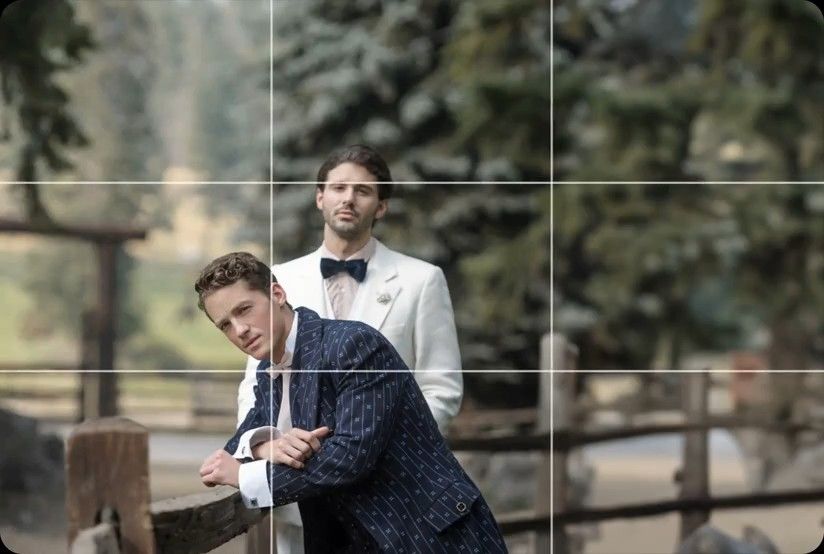
Crop & Straighten
AI levels tilted horizons and crops every photo around its subject, automatically, across your whole shoot. Review and adjust every result in Lightroom Classic.

You'll deliver consistent galleries by 9 AM. Batch process frames in Lightroom Classic with your Personal AI Profile to scale your team.
Compatible with:


 No credit card required.





Rated 5 out of 5
“The term 'game changer' gets thrown out a lot, but for any busy photographer, this software will change your life.”
 Michael AntonyMichael Antony Photography, USA
Rated 5 out of 5
“My survival is due to Imagen… I would MARVEL at how little I had to adjust.”
 Charmi Patel PeñaWedding Photographer, USA
Rated 5 out of 5
“It’s so refreshing to start with a high level of quality, and it leaves me with much more energy to spend on my favorite photos.”
 Sam HurdSam Hurd Photography, USA
Rated 5 out of 5
“Discovering Imagen has been like someone inventing toilet paper. Simply essential and now life is unthinkable without it. I now know that those years of editing backlogs are a thing of the past. I'm truly grateful.”
 Sarah EdmundsPortrait & Wedding Photographer, Italy
Rated 5 out of 5
“It’s a must for me after my culling process. Love Imagen since day one.”
 Fer JuaristiFer Juaristi Photography, Mexico
Rated 5 out of 5
“Thanks to Imagen, I can actually enjoy editing… I have recovered hundreds of hours back.”
 Daniel AlonsoPeople TrueLove Tellers, Spain
Stop spending countless hours on repetitive editing tasks.
Focus on what matters most: your creativity and your clients.

Cut your post-production time dramatically with AI-powered automation.

Apply consistent edits across hundreds of photos in seconds, not hours.

Let AI identify and remove blurry shots, duplicates, and closed eyes automatically.

Edit entire events shoots or portrait sessions while you focus on your next creative work.
Next morning delivery
Process 1,000 photos in minutes inside Lightroom Classic. You'll get galleries ready to send by 9 AM. Rely on the AI Color Cast Removal Tool for Indoor Photos to fix tricky mixed lighting fast.
Try for free
Brand consistency
Batch process thousands of frames and keep your exact look. Your Personal AI Profile learns your style, so you always deliver consistent quality. It doesn't matter who shot the gallery.
Try for free
AI levels tilted horizons and crops every photo around its subject, automatically, across your whole shoot. Review and adjust every result in Lightroom Classic.
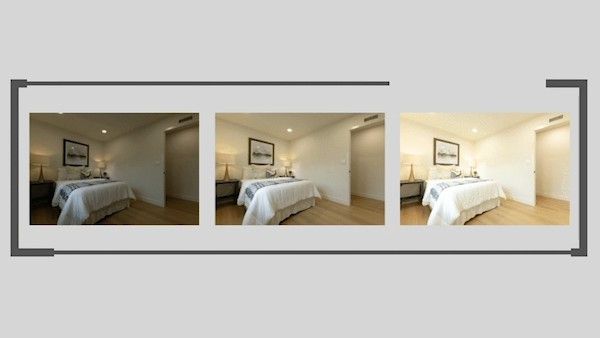
Automatically combine 3–9 bracketed exposures into one perfectly balanced photo using an AI HDR photo merge tool that handles indoor and outdoor lighting in one shot.
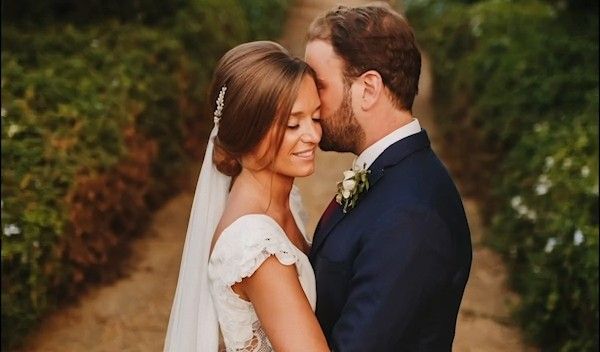
Smooth Skin finds every face, masks the skin and softens it automatically, so every portrait looks polished and natural without manual retouching.
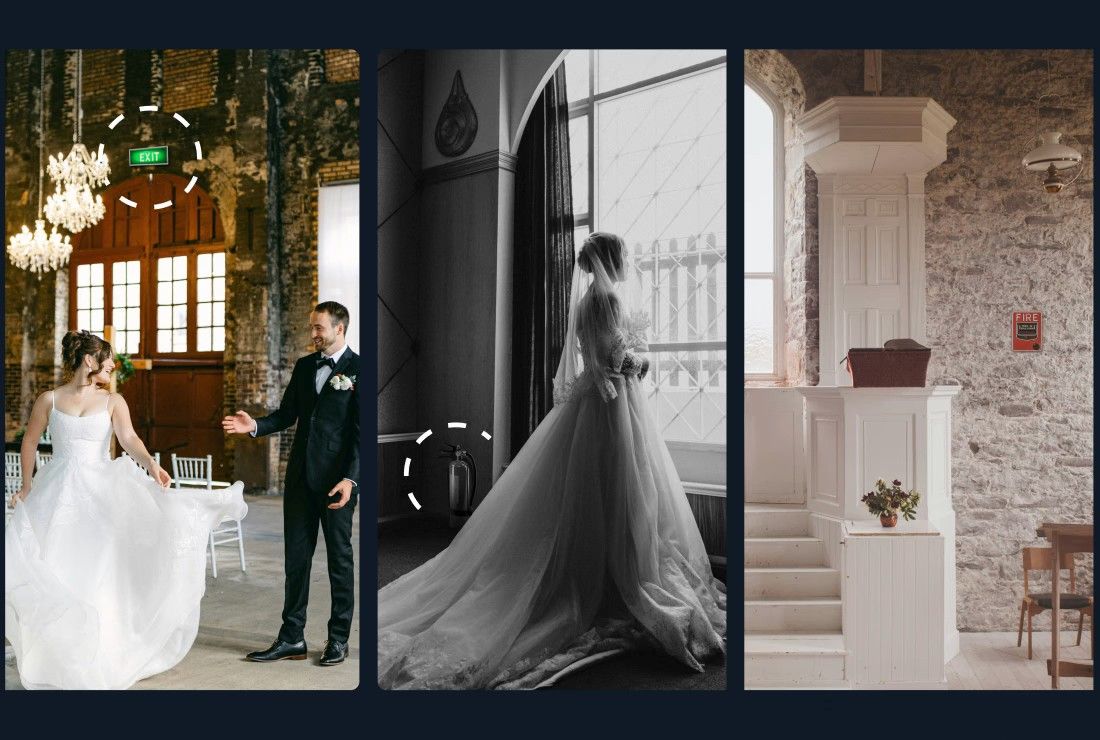
Object Removal automatically detects and removes exit signs, fire alarms, fire extinguishers, and fire stickers from your photos — across your entire gallery, in the cloud, without Photoshop.
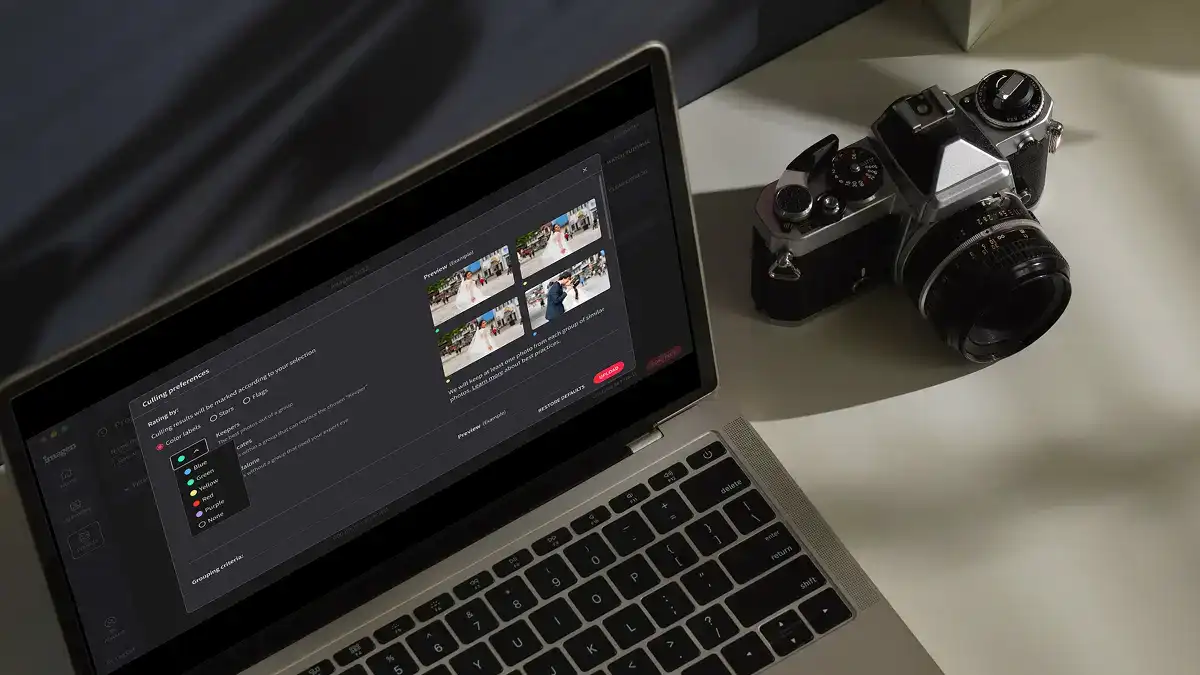
Edit thousands of photos in your style automatically. Imagen's AI learns your editing preferences and applies them consistently across entire projects, so you deliver faster without losing your creative touch.
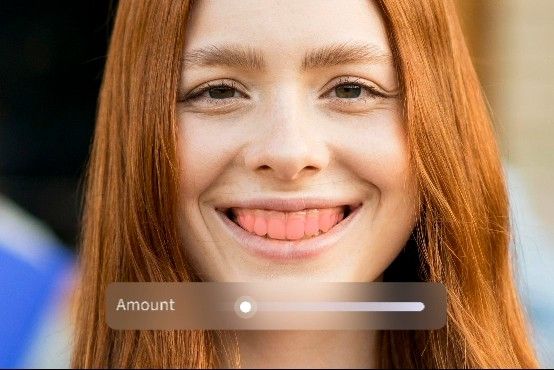
Whiten Teeth detects and brightens teeth in each photo automatically, so every smile looks its best without manual retouching.
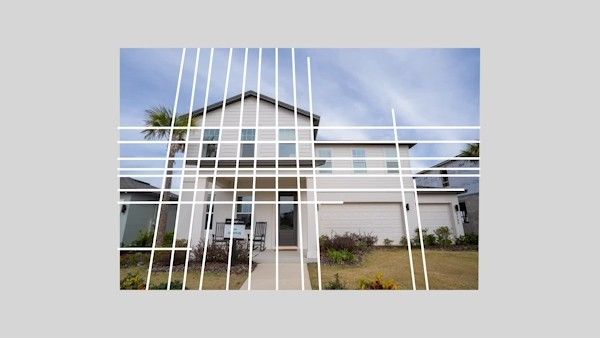
Automatically fix distorted lines and tilted horizons using an AI image perspective correction tool that analyzes each photo, with full control to review and adjust every result.

Automatically crop hundreds of portrait photos to a consistent frame using an AI portrait crop tool that detects each subject and places them perfectly — so every face lands exactly where it should.
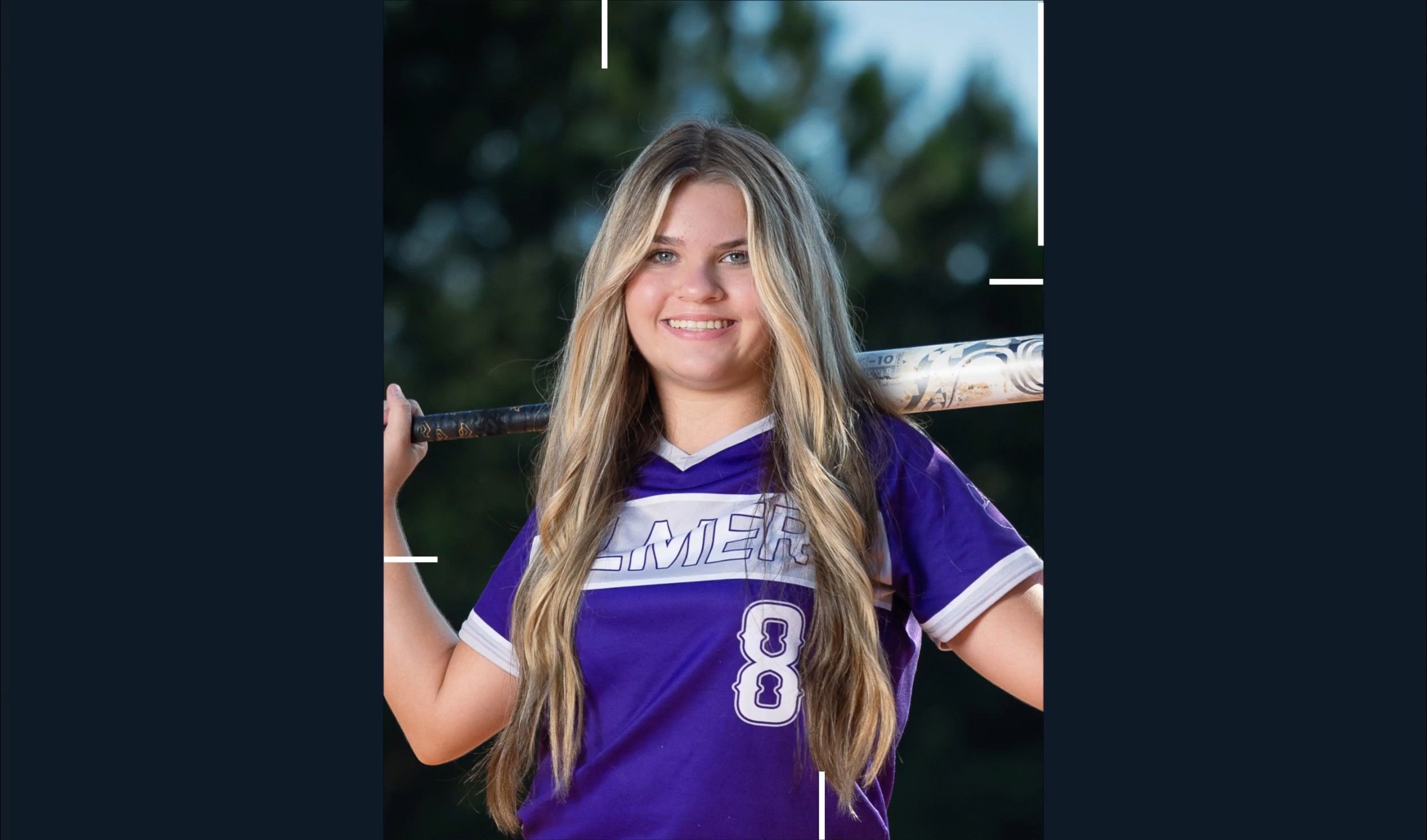
Automatically crop headshots with an AI headshot photo cropper that detects every subject and frames each shot consistently, with full control to review and adjust every result.
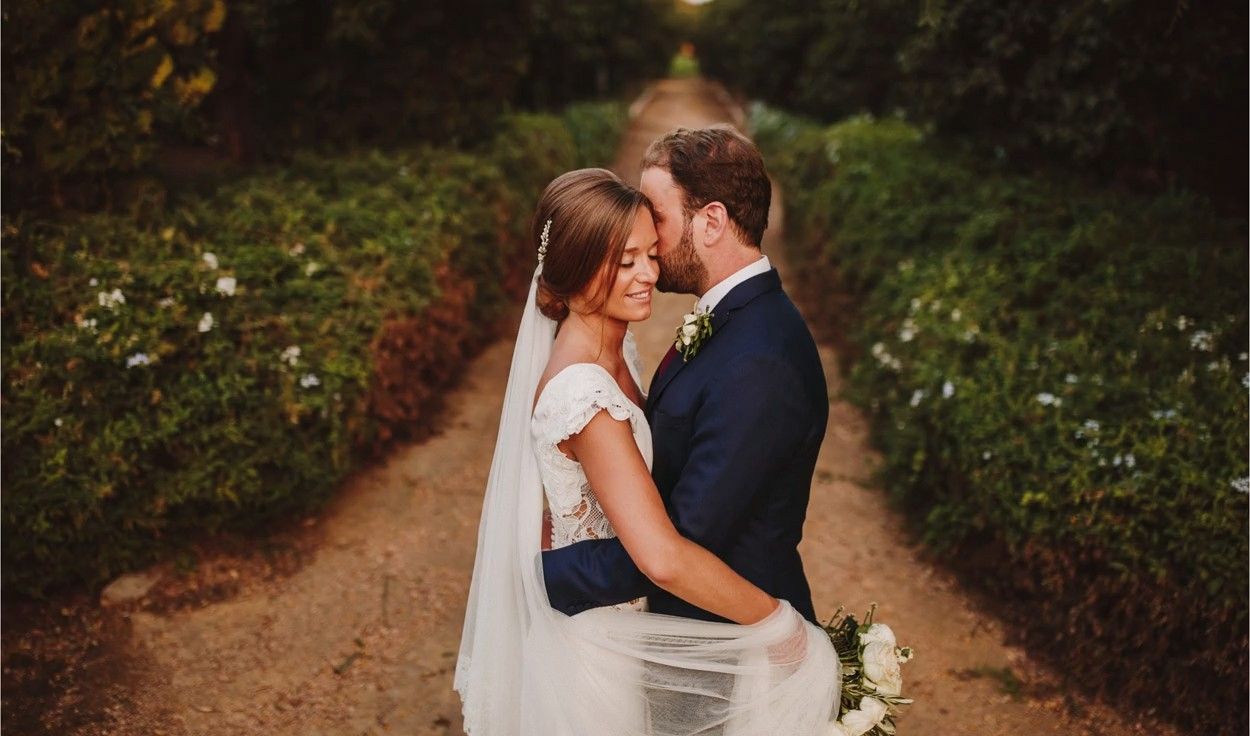
Mask the background in every photo automatically and adjust its exposure, color and texture on their own, so your subject stands out. Review and refine every result in Lightroom Classic.

Remove grain from high-ISO and low-light RAW photos automatically. Imagen sets the strength for each photo, keeps the detail and your editing style, and sends the results to Lightroom Classic.

Automatically extract subjects from any photo using an AI-powered background remover that keeps edges clean, detail sharp, and every result ready to review.
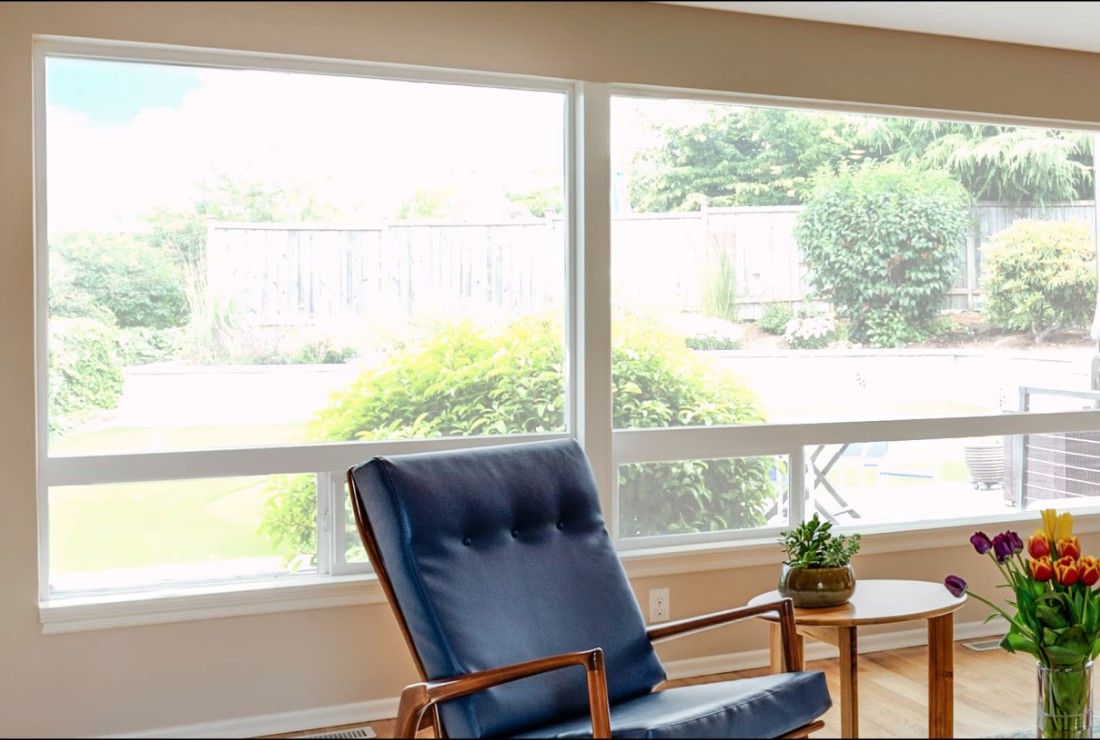
Balance bright windows with indoor subjects using an AI-powered tool that detects overexposed areas and pulls back highlights, with full control to review and adjust every result.

Export final JPEGs straight from Imagen to Pic-Time galleries or your local folder. Complete your entire workflow from camera to client, without switching apps.

Imagen's AI culling groups similar shots and keeps only the best. Duplicate Removal happens automatically, so you review fewer photos and deliver faster.

Imagen's AI analyzes every face in your photos and detects closed eyes automatically. Blink Detection flags the issue so you keep the shots where everyone looks their best.

Imagen's AI Subject Mask finds the main subject in every photo and adjusts it on its own, so it stands out. No manual brushwork, no repetitive masking: consistent results across your whole project, ready in Lightroom Classic.
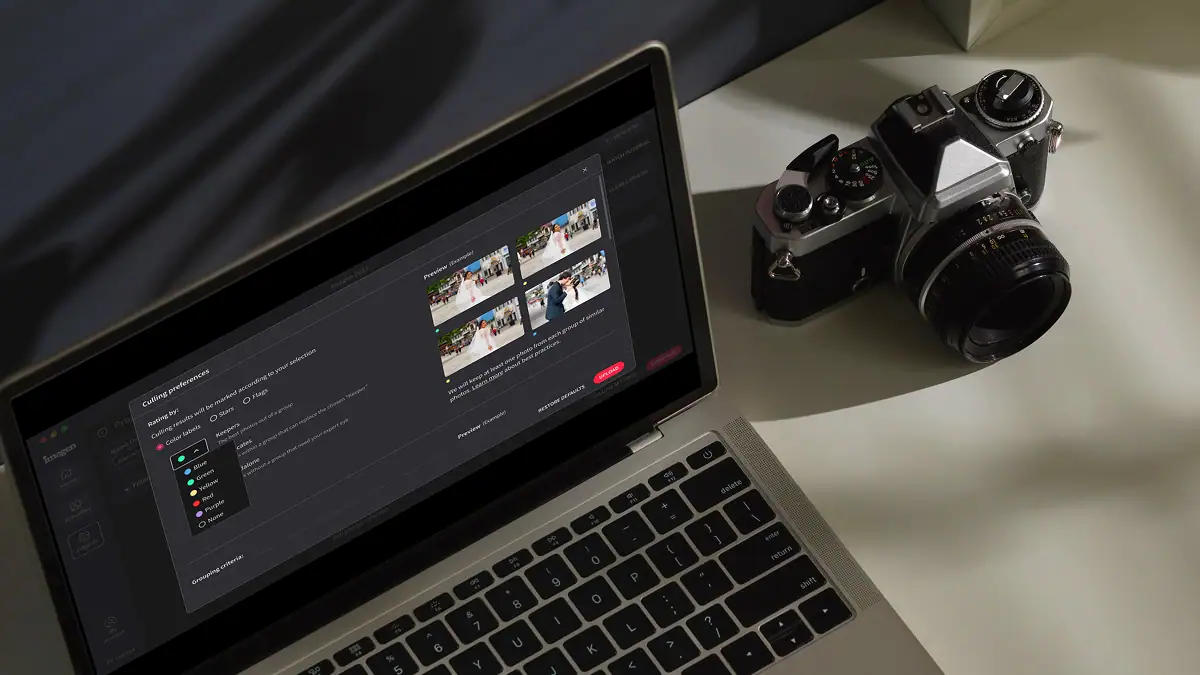
Automatically detect the sharpest photos in every set using an AI-powered Sharpness Check that analyzes focus accuracy — so you cull faster and choose with confidence.

Automatically back up your original RAW files to secure cloud storage as you work — so your client photos are always protected, without any extra steps.

Store full-resolution photos at up to 75% smaller file size — so your photo storage goes 4x further, uploads faster, and your work stays protected without the cost of raw file bloat.
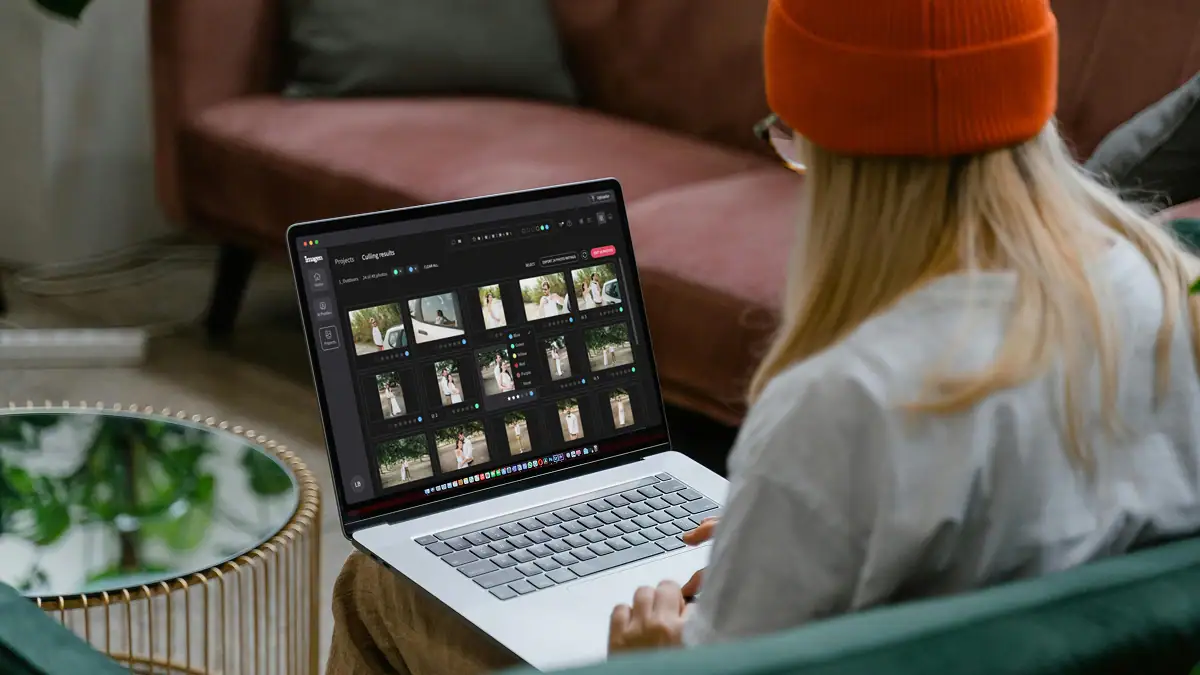
The Imagen API lets developers connect Imagen's AI editing engine directly to any app, platform, or workflow — so your photos get edited automatically, at any scale, without the desktop app.

Stray Hair detects flyaways in each portrait and removes them automatically, so every photo looks polished without hours of manual retouching.

Face Retouch detects and corrects common skin imperfections in each portrait. Blemishes, under-eye shadows, uneven texture; so every photo looks polished without tedious manual work.
Get started with 1,000 free edits. Edit your projects faster without sacrificing quality.
Pay only for what you need
Starting at
US$0.05 / photo
US$7/monthly base fee
Any unused balance rolls over to next month as editing credit
One simple price for unlimited use
Billed annuallyBilled monthly
US$129US$165 / month
Save US$432/year
* Looking for Imagen for Real Estate? The web app for real estate is priced separately. See real estate pricing
* Not sure which plan? Start with Pay-as-you-go and switch later.
Speed, consistency, and scale for high-volume businesses and studios
Talk to us
Custom plan
Ask us anything, connect with our customer success team.
We go beyond troubleshooting - we’re your partners in optimizing workflows and realizing your creative vision.
No credit card required.
Fallback is your safety net when your Personal AI Profile encounters lighting conditions it hasn't fully learned yet. You train your profile with 3,000 previous edits to teach it your exact style. Sometimes you shoot a property with highly unusual mixed lighting that your profile doesn't instantly recognize. When this happens, the system uses a fallback method to apply baseline corrections based on standard photographic principles. This ensures you maintain strict consistency across the entire gallery without any jarring changes in look or feel. Think of it as a smart backup plan that keeps your batch processing moving at full speed. Instead of stopping the edit or guessing wildly, the software applies a reliable base edit. You stay in complete control because you can easily tweak these fallback edits in Lightroom Classic. Once you adjust those specific photos and upload the final edits, your Personal AI Profile learns from them. The next time you shoot a listing with that same tricky lighting, the AI knows exactly what to do. Your clients get their photos on time, and you spend less time fixing odd color shifts.
A fallback profile maintains consistency by applying a standardized baseline edit whenever your custom parameters don't cover a specific lighting situation. You often deliver a gallery of 50 or 100 images for a single property, and every frame needs to look like it belongs to the same set. If the AI encounters a completely dark room or a weird fluorescent bulb it hasn't seen, it triggers the fallback protocol. This protocol uses a general understanding of proper exposure and white balance to bridge the gap. It applies adjustments that closely match your overall style rather than applying a random guess. This process is essential when you use the AI Color Cast Removal Tool for Indoor Photos to fix tricky lighting. The fallback keeps that even the most difficult frames blend smoothly with the rest of your batch processing workflow. You review the final results in Lightroom Classic and make any minor tweaks needed before sending the final listing to your client. By having this backup layer, you avoid wildly different color temperatures from room to room. Your edits stay uniform from the front door to the backyard.
The AI Color Cast Removal Tool for Indoor Photos uses a fallback method when it detects a color contamination that falls outside your typical training data. You might shoot a room where bright green light bounces off a painted wall and mixes with warm tungsten bulbs. If your Personal AI Profile hasn't processed this exact mixture before, the tool defaults to its fallback algorithm. This algorithm specifically targets and neutralizes unnatural color shifts using standard color theory. It removes the green or orange tint to restore natural white walls and accurate skin tones if people are in the frame. This fallback action guarantees that your batch processing doesn't stall on a single difficult image. You maintain perfect consistency across the entire gallery because the tool makes a safe, neutral correction. You then sync these results directly into Lightroom Classic. You retain full control to warm up or cool down the room exactly how you want it. This backup step protects the quality of your listing photos and keeps you never deliver a batch with unexpected color casts.
You customize your fallback settings simply by continuing to edit and uploading those new edits to fine tune your profile. The fallback system itself is an automated safety net, but you dictate how often it triggers based on the data you provide. When you deliver a gallery for a new property, you review the AI edits in Lightroom Classic. If you notice a photo where the fallback method was used, you adjust the sliders to match your exact vision. You then send those final adjustments back to us. Your Personal AI Profile learns from these tweaks and updates its understanding of your style. After a few updates, the AI no longer needs to use the fallback for that specific lighting scenario. It applies your exact custom edit instead. This means the system constantly evolves to match your specific needs for every listing. You are always in control of the final look. The more you use Imagen, the less it relies on the baseline fallback, giving you greater consistency and faster batch processing over time.
Fallback processing actually protects your turnaround time for a new listing by preventing the AI from getting stuck on confusing lighting. When you process a batch of 500 images, you need the software to move quickly. If the system encounters a complex exposure that your Personal AI Profile doesn't recognize, the fallback protocol instantly steps in. It applies a safe, accurate baseline edit in milliseconds. This means your batch processing continues without any interruptions or error messages. You get your entire gallery back in minutes rather than waiting for the system to struggle with a few difficult frames. This speed allows you to review the photos in Lightroom Classic much sooner. Because the fallback edit provides a solid starting point, you spend only a few seconds tweaking the file instead of starting from scratch. Your overall workflow stays incredibly fast, helping you deliver perfect consistency to your clients well before your deadline. You save hours of manual work and keep your real estate business moving at top speed.
The fallback system works seamlessly with RAW files from all major camera manufacturers. Whether you shoot with Sony, Canon, Nikon, or Fujifilm, the AI reads the raw data exactly the same way. When you upload a batch of RAW photos for a property, we analyze the specific color science and dynamic range of your camera. If your Personal AI Profile needs to use the fallback method on a difficult frame, it applies corrections based on that specific RAW data. This keeps the baseline edit looks natural and respects your camera sensor capabilities. The AI Color Cast Removal Tool for Indoor Photos also uses this raw data to accurately identify and neutralize unwanted color shifts. You don't need to convert your files or change your shooting habits. You simply import your RAW files into Lightroom Classic and let Imagen handle the heavy lifting. The fallback process maintains strict consistency across your entire gallery, even if you switch camera bodies halfway through a shoot. You always remain in control of the final output.
Relying on an AI fallback is entirely different from slapping a static preset onto your photos in Lightroom Classic. A standard preset applies the exact same mathematical adjustments to every single image, regardless of the lighting or exposure. If you apply a preset to a dark room and a bright window shot, the results will look completely different. The AI fallback analyzes the specific content and lighting of each individual photo before making any adjustments. It acts as an intelligent backup for your Personal AI Profile. If the AI encounters a tricky lighting situation in a property, the fallback calculates the precise exposure, contrast, and white balance needed to bring that specific frame up to a neutral baseline. This dynamic approach guarantees true consistency across your entire gallery. You avoid the tedious work of manually fixing the photos where a static preset failed. Your batch processing yields a highly accurate starting point for every image, making your workflow for a new listing incredibly fast and reliable.
The fallback process never overrides the adjustments made by your Personal AI Profile. It only activates when your custom profile lacks the specific data needed to confidently edit a challenging photo. Think of your Personal AI Profile as the primary driver for your batch processing. It takes care of the vast majority of your gallery using the exact style you taught it. The fallback acts strictly as a safety net for the rare outliers. For example, if you shoot a listing with a bizarre mixture of neon lights and dark shadows that you haven't photographed before, the AI recognizes its own limitations. Instead of guessing and applying a bad edit, it uses the fallback to provide a clean, neutral correction. You then open Lightroom Classic and apply your final creative touches to those specific frames. Because you are always in the driver seat, you control the final look. The fallback simply ensures you maintain a baseline of consistency, saving you from doing heavy manual corrections on weirdly lit property photos.
Batch processing handles a gallery smoothly even when the fallback protocol is triggered on several images. You don't experience any pauses, alerts, or slowdowns during the editing phase. When you send 1,000 photos to us, we analyze each frame individually at lightning speed. If 980 photos match the training of your Personal AI Profile, they get your exact custom edits. If the remaining 20 photos feature unrecognized lighting, the system instantly applies the fallback correction to those specific files. The entire batch finishes at the same time and syncs back to your Lightroom Classic catalog as one complete set. This hidden process ensures your workflow remains incredibly fast and completely uninterrupted. The AI Color Cast Removal Tool for Indoor Photos works the same way, applying fallback color corrections only where needed without slowing down the batch. You get a fully edited real estate project delivered in minutes. This guarantees perfect consistency across the entire shoot, allowing you to deliver the final property photos to your client on schedule.
The fallback feature itself is a static baseline, but it helps your Personal AI Profile learn your editing style over time. When the fallback triggers on a difficult photo, it provides a clean, neutral starting point in Lightroom Classic. You then adjust the exposure, fix the shadows, and dial in the colors to match your exact vision for that property. When you finish editing the gallery, you upload those final tweaks back to us. Your Personal AI Profile analyzes the difference between the fallback edit and your final version. It learns exactly how you handled that tricky lighting situation. The next time you shoot a listing with similar conditions, your profile knows what to do and won't need to use the fallback at all. This continuous learning loop drastically reduces how often the fallback is needed. As you process more batches, your custom profile becomes smarter and more accurate. This keeps maximum consistency and cuts your manual editing time down to almost nothing.

Start your free trial today - no commitment required