
 Excellent 4.8


 Compatibility
AI background mask for every photo
Mask the background in every photo automatically and adjust its exposure, color and texture on their own, so your subject stands out. Review and refine every result in Lightroom Classic.
Try it now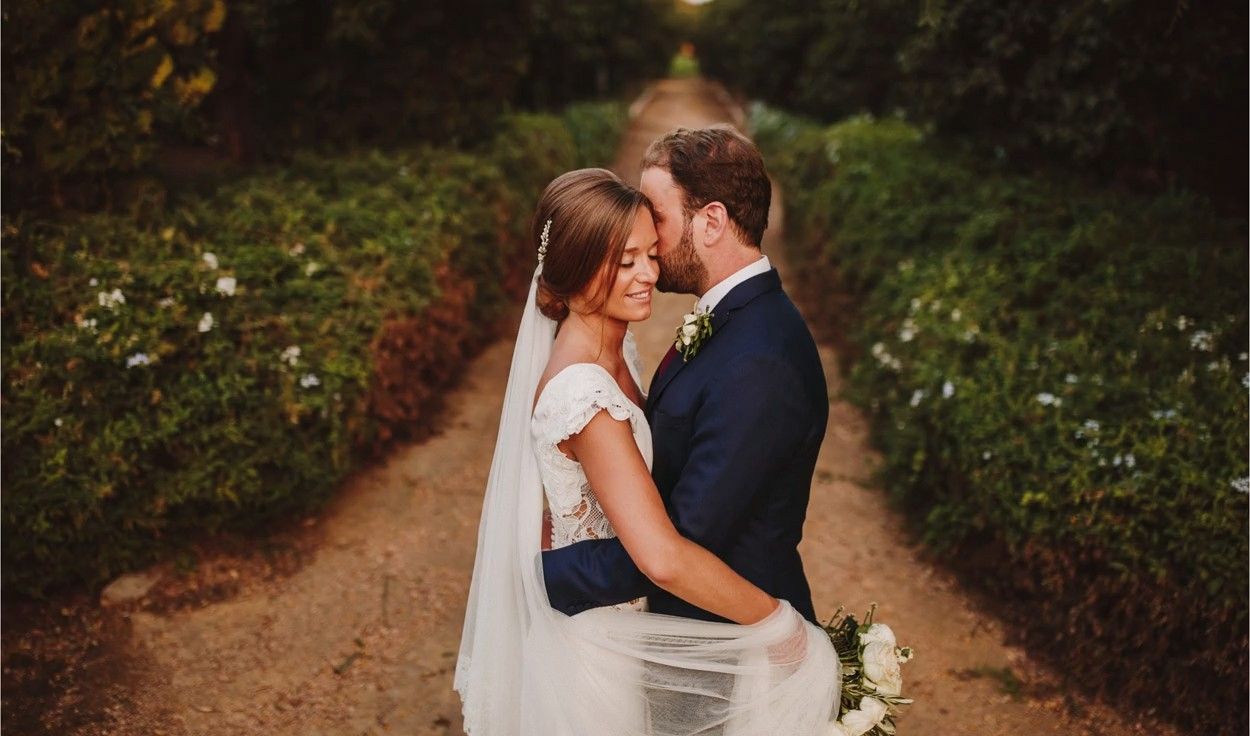
Why Photographers Choose Imagen

Faster Turnaround
Edits delivered in hours, and even minutes - not days.

Your Style, Always
Imagen learns your editing style and applies it consistently.

Here for You
Our team is here 24/7 with real, human support.

Complete Workflow
Cull, edit, store and deliver seamlessly, all under one roof.
How the AI background mask works
Imagen selects the background in each photo for you, then edits it on its own, so the subject draws the eye without a single brush stroke.
Try it todayAutomatic background selection
The AI finds and masks the background in every photo of the project. You don’t draw selections or paint masks.
Make your subject stand out
Darken, desaturate or soften the background while the subject stays as it is. Every adjustment stays on the background mask.
Correction or fixed values
Let the AI choose the values for each photo, or set fixed ones. Change them anytime from the Projects page, for this project and the next ones.
Pair it with Subject Mask
Use Background Mask with Subject Mask for control over the whole frame: brighten the subject, quiet the background, done.
Reviews from those who know best.
Rated 5 out of 5
“The term 'game changer' gets thrown out a lot, but for any busy photographer, this software will change your life.”
 Michael AntonyMichael Antony Photography, USA
Rated 5 out of 5
“My survival is due to Imagen… I would MARVEL at how little I had to adjust.”
 Charmi Patel PeñaWedding Photographer, USA
Rated 5 out of 5
“It’s so refreshing to start with a high level of quality, and it leaves me with much more energy to spend on my favorite photos.”
 Sam HurdSam Hurd Photography, USA
Rated 5 out of 5
“Discovering Imagen has been like someone inventing toilet paper. Simply essential and now life is unthinkable without it. I now know that those years of editing backlogs are a thing of the past. I'm truly grateful.”
 Sarah EdmundsPortrait & Wedding Photographer, Italy
Rated 5 out of 5
“It’s a must for me after my culling process. Love Imagen since day one.”
 Fer JuaristiFer Juaristi Photography, Mexico
Rated 5 out of 5
“Thanks to Imagen, I can actually enjoy editing… I have recovered hundreds of hours back.”
 Daniel AlonsoPeople TrueLove Tellers, Spain
Frequently asked questions
What does the AI Background Mask do?
It automatically selects the background in each photo and edits it separately from your subject. Change the exposure, color or texture of the background only, so the subject stands out, without touching the subject at all.
Do I have to draw the mask myself?
No. The AI detects the background in each photo and creates the mask for you. You don’t draw selections or paint anything: you choose the adjustments, and Imagen applies them to the background across the whole project.
How is Background Mask different from Subject Mask?
Subject Mask adjusts the subject. Background Mask adjusts everything around it. Use them together for local control over the whole frame: brighten the subject with Subject Mask, then darken or desaturate the background with Background Mask.
What adjustments can I make to the background?
Exposure, color and texture. Choose Correction to let the AI pick the values for each photo, or set fixed values. Go subtle and natural, or bold and high-contrast: you decide before the edits reach your Lightroom Classic catalog.
Can I change the settings after my project is edited?
Yes. Change the Background Mask settings anytime from the Projects page and download the edits again. Your settings can apply to the current project and to future ones, and you can reset them to the defaults whenever you like.
How many photos can I use it on?
Background Mask is recommended for projects of up to 3,000 photos. It’s built for portrait, wedding and event photographers who would otherwise pull down the background exposure or shift its color shot by shot in Lightroom. More tools like it are on the AI photo editing tools page.


