
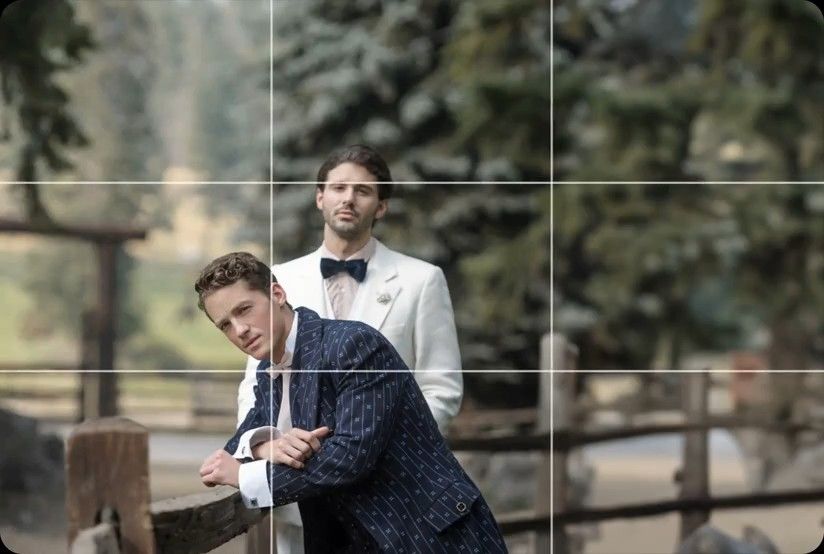
Crop & Straighten
AI levels tilted horizons and crops every photo around its subject, automatically, across your whole shoot. Review and adjust every result in Lightroom Classic.


For real estate photographers who need perfect focus. We automatically check sharpness on every photo so you can deliver with confidence.
Compatible with:


 No credit card required.





Rated 5 out of 5
“The term 'game changer' gets thrown out a lot, but for any busy photographer, this software will change your life.”
 Michael AntonyMichael Antony Photography, USA
Rated 5 out of 5
“My survival is due to Imagen… I would MARVEL at how little I had to adjust.”
 Charmi Patel PeñaWedding Photographer, USA
Rated 5 out of 5
“It’s so refreshing to start with a high level of quality, and it leaves me with much more energy to spend on my favorite photos.”
 Sam HurdSam Hurd Photography, USA
Rated 5 out of 5
“Discovering Imagen has been like someone inventing toilet paper. Simply essential and now life is unthinkable without it. I now know that those years of editing backlogs are a thing of the past. I'm truly grateful.”
 Sarah EdmundsPortrait & Wedding Photographer, Italy
Rated 5 out of 5
“It’s a must for me after my culling process. Love Imagen since day one.”
 Fer JuaristiFer Juaristi Photography, Mexico
Rated 5 out of 5
“Thanks to Imagen, I can actually enjoy editing… I have recovered hundreds of hours back.”
 Daniel AlonsoPeople TrueLove Tellers, Spain
Stop spending countless hours on repetitive editing tasks.
Focus on what matters most: your creativity and your clients.

Cut your post-production time dramatically with AI-powered automation.

Apply consistent edits across hundreds of photos in seconds, not hours.

Let AI identify and remove blurry shots, duplicates, and closed eyes automatically.

Edit entire events shoots or portrait sessions while you focus on your next creative work.
Deliver galleries by 9
Upload your HDR brackets after a shoot, and we'll have your gallery ready by 9 AM. Our AI edits and runs a sharpness check, so you don't have to. You get consistent, client-ready photos.
Try for free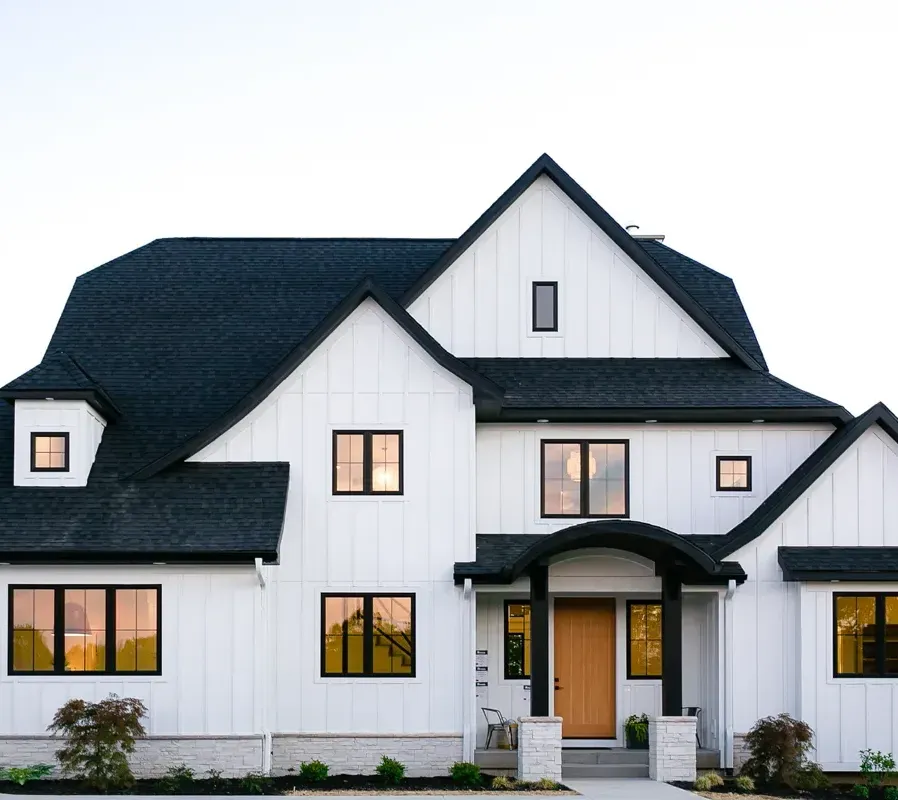
Your brand, consistent
Your Personal AI Profile ensures every photographer edits just like you. As you scale, your brand's look stays consistent across every listing. We also run a sharpness check so quality never slips.
Try for free
AI levels tilted horizons and crops every photo around its subject, automatically, across your whole shoot. Review and adjust every result in Lightroom Classic.
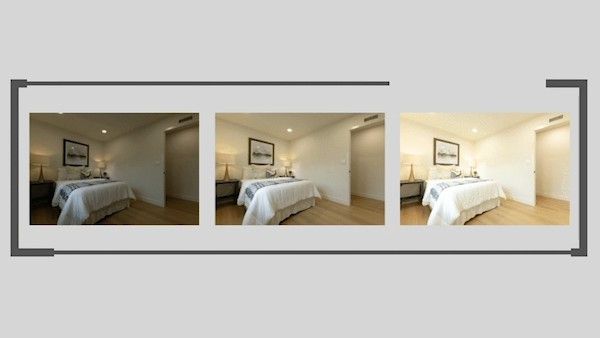
Automatically combine 3–9 bracketed exposures into one perfectly balanced photo using an AI HDR photo merge tool that handles indoor and outdoor lighting in one shot.
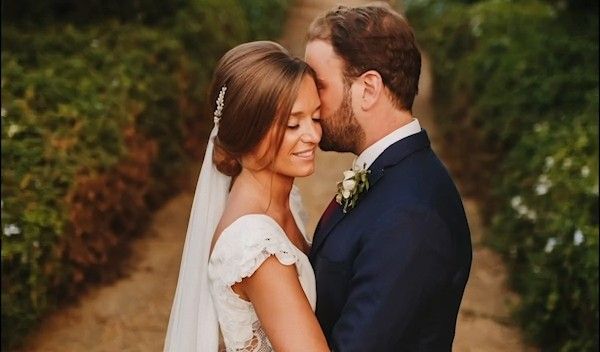
Smooth Skin finds every face, masks the skin and softens it automatically, so every portrait looks polished and natural without manual retouching.
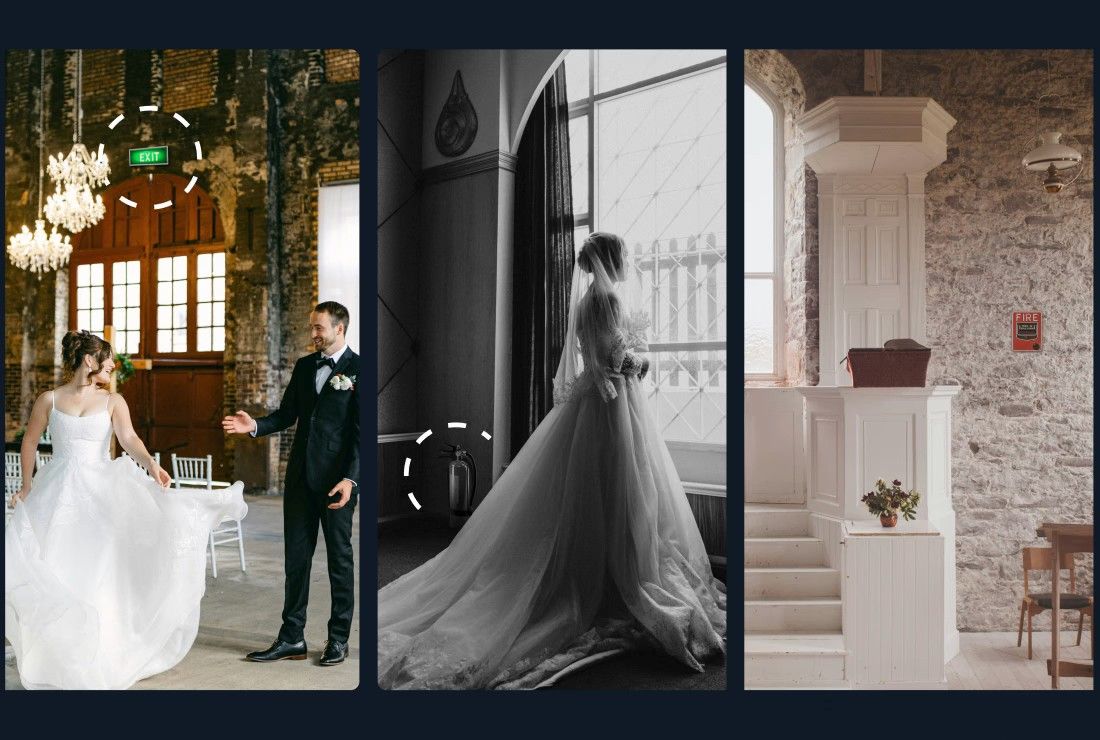
Object Removal automatically detects and removes exit signs, fire alarms, fire extinguishers, and fire stickers from your photos — across your entire gallery, in the cloud, without Photoshop.
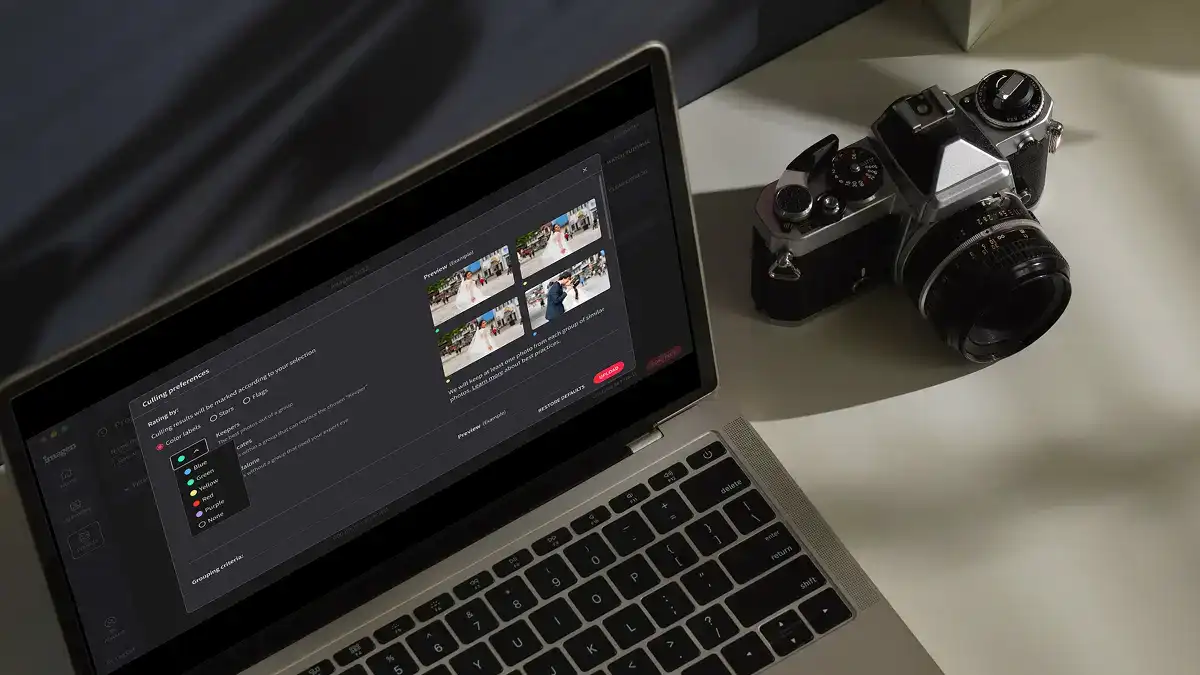
Edit thousands of photos in your style automatically. Imagen's AI learns your editing preferences and applies them consistently across entire projects, so you deliver faster without losing your creative touch.
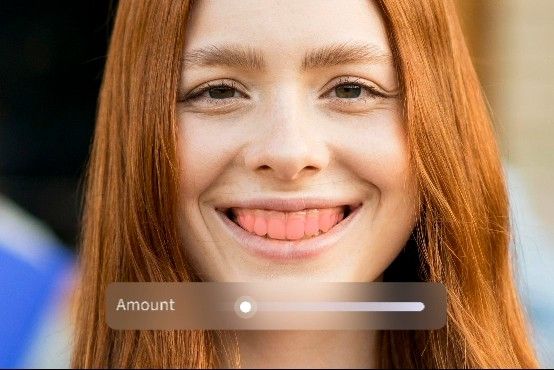
Whiten Teeth detects and brightens teeth in each photo automatically, so every smile looks its best without manual retouching.
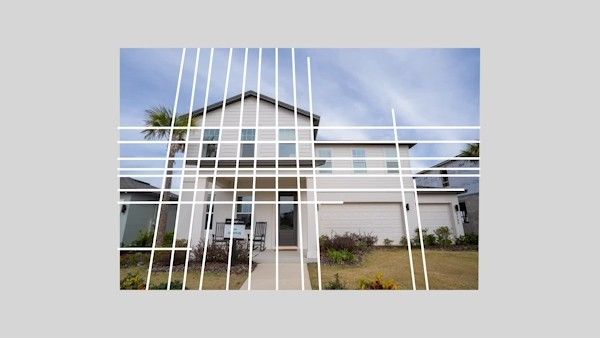
Automatically fix distorted lines and tilted horizons using an AI image perspective correction tool that analyzes each photo, with full control to review and adjust every result.

Automatically crop hundreds of portrait photos to a consistent frame using an AI portrait crop tool that detects each subject and places them perfectly — so every face lands exactly where it should.
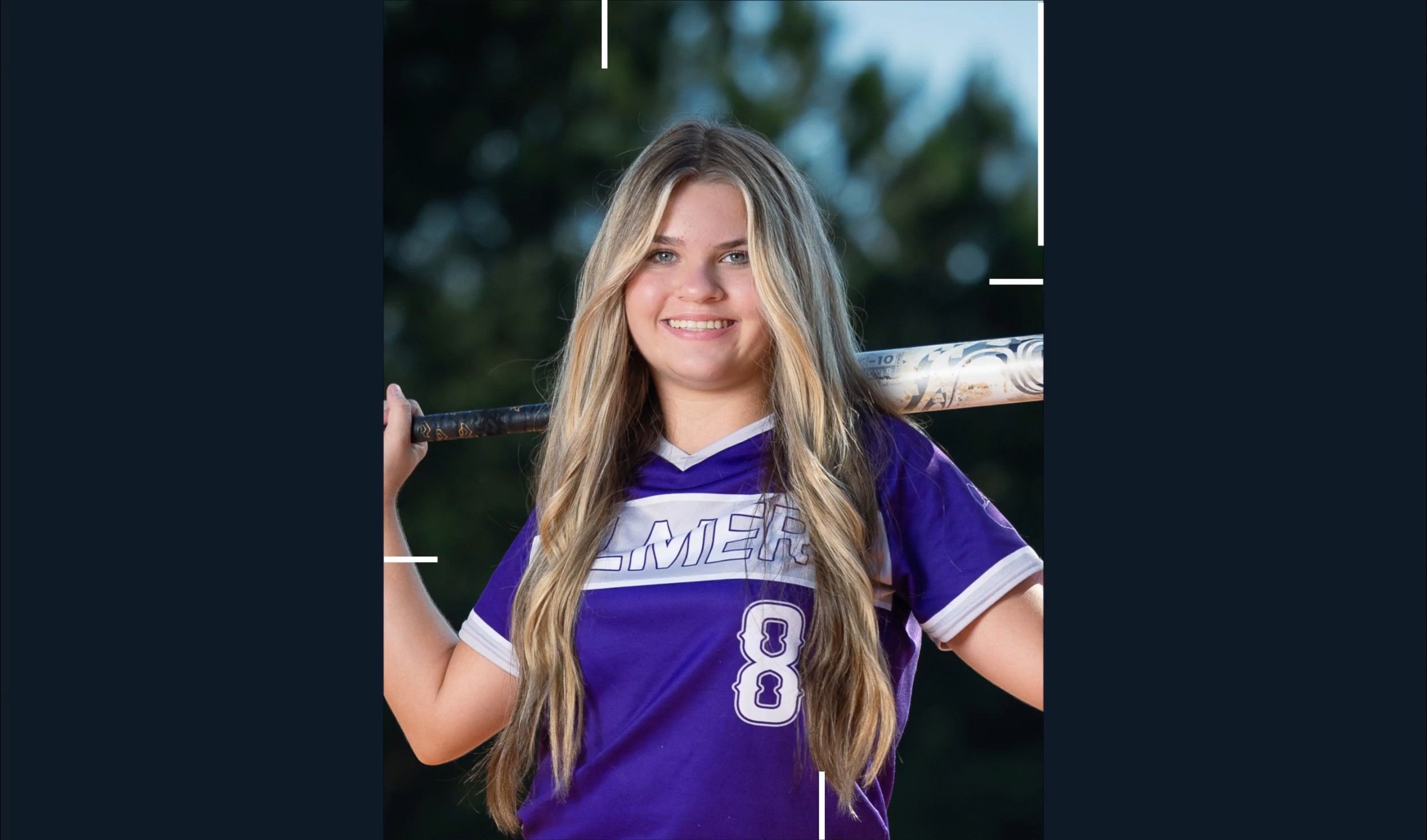
Automatically crop headshots with an AI headshot photo cropper that detects every subject and frames each shot consistently, with full control to review and adjust every result.
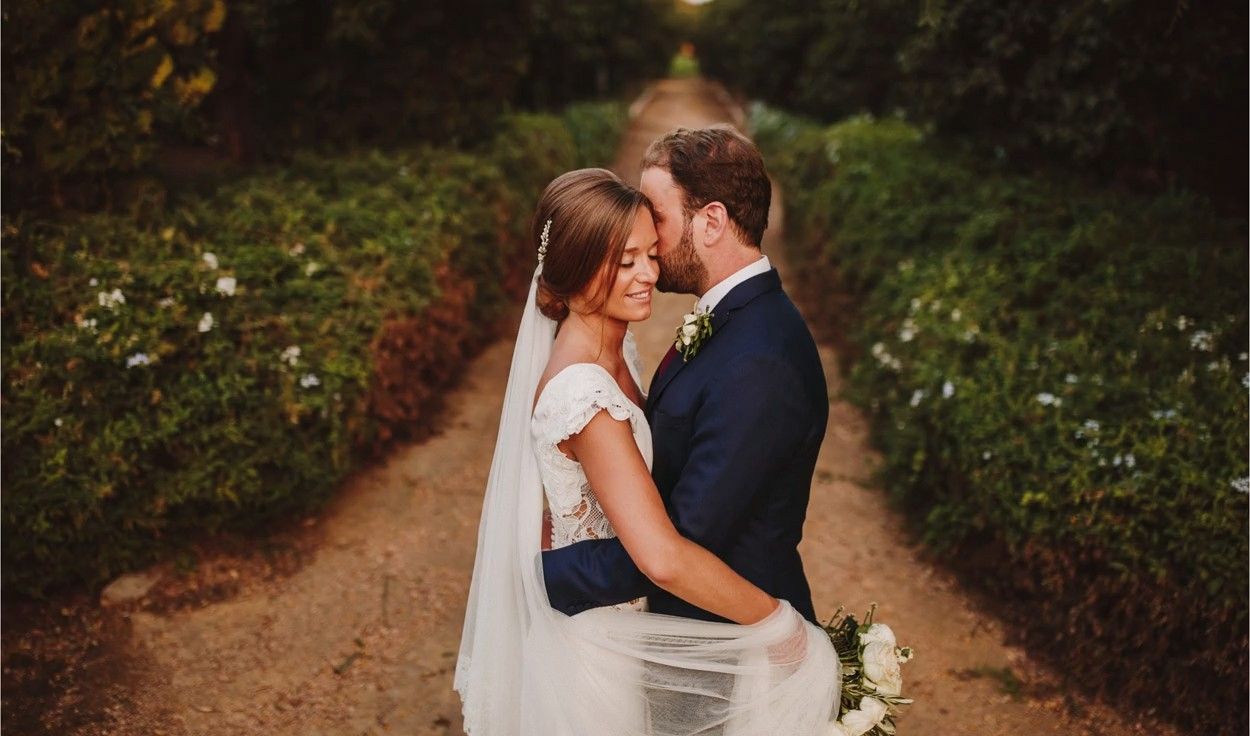
Mask the background in every photo automatically and adjust its exposure, color and texture on their own, so your subject stands out. Review and refine every result in Lightroom Classic.

Remove grain from high-ISO and low-light RAW photos automatically. Imagen sets the strength for each photo, keeps the detail and your editing style, and sends the results to Lightroom Classic.

Automatically extract subjects from any photo using an AI-powered background remover that keeps edges clean, detail sharp, and every result ready to review.
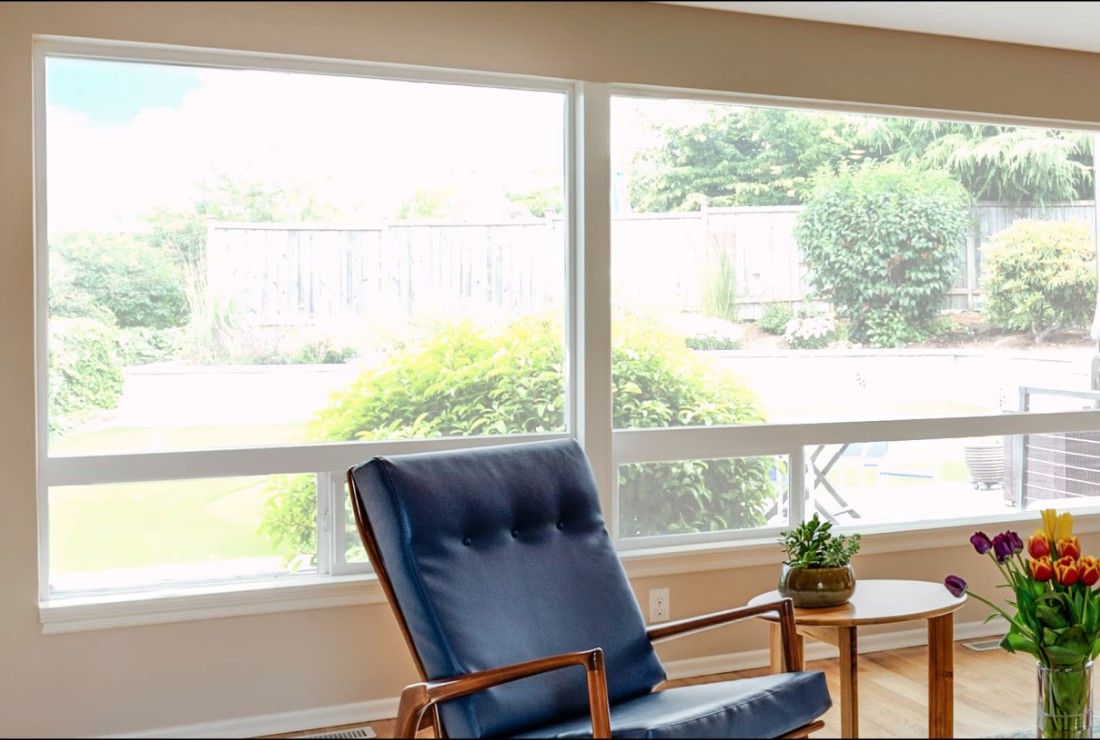
Balance bright windows with indoor subjects using an AI-powered tool that detects overexposed areas and pulls back highlights, with full control to review and adjust every result.

Export final JPEGs straight from Imagen to Pic-Time galleries or your local folder. Complete your entire workflow from camera to client, without switching apps.

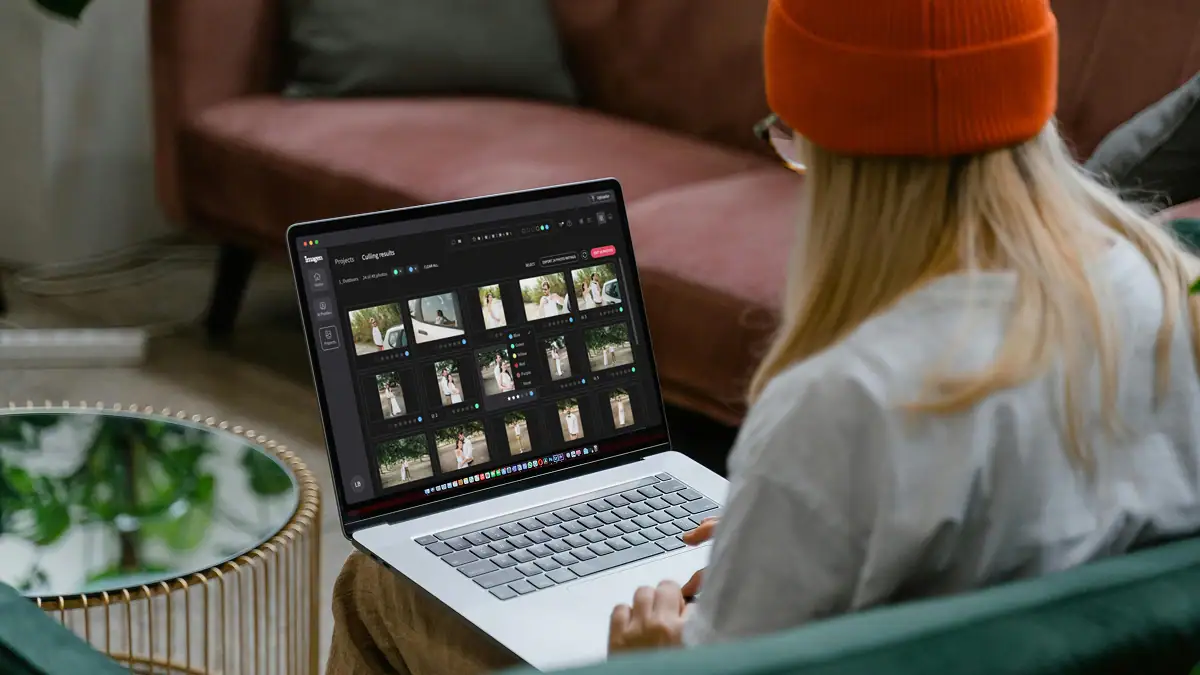
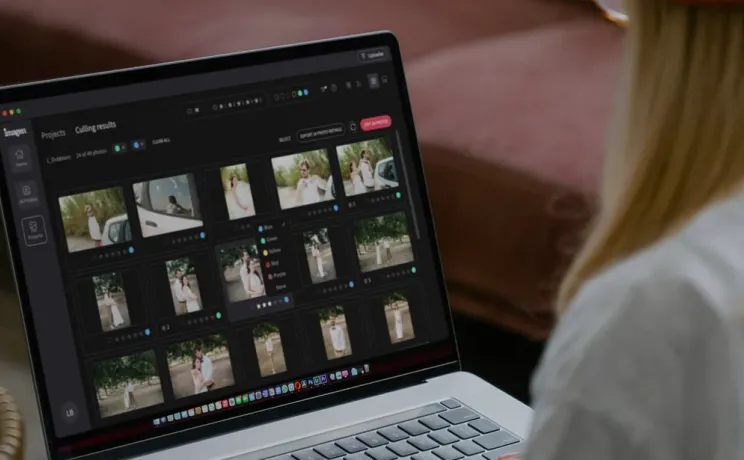
Imagen's AI culling groups similar shots and keeps only the best. Duplicate Removal happens automatically, so you review fewer photos and deliver faster.

Imagen's AI analyzes every face in your photos and detects closed eyes automatically. Blink Detection flags the issue so you keep the shots where everyone looks their best.

Imagen's AI Subject Mask finds the main subject in every photo and adjusts it on its own, so it stands out. No manual brushwork, no repetitive masking: consistent results across your whole project, ready in Lightroom Classic.
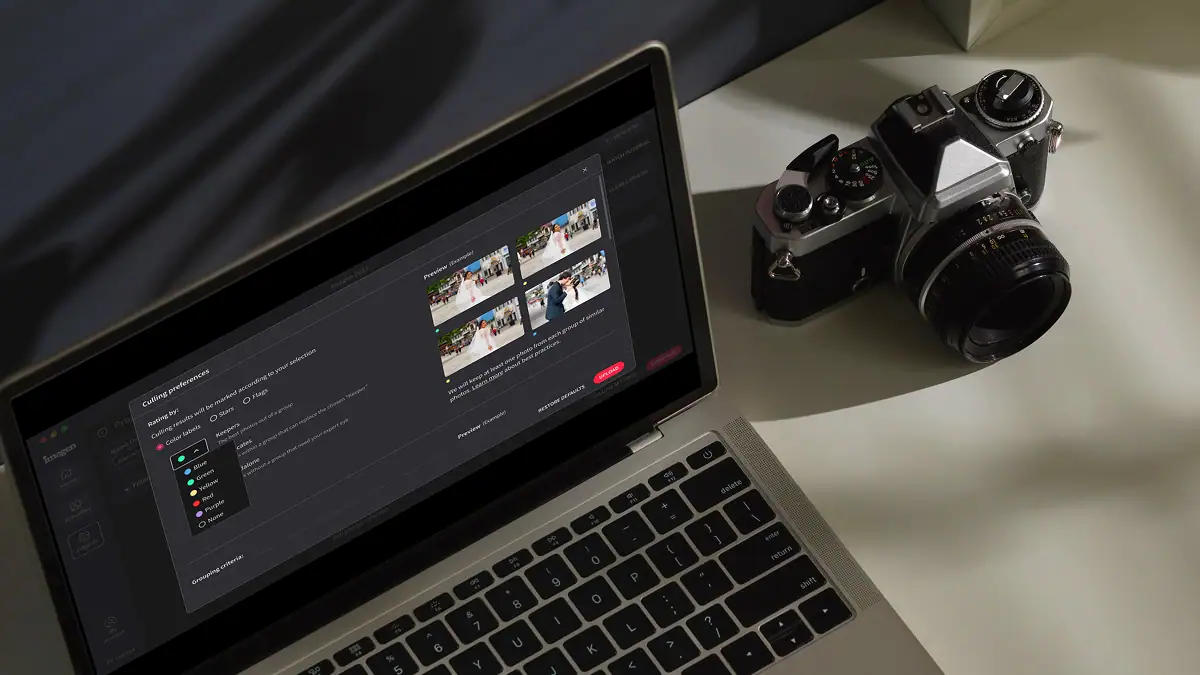
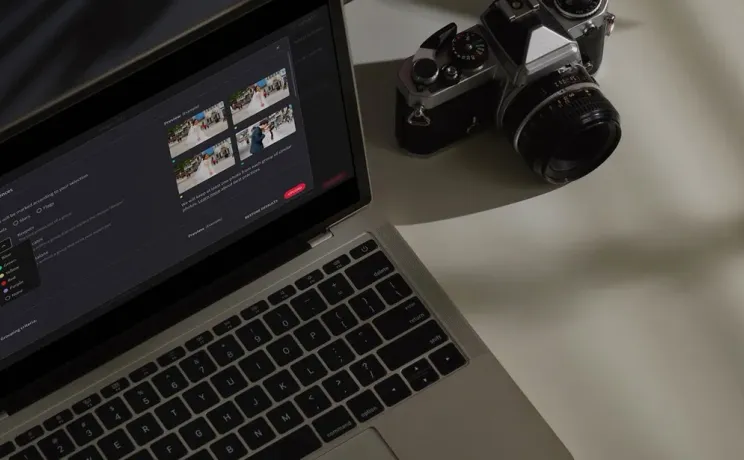
Automatically detect the sharpest photos in every set using an AI-powered Sharpness Check that analyzes focus accuracy — so you cull faster and choose with confidence.

Automatically back up your original RAW files to secure cloud storage as you work — so your client photos are always protected, without any extra steps.

Store full-resolution photos at up to 75% smaller file size — so your photo storage goes 4x further, uploads faster, and your work stays protected without the cost of raw file bloat.
The Imagen API lets developers connect Imagen's AI editing engine directly to any app, platform, or workflow — so your photos get edited automatically, at any scale, without the desktop app.

Stray Hair detects flyaways in each portrait and removes them automatically, so every photo looks polished without hours of manual retouching.

Face Retouch detects and corrects common skin imperfections in each portrait. Blemishes, under-eye shadows, uneven texture; so every photo looks polished without tedious manual work.
Early bird discount
No contracts, cancel anytime. Save money with pricing built for real estate photographers.
30% off first month
No commitment, pay for what you need.
US$0.22/ photoWasUS$0.32
First month 30% off, then US$0.32/photo. Applied at checkout. Cancel anytime.
Start free trial Full AI editing suite for property imagesHDR merge, sky replacement, window pull, perspective correctionOne-click AI fixesVirtual staging, digital twilight, green grass, black TV screens, and remove camera5 human revisions per listingUp to 6K resolution outputRAW and JPEG supportPrivacy blur for faces and license plates, property lines, branded watermark
* Prices in USD. Billed at the end of each month for that month’s edited photos.
For teams processing 25,000+ photos/year
Custom
Volume pricing for real estate teams and high-output agencies.
Schedule a callEverything in the Pay-as-you-go plan plus:
 Volume discountsDedicated account managerPriority processing
* Tailored to your workflow. Tell us your volume and we’ll build a quote.
Ask us anything, connect with our customer success team.
We go beyond troubleshooting - we’re your partners in optimizing workflows and realizing your creative vision.
No credit card required.
The fallback setting is a safety net that keeps every image in your real estate gallery receives a culling decision, even if the AI can't determine a clear subject for its sharpness analysis. This is crucial for maintaining consistency across a full property shoot. For example, in abstract architectural detail shots or wide-angle room views where a single focal point isn't obvious, the AI might struggle to pick the 'sharpest' subject. Instead of skipping the image or making a poor guess, the fallback option tells the AI how to proceed. You can set it to either 'keep' or 'reject' these ambiguous images by default. This gives you complete control over your final gallery, preventing any images from being missed and ensuring every single photo from the listing shoot is accounted for, which is essential for sending back a complete and consistent set of images for the property.
The fallback setting works automatically in the background during a batch cull, applying your pre-selected preference to any image where sharpness is ambiguous. When you upload a full property shoot, our AI analyzes each photo for sharpness. For the vast majority of your images, like a clear shot of a kitchen island or a fireplace, it will make a confident keep or reject decision. However, for that one abstract shot of a light fixture or a wide landscape view of the property, the fallback kicks in. If you've set the fallback to 'keep', the AI will mark that image for your review without rejecting it. This ensures that no creative shots are accidentally discarded, maintaining the integrity of the entire real estate listing gallery. It guarantees speed and consistency without sacrificing your artistic control over the final selection.
Using an AI fallback is about speed and achieving initial consistency across hundreds of photos in minutes, not hours. Manually sorting for sharpness in Lightroom means you have to zoom in on every single image, a tedious process that eats into your turnaround time. Our system does that first pass for you. The fallback's role is to handle the edge cases, the images where you might have to pause and think. By setting a 'keep' fallback, you're telling the AI, 'Do the heavy lifting on 95% of this real estate gallery, and just set aside the tricky ones for my final review.' This lets you focus your attention only on the small percentage of images that require your creative eye, rather than manually checking every photo from the property. It’s about automating the repetitive work so you can focus on the final polish of the listing.
Yes, you can adjust your fallback settings before you start any new culling project. This flexibility is perfect for real estate photographers who handle different types of properties. For a high-end luxury listing where you shot many artistic, abstract details, you might set the fallback to 'keep' to ensure none of those creative shots are accidentally filtered out. For a standard, high-volume property shoot where speed is the absolute priority, you might set the fallback to 'reject' to get a tighter initial selection. This control ensures that the AI's culling process aligns with the specific goals for each gallery. You can adapt the tool to fit the needs of the individual real estate listing, which helps you maintain perfect consistency with your brand's style and your client's expectations for that specific property.
A reliable fallback directly shortens your culling time, allowing you to deliver a finished gallery to your clients faster. The biggest time sink in culling is often the indecision over borderline images. The Sharpness Check's fallback automates this initial decision-making process for you. By telling the AI how to handle ambiguous photos upfront, you eliminate the need to manually review every single image from a property shoot. This means you can get a nearly-finished selection of the best images from a 500-photo real estate shoot in just a few minutes. This speed allows you to start editing sooner and deliver the final listing gallery to your agent a day or two earlier, a significant competitive advantage in the fast-paced real estate market. It's about creating a more efficient and predictable workflow for every single property you shoot.
No, the fallback setting only activates when the AI cannot make a high-confidence decision about the primary subject's sharpness. It's a safety measure, not an override. If you take a photo of a kitchen with the focus clearly on the granite countertop, our AI will confidently analyze that specific area and make a keep or reject decision based on its sharpness. The fallback rule is completely ignored in this case. It's only used for images where a subject isn't obvious, like a wide, deep-focus exterior shot of the property or a motion-blur shot for effect. This ensures you get the benefit of automated culling on the straightforward images while retaining full control over the more subjective shots, leading to better consistency across your final real estate gallery for the listing.
For a standard real estate property shoot, we recommend setting your fallback preference to 'keep'. This approach offers the best balance of speed and control. It allows the AI to confidently reject all the definitively blurry and out-of-focus shots, which is a huge time-saver. At the same time, it preserves any images that are ambiguous, like creative detail shots or dusk exteriors where focus might be softer by design. This gives you a tightly curated selection of images to start with, but ensures no potentially valuable shots for the listing gallery are lost. You can then do a quick final review of the 'kept' ambiguous images and make the final call yourself. This workflow maintains the artistic integrity of your work while still removing the most time-consuming part of the culling process, ensuring consistency and quality.
Yes, the fallback logic is designed to work smoothly with bracketed exposures common in real estate photography. When you upload a set of bracketed shots for an HDR merge, our system can assess the sharpness of the series before merging. If the AI is analyzing a bracketed set and cannot determine a clear focal point across the exposures, your fallback preference ('keep' or 'reject') will be applied to the entire group. This is essential for maintaining consistency. It prevents a situation where some of your bracketed sets are culled and others are left behind, which would disrupt your HDR workflow. This ensures that every potential HDR image for the property listing is handled according to your rules, making the culling and merging process for your final gallery much more predictable and efficient.
Setting the fallback to 'reject' prioritizes speed and delivers a very tight selection, but it does carry a small risk of filtering out creative or abstract shots. If you often shoot architectural details with soft focus or wide landscape shots of a property where a single sharp subject isn't the goal, a 'reject' fallback might discard them. Those images would be flagged as having ambiguous sharpness and then rejected per your instruction. We generally suggest this setting for photographers who prioritize a very clean, fast initial cull and are confident in their shooting style. For most real estate work, the 'keep' fallback is a safer option to ensure maximum consistency and that no potentially valuable image for the listing gallery is missed. You always have the final say, and choosing the right fallback is part of tailoring the tool to your specific workflow.
The fallback feature is a key component for scaling because it helps create a standardized, consistent culling process across your entire team. When you bring on associate photographers, you can establish a single set of culling rules, including the fallback preference, for everyone to use. This ensures that every property shoot, regardless of who shot it, is culled to the same standard. It removes the guesswork and subjective culling habits of individual photographers, leading to a more uniform final product for every real estate listing. This level of consistency is critical for building a recognizable brand and satisfying large clients who expect the same high-quality gallery every time. By automating the initial decision-making, you free up your team's time to shoot more properties and focus on client relationships, not tedious culling.

Start a free trial – no installation, no credit card needed. Or book a 20-minute demo and we’ll process a sample batch using your own photos.
Start free trial