

BeFunky vs. Fotor vs. Imagen: The Professional’s Guide to AI Photo Editing
Table of contents
- Key Takeaways
- The Core Philosophy: BeFunky vs. Fotor vs. Imagen
- Deep Dive: Imagen Capabilities
- Deep Dive: BeFunky Capabilities
- Deep Dive: Fotor Capabilities
- Comparison: Who Each Tool Is Built For
- Comparison: Generation vs. Real-Photo Editing
- Comparison: Editing Depth for Professional Work
- Comparison: Platforms and Daily Use
- Comparison: Pricing Models
- Feature Comparison Table
- Conclusion: Which Tool Fits You?
- Frequently Asked Questions
BeFunky, Fotor, and Imagen all call themselves AI photo tools, but a working photographer comparing the three will find they are built for different audiences. BeFunky and Fotor are browser-based graphic design and creative editing platforms aimed at general content creators, social media managers, and small businesses. Imagen is built specifically around a professional photographer’s RAW workflow: culling, consistent style, and delivering a finished gallery.
Imagen is now an intelligent Studio built for professional photographers, a step forward for the same product, not a separate app or a new brand. It is reaching photographers gradually over several weeks as the rollout is shaped by their feedback, and culling, editing, review, and export all happen together inside one non-linear project you can work through in any order.
BeFunky centers on a Photo Editor, a Collage Maker, and a Graphic Designer, aimed at quick, everyday creative projects. Fotor goes further into AI generation, with tools that create new images from a text prompt, build avatars, and extend the edges of a photo, on top of a more conventional photo editor. Neither tool is designed to process a RAW wedding or portrait shoot the way a professional studio needs.
Every BeFunky and Fotor claim below is checked against each company’s own site, including current pricing.
Key Takeaways
- BeFunky is built around three core tools: a Photo Editor, a Collage Maker, and a Graphic Designer, aimed at everyday creative and marketing projects.
- Fotor combines a conventional photo editor with AI generation tools, including an AI Image Generator, an AI Avatar Generator, and an AI Headshot Generator.
- BeFunky and Fotor both run in a web browser with companion mobile apps, and neither is designed around RAW file processing for professional photography.
- Imagen does not generate new images; it works only with your real photos, applying a Personal AI Profile learned from your own editing style.
- Imagen is now an intelligent Studio: one non-linear project where you cull, edit, review, and export in any order.
- Imagen pairs AI culling with free manual culling in the same project, and its built-in editor and assistant sit alongside manual sliders.
The Core Philosophy: BeFunky vs. Fotor vs. Imagen
These three tools were built for different jobs, and that shows in who actually uses them day to day.
Imagen
Imagen’s job is turning a professional photographer’s RAW shoot into a finished gallery that still looks like their own work, as efficiently as possible. It studies how you have edited color, exposure, tone, and style in the past and applies that consistently across a whole set of images, with culling, editing, and review happening inside the same non-linear project.
BeFunky
BeFunky’s job is giving anyone, not just photographers, a simple browser tool for touching up a photo, building a collage, or putting together a flyer or social post. Its Photo Editor, Collage Maker, and Graphic Designer cover everyday creative tasks rather than a professional post-production pipeline.
Fotor
Fotor’s job spans further into content creation than photo editing alone. Alongside a standard photo editor, it offers AI tools that create new images, avatars, and headshots from a prompt, plus a design side with templates for logos, flyers, and passport photos. It is built for marketers and casual creators who need a wide toolbox in one place, not for a photographer managing a RAW gallery.
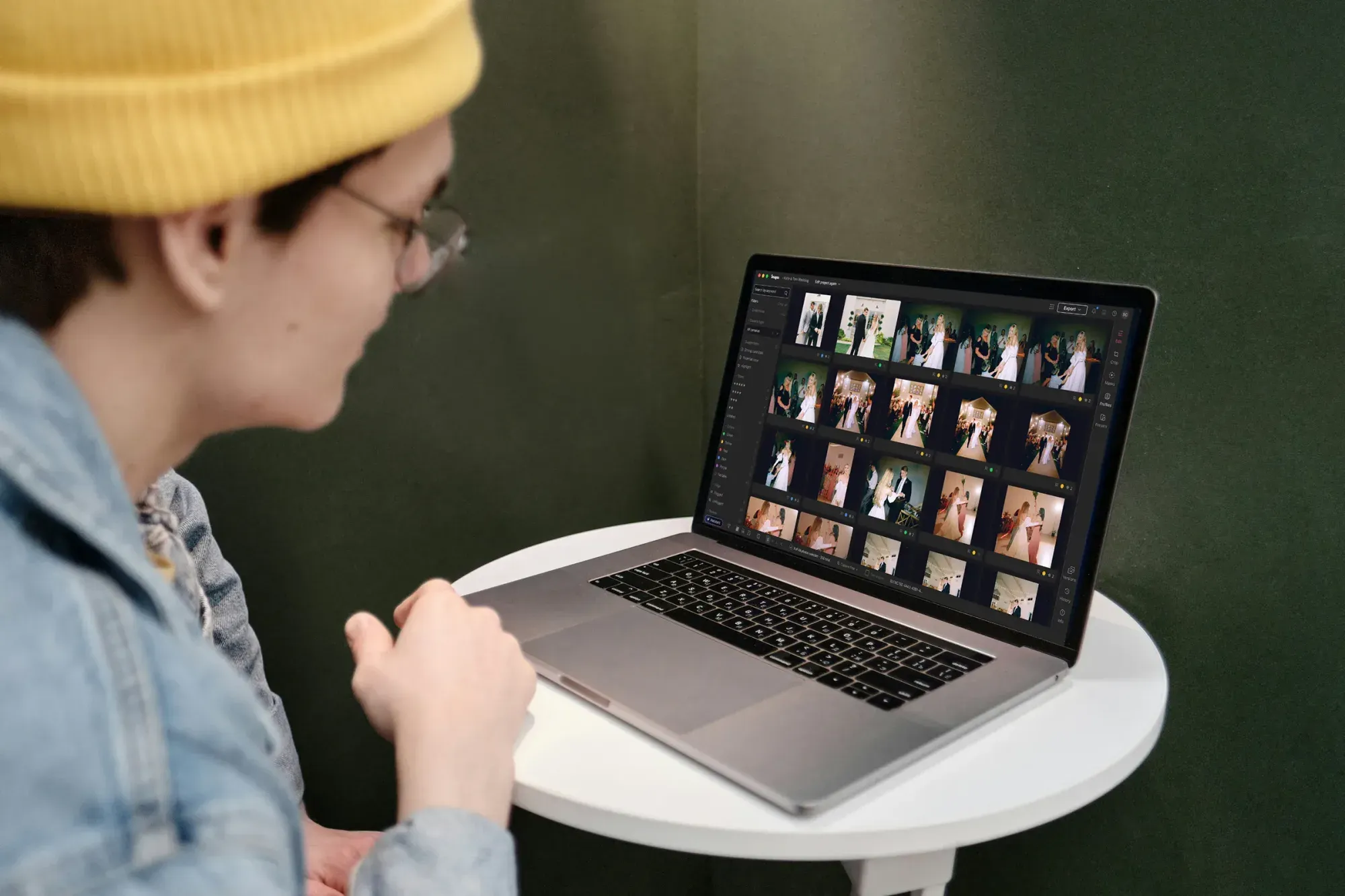
Deep Dive: Imagen Capabilities
Here is what the Imagen product actually includes today, for photographers comparing it against browser-based creative tools like BeFunky and Fotor.
AI Editing in Your Personal Style
Imagen’s Personal AI Profile is trained on your own catalog of past Lightroom Classic edits, learning how you handle exposure, white balance, color, and tone so it can apply that same look across a new gallery. If you do not have enough edit history yet, a Talent or Lite AI Profile gives you a starting point, and you can refine your own profile as you shoot more. More than one AI Profile can be applied within a single gallery, for example a black and white treatment on a handful of images inside an otherwise color set.
Culling in the Same Project
Culling happens inside the same project as editing rather than as a separate export step. AI culling covers fast batch review, with free manual culling available whenever you want to go through a shoot photo by photo. Smart tag AI filters help you find things like blur or closed eyes quickly, and edited photos arrive in batches as they finish processing instead of making you wait for the whole gallery.
The Built-in Editor and Assistant
The built-in editor, currently in Beta, sits alongside the AI tools with manual sliders, a histogram, crop and straighten, and presets you can import from Lightroom or build yourself. A handful of AI tools are not yet available in this editor, and projects using them continue through the Lightroom flow.
The Imagen assistant finding and editing photos from a plain-language request
An assistant lets you find and act on photos using plain language, such as asking it to pull every shot with closed eyes. It understands what is in a photo, not where within the frame, so it cannot place a mask on a specific person yet, and it does not generate new images; it works only with the real photos in your gallery. It is useful for finding and filtering, though it has real limits and can struggle with subjective requests.
Export to Lightroom or Directly From Imagen
You can export JPG, TIFF, or PNG files directly from Imagen, or keep exporting through Lightroom Classic as before, with both paths treated as first class. AI Profile and AI-tool edits carry over to Lightroom as XMP, while manual edits, ratings, flags, and culling choices made inside Imagen’s own editor stay inside Imagen.
Deep Dive: BeFunky Capabilities
BeFunky’s own site organizes the product around three core tools rather than a RAW photography pipeline.
Photo Editor and AI Touch-Up Tools
The Photo Editor includes touch-up tools, photo effects, frames, and a watermarking tool, along with a batch editing option for applying changes across multiple images at once. Its AI tools cover a Background Remover, an Object Eraser, a Photo Enhancer, a Sky Replacer, an Image Upscaler, a Deblur tool, an Old Photo Restorer, and a Photo to Art effect, plus a conversational Smart Edit tool for making changes by describing them.
Collage Maker and Graphic Designer
The Collage Maker includes a Collage Wizard, a Pinterest Pin Maker, and customizable grid layouts for combining multiple photos into one image. The Graphic Designer provides templates for banners, flyers, cards, invitations, social posts, and business cards, backed by a stock image library, positioning BeFunky as much as a design tool as a photo editor.
Platforms and Pricing
BeFunky runs in a web browser and has apps for iPhone, iPad, Android, and Chromebook. It offers a free plan alongside a paid BeFunky Plus plan described on its site as cancel anytime.
Deep Dive: Fotor Capabilities
Fotor’s site leans further into AI generation than BeFunky’s does, on top of a similar set of everyday editing tools.
AI Editing and Generation Tools
Fotor’s AI Photo Enhancer offers one-tap quality improvements, and it can remove and replace a background or remove an unwanted object or person from a photo. It also offers photo-to-art style transforms such as anime, cartoon, sketch, and watercolor looks. On the generation side, Fotor has an AI Image Generator that creates images from a text prompt, an AI Avatar Generator, an AI Image Extender that expands the edges of a photo, and an AI Headshot Generator for professional-looking headshots.
Design and Batch Tools
Beyond AI features, Fotor includes an Image Text Editor for editing text inside a photo, a photo collage maker with templates, a logo maker, a flyer maker, a passport photo maker, and a wallpaper maker. A batch photo editor lets you apply the same edit across a group of images at once.
Platforms and Pricing
Fotor runs in a web browser, as Windows and Mac desktop apps, and as iOS and Android mobile apps. It offers a free Basic plan with limited credits, an ad-supported experience, and watermarked exports, while its paid Pro, Pro+, and Max tiers scale up generation capacity and storage and remove watermarks and ads. Fotor’s pricing page does not display fixed dollar amounts for these paid tiers.
Comparison: Who Each Tool Is Built For
BeFunky and Fotor are general-purpose creative tools used by social media managers, small business owners, and casual creators who need quick graphics, collages, or touched-up photos. Imagen is built specifically for professional photographers delivering a RAW gallery from a shoot, with culling and a personal editing style as the core of the product rather than an add-on. A wedding or portrait photographer comparing these tools is really asking whether a general creative app can replace a dedicated photography workflow, and the feature sets below suggest the answer is no, they solve different problems. BeFunky and Fotor were never built to carry a few hundred RAW files through culling and consistent color, and trying to force that workflow into either one would mean fighting the tool rather than using it as intended.
Comparison: Generation vs. Real-Photo Editing
Fotor’s AI Image Generator, AI Avatar Generator, and AI Headshot Generator create new images from a prompt rather than editing an existing photo. BeFunky leans less on generation and more on AI editing tools like its Background Remover and Photo to Art effect, though Photo to Art does transform an existing image into a stylized piece. Imagen does not generate new images at all; it works only with the real photos a photographer brings into a gallery, applying a learned editing style rather than creating new pixels from a text description. For a photographer whose deliverable is a client’s actual photos, that distinction matters more than a long AI feature list.
Comparison: Editing Depth for Professional Work
BeFunky and Fotor both offer one-tap enhancers, background tools, and batch editing, which work well for quick social content but were not built around a RAW catalog or a consistent personal editing style across hundreds of images. Imagen’s Personal AI Profile is trained specifically on a photographer’s own past edits and applied across a whole gallery, with culling and review built into the same project. Neither BeFunky nor Fotor offers that kind of style-learning or gallery-wide culling; their batch tools apply the same fixed effect to a group of images rather than a personalized style.
Comparison: Platforms and Daily Use
BeFunky and Fotor are both designed to be opened on whatever device is closest, with BeFunky available in the browser plus apps for iPhone, iPad, Android, and Chromebook, and Fotor available in the browser plus Windows, Mac, iOS, and Android apps. That spread makes sense for a social media manager posting from a phone between meetings. Imagen is built around a different rhythm: a desktop app meant for sitting down with a full shoot, culling and editing a gallery that might run into the hundreds or thousands of images, with Lightroom Classic as an optional extension of that same session rather than a separate app you jump to for the real work.
Comparison: Pricing Models
BeFunky offers a free plan and a paid BeFunky Plus plan described as cancel anytime, without published dollar figures on its main site. Fotor offers a free Basic plan with limited credits and watermarked exports, with paid Pro, Pro+, and Max tiers that scale up generation capacity, though its pricing page does not list fixed dollar amounts either. Imagen’s pay-as-you-go pricing charges per exported photo, with exploring any tool across a whole gallery free until export, plus a flat-fee Limitless plan for high-volume studios. None of the three requires a long-term commitment just to try the product.
Feature Comparison Table
| Feature | Imagen | BeFunky | Fotor |
|---|---|---|---|
| Core focus | Whole-gallery editing, culling, and review for professional photographers | Browser-based photo editing, collage, and graphic design | Browser-based photo editing plus AI image generation |
| Image generation | Not offered; works only with your real photos | Not a core feature; Photo to Art restyles existing images | AI Image Generator, Avatar Generator, and Headshot Generator from a text prompt |
| Culling | AI batch culling plus free manual culling, same project | Not offered; this is a creative editing tool | Not offered; this is a creative editing tool |
| Style-based editing | Personal AI Profile learned from your past edits | Preset effects, frames, and one-tap touch-up tools | One-tap AI Photo Enhancer and style transforms |
| Collage and design tools | Not a current focus | Collage Maker and Graphic Designer with templates | Collage maker, logo maker, flyer maker, and more |
| RAW file support | Built around RAW upload and professional workflows | Not a current focus for this product | Not a current focus for this product |
| Platforms | Desktop app for Mac and Windows with Lightroom Classic integration | Browser, iPhone, iPad, Android, and Chromebook | Browser, Windows, Mac, iOS, and Android |
| Assistant / natural language | Finds and acts on photos using plain-language requests | Smart Edit conversational tool for guided edits | Not offered as a dedicated assistant feature |
| Pricing model | Pay-as-you-go per exported photo, or flat-fee Limitless plan | Free plan plus a paid Plus plan, cancel anytime | Free Basic plan plus paid Pro, Pro+, and Max tiers |
Conclusion: Which Tool Fits You?
Choose BeFunky if you need a simple, affordable browser tool for touch-ups, collages, and basic marketing graphics, and you are not working with RAW files from a professional shoot.
Choose Fotor if you want a wider AI toolbox that includes image generation, avatars, and headshots alongside everyday photo editing and design templates.
Choose Imagen if your work starts with RAW files from a professional shoot and you need culling, consistent personal-style editing, and review inside one project built specifically for that job.
Many photographers who also handle their own marketing end up using more than one of these. A portrait photographer might run an entire gallery through Imagen for culling and editing, then use BeFunky or Fotor separately to build a social media graphic or a flyer announcing a mini-session. The three tools rarely compete directly for the same job, so there is little need to choose only one, and most photographers who try all three quickly find each one earns its place for a different part of the week.
Want to see how Imagen works with your own galleries? Try the free trial at imagen-ai.com and take a real shoot through culling, editing, and export. For more workflow comparisons, visit the Imagen tips hub.
Frequently Asked Questions
1. What is the main difference between Imagen, BeFunky, and Fotor? Imagen is built for professional photographers to cull, edit, and review a RAW gallery in their personal style, while BeFunky and Fotor are browser-based creative tools for general photo editing, collages, graphic design, and, in Fotor’s case, AI image generation.
2. Does Imagen generate new images the way Fotor does? No. Imagen does not generate new images; it works only with the real photos you bring into a gallery, applying a learned editing style rather than creating new pixels from a text prompt.
3. Can BeFunky or Fotor handle RAW files from a professional shoot? Neither company’s site positions its product around a RAW photography workflow; both are built as general-purpose, browser-based editing and design tools.
4. Does BeFunky offer AI image generation? Its feature list centers on editing tools like a Background Remover and Photo to Art effect rather than generating new images from a prompt the way Fotor’s AI Image Generator does.
5. Can I cull and edit in the same place with Imagen? Yes. Culling and editing happen inside the same non-linear project, so you can move between them in any order without exporting to a separate app.
6. What does BeFunky cost? BeFunky offers a free plan and a paid BeFunky Plus plan described on its site as cancel anytime, without published dollar figures.
7. What does Fotor cost? Fotor offers a free Basic plan with limited credits and watermarked exports, plus paid Pro, Pro+, and Max tiers that scale up generation capacity; its pricing page does not list fixed dollar amounts for the paid tiers.
8. How does Imagen’s pricing work? Pay-as-you-go photographers pay per exported photo, and exploring any tool across a whole gallery is free before you decide to export. A flat-fee Limitless plan is available for high-volume studios.
9. Do I still need Lightroom if I use Imagen? That is up to you. You can finish entirely inside Imagen, or continue your workflow in Lightroom Classic the way you always have. Lightroom stays part of the Imagen ecosystem rather than something you have to give up.
10. Could a photographer reasonably use Imagen alongside BeFunky or Fotor? Yes. They rarely compete for the same task. A photographer might use Imagen to cull and edit an entire client gallery, then use BeFunky or Fotor separately to build a promotional graphic, a collage, or a social media post around that finished work.
