
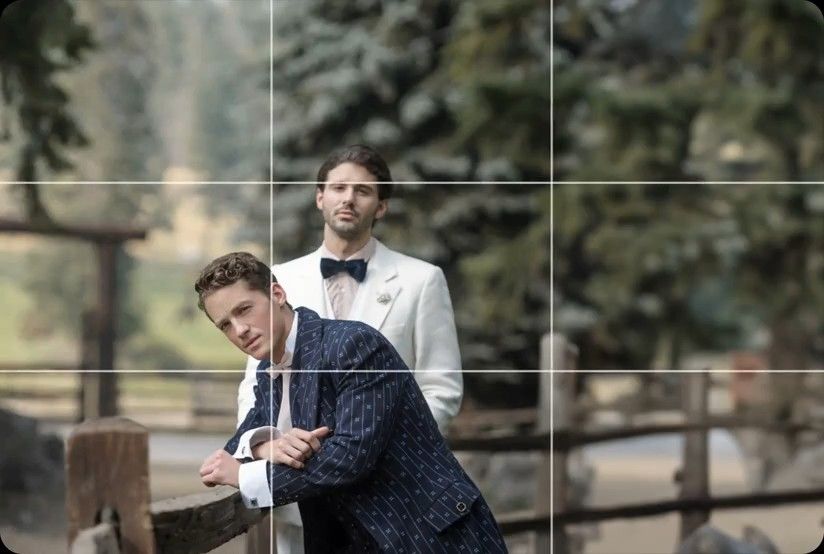
Crop & Straighten
AI levels tilted horizons and crops every photo around its subject, automatically, across your whole shoot. Review and adjust every result in Lightroom Classic.

Fix reflections, then batch edit thousands of photos in Lightroom Classic with your Personal AI Profile. You'll deliver consistent galleries by 9 AM.
Compatible with:


 No credit card required.





Rated 5 out of 5
“The term 'game changer' gets thrown out a lot, but for any busy photographer, this software will change your life.”
 Michael AntonyMichael Antony Photography, USA
Rated 5 out of 5
“My survival is due to Imagen… I would MARVEL at how little I had to adjust.”
 Charmi Patel PeñaWedding Photographer, USA
Rated 5 out of 5
“It’s so refreshing to start with a high level of quality, and it leaves me with much more energy to spend on my favorite photos.”
 Sam HurdSam Hurd Photography, USA
Rated 5 out of 5
“Discovering Imagen has been like someone inventing toilet paper. Simply essential and now life is unthinkable without it. I now know that those years of editing backlogs are a thing of the past. I'm truly grateful.”
 Sarah EdmundsPortrait & Wedding Photographer, Italy
Rated 5 out of 5
“It’s a must for me after my culling process. Love Imagen since day one.”
 Fer JuaristiFer Juaristi Photography, Mexico
Rated 5 out of 5
“Thanks to Imagen, I can actually enjoy editing… I have recovered hundreds of hours back.”
 Daniel AlonsoPeople TrueLove Tellers, Spain
Stop spending countless hours on repetitive editing tasks.
Focus on what matters most: your creativity and your clients.

Cut your post-production time dramatically with AI-powered automation.

Apply consistent edits across hundreds of photos in seconds, not hours.

Let AI identify and remove blurry shots, duplicates, and closed eyes automatically.

Edit entire events shoots or portrait sessions while you focus on your next creative work.
Next-morning delivery
We batch process thousands of frames in minutes, so you'll get galleries back before you wake up. Fix distractions fast with the AI Car Window Reflection Removal Tool in Lightroom Classic.
Try for free
Brand consistency
Whether you shoot 100 or 1,000 frames, we use your Personal AI Profile to apply your exact look. You won't lose brand consistency across multiple photographers as you grow your team.
Try for free
AI levels tilted horizons and crops every photo around its subject, automatically, across your whole shoot. Review and adjust every result in Lightroom Classic.
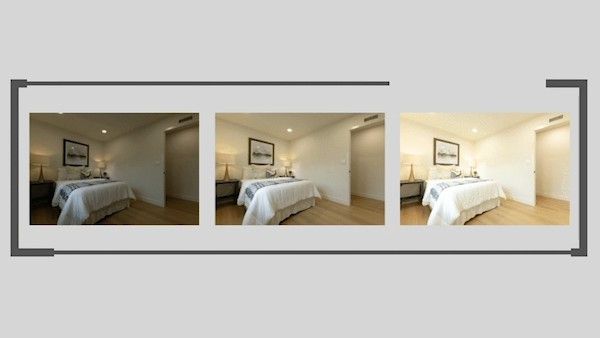
Automatically combine 3–9 bracketed exposures into one perfectly balanced photo using an AI HDR photo merge tool that handles indoor and outdoor lighting in one shot.
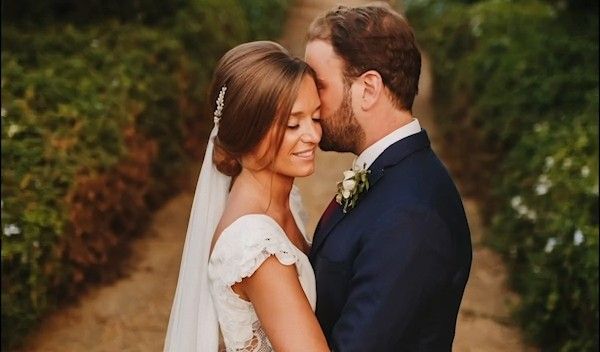
Smooth Skin finds every face, masks the skin and softens it automatically, so every portrait looks polished and natural without manual retouching.
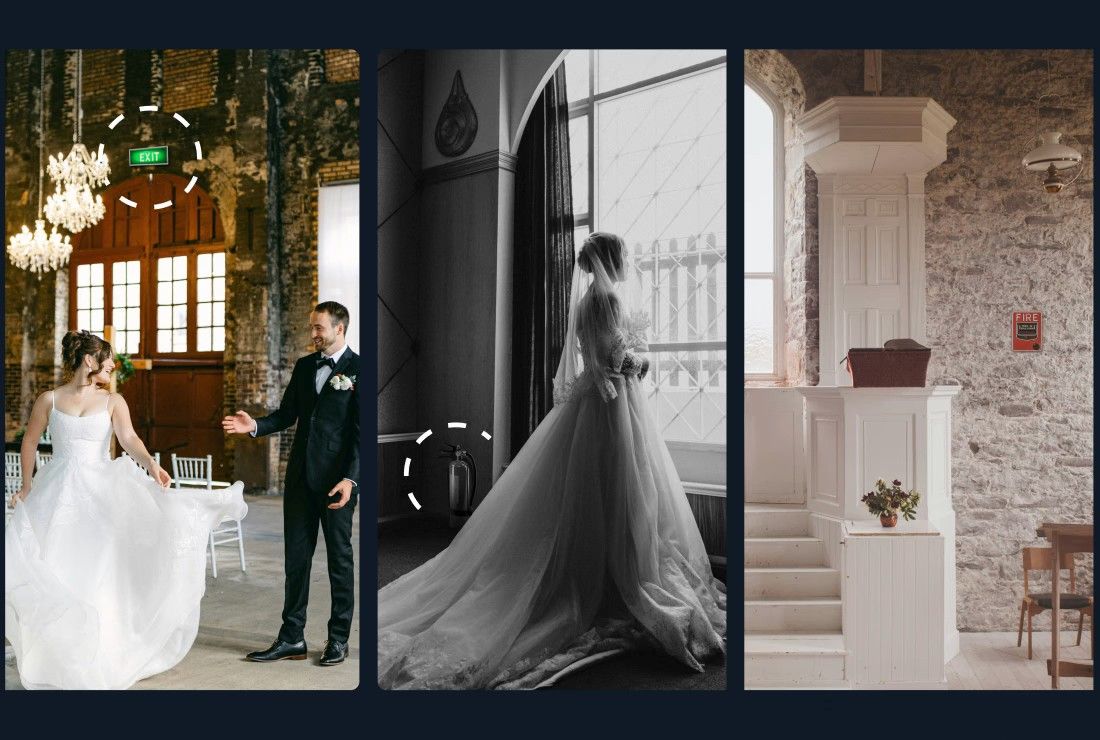
Object Removal automatically detects and removes exit signs, fire alarms, fire extinguishers, and fire stickers from your photos — across your entire gallery, in the cloud, without Photoshop.
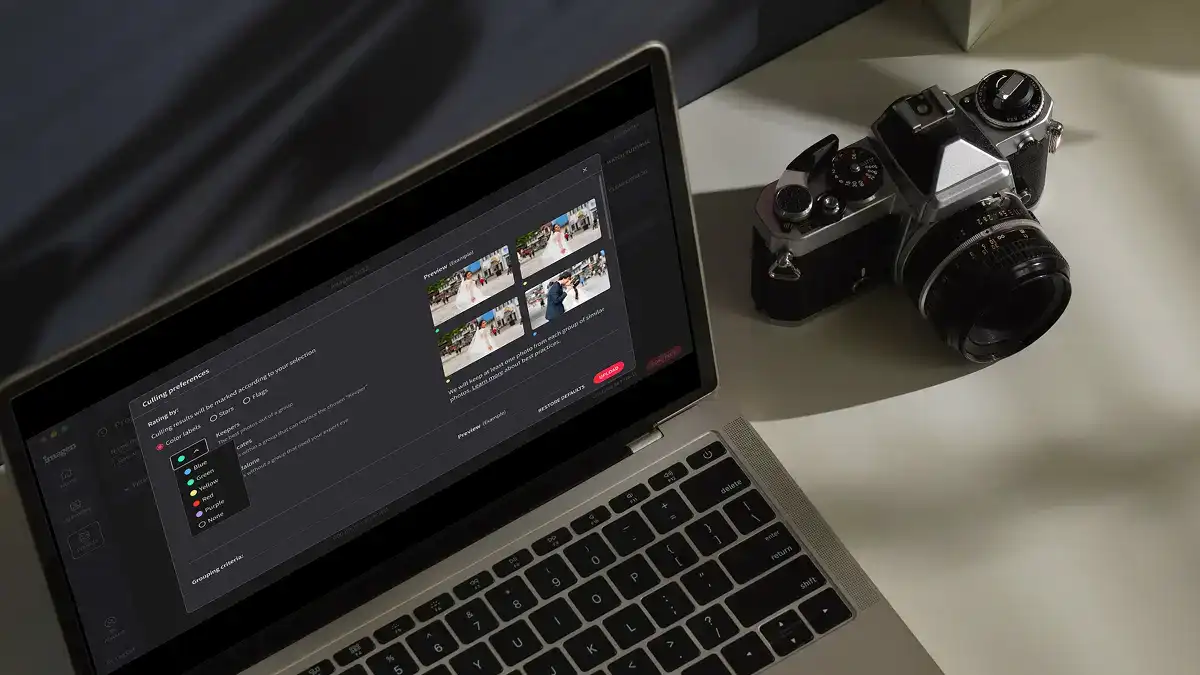
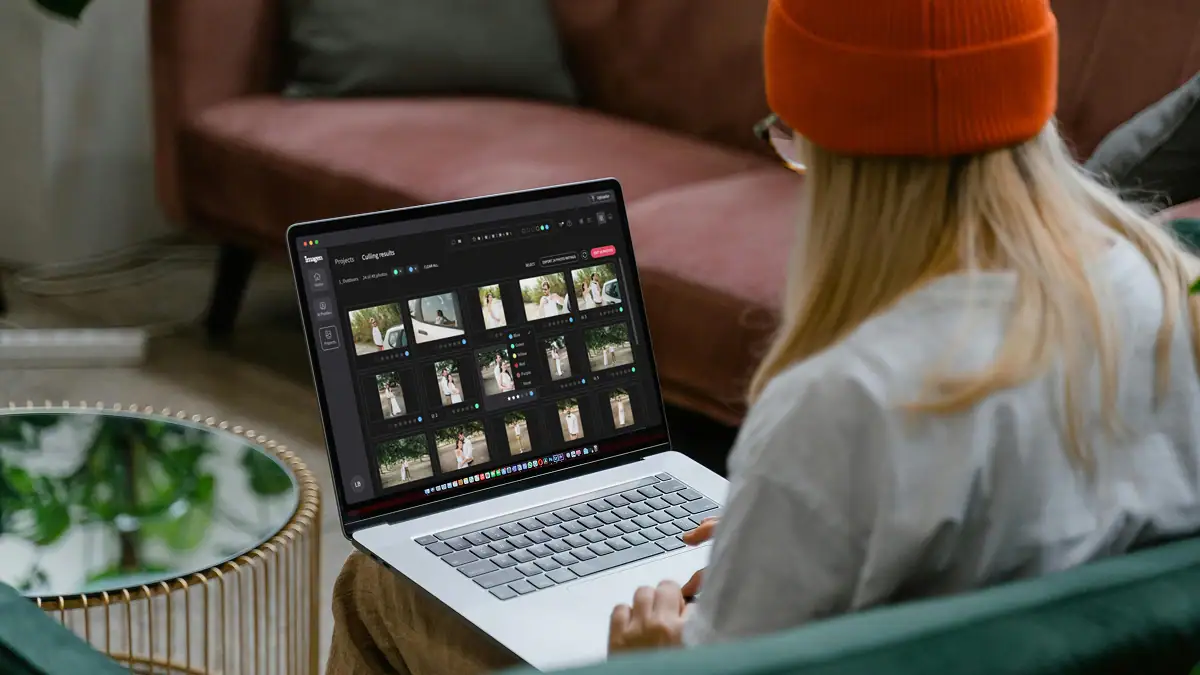
Edit thousands of photos in your style automatically. Imagen's AI learns your editing preferences and applies them consistently across entire projects, so you deliver faster without losing your creative touch.
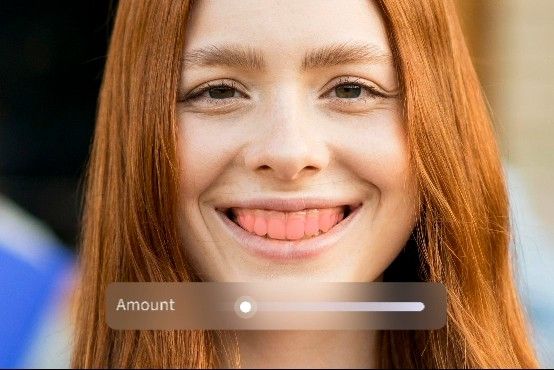
Whiten Teeth detects and brightens teeth in each photo automatically, so every smile looks its best without manual retouching.
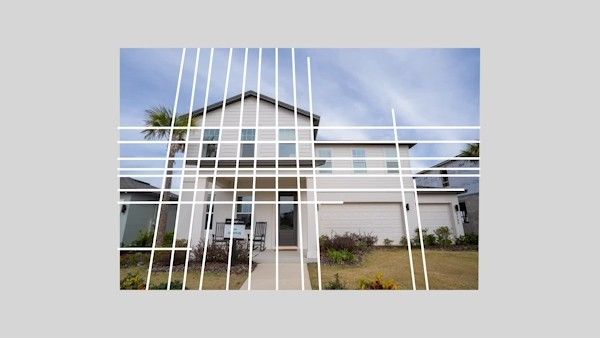
Automatically fix distorted lines and tilted horizons using an AI image perspective correction tool that analyzes each photo, with full control to review and adjust every result.

Automatically crop hundreds of portrait photos to a consistent frame using an AI portrait crop tool that detects each subject and places them perfectly — so every face lands exactly where it should.
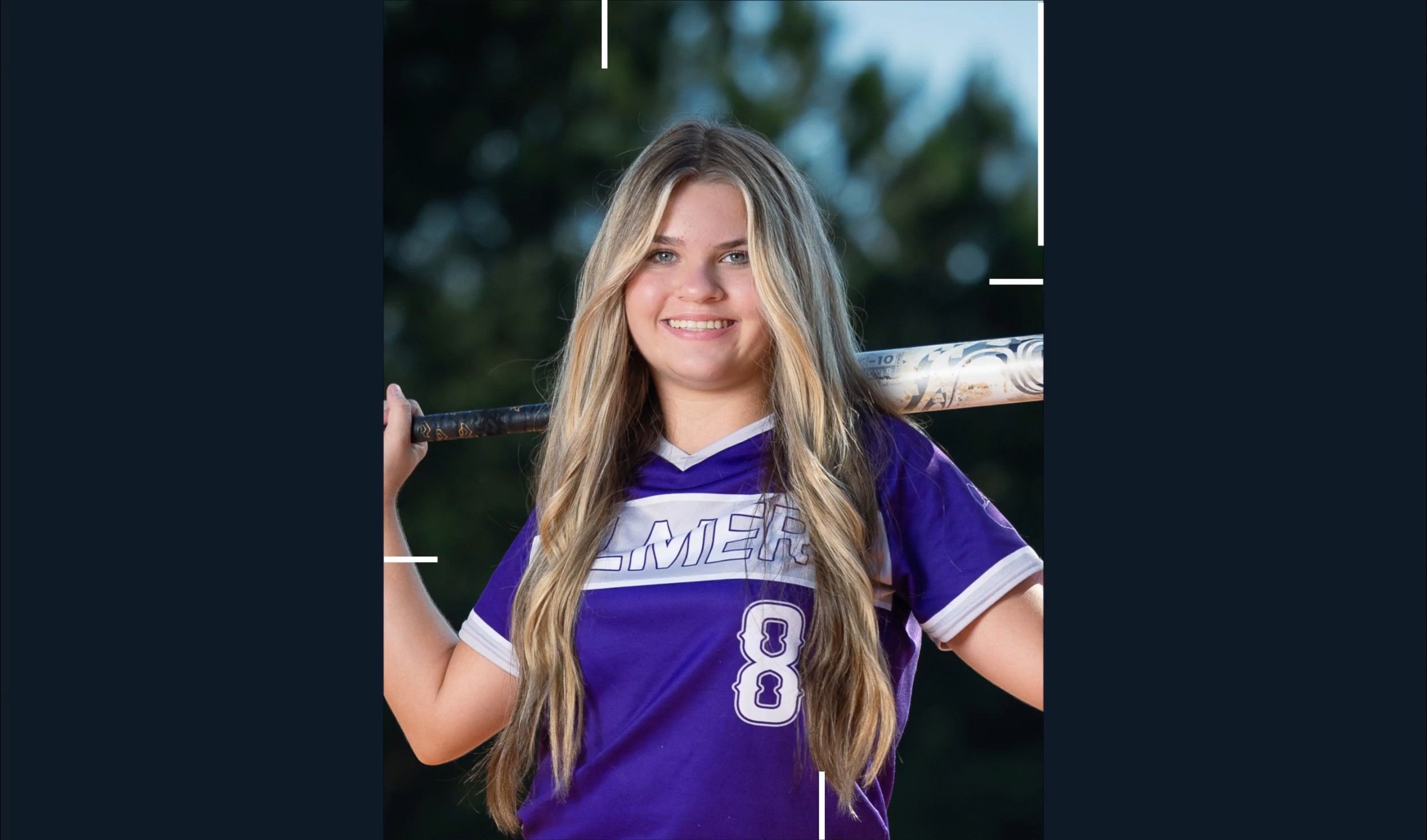
Automatically crop headshots with an AI headshot photo cropper that detects every subject and frames each shot consistently, with full control to review and adjust every result.
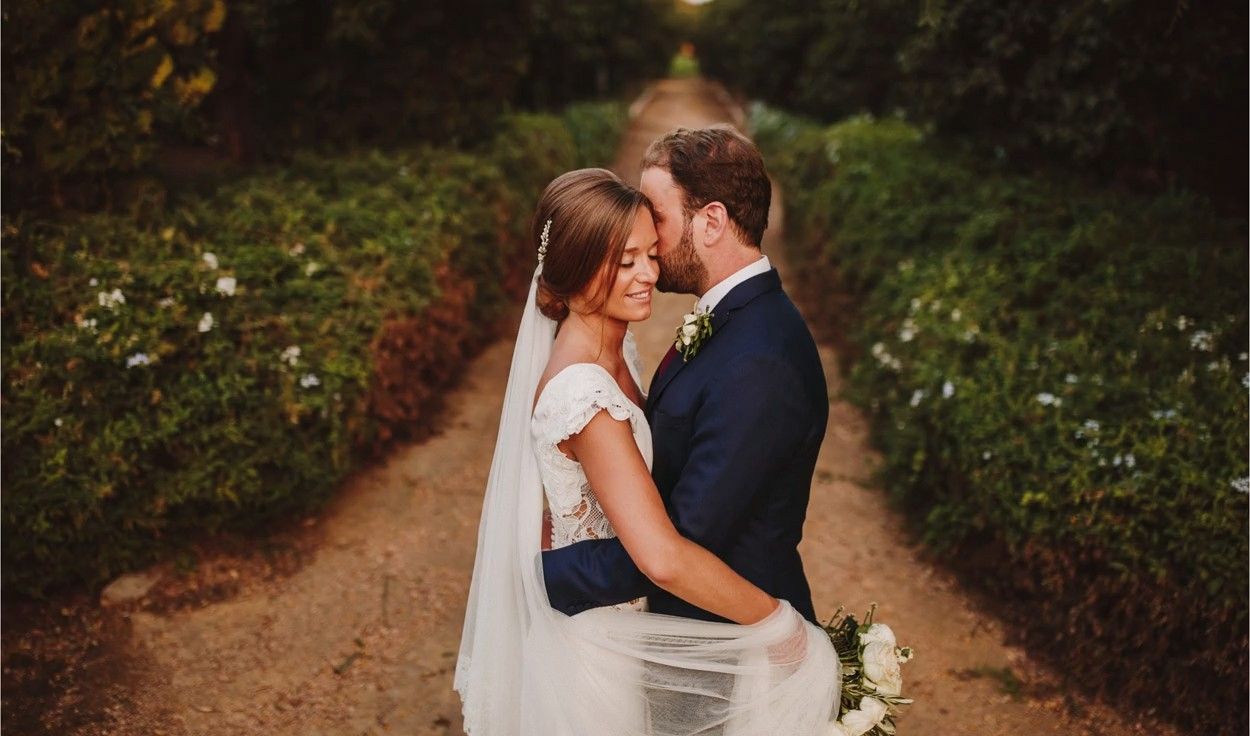
Mask the background in every photo automatically and adjust its exposure, color and texture on their own, so your subject stands out. Review and refine every result in Lightroom Classic.

Remove grain from high-ISO and low-light RAW photos automatically. Imagen sets the strength for each photo, keeps the detail and your editing style, and sends the results to Lightroom Classic.

Automatically extract subjects from any photo using an AI-powered background remover that keeps edges clean, detail sharp, and every result ready to review.
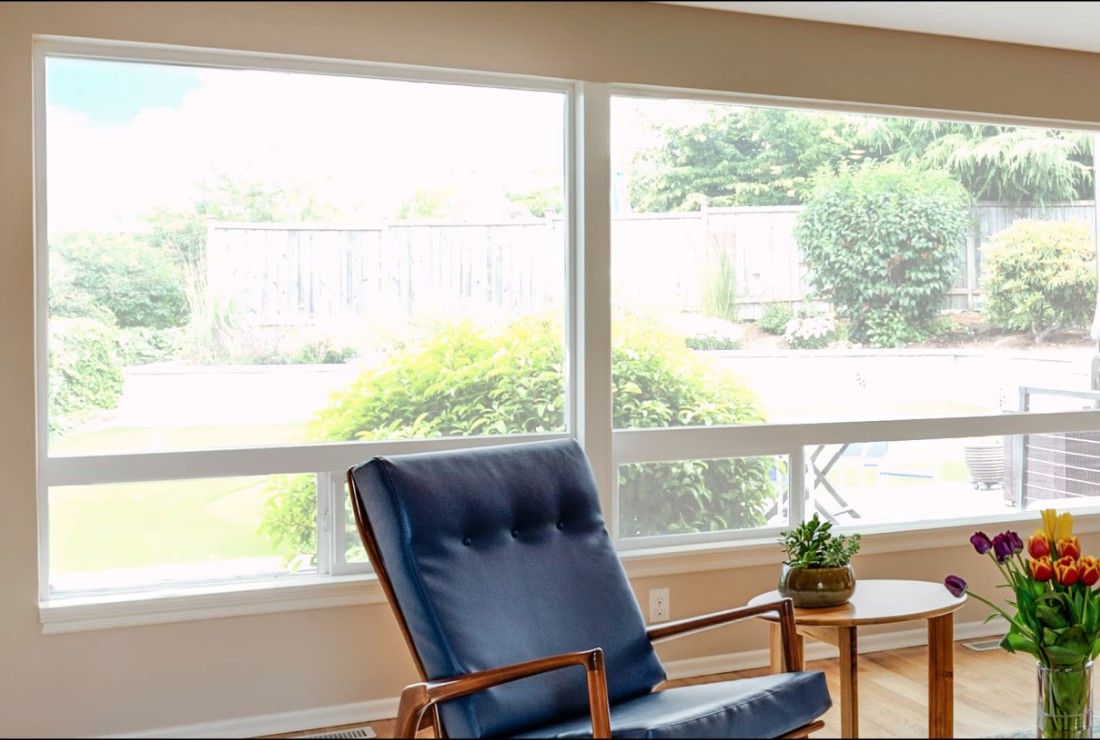
Balance bright windows with indoor subjects using an AI-powered tool that detects overexposed areas and pulls back highlights, with full control to review and adjust every result.

Export final JPEGs straight from Imagen to Pic-Time galleries or your local folder. Complete your entire workflow from camera to client, without switching apps.

Imagen's AI culling groups similar shots and keeps only the best. Duplicate Removal happens automatically, so you review fewer photos and deliver faster.

Imagen's AI analyzes every face in your photos and detects closed eyes automatically. Blink Detection flags the issue so you keep the shots where everyone looks their best.

Imagen's AI Subject Mask finds the main subject in every photo and adjusts it on its own, so it stands out. No manual brushwork, no repetitive masking: consistent results across your whole project, ready in Lightroom Classic.
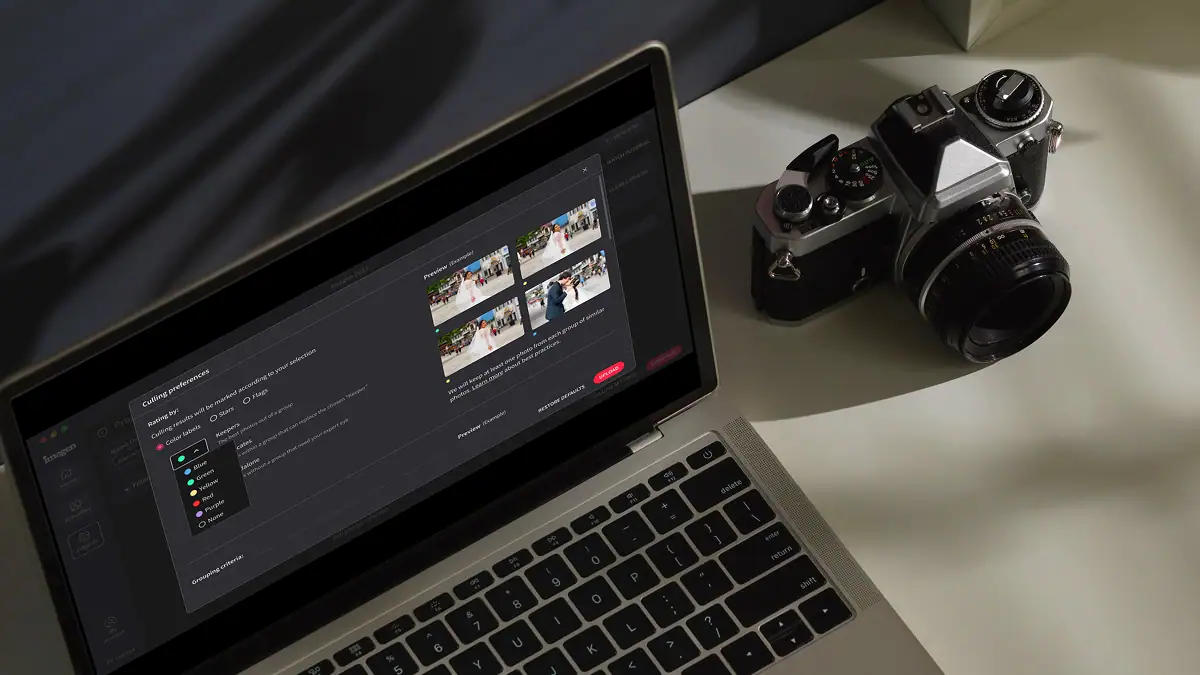
Automatically detect the sharpest photos in every set using an AI-powered Sharpness Check that analyzes focus accuracy — so you cull faster and choose with confidence.
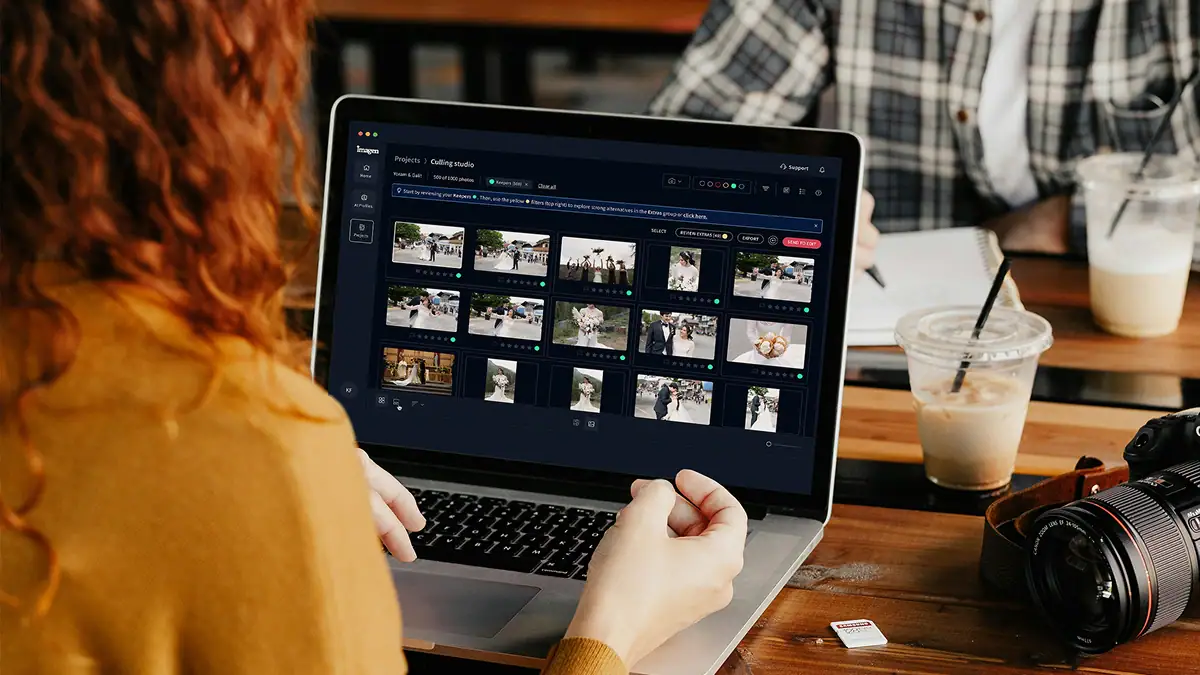
Automatically back up your original RAW files to secure cloud storage as you work — so your client photos are always protected, without any extra steps.

Store full-resolution photos at up to 75% smaller file size — so your photo storage goes 4x further, uploads faster, and your work stays protected without the cost of raw file bloat.
The Imagen API lets developers connect Imagen's AI editing engine directly to any app, platform, or workflow — so your photos get edited automatically, at any scale, without the desktop app.

Stray Hair detects flyaways in each portrait and removes them automatically, so every photo looks polished without hours of manual retouching.

Face Retouch detects and corrects common skin imperfections in each portrait. Blemishes, under-eye shadows, uneven texture; so every photo looks polished without tedious manual work.
Get started with 1,000 free edits. Edit your projects faster without sacrificing quality.
Pay only for what you need
Starting at
US$0.05 / photo
US$7/monthly base fee
Any unused balance rolls over to next month as export credit
Rolls over as export credit
One simple price for unlimited use
Billed annuallyBilled monthly
US$129US$165 / month
Save US$432/year
* Looking for Imagen for Real Estate? The web app for real estate is priced separately. See real estate pricing
* Not sure which plan? Start with Pay-as-you-go and switch later.
Speed, consistency, and scale for high-volume businesses and studios
Talk to us
Custom plan
Ask us anything, connect with our customer success team.
We go beyond troubleshooting - we’re your partners in optimizing workflows and realizing your creative vision.
No credit card required.
A fallback profile is a pre-trained AI Profile you use while your Personal AI Profile learns your specific editing style. When you first start with Imagen, you might not have the 3,000 previously edited photos required to train your custom profile. Instead of waiting, you can select a fallback profile to start batch processing your real estate photos immediately. This ensures you maintain visual consistency across every gallery without slowing down your turnaround times. The fallback profile acts as your dependable baseline. You get professional results on every listing while you gradually upload more edits to train your own custom algorithm. As you photograph more house interiors and exteriors, you feed those final edits back into the system. Eventually, you transition from the fallback option to a Personal AI Profile that perfectly mirrors your exact Lightroom Classic adjustments. It gives you the speed of AI editing from day one, allowing you to slash editing time by 96% and scale your business without skipping a beat.
A fallback profile applies a unified set of editing parameters to every single image in your batch, keeping total visual consistency from the first shot to the last. When you shoot a large property, you encounter wildly different lighting conditions. You might move from a bright exterior to a dimly lit basement in a matter of minutes. A fallback AI Profile analyzes the unique exposure, white balance, and contrast of each individual raw file and adjusts the Lightroom Classic sliders accordingly. This means your final gallery looks cohesive, regardless of the changing light during your shoot. The fallback profile removes the human error of manually matching exposures across hundreds of frames. If you use advanced features like the AI Car Window Reflection Removal Tool, the fallback profile integrates those corrections smoothly into the overall look. By relying on a structured AI Profile, you deliver a polished listing to your clients every time. Your team spends less time tweaking individual sliders and more time booking new clients.
You use a fallback profile primarily when you don't yet have enough edited catalogs to train your own Personal AI Profile. Training a custom AI Profile requires at least 3,000 edited images that accurately represent your unique style. If you are a newer photographer or simply don't have those catalogs organized, a fallback profile lets you access high-speed AI batch processing immediately. You also might choose a fallback profile when you shoot a property that falls completely outside your normal aesthetic. For example, if your Personal AI Profile is trained strictly on bright and airy daytime photos, you might use a fallback AI Profile for a moody twilight listing. This guarantees you achieve the right visual consistency for the specific gallery without confusing your custom algorithm. Using a fallback profile keeps your daily workflow moving fast. You deliver final images to your clients in record time while you continue building the necessary data to perfect your own custom profile in the background.
Yes, the AI Car Window Reflection Removal Tool functions within your broader Lightroom Classic workflow, giving you a natural fallback if a complex reflection goes undetected. Because we apply non-destructive edits directly to your raw files, you always retain complete control over the final image. If the AI misses a subtle glare on a vehicle parked outside a listing, your fallback is simply grabbing the local adjustment brush in Lightroom Classic to make a quick manual fix. The tool successfully identifies and removes reflections across thousands of frames, but extreme lighting angles can occasionally trick the system. When this happens, the base edits from your Personal AI Profile still apply perfectly to the rest of the property. You never lose your baseline visual consistency. You simply review the gallery, spot the rare missed reflection, and adjust that specific mask. This fallback mechanism keeps you get the massive speed benefits of batch processing while keeping your hands on the steering wheel for final quality control.
Setting up a fallback profile for your team involves selecting a pre-trained AI Profile from the Imagen app that closely matches your brand standard. You simply open the desktop app, browse the available styles, and assign your chosen fallback profile to your team account. This keeps every photographer on your roster uses the exact same baseline edits for every listing they shoot. When your team uploads their raw files, the system applies this fallback profile automatically during batch processing. This creates absolute visual consistency across your entire brand, even if you have five different photographers shooting five different properties on the same day. As your team shoots more jobs, you can collectively pool your final Lightroom Classic edits to eventually train a unified Personal AI Profile. Until you reach that 3,000 image milestone, the fallback profile serves as your reliable foundation. It allows your team to deliver a cohesive gallery to every client while slashing your collective editing time by 96%.
Using a fallback profile integrates perfectly into your existing Lightroom Classic workflow without requiring any new software habits. You still import your raw files into Lightroom Classic and build your standard smart previews just like you always do. When you're ready to edit, you simply close Lightroom Classic and open the Imagen app to select your fallback AI Profile. The software handles the heavy lifting in the cloud, batch processing the entire listing in minutes. Once the edits finish downloading, you reopen your catalog to find every single slider adjusted. The fallback profile provides incredible visual consistency across the entire gallery, but it never locks you out of your files. Every adjustment remains completely non-destructive. You can tweak the exposure, adjust the white balance, or run the AI Car Window Reflection Removal Tool exactly as you normally would. The fallback profile simply gives you a massive head start, doing 96% of the manual work before you even begin your final review.
You can absolutely batch process massive projects using a fallback AI Profile, taking care of thousands of images at a time with ease. We built the system specifically to handle high-volume workloads without breaking a sweat. When you upload a massive gallery, the fallback profile analyzes each individual photo and applies custom Lightroom Classic adjustments based on the specific lighting and exposure data of that raw file. This means you get perfect visual consistency across the entire batch, whether you upload 50 photos or 5,000. For high-volume photographers, this speed is essential for meeting tight deadlines. You simply select the fallback profile, start the upload, and walk away. The cloud servers process the files at roughly half a second per image. By the time you grab a cup of coffee, your entire listing is edited and ready for final review. You slash your editing time dramatically while maintaining a professional standard across every single property you shoot.
The fallback mechanism handles complex lighting by analyzing the underlying raw data of every single photo before making any slider adjustments. When you shoot a property with mixed lighting, like bright tungsten bulbs clashing with blue window light, the fallback AI Profile evaluates the entire scene. It adjusts the white balance, exposure, and shadow recovery dynamically for each frame. This dynamic approach guarantees visual consistency across your entire gallery, even when the lighting changes drastically from room to room. Unlike a static preset that applies the exact same numbers to every photo, the fallback profile adapts to the specific needs of the image. If you use additional tools like HDR Merge, the fallback mechanism incorporates those blended files smoothly into the batch processing workflow. It keeps your final listing looks natural and professional, regardless of how difficult the lighting was on location. You get accurate, cohesive edits without spending hours manually tweaking sliders in Lightroom Classic.
A fallback profile is not built from your own raw files, but rather from a massive dataset of high-quality professional edits. It serves as a ready-to-use option while you gather the 3,000 edited photos needed to build your own Personal AI Profile. Because the fallback AI Profile is pre-trained by industry experts, it understands how to handle tricky exposures, mixed lighting, and complex color grades right out of the box. You use it to maintain visual consistency across your work while you build your own catalog. Every time you finish a listing using the fallback profile, you can tweak the final Lightroom Classic adjustments to match your exact taste. You then upload those finalized edits back to Imagen to train your custom algorithm. Over time, your own photos replace the fallback system entirely. This workflow allows you to deliver a beautiful gallery to every property client immediately, without waiting weeks or months to finalize your own custom AI model.
A fallback profile processes a 1,000 image project in roughly 15 to 20 minutes, completely transforming your turnaround times. When you upload a massive gallery to Imagen, our cloud-based servers analyze and edit the photos at a rate of about half a second per image. This incredible speed applies whether you use a Personal AI Profile or a fallback AI Profile. You simply select your profile, start the batch processing, and let the software do the heavy lifting. By the time you finish organizing your gear from the shoot, the edits are ready to download and sync with Lightroom Classic. This allows you to maintain perfect visual consistency across a massive listing without spending days chained to your desk. You can even run specialized features like the AI Car Window Reflection Removal Tool during this same rapid process. Relying on a fallback profile helps you deliver every property to your clients faster, allowing you to book more shoots and scale your business effortlessly.







Start your free trial today - no commitment required