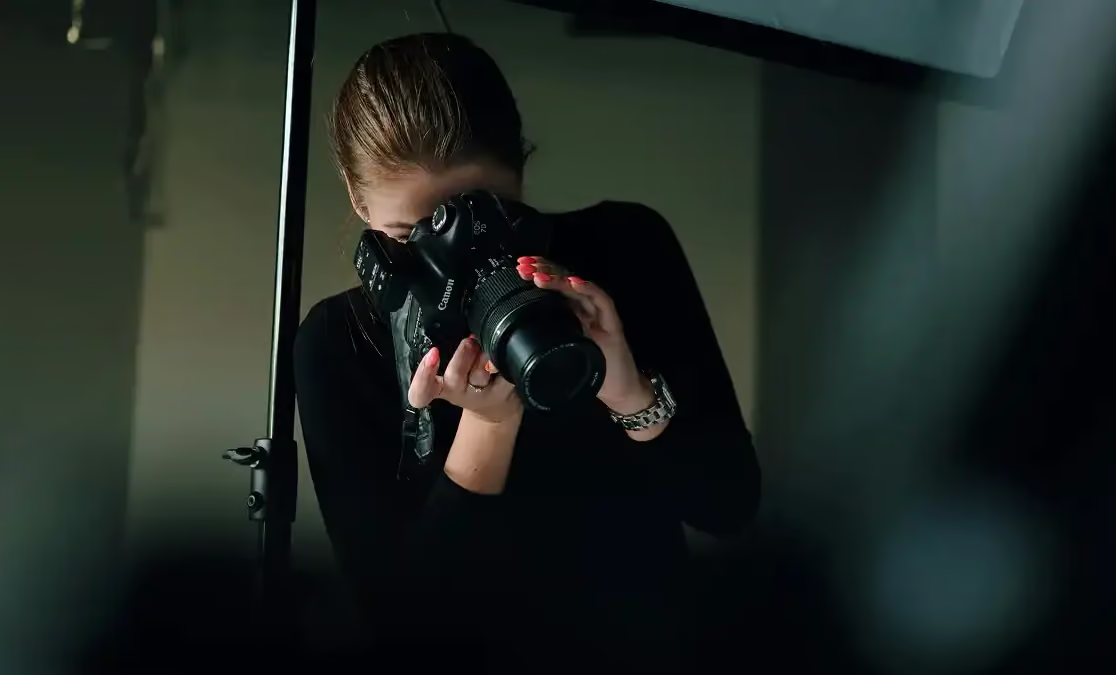
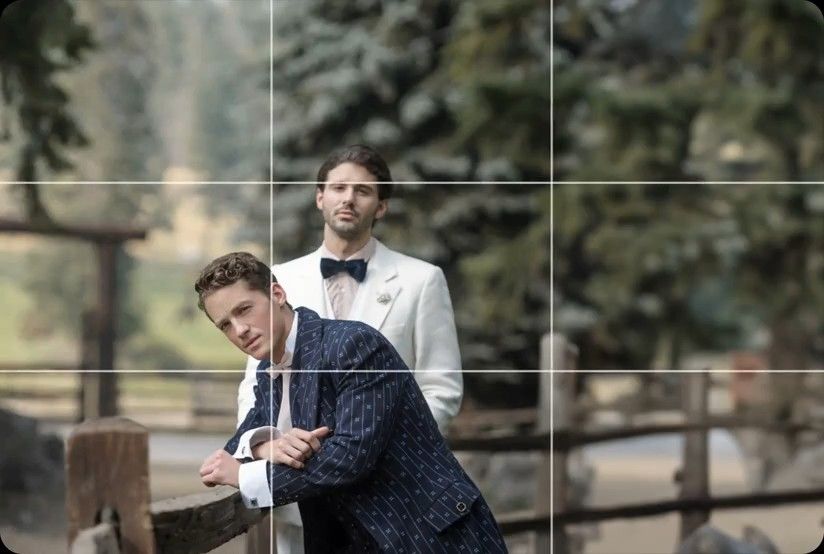
Crop & Straighten
AI levels tilted horizons and crops every photo around its subject, automatically, across your whole shoot. Review and adjust every result in Lightroom Classic.

You'll deliver consistent galleries by 9 AM. Your Personal AI Profile learns your style to batch process thousands of frames in Lightroom Classic.
Compatible with:


 No credit card required.





Rated 5 out of 5
“The term 'game changer' gets thrown out a lot, but for any busy photographer, this software will change your life.”
 Michael AntonyMichael Antony Photography, USA
Rated 5 out of 5
“My survival is due to Imagen… I would MARVEL at how little I had to adjust.”
 Charmi Patel PeñaWedding Photographer, USA
Rated 5 out of 5
“It’s so refreshing to start with a high level of quality, and it leaves me with much more energy to spend on my favorite photos.”
 Sam HurdSam Hurd Photography, USA
Rated 5 out of 5
“Discovering Imagen has been like someone inventing toilet paper. Simply essential and now life is unthinkable without it. I now know that those years of editing backlogs are a thing of the past. I'm truly grateful.”
 Sarah EdmundsPortrait & Wedding Photographer, Italy
Rated 5 out of 5
“It’s a must for me after my culling process. Love Imagen since day one.”
 Fer JuaristiFer Juaristi Photography, Mexico
Rated 5 out of 5
“Thanks to Imagen, I can actually enjoy editing… I have recovered hundreds of hours back.”
 Daniel AlonsoPeople TrueLove Tellers, Spain
Stop spending countless hours on repetitive editing tasks.
Focus on what matters most: your creativity and your clients.

Cut your post-production time dramatically with AI-powered automation.

Apply consistent edits across hundreds of photos in seconds, not hours.

Let AI identify and remove blurry shots, duplicates, and closed eyes automatically.

Edit entire events shoots or portrait sessions while you focus on your next creative work.
Next-morning delivery
Reliable AI photo editing for tour operators means you get your sleep back. We process 1,000s of frames in minutes inside Lightroom Classic, so you'll deliver galleries by 9 AM.
Try for free
Brand consistency
Grow your business without losing your signature look. Your Personal AI Profile learns exactly how you edit. You'll get consistent results across every batch, no matter who shoots the job.
Try for free
AI levels tilted horizons and crops every photo around its subject, automatically, across your whole shoot. Review and adjust every result in Lightroom Classic.
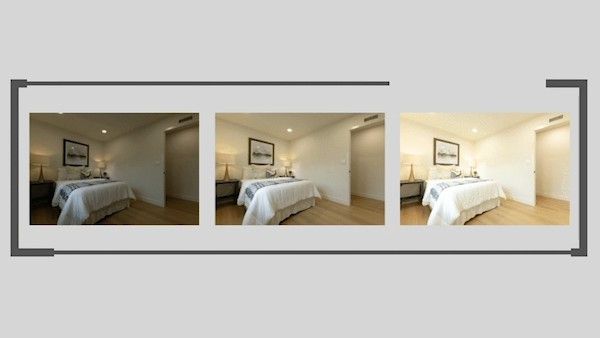
Automatically combine 3–9 bracketed exposures into one perfectly balanced photo using an AI HDR photo merge tool that handles indoor and outdoor lighting in one shot.
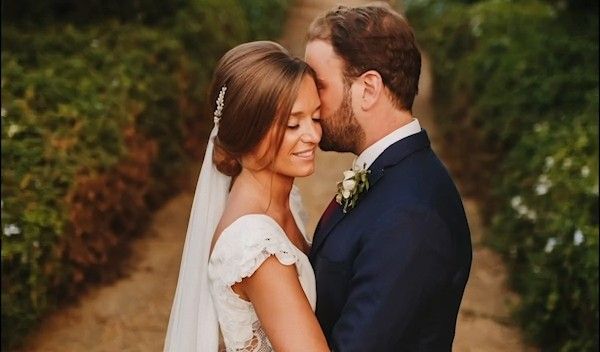
Smooth Skin finds every face, masks the skin and softens it automatically, so every portrait looks polished and natural without manual retouching.
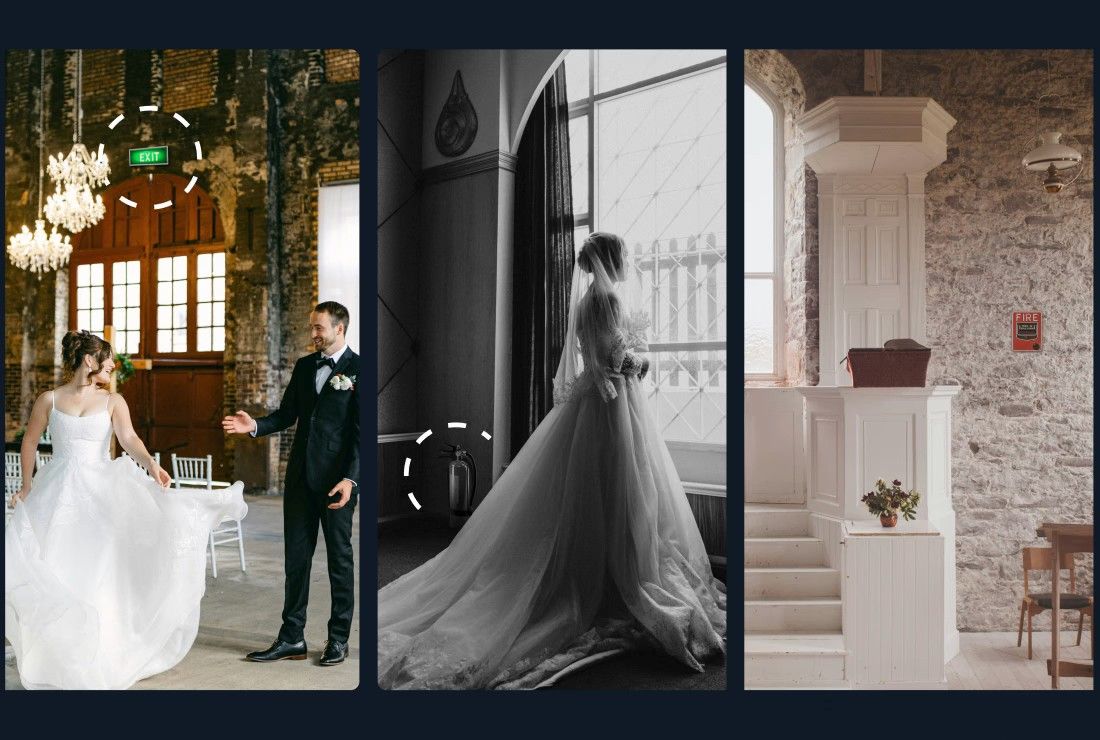
Object Removal automatically detects and removes exit signs, fire alarms, fire extinguishers, and fire stickers from your photos — across your entire gallery, in the cloud, without Photoshop.
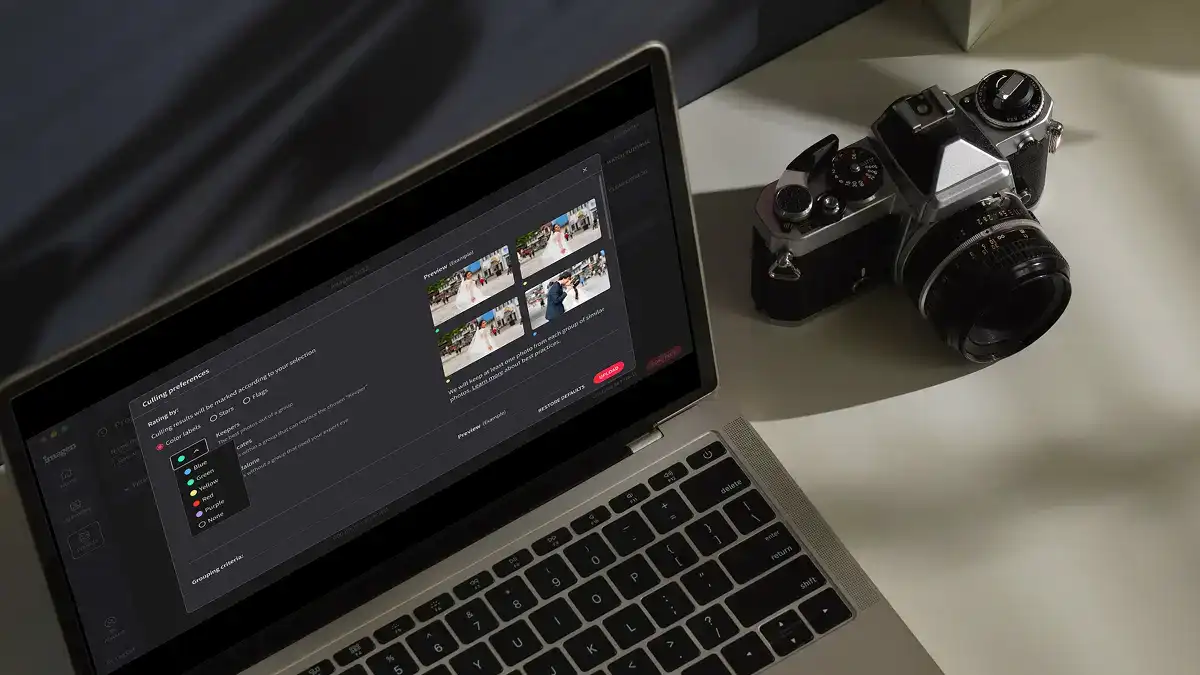
Edit thousands of photos in your style automatically. Imagen's AI learns your editing preferences and applies them consistently across entire projects, so you deliver faster without losing your creative touch.
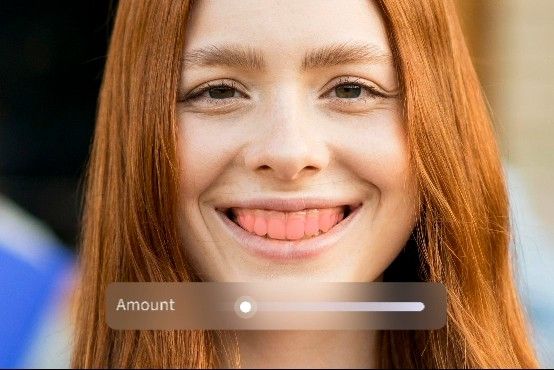
Whiten Teeth detects and brightens teeth in each photo automatically, so every smile looks its best without manual retouching.
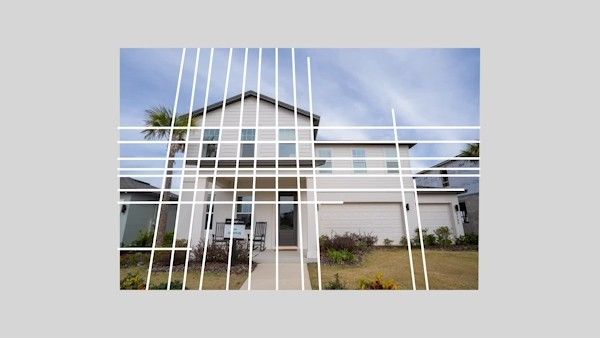
Automatically fix distorted lines and tilted horizons using an AI image perspective correction tool that analyzes each photo, with full control to review and adjust every result.

Automatically crop hundreds of portrait photos to a consistent frame using an AI portrait crop tool that detects each subject and places them perfectly — so every face lands exactly where it should.
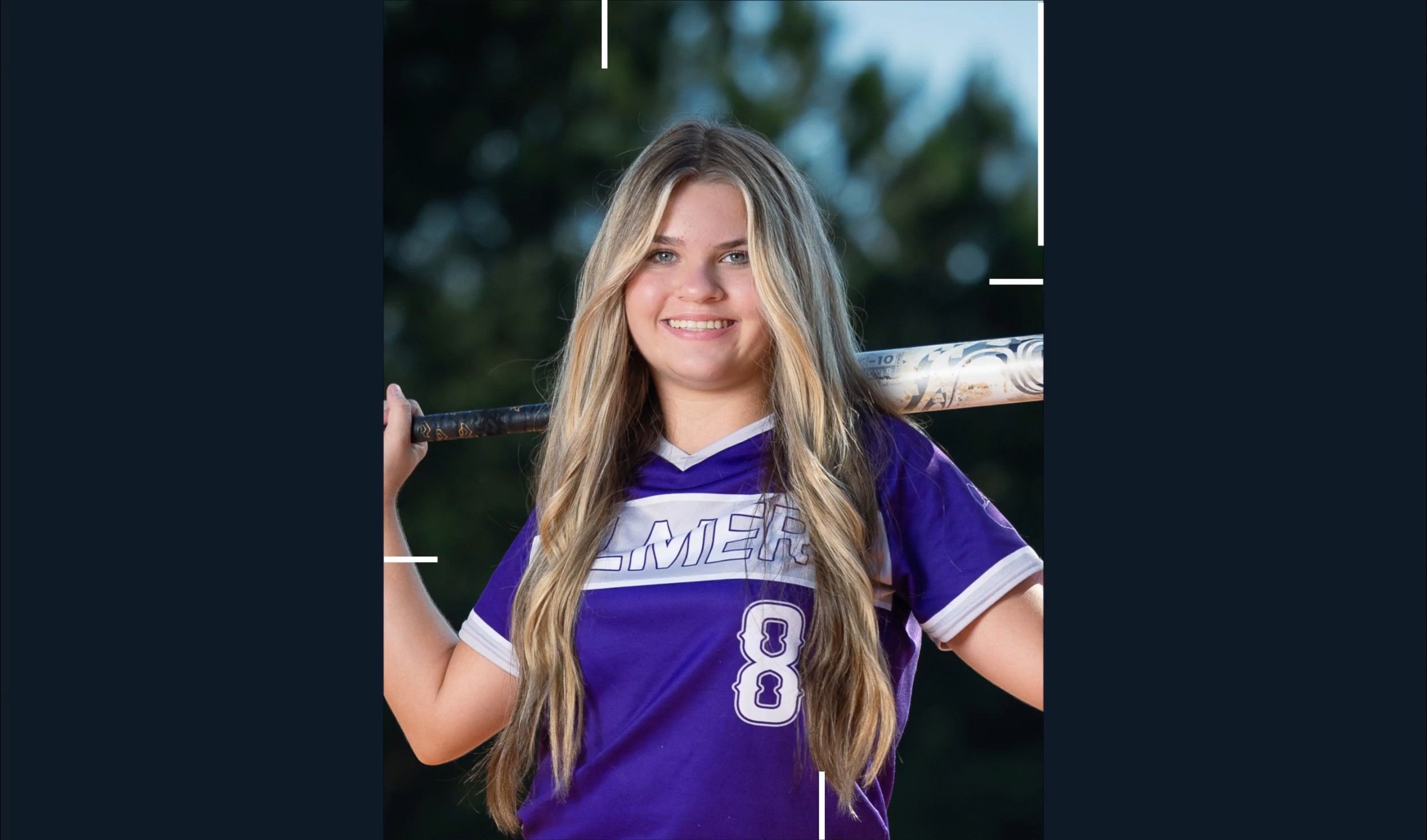
Automatically crop headshots with an AI headshot photo cropper that detects every subject and frames each shot consistently, with full control to review and adjust every result.
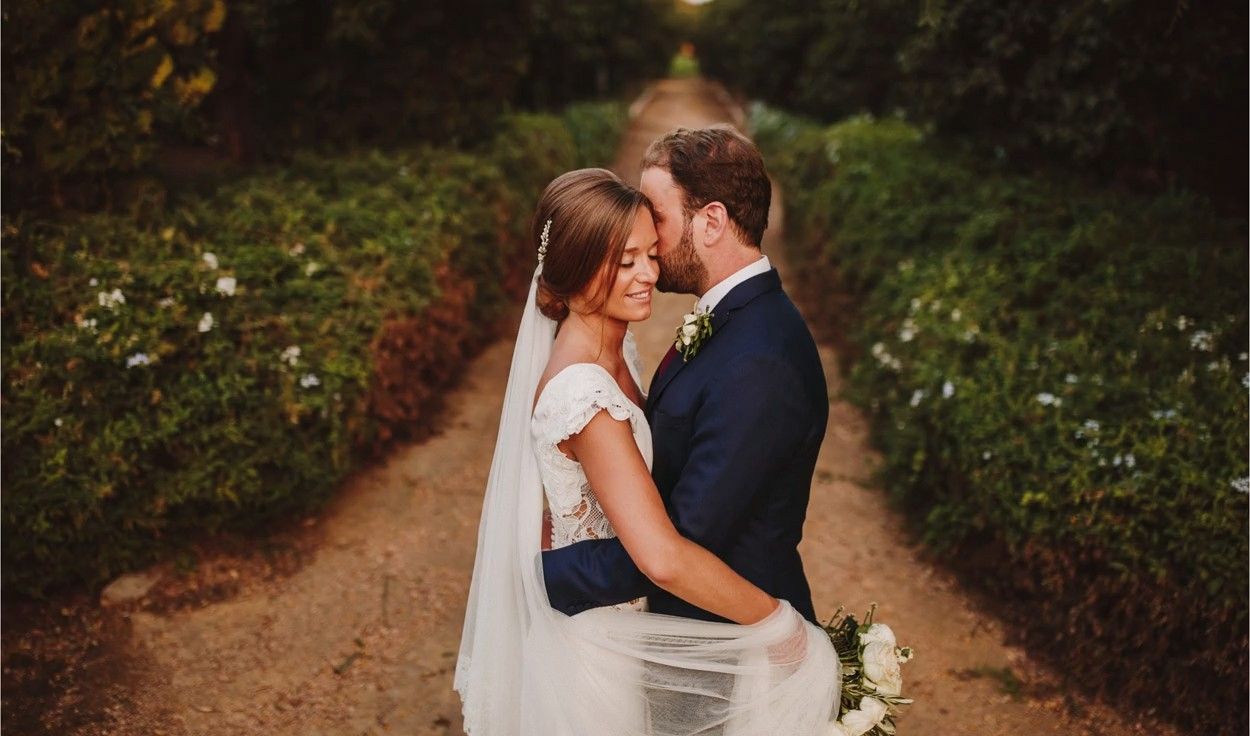
Mask the background in every photo automatically and adjust its exposure, color and texture on their own, so your subject stands out. Review and refine every result in Lightroom Classic.

Remove grain from high-ISO and low-light RAW photos automatically. Imagen sets the strength for each photo, keeps the detail and your editing style, and sends the results to Lightroom Classic.

Automatically extract subjects from any photo using an AI-powered background remover that keeps edges clean, detail sharp, and every result ready to review.
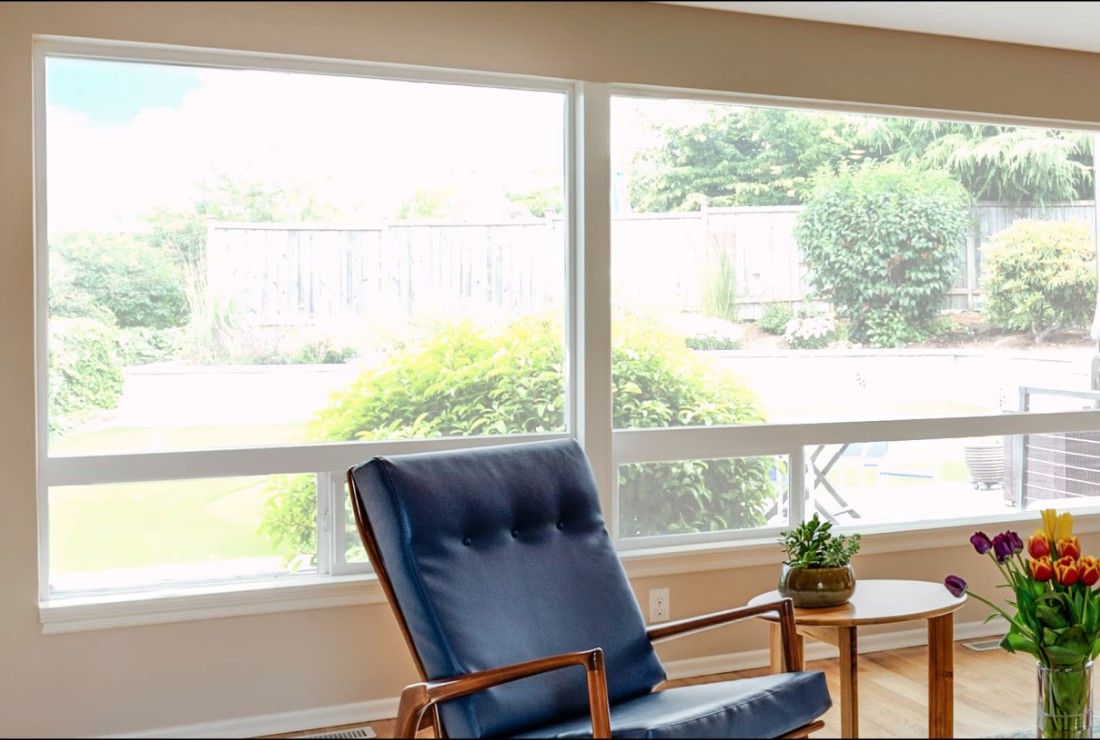
Balance bright windows with indoor subjects using an AI-powered tool that detects overexposed areas and pulls back highlights, with full control to review and adjust every result.
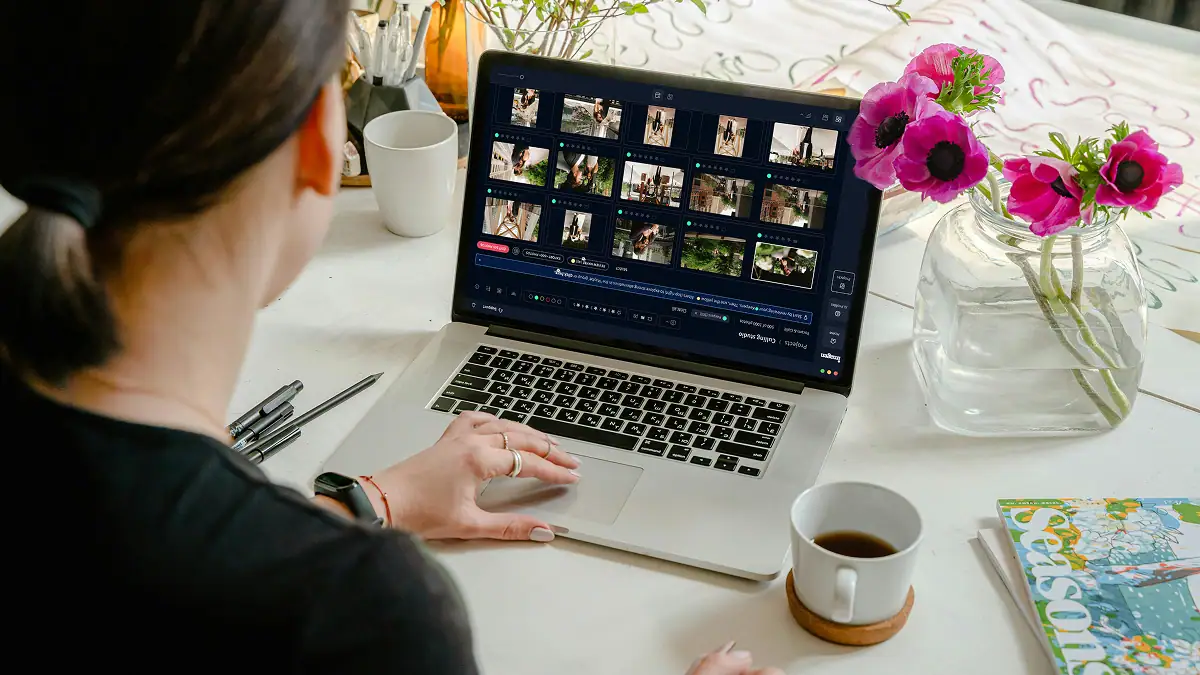
Export final JPEGs straight from Imagen to Pic-Time galleries or your local folder. Complete your entire workflow from camera to client, without switching apps.

Imagen's AI culling groups similar shots and keeps only the best. Duplicate Removal happens automatically, so you review fewer photos and deliver faster.

Imagen's AI analyzes every face in your photos and detects closed eyes automatically. Blink Detection flags the issue so you keep the shots where everyone looks their best.

Imagen's AI Subject Mask finds the main subject in every photo and adjusts it on its own, so it stands out. No manual brushwork, no repetitive masking: consistent results across your whole project, ready in Lightroom Classic.
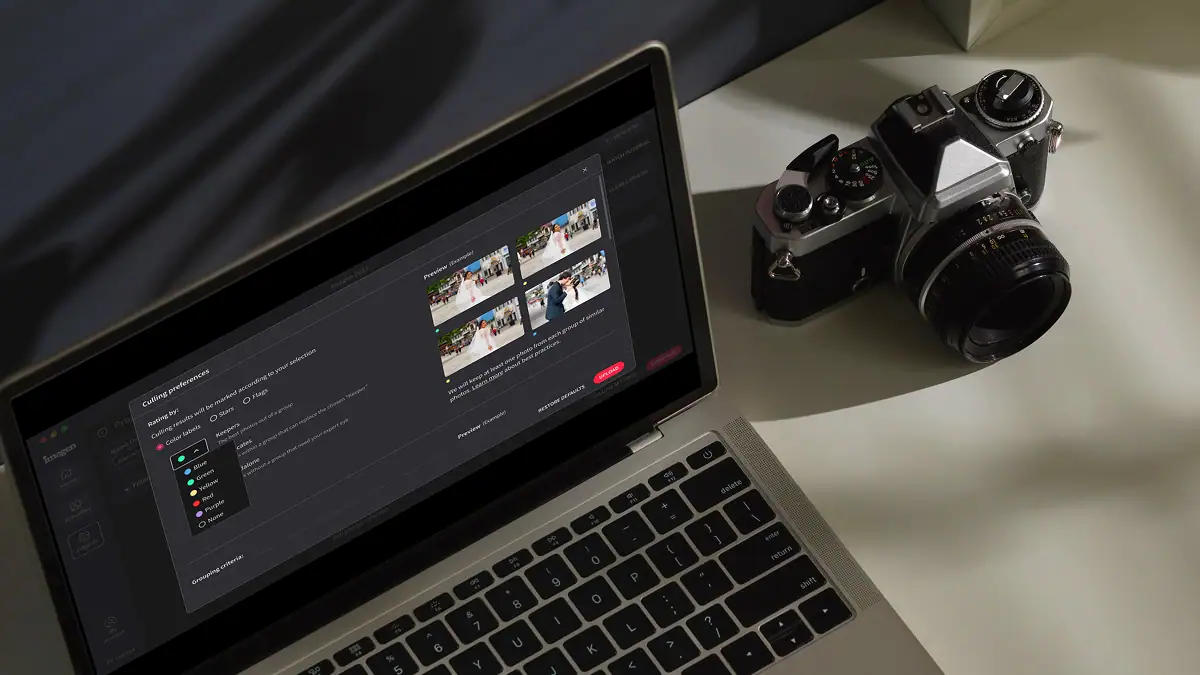
Automatically detect the sharpest photos in every set using an AI-powered Sharpness Check that analyzes focus accuracy — so you cull faster and choose with confidence.
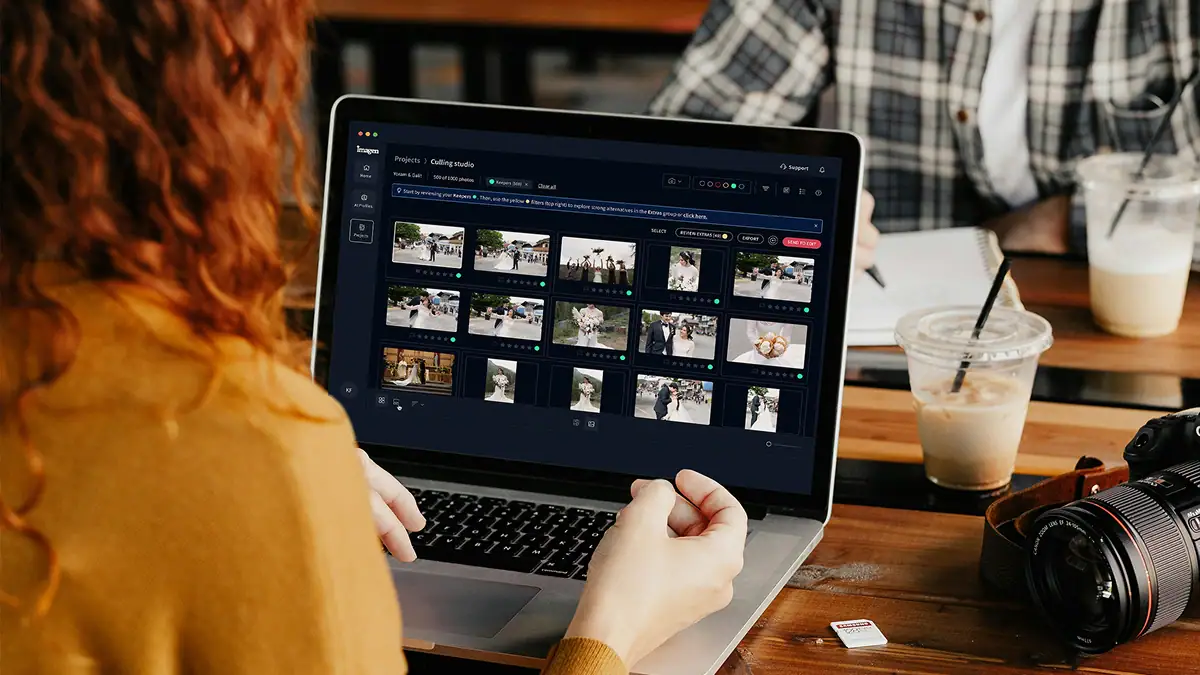
Automatically back up your original RAW files to secure cloud storage as you work — so your client photos are always protected, without any extra steps.
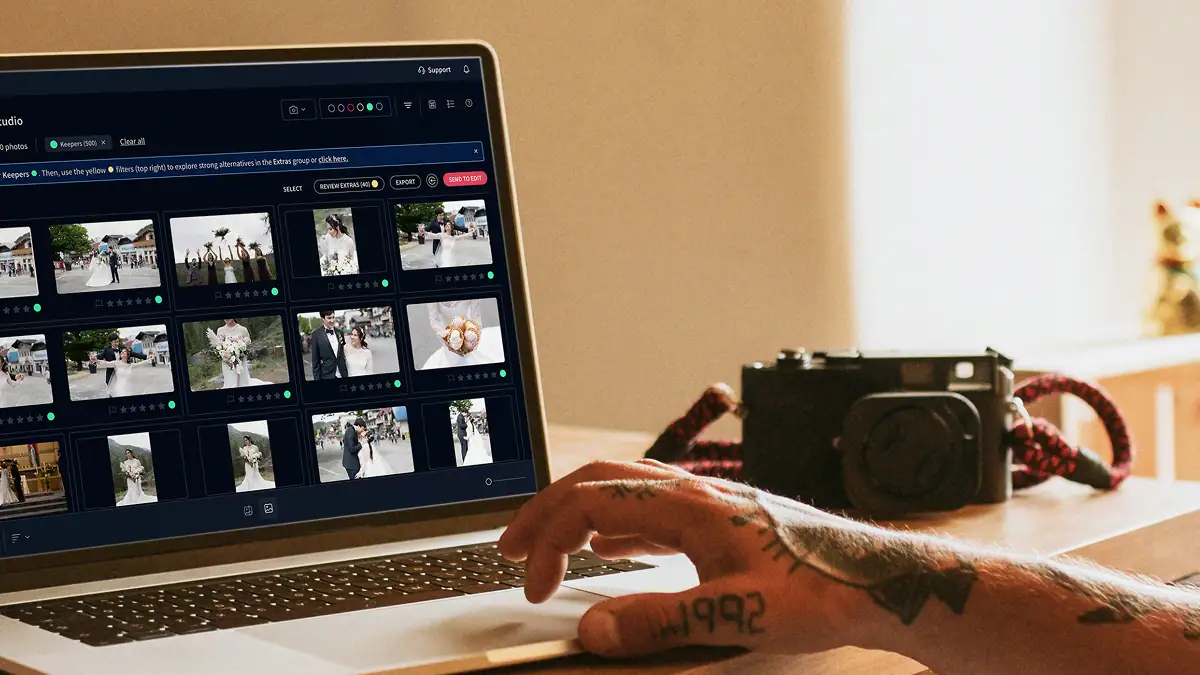
Store full-resolution photos at up to 75% smaller file size — so your photo storage goes 4x further, uploads faster, and your work stays protected without the cost of raw file bloat.
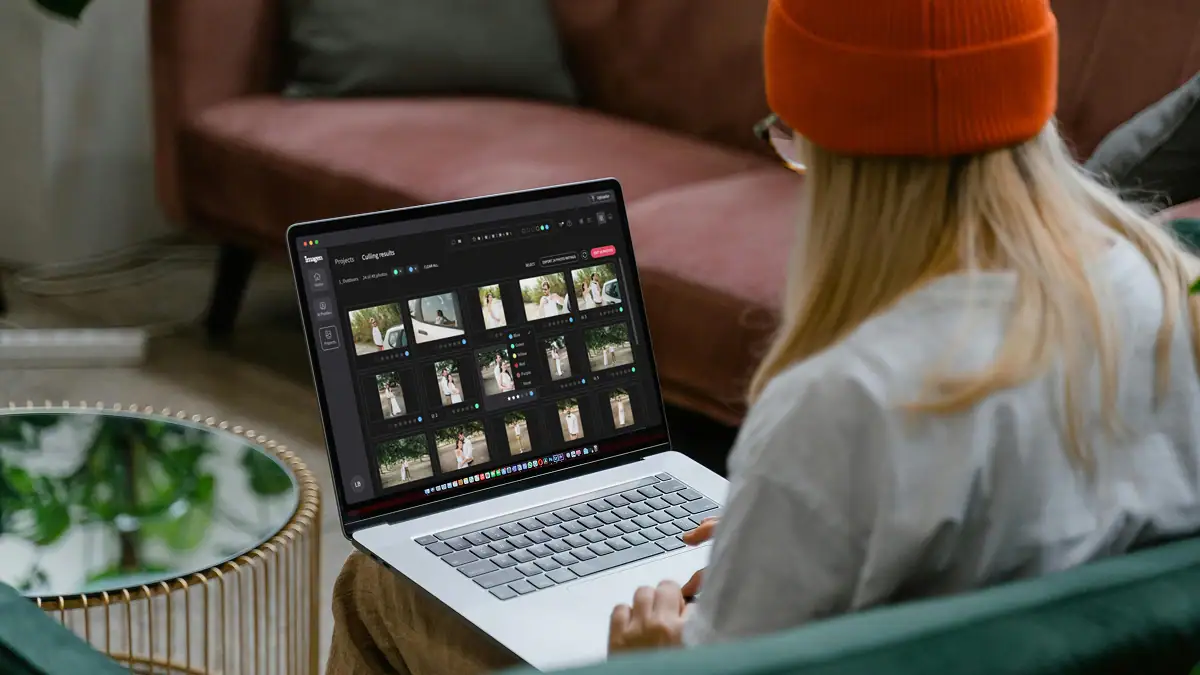
The Imagen API lets developers connect Imagen's AI editing engine directly to any app, platform, or workflow — so your photos get edited automatically, at any scale, without the desktop app.

Stray Hair detects flyaways in each portrait and removes them automatically, so every photo looks polished without hours of manual retouching.

Face Retouch detects and corrects common skin imperfections in each portrait. Blemishes, under-eye shadows, uneven texture; so every photo looks polished without tedious manual work.
Get started with 1,000 free edits. Edit your projects faster without sacrificing quality.
Pay only for what you need
Starting at
US$0.05 / photo
US$7/monthly base fee
Any unused balance rolls over to next month as export credit
Rolls over as export credit
One simple price for unlimited use
Billed annuallyBilled monthly
US$129US$165 / month
Save US$432/year
* Looking for Imagen for Real Estate? The web app for real estate is priced separately. See real estate pricing
* Not sure which plan? Start with Pay-as-you-go and switch later.
Speed, consistency, and scale for high-volume businesses and studios
Talk to us
Custom plan
Ask us anything, connect with our customer success team.
We go beyond troubleshooting - we’re your partners in optimizing workflows and realizing your creative vision.
No credit card required.
A fallback is your safety net during batch processing to ensure total consistency across every property you shoot. When you use AI Photo Editing for Tour Operators, the software relies on your Personal AI Profile to edit thousands of frames. Sometimes a specific file lacks the metadata or lighting references the AI expects. In these rare cases, the system automatically applies your chosen fallback profile to keep the editing process moving without interruption. This means you never hit a bottleneck when delivering a massive gallery to your clients. You set a trusted base profile as your fallback before you start the batch. The software recognizes the irregular file, applies the fallback settings, and continues editing the rest of the catalog at lightning speed. You retain complete control because the fallback applies standard Lightroom Classic adjustments that you easily tweak later. By having a fallback in place, you slash editing time by up to 96 percent and guarantee your work meets your exact standards.
A fallback profile maintains consistency by applying a reliable baseline edit to any outlier photos in your catalog. When you shoot a massive real estate project, you often encounter mixed lighting or unexpected camera settings. If your primary Personal AI Profile encounters a file it cannot process perfectly, the fallback profile instantly takes over. This prevents jarring visual differences within the same gallery. The fallback uses a predefined set of Lightroom Classic parameters that match your general editing style. Instead of leaving an image unedited or applying a random guess, the software relies on this backup to keep the colors, exposure, and contrast aligned with the rest of the batch. You deliver a cohesive listing to your clients without manually hunting down unedited files. You get peace of mind knowing that even the trickiest lighting situations receive a professional edit. The fallback system works quietly in the background to protect your aesthetic across thousands of frames.
Using a fallback AI Profile is fundamentally different because it adapts to the specific exposure and white balance of each image automatically. When you manually apply a preset in Lightroom Classic, you paste the exact same static values across every photo. This forces you to spend hours manually tweaking sliders to fix inconsistent lighting in a property. A fallback profile analyzes the individual characteristics of the outlier file before making adjustments. It calculates the ideal temperature, tint, and exposure needed to match your overall gallery aesthetic. You skip the tedious manual corrections and move straight to final reviews. This intelligent backup system guarantees consistency even when your primary Personal AI Profile steps aside. You process thousands of frames effortlessly while the fallback handles the heavy lifting on difficult files. You ultimately save hours of manual labor per listing while keeping total creative control over the final output.
Yes, the fallback system works seamlessly with RAW files from any camera body you use. When you manage AI Photo Editing for Tour Operators, you often handle files from multiple photographers or backup cameras. The fallback profile reads the unique raw data and color science of each specific camera before applying its edits. It normalizes the baseline exposure and color temperature so that a photo from a drone matches a photo from your main mirrorless camera perfectly. This creates perfect consistency across the entire property shoot. You do not have to separate your catalog by camera model or apply different base presets manually. The software processes the mixed batch in Lightroom Classic and applies the fallback intelligently wherever needed. You get a unified gallery ready for client delivery without worrying about mismatched colors or jarring exposure shifts between different camera bodies.
Relying on a fallback profile drastically accelerates your turnaround time for every listing you edit. Without a fallback, an automated system might pause or skip difficult files, forcing you to manually identify and edit the missing images later. This breaks your workflow and adds hours to your delivery schedule. The fallback system eliminates this bottleneck entirely. When your primary Personal AI Profile encounters a tricky file, the fallback instantly applies a high-quality baseline edit and keeps the batch processing moving at full speed. You can edit 1,000 photos in minutes without babysitting the software. This continuous workflow means you deliver the final gallery to your clients much faster. You spend less time fixing gaps in your Lightroom Classic catalog and more time shooting new properties. The fallback keeps your editing speed remains incredibly fast while protecting the consistency of your final images.
You absolutely have the power to assign a specific Personal AI Profile as your fallback during batch processing. Many photographers build a highly versatile, general-purpose profile specifically for this reason. When you set up your project in Imagen, you simply designate this reliable profile as your backup. If your highly specialized primary profile struggles with a strange lighting setup in a real estate shoot, the software automatically switches to your designated fallback. This guarantees that every single photo in your gallery receives an edit based on your actual editing style. You never have to settle for a generic preset. By using your own custom profile as the safety net, you maintain strict consistency across thousands of frames. You keep your Lightroom Classic workflow entirely personal while protecting yourself against unedited outliers in any given property catalog.
When the software encounters a complex lighting situation in a property, the fallback profile applies a safe and balanced baseline edit. Complex mixed lighting often confuses standard editing automation. Instead of making extreme or incorrect slider adjustments, the fallback profile defaults to conservative corrections for exposure, contrast, and white balance. It analyzes the raw data to recover highlights and lift shadows without pushing the file too far. This approach protects the integrity of the image while maintaining consistency with the rest of your batch. You receive a clean, neutral file in Lightroom Classic that requires only minor manual tweaks. The fallback prevents the software from ruining an important shot in your gallery with wild color shifts. You stay in complete control of the final look while saving massive amounts of time on the initial heavy lifting.
You can easily identify which photos used the fallback settings directly within your Lightroom Classic catalog. When the software finishes processing your batch, it applies specific color labels or keywords to the images that required the fallback profile. This transparent system means you never have to guess which files received the backup edit. You simply filter your gallery by the designated keyword to review the fallback edits in seconds. This targeted review process saves you from checking every single photo in a massive real estate project. You quickly verify the consistency of the fallback edits, make any quick manual adjustments, and move on. We design the software to keep you fully informed about how your images are handled. You get the speed of automated batch processing while retaining complete visibility over every file in your listing.
The fallback feature itself acts as a static safety net, but it directly helps your Personal AI Profile learn your style over time. When the software applies a fallback edit to a tricky file, you will likely make a few manual adjustments in Lightroom Classic to perfect the image. You then upload these final edits back to the software to update your primary profile. By doing this, you teach your main AI Profile how to handle those complex lighting situations in the future. As your primary profile gets smarter with every real estate project you complete, it relies on the fallback less and less. The fallback ensures you always have a baseline edit to work from today, while your final tweaks build a more reliable, independent profile for tomorrow. This continuous feedback loop guarantees flawless consistency across every future gallery you deliver.
You can always adjust the results after a fallback profile edits your real estate gallery. The software applies all edits as non-destructive adjustments directly to your RAW files. When you open the completed batch in Lightroom Classic, you see every slider exactly where the fallback profile placed it. If a particular room in a listing needs a slightly warmer temperature or a different exposure tweak, you simply move the sliders as you normally would. The fallback is a tool to get you 90 percent of the way there, not a locked-in final product. You maintain absolute creative control over every single frame. By providing a solid, intelligent baseline, the fallback simply reduces the time you spend making those final adjustments. You achieve perfect consistency across thousands of images while ensuring the final delivery meets your exact personal standards.

Start your free trial today - no commitment required