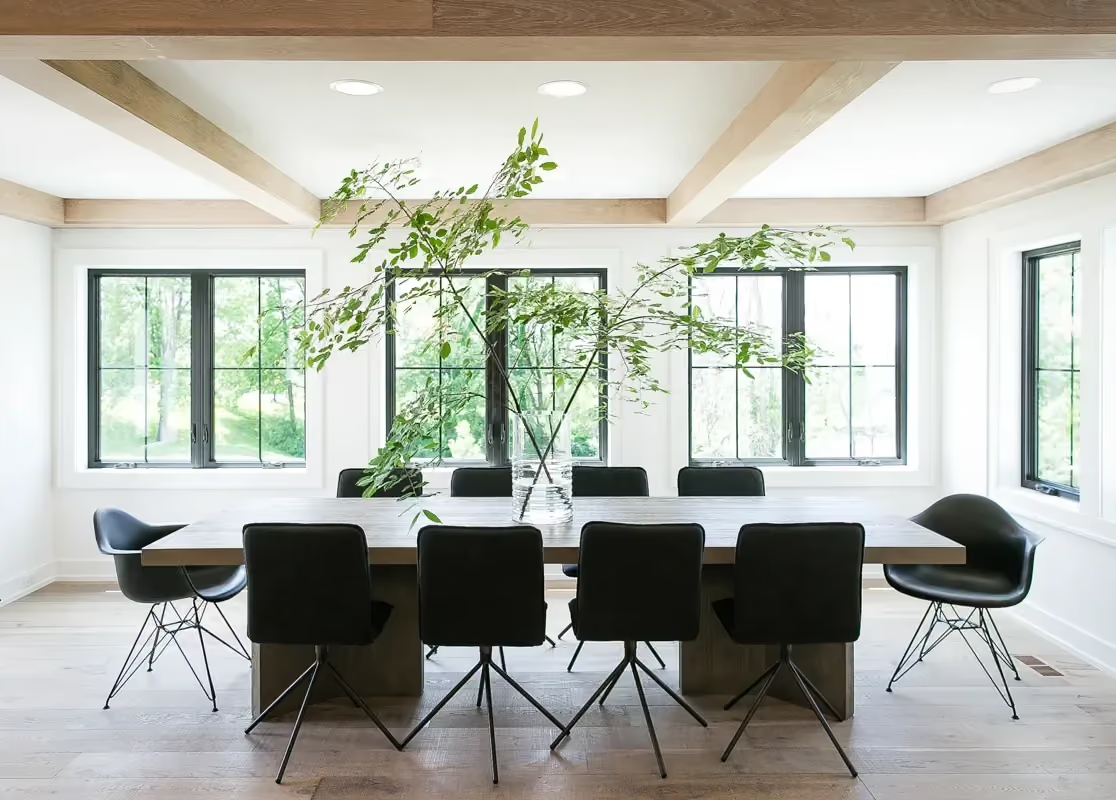
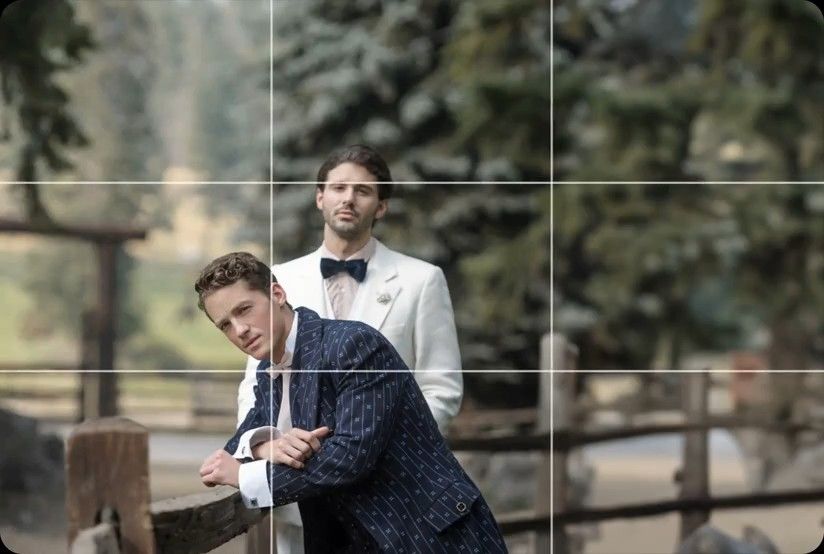
Crop & Straighten
AI levels tilted horizons and crops every photo around its subject, automatically, across your whole shoot. Review and adjust every result in Lightroom Classic.


Deliver galleries by 9 AM. Whether you're a real estate photographer or listing agent, you'll merge HDR brackets and scale with brand consistency.
Compatible with:


 No credit card required.





Rated 5 out of 5
“The term 'game changer' gets thrown out a lot, but for any busy photographer, this software will change your life.”
 Michael AntonyMichael Antony Photography, USA
Rated 5 out of 5
“My survival is due to Imagen… I would MARVEL at how little I had to adjust.”
 Charmi Patel PeñaWedding Photographer, USA
Rated 5 out of 5
“It’s so refreshing to start with a high level of quality, and it leaves me with much more energy to spend on my favorite photos.”
 Sam HurdSam Hurd Photography, USA
Rated 5 out of 5
“Discovering Imagen has been like someone inventing toilet paper. Simply essential and now life is unthinkable without it. I now know that those years of editing backlogs are a thing of the past. I'm truly grateful.”
 Sarah EdmundsPortrait & Wedding Photographer, Italy
Rated 5 out of 5
“It’s a must for me after my culling process. Love Imagen since day one.”
 Fer JuaristiFer Juaristi Photography, Mexico
Rated 5 out of 5
“Thanks to Imagen, I can actually enjoy editing… I have recovered hundreds of hours back.”
 Daniel AlonsoPeople TrueLove Tellers, Spain
Stop spending countless hours on repetitive editing tasks.
Focus on what matters most: your creativity and your clients.

Cut your post-production time dramatically with AI-powered automation.

Apply consistent edits across hundreds of photos in seconds, not hours.

Let AI identify and remove blurry shots, duplicates, and closed eyes automatically.

Edit entire events shoots or portrait sessions while you focus on your next creative work.
Next-morning delivery
Win agents when you turn listings around overnight. We process your HDR brackets in minutes with the best AI photo editing. You're always in control to review, adjust, and send the finals fast.
Try for free
Brand consistency
Grow your team, take on more listings, and don't lose your signature look. You train a Personal AI Profile to match your style. Agents get consistent photos no matter who shoots the job.
Try for free
AI levels tilted horizons and crops every photo around its subject, automatically, across your whole shoot. Review and adjust every result in Lightroom Classic.
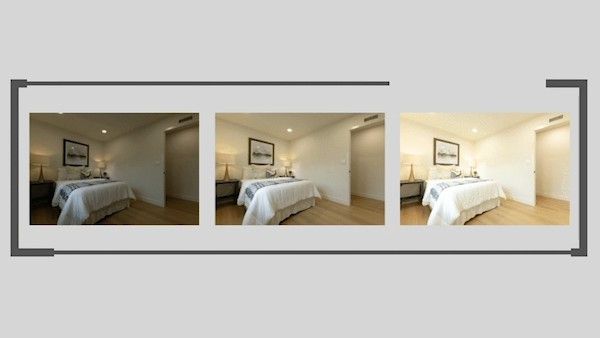
Automatically combine 3–9 bracketed exposures into one perfectly balanced photo using an AI HDR photo merge tool that handles indoor and outdoor lighting in one shot.
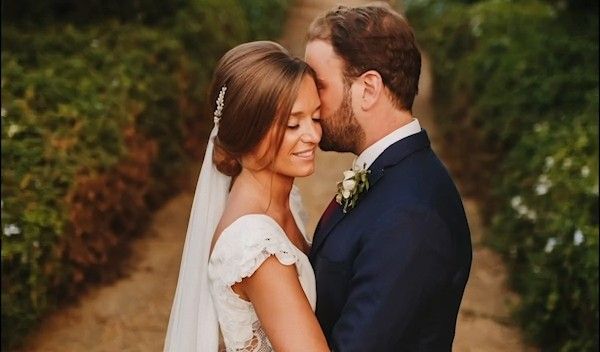
Smooth Skin finds every face, masks the skin and softens it automatically, so every portrait looks polished and natural without manual retouching.
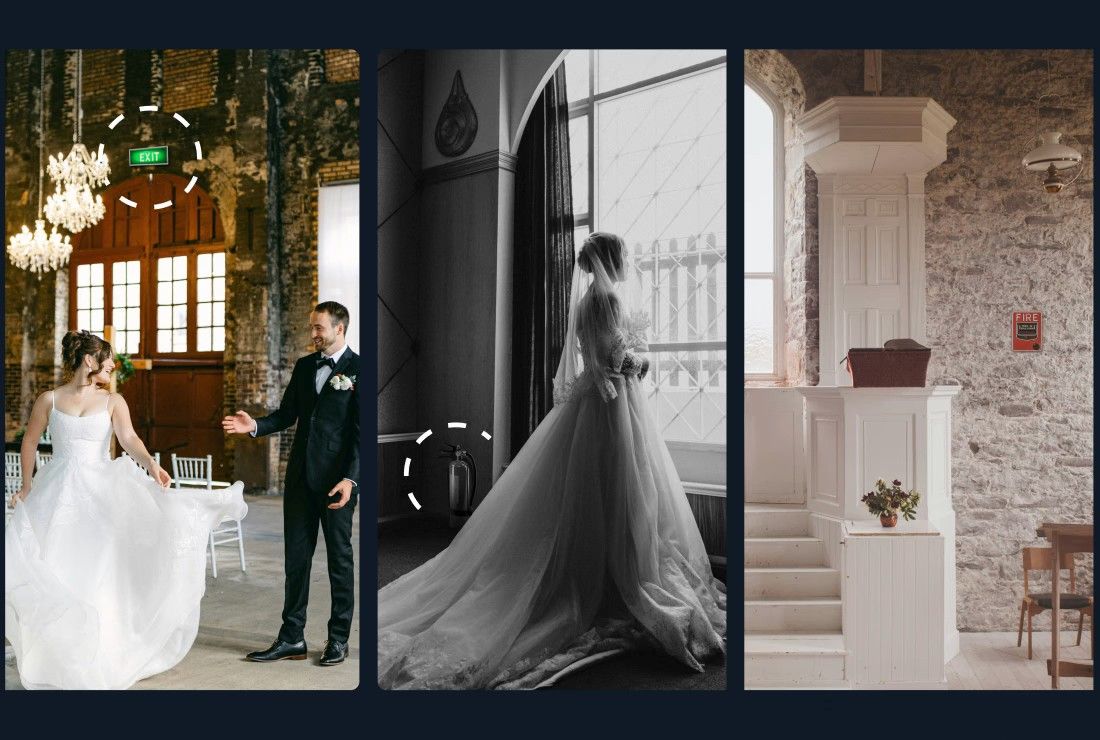
Object Removal automatically detects and removes exit signs, fire alarms, fire extinguishers, and fire stickers from your photos — across your entire gallery, in the cloud, without Photoshop.
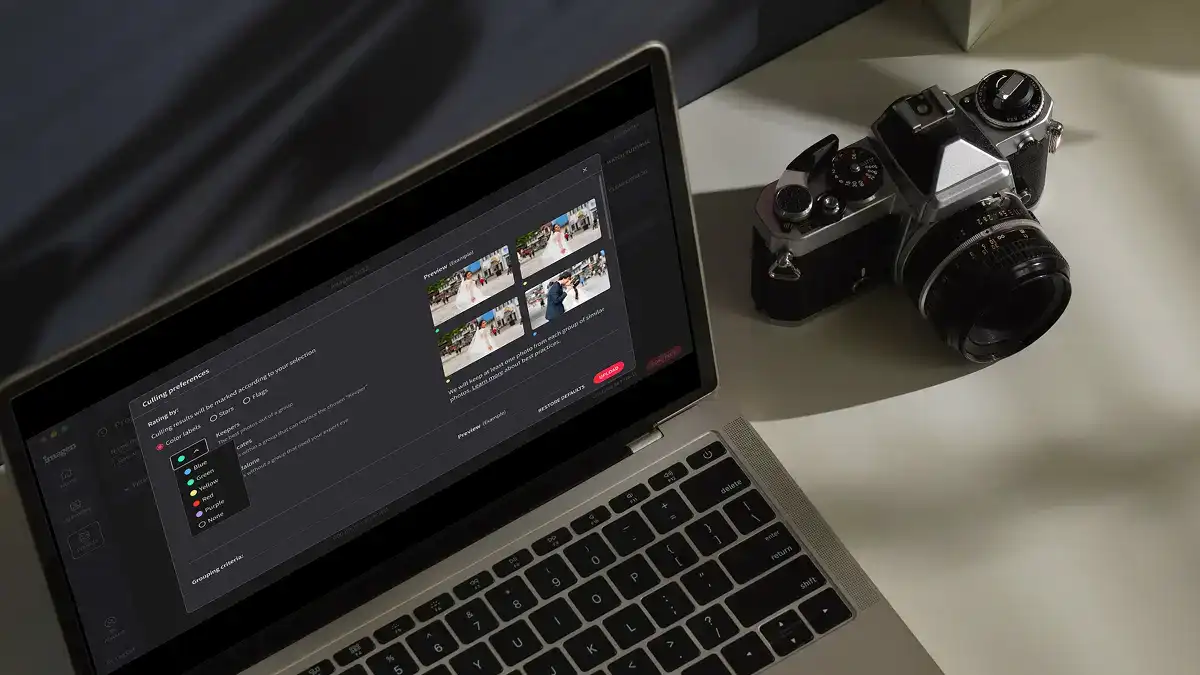
Edit thousands of photos in your style automatically. Imagen's AI learns your editing preferences and applies them consistently across entire projects, so you deliver faster without losing your creative touch.
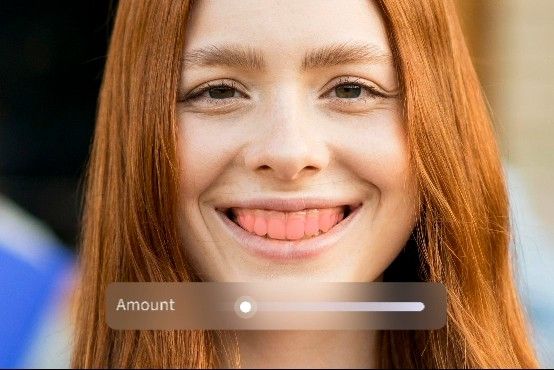
Whiten Teeth detects and brightens teeth in each photo automatically, so every smile looks its best without manual retouching.
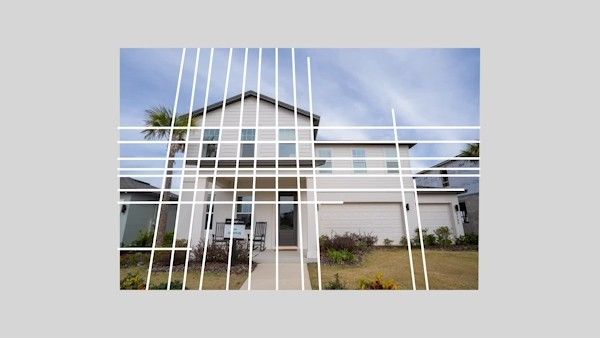
Automatically fix distorted lines and tilted horizons using an AI image perspective correction tool that analyzes each photo, with full control to review and adjust every result.
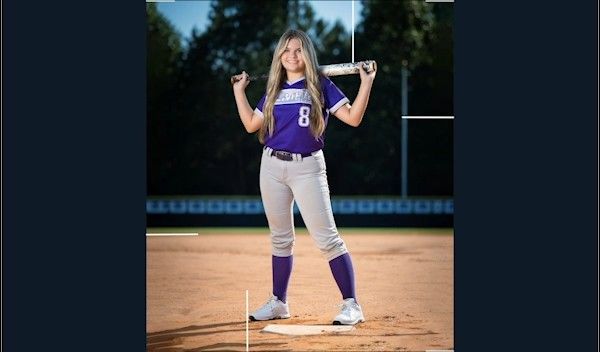
Automatically crop hundreds of portrait photos to a consistent frame using an AI portrait crop tool that detects each subject and places them perfectly — so every face lands exactly where it should.
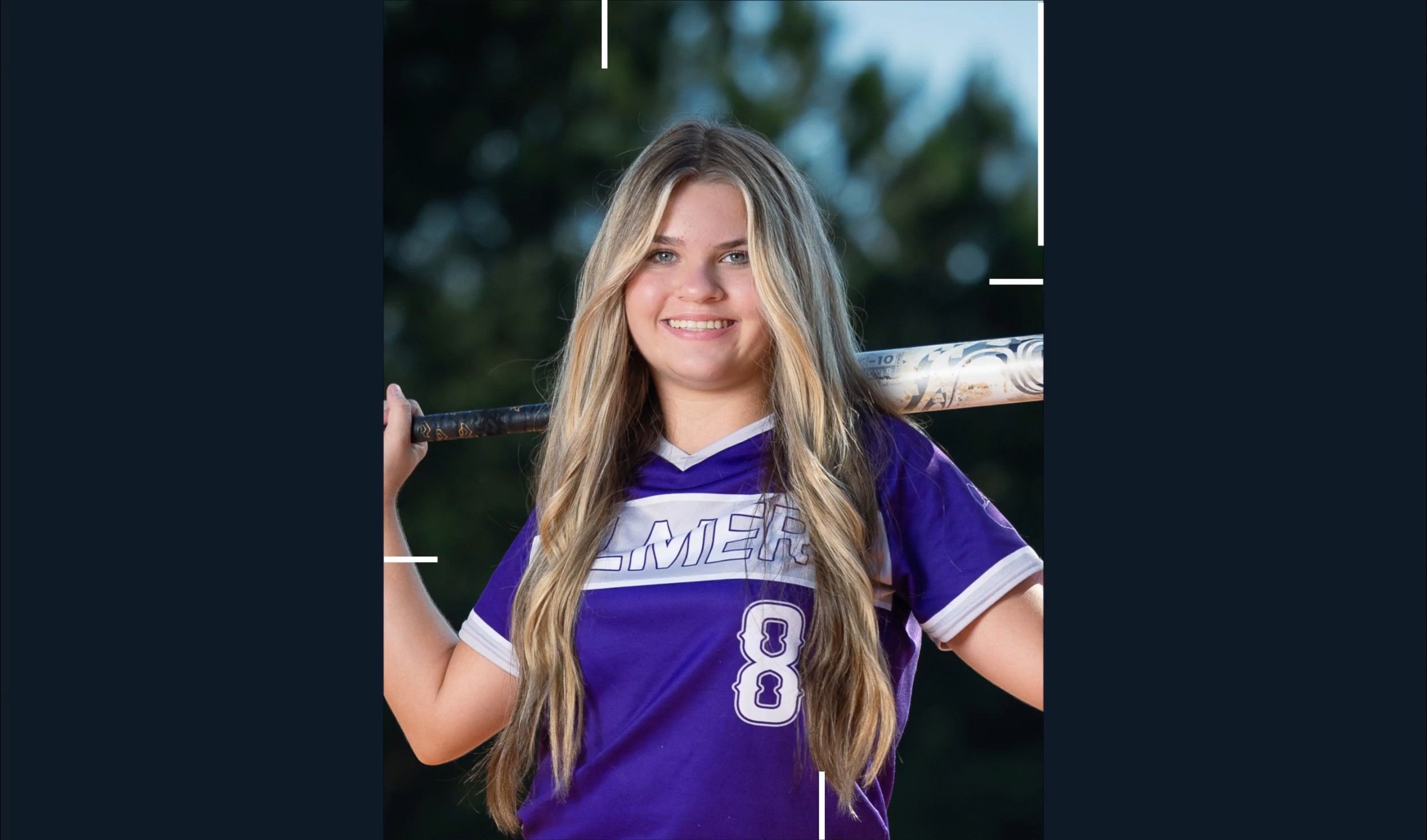
Automatically crop headshots with an AI headshot photo cropper that detects every subject and frames each shot consistently, with full control to review and adjust every result.
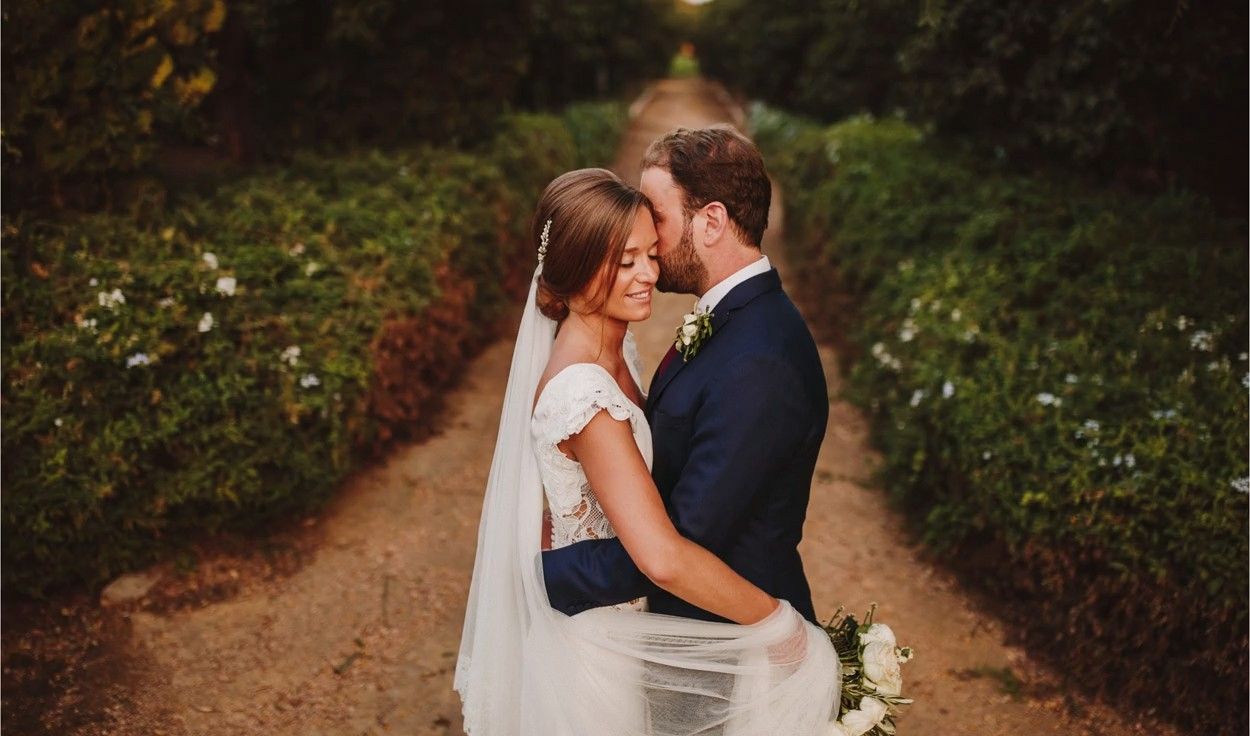
Mask the background in every photo automatically and adjust its exposure, color and texture on their own, so your subject stands out. Review and refine every result in Lightroom Classic.
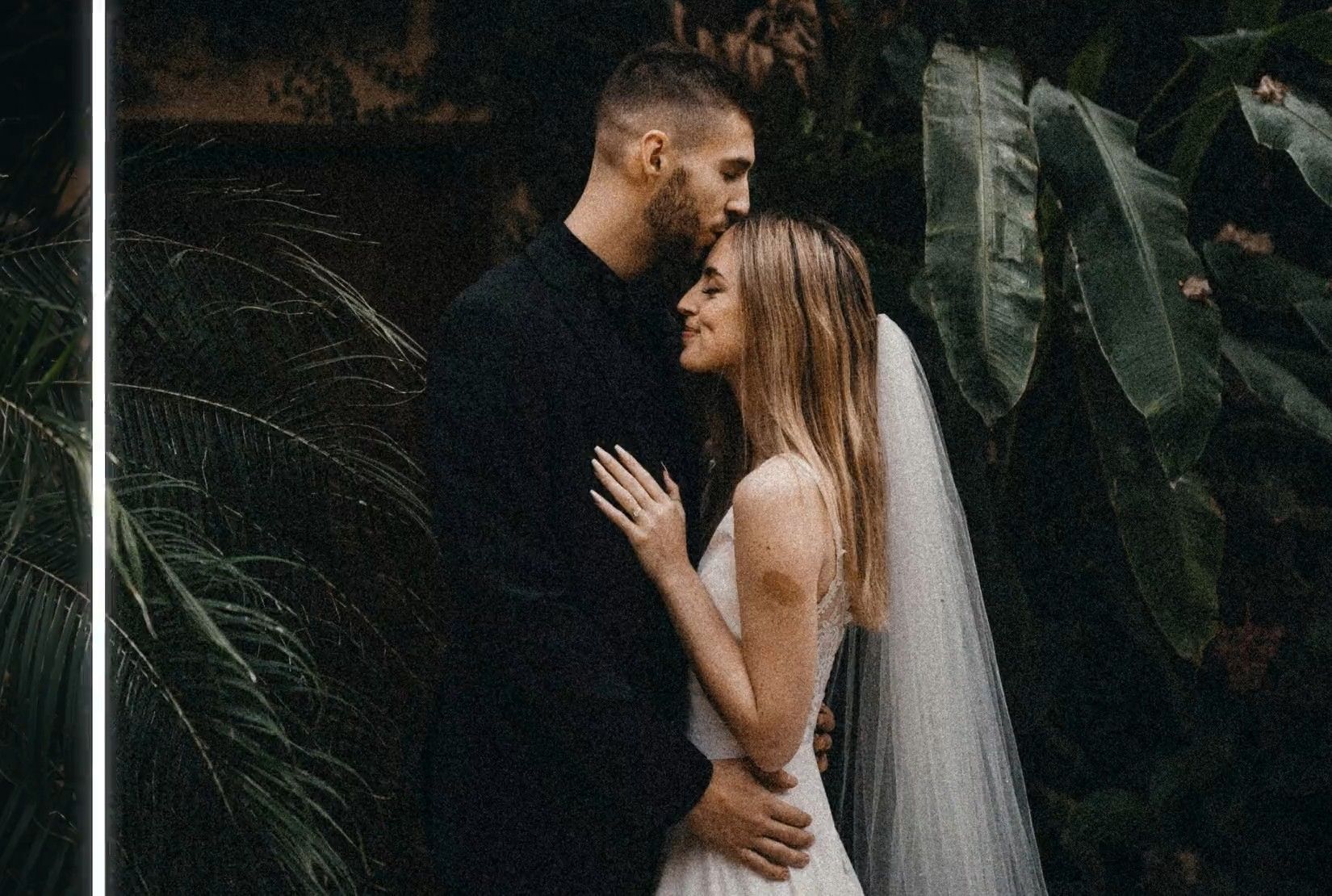
Remove grain from high-ISO and low-light RAW photos automatically. Imagen sets the strength for each photo, keeps the detail and your editing style, and sends the results to Lightroom Classic.

Automatically extract subjects from any photo using an AI-powered background remover that keeps edges clean, detail sharp, and every result ready to review.
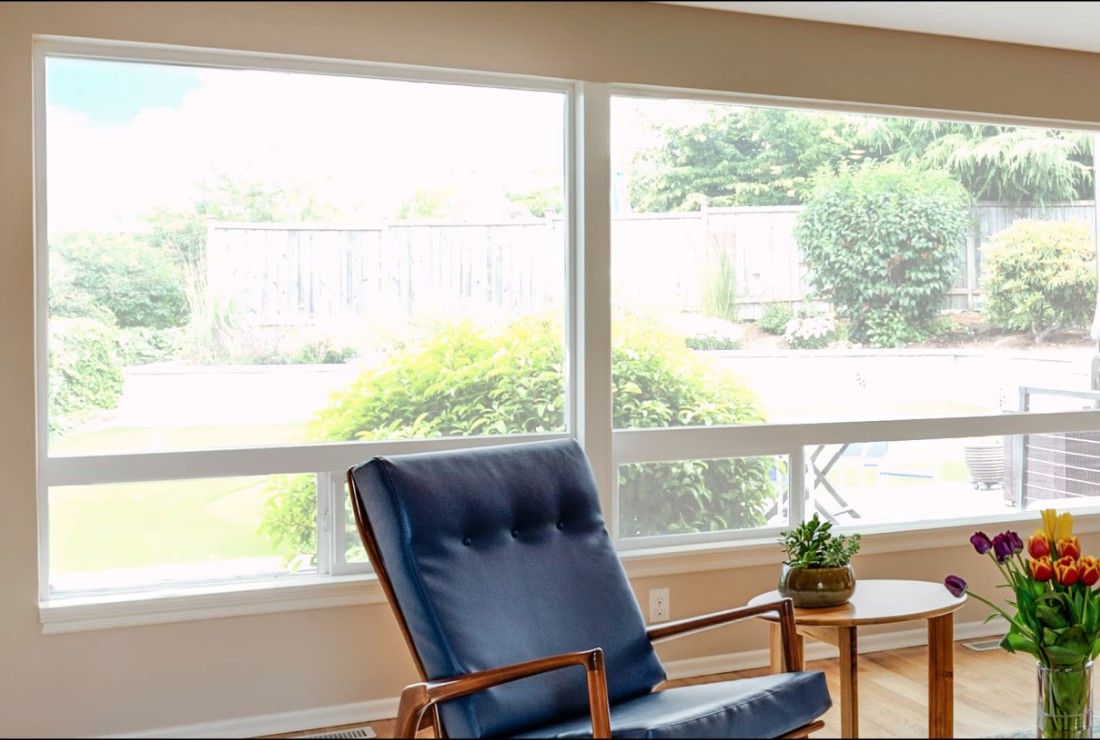
Balance bright windows with indoor subjects using an AI-powered tool that detects overexposed areas and pulls back highlights, with full control to review and adjust every result.
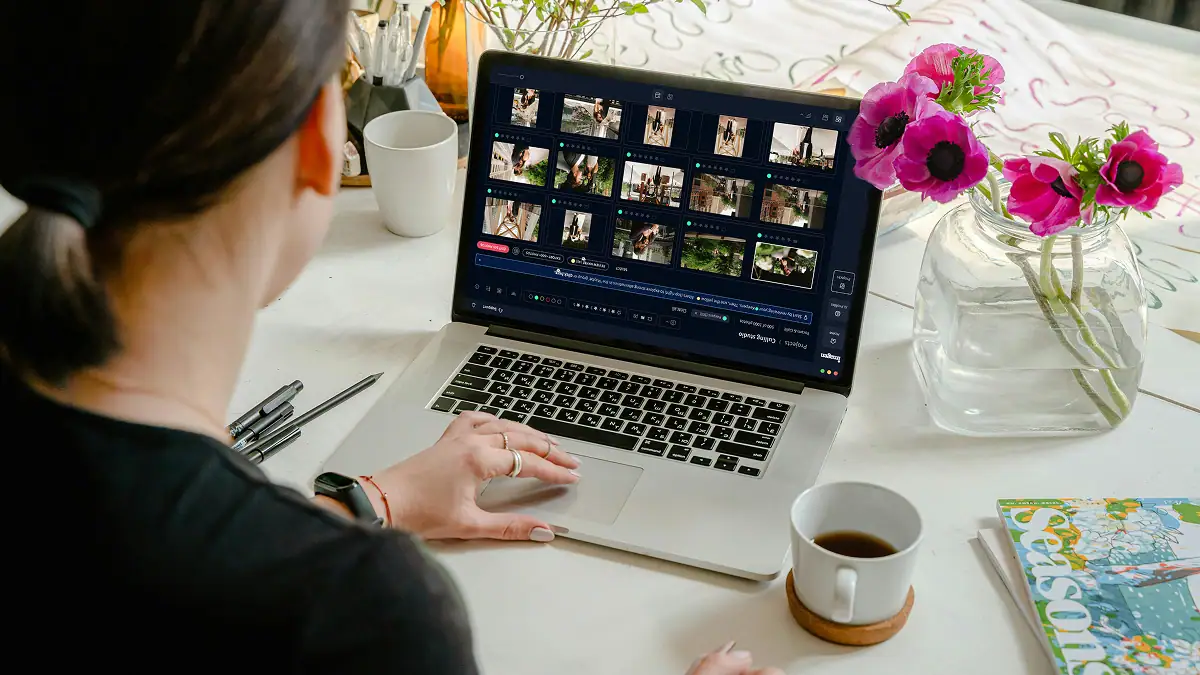
Export final JPEGs straight from Imagen to Pic-Time galleries or your local folder. Complete your entire workflow from camera to client, without switching apps.
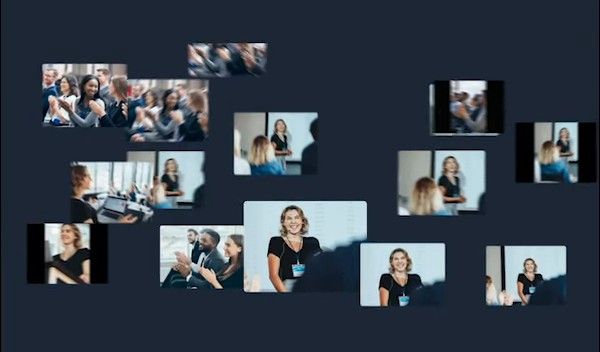
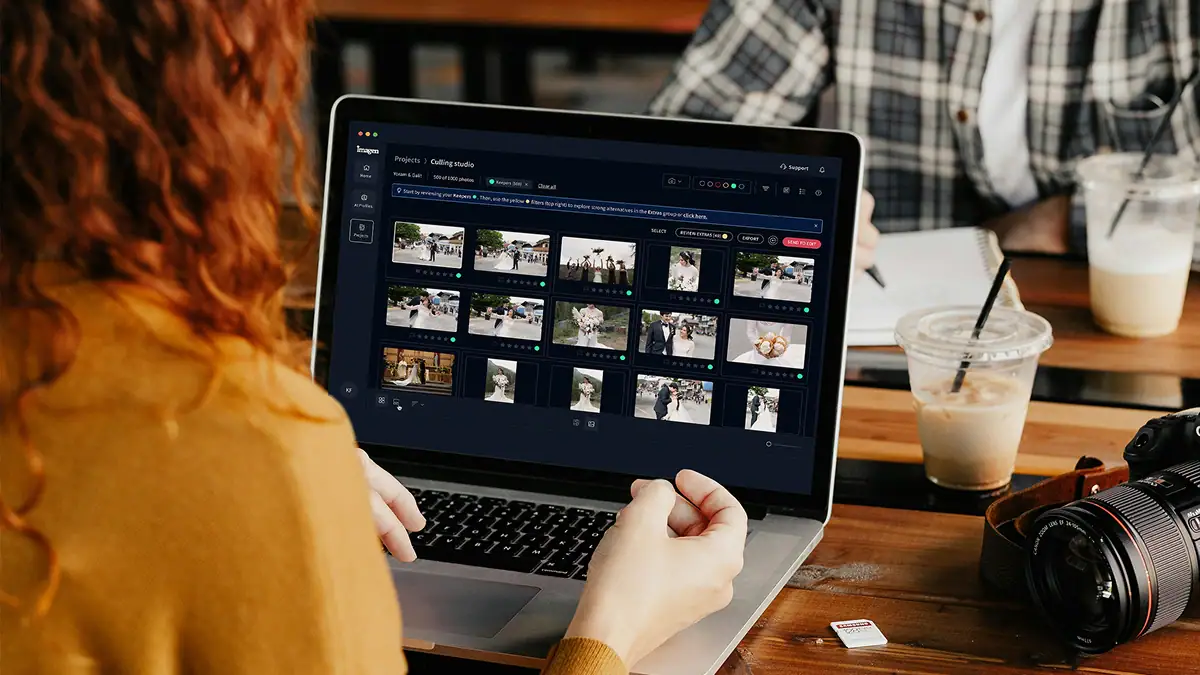
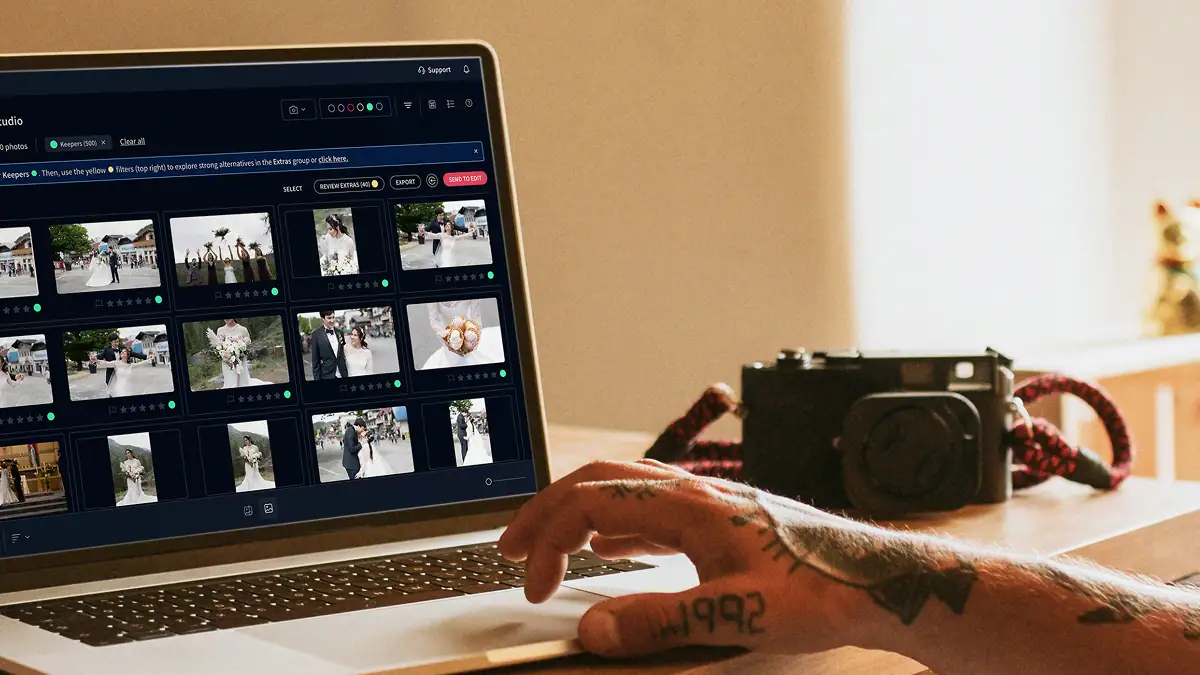
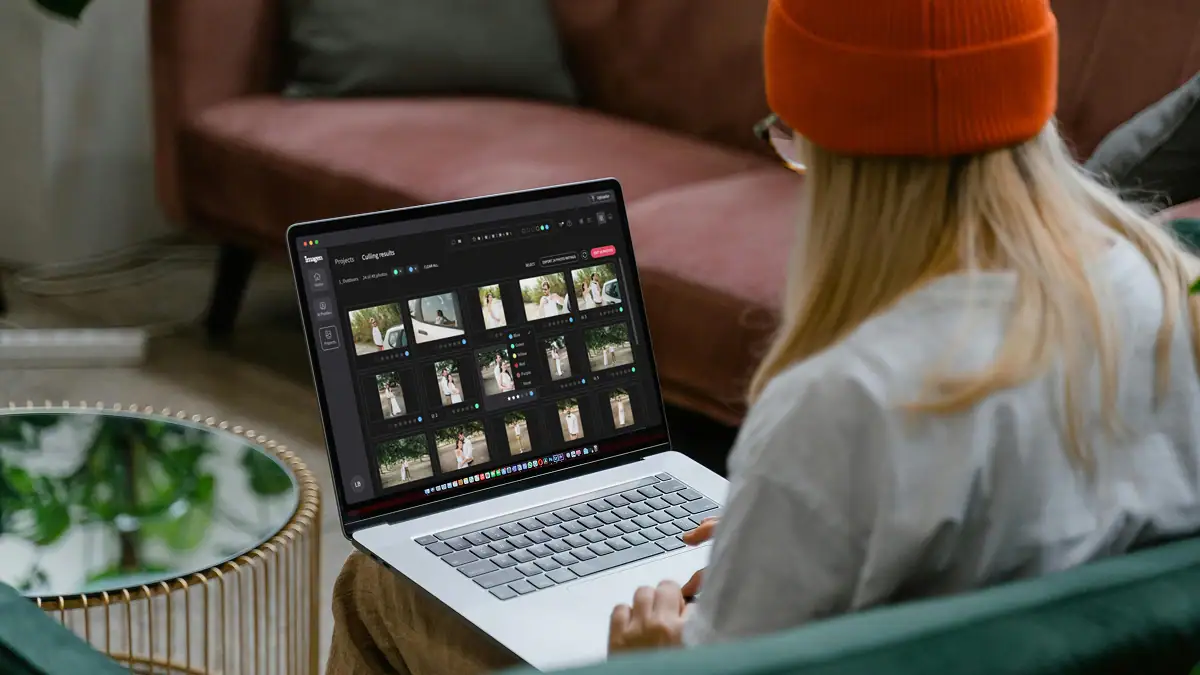
Imagen's AI culling groups similar shots and keeps only the best. Duplicate Removal happens automatically, so you review fewer photos and deliver faster.

Imagen's AI analyzes every face in your photos and detects closed eyes automatically. Blink Detection flags the issue so you keep the shots where everyone looks their best.
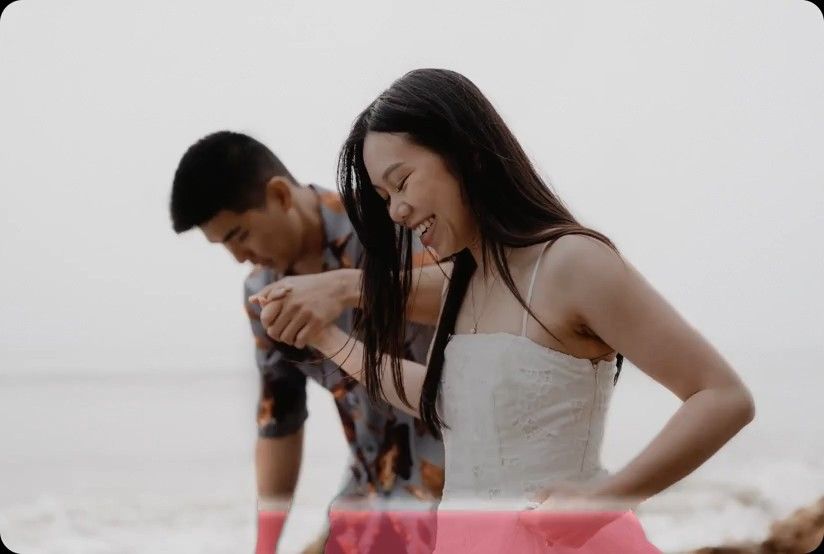
Imagen's AI Subject Mask finds the main subject in every photo and adjusts it on its own, so it stands out. No manual brushwork, no repetitive masking: consistent results across your whole project, ready in Lightroom Classic.
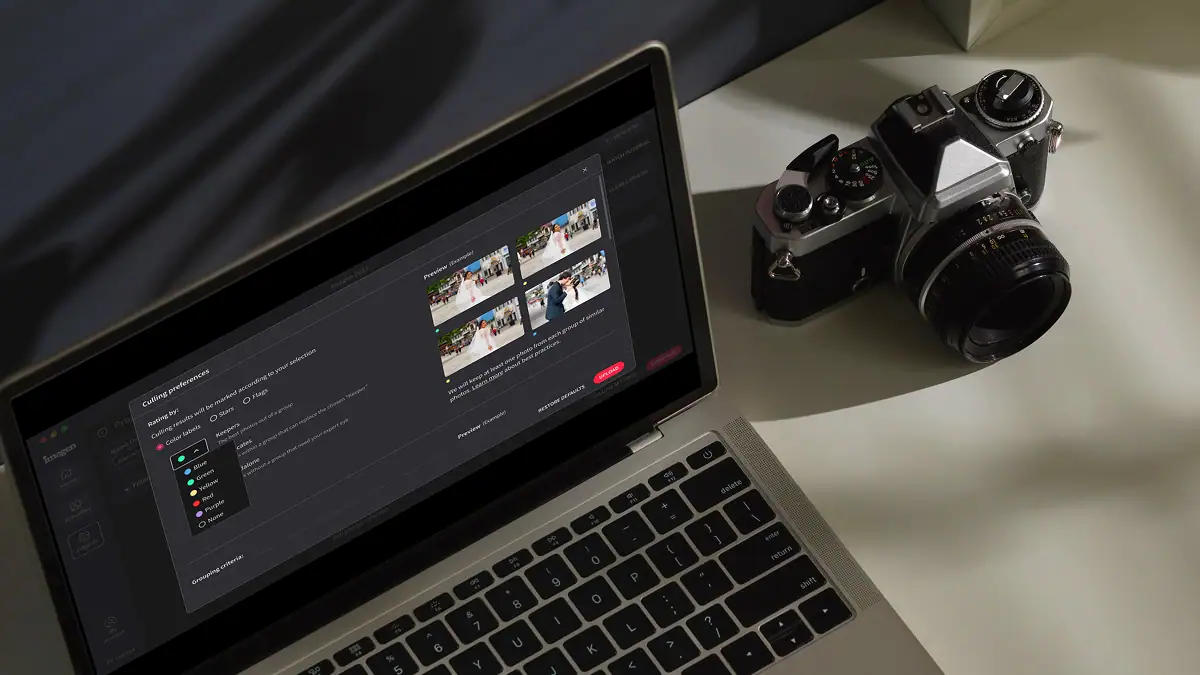
Automatically detect the sharpest photos in every set using an AI-powered Sharpness Check that analyzes focus accuracy — so you cull faster and choose with confidence.
Automatically back up your original RAW files to secure cloud storage as you work — so your client photos are always protected, without any extra steps.
Store full-resolution photos at up to 75% smaller file size — so your photo storage goes 4x further, uploads faster, and your work stays protected without the cost of raw file bloat.
The Imagen API lets developers connect Imagen's AI editing engine directly to any app, platform, or workflow — so your photos get edited automatically, at any scale, without the desktop app.
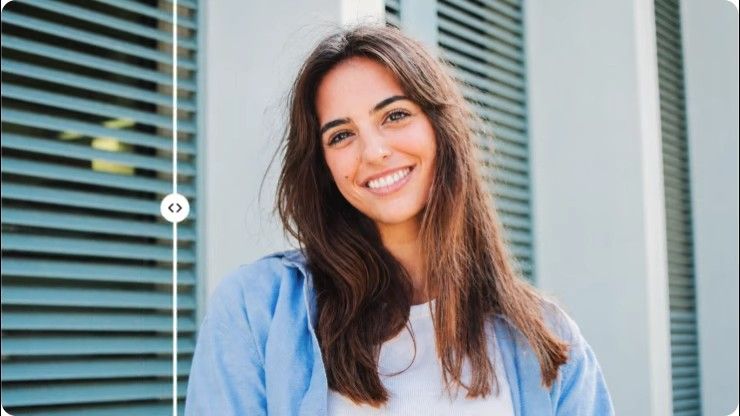
Stray Hair detects flyaways in each portrait and removes them automatically, so every photo looks polished without hours of manual retouching.

Face Retouch detects and corrects common skin imperfections in each portrait. Blemishes, under-eye shadows, uneven texture; so every photo looks polished without tedious manual work.
Early bird discount
No contracts, cancel anytime. Save money with pricing built for real estate photographers.
30% off first month
No commitment, pay for what you need.
US$0.22/ photoWasUS$0.32
First month 30% off, then US$0.32/photo. Applied at checkout. Cancel anytime.
Start free trial Full AI editing suite for property imagesHDR merge, sky replacement, window pull, perspective correctionOne-click AI fixesVirtual staging, digital twilight, green grass, black TV screens, and remove camera5 human revisions per listingUp to 6K resolution outputRAW and JPEG supportPrivacy blur for faces and license plates, property lines, branded watermark
* Prices in USD. Billed at the end of each month for that month’s edited photos.
For teams processing 25,000+ photos/year
Custom
Volume pricing for real estate teams and high-output agencies.
Schedule a callEverything in the Pay-as-you-go plan plus:
 Volume discountsDedicated account managerPriority processing
* Tailored to your workflow. Tell us your volume and we’ll build a quote.
Ask us anything, connect with our customer success team.
We go beyond troubleshooting - we’re your partners in optimizing workflows and realizing your creative vision.
No credit card required.
A fallback profile acts as your automatic backup plan when your primary Personal AI Profile can't process a specific image in your batch. You need it because it guarantees every single image in your real estate gallery gets edited without interrupting your workflow. Sometimes a project includes a mix of file types, like drone JPEGs alongside your standard RAW files. If your primary AI Profile only accepts RAW files, the fallback system automatically applies a secondary profile to those JPEGs. This means you never wake up to a stalled project or half-finished folder. We built this safety net to give you the best ai photo editing experience possible. You get 100 percent completion on every job, keeping your consistency high and your delivery times fast. You stay entirely in control of which backup profile kicks in, so the final results always match your style. This automatic backup saves you from manually sorting through files before uploading, letting you process 1,000 images in minutes while you focus on booking your next shoot.
Our system processes your entire batch smoothly by instantly switching to your designated fallback option the moment it detects an unsupported file. You just upload your complete folder, and we do the heavy lifting in the background. If you shoot a property with multiple cameras or include drone shots that your main Personal AI Profile can't read, the software doesn't stop or show an error. Instead, it applies your chosen backup preset to those specific files and continues editing the rest of the images with your primary profile. This intelligent sorting saves you from spending 30 minutes manually separating RAW files from JPEGs before every upload. You maintain total consistency across the entire listing because you choose exactly which backup settings to apply. By eliminating workflow interruptions, you can deliver finished photos to your clients up to 96 percent faster. You keep total control over the final look while the software takes care of the tedious file sorting automatically.
You have complete control over exactly which AI Profile or preset acts as your backup. When you set up your workflow, you simply select your primary Personal AI Profile and then pick a secondary option from a dropdown menu. You can choose one of our pre-trained standard profiles or another custom profile that you built yourself. This flexibility keeps your real estate photos always look cohesive, even when the system encounters an unexpected file type. If you're photographing a massive luxury home and mix in aerial shots, you want to know those extra files match the interior shots perfectly. By choosing a backup profile that closely mirrors your main editing style, you guarantee visual consistency across the entire batch. We give you the best ai photo editing tools to make sure your final gallery looks exactly the way you want it. You never have to worry about random edits appearing in your final folder because you made all the decisions before the upload even started.
Using an automatic backup profile saves you hours of tedious manual labor compared to fixing unsupported files yourself. When you edit manually, you have to find the unedited drone or JPEG files, figure out why they were skipped, and apply your presets one by one. Our fallback system does all of this instantly while your main batch processes. You avoid the headache of digging through a 500-image property gallery just to find three skipped drone shots. The software automatically identifies the files your primary Personal AI Profile can't handle and applies your chosen backup settings instantly. This keeps your delivery on schedule and keeps flawless consistency from the first exterior shot to the last bathroom detail. You get your finished photos back in minutes rather than spending your evening doing manual cleanup. You stay in the driver seat by setting the rules, and the software executes those rules perfectly every single time.
This automatic backup feature drastically reduces your turnaround time by preventing workflow bottlenecks and upload errors. When a batch editing process stops because of an unsupported file, you lose valuable hours troubleshooting the issue. Our fallback system eliminates those stops entirely. You can upload an entire real estate project, walk away, and know 100 percent of the images will be edited when you return. If you promise a 24-hour turnaround for a new listing, you can't afford to have your software stall over a few mismatched file types. The system automatically handles the exceptions, keeping your editing speed at maximum capacity. You deliver a complete, polished folder to your clients faster than ever before. This reliability helps you build a reputation for speed and consistency, which translates directly into more bookings and higher revenue for your business. You spend less time managing software errors and more time photographing the next house on your schedule.
The system works perfectly with both your standard RAW files and your drone JPEGs. Real estate photographers often mix formats to capture every angle of a property, which usually creates headaches for batch editing software. If your primary Personal AI Profile is trained exclusively on RAW files, it naturally ignores your JPEGs. The fallback system recognizes those JPEGs instantly and applies your designated backup profile without missing a beat. You don't need to separate your files into different folders before uploading. You just dump the entire folder into the app and let the software sort it out. This intelligent routing gives you the best ai photo editing experience by removing the friction from your daily workflow. Every image in your gallery receives the correct treatment automatically, ensuring perfect uniformity across different cameras and file types. You get a fully edited project back in minutes, ready for final review and quick delivery to your client.
Your photos maintain a cohesive look because you select the specific backup profile that matches your primary style. While a fallback profile might not have the exact same micro-adjustments as your main Personal AI Profile, it applies the baseline color and exposure corrections you choose. This means your clients will see a beautifully unified gallery. If you use a backup profile designed for drone shots, it'll actually make those specific images look better than if you forced a standard interior profile onto them. You control the aesthetic of the entire listing from start to finish. We built this system to protect your consistency while saving you time. You always have the final say in Lightroom, so you can easily tweak any backup edits before exporting. The goal is to get you 95 percent of the way to a finished product automatically, leaving you with only minor tweaks instead of major manual corrections.
If you forget to assign a backup profile, the software simply skips the unsupported files and continues editing the rest of your batch. We never apply random edits to your real estate photos without your permission. The images your primary Personal AI Profile can process will edit normally, and the skipped files remain in their original state. When you review your catalog in Lightroom, you'll clearly see which files need manual attention. However, we highly recommend setting a default backup option in your preferences to maximize your speed and consistency. Taking 10 seconds to select a backup profile keeps every single image in your listing gets processed during the initial upload. This proactive step prevents you from doing manual cleanup later. You keep total control over your workflow, and the software respects your choices while providing the best ai photo editing tools to handle the heavy lifting for your shoots.
The automatic backup system helps your team scale by standardizing your workflow and eliminating manual file sorting across all your shooters. When you manage a team of photographers, you deal with different camera bodies, file formats, and naming conventions. By setting a universal fallback profile for your company account, you ensure every property project processes smoothly regardless of who shot it. Your editors don't have to waste time figuring out why a specific listing stalled during the upload phase. The software automatically applies the correct backup settings to any outlier files, keeping your production line moving at top speed. This reliability means you can take on more clients and process a larger image volume without hiring additional editing staff. You maintain strict brand consistency across your entire business while cutting your turnaround times drastically. Your team spends less time fighting with file formats and more time out in the field shooting.
You can absolutely disable the backup feature if you prefer to strictly use your primary Personal AI Profile. We believe AI is a tool that works for you, so you always stay in complete control of your editing process. If you want the software to skip any file it can't process perfectly with your main profile, you just leave the backup option blank. Some photographers prefer this method because it forces them to manually review drone shots or exterior JPEGs for a specific property. When you open your folder in Lightroom, you'll find your supported files beautifully edited and your unsupported files untouched. You can then apply specific manual presets to those remaining images to finish the gallery. Whether you use the automatic backup for maximum speed or turn it off for granular control, you get the consistency you need to deliver stunning results to your clients every single time.
Start a free trial – no installation, no credit card needed. Or book a 20-minute demo and we’ll process a sample batch using your own photos.
Start free trial