

AI photo editing for raw files: A Complete 2026 Guide
Table of contents
- Why RAW files change what AI editing can do
- Step one: cull the RAW shoot before you edit anything
- Step two: batch grade the whole shoot in your own style
- Step three: finish the exceptions one photo at a time
- Where Imagen fits in a RAW workflow
- What to route to a dedicated tool instead
- How to choose your AI RAW editing setup
- Frequently Asked Questions
AI photo editing for raw files means letting a trained model read the full data in your camera’s original capture, the unprocessed RAW file straight off the sensor, and apply color, tone, and exposure decisions for you instead of moving every slider by hand. The short answer for busy photographers in 2026 is this: the best AI editors work directly on RAW, preserve the wide latitude that makes RAW worth shooting, and apply your personal look consistently across a whole shoot rather than one frame at a time. This guide explains how RAW editing with AI actually works, what it does well, where it stops, and how to build a workflow that finishes a gallery in a fraction of the usual time.
We will start with why RAW matters, then walk through culling, batch grading, per-photo finishing, and the tasks you should still route to a dedicated specialist tool. Along the way you will see exactly where an AI batch editor fits and where it does not, so you can match the right step to the right software.
Why RAW files change what AI editing can do
A RAW file is not a finished picture. It is the raw sensor readout, holding far more tonal information than a baked JPEG, which is why photographers shoot RAW in the first place. That extra latitude is what lets you recover a blown highlight in a bright sky or lift shadow detail out of a dim reception hall without the image falling apart. When an AI editor works on the RAW file directly, it has all of that headroom to work with, so its exposure and white balance decisions hold up under pressure.
Editing a JPEG instead throws most of that data away before the AI ever sees it. The practical takeaway is simple. If you shoot RAW for the recovery room and the color depth, you want an editor that ingests RAW natively and keeps that information intact through the edit. RAW support is not a checkbox feature here. It is the whole reason the AI can make confident tonal calls across a shoot with mixed lighting.
Step one: cull the RAW shoot before you edit anything
The first real time sink in any RAW workflow is not editing. It is deciding which frames deserve editing at all. A single wedding or event can leave you with thousands of nearly identical exposures, and scrolling through bursts of ten similar frames to pick the keeper is where an afternoon disappears.
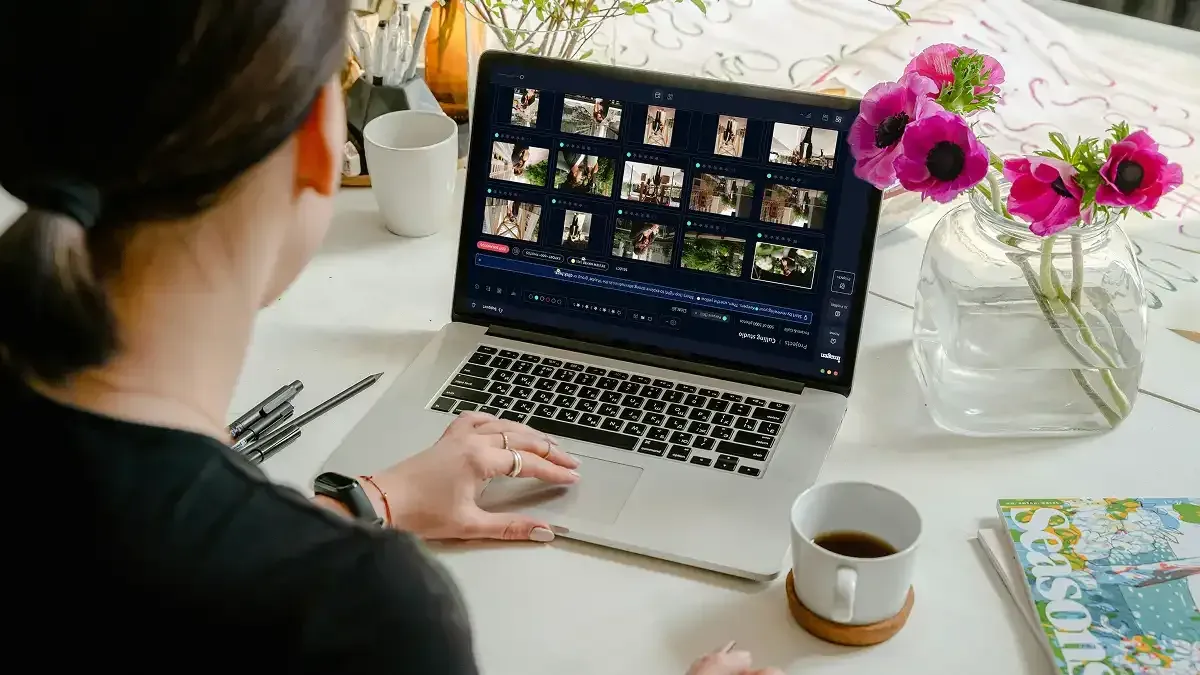
AI culling reads the shoot and narrows those near-duplicate bursts for you, flagging the sharper, better-timed frame in each cluster so you review a shortlist instead of the full card. You stay in control and make the final calls, but you start from a filtered set rather than raw chaos. Culling on the RAW files first, before any grading runs, means you never spend processing effort on frames you were always going to cut. If culling is the part of your workflow that hurts most, it is worth reading a focused breakdown of the current options.
Step two: batch grade the whole shoot in your own style
Once the keepers are chosen, the heart of AI RAW editing is batch grading. Instead of editing one file and copying settings across, you point the editor at the entire shoot and it applies color correction, exposure balancing, and white balance to every RAW frame in your consistent style. A ceremony shot in open shade and a reception shot under warm tungsten come back looking like one coherent gallery rather than a patchwork of separate edits.
This is where working from RAW pays off directly. Because the model reads the full sensor data, it can normalize wildly different lighting across a venue and still hold natural skin tones and clean highlights. The best batch editors learn a personalized profile from your own past edits, so the output looks like your work, not a generic filter. For high-volume genres such as weddings, events, portraits, and real estate, this single step is what turns a weekend of editing into an evening.
Step three: finish the exceptions one photo at a time
A batch pass handles the whole gallery, but a handful of frames always need individual attention. Modern AI editors pair the batch grade with a per-photo assistant for those exceptions. Typical finishing tasks include object removal, taking a stray trash can out of a driveway or a distracting sign out of a background, plus virtual staging, day-to-dusk sky conversions, and background or plate blur to clean up a busy edge.
The mental model is clean. The batch handles the shoot, and the per-photo assistant handles the one or two frames that need extra care. You are not opening a separate program and rebuilding each fix from scratch. You grade everything consistently, then spend your remaining attention only where a specific frame genuinely calls for it.
Where Imagen fits in a RAW workflow
Imagen is a desktop app for Mac and Windows built for photographers who deliver whole shoots rather than single hero images. You sign in, add your RAW shoot, and the work begins in the cloud. It supports RAW files natively, which is the foundation everything above depends on.
In practice, Imagen brings the three steps together. Imagen applies your personal AI editing style across every RAW frame, covering color correction, exposure, and white balance. AI culling narrows the near-duplicate bursts in the same flow. The AI Assistant then handles per-photo finishing such as object removal and background blur on the frames that need it. The first batch finishes in under 10 minutes, and edited photos arrive in batches as they process, so you can start reviewing early frames while the rest finish. That is the difference between editing tonight and editing all weekend.
Pricing is pay-as-you-go: you pay for the photos you export, and you see every edit in the gallery first, so you can run a real RAW shoot through it before committing. You can see how the batch and culling flow works, and how the new Studio keeps culling, editing and export in one project, on the Imagen site. Two honest limits are worth stating plainly: Imagen does not sharpen or deblur a soft capture, and it does not generate images from scratch or replace an entire background. It grades, culls, and finishes what your camera actually recorded, and within that lane it is built for volume and consistency.
What to route to a dedicated tool instead
No single editor does every job, and a good RAW workflow knows when to hand off. Some tasks sit outside batch grading and belong to specialist software, described here as neutral categories rather than any one brand.
If a frame missed focus or carries heavy high-ISO noise, a dedicated detail-enhancement tool that sharpens, denoises, and upscales is the right home for it, and even that works within limits because no software invents focus that was never captured. If your genre is beauty or high-end portraiture, frequency-separation skin work and careful dodge-and-burn belong in a dedicated retouching tool that treats each face as craft. Full compositing, precise masking, and building an image element by element remain the domain of a classic layer-based editor. And if you want your edits and your library managed together with keywording and syncing, a catalog-first application handles that long-term organization.
The efficient pattern is to cull and batch-grade the entire RAW set first, then pass only the rare frame that needs deep retouching, heavy sharpening, or a complex composite to the specialist tool. That way the volume work stays fast and the hand craft goes only where it earns its time.
How to choose your AI RAW editing setup
Start with your volume and your genre, because those two facts point straight at the answer. If you deliver large galleries and consistency across a shoot is the whole game, a batch-first editor that reads RAW natively removes the bottleneck and finishes the first pass in minutes. If your work is one immaculate face or one built composite, a retouching or layer-based tool rewards the time you invest. If your problem is a soft or noisy capture, only a dedicated sharpening and upscaling tool addresses it.
Most working photographers end up running two tools rather than one. A common setup pairs a batch RAW editor for the fast, style-consistent grade and finishing, then hands the occasional problem frame to a specialist. The goal is not to crown a single winner. It is to match each step of your RAW workflow to the software that does it best, and to stop paying for the hours your current process wastes.
To go deeper on the parts that eat the most time, see our guides on AI photo editing tools for professional photographers, AI photo culling software, and AI photo color grading tools. You can also browse the full library of photography workflow tips for more on batch editing, culling, and RAW finishing.
What’s new in Imagen: Imagen is now an intelligent, agentic Studio for professional photographers. Your RAW shoot goes into one project where you cull, edit, review and export in any order, using AI culling, or manual culling for free. When you are done, export finished JPG, TIFF or PNG files straight from Imagen, or send the AI edits back to Lightroom Classic as XMP. The Studio is rolling out gradually as a beta.
Frequently Asked Questions
Can AI photo editing work directly on RAW files?
Yes. The best AI editors ingest RAW files natively and work on the full sensor data, which preserves the wide tonal latitude that makes RAW worth shooting. That headroom is what lets the AI recover highlights and lift shadows confidently across a shoot with mixed lighting, so RAW support is a foundational feature rather than an afterthought.
Why edit RAW instead of JPEG with AI?
A RAW file holds far more tonal and color information than a baked JPEG, so an AI editor working on RAW has much more room to balance exposure and correct white balance without the image breaking down. Editing a JPEG throws most of that data away before the AI ever sees it, which limits how far recovery and color decisions can go.
How much does Imagen cost, and is there a free trial?
Imagen is pay-as-you-go: you pay for the photos you export. That lets you run a real RAW shoot through it before committing.
Can AI RAW editors fix blurry or out-of-focus photos?
Not through batch grading. A batch RAW editor like Imagen grades color, tone, and exposure but does not sharpen or deblur a soft capture. A missed-focus or noisy frame needs a dedicated detail-enhancement tool that sharpens, denoises, and upscales, and even that improves capture quality only within limits.
Do I need to install software to edit RAW files with Imagen?
Imagen is a desktop app for Mac and Windows that you download and install, and it does not require a desktop catalog application running underneath it. You sign in, add your RAW shoot, and the batch begins in the cloud, which is why the first pass can finish in under 10 minutes.

