As a professional photographer, you know that real estate photography is a game of first impressions. Your images have one job: to make someone fall in love with a property before they ever set foot inside. The photos need to be bright, sharp, clean, and inviting. To get this look, many photographers turn to real estate Lightroom presets. They are a popular starting point for building a fast workflow. But are they the best tool for the job?
In this guide, we’ll walk through the entire world of real estate editing. We will look at the core challenges we face as property photographers. We will explore what presets can and cannot do. Most importantly, we will cover the powerful AI tools that are changing the game, giving you back your time while delivering stunning consistency.
Key Takeaways
- Presets Have Limits: Lightroom presets are a great starting point. They apply a saved set of settings. But they are a “one-size-fits-all” solution. They often fail when dealing with the extreme lighting changes common in real estate.
- Real Estate is Tough: Editing property photos means fixing major challenges. This includes balancing bright windows with dark interiors (dynamic range), removing color casts, and correcting distorted vertical lines.
- AI Editing is the Next Step: Unlike a static preset, AI editing tools analyze each photo individually. They apply intelligent corrections based on the photo’s unique needs.
- Your Style, Automated: Imagen’s Personal AI Profile learns from your own previously edited photos. It creates an intelligent profile that edits new photos just like you would. This is not a generic filter. It is your personal editing style, automated.
- Tools for the Niche: Modern AI platforms like Imagen offer specific tools for real estate. This includes HDR Merge, Perspective Correction, and Window Pull. These tools solve the biggest problems in property photography automatically.
- Full Workflow Solution: Imagen is more than just editing. It is a desktop app that integrates with Lightroom Classic. It offers AI-powered culling, editing, cloud storage, and client delivery all in one place.
Part 1: The Core Challenge of Real Estate Photography
Before we talk about solutions, let’s be honest about the problems. Why is real estate editing so much harder than, say, portraits or events? It comes down to a few key factors.
The Battle with Dynamic Range
This is the number one enemy. You stand in a living room. The room itself is in shadow, but the windows show a bright, sunny day. Your camera cannot capture both. You have to choose. Do you expose for the room and blow out the windows to pure white? Or do you expose for the view and make the room a dark cave?
A professional photo must show both. It needs a clear view out the window and a bright, detailed interior. This massive difference between the darkest darks and brightest brights is called high dynamic range. Manually blending these “bracketed” exposures in Photoshop is an option. It is also incredibly time-consuming.
Taming Pesky Color Casts
Light is not just white. It has color. Sunlight coming through a window is blue. The lamps inside are yellow or orange. And that beautiful green lawn outside? It is casting a green tint on all the white walls inside.
Your brain filters this out when you are in the room. Your camera does not. A big part of our job is to neutralize these color casts. We must make white walls look white, gray counters look gray, and wood floors look rich and natural. This requires careful, often local, adjustments to white balance and tint.
Correcting Lines: Perspective and Distortion
When you point your camera up at a tall house, the vertical lines of the building look like they are falling backward. This is called converging verticals or “keystoning.” It looks unprofessional and sloppy.
Similarly, wide-angle lenses, which we must use to make rooms look spacious, can distort the image. They can stretch things at the edges and curve straight lines. A final professional image must have straight vertical lines and corrected lens distortion. This is usually done with Lightroom’s Lens Correction and Transform panels.
The Need for Speed and Consistency
Real estate agents are always in a hurry. They list a house on Monday and want the photos on Tuesday. You cannot spend three days editing one property. You need a workflow that is fast, reliable, and consistent. Every photo in the set must look like it belongs with the others. The color, brightness, and style must match from the kitchen to the bedroom to the backyard.
This combination of high difficulty and high speed is what makes presets so tempting.
Part 2: The “Traditional” Solution: Real Estate Lightroom Presets
For years, presets have been the go-to tool for photographers looking for speed. Let’s break down what they are and where they fit.
What Exactly is a Lightroom Preset?
A Lightroom preset is just a saved recipe of slider settings. You can create your own or buy packs from other photographers.
When you apply a preset, it moves the sliders in Lightroom’s Develop module to a pre-determined position. For example, a “Bright and Airy” preset might do this:
- Exposure: +1.10
- Contrast: -20
- Highlights: -70
- Shadows: +80
- Vibrance: +15
You click one button, and all those settings are applied at once.
The Good: Why Do We All Start with Presets?
There is a reason presets are popular. They do offer real benefits, especially when you are starting out.
- Speed: It is much faster to click one preset than to move 15 different sliders on every single photo.
- A Good Starting Point: Even if the preset is not perfect, it can get you 70% of the way there. You can then make minor tweaks to finish the image.
- Learning Tool: If you are new to Lightroom, reverse-engineering a preset is a great way to learn. You can apply a preset and then look at the sliders to see how it achieved that look.
- Style Creation: Presets can help you define a consistent “look” or “style” for your brand.
The Bad: Where Presets Fail in Real Estate
Here is the hard truth. The same things that make presets fast also make them weak. That “one-size-fits-all” recipe is the problem.
A preset that makes a dark kitchen look good will make a bright, sunlit bedroom look completely blown out. A preset designed for interiors will make an exterior shot look strange and over-processed.
Presets cannot “read” a photo. They apply the same settings no matter what is in the image.
Here is where they fail for real estate:
- They Don’t Handle Dynamic Range: A preset cannot merge multiple exposures. It cannot intelligently brighten only the shadows while protecting only the highlights. It just moves the “Shadows” and “Highlights” sliders to a fixed point.
- They Don’t Fix Distortion: A preset cannot fix your converging verticals. It cannot apply the right lens correction profile. These are transformative tools, not simple sliders.
- They Can’t Handle Color Casts: A preset might have a “cool” white balance. But if you apply that to a photo that is already too blue (like a north-facing room), you get a photo that looks like a freezer. It cannot detect the existing color cast and neutralize it. It just applies its own color settings on top.
- They Lead to the “Overcooked” Look: Because presets apply settings blindly, you often have to push the sliders to extremes to “save” the photo. This leads to that crunchy, over-sharpened, fake-HDR look that agents and buyers hate.
You end up spending almost as much time fixing the preset as you would have spent editing from scratch. You apply the preset, then adjust exposure, then fix the white balance, then correct the distortion. The preset just becomes one click in a long, manual process.
A Quick Guide to Using Presets (If You Must)
If you are going to use presets, you must use them as a starting point, not a final step.
Here is a more realistic preset workflow:
- Import Photos: Get your images into a Lightroom Classic catalog.
- Apply Corrections First: Before any preset, go to the Lens Corrections panel. Check “Enable Profile Corrections” and “Remove Chromatic Aberration.” Then, go to the Transform panel and use the “Auto” or “Guided” tools to get your vertical lines straight.
- Apply Your Preset: Now, apply your chosen real estate preset.
- Tweak and Fix: This is the most important step. You will always need to adjust the following sliders:
- Exposure: Is it too bright or too dark? Fix it.
- White Balance (Temp/Tint): Are the walls white? Use the eyedropper tool on a white or gray surface to fix the color cast.
- Highlights & Shadows: Is the window blown out? Is the area under the cabinet too dark? Adjust these sliders to balance the light.
- Repeat for Every Photo: You have to do this for every single image, which is where the time adds up.
Part 3: The Modern Solution: AI Editing with Imagen
After years of fighting with presets and spending late nights editing manually, I started looking for a better way. I found it in AI editing. This is where Imagen comes in.
It is important to understand this: Imagen is not a preset. A preset is a dumb recipe. Imagen is an intelligent assistant.
How Imagen Solves the Preset Problem
Remember how we said presets fail because they cannot “read” a photo? Imagen does read the photo.
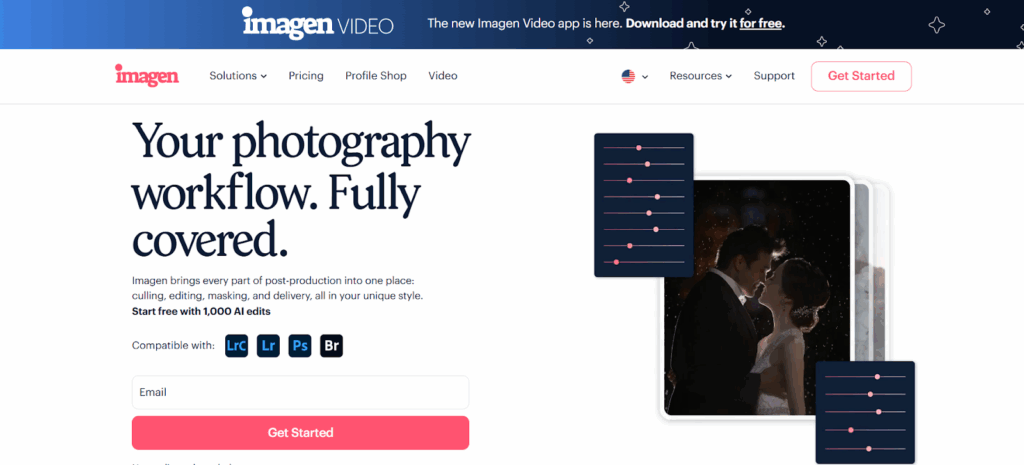
It is a desktop app (for Mac and Windows) that connects to your Adobe Lightroom Classic, Lightroom, Photoshop, or Bridge software. When you send a photo to Imagen for editing, its AI analyzes the content of that specific photo. It looks at the light, the colors, the subject, and the exposure.
Then, instead of applying a static recipe, it intelligently moves every slider to get a perfect result based on a target style.
- A dark interior shot? It will raise the exposure and shadows significantly.
- A bright exterior shot? It will lower the highlights and exposure to protect the sky.
- A room with a green color cast? It will neutralize the white balance to make the walls white.
It does this for every single photo, one by one, in about half a second per photo. It delivers what presets promise but fail to do: a truly one-click, perfect edit that is customized for each image.
Meet Your New “Digital Assistant”: Imagen’s AI Profiles
So, how does it know what look to aim for? It uses an AI Profile. You have two main options.
The Personal AI Profile: Your Style, Learned by AI
This is the most powerful feature. Imagen can learn your unique, personal editing style.
How does it work? You “teach” the AI by feeding it your past work. You point Imagen to your Lightroom Classic catalogs containing at least 3,000 of your previously edited photos. The AI analyzes all your edits. It learns how you adjust exposure, how you like your white balance, what your color palette is, how much contrast you use, and so on.
After this one-time training, Imagen creates a Personal AI Profile that is a perfect clone of your editing style.
When you send a new, unedited shoot to this profile, it edits the photos exactly as you would. It is like having a digital assistant who has studied your work for years.
Even better, this profile evolves with you. As you review the edits from Imagen and make small tweaks, you can send those final edits back to your profile to Fine-Tune it. Your AI assistant learns from your corrections and gets smarter over time.
Don’t have 3,000 photos? You can create a Lite Personal AI Profile with just a single preset. Imagen will use your preset for the color and style, but it will intelligently apply the core adjustments like Exposure and White Balance for each photo.
Talent AI Profiles: A Pro’s Style in Your Pocket
What if you do not have a defined style yet? Or what if you just want a great-looking, proven style right now? You can use a Talent AI Profile.
These are AI Profiles built by world-class, professional photographers. You get to use their editing style, but with the full power of AI. It’s like buying a pro’s preset, but it’s smart. It intelligently adapts that pro’s style to your photos. For real estate, you can find profiles that are clean, natural, and bright, perfect for property listings.
The Real Estate Photographer’s Toolkit in Imagen
This is where Imagen truly leaves presets behind. It has AI tools built specifically for real estate photography. When you create an editing project, you can add these tools on top of your AI Profile edit.
AI-Powered HDR Merge
This tool is a game-changer. Do you shoot with brackets (multiple exposures)? Instead of a long, manual process in Lightroom or Photoshop, you just tell Imagen to merge your photos.
Imagen’s AI will:
- Identify all your bracketed sets automatically.
- Merge them into a single, perfectly balanced HDR (High Dynamic Range) image.
- Then, it applies your chosen AI Profile (Personal or Talent) to the newly merged photo.
This one step replaces a 10-minute manual process per image. It gives you that perfect, natural look with detail in the shadows and a beautiful view out the window.
Automatic Perspective Correction
Forget straightening lines on every single photo. You can add Perspective Correction as an AI tool. Imagen will automatically analyze your photos and apply non-destructive transform corrections to make all your vertical lines perfectly straight.
Window Pull and Sky Replacement
Imagen also offers AI tools like Window Pull to specifically enhance the view through windows. It also has a Sky Replacement tool. If you shot an exterior on a gray, overcast day, Imagen can automatically replace the sky with a beautiful, natural-looking blue sky.
How Imagen Fits Into Your Lightroom Workflow
Let’s walk through a real-world job.
- Install and Connect: First, you install the Imagen desktop app. You only do this once. You give it access to your Lightroom Classic catalogs.
- Import Your Shoot: You import your new real estate shoot (RAWs and brackets) into Lightroom Classic as you normally would.
- Create a Project in Imagen: You open the Imagen app. You click “Create a Project” and select “Edit.”
- Choose Your Settings:
- You find the new project in your LrC catalog.
- You select your Personal AI Profile or a Talent AI Profile.
- You choose “Real estate” as the photography type.
- This is the key: You check the boxes for the AI Tools you need: HDR Merge and Perspective Correction.
- Upload: You click “Edit.” Imagen uploads your photos to its secure cloud for processing. This is fast and happens in the background. (Remember, the app is on your desktop, but the heavy-lifting (processing) is done in the cloud so it doesn’t slow your computer down).
- Download Edits: In just a few minutes, Imagen notifies you that your edits are ready. You click “Download to review.”
- Review in Lightroom: You open Lightroom Classic. Your photos are all there, perfectly edited. The bracketed shots are now merged into new DNG files. The vertical lines are straight. The colors are perfect. The exposure is balanced.
- Final Touches and Export: You might do a final check, maybe apply a spot removal or two, and then export the entire gallery for your client. A job that used to take 4-6 hours is now done in 20 minutes.
The All-in-One Platform Advantage
Imagen is not just an editing tool. It is a complete workflow platform. This is where it connects to the bigger picture of your business.
- AI Culling: Before you even edit, you can use Imagen Culling. It scans your entire shoot (thousands of photos) in minutes. It groups duplicates, identifies blurry shots, and finds photos with closed eyes. It gives you a “best of” selection so you are only editing the keepers.
- Cloud Storage and Delivery: Imagen also offers its own Cloud Storage. You can have your projects automatically back up to the cloud. You can even deliver final galleries to your clients straight from the platform.
You can use Imagen just for its AI editing. Or you can use it to manage your entire workflow from culling to delivery.
Part 4: What About Other Editing Methods?
To be thorough, let’s look at the other options professionals use. How do they stack up?
This is where I must be objective. I will describe these methods in a functional, “dry” way, as requested.
Manual Hand-Editing (Flambient)
- Functional Description: This is a popular, high-end technique. It involves taking two shots for each scene: one with ambient (natural) light and one with an on-camera or off-camera flash. In Photoshop, the photographer manually blends these two photos. They use layer masks to “paint” the clean light and accurate color from the flash photo onto the natural shadows of the ambient photo.
- Analysis: This method produces beautiful, high-end results. It is also the most time-consuming, requiring advanced skills in Photoshop. It is not practical for high-volume, fast-turnaround real estate jobs unless you are charging a very high premium.
Traditional Outsourcing to Editing Houses
- Functional Description: This is a very common workflow. The photographer shoots the property and then uploads the RAW files to a service. This service, often based overseas, employs a team of human editors. These editors manually edit the photos (often using the Flambient or HDR methods) and send back the finished JPEGs or DNGs, usually within 24 to 48 hours.
- Analysis: This workflow takes the editing time off the photographer’s plate. However, it introduces other factors. You are dependent on the editing service’s schedule. Consistency can vary from one editor to another. The cost is also a direct, per-image fee, which can add up.
Other Preset Marketplaces (Etsy, etc.)
- Functional Description: These are online platforms where any photographer can sell their .xmp preset files. Photographers purchase, download, and install these packs into their Lightroom application.
- Analysis: This is the same as the “traditional preset” method we discussed in Part 2. The quality and usefulness of these presets can vary dramatically. They all share the same core limitation: they are static, “one-size-fits-all” recipes and cannot adapt to individual photos.
Part 5: Workflow Showdown: Time, Cost, and Consistency
How do these methods really compare in a working photography business? A table is the easiest way to see the facts. Let’s assume a typical real estate job of 50 final images.
Comparing Your Editing Options
| Method | Avg. Time per Job (50 images) | Avg. Cost per Job | Consistency | Skill Level Needed |
| Manual Editing (DIY) | 4 – 8 hours | $0 (your time) | Very High (if you) | Expert (Lr + Ps) |
| Lightroom Presets (DIY) | 2 – 3 hours | $0 (your time) | Low to Medium | Medium (Lr) |
| Outsourcing (Manual) | 30 minutes (upload/admin) | $50 – $125 | Medium to High | Beginner |
| Imagen AI Editing | 20 minutes (upload/review) | $2 – $4 | Very High | Beginner (Lr) |
Note: Costs for Imagen are estimates. They are based on a per-edit price, with small, additional charges for AI tools like HDR Merge.
The facts in this table highlight the strengths of AI. Imagen offers the consistency and quality of high-end manual editing. It delivers this at a speed and cost that no other method can touch. You get the control of DIY editing with the time savings of outsourcing.
Part 6: Choosing the Right Workflow for Your Business
We have traveled from simple, static presets to fully autonomous AI editing. So, what is the right choice?
Real estate Lightroom presets are a fine place to start. They teach you about Lightroom and help you see what is possible. But you will outgrow them quickly. The moment you value your time and demand professional consistency, you will see their flaws.
Manual blending and outsourcing are both valid choices. But they are choices with clear trade-offs. You trade your time for manual perfection. Or you trade your money and control for someone else’s time.
The modern, scalable solution is AI. Using a tool like Imagen is not “cheating.” It is not giving up control. It is the opposite. You gain control. You define your style. You create a Personal AI Profile that is 100% you. You are simply automating the repetitive, non-creative parts of the job. You are letting a smart assistant handle the sliders so you can focus on the bigger picture.
As a professional photographer, your most valuable asset is not your gear. It is your time. Presets are a tool that costs you time. An AI assistant is a tool that gives you time back.
Frequently Asked Questions About Real Estate Editing
Here are 13 common questions I hear from other photographers.
1. What are the best Lightroom settings for real estate? There are no “best settings.” Every photo is different. However, the panels you must use on every photo are Lens Corrections (to fix distortion) and Transform (to straighten vertical lines). After that, White Balance, Exposure, Highlights, and Shadows are the most important sliders.
2. Can I use Imagen for free? Yes. Imagen offers 1,000 free AI edits to every new user. You can edit several full projects and see the results for yourself before paying for anything.
3. How is an Imagen AI Profile really different from a preset? A preset is a fixed list of settings (e.g., Exposure +1.0, Shadows +50). It applies these exact same settings to every photo. An AI Profile is an intelligent model. It analyzes a photo and decides the best settings (e.g., Photo 1 needs Exposure +0.8 and Shadows +30. Photo 2 needs Exposure +1.3 and Shadows +60). It is dynamic, not static.
4. What if I don’t have 3,000 photos for a Personal AI Profile? You have two great options. You can use a Talent AI Profile right away to get started with a proven, professional style. Or, you can create a Lite Personal AI Profile by uploading one of your favorite presets. Imagen will use that preset’s style but intelligently adjust the Exposure and White Balance for you.
5. Does Imagen work with Lightroom (cloud) or just Lightroom Classic? Imagen‘s desktop app integrates with Lightroom Classic (LrC), Lightroom (Lr), Photoshop (Ps), and Adobe Bridge (Br). It is built to work with a professional, catalog-based workflow.
6. Is Imagen a plugin or a separate app? It is a standalone desktop app that you install on your Mac or Windows computer. It runs alongside Lightroom and communicates with your Lightroom Classic catalogs. You do not work in the cloud in a browser.
7. What is HDR bracketing and why do I need it? Bracketing is taking multiple photos of the same scene at different exposures (one dark, one medium, one bright). You need this to capture the high dynamic range of a real estate interior. Imagen‘s HDR Merge tool can combine these brackets for you automatically.
8. Can Imagen fix my blurry photos? No, AI editing cannot fix a photo that is out of focus. However, Imagen‘s AI Culling tool can analyze your entire shoot and flag all the blurry, out-of-focus photos for you. This saves you from editing them in the first place.
9. What happens after Imagen edits my photos? Do I lose my RAW files? You never lose your RAW files. Imagen is non-destructive. The edits are downloaded back into your Lightroom Classic catalog as slider settings (just as if you moved the sliders yourself). If Imagen merges HDRs, it creates a new DNG file in your catalog, right next to your original RAWs. You remain in full control.
10. Do I still need Lightroom if I use Imagen? Yes. Imagen is not a replacement for Lightroom. It is an assistant for Lightroom. Lightroom is where you organize, store, and export your photos. Imagen is the tool that does the tedious editing inside your Lightroom workflow.
11. How much does Imagen cost for real estate editing? Imagen uses a pay-per-edit model. It is very affordable. Standard AI Profile editing costs a few cents per photo. Adding the advanced Real Estate AI tools like HDR Merge or Perspective Correction adds a small, extra charge per photo for those tools. You only pay for what you use.
12. Can Imagen edit interior and exterior shots differently? Yes. This is the magic of a Personal AI Profile. When you train your profile, you give it all your edits: interiors, exteriors, kitchens, bathrooms, etc. The AI learns how you treat different scenes and lighting conditions. It will not try to make an exterior shot look like an interior.
13. What is “Flambient” and can Imagen do it? “Flambient” is a manual editing technique (explained in Part 4) that blends a “Flash” photo with an “Ambient” photo in Photoshop. Imagen does not do this specific manual blending process. Instead, Imagen‘s HDR Merge tool is an AI-driven alternative that achieves a similar (and often more natural-looking) result. It blends multiple ambient exposures to create a clean, balanced, and realistic photo.