
We Tested Lightroom Prompt to Edit on a Real Wedding
Table of contents
- What we tested
- The results at a glance
- Part 1: one style prompt, four raw files
- The files: 4.3 megapixels from a 20-megapixel raw
- The credits: 140 for six photos
- Part 2: the jobs Prompt to Edit is built for
- What Imagen did with the same raw files
- What this test doesn’t show
- The takeaway
- Frequently Asked Questions
On November 11, 2026, we ran six photos from a real wedding through Lightroom’s Prompt to Edit. Then we edited the same raw files in Imagen. Prompt to Edit did one job well, removing parked cars from a street portrait. As a way to edit a wedding, it fell short. Every result came back at a fraction of the camera’s resolution, in a look that wasn’t the photographer’s, at 20 to 30 credits a photo.
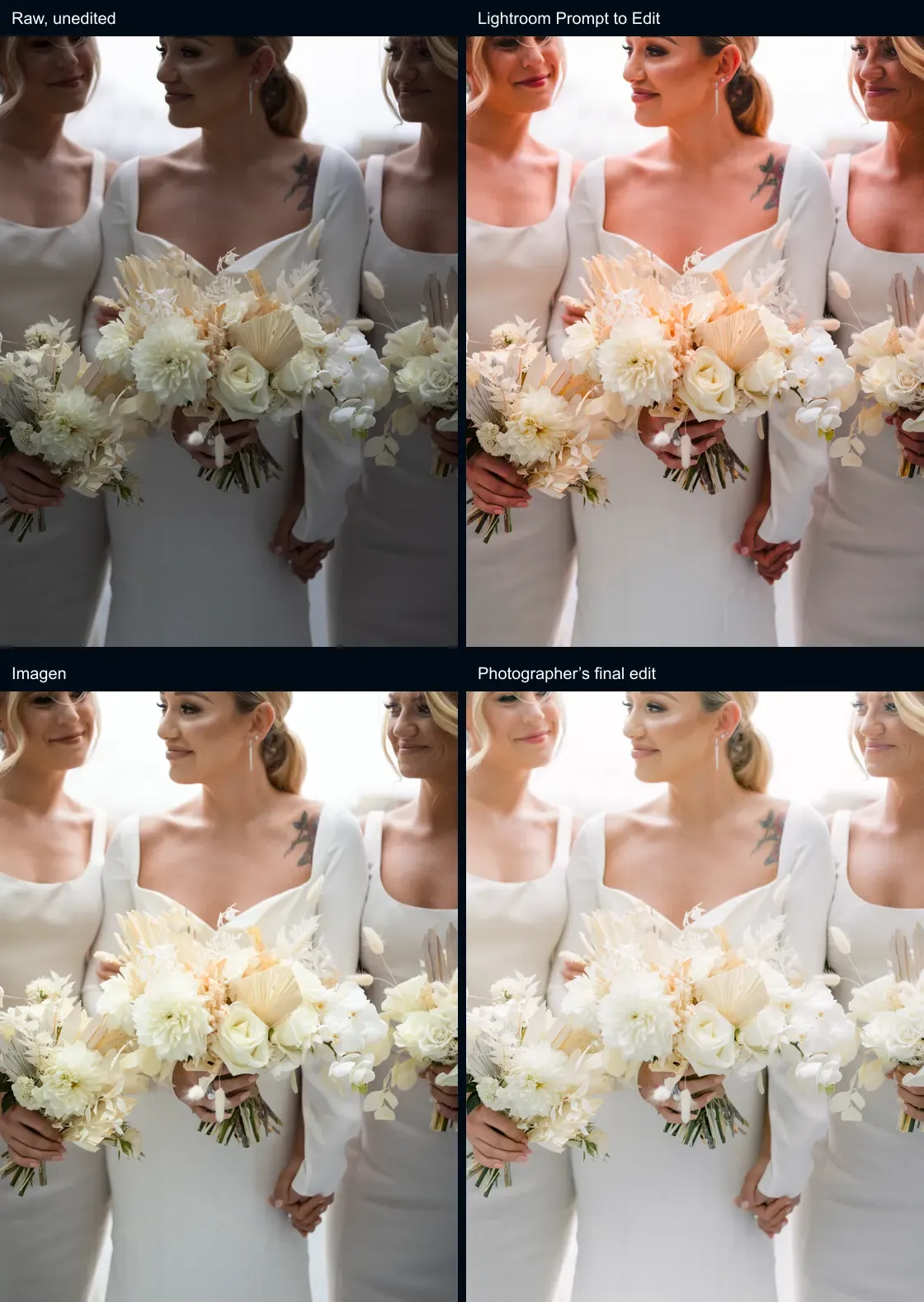
One raw file, four ways. Photos used with permission.
What we tested
The photos come from a real wedding, shot on a Canon EOS R6, which records 20-megapixel raw files. We used Lightroom desktop 10.0, where Prompt to Edit is still marked Early Access and runs on Google’s Nano Banana 2 model.
First, we gave four unedited raw files the same style prompt at the 2K setting. Next, we took two finished photos to the 4K setting. One got Adobe’s own Sky replacement prompt, and the other a request to remove parked cars.
Then the same four raw files went into Imagen Studio. For reference, we also had the photographer’s own finished edits.
Here’s the style prompt, word for word.
Edit this photo in a light, airy wedding style: bright, soft contrast, warm skin tones, clean whites. Do not change, add or remove anything in the photo.
The results at a glance
| Lightroom Prompt to Edit | Imagen | |
|---|---|---|
| Photos per request | One | The whole project |
| Result size | 4.3 megapixels at 2K, about 17 at 4K | 20.2 megapixels, the camera’s full size |
| What you get | A new AI-generated DNG | Edit settings on your raw |
| Cost in this test | 140 generative credits for six photos | Billed per exported photo |
| Time | 26 to 50 seconds a photo, one at a time | The four came back together, minutes after upload |
| Look | Warm, saturated, contrasty | Soft and natural, close to the finished photos |
Part 1: one style prompt, four raw files
Prompt to Edit made every photo brighter and warmer, which is what we asked for. But the four results share a look of their own, saturated and contrasty, with orange in the skin. The photographer’s real edits are pale and soft.
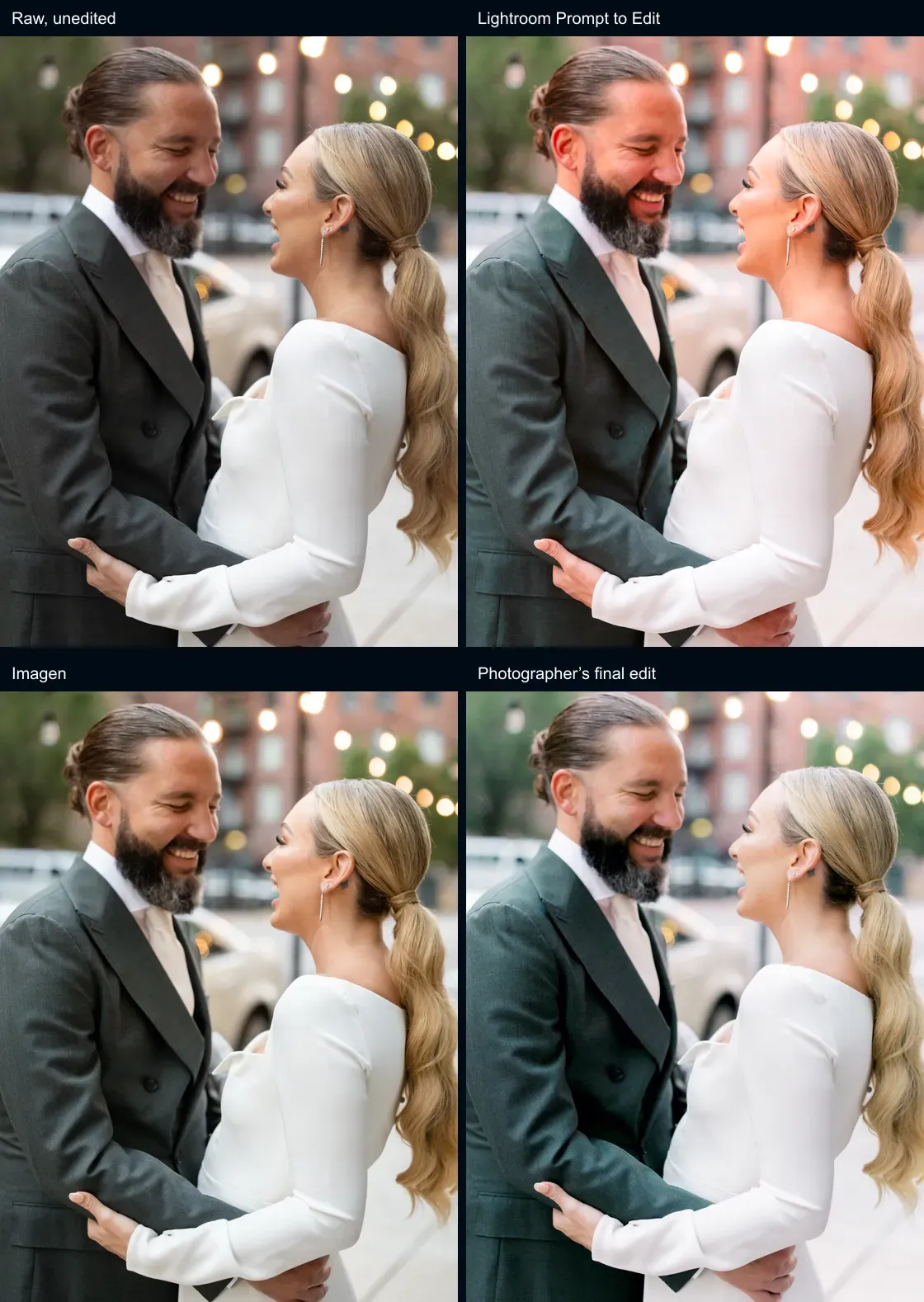
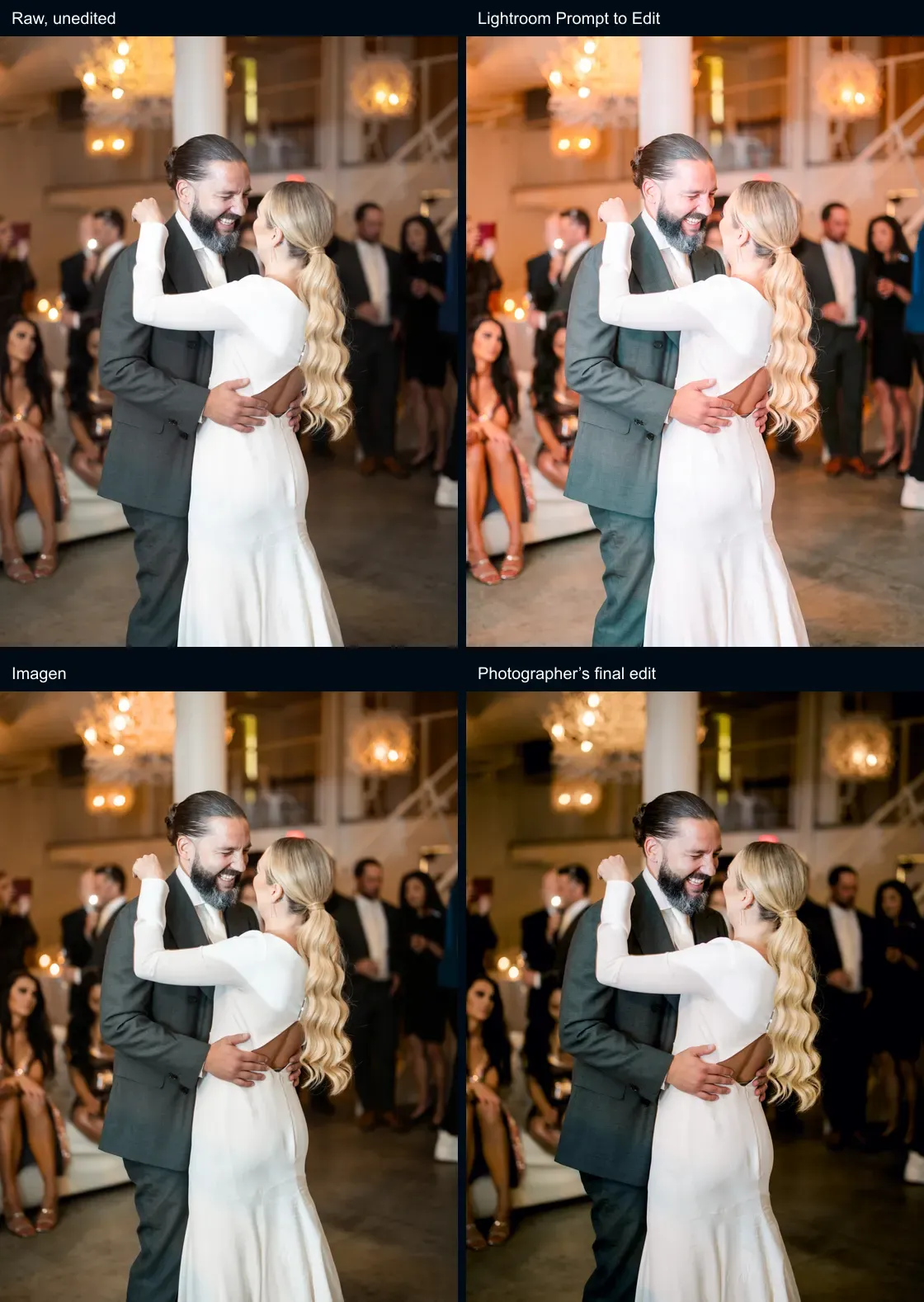
In the bouquet photo, the skin turned more orange and the lips redder. Even a tattoo came back more saturated, although the prompt said not to change anything. The couple outdoors and the first dance are bright and warm, with stronger color than the photographer’s version.
The party photo is where it went wrong. Prompt to Edit lit up the whole room. The photographer had gone the other way and kept that photo dark, with the flash on the dancers.
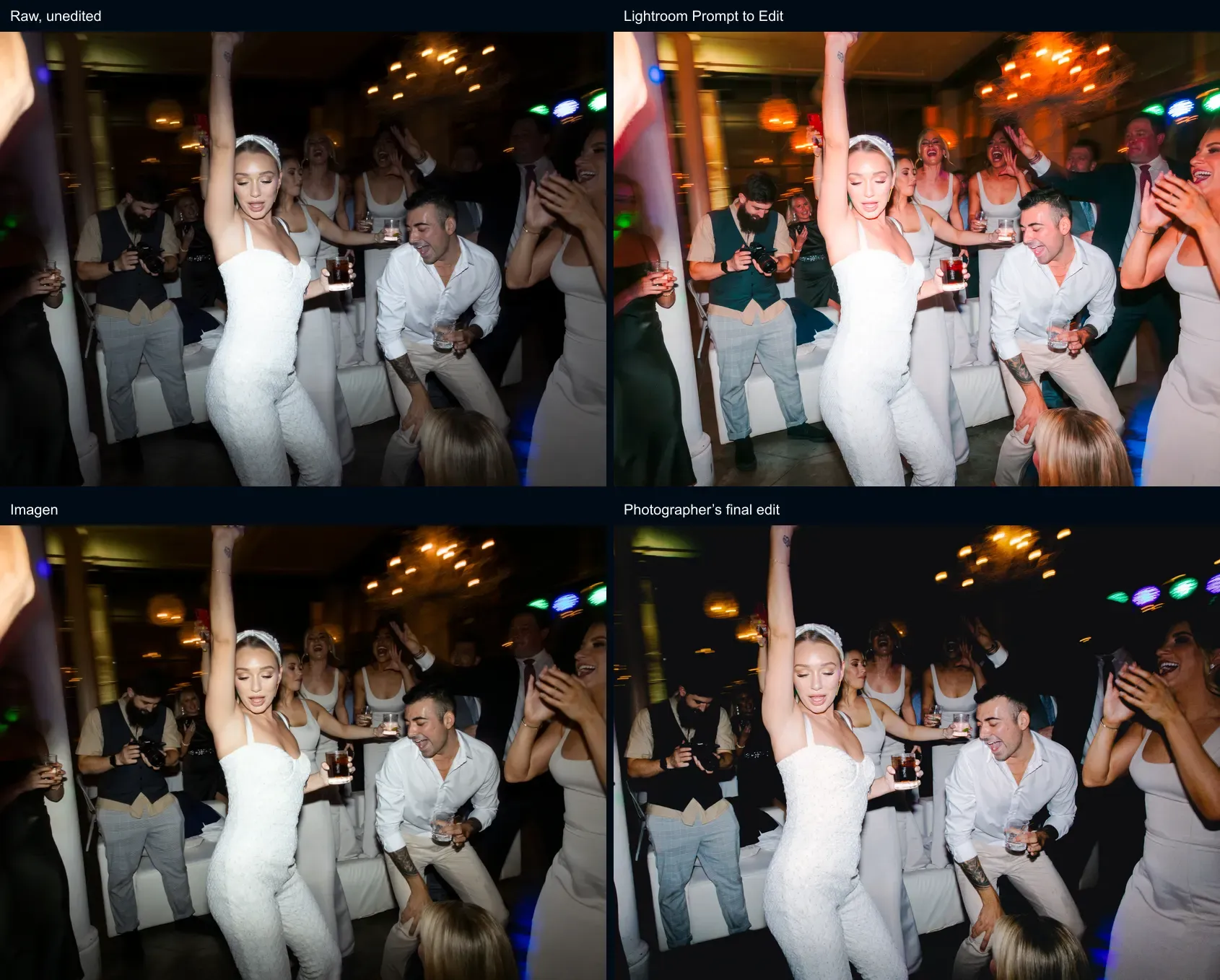
That photo shows the limit of a single prompt. “Light and airy” suits a daylight portrait. On a dance floor it’s the wrong call, and a photographer makes that call photo by photo. A style prompt makes it once, for everything.
At normal viewing size, the faces looked the same in all four.
The files: 4.3 megapixels from a 20-megapixel raw
Each 2K result came back as a new DNG of 1,792 × 2,400 pixels. That’s about 4.3 megapixels, from a raw file of 20, in files between 4.3 and 5.1 MB.
At 4K, the two results were 3,584 × 4,800 pixels, about 17.2 megapixels and 13 to 14 MB each. Closer, then. It’s still a rendered picture and not your raw data, and it costs 30 credits a photo.
The camera, lens and exposure details carried over to the new files. For more on what happens to your raw, read Lightroom Prompt to Edit, explained.
The credits: 140 for six photos
Each 2K result used 20 generative credits and each 4K result used 30, so the six photos used 140. A Lightroom plan includes 250 credits a month, which covers about 12 photos at 2K.
What would a 600-photo wedding take at 2K? 12,000 credits. Adobe generative credits, explained has the full math.
Part 2: the jobs Prompt to Edit is built for
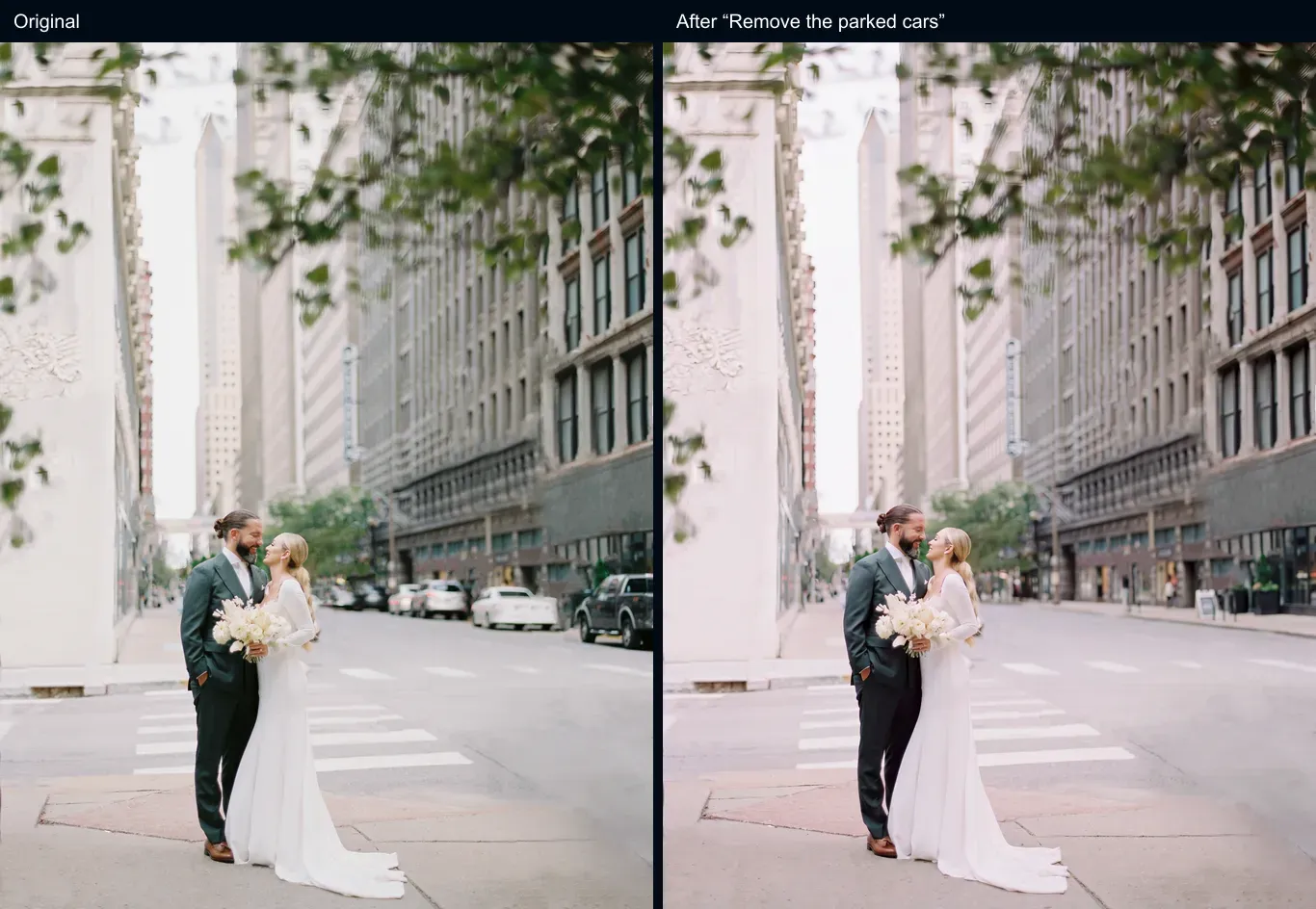
Removing the cars worked. We asked Prompt to Edit to remove the parked cars from a street portrait and change nothing else. The cars are gone and the couple is untouched. It took 49.7 seconds. Look closely, though, and you’ll see it filled the space with street details that weren’t there, like a sign board and planters. Check a result like this before you deliver it.
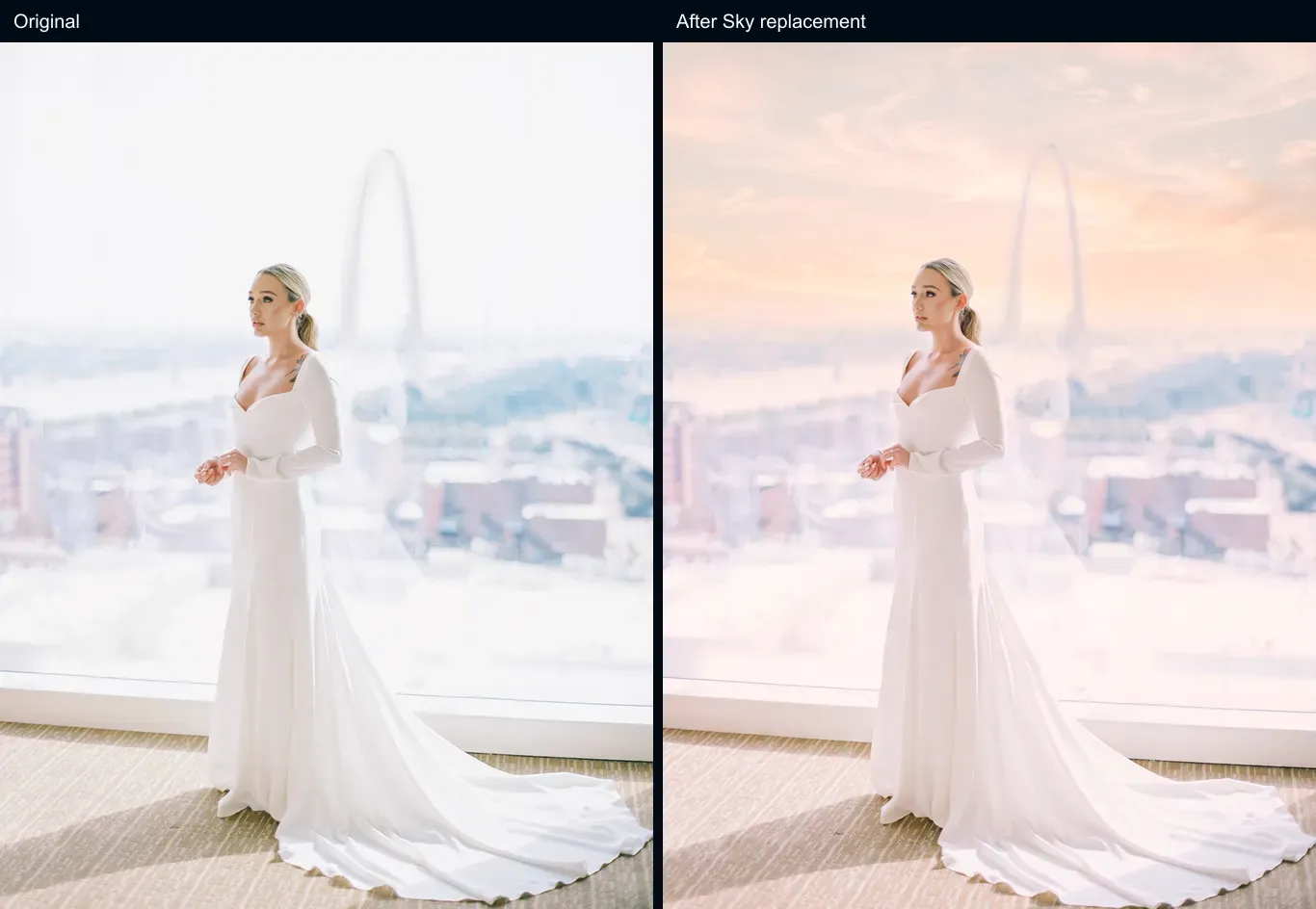
Sky replacement changed more than the sky. Adobe’s built-in prompt asks for a new sky and tells the model not to relight or recolor anything else. We got a pink sunset sky, and the arch in the background survived. But the whole photo turned pink with it, dress and room included. It took 43.4 seconds.
What Imagen did with the same raw files
We put the same four raw files into one project in Imagen Studio. Imagen edits a shoot by learning a style and applying it to every photo. It moves the sliders on your raw files. It never adds or removes a pixel, and it isn’t an image generator.
Each export came back at full resolution, 3,670 × 5,496 pixels or 20.2 megapixels. In daylight, the look was soft and natural, close to the photographer’s finished photos. The party photo stayed dark, which matches the photographer’s choice. And every edit is a slider setting on the raw, so you can still change it.
There’s a caveat. We used a Talent AI Profile called LOVE & LIGHT, a ready-made style from another photographer, because we didn’t have this photographer’s own. A Personal AI Profile, trained on your past edits, is built to match your style more closely than any ready-made one. We also added no AI tools, so what you see is the profile’s edit alone.
After the edit, the assistant in Imagen Studio lets you adjust the set in plain words, like “make all the photos warmer”. We didn’t use it in this test. We did later, on the same four photos, in how to edit a wedding gallery with one written instruction.
What this test doesn’t show
It’s a small test. Six photos went through Prompt to Edit and four through Imagen, all from one wedding. We used one style prompt, and a different one would give a different look.
Prompt to Edit is also in Early Access, so it can change before its full release, and its credit cost can change with it. And on the Imagen side, the profile wasn’t the photographer’s own.
The takeaway
Prompt to Edit earned its place on one photo in this test, the one where something needed removing. That’s what generating new pixels is for.
For the wedding itself, the numbers decide it. One photo at a time, 20 credits each, and a 4.3-megapixel file at the end isn’t a way to deliver a gallery. Edit the gallery in your own style first, and keep Prompt to Edit for the few photos that need a fix.
For the two side by side, see Lightroom Prompt to Edit vs Imagen.
Frequently Asked Questions
Can Lightroom Prompt to Edit edit a whole wedding?
Not in a practical way. It takes one photo per request, and each result is a new file at 4.3 megapixels (2K) or about 17 megapixels (4K) that uses 20 or 30 generative credits. In our test, six photos used 140 of the 250 credits a Lightroom plan includes each month.
What resolution does Prompt to Edit give you?
In our test, the 2K setting returned 1,792 × 2,400 pixels, about 4.3 megapixels, from 20-megapixel raw files. The 4K setting returned 3,584 × 4,800 pixels, about 17.2 megapixels.
Did Prompt to Edit change the people in the photos?
At normal viewing size, the faces looked the same in all six results. The colors did change. In one photo the skin turned more orange and the lips redder, although the prompt said not to change anything.
Is Prompt to Edit good at removing objects?
It was in our test. Asked to remove parked cars from a street portrait, it removed them and left the couple untouched. It filled the space with street details that were not in the original, so check the result before you deliver it.
How did Imagen edit the same photos?
We edited the same four raw files in Imagen Studio with a Talent AI Profile called LOVE & LIGHT, with no AI tools added. The results came back at the full 20 megapixels, with a soft look close to the finished photos. A Personal AI Profile trained on your own edits would match your style more closely.

