

Lightroom Prompt to Edit, Explained
Table of contents
Prompt to Edit is a generative AI feature in Lightroom desktop. You describe the change you want, or pick one of Adobe’s example prompts, and Lightroom creates a new version of the photo with a partner AI model. It saves that version as a new DNG next to your original. It arrived in early access in Lightroom 9.6 on September 29, 2026.

What Prompt to Edit is
Prompt to Edit is Adobe’s take on editing by description. Instead of moving sliders or painting masks, you type what you want, such as “remove the light stand” or “restore the faded colors”, and generative AI produces a new image that tries to match your request.
Adobe’s release announcement for Lightroom 9.6 says it is powered by the Nano Banana model, which comes from Google. In the app, the panel sums it up in one line: “Use Generative AI to restore, retouch, and transform your photos. The result will be saved as a new DNG.” That detail matters: Prompt to Edit doesn’t adjust your photo. It redraws it.
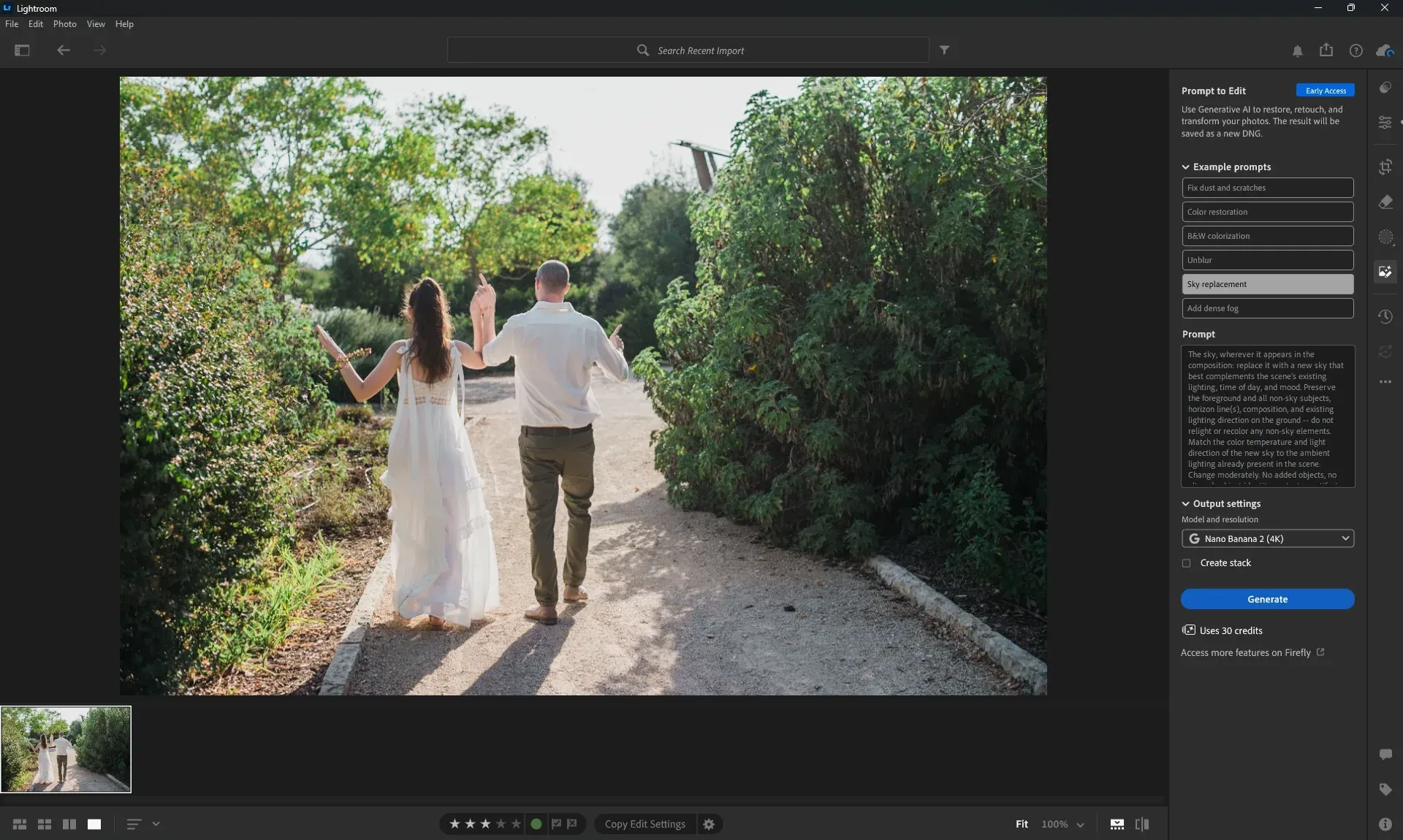
Prompt to Edit in Lightroom desktop 9.6, marked Early Access (screenshot: Imagen, October 2026)
How it works
- Open a photo in Lightroom desktop 9.6 or later, in the detail view.
- Click the Prompt to Edit icon in the toolstrip on the right.
- Pick one of the example prompts, or type your own request in the Prompt box.
- Under Output settings, choose the model and resolution (Nano Banana 2, at 2K or 4K), and tick Create stack if you want the result stacked with the original.
- Click Generate. The panel shows the cost before you do: “Uses 30 credits” for a 4K result. Lightroom saves the result as a new DNG.
Each try creates another file and uses more credits, so it pays to write a clear, specific request the first time.
The example prompts
Lightroom 9.6 offers six example prompts:
- Fix dust and scratches
- Color restoration
- B&W colorization
- Unblur
- Sky replacement
- Add dense fog
Picking one doesn’t apply it straight away. It fills the Prompt box with a detailed instruction you can read and edit first. “Sky replacement”, for example, asks for a new sky that matches the scene’s light while preserving the foreground and existing lighting, and ends with “Change moderately. No added objects.”
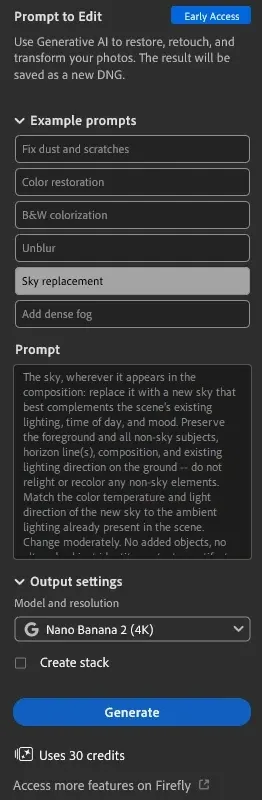
The Sky replacement example prompt, filled in and ready to edit (screenshot: Imagen, October 2026)
You can also type your own request for anything else. Early reviewers point to the jobs that are hard to do with Lightroom’s own tools, like repairing and colorizing old scans.
Our test: Sky replacement on a wedding photo
We ran the Sky replacement prompt, unchanged, on a raw wedding photo: a couple walking down a garden path under a pale, washed-out sky, shot on a Nikon D800E. We picked Nano Banana 2 at 4K, which used 30 credits.
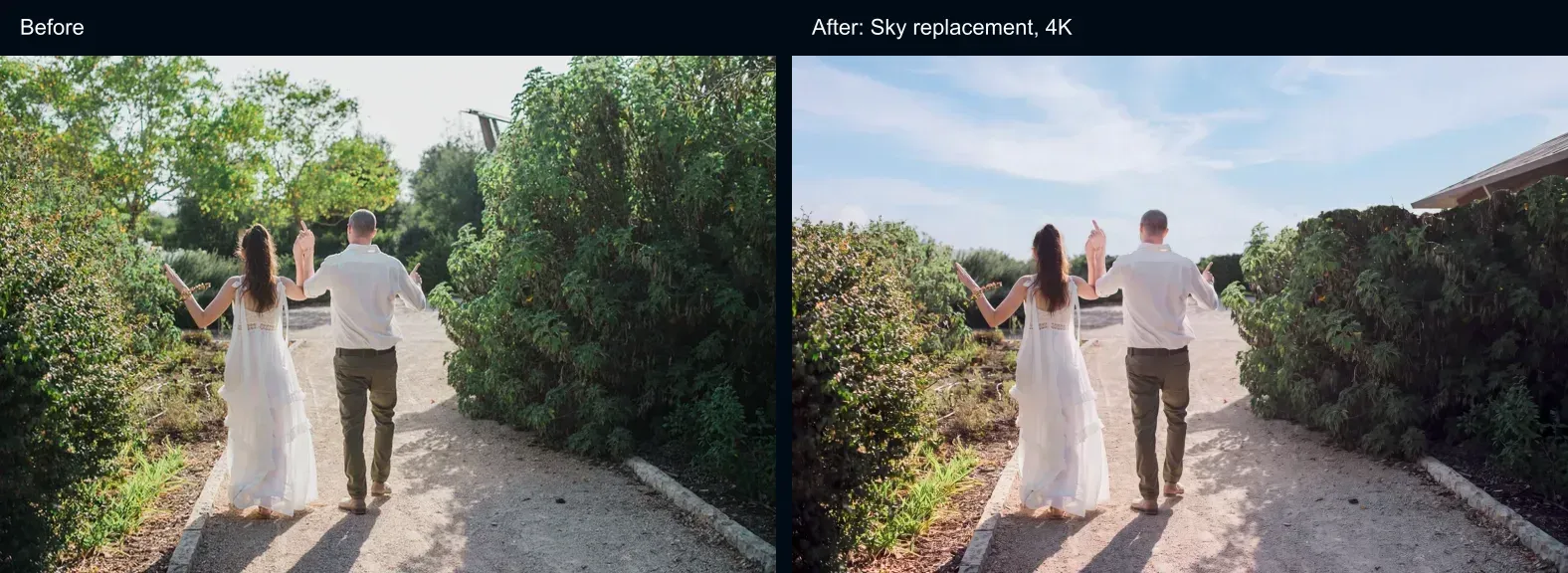
Before and after Sky replacement at 4K in Lightroom 9.6, from a raw file (screenshots: Imagen, October 2026)
The new sky looks good. But Prompt to Edit changed much more than the sky:
- The trees behind the couple are gone. The tall trees above the hedges became open sky, and the hedges themselves came out lower.
- A building appeared. The metal structure in the top right became the roof of a house.
- The whole scene was redrawn. The warm, late-afternoon light on the foliage came out cooler and flatter.
All of that happened although the prompt asks to preserve “all non-sky subjects” and ends with “No added objects.” At this size, the couple look much as they did. But this is what redrawing a photo means in practice: you get a new picture, and you have to check all of it, not only the part you asked about.
What it costs
Prompt to Edit uses generative credits from your Adobe plan. In our test in Lightroom 9.6, a 4K result showed “Uses 30 credits”, matching what Lightroom Queen reports: 20 credits for a 2K result and 30 for 4K. Adobe hasn’t published an official price list, as PhotographyTalk points out, so the cost could change after early access. PhotographyTalk also notes that Prompt to Edit needs a plan with premium generative features, and that the Lightroom plan includes 250 credits a month.
The practical point: credits are counted per try, not per project. At 20 credits a try, 250 credits is about a dozen 2K results a month. A handful of restorations is easy to afford. A whole gallery is a different calculation.
What happens to your raw file
Your original stays untouched. Prompt to Edit saves its result as a new AI-generated DNG next to it, at 2K or 4K. It’s a DNG, but not your camera’s raw data, so you lose the raw editing range: it has less latitude for further editing than the raw you shot. And every try adds another file to your catalog.
Our test shows what else you get:
- A fixed output size. Our raw was a reduced-size DNG of 2,560 × 1,709 pixels (1.9 MB). The 4K result was 5,056 × 3,392, about 17 megapixels (16 MB), in the same proportions. An earlier test from a small WebP also came out at about 17 megapixels. So 4K means about 17 megapixels whatever you start from: about half of the 36 megapixels a full-size D800E file has.
- Your camera details carry over. The new file keeps the camera, lens and exposure details (Nikon D800E, 50 mm, 1/2000 sec, f/3.2, ISO 100) and the capture date, so it still sorts and filters with the rest of the shoot.
- The prompt is saved with it. Lightroom names the new file after the original, with “-Prompt” added, and writes the prompt into its Caption field.
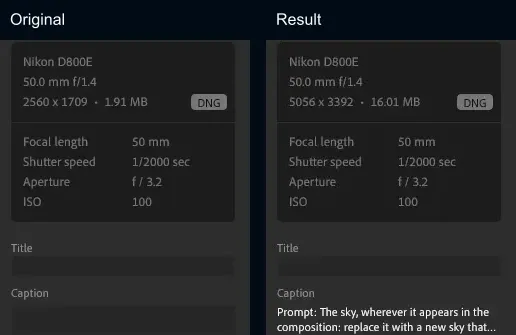
The Info panel for our original raw and for the Prompt to Edit result (screenshots: Imagen, October 2026)
Keep the original for anything you’ll print large or edit heavily later.
Where it works
Prompt to Edit is in Lightroom desktop, the cloud-based app, from version 9.6. It isn’t in Lightroom Classic. If you’re not sure which one you use, our guide to Lightroom Classic vs Lightroom explains the difference.
What photographers are saying
The interest is real: Adobe’s announcement post on Instagram drew about 12,700 likes, more than 860 comments and over 200 shares by late October. The comments were more divided. Many photographers pushed back on the idea itself: that the tool generates a new image rather than editing theirs, and that it takes the creative call away from them. One wrote: “Nobody that actually likes photography and editing has ever asked for this.”
Early reviewers point to practical limits as well:
- It can change parts of the photo you didn’t ask about, so faces and fine detail need checking.
- Each try is a new file and another charge in credits.
- The commercial-use terms aren’t fully spelled out yet.
Photographer and writer Thomas Fitzgerald goes further: he says he wouldn’t use it for client or public work himself, and advises anyone who does to use it “with extreme caution.”
When Prompt to Edit is the right tool
Prompt to Edit earns its place on the few photos that need something sliders can’t do:
- repairing or colorizing an old or damaged scan
- removing a distraction from one hero shot
- a bigger change to a single portfolio image
For those jobs, generating new pixels is the point.
Prompt to Edit on a whole wedding
Prompt to Edit works on one photo at a time, saves a new file for every try, and uses credits each time. That’s a lot to ask of a 600-photo wedding.
Imagen works the other way around. Your Personal AI Profile edits the whole shoot in your style. Then the assistant in Imagen Studio lets you control the edits in plain words across the set, like “make the 25mm photos black and white” or “copy this edit to all the bride photos”.
Prompt to Edit redoes the photo for you. The assistant does the edits you’d otherwise make by hand, and saves you that time. It moves the sliders and keeps your original pixels: it never adds or removes a pixel, and it isn’t an image generator. The creative call stays yours. It doesn’t use credits (a daily limit applies), and if you finish in Lightroom Classic, your AI edits and ratings carry over.
The assistant in Imagen Studio finding photos and editing them from a written request
Use Prompt to Edit for the few photos that need restoring or something removed. Use Imagen for the gallery. For the two side by side, see Lightroom Prompt to Edit vs Imagen, and to see exactly what the assistant can and can’t do today, read what the assistant can and can’t do (yet).
Frequently Asked Questions
Is Lightroom Prompt to Edit free?
It comes with a Lightroom plan, but each try uses generative credits: 20 for a 1K or 2K result and 30 for 4K, a rate Adobe marks as for a limited time. The Lightroom plan includes 250 credits a month, about a dozen 2K tries, so check your credit balance before you use it on a lot of photos.
Is Prompt to Edit in Lightroom Classic?
No. Prompt to Edit arrived in Lightroom desktop 9.6, the cloud-based app, as an early-access feature on September 29, 2026. Nothing in the release notes or the first reviews says it is in Lightroom Classic.
Does Prompt to Edit work on raw files?
You can start from a raw file, but the result is a new AI-generated DNG, saved as a separate file. In our test, the 4K result was about 17 megapixels and kept the camera and exposure details. It is a rendered picture, not your original raw data, so it has less room for further editing than the file you shot.
Can I use Prompt to Edit results for client work?
You can, with care. The tool can change parts of the photo you didn’t ask about: in our Sky replacement test, it also removed trees and added a roof. Check every face and detail before delivering. Some reviewers say they wouldn’t use it for client work at all, and advise extreme caution if you do.
Can Prompt to Edit edit a whole gallery at once?
As released, it works on one photo per prompt, and every try uses credits. For a full wedding, an editor that applies your style and your instructions across the whole set is a better fit, with Prompt to Edit kept for the few photos that need restoring.
Can I send a Prompt to Edit result to Imagen?
Not as a raw. In our test, Imagen rejected a Prompt to Edit DNG from a folder, and through a Lightroom Classic catalog it arrived as a JPEG-type file. Edit the gallery in Imagen first, then use Prompt to Edit on the few photos that need it.
