
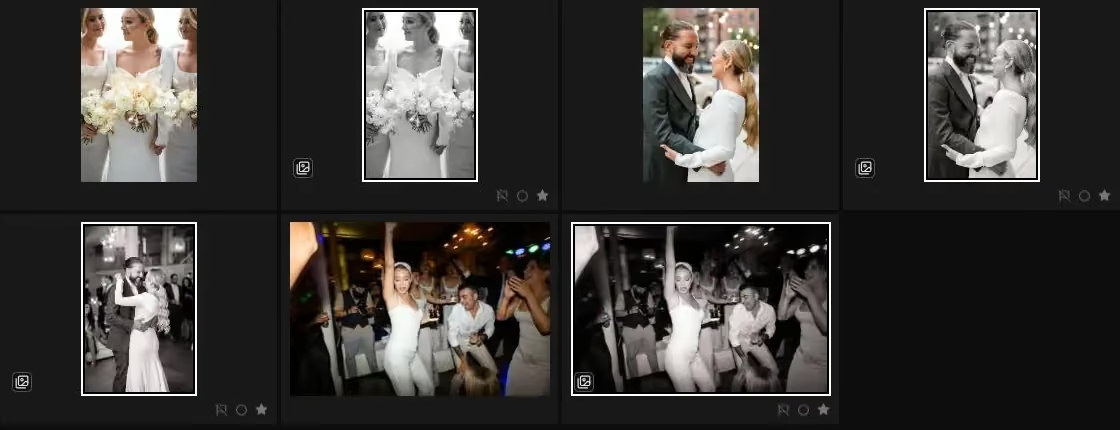
How to Edit a Wedding Gallery With One Written Instruction
Table of contents
- What we tested
- The results at a glance
- Find photos and edit them in one sentence
- Try a look without losing your edit
- Describe the look, not the sliders
- Organize the day
- What didn’t go the way we asked
- Write instructions that work
- How this differs from Lightroom Prompt to Edit
- Where your assistant fits
- Frequently Asked Questions
Yes, you can. In Imagen Studio you type what you want in plain words, and your assistant finds the photos you mean. Then it moves their sliders, the ones you’d move by hand, on every photo in that set. It never adds or removes pixels. Each change stays in the editor, where you can adjust it or undo it.
We tried it on photos from a real wedding. Below is every instruction we typed, word for word, next to what came back. Some of it didn’t go the way we asked, and that’s in here too.
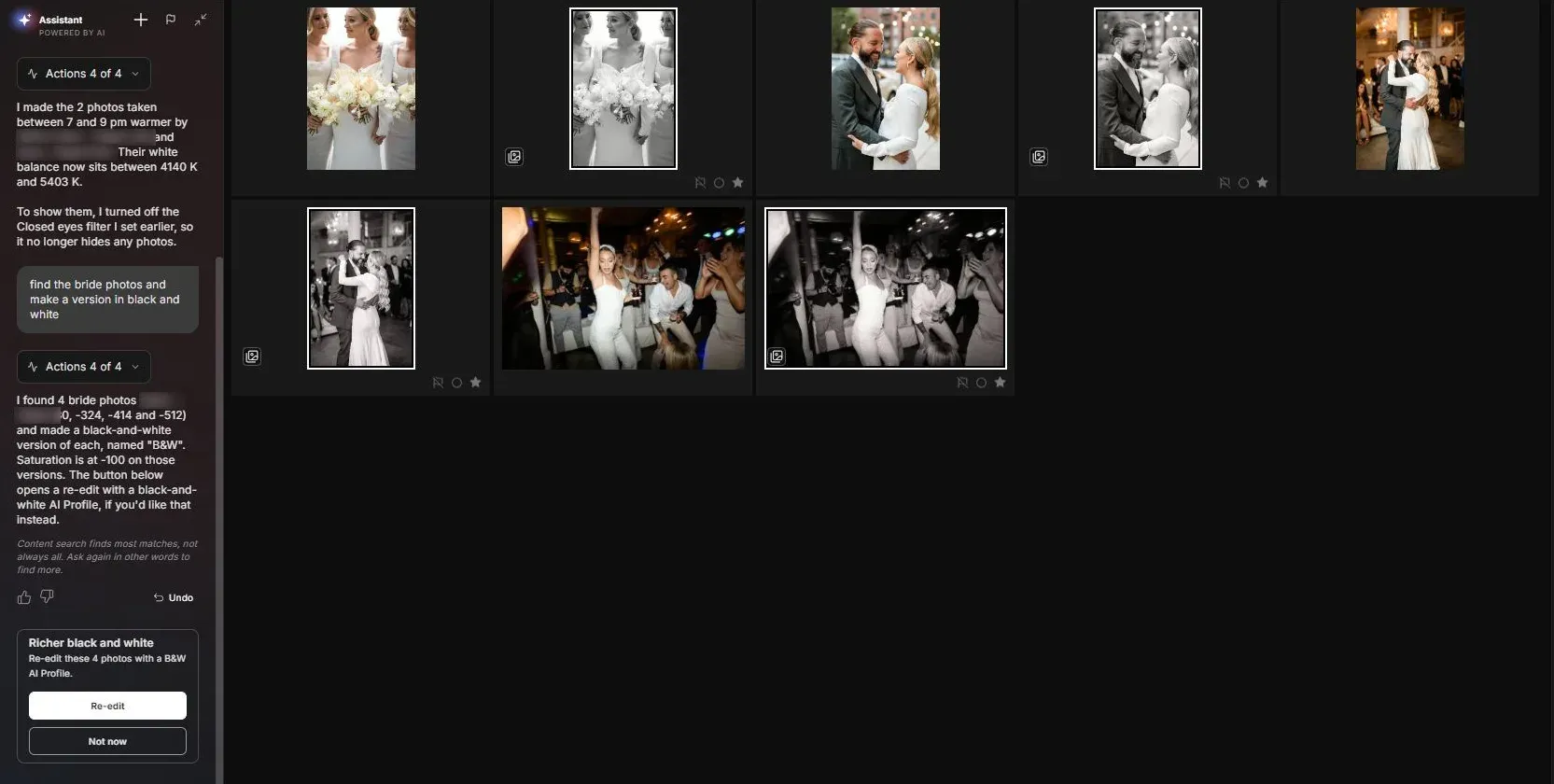
One sentence found the bride photos and made a black-and-white version of each (screenshot: Imagen, November 2026; names blurred)
What we tested
On November 16, 2026, we opened a project in Imagen Studio, in the Imagen desktop app. It held four raw photos from one wedding, shot on a Canon EOS R6 between 3:53 PM and 8:59 PM. You may recognize the bouquets, the couple outdoors, the first dance and the party from our Prompt to Edit wedding test.
An AI Profile had already edited each photo. That matters, because your assistant works on top of the edit you already have.
Four photos is a small set, and we want to be straight about that. An instruction acts on every photo that matches it, so the idea carries to a full gallery. We didn’t run it on one, though, so you won’t find claims here about speed or accuracy at that size.
Photos used with permission.
The results at a glance
| We typed | What happened |
|---|---|
| “show me the photos where someone has their eyes closed” | Filtered the grid to 3 of the 4 photos |
| “make photos between 7 and 9 pm 300 kelvin warmer” | Warmed the 2 photos from those hours by 300 K |
| “find the bride photos and make a version in black and white” | Found all 4 and made a black-and-white version of each |
| “undo the black and white you did earlier” | Restored the color. The extra versions stayed. |
| “show me the dancing photos” | Found the 2 dance-floor photos |
| “make these less moody. More light and bright” | Exposure up 0.25 stops, shadows up 10, lights up 5 on the 2 selected |
| “create a collection for each hour of this event” | Made a collection for 3 PM, 6 PM, 7 PM and 8 PM |
| “how much will it cost to export this project?” | No exact figure. It pointed to the estimate on the Export screen. |
| “crop all of these 1x1” | Asked which photos first, then set a 1:1 crop on the two we named |
Find photos and edit them in one sentence
If you try only one instruction, try one with a time in it.
make photos between 7 and 9 pm 300 kelvin warmer
Your assistant found the first dance and the party, the two photos taken in those hours, and raised their white balance by exactly 300 K. Its reply gave the new range, 4,140 K to 5,403 K, with an Undo button under it. The bouquets and the couple outdoors weren’t touched.
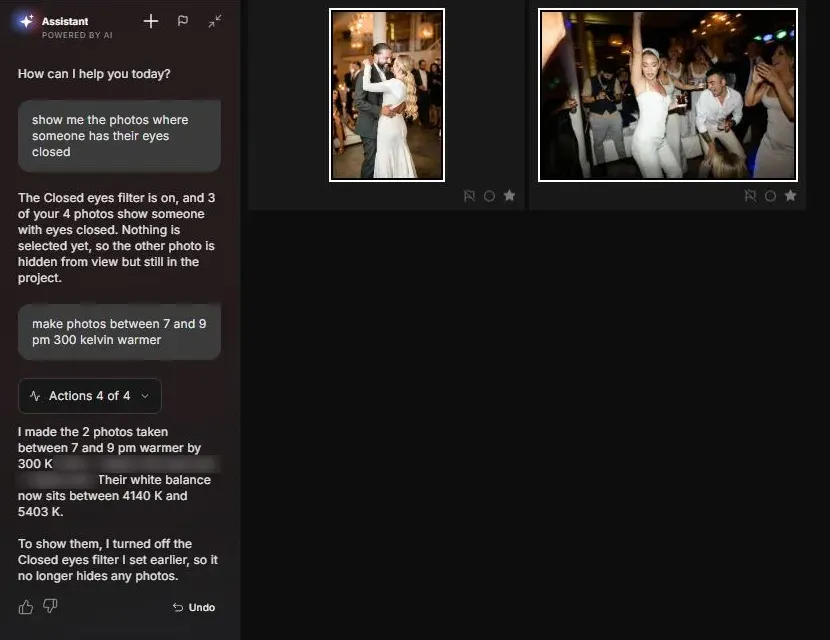
The reply says what changed and by how much (screenshot: Imagen, November 2026; names blurred)
Think about that job by hand. You’d filter by capture time, select the set, then move the temperature slider on one photo and sync it to the rest. Here it took a sentence. And what you get back is still a slider value, so you can nudge it.
Try a look without losing your edit
find the bride photos and make a version in black and white
All four photos came back, each with a second version named “B&W” and its saturation at -100. The color originals sat next to them, unchanged. Your assistant also offered something richer, a re-edit of those photos with a black-and-white AI Profile.
Then we changed our minds.
undo the black and white you did earlier
Color returned to all four. The extra versions stayed in the project, and your assistant explained why: undo can’t remove a version. It offered to delete them for us.
Describe the look, not the sliders
What if you don’t know which sliders make a photo feel lighter? You don’t have to.
show me the dancing photos
make these less moody. More light and bright
The first sentence found the two dance-floor photos. The second raised their exposure by 0.25 stops, lifted the shadows by 10 and brightened the lights by 5. Those numbers were in the reply. So was a note that the two photos now sit at different exposures, which left the judgment with us.
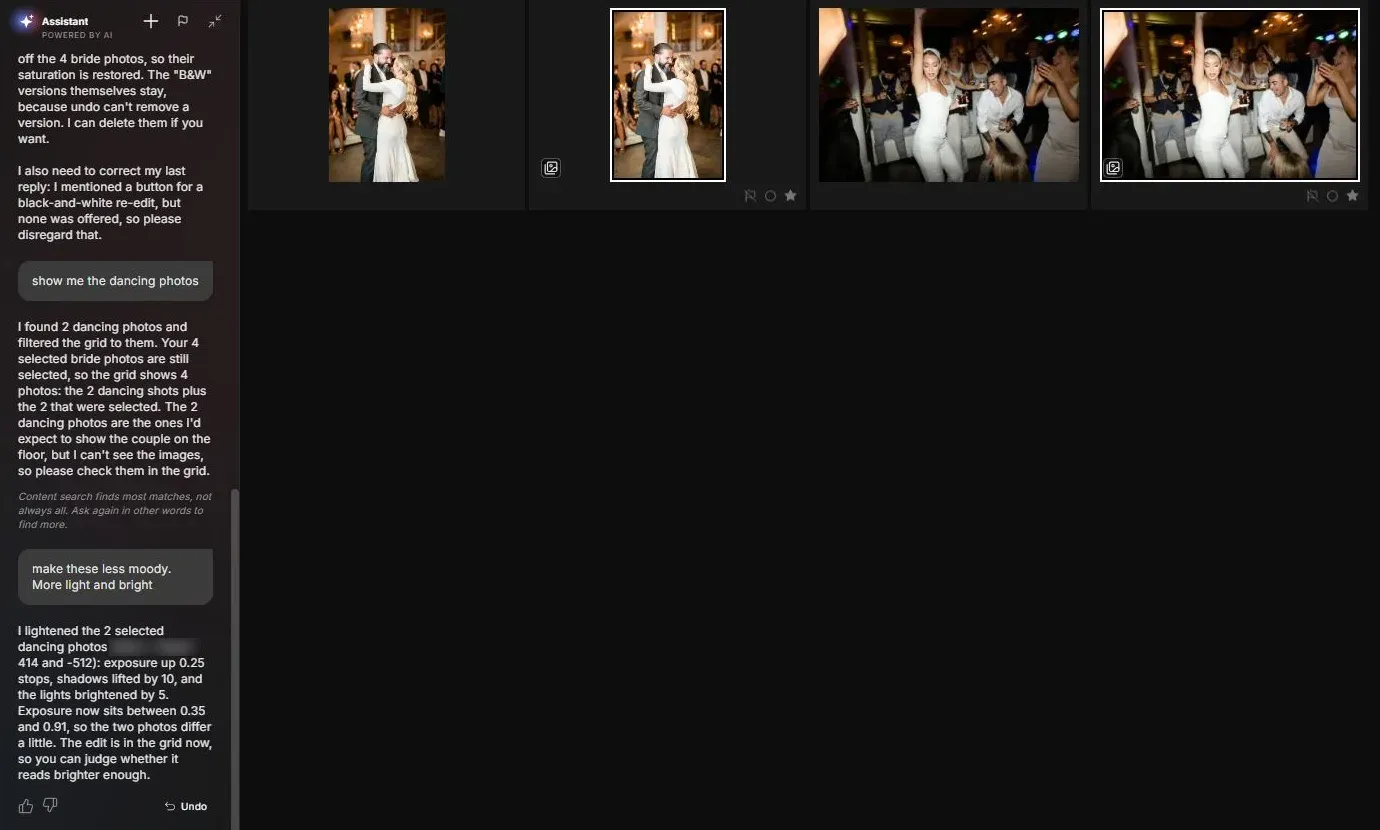
“Less moody” became three slider changes, listed in the reply (screenshot: Imagen, November 2026; names blurred)
Organize the day
create a collection for each hour of this event
We got a collection for 3 PM, 6 PM, 7 PM and 8 PM. Nothing was shot at 4 PM or 5 PM, so your assistant skipped those hours and told us it had.
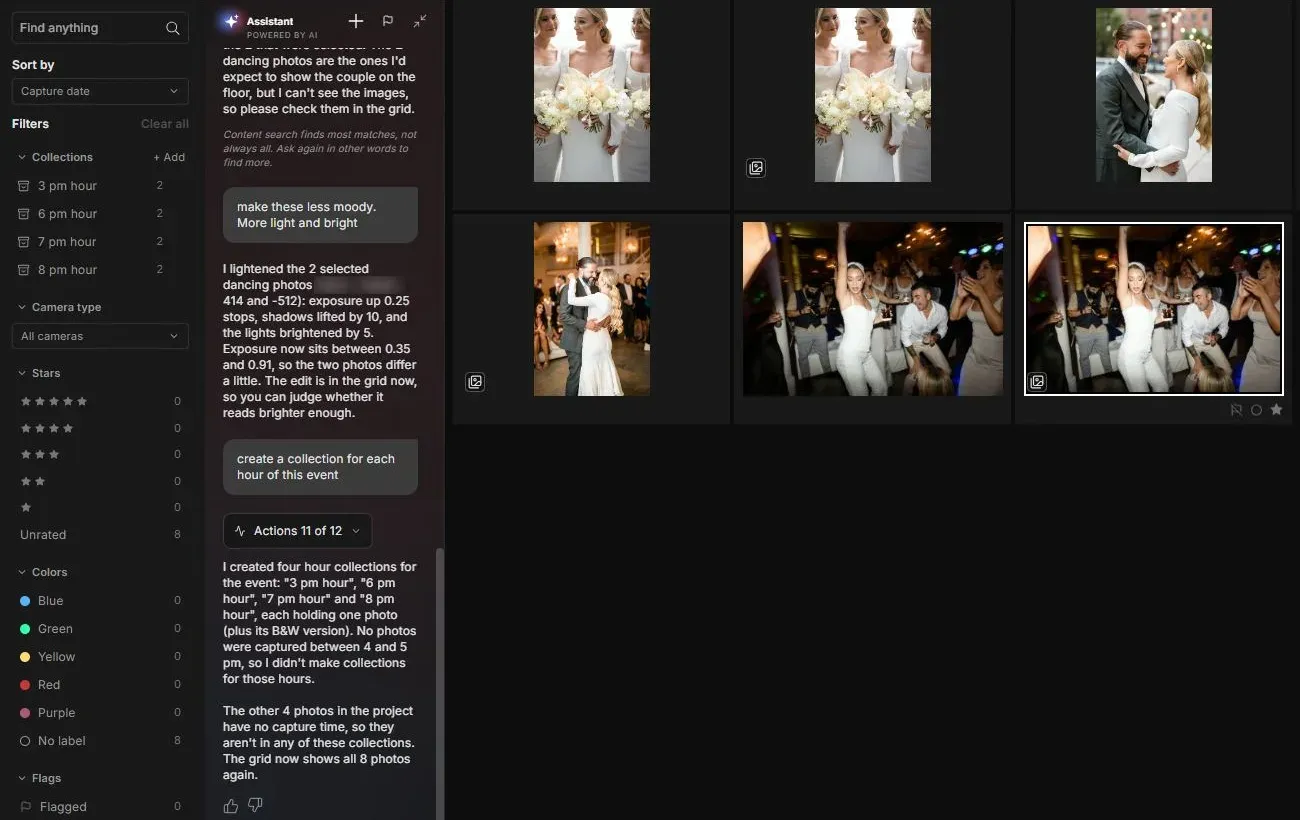
The day sorted by hour, from one sentence (screenshot: Imagen, November 2026; names blurred)
Finding photos by what’s in them worked too. “show me the photos where someone has their eyes closed” switched on the Closed eyes filter and left 3 of the 4 photos in the grid.
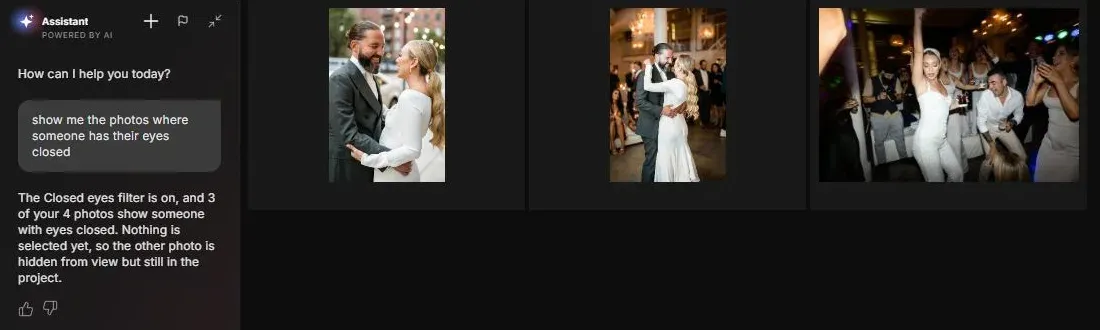
Three of four photos, found by what’s in them (screenshot: Imagen, November 2026)
What didn’t go the way we asked
A few requests didn’t come back as a finished job. Better you hear it from us.
We asked what the export would cost, and didn’t get a number. Your assistant said it can’t give an exact figure, pointed us to the estimate at the bottom of the Export screen, and offered to open it.
“crop all of these 1x1” got a question back, because only one photo was selected at that moment. Once we named the two dancing photos, it set a 1:1 crop on both and opened the Crop panel. Look at the framing yourself. It sets the ratio, and it won’t frame a person for you.
Search has gaps. Under each content search, your assistant notes that it “finds most matches, not always all”. It also told us it can’t see the images, and asked us to check the dancing photos in the grid.
And one reply got its own history wrong. After the undo, your assistant said an earlier message had mentioned a button that was never offered. The button had been there. Every edit was right, but it’s a reason to read the replies, not skim them.
Write instructions that work
Give it something concrete. A time, a rating or a number gets the best results, like “between 7 and 9 pm” or “300 kelvin”.
Say what to change. Your assistant edits from your words, not by looking at the photo, so “more light and bright” works and “fix this photo” gives it nothing to go on.
Keep the conversation going, because it remembers. “make these less moody” worked only because the dancing photos were already selected.
When it finds photos by content, check the set before you edit it.
For everything it can and can’t do, read what the assistant can and can’t do (yet). For more instructions to try, see the assistant prompt library.
How this differs from Lightroom Prompt to Edit
Both start with a sentence. After that, they go different ways.
Prompt to Edit takes one photo per request. Generative AI makes a new version of it, saved as a new AI-generated DNG, and each try uses generative credits. In our wedding test, six photos used 140 of them.
Imagen’s assistant takes a set. It finds the photos and moves their sliders, so your original pixels stay and the manual work gets done for you. It isn’t an image generator, and it doesn’t use credits (a daily limit applies).
For the two side by side, see Lightroom Prompt to Edit vs Imagen.
Where your assistant fits
The edit doesn’t start with your assistant. It starts with your Personal AI Profile, which learns your style from your past edits and applies it to the whole shoot. Your assistant then carries out your instructions on top of that, and saves you the time of making those changes by hand. The creative call stays yours.
Finishing in Lightroom Classic? Your AI Profile’s edits and ratings carry over to your catalog. Edits made in Studio’s editor, your assistant’s included, don’t carry over.
See what Imagen Studio does, or check Imagen’s plans.
Frequently Asked Questions
Can I edit photos by typing what I want in Imagen?
Yes. In Imagen Studio you type an instruction, and your assistant finds the photos you mean and moves their sliders. When we tried it on a real wedding, one sentence warmed the two photos taken between 7 PM and 9 PM by exactly 300 kelvin.
Does Imagen’s assistant change the pixels in my photos?
No. It moves sliders like exposure, white balance and saturation, the ones you’d move by hand. It never adds or removes pixels, and it isn’t an image generator. Every change stays in the editor, where you can adjust it or undo it.
Does Imagen’s assistant use credits?
No. Your assistant doesn’t use credits (a daily limit applies). You pay for the photos you export, per photo or on a plan.
Can Lightroom Prompt to Edit do the same thing?
No. Prompt to Edit takes one photo per request and generates a new version of it, saved as a new AI-generated DNG and paid in generative credits. It does not find photos across a shoot, and it does not move sliders on a set.
Does Imagen’s assistant work in Lightroom Classic?
No. Your assistant works in Imagen Studio. Your AI Profile’s edits and ratings carry over to a Lightroom Classic catalog. Edits made in Studio’s editor, your assistant’s included, don’t carry over.

