Prompt library
Say it once. The Imagen assistant edits the whole shoot.
Real prompts photographers type to find photos and change their edits in plain words. Borrow the wording, swap in your own details.
AI photo editing prompts
47 prompts
Find photos
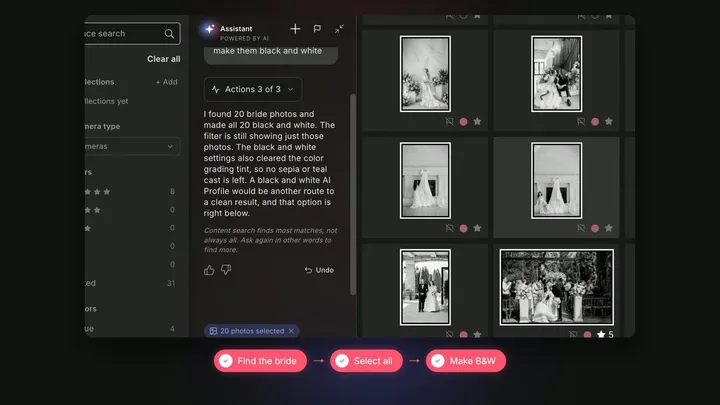
“Find the bride photos and make them black and white”
Finds every photo of the bride, then turns that set black and white in one go.
Find photos
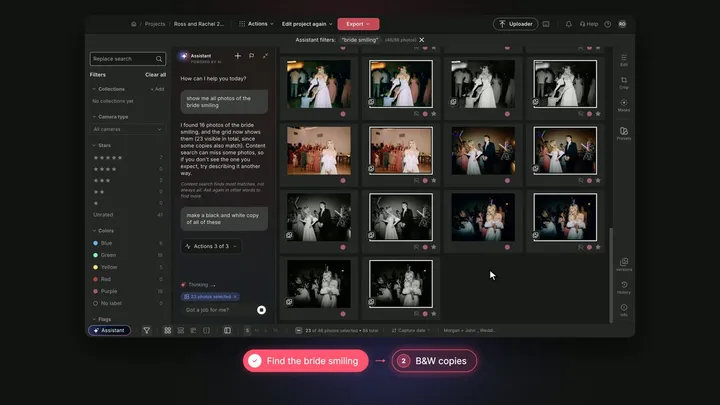
“Show me all photos of the bride smiling”
Then: “Make a black and white copy of all of these”
Finds a moment, not just a person, then adds a black-and-white version of each.
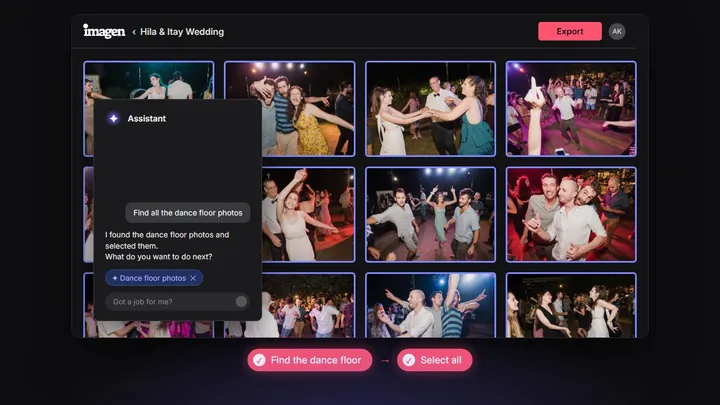
Find photos
“Find all the dance floor photos”
Searches what’s in each photo, so a whole part of the night is one sentence away.
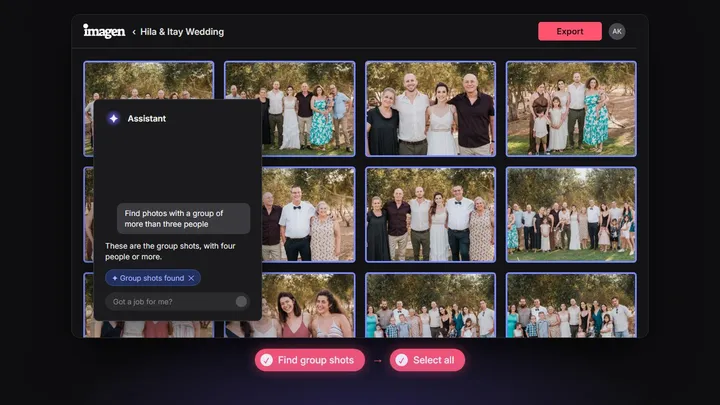
Find photos
“Find photos with a group of more than three people”
Pulls the group shots out of the shoot, ready to check or edit together.
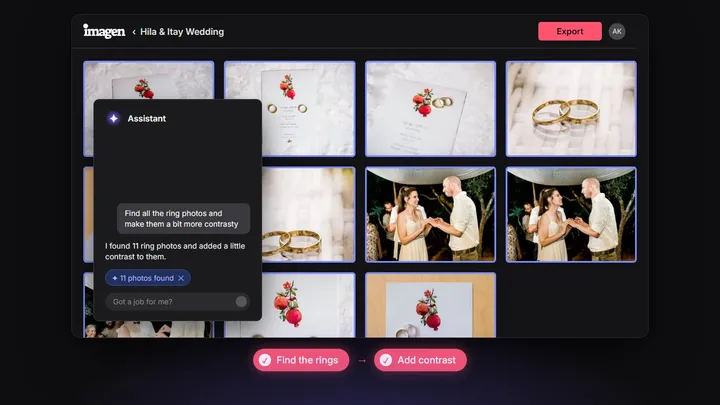
Find photos
“Find all the ring photos and make them a bit more contrasty”
Finds the detail shots and adds contrast to just those.
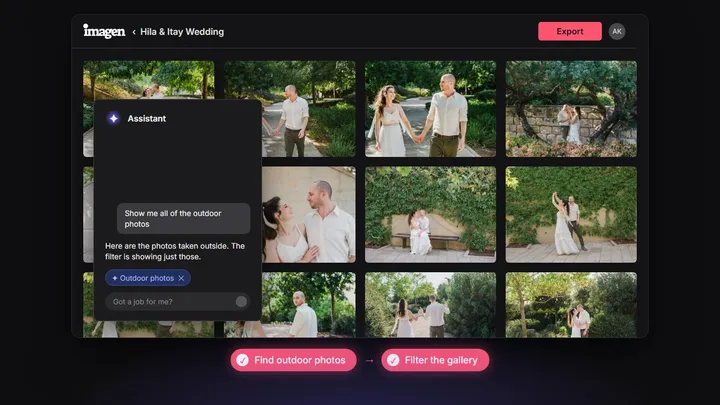
Find photos
“Show me all of the outdoor photos”
Narrows the gallery to the photos taken outside.
Find photos
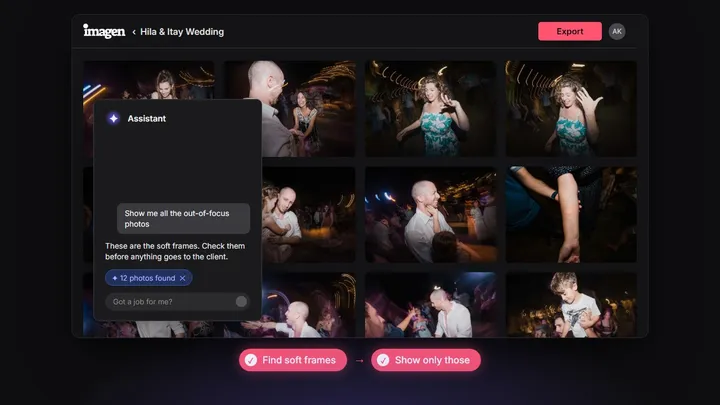
“Show me all the out-of-focus photos”
Lists the soft frames, so you can check them before anything goes to the client.
Find photos
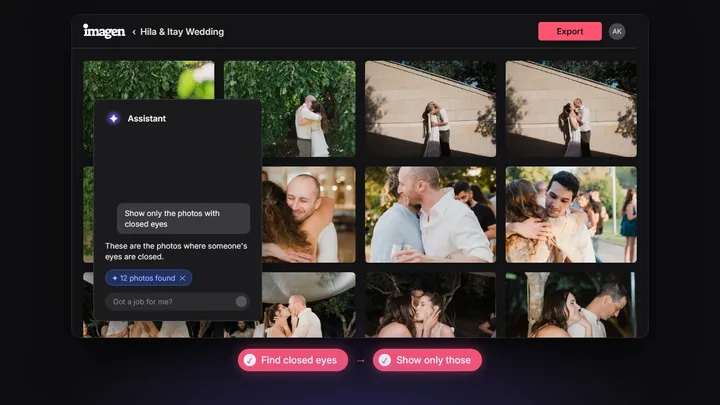
“Show only the photos with closed eyes”
Finds the blinks in one go.
Camera & lens data
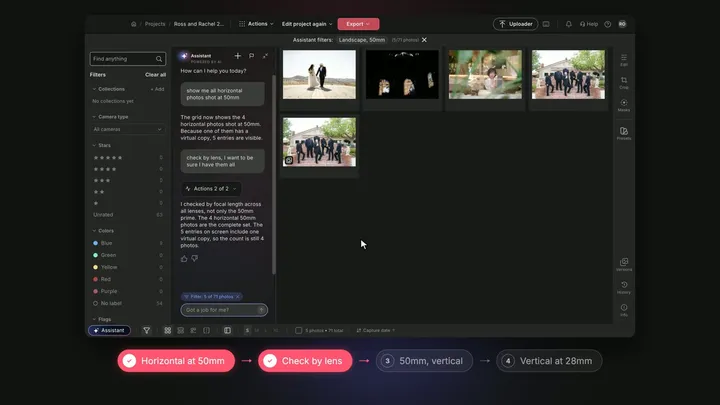
“Show me all horizontal photos shot at 50mm”
Then: “Check by lens, I want to be sure I have them all”
Then: “Now the 50mm photos, but vertical”
Filters by focal length and orientation, double-checks when you ask, then flips the search.
Camera & lens data
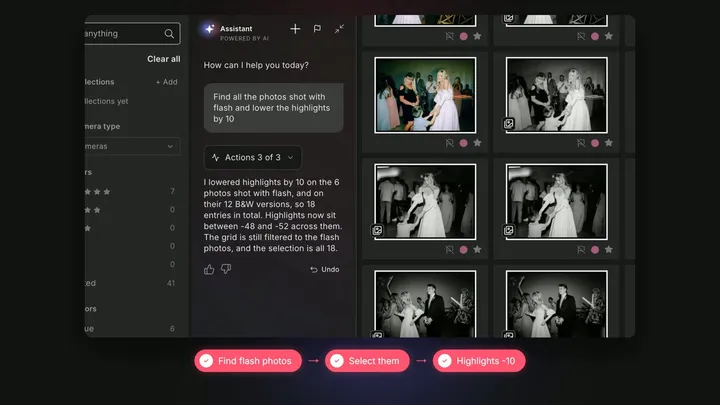
“Find all the photos shot with flash and lower the highlights by 10”
Finds the flash frames from their camera data and tames their highlights.
Camera & lens data
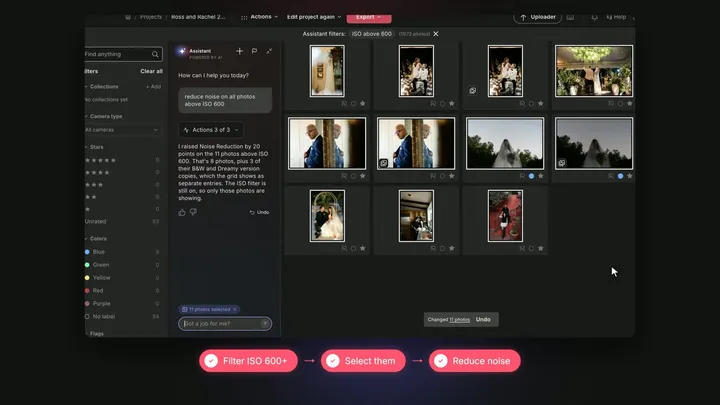
“Reduce noise on all photos above ISO 600”
Picks the high-ISO photos for you and cleans up only those.
Camera & lens data
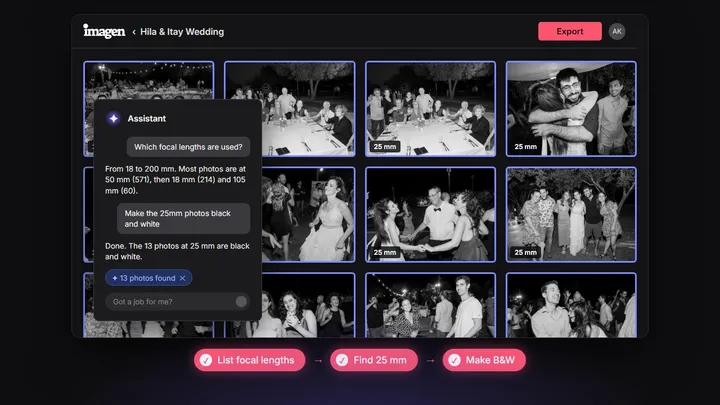
“Which focal lengths are used?”
Then: “Make the 25mm photos black and white”
Answers a question about your shoot, then acts on the answer.
Camera & lens data
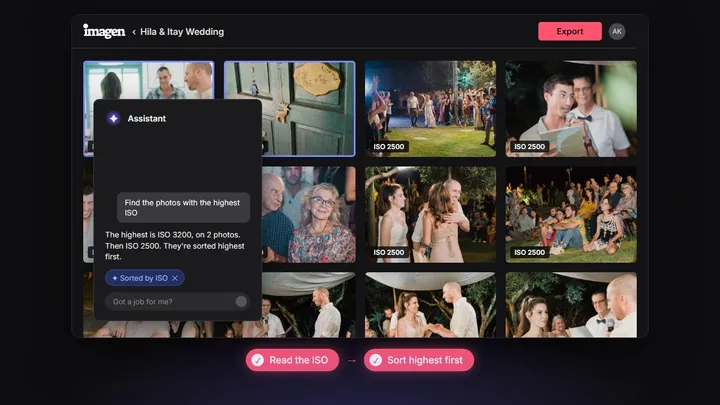
“Find the photos with the highest ISO”
Sorts out the darkest-venue shots first, the ones most likely to need a look.
Camera & lens data
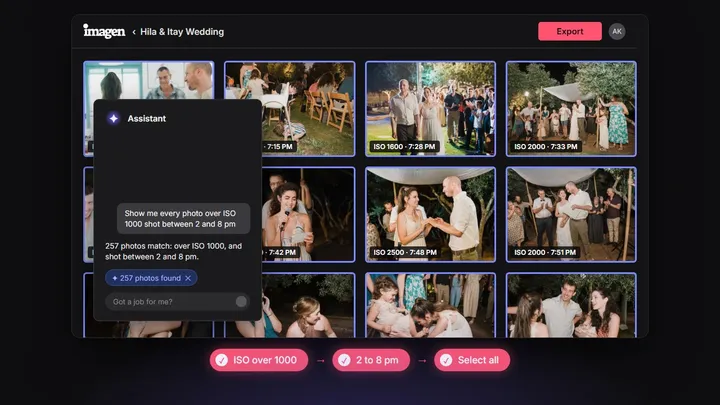
“Show me every photo over ISO 1000 shot between 2 and 8 pm”
Combines a camera setting and the time of day in one search.
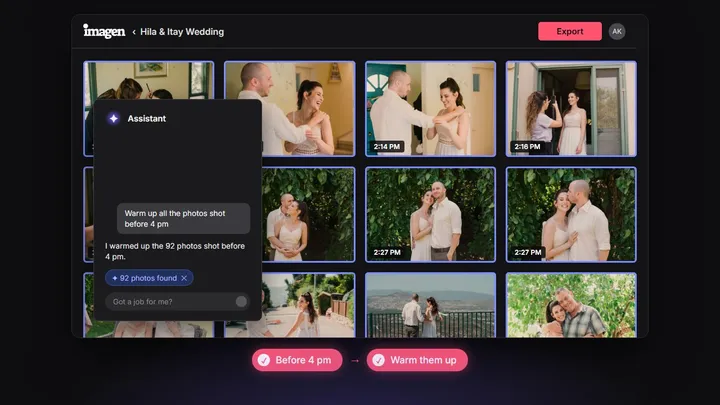
Camera & lens data
“Warm up all the photos shot before 4 pm”
Uses the capture time to pick the photos, then warms just those.
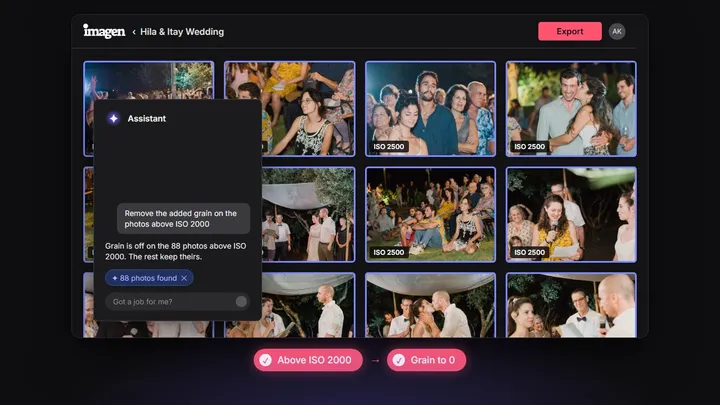
Camera & lens data
“Remove the added grain on the photos above ISO 2000”
Takes the grain off where the camera already brought its own.
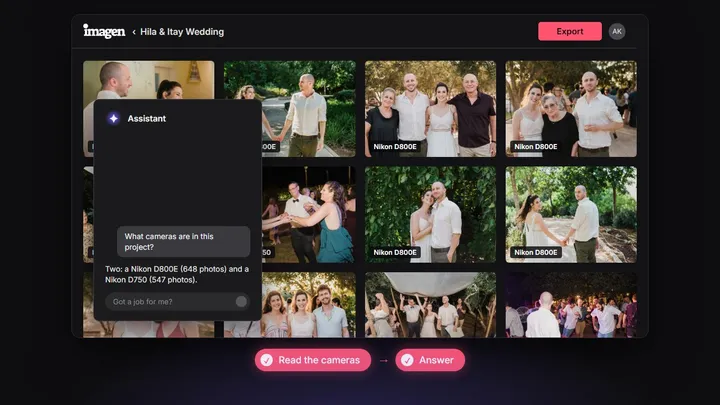
Camera & lens data
“What cameras are in this project?”
Tells you which bodies the shoot came from, before you sort a two-camera day.
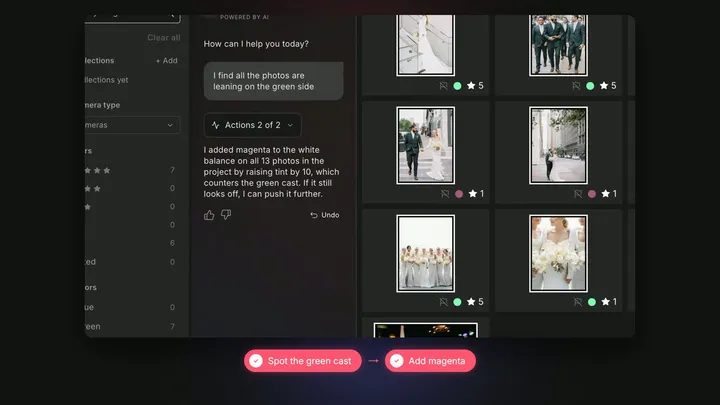
Color & white balance
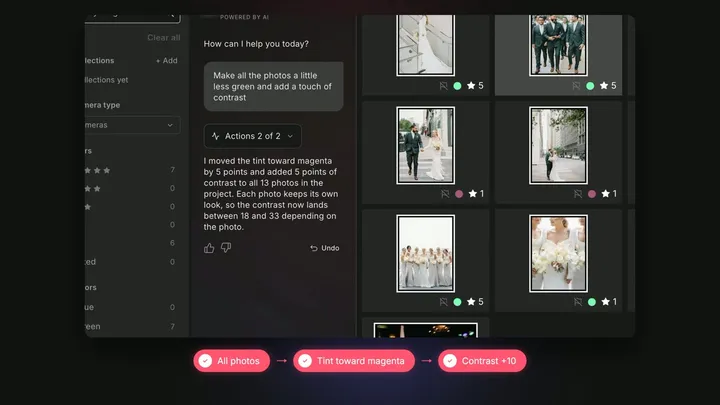
“I find all the photos are leaning on the green side”
Say what you see. It adds magenta to the tint on every photo to cancel the green.
Color & white balance
“Make all the photos a little less green and add a touch of contrast”
Two changes in one sentence, applied together.
Color & white balance
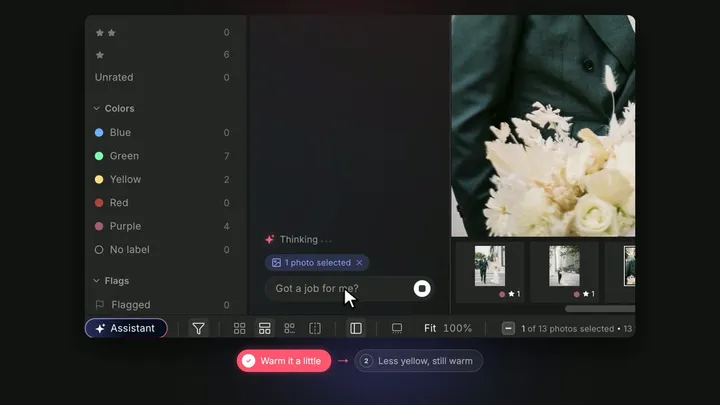
“Warm the image a little”
Then: “Make it look less yellow but still warm”
Warms the photo, then fine-tunes the result when you say what’s off.
Color & white balance
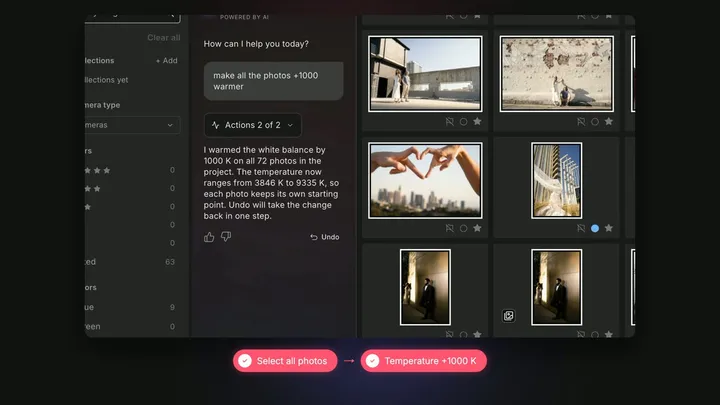
“Make all the photos +1000 warmer”
Moves the white balance by an exact amount, on every photo at once.
Color & white balance
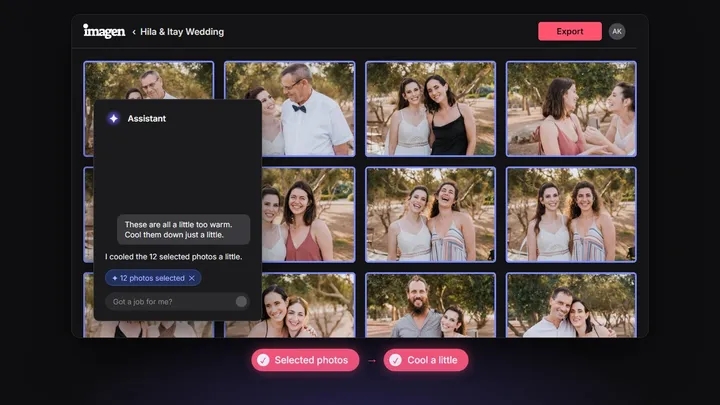
“These are all a little too warm. Cool them down just a little.”
A small shift you describe in words rather than numbers.
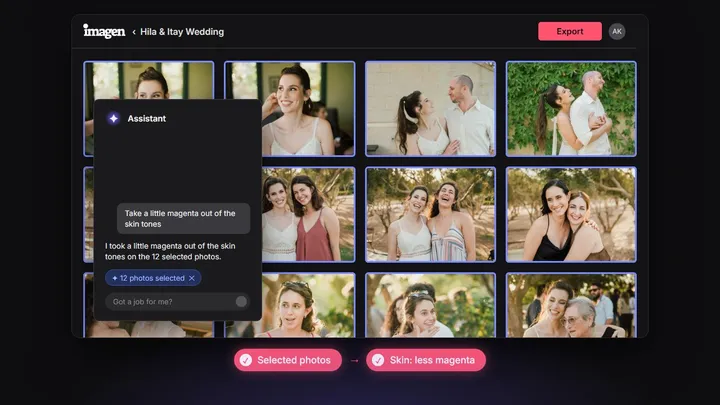
Color & white balance
“Take a little magenta out of the skin tones”
Adjusts the color of the skin tones without touching the rest.
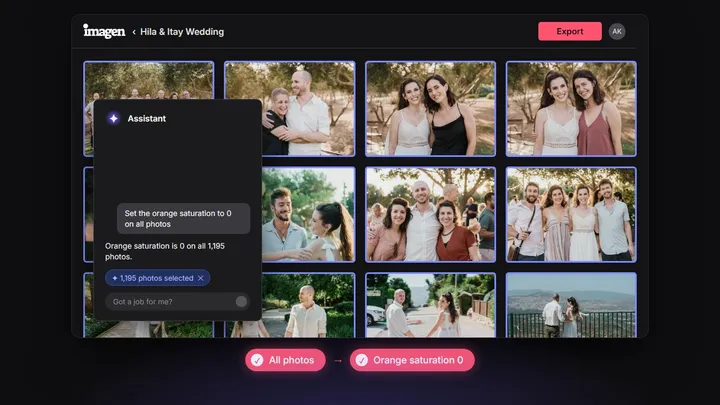
Color & white balance
“Set the orange saturation to 0 on all photos”
Sets one HSL value across the shoot, exactly.
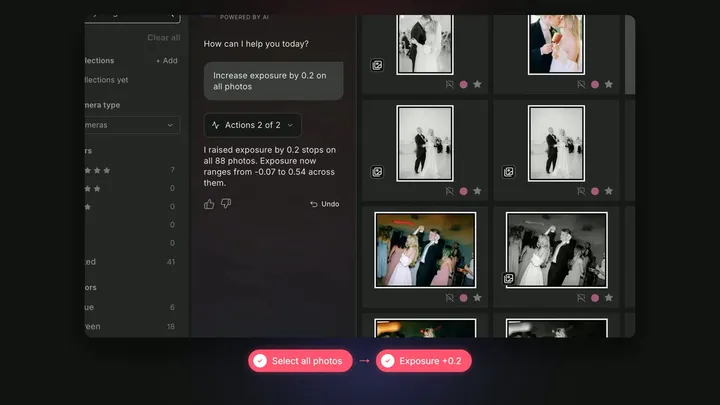
Light & tone
“Increase exposure by 0.2 on all photos”
An exact exposure change on the whole project.
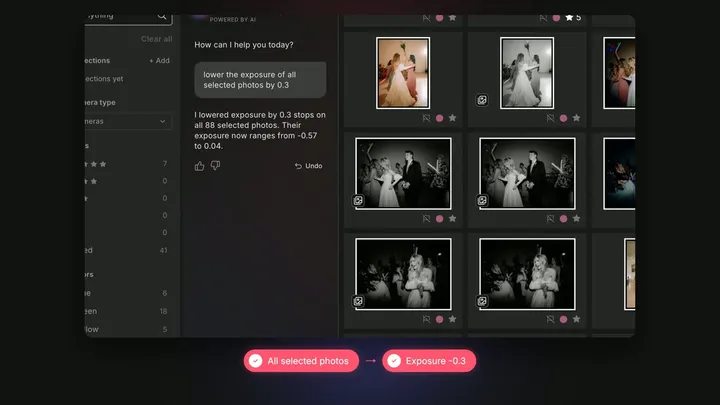
Light & tone
“Lower the exposure of all selected photos by 0.3”
Edits only the photos you’ve selected.
Light & tone
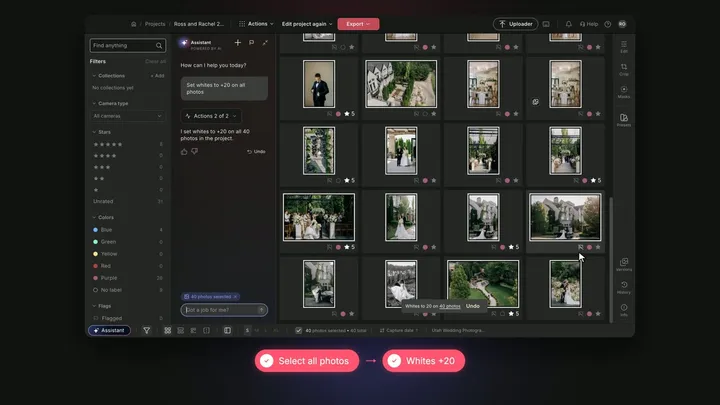
“Set whites to +20 on all photos”
Name the slider and the amount, and it’s done on every photo.
Light & tone
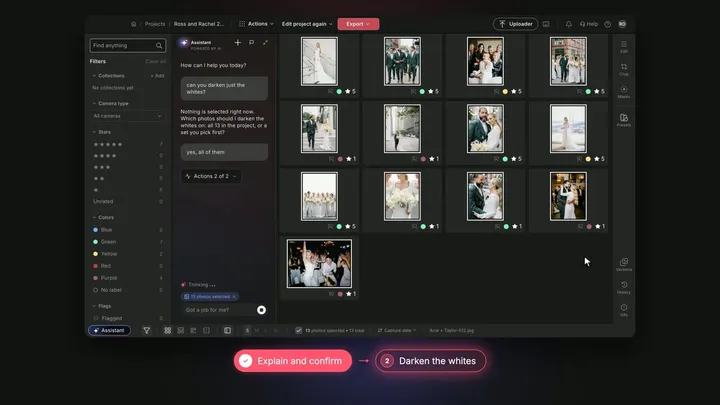
“Can you darken just the whites?”
Not sure which photos you mean? It asks first, then lowers the whites on the set you pick.
Light & tone
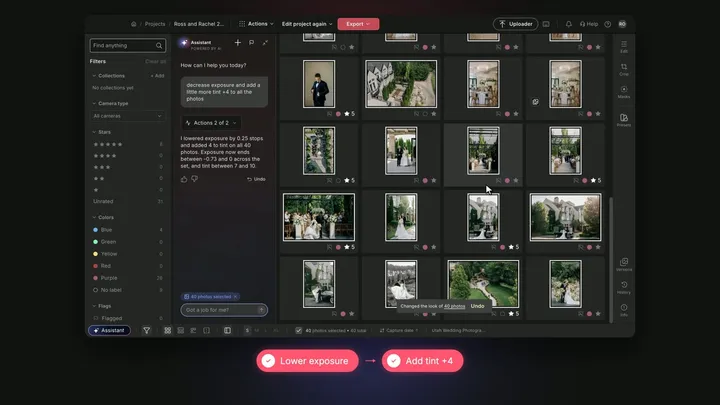
“Decrease exposure and add a little more tint +4 to all the photos”
Two edits on the whole project, from one sentence.
Light & tone
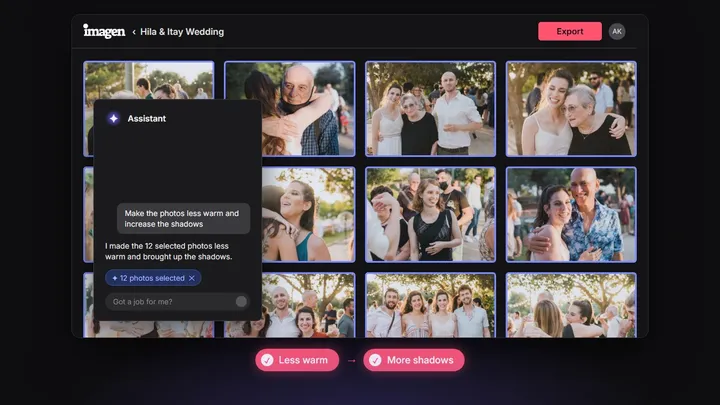
“Make the photos less warm and increase the shadows”
A color change and a tone change, together.
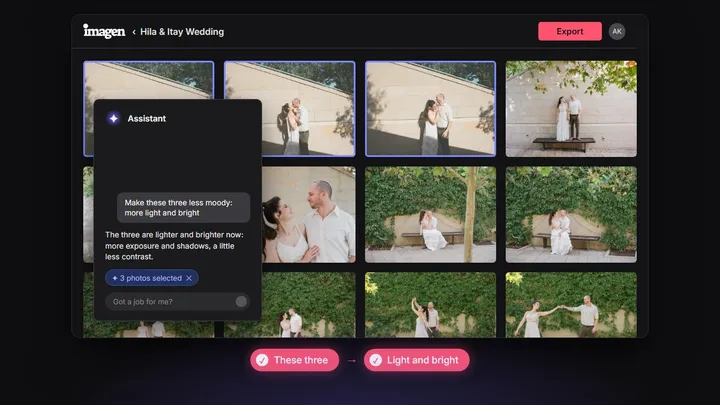
Light & tone
“Make these three less moody: more light and bright”
Describes a look, and the assistant moves the sliders to get there.
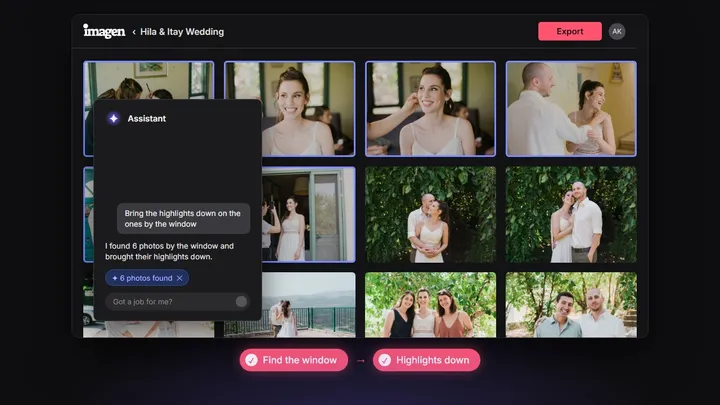
Light & tone
“Bring the highlights down on the ones by the window”
Finds the photos by what’s in them, then edits only those.
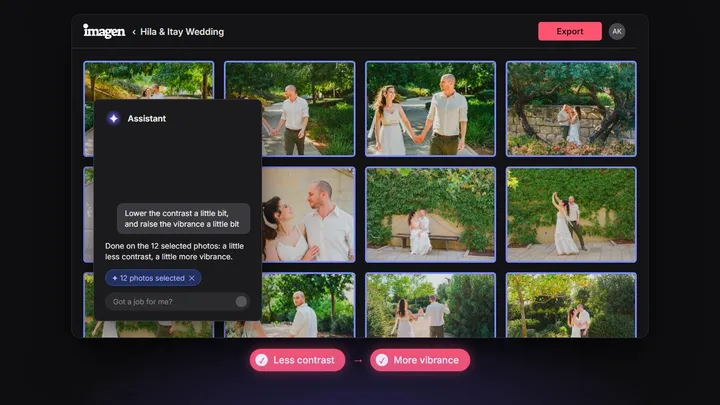
Light & tone
“Lower the contrast a little bit, and raise the vibrance a little bit”
Two gentle changes, worded the way you’d say them.
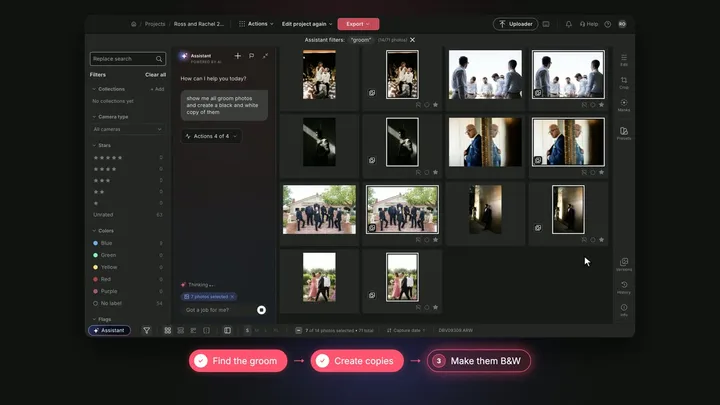
Black & white copies
“Show me all groom photos and create a black and white copy of them”
Keeps the color originals and adds a black-and-white version of each.
Black & white copies
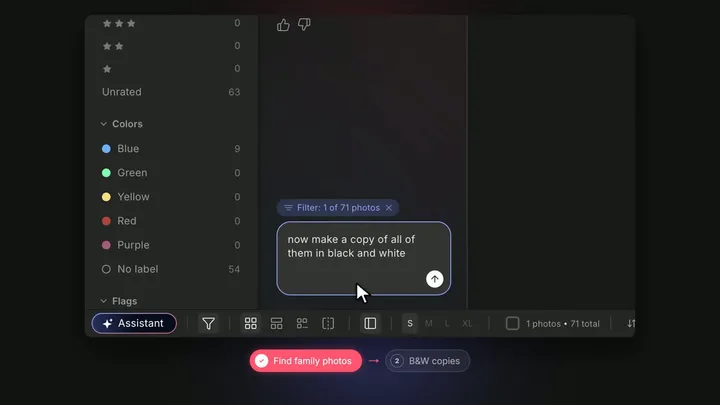
“Show me all family photos”
Then: “Now make a copy of all of them in black and white”
Finds the family photos, then gives each a black-and-white version.
Black & white copies
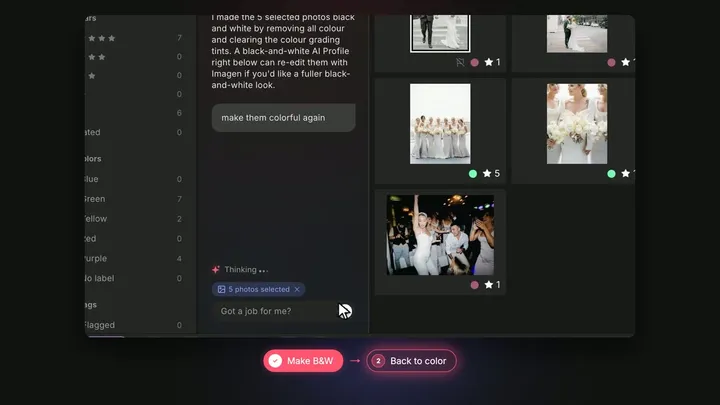
“Make the photos black and white”
Then: “Make them colorful again”
Changed your mind? Say so, and the photos go back.
Black & white copies
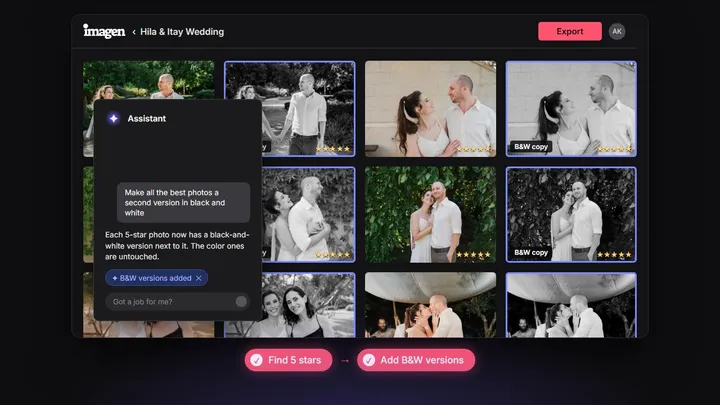
“Make all the best photos a second version in black and white”
Adds a black-and-white version to your top picks, the color ones untouched.
Rate & organize
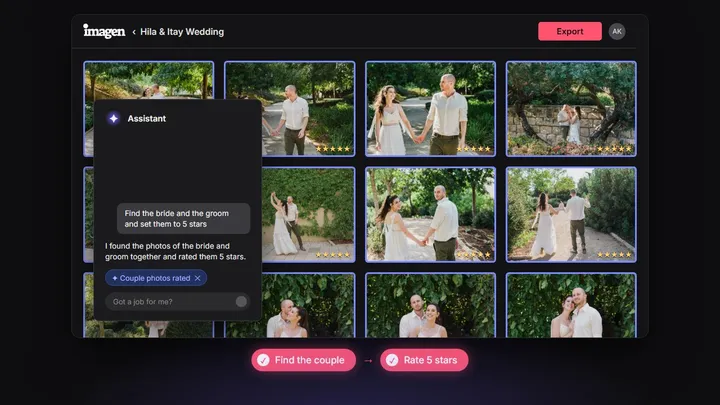
“Find the bride and the groom and set them to 5 stars”
Finds the couple’s photos and rates them for you.
Rate & organize
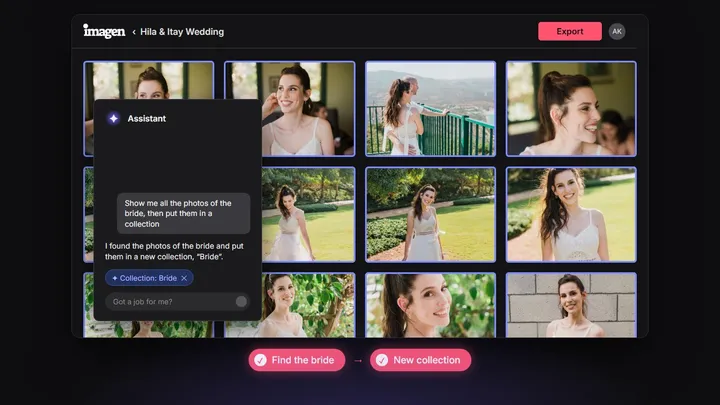
“Show me all the photos of the bride, then put them in a collection”
Searches, then files the result in a collection of its own.
Rate & organize
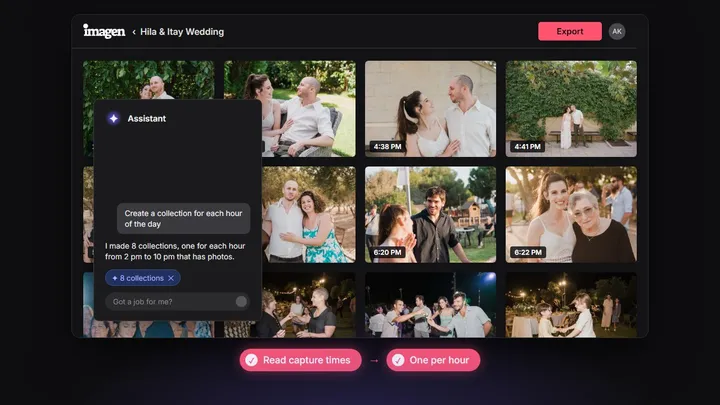
“Create a collection for each hour of the day”
Splits the shoot into collections by the time each photo was taken.
Rate & organize
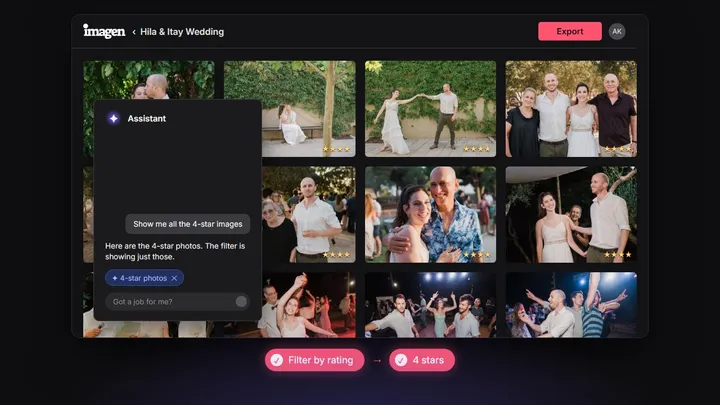
“Show me all the 4-star images”
Filters by rating, without hunting for the filter.
Rate & organize
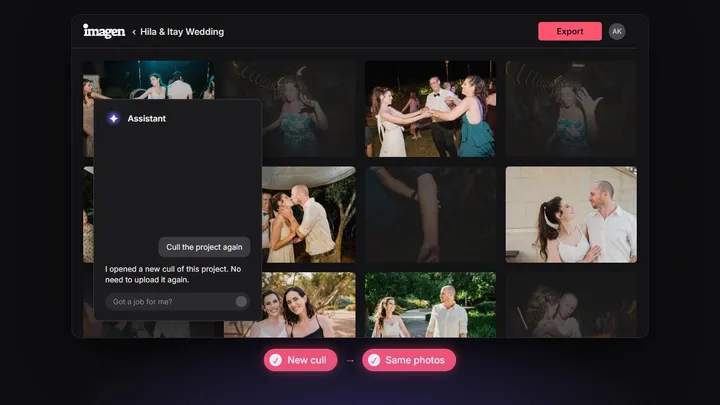
“Cull the project again”
Opens a new cull of the same shoot, without uploading it again.
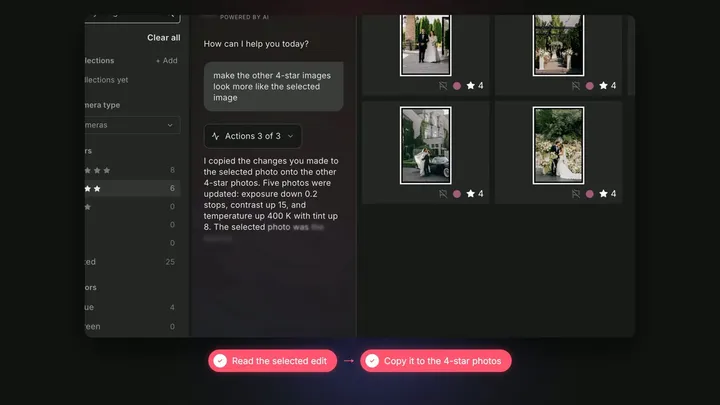
Match & undo
“Make the other 4-star images look more like the selected image”
Matches your other picks to the photo you like.
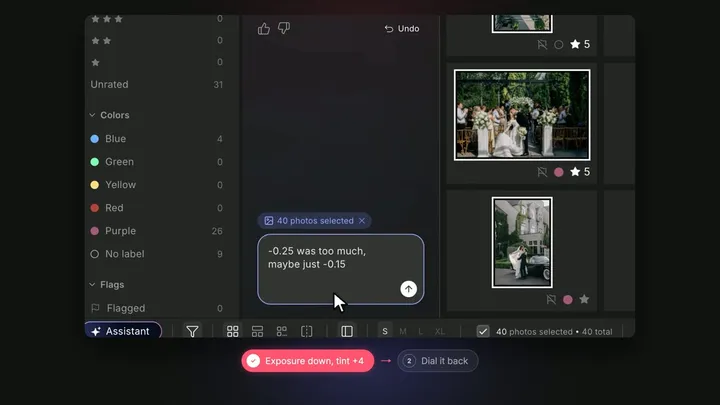
Match & undo
“Decrease exposure and add +4 tint to all the photos”
Then: “-0.25 was too much, maybe just -0.15”
No amount given, so it picks one and tells you. Too much? Say so, and it eases off.
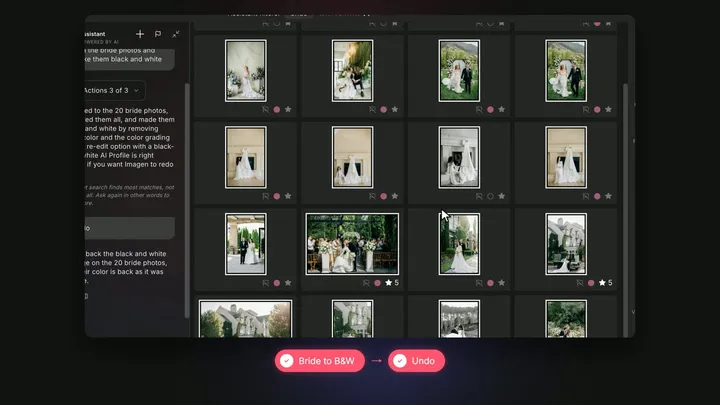
Match & undo
“Find the bride photos and make them black and white”
Then: “Undo”
Every change can be undone, by asking.
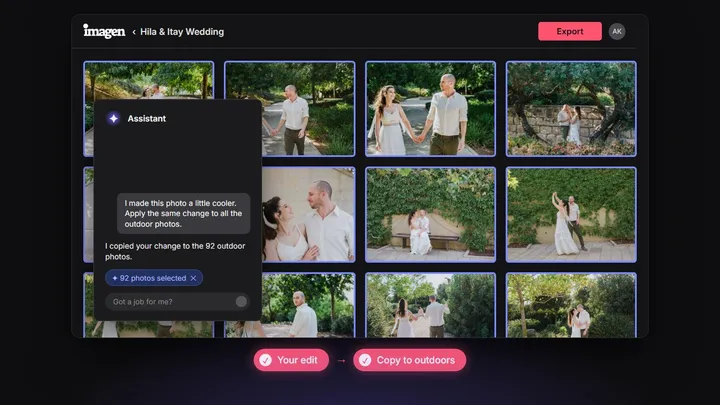
Match & undo
“I made this photo a little cooler. Apply the same change to all the outdoor photos.”
Takes an edit you made by hand and repeats it where you say.
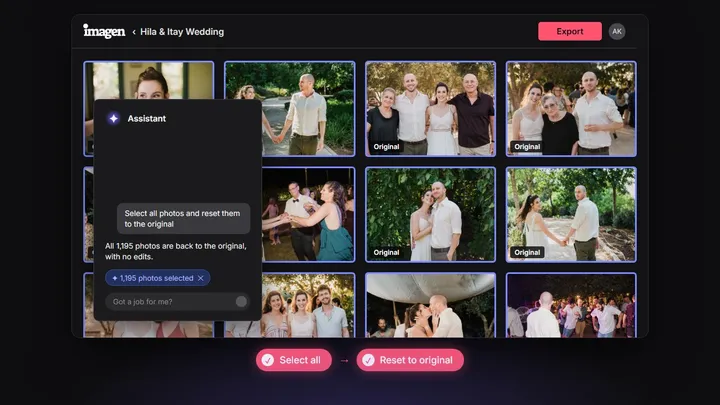
Match & undo
“Select all photos and reset them to the original”
Clears the edits, so you can start over.
No prompts match. Try another word, or pick a category.
How to write a prompt that works
The assistant moves the same sliders you would. These habits get you there in fewer turns.
Say which photos, then what to change
Name the people, the moment or the setting first, then the edit.
“Find all the ring photos and make them a bit more contrasty”
Numbers or words, both work
Give an exact amount when you know it, or describe the feel.
“Increase exposure by 0.2 on all photos”
Be concrete, not clever
A visible detail beats a judgment call like “the most emotional shots”.
“Find photos with a group of more than three people”
Ask before you change
Questions about the shoot are fair game, and the answer sets up the edit.
“Which focal lengths are used?”
Keep the conversation going
Correct, refine or undo in the next message. Nothing is final until you say so.
“-0.25 was too much, maybe just -0.15”
Frequently asked questions
What is the Imagen assistant?
The assistant is part of Imagen Studio. You type what you want in plain words, like “find the photos of the bride and make them black and white”, and it finds those photos in your project and changes their edits for you. It works across the whole shoot, and the creative call stays yours.
What can I ask it to change?
It moves the sliders you’d move by hand: exposure, tone curve, HSL, color grading, black and white, grain, vignette and sharpening. It can also copy an edit to other photos, undo a specific change, rate and sort photos, make collections and cull again.
To find photos, describe what’s in them, or use their camera data: ISO, lens, focal length, flash and the time they were taken.
Does the assistant create or change what’s in my photos?
No. The assistant works only with the photos you took. It moves the same sliders you would move by hand, so it never adds or removes a pixel, and it isn’t an image generator. Every change is an edit you can see, adjust or undo.
What doesn’t it do yet?
It doesn’t apply AI tools, AI Profiles or presets by itself (it opens the screen for you to confirm), and it doesn’t export. It can’t mask one area of a photo, and vague requests like “the romantic moments” don’t work well. Read what the assistant can and can’t do (yet).
Does the assistant cost credits?
No. The assistant uses no credits; a daily limit applies.
When can I use it?
The assistant is available in a Studio project once its culling and editing have finished. Imagen Studio, with the assistant, is rolling out to everyone from November 9, 2026.

Your shoot, edited in plain words
Imagen Studio is rolling out to everyone from November 9. Open a shoot and start asking.