
10 Best Free AI Photo Enhancers in 2026
Table of contents
- Key Takeaways
- Selection Criteria: How We Evaluated the Best Free AI Enhancers
- 1. Imagen: The Professional Choice for Batch AI Editing
- 2. Upscayl: The Best 100% Free Open-Source Desktop Tool
- 3. Adobe Express: Best for Social Media Creators
- 4. Remini: The King of Face Restoration
- 5. Fotor: Best All-in-One Online AI Photo Suite
- 6. VanceAI: Best for Specialized Image Processing
- 7. Let’s Enhance: Best for High-Resolution Printing
- 8. PicWish: Best Free Web-Based Batch Tool
- 9. HitPaw Photo Enhancer: Best for Desktop AI Models
- 10. Canva: Best for Integrated Design Enhancement
- Comparison of the Top 10 AI Photo Enhancers
- Final Recommendation: Which Free AI Enhancer Should You Choose?
- Frequently Asked Questions
- Do free AI photo enhancers keep my images private?
- What is the difference between upscaling and standard resizing?
- Will these tools work on low-spec laptops?
- Why do some restored faces look fake or plastic?
- Can I use these tools to prepare files for high-quality printing?
- Are there file size limits on free web-based enhancers?
- How does Green AI impact photo editing in 2026?
- Keep exploring
You’re staring at a blurry, underexposed photo, wondering if it’s worth saving. Don’t worry, you’re not alone. Most photographers hit this wall, and the good news is you no longer need hours of manual slider work to rescue a bad shot. By 2026, the tools behind quick photo correction have left the slow, clunky editors of the past far behind.
Want to speed up your entire workflow? Try Imagen free with 100 photos and see the difference on your own images.
Right now, there’s a real shift toward fast, automated platforms that handle the heavy lifting in seconds flat. Whether you’re upscaling an old family photo or cleaning up a snapshot for social media, here’s how to pick the right tool without spending a dime.
Key Takeaways
- 92% of professional photographers already lean on AI-powered tools for at least 30% of their post-processing workflow, mostly to save time.
- High-volume editing tools cut manual retouching time by an average of 74%.
- The global AI image processing market is on track to reach $12.8 billion by 2030.
- Open-source tools like Upscayl offer unlimited 16x upscaling, fully offline and with zero watermarks.
- Mobile-first users favor one-tap restoration, a preference that’s helped apps like Remini pass 100 million downloads.
- By the end of 2026, 40% of AI photo tools are expected to adopt Green AI protocols to cut GPU-related carbon emissions.
Selection Criteria: How We Evaluated the Best Free AI Enhancers
Finding a tool that actually delivers, without a giant watermark across your photo, isn’t easy. Plenty of web apps promise top-tier results, then hand you a blurry, pixelated file the moment you refuse a credit card. So we zeroed in on three specific areas: model quality, processing speed, and free-tier viability.
First, we looked at the underlying engine. Does the tool run on modern open-source models like Real-ESRGAN, or does it fall back on outdated interpolation that just smears pixels around? (Smearing is the enemy of any clean export.) Second, we timed the rendering itself, because nobody wants to wait ten minutes for a single portrait to load.
Here’s the exact checklist we used to build this list:
- Model Quality: The platform has to run on modern neural networks that rebuild lost detail, not just slap on artificial sharpening.
- Free Tier Viability: It needs a genuinely usable free tier, whether that comes from daily credit refreshes, trial batches, or open-source access.
- Resolution Output: The system must support at least 2x upscaling without wrecking the natural texture of skin or background detail.
- Interface Speed: Processing times should match industry averages, generally under 4 seconds for web tools, so your workflow keeps moving.
1. Imagen: The Professional Choice for Batch AI Editing
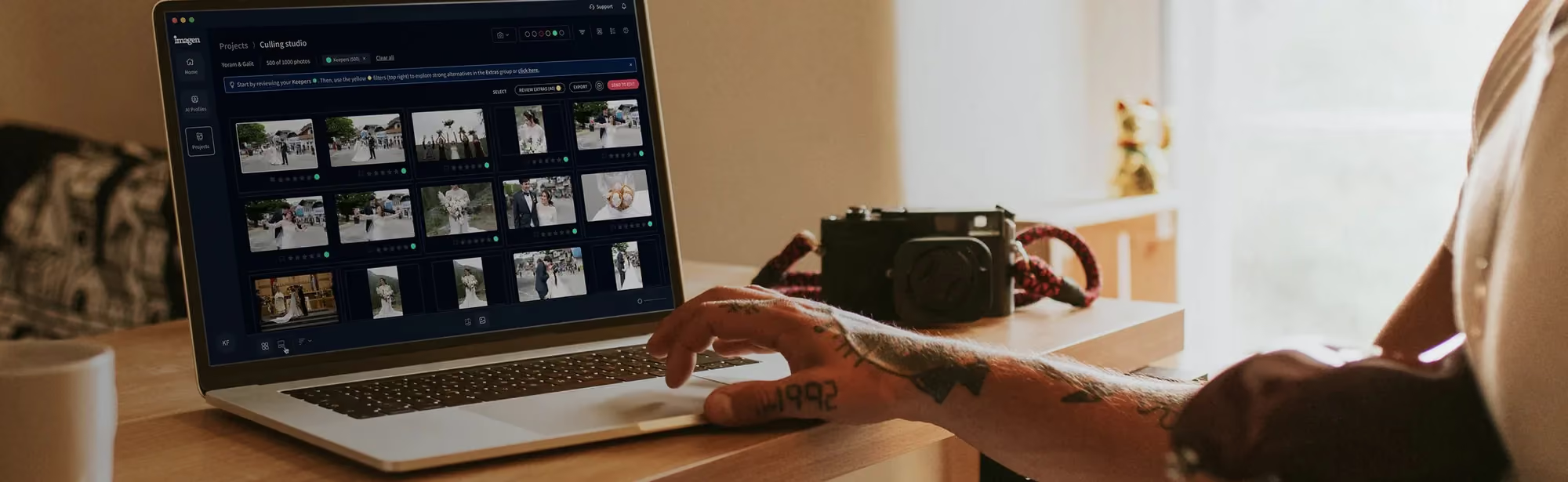
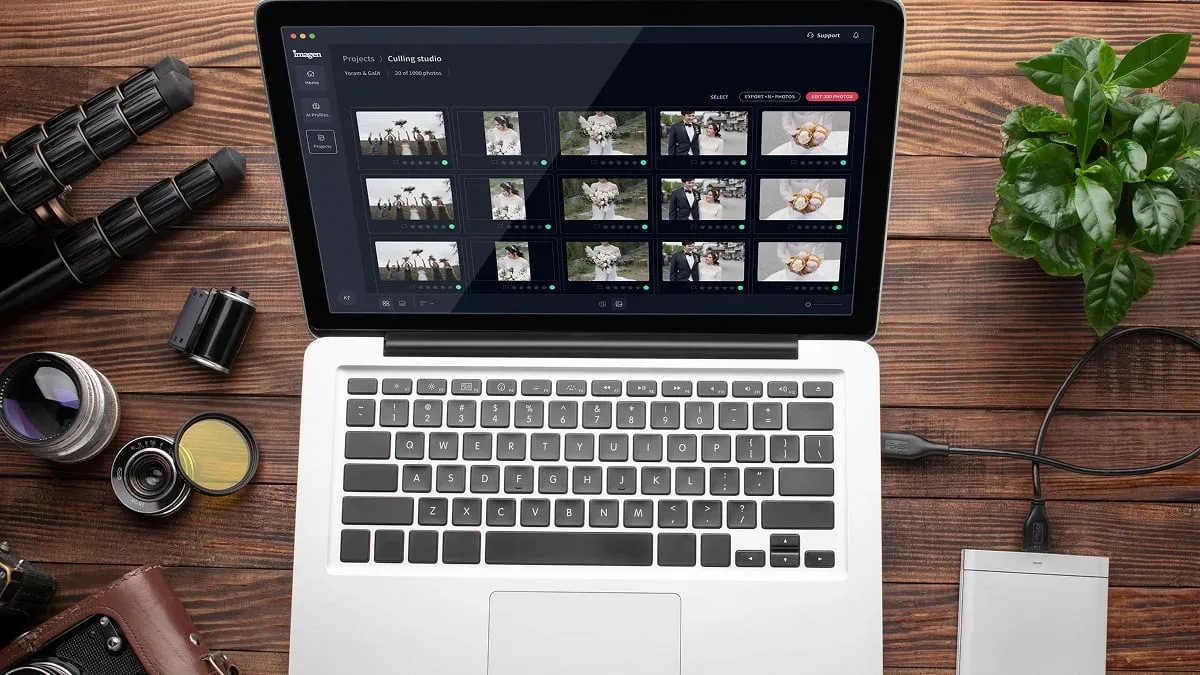
If you’re managing hundreds of photos from a single session, single-image web tools will drain your sanity fast. That’s exactly where Imagen steps in. It’s a professional-grade platform built specifically to handle high-volume photo editing while keeping your unique visual identity intact.
Instead of slapping a generic, flat filter on every photo, Imagen runs on Image2Image, a color-correction model that takes a raw, unedited photo and returns a fully corrected, advertising-quality edit in one step, consistent across every photo in a batch. That’s a massive time-saver if you shoot weddings, portraits, or events, and it lines up with research showing AI-driven photo editing reduces manual retouching time by an average of 74%.
Imagen is also built specifically for real estate photography, and it runs entirely as a browser web app, with no installation and no dependency on Lightroom. Image2Image batch-corrects every photo in a listing for consistent color and exposure, and the AI Assistant handles per-photo finishing touches like virtual staging, object removal, and twilight conversion when a shot needs extra attention. New users can try Imagen’s real estate photo editing tools free for 100 photos, with no credit card required.
“AI isn’t about replacing the artist; it’s about eliminating the friction of repetitive tasks so the creative vision can shine through without delay.”
Itamar Haim, SEO Expert and Digital Strategist specializing in search optimization and content marketing, and an award-winning workflow specialist.
Everything runs in the browser, with no plugins or desktop software to install. The suite covers HDR merge, window pull, perspective correction, sky replacement, color enhancement, cropping, and object removal, and every plan includes three human revisions per listing if a photo needs an expert’s touch.
Key Features
- Image2Image: The core batch color-correction model, returning a fully corrected, advertising-quality edit in one step, consistent across an entire shoot.
- AI Assistant: Describe an edit in plain language, like object removal, virtual staging, or twilight conversion, and it applies the change to the photo.
- Automated Local Corrections: Fast, automatic adjustments for cropping, straightening, and subject-specific masking.
- Human Revision Layer: Flag any photo for a professional touch-up, included on every plan.
Pricing
New customers get a free trial of 100 photos, with no credit card required, and the first batch is usually processed in under 10 minutes. After that, Imagen runs on a pay-as-you-go model at $0.32 per photo, billed monthly for the photos you actually edit, and you can cancel anytime. Teams editing 25,000 or more photos a year can move to volume pricing with a dedicated account manager. Check the full Imagen pricing page for details.
Pros
- Fast processing that turns around a full batch of photos in minutes, not hours.
- Keeps a highly consistent look across even giant batches of photos.
- Flexible pricing lets you pay only for the files you actually edit.
Cons
- Pay-as-you-go pricing means your monthly cost changes with how many photos you edit.
- New users may need a few tries to get comfortable describing edits to the AI Assistant.
Verdict: The best choice for wedding, portrait, event, and real estate photographers who need to edit high volumes without losing consistency.
2. Upscayl: The Best 100% Free Open-Source Desktop Tool
If you hate subscriptions, credit systems, and uploading private photos to some random cloud server, Upscayl might be exactly what you’re after. It’s a desktop app built on open-source principles, and it runs entirely on your own machine. Linux, MacOS, and Windows are all supported, no cent spent and no internet connection required.
Because everything runs locally, the app leans on your computer’s GPU to process images. (A decent graphics card helps, or you’ll be waiting a while for results.) It offers advanced model options like Real-ESRGAN and Remacri, which allow for 4x to 16x upscaling. There are no daily limits or watermarks to worry about, either; you can run 500 images back-to-back and the software still won’t ask for a subscription. Here’s how to get started:
- Download and install the app that matches your operating system.
- Select the image you want to improve from your local folders.
- Pick your preferred model: Real-ESRGAN works well for general photos, Digital Art suits illustrations.
- Set your upscale factor, typically 4x, then click the process button.
Key Features
- Local Processing: Keeps every photo on your own computer for total privacy.
- Multiple AI Models: Ships with specialized engines such as Real-ESRGAN, Ultrasharp, and Remacri.
- Batch Upscaling: Processes entire folders of low-resolution files in one go.
- Zero Compression: Exports files as uncompressed PNGs to keep edges clean.
Pricing
It’s completely free and open-source, though you’re welcome to donate to the developers through their website.
Pros
- Unlimited use, with no hidden costs or paywalls anywhere.
- No internet connection needed, so it uses zero data.
- Crisp, professional results that genuinely rival expensive cloud services.
Cons
- Needs a modern computer with a dedicated graphics card to run smoothly.
- Lacks advanced color correction and manual retouching brushes.
Verdict: A great pick for privacy-focused users who want high-resolution desktop upscaling without paying a cent.
3. Adobe Express: Best for Social Media Creators
Adobe is a household name in creative software, though plenty of people don’t realize how much their free web tools can actually do. Adobe Express brings the Firefly engine straight into your browser. It’s built for speed, with quick tools that correct lighting, clean up backgrounds, and adjust colors in seconds.
The system itself is genuinely intuitive. You don’t need to understand layers or adjustment masks here; just upload a photo, pick one of the AI-powered quick actions, and let the cloud do the processing. It’s a solid option if you regularly prepare vertical images for Instagram or TikTok. On top of that, the built-in generative fill lets you add or remove objects using simple text prompts.
Key Features
- Firefly AI Integration: Use text prompts to add objects or expand your photo’s background.
- One-Click Enhancements: Balances shadows, highlights, and contrast instantly with a single button.
- Background Remover: Delivers clean subject isolation, even around complex hair detail.
- Direct Templates: Crops and optimizes photos instantly for major social media formats.
Pricing
The free tier gives you 25 generative AI credits per month, refreshed at the start of every billing cycle. If that’s not enough, the Premium tier starts at $9.99 per month for unlimited access.
Pros
- Strong edge detection when removing backgrounds.
- Access to a huge, beautifully designed template library.
- Runs in any web browser, so there’s no heavy software to install.
Cons
- The 25-credit limit runs out fast once you start experimenting with generative designs.
- Requires an Adobe account sign-in before you can download your files.
Verdict: Ideal for content creators who need to quickly clean up photos and turn them into eye-catching social graphics.
4. Remini: The King of Face Restoration
Ever dug up an old, blurry photo of your grandparents and just wished you could finally see their faces? That’s Remini’s whole thing. It’s a mobile-first app that went viral because it’s so good at rebuilding facial detail from almost nothing at all. It doesn’t just sharpen the pixels you already have; it actually reconstructs eyes, teeth, and skin texture using deep learning models.
Honestly, the results can look startlingly real. Pew Research found that 68% of Gen Z users prefer mobile-first tools like Remini, mostly because they’re quick and one-tap simple. It’s great for low-res snapshots, but keep this in mind: the reconstructions can sometimes look a little too perfect, giving faces that slightly synthetic, airbrushed look if you push the settings too hard.
Key Features
- Portrait Reconstruction: Tuned specifically to bring out realistic detail in human faces.
- Old Photo Colorizer: Turns black-and-white family portraits into realistic, natural color.
- Video Optimization: Applies face-sharpening algorithms to short, blurry video clips.
- One-Tap Interface: Barely any sliders, so it’s easy for total beginners.
Pricing
The basic mobile app is free, but you’ll deal with frequent, unskippable ads and a watermark on every export. Want to skip all that? The premium version starts at $9.99 per week.
Pros
- Unmatched at repairing old, heavily pixelated faces.
- Really fast processing, usually done in under five seconds on mobile.
- Excellent colorization tool for old, historical photos.
Cons
- The free version is packed with aggressive ads and pop-ups.
- Can look overly artificial on faces with more unique features.
Verdict: Your best mobile pick for rescuing old, blurry family photos from the pre-digital era.
5. Fotor: Best All-in-One Online AI Photo Suite
Fotor is a huge player in the web editing space, with over 600 million registered users and more than 1 billion images processed every year. Think of it as an all-in-one browser workshop, everything from basic crops to advanced AI skin retouching lives under one roof. It’s really easy to navigate too, which is why so many hobbyists love it. You won’t have to jump between different apps.
The platform’s “Magi-Enhance” tool reads your image’s dynamic range and instantly adjusts exposure, contrast, and color balance. Got a dark scene or a washed-out portrait? This one button usually gets the job done in a single click. There’s also an upscale tool built in, handling up to 4x enlargement with pretty respectable clarity.
Key Features
- Magi-Enhance: A smart auto-correction tool that fixes dynamic range problems instantly.
- AI Skin Retouching: Smooths blemishes while keeping natural skin texture intact.
- Object Eraser: Just brush over unwanted background elements to erase them in seconds.
- Batch Processing: Basic batch tools for resizing and format conversion are included.
Pricing
The basic free tier covers standard editing features, but high-res exports and the advanced AI tools need credits. Pro plans start at competitive rates if you’re billed annually.
Pros
- Really intuitive, modern web layout that’s easy to master.
- Huge library of creative filters, overlays, and text styles to play with.
- Excellent automatic lighting corrections that just work.
Cons
- Free exports are capped in resolution and carry watermarks on AI features.
- The page can load slowly if you’ve got a bunch of tabs open.
Verdict: A genuinely capable, easy-to-use web editor for hobbyists who want quick tools without installing anything.
6. VanceAI: Best for Specialized Image Processing
VanceAI takes a pretty technical, modular approach to photo optimization. Instead of one tool trying to do everything at once, it offers separate modules for specific issues, one for denoising, one for sharpening, and another for upscaling. That modularity means each algorithm is finely tuned for its own specific problem.
Got a photo shot at a high ISO in low light? The AI Denoise model works wonders here, stripping out digital noise without turning fine detail into mush. Performance benchmarks show VanceAI’s cloud system averages just 3.5 seconds to process a 2x upscale on a standard 2MB image. It’s fast, it’s efficient, and it’s great for technical corrections.
Key Features
- AI Denoise: Targets and removes grain specifically from low-light photography.
- AI Sharpen: Corrects motion blur and soft focus issues in fine detail.
- Anime Upscaler: A custom model built to handle flat colors and sharp lines in drawings.
- Workflow Automation: Chain tools together, like denoise followed by upscale, in a single step.
Pricing
New users get 3 free credits to test things out. After that, you’ll need to buy credit packs, which start at $4.95 for 100 credits.
Pros
- Superb technical performance on both noise reduction and sharpening.
- The dedicated anime model works beautifully on illustrations.
- Fast, responsive processing speeds straight from the cloud.
Cons
- The free tier is pretty limited, giving you only a few trial runs.
- The interface feels a bit sterile and leans heavily on technical specs.
Verdict: A great pick for technical users who need targeted fixes like noise reduction or illustration upscaling.
7. Let’s Enhance: Best for High-Resolution Printing
If you’re prepping a photo for a large printed canvas, you really can’t afford any pixelation or blur. Let’s Enhance is a cloud-based upscaler built specifically to solve this problem. It uses deep reconstruction networks that read textures like hair, stone, and wood, adding realistic detail where standard enlargement tools would just blur everything together.
The free tier gives new users 10 credits to test their heavy-duty upscaling models. What really sets this tool apart is its support for massive files: it can scale images up to 256 megapixels. That’s a lifesaver if you’re a graphic designer, digital artist, or photographer prepping work for physical galleries.
Key Features
- Smart Improve: A model tuned to restore fine textures and sharp lines.
- Color and Tone Boost: Automatically boosts contrast and color saturation for printing.
- Preset Workflows: Ready-made settings tuned specifically for e-commerce or print.
- High Resolution Output: Supports massive, gallery-ready image dimensions.
Pricing
New sign-ups get 10 free credits right away. Ongoing subscription plans for high-volume users start at $9.00 per month for 100 credits.
Pros
- Incredible texture preservation, especially on natural detail like wood and stone.
- Lets you upscale images all the way to massive, print-ready sizes.
- Really straightforward, clean user interface.
Cons
- Once your 10 free credits run out, you’ll need to subscribe or pay.
- Processing large files can take up to a full minute on the server.
Verdict: A top web option if you need to upscale a handful of photos for large-format physical printing.
8. PicWish: Best Free Web-Based Batch Tool
Small business owners, especially those running e-commerce shops, edit product photos every single day. PicWish exists to simplify that process. It is a fast, productivity-focused web app that lets you clean up images, remove backgrounds, and sharpen details without unnecessary fuss.
The 100% free web version handles bulk processing for images up to 2048px, plenty of resolution for online shops like Shopify or Etsy. It works quickly: drop in a photo, strip the background, and sharpen the item in one clean pass. There is no real learning curve here, since the tool is built to get you back to running your business as fast as possible.
Key Features
- E-Commerce Optimization: Built to clean up product shots and white backgrounds specifically.
- High-Speed Processing: Removes backgrounds and sharpens edges in under three seconds flat.
- Web-Based Batching: Lets you process multiple images at once, right in the browser.
- Compression Engine: Shrinks file sizes without sacrificing your photos’ visual clarity.
Pricing
The basic web tools are free to use, full stop. If you need offline desktop use or exports beyond 2048px, subscription plans start at competitive rates.
Pros
- Completely free for standard web-resolution projects, no strings attached.
- Excellent, clean background removal built for commercial products.
- Fast processing speeds keep your entire workspace efficient.
Cons
- Free export resolution is capped at 2048px, which isn’t ideal for large-format print.
- Lacks creative filters or any styling controls.
Verdict: The top web tool for e-commerce sellers who need to quickly prepare clean, professional product listings.
9. HitPaw Photo Enhancer: Best for Desktop AI Models
HitPaw Photo Enhancer is a desktop program that uses four distinct AI engines to tackle different image problems. Run the software locally and you get highly detailed processing, with no compression artifacts from web uploads to worry about. Choose this option if you want to experiment with different AI models and find which one works best for your specific photo.
The desktop app includes a general model for landscapes, a denoise model for low-light shots, a face model for portraits, and a colorize model for old black-and-white photos. The full software is priced at $17.99 per month, but the free trial still lets you preview fully processed, high-resolution results right on your screen. Follow these steps to test your own photos:
- Import your low-resolution photo into the HitPaw desktop interface first.
- Select one of the four specialized AI models on the right-hand panel.
- Choose your target resolution, such as 2x or 4x, next.
- Click Preview to inspect the sharp, reconstructed detail side-by-side with your original.
Key Features
- Four AI Engines: Separate, tailored models for landscapes, portraits, noise reduction, and colorization.
- Local GPU Processing: Uses your system’s hardware to process images without any compression.
- Face Sharpener: Restores realistic detail and sharpness to blurry eyes and hair.
- Side-by-Side Preview: Compare your original photo with the AI output before exporting, with no fuss.
Pricing
The free trial allows unlimited previews of the enhanced results. To save the final images without a watermark, licenses start at $17.99 per month, or $99.99 for a lifetime purchase.
Pros
- Four distinct models give you excellent versatility across different subjects.
- Very high-quality local rendering that preserves fine detail well.
- Clean, modern interface that’s genuinely easy to navigate.
Cons
- The free version won’t let you save work without a large watermark.
- Requires a reasonably fast computer to process images at speed.
Verdict: A solid choice if you want to test and compare multiple AI models locally before you buy.
10. Canva: Best for Integrated Design Enhancement
Canva is the undisputed king of easy graphic design, and its built-in AI tools keep getting more capable. Their AI Studio features have been used over 1.5 billion times since launching. Instead of forcing you into a separate app just to clean up photos, Canva lets you do it directly inside your design canvas.
The auto-enhance tool handles brightness, contrast, and color balance with a single click. If you care about environmental impact, note that 40% of AI photo tools are expected to adopt Green AI protocols by 2026 to cut GPU energy consumption, and Canva’s cloud setup is already leading that charge with highly optimized servers. This is a great choice if you already use Canva for flyers, social posts, or presentations.
Key Features
- AI Studio: A full suite of generative AI tools, including AI-powered edit and expand functions.
- Auto-Enhance: Automatically reads lighting conditions and optimizes colors instantly.
- Design Integration: Drop cleaned-up photos straight into templates built for web or print.
- Collaborative Editing: Share project links with team members for real-time adjustments together.
Pricing
The basic Canva platform is completely free to use. To unlock premium tools like the AI Background Remover, Canva Pro is priced at $119 per year.
Pros
- Strong integration with an unmatched library of design assets and templates.
- Very simple, user-friendly interface that requires no training at all.
- Excellent choice for collaborative team projects.
Cons
- The AI correction tools are less precise than dedicated upscalers.
- The best background removal and editing tools sit behind the Pro subscription.
Verdict: The easiest option for non-designers who want to clean up photos inside a larger design layout.
Comparison of the Top 10 AI Photo Enhancers
To help you see how these tools stack up, here is a side-by-side look at their strengths, free limits, and maximum upscaling capacities. Use this table to find the tool that matches your specific workflow requirements.
| Tool Name | Best For | Free Tier Limit | Max Upscale | Platform |
|---|---|---|---|---|
| Imagen | High-Volume Pro & Real Estate Batches | 100 Free Edits | Original Resolution | Web Browser (No Install) |
| Upscayl | Private, Local Upscaling | 100% Free / Unlimited | 16x | Linux, MacOS, Windows |
| Adobe Express | Social Media Design | 25 Credits / Month | 4x | Web Browser, Mobile |
| Remini | Old Portrait Restoration | Free with Ads & Watermarks | 4x | IOS, Android, Web |
| Fotor | All-in-One Online Editing | Basic Tools Free | 4x | Web Browser, Mobile |
| VanceAI | Low-Light & Noise Removal | 3 Free Credits | 8x | Web Browser, Windows |
| Let’s Enhance | High-Res Printing Prep | 10 Free Credits | 256 Megapixels | Web Browser |
| PicWish | E-Commerce Product Batches | Free up to 2048px | 4x | Web Browser, Desktop |
| HitPaw | Testing Diverse AI Models | Preview Only | 8x | Windows, MacOS |
| Canva | Fast Presentation Design | Free Basic powerful Tools | 4x | Web Browser, Mobile |
Final Recommendation: Which Free AI Enhancer Should You Choose?
Choosing the right tool depends entirely on what you are trying to accomplish. No single solution fits every situation, but sorting tools by category helps narrow down your choices. Follow this guide to decide based on your current project needs:
- For Professional Photographers: If you manage large events, weddings, or portraits, you need speed and consistency above all. Choose Imagen. Image2Image keeps every batch of photos consistent and saves you hours of manual adjustment, which makes it the industry leader for high-volume workflows.
- For 100% Free Desktop Use: If you have a decent computer and value your privacy, download Upscayl. It is completely free, open-source, and runs entirely offline without watermarks.
- For Quick Online Edits: If you’re preparing commercial listings, use PicWish or Adobe Express for fast background removal and lighting adjustments.
- For Old Family Photos: If you’re trying to save blurry facial detail from old prints, grab Remini on your phone. Its portrait reconstruction engine is unmatched.
What’s new in Imagen: Imagen is turning into an intelligent Studio built for professional photographers, with access rolling out gradually. For batch work specifically, Imagen pairs AI culling with a Personal AI Profile trained on your own editing history, so a blurry or underexposed frame gets the same consistent correction as the rest of the set, and you can export the finished files straight out as JPG, TIFF, or PNG. Try it at Imagen.
Frequently Asked Questions
Do free AI photo enhancers keep my images private?
It depends on the tool you pick. Cloud-based platforms upload your photos to their own servers for processing, while offline tools like Upscayl handle everything locally on your computer, which keeps your images completely private.
What is the difference between upscaling and standard resizing?
Standard resizing just stretches the pixels you already have, which is why the image ends up looking blurry. AI upscaling instead uses deep learning models to read the image and generate new, realistic pixels that fill in missing detail.
Will these tools work on low-spec laptops?
Web-based tools like Adobe Express and PicWish run their processing on cloud servers, so they work fine even on low-spec laptops. Local apps like Upscayl, by contrast, need a dedicated graphics card to process files efficiently.
Why do some restored faces look fake or plastic?
Some mobile apps reconstruct facial features with AI templates instead of enhancing the pixels you started with. Push the settings too aggressively and you’ll end up with a synthetic, airbrushed look.
Can I use these tools to prepare files for high-quality printing?
Yes, tools like Let’s Enhance are specifically optimized to preserve natural texture and support high-resolution output up to 256 megapixels, which is ideal for large-format physical prints.
Are there file size limits on free web-based enhancers?
Yes, most free web platforms cap file sizes at around 5MB to 10MB per upload, and they also limit output resolution to keep their cloud servers from getting overloaded.
How does Green AI impact photo editing in 2026?
Green AI protocols optimize the code and algorithms that run on cloud servers. Doing so cuts the energy use and carbon footprint of GPU-heavy rendering, without any drop in output quality.

