10 Best Free AI Photo Editors in 2026
Table of contents
- Key Takeaways
- Selection Criteria: How We Ranked the Best Free AI Editors
- 1. Imagen: The Professional Standard for High-Volume AI Editing
- 2. Canva: The All-in-One AI Design Suite
- 3. Adobe Express: Firefly Power for the Masses
- 4. Pixlr: The Browser-Based Photoshop Alternative
- 5. Fotor: The King of One-Tap Enhancements
- 6. Photoroom: The E-commerce Powerhouse
- 7. Picsart: Social Media’s Favorite AI Playground
- 8. BeFunky: Artistic AI Filters and Effects
- 9. Lensa AI: The Portrait and Avatar Specialist
- 10. GIMP with OpenVINO: The Open-Source AI Powerhouse
- Comparison of Top 10 Free AI Photo Editors
- Final Recommendation: Which AI Photo Editor Should You Choose?
- Frequently Asked Questions
- Are free AI photo editors safe to use?
- Will AI photo editors ruin my image quality?
- Can I use these tools for commercial work?
- How does Imagen keep photos consistent across a listing?
- Do I need a powerful computer to run AI photo editors?
- Can free AI tools completely replace Photoshop?
- What is the difference between cloud AI and local AI?
- Keep exploring
Manual sliders aren’t really part of the process anymore. Exposure, contrast, and color balance once ate up hours of careful, hands-on work; today, an AI engine handles it instantly. Gone are the days of nudging shadow curves pixel by pixel, because neural engines now read the actual content of a photo and adjust accordingly.
Ready to speed up your workflow? Try Imagen free with 250 photos and see exactly what it does with your own shots.
Finding a truly free tool that doesn’t wreck your high-res exports, though, is harder than it sounds. Plenty of apps advertise free access and then slap a giant watermark across every export. We tested the strongest free options on the market in 2026 to help you match a tool to your actual workflow.
Key Takeaways
- 92% of professional photographers now lean on AI tools to handle at least one stage of their workflow.
- When you’re working through large batches, Imagen sets the professional benchmark, editing your first 250 photos in under 10 minutes.
- Most web-based editors struggle with lag, and 80% of users abandon an app once generation takes longer than 10 seconds.
- Mobile editing keeps gaining ground, with 68% of younger creators picking mobile-first AI editors over any desktop alternative.
- Small businesses are adopting free AI tools at a fast clip; 45% of small businesses now use them for marketing visuals.
- Generative tools such as Adobe Express deliver strong results, though free users are capped at 25 monthly credits.

Selection Criteria: How We Ranked the Best Free AI Editors
Moving from old-school sliders to prompt-based neural editing raised our bar for what counts as a good tool. Basic brightness adjustments alone don’t cut it anymore. A tool earns its spot on this list only if it understands context, depth, and lighting well enough for a professional or creative workflow.
We ranked these platforms on real-world utility, not marketing hype. Our evaluation centered on four specific areas:
- Processing speed - A slow editor is a useless one. Research shows 80% of users abandon a web-based editor once processing runs past 10 seconds.
- Resolution retention - A free tool loses its value fast if it caps your export at a blurry thumbnail.
- Generousness of the free tier - We favored tools that deliver real value before ever asking for a credit card.
- Learning curve - The interface needs to feel intuitive on day one, yet deep enough to handle genuinely complex tasks.
We also tested how these tools handle specific, difficult tasks, including low-light noise reduction, where the top engines can lift image clarity by up to 40%. Here’s how the leading contenders compare.
1. Imagen: The Professional Standard for High-Volume AI Editing
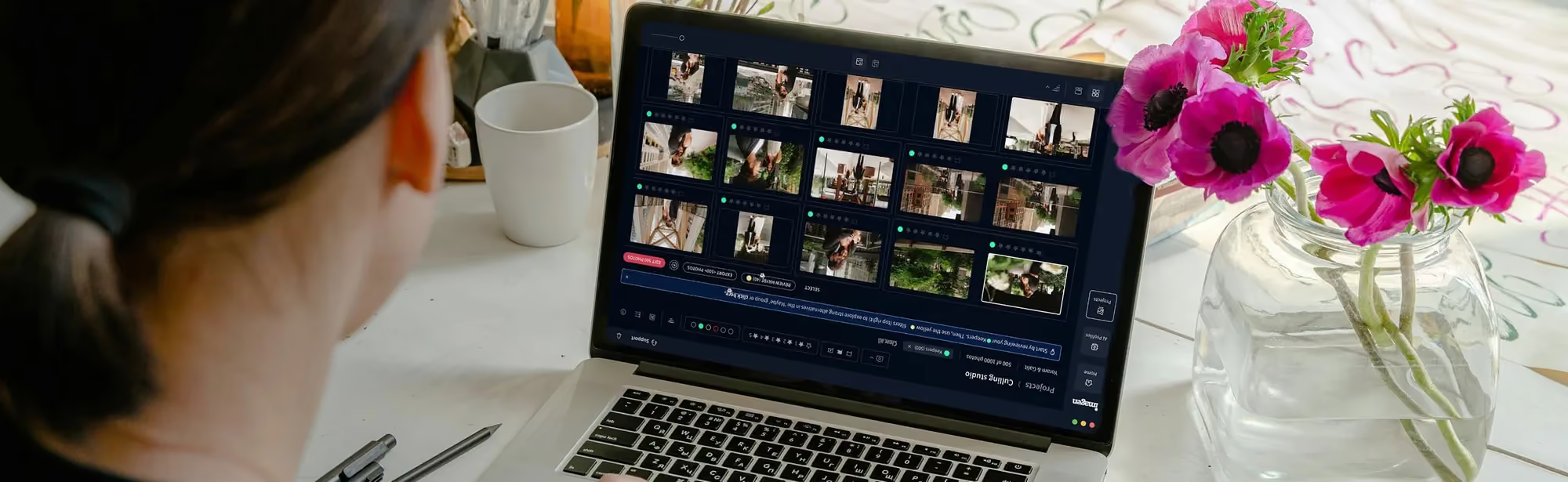
For photographers juggling hundreds of photos from a single session, editing one frame at a time simply isn’t practical. This is exactly where Imagen shines. It runs entirely in your browser, with no installation and no Lightroom dependency, and it solves one specific problem: keeping a consistent style across massive catalogs of photos. That makes it the top overall pick for busy creatives.
Two models power the platform. Image2Image is the core color-correction engine. You upload a batch of raw photos and it returns fully corrected, advertising-quality edits with consistent color and exposure across the whole set, no manual profile training required. AI Assistant then handles the finishing work you describe in plain language, from object removal to sky replacement to smaller per-photo touch-ups that automation alone can’t cover.
For real estate teams, this combination fits naturally. Image2Image batch-corrects every photo in a listing for consistent color and exposure, and the AI Assistant covers the exceptions, including virtual staging, object removal, and twilight conversion. Imagen offers a free real estate photo editing trial of 250 photos with no credit card, and a first batch usually finishes in under 10 minutes.
“AI isn’t about replacing the artist’s eye; it’s about eliminating the friction of repetitive labor. When you can apply your personal creative style to thousands of frames in minutes, you get your life back.”
Itamar Haim, AI Photography Workflow Specialist
Key Features
- Image2Image Batch Correction - Applies consistent color, exposure, and white balance across an entire shoot or listing in one step.
- AI Assistant - Describe an edit in plain language, such as removing an object or converting a photo to twilight, and it applies the change.
- No Installation - Runs fully in the browser, with no plugin, no desktop app, and no Lightroom dependency.
- Human Revision Backstop - Flag any photo in the app and a photo expert fixes it, no separate workflow required.
- Privacy and Compliance Tools - Includes privacy blur for faces and license plates, plus a transparency watermark for markets with AI-disclosure rules.
Pricing
Imagen gives you a free trial of 250 photos with no credit card required. After that, it runs on a pay-as-you-go model at $0.32 per photo, billed monthly with no contract, and early sign-ups get 30% off their first month at $0.22 per photo. Full details live on the Imagen pricing page.
Pros
- Batch processing speed built for large shoots.
- Imagen keeps color and exposure consistent across an entire catalog, and you install no software to get it.
- The AI Assistant handles finishing touches a one-click tool can’t, including virtual staging and object removal.
- A human revision layer backs up the automated edits.
Cons
- Pay-as-you-go pricing means costs scale with how many photos you process each month.
- Detailed per-photo requests go through the AI Assistant rather than a single automatic pass.
Verdict: For professionals and real estate teams who need to reclaim hours of editing time and keep a consistent look across every photo, Imagen is the clear top pick.
2. Canva: The All-in-One AI Design Suite
Canva has grown from a simple drag-and-drop graphic builder into a genuinely heavy-duty design suite. It’s passed 190 million monthly active users, driven largely by fast adoption of its newer AI features. For non-designers who need polished visuals quickly, it’s become the go-to tool.
The platform’s powerful Studio makes complex photo manipulation accessible to anyone, no pen tools or magnetic lassoes required. You just tell the AI what needs changing, and it handles the heavy lifting in seconds.
How to Use Canva’s powerful Edit
- Upload your photo to the editor, then select Powerful Edit from the effects menu.
- Brush over the exact object you want to replace or modify.
- Type a short text prompt describing what you want generated in that space.
- Pick from the four generated variations and apply the change.
Key Features
- Powerful Grab - Lets you select and move any subject in a photo as though it sat on its own layer.
- Powerful Expand - Fills in matching detail beyond the original borders of your frame.
- Background Remover - Isolates subjects cleanly with one click.
- Text-to-Image Generator - Creates custom assets right inside your canvas layout.
Pricing
Canva’s free tier is genuinely capable on its own. The Pro version runs $120 per year and unlocks advanced brand kits, high-resolution exports, and unlimited generative credits.
Pros
- Simple enough for a complete beginner to master fast.
- Combines photo editing and graphic design inside a single browser tab.
- A huge library of free templates and design assets.
Cons
- High-resolution exports are sometimes locked behind a paid plan.
- Generative results can occasionally look too smooth or cartoonish.
Verdict: Canva is the go-to platform for social media managers and small business owners who need marketing assets without learning Photoshop.
3. Adobe Express: Firefly Power for the Masses
Adobe Express is Adobe’s answer to the modern, browser-based design app. It packages the power of the Firefly generative AI engine into a simplified, free web interface, giving you professional-grade generative fills without a full Creative Cloud subscription.
The biggest benefit is the quality of the generative AI itself. Firefly trains on licensed content and public domain images, so generated objects look realistic and match the lighting already in your photo. It’s remarkably good at matching textures, grain, and shadow.
Tips for Maximizing Your Generative Credits
- Plan your edits - The free tier gives you 25 monthly generative credits, so review your crop and layout before spending any.
- Use precise prompts - Swap vague words for descriptive nouns and adjectives to land the best result on your first try.
- Apply quick actions first - Handle basic resizing and background removal with the free non-generative tools, and save your credits for the complex fills.
Key Features
- Generative Fill - Add, remove, or replace elements in a photo with convincing, realistic detail.
- Text Effects - Apply intricate textures and styles to text layers through AI prompts.
- One-Click Background Removal - Accurate edge detection that isolates subjects cleanly.
- Quick Actions - Convert file formats, crop, resize, or merge files instantly, all without leaving the home screen.
Pricing
The free tier includes 25 monthly generative credits. The Premium tier runs $9.99 per month and adds more storage, premium assets, and 250 generative credits.
Pros
- Generates realistic textures and matches existing lighting with real precision.
- Plays nicely with your other Adobe Creative Cloud assets.
- Free access to professional-grade Firefly models.
Cons
- The 25-credit monthly limit disappears fast.
- Can feel sluggish on older hardware, since the web interface is fairly heavy.
Verdict: If you need high-end generative fills and realistic composite images, Adobe Express is the best free option available.
4. Pixlr: The Browser-Based Photoshop Alternative
Pixlr’s been a reliable online photo editor for years, but its recent updates have turned it into a genuinely AI-first tool. You’ve got Pixlr X for quick edits and Pixlr E if you want more advanced layouts, so it works well across different skill levels. It’s fast, and it’ll run on almost any device with an internet connection.
If you sell online, Pixlr’s a huge timesaver. Its AI Generative Fill and Remove Object tools cut manual retouching time by an average of 75%. That means you can clean up product shots and pump out tidy catalog images in almost no time.
E-Commerce Retouching Scenario
Say you’ve got 50 product photos covered in distracting dust spots and reflections. Instead of cloning out every single imperfection by hand, you just open Pixlr in your browser. Brush the AI Remove Object tool over the spots, and the background texture snaps back instantly. In under 15 minutes, you’ve got a clean batch of product photos ready for your store.
Key Features
- AI Generative Expand - Widen your crop and let the AI dream up the missing scenery for you.
- AI Morph - Apply fun, artistic transformations to just the parts of your image you pick.
- Backdrop Creator - Swap in a realistic, AI-generated studio backdrop in an instant.
- AI Super Sharpener - Brings back detail in photos that came out just a bit soft.
Pricing
Pixlr’s free if you don’t mind ads. Premium tiers start at pretty competitive rates and get you ad-free editing plus advanced templates and high-res exports.
Pros
- Runs entirely in your browser, so there’s nothing to install.
- Processes fast, even on an older computer.
- A layers-based interface familiar to any Photoshop user.
Cons
- The free version leans hard on ads, which can slow you down mid-edit.
- A few advanced AI features are locked behind the premium subscription.
Verdict: Pixlr is ideal for quick, layer-based edits and e-commerce product cleanup directly from any web browser.
5. Fotor: The King of One-Tap Enhancements
Fotor’s whole focus is speed, getting you from raw photo to finished edit as fast as possible. With over 600 million registered users globally, it’s one of the most popular editing tools in the world. Their data shows that the AI-driven One-Tap Enhance tool is used by 40% of their free user base.
It’s perfect if you’d rather not spend ages tweaking individual color sliders. Fotor’s AI looks at your image, balances the exposure, fixes color casts, and sharpens detail in a single click. Simple, reliable, and fast, what more do you need?
Pre-Flight Portrait Enhancing Checklist
- Apply One-Tap Enhance - Balances your lighting and contrast in one go.
- Use AI Skin Retouch - Smooths skin texture but keeps the pores looking natural.
- Blemish Remover - Clears out temporary skin spots and stray hairs fast.
- Eye Brightener - Makes the eyes pop so your portrait really stands out.
Key Features
- One-Tap Enhance - Optimizes exposure, contrast, and color balance in a single tap.
- AI Skin Retouching - Smooths skin, whitens teeth, and clears blemishes automatically.
- AI Enlarger - Upscales low-res photos without turning them mushy.
- AI Art Generator - Turns ordinary photos into stylized artwork with neural filters.
Pricing
Fotor’s basic editor won’t cost you a thing. The Pro plan runs $8.99 per month and unlocks advanced AI tools, ad-free editing, and batch processing.
Pros
- A superb mobile app that makes editing on the go painless.
- One-click tools that deliver instant, usable results.
- A genuinely excellent portrait engine for quick touch-ups.
Cons
- The free version limits your export options and nags you to upgrade a lot.
- You’ll need credits to unlock the best AI tools.
Verdict: Fotor is the easiest option for quick portrait touch-ups and instant, one-click color corrections on your phone or desktop.
6. Photoroom: The E-commerce Powerhouse
Photoroom is built specifically for product photography and online sellers. It processes over 5 billion images annually, primarily serving the 35% of small business owners who rely on AI to create high-quality product listings. If you sell on eBay, Etsy, or Shopify, this tool is indispensable.
Its core strength is the background replacement engine. Photoroom isolates a product and drops it into a realistic studio setup in seconds, matching the shadows, reflections, and lighting of the new background automatically, so your products look shot by a professional photographer.
This level of automation is exactly why 45% of small businesses now use free AI photo tools for their marketing, since it cuts out the need for expensive studio gear and complicated lighting setups.
Key Features
- Instant Backgrounds - Drops in a realistic, studio-quality setting for any product photo.
- Object Removal - Wipes out dust, tags, and unwanted reflections with a single swipe.
- Batch Mode - Edits a whole batch of product photos at once, so your listings stay consistent.
- E-Commerce Templates - Pre-sized templates built for eBay, Amazon, Shopify, and social media platforms.
Pricing
The free web and mobile app are genuinely capable, they just leave a small watermark on exports. The Pro version runs $9.99 per month and removes the watermark, unlocks high-res batch exporting, and adds access to more custom backgrounds.
Pros
- The best automatic background removal tool on the market.
- Saves online store owners hours of manual clipping work.
- A really intuitive interface built specifically for selling.
Cons
- Free exports still carry that Photoroom watermark.
- Not really built for general creative or artistic photo editing.
Verdict: If you run an online storefront or sell products online, Photoroom is probably the most efficient tool you can use to clean up your product listings.
7. Picsart: Social Media’s Favorite AI Playground
Picsart is built for creators chasing bold, eye-catching social media content. It’s got a capable free tier, though its Gold subscription at $13 per month is a massive driver for its commercial success. Even so, the free mobile and web apps still pack in plenty of creative tools.
This editor really thrives on community-driven creative styles. It’s huge with Gen Z and Millennial creators, with 68% of younger users preferring mobile-first tools like Picsart over any traditional desktop editor. It’s less about subtle, professional touch-ups, honestly, and more about having fun with artistic expression.
Steps to Create a Stylized Social Media Visual
- Open your photo in Picsart, then select the AI Replace tool.
- Brush over an object, say a plain shirt, and type a prompt like “vibrant neon leather jacket.”
- Pick one of the generated options, then head over to the AI Filters menu.
- Choose an artistic filter to tie the colors together, dial in the opacity, and export straight to your social feed.
Key Features
- AI Replace - Swaps out clothes, backgrounds, or objects instantly with just a quick text prompt.
- AI Avatar Creator - Whips up styled portraits and avatars from just a few reference photos.
- Sticker Maker - Cuts objects out of your photos automatically and turns them into reusable digital stickers.
- AI Improve - Sharpens up low-quality mobile shots in a snap.
Pricing
The basic app is free, ads and all. The Gold subscription costs $13 per month and unlocks ad-free editing, premium filters, and unlimited generative edits.
Pros
- Fun, creative tools with a real community feel.
- Excellent mobile integration, great for fast, on-the-go editing.
- A massive library of community-made stickers and overlays.
Cons
- The free interface feels cluttered and keeps nudging you to upgrade.
- Generative edits sometimes come out low-resolution or distorted.
Verdict: Picsart is the perfect mobile-first choice for creators who want to make bold, trendy edits for social media.
8. BeFunky: Artistic AI Filters and Effects
BeFunky balances traditional photo editing tools with creative, AI-driven filters well. It runs stably in any browser and never overwhelms you with complicated menus. Hobbyists who want to turn ordinary photos into digital art tend to favor it most.
Its AI Image Enhancer stands out as the best feature here. Benchmarks show it improves image clarity and reduces digital noise by up to 40% in low-light conditions compared to traditional sharpening tools. Use it to rescue grainy nighttime shots or poorly lit indoor photos.
Tips for Creative Editing with BeFunky
- Use the AI Enhancer first - Clean up digital noise and correct exposure before you apply any artistic filter.
- Experiment with the Cartoonizer - Apply the digital art filter at a lower opacity to build a unique, painted look.
- Stack your edits - Save your progress after each major AI step so you can layer different artistic styles together.
Key Features
- AI Image Enhancer - Fixes lighting, contrast, and sharpness while reducing low-light noise by up to 40%.
- Cartoonizer - Turns your photos into high-quality cartoon and comic-style art.
- DLX Effects - Polished, realistic filters that mimic professional analog film stocks.
- Batch Editing - Apply one crop and one set of basic filters to multiple photos at once.
Pricing
BeFunky gives you a basic free tier to start with. Upgrade to the BeFunky Plus plan for $6.99 per month if you want most of the advanced AI-driven features.
Pros
- Stable web performance, with no lag to speak of.
- High-quality artistic and painterly filters throughout.
- A clean, easy-to-use interface overall.
Cons
- Nearly every advanced AI tool sits behind the Plus paywall.
- Only limited options for professional-level layer editing.
Verdict: BeFunky is a great, user-friendly option if you want to turn standard photos into beautiful digital art with minimal effort.
9. Lensa AI: The Portrait and Avatar Specialist
Lensa AI became globally famous for its “powerful Avatars,” but don’t overlook it as an everyday portrait editor too. Built for mobile devices, it uses facial recognition technology to isolate features. Use its slider controls to retouch eyes, skin, and hair independently of one another.
Treat it as an essential tool for personal branding and headshots. Need a clean profile photo for LinkedIn or your website? Lensa’s AI can smooth out skin textures, adjust lighting, and apply a realistic background blur so you stand out.
Portrait Optimization Scenario
Say you need a professional headshot for a new job, but your only decent photo was taken outdoors in harsh sunlight. Open Lensa on your phone and apply Powerful Correction. The AI softens the harsh shadows on your face, blurs out the distracting background, and corrects the skin tone right away. In under two minutes, you have a polished, professional headshot.
Key Features
- Powerful Correction - One tap balances lighting and smooths skin at the same time.
- Background Blur - Applies a realistic depth-of-field effect that mimics an expensive lens.
- Facial Retouching - Dedicated sliders let you adjust eyes, teeth, skin texture, and hair volume.
- Artistic Styles - Turns a standard selfie into a stylized digital painting instantly.
Pricing
Download Lensa for free, though daily limits on edits apply. Pay $29.99 per year for full membership to unlock unlimited editing and access to avatar packs.
Pros
- The best mobile facial recognition and portrait editing available right now.
- Natural-looking portrait enhancements when used subtly.
- A quick, automated workflow designed for mobile users.
Cons
- Avatar packs still cost extra, even for subscribed users.
- Not designed for field, architectural, or product photography work.
Verdict: Choose Lensa if you edit selfies and portraits on your phone and want professional-looking results fast.
10. GIMP with OpenVINO: The Open-Source AI Powerhouse
If you’re a tech-savvy creator who values privacy and dislikes subscriptions, pair GIMP with Intel’s OpenVINO plugins for a dream setup. This classic, open-source image editor now runs supercharged AI integrations. Set it up once, and you can run modern neural networks locally on your own computer.
The biggest benefit is privacy and cost. Because the processing runs locally on your computer, your photos are never uploaded to a cloud server. And because GIMP’s AI integration via OpenVINO supports over 40 different hardware accelerators, you can use local AI processing on standard consumer-grade graphics cards without any subscription fees.
Key Features
- Local Processing - Run capable AI models on your own hardware, with no data uploaded to the cloud.
- Semantic Segmentation - Isolates sky, subjects, or backgrounds automatically for localized editing.
- Super Resolution - Upscale pixelated images through neural network processing.
- Stable Diffusion Integration - Generate or fill image sections with text prompts, directly in GIMP.
Pricing
GIMP and the OpenVINO AI plugins stay 100% free and open-source.
Pros
- Completely free, with no hidden subscription costs anywhere.
- Full data privacy, since every step of processing happens on your own machine.
- Professional-level layer control alongside traditional editing tools.
Cons
- A steep learning curve and complex install process for the AI plugins.
- You’ll need a reasonably fast computer with a compatible graphics card.
Verdict: The best choice for tech-savvy users, privacy advocates, and open-source fans who want professional AI tools without a subscription.
Comparison of Top 10 Free AI Photo Editors
To help you pick the right tool for your specific needs, we’ve put together a direct comparison of these platforms. Each excels at different workflows, so consider where you spend most of your editing time.
| Tool Name | Best For | Free Tier Limit | Key AI Feature | Platform |
|---|---|---|---|---|
| Imagen | High-volume batch editing | 250 free edits | Image2Image + AI Assistant | Web (Browser) |
| Canva | Social graphics & templates | Capable free tier | Powerful Edit & Grab | Web & Mobile |
| Adobe Express | Realistic generative fills | 25 monthly credits | Firefly Generative Fill | Web & Mobile |
| Pixlr | Quick browser-based edits | Free with ad support | AI Generative Expand | Web (Browser) |
| Fotor | One-tap face & light fixes | Basic tools free | One-Tap AI Enhance | Web, Mobile, Desktop |
| Photoroom | Product photo backgrounds | Watermarked exports | Instant Backgrounds | Web & Mobile |
| Picsart | Trendy social edits | Basic tools with ads | AI Replace & Stickers | Web & Mobile |
| BeFunky | Artistic digital paintings | Basic editor free | AI Image Enhancer | Web & Mobile |
| Lensa AI | Portrait & selfie retouching | Limited daily edits | Powerful Correction | Mobile (iOS & Android) |
| GIMP / OpenVINO | Free, private local AI edits | 100% Free / Open Source | Local Neural Upscaling | Desktop (Windows/Linux) |
Final Recommendation: Which AI Photo Editor Should You Choose?
Your choice depends entirely on your workflow and how many photos you manage day to day. A professional handling thousands of client files needs something different than an e-commerce seller who just wants clean backgrounds for a storefront.
For professionals and high-volume photographers, AI photo editing comes down to one thing: saving time. If you need to edit hundreds of photos from a shoot, Imagen is the clear choice. It runs in your browser with no installation, keeps color and exposure consistent across your whole catalog, and processes your first 250 photos in under 10 minutes. This level of efficiency is why 92% of professional photographers rely on AI tools to manage their workflows.
If your editing needs fall outside that scope, use these direct recommendations instead:
- For Social Media Managers & Small Businesses - Reach for Canva; it offers the best balance of design, templates, and easy-to-use AI tools to help you create marketing content fast.
- For E-commerce Sellers - Pick Photoroom; it’s unmatched for automatically removing backgrounds and generating professional product shots in seconds.
- For Casual Mobile Creators - Try Picsart or Fotor for quick, fun, one-click creative enhancements directly on your phone.
What’s new in Imagen: Imagen is steadily becoming an intelligent Studio for professional photographers, with new tools rolling out in stages. Manual sliders have not actually disappeared, they just sit next to the AI tools now, and the Studio’s built-in editor lets you nudge exposure or crop a frame by hand while your Personal AI Profile keeps the rest of the gallery matching. See it at Imagen.
Frequently Asked Questions
Are free AI photo editors safe to use?
Yes, most reputable platforms are safe to use. That said, cloud-based tools upload your photos to their own servers for processing. If you need absolute data privacy, choose a local-processing option like GIMP with OpenVINO instead.
Will AI photo editors ruin my image quality?
It depends on the tool and its free tier. Many free web tools compress your images or cap the export resolution. Professional tools like Imagen, though, process files without reducing resolution or quality at all.
Can I use these tools for commercial work?
Yes, but check the terms of service first. Generative tools like Adobe Express are built to be commercially safe, while other generators may carry licensing restrictions on their free tiers.
How does Imagen keep photos consistent across a listing?
Imagen’s Image2Image model applies the same color and exposure correction to every photo in a batch automatically, so a full listing or shoot comes back with a matching look. You can then use the AI Assistant for individual touch-ups the batch pass doesn’t cover, such as virtual staging or twilight conversion.
Do I need a powerful computer to run AI photo editors?
Most AI editors run on external, web-based or cloud servers, so you only need a fast internet connection to use them. Only local-processing tools, like GIMP with OpenVINO, require a strong graphics card on your own machine.
Can free AI tools completely replace Photoshop?
For most users, yes, they can. Free AI tools handle background removal, retouching, and object insertion without much trouble. Professionals, though, still rely on Photoshop or Lightroom for complex manual compositing and high-end color grading.
What is the difference between cloud AI and local AI?
Cloud AI uploads your photos to a remote server for processing, which is fast but needs an internet connection and raises privacy concerns. Local AI runs directly on your own hardware instead, protecting your privacy, but it does require a more powerful machine.