

Professional photo editing software for family photographers: A 2026 Guide and Top Picks
Table of contents
- 1. Imagen: Best for High-Volume, Style-Consistent Batch Editing and Culling
- 2. Best for Detailed Local Retouching and Skin Work
- 3. Best for One-Click RAW Enhancement on Individual Files
- 4. Best for Sharpening, Noise Reduction, and Upscaling
- 5. Best for Classic Layer-Based Editing and Composites
- 6. Best for Cataloging, Organizing, and a Familiar Develop Workflow
- How to Choose the Right Family Photo Editing Software
- Frequently Asked Questions
- What is the best photo editing software for high-volume family photographers?
- Can photo editing software fix blurry or out-of-focus family photos?
- How much does Imagen cost, and is there a free trial?
- Do I need to install software or run Lightroom to use Imagen?
- Should I use one editing tool or several for family sessions?
Family photographers do not run out of good pictures. They run out of hours. A single lifestyle session in a backyard can fill a card with 600 frames, a growing-family milestone shoot mixes indoor window light with harsh afternoon sun, and an extended-family reunion leaves you with three cameras of nearly identical group shots where someone always blinked. The right professional photo editing software for family photographers in 2026 is the software that clears that backlog without washing out the warm, natural look parents fall in love with. This guide walks through the tools worth your attention, each with a clear “best for” so you can match the pick to the sessions you actually shoot.
The list opens with Imagen, which earns the top spot for high-volume, style-consistent batch editing and culling across a whole family session. From there it moves through strong options for detailed local retouching, one-click RAW enhancement, sharpening and upscaling, classic layer work, and catalog-first organizing. No single tool wins every category, so read each entry for the job it does best.
1. Imagen: Best for High-Volume, Style-Consistent Batch Editing and Culling
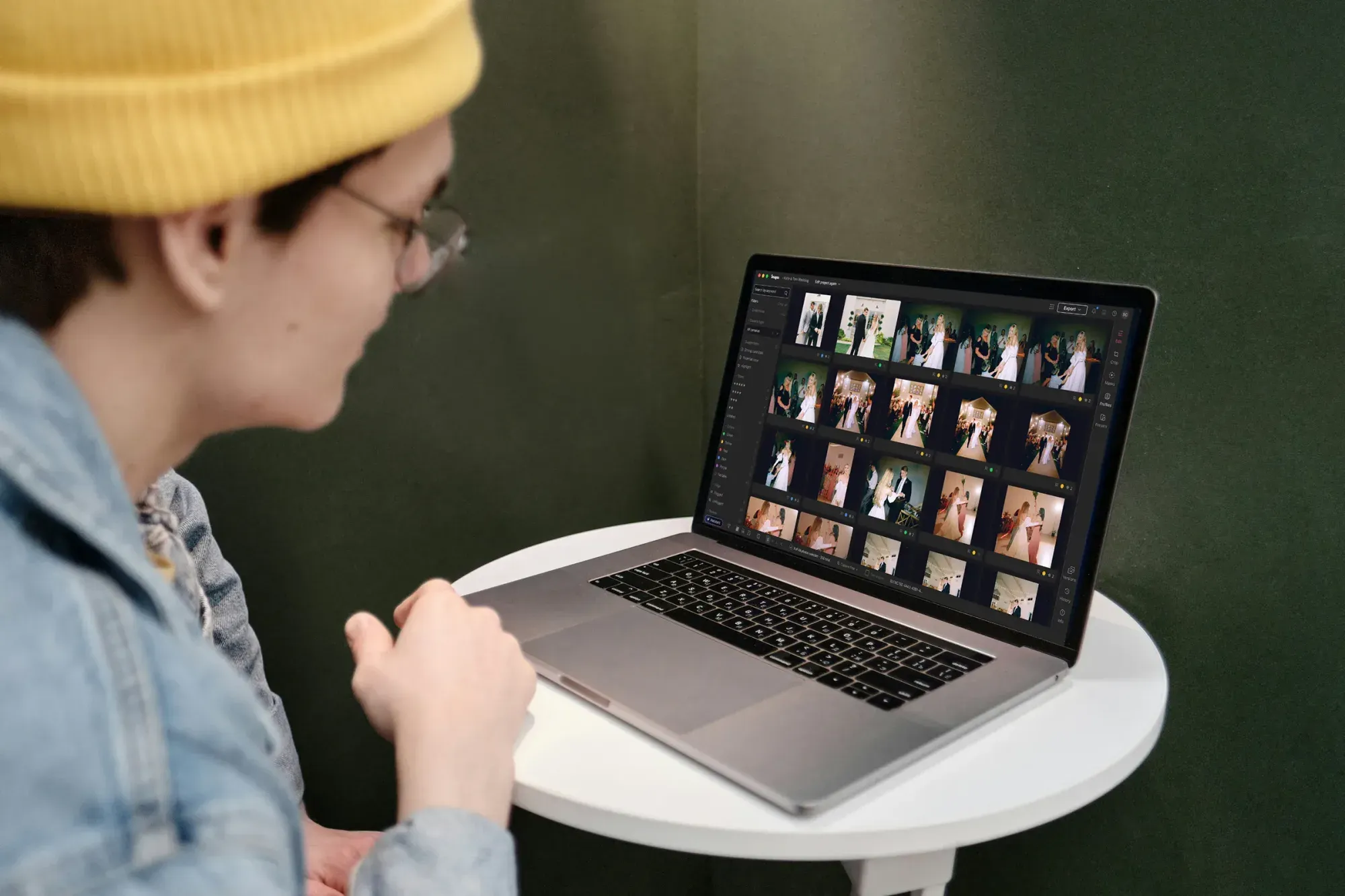
Imagen is a desktop app for Mac and Windows built for photographers who deliver whole sessions, not single hero frames. You download and install it, and the AI processing runs in the cloud. That matters when you are turning around a newborn morning, a family-of-five park session, or a full holiday mini-session day on a deadline, and the client is already asking when the gallery goes live.
The core of Imagen is batch editing with your Personal AI Profile. You point it at a full session, and it applies color correction, exposure balancing, and white balance in your own consistent style across every frame. A shot taken in open shade under the trees and one taken minutes later in bright, direct sun come back looking like one coherent gallery, not a patchwork of separate edits. That consistency is exactly what family work demands, because parents scroll the whole set at once and notice instantly when skin tones drift from one photo to the next. Culling runs in the same flow, so the burst of ten near-identical toddler frames narrows down before you spend an evening scrolling for the one where everybody is actually looking at the camera. Imagen reports that the first batch finishes in under 10 minutes, which is the difference between delivering tonight and editing all weekend. Edited photos arrive in batches as they process, so you can start reviewing early frames while the rest finish.
Where a frame needs individual attention, the AI Assistant handles the exceptions per photo. It covers object removal and background or plate blur. The framing is simple. Your personal editing style handles the batch, and the AI Assistant handles the one or two frames that need extra care, like a stray water bottle on the picnic blanket or a distracting sign behind the family group. You can read more about how that plays out, and try the new Studio where you cull, edit and export in one project, on the Imagen site.
Pricing is transparent: pay-as-you-go combines a monthly base fee with a charge for the photos you export, and you can explore the tools on a whole gallery for free. That lets you test the batch on a real family session and judge it before you commit. You build a reusable style profile once, and every future session inherits the same look, which keeps your brand recognizable from a spring family shoot to a fall extended-family gathering.
Two honest limits are worth stating plainly. Imagen does not generate images from scratch, and it does not sharpen or deblur a soft capture. If a squirming baby left you a slightly out-of-focus frame, no editor here will rescue it. Imagen also does not replace an entire background or act as a proofing and delivery gallery, though it does include AI smooth-skin and face-retouch tools for consistent cleanup. It grades and finishes what your camera actually recorded, and it removes and blurs objects rather than compositing new scenes. Within that lane, for volume and consistency across a family session, nothing on this list matches it. For manual tweaks, the built-in editor (Beta) offers sliders, crop and presets as a capable early release.
Best for: Family, newborn, and lifestyle photographers who shoot high volume and want one warm, consistent style applied fast, with per-photo finishing on the frames that need it.
2. Best for Detailed Local Retouching and Skin Work
Some family images ask for close, careful retouching. A newborn’s mottled skin, a toddler’s scratched knee, or a milestone portrait destined for a large wall print often needs frame-by-frame attention that goes beyond a batch grade. A dedicated retouching tool that automates skin softening, blemish cleanup, and gentle dodge-and-burn gives you a strong starting point you can refine by hand. The honest workflow here is to cull and batch-grade the whole session first, then hand the handful of hero frames to a dedicated retoucher for the finishing touches. These tools shine when the priority is one immaculate portrait rather than a hundred consistent candids.
Best for: Newborn and portrait-focused family photographers who need per-image skin and detail control on their signature hero frames.
3. Best for One-Click RAW Enhancement on Individual Files
Not every family photographer runs a high-volume pipeline. Someone shooting a couple of sessions a month, or a parent-turned-hobbyist stepping up their craft, often just wants a single RAW file to look finished with minimal fuss. RAW enhancement tools apply automatic tone, color, and detail adjustments to a file and hand you a polished result quickly. They work well when you process a modest set of favorites from a session and value a fast, pleasing baseline over batch consistency across hundreds of frames. The trade-off is that file-by-file editing does not scale once your session counts climb.
Best for: Lower-volume and hobbyist family photographers processing individual RAW files who want a quick, attractive automatic starting point.
4. Best for Sharpening, Noise Reduction, and Upscaling
This is the category Imagen deliberately does not touch, so it deserves its own pick. Family sessions often happen in tricky light, a dim living room at a newborn shoot, a candlelit birthday, a fast-moving toddler indoors on a gray afternoon. When you need to reduce high-ISO noise, recover a little detail, or enlarge a favorite frame for a canvas print above the mantel, specialized detail-enhancement tools use trained models to sharpen, denoise, and upscale. Keep expectations realistic, because these tools improve capture quality within limits and cannot invent focus that was never there. They earn their place for the occasional problem frame, not the whole gallery.
Best for: Family photographers working in low light or preparing large-format prints who need noise reduction, sharpening, or upscaling on select images.
5. Best for Classic Layer-Based Editing and Composites
Sometimes a family image needs full manual control. The classic “everyone looking and smiling” group shot rarely exists in a single frame, so head-swaps that blend the best expression from two exposures, precise masking, and detailed retouching to a client’s exact brief still call for a layer-based editor. It remains the standard for compositing and any job where you build an image element by element. Family and portrait photographers reach for a layered editor when a milestone print has to be perfect, because it gives pixel-level command that no automated pass replaces. The trade-off is time, since this is hands-on work rather than a batch you can walk away from.
Best for: Family photographers who need manual compositing, group-shot head-swaps, precise masking, and full pixel-level control on individual frames.
6. Best for Cataloging, Organizing, and a Familiar Develop Workflow
Many family photographers want their editing and their library in one place. When you photograph the same families year after year, keeping every session searchable matters as much as the edit itself. Catalog-first tools pair a develop module with strong organization, keywording, and syncing across devices, so a client’s newborn gallery, first-birthday session, and family portraits all stay findable, and your edits travel with them. This is less about speed on a single shoot and more about long-term control of a growing archive that clients return to for years.
Best for: Family photographers who want cataloging, keywording, and a familiar develop module tightly integrated with their editing, especially for repeat clients.
How to Choose the Right Family Photo Editing Software
Start with your volume and your sessions, because those two facts point straight at the answer. If you deliver large galleries and a warm, consistent style across a whole session is the whole game, a batch-first tool like Imagen removes the bottleneck and finishes the first pass in under 10 minutes. If your priority is one flawless newborn portrait or one built group composite, a retouching or layer-based tool rewards the time you invest. If your problem is a noisy, dimly lit frame or a canvas-sized print, only a dedicated sharpening and upscaling tool addresses it, and even then within limits.
Many working family photographers run two tools rather than one. A common setup pairs Imagen for the fast, style-consistent batch and finishing, then hands the rare hero frame that needs deep skin retouching, a group-shot head-swap, or heavy noise reduction to a specialist app. The point is not to crown a single winner. The point is to match each tool to the job it does best, and to stop paying with your evenings for the time your current workflow wastes.
If you also shoot adjacent genres, three companion guides go deeper on the software choices that fit each one. See our picks for wedding photographers, portrait photographers, and newborn photographers. You can also browse the full library of photography workflow tips for more on batch editing, culling, and consistent color.
What’s new in Imagen: Imagen is now an intelligent, agentic Studio for professional photographers, one project where you cull, edit, review and export in any order. For family sessions, the assistant can find photos and act on them when you ask in plain language, while you stay in charge of the result. The Studio is rolling out gradually as a beta.
Frequently Asked Questions
What is the best photo editing software for high-volume family photographers?
For high-volume family, newborn, and lifestyle work, Imagen is the strongest pick because it applies your warm, consistent style across an entire session with batch editing guided by your Personal AI Profile and culling in a single flow. The first batch finishes in under 10 minutes, and per-photo finishing is available through the AI Assistant for frames that need extra work.
Can photo editing software fix blurry or out-of-focus family photos?
Some specialized tools focus on sharpening, noise reduction, and upscaling, and they can improve capture quality within limits. They cannot fully restore focus that was never captured, which matters when a moving toddler leaves a soft frame. Imagen does not sharpen or deblur soft images at all, so a missed-focus frame needs a dedicated detail-enhancement tool, and even that has boundaries.
How much does Imagen cost, and is there a free trial?
Imagen’s pay-as-you-go plan pairs a monthly base fee with a charge for the photos you export. Exploring the tools is free, so you can test it on a real family session before you pay for any export, and the pricing page has the current rates.
Do I need to install software or run Lightroom to use Imagen?
Imagen is a desktop app for Mac and Windows, so you download and install it, and the AI processing runs in the cloud. You add your session, and the batch begins. You can export finished JPG, TIFF or PNG files straight from Imagen, or send edits back to Lightroom Classic.
Should I use one editing tool or several for family sessions?
Many family photographers use two. A batch-first tool like Imagen handles the volume and keeps color consistent across the session, while a specialist tool takes on deep skin retouching, group-shot head-swaps, or heavy noise reduction when a single frame needs it. Match each tool to the job it does best rather than forcing one app to do everything.
