

Professional photo editing software for portrait photographers: A 2026 Guide and Top Picks
Table of contents
- 1. Imagen: Best for High-Volume, Style-Consistent Portrait Batch Editing and Culling
- 2. Best for Detailed Skin Retouching on the Hero Frame
- 3. Best for One-Click RAW Enhancement on Individual Portraits
- 4. Best for Sharpening, Noise Reduction, and Detail Recovery
- 5. Best for Classic Layer-Based Editing and Composites
- 6. Best for Cataloging, Organizing, and a Familiar Develop Workflow
- How to Choose the Right Portrait Editing Software
- Frequently Asked Questions
- What is the best photo editing software for high-volume portrait photographers?
- Can editing software handle deep skin retouching across a whole portrait gallery?
- How much does Imagen cost, and is there a free trial?
- Do I need to install software or run Lightroom to use Imagen?
- Should I use one editing tool or several for portrait work?
Portrait photographers carry a specific kind of editing weight. A single headshot session can fill a card with 400 near-identical frames, a family shoot doubles that, and a senior or branding client expects a gallery that looks like one cohesive story rather than a set of separate edits. The best professional photo editing software for portrait photographers in 2026 is the tool that clears that volume without flattening the skin tones, contrast, and mood you built your name on. Below you will find the picks worth your attention, each with a plain “best for” so you can match the software to the portrait work you actually shoot.
The list opens with Imagen, which earns the top spot for high-volume, style-consistent batch editing and culling across a full portrait shoot. It then moves through strong categories for detailed skin retouching, one-file RAW enhancement, detail recovery, layer-based composite work, and cataloging. No single tool wins every job, so read each entry for what it does best and build a workflow from two or three rather than forcing one app to carry everything.
1. Imagen: Best for High-Volume, Style-Consistent Portrait Batch Editing and Culling
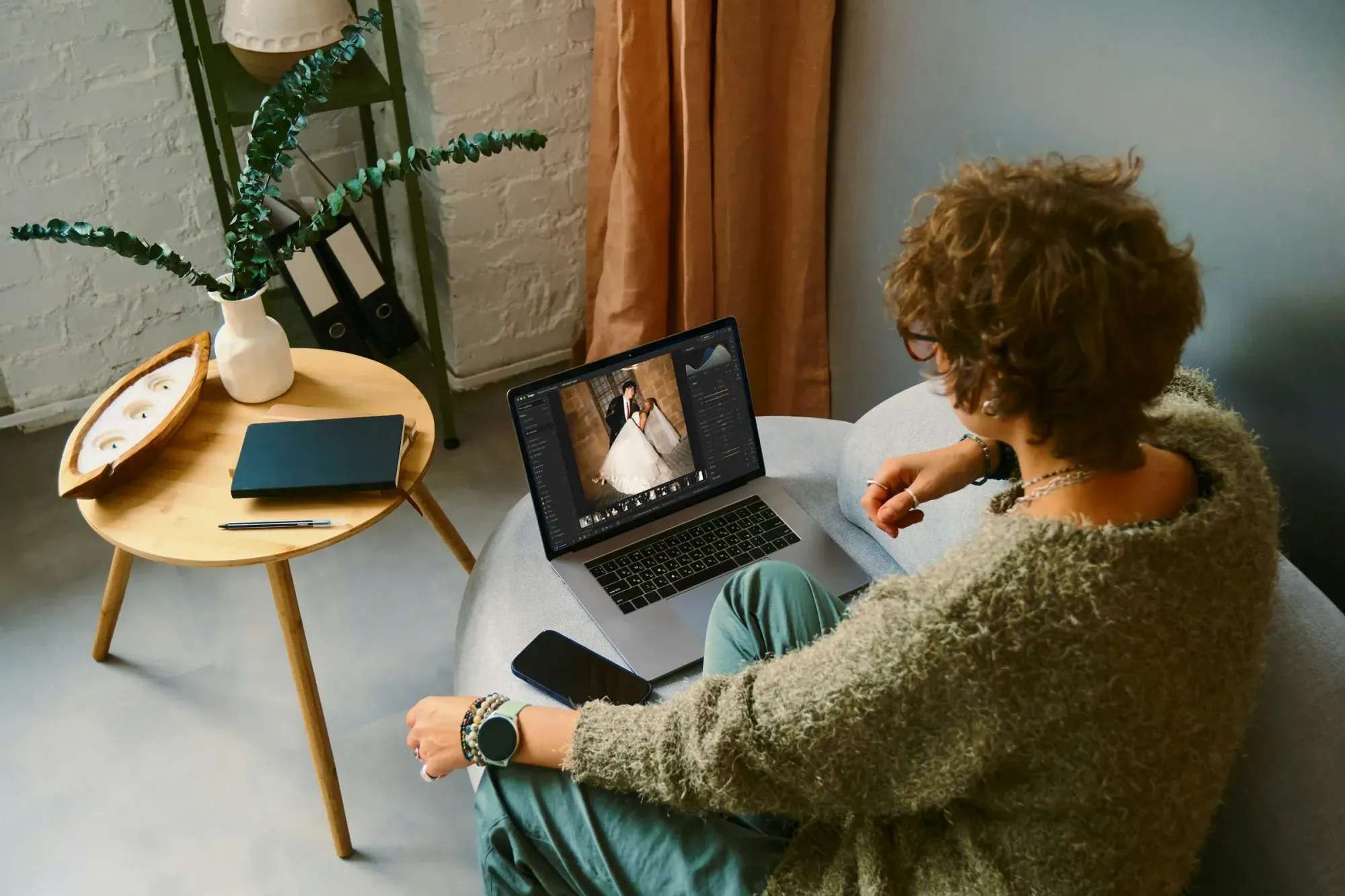
Imagen is a desktop app for Mac and Windows built for photographers who deliver whole shoots, not single hero frames. You download and install it, and the AI processing runs in the cloud. That matters when you are turning around a headshot marathon, a family gallery, or a full senior session on a deadline and every frame needs to share the same look.
The core of Imagen is batch editing driven by your Personal AI Profile. You point it at a full portrait shoot, and it applies color correction, exposure balancing, and white balance in your own consistent style across every frame. A set shot near a window in cool light and a set shot later under warm room light come back looking like one coherent gallery instead of a patchwork. Because portraits live and die on skin tone, that consistency is the whole game. AI culling runs in the same flow, so the burst of eight nearly identical smiles or blinks narrows down before you spend an evening scrolling. Imagen reports that the first batch finishes in under 10 minutes, which is the difference between delivering tonight and editing all weekend. Edited photos arrive in batches as they process, so you can start reviewing early frames while the rest finish.
Where a single frame needs individual attention, the AI Assistant handles the exceptions per photo. It covers object removal and background or plate blur, which is useful when a stray sign sits behind a subject in an outdoor portrait or a background needs to fall softer behind the face. The framing is simple. Your personal editing style handles the whole set, and the AI Assistant handles the one or two frames that need extra care. You can also save your edits as a reusable style profile, so the look you dial in for one client becomes the baseline for the next shoot, and your gallery stays recognizably yours over time. You can read more about how that works, and try Imagen’s new Studio where you cull, edit and export in one project, on the Imagen site.
Pricing is transparent: pay-as-you-go combines a monthly base fee with a charge for the photos you export, and you see every edit in the gallery before you export. That lets you run the batch on a real portrait session and judge it before you commit, and the pricing page lists current rates.
Two honest limits are worth stating plainly. Imagen does not do frame-by-frame beauty retouching such as frequency-separation skin work, and it does not sharpen or deblur a soft capture. If a frame missed focus, no editor here will rescue it. Imagen grades, culls, and finishes what your camera actually recorded, and it does that across a whole shoot faster than anything else on this list. For the flawless single face, hand that hero frame to a dedicated retoucher, which is the next entry. For quick manual tweaks, there is also a built-in editor (Beta) with sliders, crop and presets, a capable early release.
Best for: Portrait, headshot, family, and branding photographers who shoot high volume and want one consistent style applied fast across the whole gallery, with per-photo finishing on the frames that need it.
2. Best for Detailed Skin Retouching on the Hero Frame
Some portrait work lives and dies on close, careful skin retouching. Beauty, fashion, and high-end headshot work often need frequency-separation edits, blemish cleanup, and dodge-and-burn done frame by frame. A dedicated skin-retouching tool that automates skin, eyes, and blemishes gives retouchers a strong starting point they can refine by hand. These tools shine when the priority is one immaculate face rather than a thousand consistent frames, and they are a manual, per-image step rather than a batch pass. A common portrait workflow is to cull and batch-grade the entire set first, then send only the handful of selected hero frames into a retoucher for the deep skin work.
Best for: Beauty and portrait retouchers who need per-image skin and detail control and treat each selected frame as craft.
3. Best for One-Click RAW Enhancement on Individual Portraits
Not every portrait shooter runs a high-volume pipeline. Photographers who deliver smaller sets, and those stepping up from casual work, often want a single RAW file to look finished with minimal fuss. RAW enhancement tools apply automatic tone, color, and detail adjustments to a file and hand you a polished result quickly. They work well when you process a modest set of portraits and value a fast, pleasing baseline on each file over batch consistency across hundreds of frames. The trade-off is that you are working one image at a time rather than styling a whole gallery in a single pass.
Best for: Lower-volume portrait photographers processing individual RAW files who want a quick, attractive automatic starting point.
4. Best for Sharpening, Noise Reduction, and Detail Recovery
This is a category worth keeping in your kit because it addresses problems a batch grader deliberately leaves alone. When a portrait was shot in a dim room, cropped tight, or enlarged for a big print, specialized detail-enhancement tools use trained models to sharpen, denoise, and upscale. Available-light portrait shooters, event and school photographers working in low light, and anyone printing large will get real value here. Keep expectations realistic, because these tools improve capture quality within limits and cannot invent focus that was never there. Imagen does not sharpen or upscale, so a soft frame belongs in a dedicated detail tool, though it does include AI denoise for noisy frames.
Best for: Portrait and event photographers who need noise reduction, sharpening, or large-format enlargement on select frames.
5. Best for Classic Layer-Based Editing and Composites
Sometimes a portrait needs full manual control. Layer-based editors remain the standard for compositing, precise masking, background replacement, retouching to a client’s exact brief, and any job where you build an image element by element. Commercial portrait photographers, creative-concept shooters, and anyone doing background swaps or complex composite work still reach for a layered editor because it gives pixel-level command that no automated pass replaces. The trade-off is time, since this is hands-on work on one frame rather than a batch you can walk away from. Full background replacement and compositing are manual jobs that sit outside a batch grader’s lane.
Best for: Commercial and creative portrait photographers who need manual compositing, background replacement, precise masking, and full pixel-level control on individual frames.
6. Best for Cataloging, Organizing, and a Familiar Develop Workflow
Many portrait pros want their editing and their library in one place. Catalog-first tools pair a develop module with strong organization, keywording, and syncing across devices, so years of client galleries stay searchable and your edits travel with them. Photographers who value asset management as much as the edit itself, and who need to find a client’s session from two years ago in seconds, tend to build their routine around a cataloging tool. It is less about raw speed on a single shoot and more about long-term control of a growing portrait archive.
Best for: Portrait photographers who want cataloging, keywording, and a familiar develop module tightly integrated with their editing.
How to Choose the Right Portrait Editing Software
Start with your volume and your priority, because those two facts point straight at the answer. If you deliver large galleries and consistent skin tone across a shoot is the whole game, a batch-first tool like Imagen removes the bottleneck and finishes the first pass in under 10 minutes, with culling and reusable style profiles built in. If your work centers on one flawless face, a dedicated skin retoucher or a layer-based editor rewards the time you invest. If your problem is a soft or noisy capture, only a dedicated sharpening and detail tool addresses it, and even then within limits.
Most working portrait photographers run two tools rather than one. A common setup pairs Imagen for the fast, style-consistent batch grade and culling, then hands the handful of selected hero frames to a specialist retoucher for deep skin work or to a layered editor for a composite. The point is not to crown a single winner. The point is to match each tool to the job it does best, and to stop paying with your evenings for the time your current workflow wastes.
If you shoot across more than one genre, a few companion guides go deeper on the parts that eat the most hours. See our guide to professional photo editing software for wedding photographers, our roundup of professional photo editing software for newborn photographers, and our picks for the best photo editing software for newborn photography. You can also browse the full library of photography workflow tips for more on batch editing, culling, and shoot consistency.
What’s new in Imagen: Imagen is now an intelligent, agentic Studio for professional photographers, one project where you cull, edit, review and export in any order. For portrait work, edit in your own style with a Personal AI Profile or a ready-made AI Profile, then use the built-in editor (Beta) for sliders, crop and presets when a frame needs a gentle nudge. The Studio is rolling out gradually as a beta.
Frequently Asked Questions
What is the best photo editing software for high-volume portrait photographers?
For high-volume portrait work like headshots, families, seniors, and branding sessions, Imagen is the strongest pick because it applies your consistent style across an entire shoot with batch editing guided by your Personal AI Profile and AI culling in a single flow. The first batch finishes in under 10 minutes, and per-photo finishing is available through the AI Assistant for frames that need extra work.
Can editing software handle deep skin retouching across a whole portrait gallery?
Deep frame-by-frame skin retouching, such as frequency-separation work, is a manual, per-image step handled by a dedicated skin-retouching tool rather than a batch pass. A practical portrait workflow is to cull and batch-grade the full set first for consistent tone, then send only the selected hero frames into a retoucher. Imagen does not do frame-by-frame beauty retouching, so it grades and culls the whole shoot while a specialist handles the individual faces.
How much does Imagen cost, and is there a free trial?
Imagen’s pay-as-you-go plan pairs a monthly base fee with a charge for the photos you export. You see every edit in the gallery before you export, so you can test it on a real portrait session before you pay for any export, and the pricing page has the current rates. Imagen also offers a free trial.
Do I need to install software or run Lightroom to use Imagen?
No. Imagen is a desktop app for Mac and Windows, and it does not require Lightroom running underneath it. You sign in, add your shoot, and the batch begins, which is why the first pass can finish in under 10 minutes. You can export finished JPG, TIFF or PNG files straight from Imagen, or send edits back to Lightroom Classic.
Should I use one editing tool or several for portrait work?
Many portrait professionals use two. A batch-first tool like Imagen handles the volume, culling, and consistent grade, while a specialist tool takes on deep skin retouching, heavy sharpening, or a composite when a single frame needs it. Match each tool to the job it does best rather than forcing one app to do everything.

