8 Best Free Photo Editing Software in 2026
Table of contents
- How we chose the best free photo editing software
- The 8 best free photo editing software programs for 2026
- Free photo editing software compared at a glance
- Which free photo editing software fits your kind of shoot
- What free photo editing software really costs you
- When free is not enough: where Imagen fits
- A practical stack: free tools alongside Imagen
- How to start with free photo editing software this week
- Frequently asked questions
The best free photo editing software in 2026 is not a single program but a short list, because every free tool is excellent at one job. darktable and RawTherapee develop RAW files, GIMP handles layers and pixel-level retouching, digiKam keeps a large archive in order, and your camera maker’s own program gives the most faithful rendering of its files. This guide walks through eight genuinely free options, seven desktop programs and one browser editor, and says plainly where each one shines and where it runs out of road.
Free photo editing software has come a long way. The open-source projects are mature, the camera makers ship capable RAW converters at no charge, and a photographer can build a complete setup without paying for a single license. If you are after phone and tablet tools instead, our guide to free photo editing apps covers that side. This article stays on the computer, where RAW files, batch work, layers and open-source projects live.
There is one honest catch, and we will come back to it: free software costs no money but plenty of time, especially when the job is a full client gallery rather than a single picture. After the eight picks you will find a section on when a paid studio such as Imagen earns its place, built around the new Imagen experience. And if you want to compare paid and free options side by side, our ranking of the best photo editing software does exactly that.
How we chose the best free photo editing software
A list of free tools is only useful if “free” means free. We held every candidate to the same short set of rules, and we dropped anything that failed even one of them.
- Free in practice, not just in the headline. No watermark on exports, no countdown trial, no feature you can try for nothing but only save once you pay.
- Installs on a normal computer. Windows and Mac come first, since that is where most working photographers edit. Linux support is a bonus we mention when it exists.
- Real depth. Each pick has to do something serious: develop RAW files, edit in layers, manage a library or process a batch. A single filter with a nice name did not make the cut.
- A project that is likely to stick around. Open-source programs with long histories and tools backed by a camera maker are safer bets than a startup that might change its plan next quarter.
- An honest learning curve. Powerful and free often means “you will read a manual first.” We say so when that is the case.
We deliberately left out phone apps, tools that change their free tier every few months and anything that hides the real price behind a signup wall. If you want a list of free tools that run well on a Windows machine specifically, see our roundup of free photo editing software for Windows.
The 8 best free photo editing software programs for 2026
The order moves from general-purpose editors to specialists, then to camera-maker tools and the browser option. It is not a strict ranking, because the right pick depends on whether you start from RAW files, a finished image or a folder of thousands.
1. GIMP
GIMP is the long-running open-source image editor, and it remains the free answer for anyone who needs layers, masks and precise selections. It is a pixel editor rather than a RAW developer, so most photographers use it as a second stop: develop the file somewhere else, then bring a finished frame into GIMP for the jobs that need real retouching. Typical jobs include removing a distracting object, blending two exposures or building a clean product cutout.
- Best for: detailed retouching, composites and graphic work on one image at a time.
- Strengths: layers, layer masks, curves, a deep selection toolkit and a large plug-in and scripting community, on Windows, Mac and Linux.
- Limits: RAW files need a companion developer such as darktable or RawTherapee, there is no library or culling view, and the menus take patience if you learned on a different editor.
2. darktable
darktable is a free, open-source RAW developer and photo library in a single window, and it is the closest thing to a full Lightroom-style workflow that you can download without paying. A lighttable view handles browsing, rating and tagging, while the darkroom view holds a modular set of non-destructive tools with drawn and parametric masks. Your edits live in a library database and sidecar files beside the originals, so the RAW files themselves are never touched.
- Best for: RAW-first photographers who shoot landscape, travel and events and want a library, masks and batch export with no subscription.
- Strengths: non-destructive editing, wide camera coverage, strong color tools, and the ability to copy an edit from one photo and paste it across many.
- Limits: a steep learning curve, a module-based approach that differs from the sliders most people know, and heavy RAW files can feel slow on an older computer.
3. RawTherapee
RawTherapee is the specialist of the group: a free, open-source RAW processor that gives you unusually fine control over demosaicing, noise reduction, sharpening and tone. It does not try to manage your whole archive. It opens a folder, shows thumbnails and lets you spend your attention on the quality of each rendering, then lets you save a processing profile and run it over a batch queue.
- Best for: landscape, architecture and product photographers who want every bit of detail from their RAW files and like tuning a look once and reusing it.
- Strengths: sophisticated detail and noise tools, saved processing profiles, a batch queue, and builds for Windows, Mac and Linux.
- Limits: no catalog database, a dense interface with many tabs, and only light organizing tools next to a full library program.
4. digiKam
digiKam is free, open-source photo management that scales well to a large archive. It reads your folders, lets you rate, label and tag images, recognizes faces, places photos on a map from location data and keeps metadata tidy across years of work. It also includes a built-in editor and a batch queue for routine fixes, which makes it a sensible home base if your biggest problem is finding things rather than polishing them.
- Best for: sorting, tagging and selecting from big archives, with light edits on the side.
- Strengths: ratings, color labels and tags, face recognition, duplicate finding, geolocation, a batch queue, and versions for Windows, Mac and Linux.
- Limits: its editing depth is modest next to a dedicated RAW developer, and the first setup of collections and databases takes some time.
5. Krita
Krita is a free, open-source painting program, so it is not a photo editor in the strict sense. It earns a place here because many photographers also make composite artwork, textured finishes and digital backgrounds, and Krita does that work beautifully. Think of it as a creative companion that sits next to your main editor.
- Best for: painterly finishing, composites, textures and digital art built on top of photographs.
- Strengths: an excellent brush engine, layer groups and masks, filters and blending modes, free on Windows, Mac and Linux.
- Limits: it is not a RAW developer, it has no library, and its photo-specific correction tools are thinner than those in the RAW programs above.
6. NX Studio
NX Studio is Nikon’s own free software for viewing, rating and editing the files from Nikon cameras, available for Windows and Mac. Because the camera maker builds it, it is designed to reproduce the rendering your camera intended, including Picture Control looks, and it can convert groups of files in one go. It is not trying to be a layered editor, which keeps it quick to learn.
- Best for: Nikon shooters who want faithful RAW conversion and straightforward corrections at no cost.
- Strengths: free from the manufacturer, understands the camera’s own settings, simple adjustments for exposure, white balance, tone and sharpening, and batch conversion.
- Limits: it focuses on Nikon files, retouching is basic, and there are no layers.
7. Digital Photo Professional
Digital Photo Professional, usually shortened to DPP, is Canon’s free RAW software for Canon camera owners, again for Windows and Mac. It applies Canon’s own color processing and lens correction data to Canon RAW files, and it handles quick checks and batch conversion well. Sony’s Imaging Edge and Fujifilm’s X RAW Studio play the same role for their cameras, so if you shoot another brand, look for the matching free tool from your manufacturer.
- Best for: Canon shooters who want manufacturer-accurate color and lens corrections without paying for anything.
- Strengths: Canon’s own rendering, lens correction support, batch conversion and a simple, focused set of tools.
- Limits: it works with Canon files, there are no layers or advanced retouching tools, and the interface favors function over polish.
8. Photopea
Photopea is the one entry that is not an install. It is a free editor that runs in your web browser, built around a layout that feels familiar if you have used layered desktop editors. It opens PSD files, supports layers, masks and adjustment layers, and works on a borrowed laptop or a locked-down office computer where you cannot add software.
- Best for: quick layered edits when you cannot install anything, and opening a PSD without buying a license.
- Strengths: nothing to download, layers, masks, text and vector shapes, wide format support, and it works in any modern browser on Mac, Windows or Linux.
- Limits: the free version shows ads, very large files depend on your browser’s memory, RAW handling is basic, and there is no library or batch workflow.
Two more free options deserve a quick mention without taking a numbered slot. The built-in editor in Apple Photos on a Mac handles simple corrections and costs nothing, which is handy for a fast touch-up. And if you are focused purely on developing RAW files, our guide to free RAW photo editing software goes deeper on that single job.
Free photo editing software compared at a glance
The table puts the eight programs side by side so you can match a tool to your situation in a few seconds. Pay attention to the last column: RAW support is where the free tools differ most, and it often decides which one you should open first.
| Tool | Best for | Platform | Free or paid model | RAW support |
|---|---|---|---|---|
| GIMP | Retouching and composites | Windows, Mac, Linux | Free and open source | Through a companion RAW developer |
| darktable | RAW development with a library | Windows, Mac, Linux | Free and open source | Yes, wide camera coverage |
| RawTherapee | Maximum RAW detail and batches | Windows, Mac, Linux | Free and open source | Yes, with fine control |
| digiKam | Managing and tagging big archives | Windows, Mac, Linux | Free and open source | Yes, for viewing and light edits |
| Krita | Painting and creative composites | Windows, Mac, Linux | Free and open source | Not a RAW tool |
| NX Studio | Nikon files | Windows, Mac | Free from the camera maker | Yes, Nikon RAW |
| Digital Photo Professional | Canon files | Windows, Mac | Free from the camera maker | Yes, Canon RAW |
| Photopea | Quick layered edits without installing | Any modern web browser | Free with ads | Basic |
Which free photo editing software fits your kind of shoot
Instead of asking which program is best overall, ask what you photograph and how many frames come back from a typical job.
Refining an AI edit with manual sliders in the Imagen editor
- Weddings and events. You face hundreds of frames with mixed light, which favors darktable for its batch tools and digiKam for sorting.
- Portraits and family sessions. A RAW developer such as RawTherapee gets the tone and color right, and GIMP covers the occasional retouching job on a hero frame.
- Landscape and travel. darktable and RawTherapee both shine here, with strong control over highlights, shadows and detail.
- Product work. GIMP handles cutouts and clean backgrounds, while RawTherapee keeps texture sharp.
- Shooting one camera brand. NX Studio or Digital Photo Professional is the simplest way to get the look you saw on the back of the camera, at no cost.
- Occasional edits on any computer. Photopea is the pragmatic pick when you just need a layered fix and cannot install anything.
Most photographers end up combining two tools, one to develop and select and one to retouch, and that is also where the hidden costs of free software begin to appear.
What free photo editing software really costs you
None of the programs above will ever send you a bill. Good free photo editing software still has a price, though, and it is paid in hours and consistency rather than money.
Time is the biggest cost. Imagine a 500-frame wedding gallery. Even if you give each frame just one minute, that is more than eight hours before you have finished a single pass, and a careful edit takes longer. The free tools can match the quality of paid software, but they leave the repetitive part of the job to you.
Consistency is the second cost. A shoot lit by a window, a church and a reception hall needs one uniform look, and with free tools you build it yourself, scene by scene, correcting exceptions by hand.
Fragmentation is the third. One program for the library, another for RAW development and a third for retouching means three interfaces, three sets of shortcuts and a lot of exporting between them.
Finally, selecting photos takes effort. Choosing keepers from a thousand frames is slow in any program, and none of the free tools use AI to help you cull a shoot. If you are a hobbyist, these costs are small and the trade is excellent. If photography pays your bills, they add up quickly, and that is where a purpose-built studio starts to make sense.
When free is not enough: where Imagen fits
Everything above can produce excellent photographs. What none of it can do is take a full shoot off your plate. When you deliver a wedding, an event or a season of team sports, the bottleneck is rarely a missing slider. It is the hours of repetitive first-pass work: choosing the keepers, matching color and tone across hundreds of frames, and then checking every one.
That is the gap Imagen was built for. Imagen is a desktop app for Mac and Windows, and it is evolving into an intelligent studio for professional photographers: the new Imagen experience, with the tagline “Evolution. Delivered.” It is the same product you may already know, not a new app or brand. You upload JPEG, TIFF or RAW files from the desktop app, the AI processing runs in the cloud, and you export JPEG, TIFF or PNG when you are done. It is not a free program, and it does not pretend to be, but its free trial and free manual culling let you judge it on your own shoots before you commit.
One project from cull to export
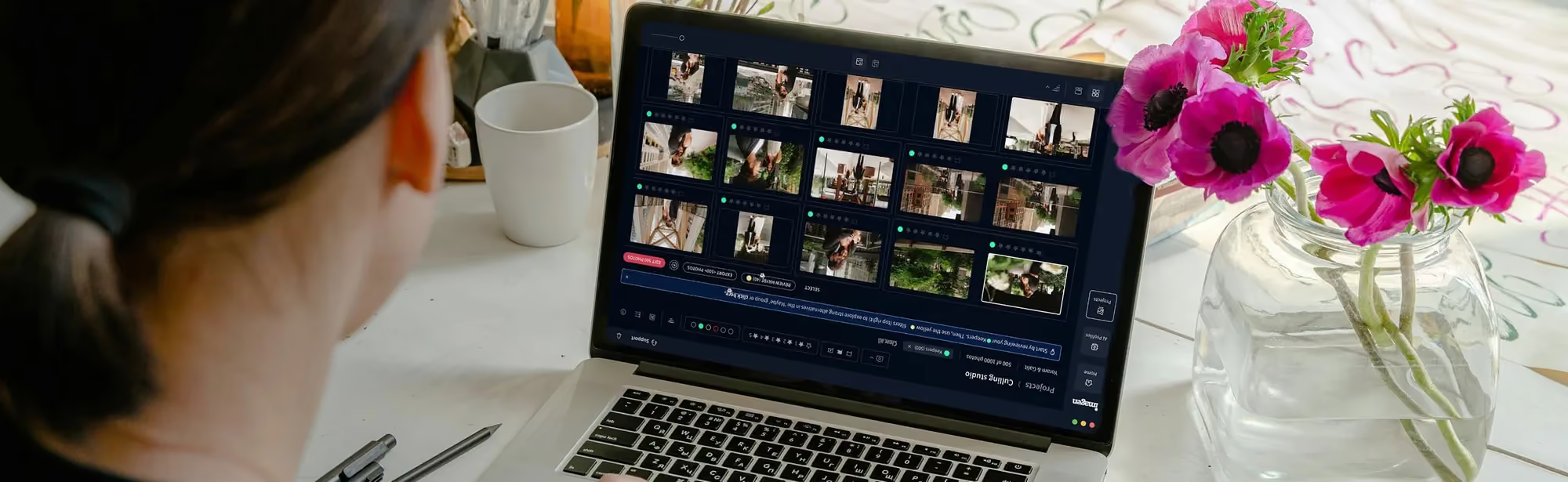
Every project now handles culling, editing, review and export together, in whatever order suits the shoot. Manual culling is free inside the project, and you can see your edited photos while you cull, so the choice of which frame to keep is made on the finished look rather than on a flat original. AI culling is available as well: for pay-as-you-go users it is a standalone subscription, and it is included with Limitless.
AI Profiles that edit the way you do
An AI Profile is your personal editing style learned from your past edits, or a ready-made profile from the Profile Shop. You apply it to the photos you select, and edited photos arrive in batches as they are ready, so you review the early frames while the rest are still processing. Compare that with the free tools, where consistency across hundreds of frames depends on you copying settings and fixing each exception by hand.
A built-in editor for the stubborn frames
When a photo needs your hands, the built-in editor offers manual sliders and a histogram, with editing quality comparable to Lightroom. Crop and straighten, presets and versions are all there. Take an overexposed ceremony as an example: an AI Profile corrects exposure consistently across the whole shoot, and then you use the sliders and the histogram to rescue the handful of difficult frames.
An Assistant and AI Filters to narrow a shoot
The Assistant lets you find photos and act on them in plain language, for instance “show me the first dance photos, warm them slightly.” It knows what is in a photo but not where it is, so it cannot place a mask on a specific spot yet, it does not generate images, and it has no voice input. AI Filters such as Key Faces and Indoor/Outdoor narrow a big shoot quickly, with more filters on the roadmap. Routine cleanup such as object removal and denoise is covered too, along with subject and background masks. Imagen does not generate or invent imagery, so your photos stay real photos.
Finish in Imagen or continue in Lightroom
You can export finals straight from Imagen, or continue in Lightroom, because AI edits travel to Adobe as XMP. Lightroom is part of the same ecosystem rather than a dependency, and many photographers keep using it for the final touches. Throughout, you stay in the driver’s seat: the AI does the heavy first pass and you make the calls.
What it costs, in plain words
You can start with a free trial, and you see every edit in the gallery before you export. Pay-as-you-go means a monthly base fee plus a charge per exported photo, Limitless is a fixed fee, and Business is custom. We keep numbers out of this article because plans change, so check the Imagen site for current details. The new experience is rolling out gradually as a beta, shaped by photographer feedback, and real-time masking, more AI filters, Pic-Time and social delivery and cloud backup are on the roadmap.
A practical stack: free tools alongside Imagen
This is not an either-or choice. Many photographers keep a few free programs installed and bring in a studio for the work that eats their evenings.
- Client shoots: run the cull, the AI Profile pass and the final review inside Imagen, then export finals from there or continue in Lightroom.
- Personal projects: develop landscape or travel files in darktable or RawTherapee when you enjoy the slow, hands-on process.
- Special retouching: open a finished frame in GIMP when you need a composite or a complex cleanup that deserves a layered editor.
- Archive: let digiKam organize older work that does not need editing again.
How to start with free photo editing software this week
A short plan keeps you from installing everything at once.
- Pick one starting point. Choose darktable or RawTherapee if you shoot RAW, or your camera maker’s tool if you want the quickest path to a good image.
- Download from the official site. Install only from the project’s or manufacturer’s own page, never from a repackaged installer on a random download site.
- Edit one real shoot end to end. A small set of frames teaches you more than any tutorial.
- Time yourself. If a full pass takes too long for your client load, you have your answer about when to bring in a studio.
- Keep learning. Our other photo editing tips cover culling, color and delivery in more depth.
Frequently asked questions
What is the best free photo editing software?
It depends on your starting point, but darktable is the strongest all-round free choice for photographers who shoot RAW, and GIMP is the best free option for layers and retouching. Many photographers use both.
Is there free photo editing software that works like Lightroom?
Yes, darktable is the closest match, with a library view, non-destructive RAW editing and the ability to copy edits across many photos. RawTherapee offers excellent RAW quality but no catalog, and digiKam is strong on organizing. Each has its own way of working, and that takes time to learn.
Can free photo editing software handle RAW files?
Yes, several programs do it very well. darktable, RawTherapee and digiKam all read RAW files from many cameras, and Nikon’s NX Studio and Canon’s Digital Photo Professional handle files from their own cameras. GIMP and Krita are better thought of as editors for finished images, so use one of the RAW developers first.
Is free photo editing software safe to download?
Yes, as long as you get it from the official source. Open-source projects and camera makers publish their programs on their own sites, so download from there and avoid repackaged installers, the usual source of unwanted extras.
Do I still need paid software if I shoot for clients?
Not necessarily, but the time cost becomes real as your volume grows. Free programs can deliver professional quality, yet they leave the repetitive first pass, the consistency across a shoot and the culling to you. A studio such as Imagen is built to take that heavy first pass off your hands while you keep every creative decision.
Ready to see how much of your first pass you can hand off? Start a free trial of Imagen and try the new experience on one of your own shoots.