

Photo editing software for ipad pro photographers: A Complete 2026 Guide
Table of contents
- What iPad Pro Photographers Actually Need From Editing Software
- Desktop-Class RAW Editors That Now Run on the iPad
- Cloud and Browser-Based Editing: Why the iPad Pro Is a Natural Fit
- Culling Apps for Narrowing Bursts on a Tablet
- Retouching and Compositing Suites: What Still Belongs on the Desktop
- Sharpening, Noise Reduction, and HDR: The Detail Tools
- How to Build an iPad Pro Editing Workflow That Actually Ships
- Frequently Asked Questions
- Can the iPad Pro really handle professional photo editing?
- What is the best editing software for high-volume shoots on an iPad Pro?
- Do I need to install anything to edit in the cloud on my iPad Pro?
- How much does Imagen cost, and is there a free trial?
- Can editing tools fix blurry photos or merge HDR brackets on the iPad?
The iPad Pro has quietly become a real editing machine. With a bright display, a fast chip, and a card reader in your bag, you can cull and finish a shoot on a train, in a hotel room, or between sessions at a venue. The catch is that not every editing tool fits the tablet, and not every tool suits the way professionals work. This guide to photo editing software for ipad pro photographers walks through the categories that matter, from desktop-class RAW editors to cloud batch tools, so you can build a workflow that delivers finished galleries instead of a device full of half-edited files.
The short answer is that the best setup usually pairs a tablet-friendly editor with a cloud service that does the heavy lifting off-device. Read on for what each category does well, where the iPad Pro shines, and how to stitch the pieces into one workflow you can actually run on a deadline.
What iPad Pro Photographers Actually Need From Editing Software
Before comparing tools, it helps to be honest about what the tablet is good at. The iPad Pro is excellent for reviewing images, culling with a pencil and a touch screen, applying looks, and finishing individual frames with your hands directly on the picture. It is less suited to hours of pixel-level compositing or to processing thousands of RAW files locally, where a desktop or a cloud service still has the edge.
So the software questions that matter for a working photographer are practical ones. Does the tool handle RAW files from your camera without forcing a conversion first? Does it keep your edits and your library in sync when you switch from tablet to desktop? Can it apply a consistent look across a whole shoot rather than one frame at a time? And does it move the slow, repetitive work off the tablet so the battery and the chip are not fighting a 2,000 frame wedding? Keep those four questions in mind as you read the categories below.
Desktop-Class RAW Editors That Now Run on the iPad
The most familiar category is the RAW editor you already know from the desktop, now available as a tablet app. These tools give you the develop controls professionals expect, including exposure, white balance, tone curves, color grading, masking, and local adjustments, all driven by touch and pencil. Many sync your catalog and edits across devices, so a look you start on the iPad Pro at the shoot is waiting for you on the desktop when you get home.
This category is a strong fit when you want precise, hands-on control over each image and value a develop module you already understand. The trade-off is volume. Editing frame by frame on a touch screen is pleasant for a modest set, but it becomes a grind when you are staring down an entire event. For that problem, the cloud category below is the better answer.
Cloud and Browser-Based Editing: Why the iPad Pro Is a Natural Fit
Here is where the tablet form factor really pays off. A cloud-based, browser-run editor does the processing on remote servers, not on your device, which means the iPad Pro simply becomes a fast, portable window into a service that never taxes its battery or storage. Nothing installs, there is no catalog to rebuild, and you can start a big batch on the tablet, close the lid, and let it finish on its own. For a category-level look at how these services work across devices, our guide to cloud-based photo editing software for photographers goes deeper.
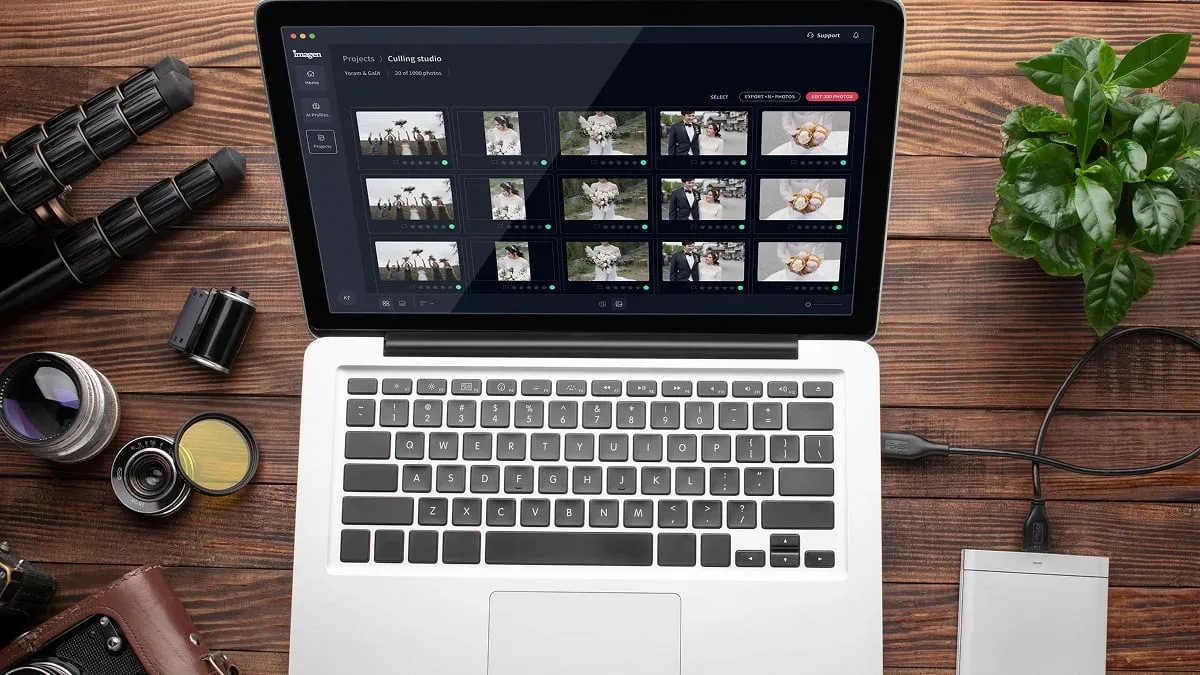
The standout example for professional volume is Imagen, a desktop app for Mac and Windows built for photographers who deliver whole shoots rather than single hero images. It does not run on the iPad Pro itself, but because the AI processing happens in the cloud, the heavy lifting stays off your computer and your devices. The core feature is batch editing in your personal AI style. You point it at a full shoot and it applies color correction, exposure balancing, and white balance in your own consistent style across every frame, so a ceremony shot in shade and a reception shot under warm light come back looking like one coherent gallery. Your Personal AI Profile is learned from your own past edits, so the look that comes back is genuinely yours.
AI culling runs in the same flow, narrowing a burst of near-identical frames before you spend time scrolling, which is a real gift when scrubbing thousands of thumbnails is slow. Where a single frame needs individual attention, Imagen’s AI tools and retouching handle per-photo finishing, and the built-in editor (Beta) is there for final polish. Pricing is pay-as-you-go: a monthly base fee plus a charge for the photos you export, and exploring the tools is free. You can learn more about the new Studio, where you cull, edit and export in one project, and test it on a real shoot at Imagen before committing.
Two honest limits are worth stating. Imagen grades, culls, and finishes what your camera recorded, so it does not generate images from scratch, and it does not sharpen or deblur a soft capture. It also does not replace an entire background, run true HDR bracket merges, or act as a delivery gallery. Within its lane of fast, style-consistent batch work, though, it is the category that best suits the tablet, because the tablet does none of the work.
Culling Apps for Narrowing Bursts on a Tablet
Culling deserves its own mention because it is the task where the iPad Pro feels most natural. Swiping through frames with a pencil, marking keepers, and rejecting the near-duplicates is exactly the kind of tactile review a touch screen was made for. Dedicated culling tools, whether standalone or built into a batch service, use image analysis to group similar frames, flag closed eyes and soft focus, and surface the strongest shot in each burst.
If you shoot high volume, doing this first, before any editing, saves the most time. You cut a 2,000 frame wedding down to the 400 that matter, then send only those into your grading pass. On a tablet, where you want to review comfortably and let the heavy processing happen elsewhere, a culling-first habit keeps the device responsive and your evening short.
Retouching and Compositing Suites: What Still Belongs on the Desktop
Some work is craft on a single frame, and it is honest to say the tablet is not always the best home for it. Detailed skin retouching, frequency-separation beauty work, full background replacement, and layer-based compositing reward a large screen, a precise pointer, and a lot of patience. Layer-based editors and dedicated portrait retouching tools remain the standard for beauty, fashion, and commercial work where one immaculate image matters more than a thousand consistent ones.
You can absolutely start this work on the iPad Pro, especially the tactile parts like painting a mask with a pencil, and many of these tools now offer capable tablet versions. But when a job calls for heavy manual compositing or precise geometry correction on architectural lines, plan to finish it where you have the most control. A sensible division of labor is to cull and batch-grade the whole set in the cloud first, then hand the rare hero frame that needs deep retouching to a specialist suite.
Sharpening, Noise Reduction, and HDR: The Detail Tools
There is a category of detail work that no batch grader handles, and it is worth knowing where it sits. Recovering fine detail, reducing high-ISO noise, upscaling for a large print, or merging a bracketed set into a true HDR image are all specialized jobs handled by dedicated detail-enhancement tools. Wildlife shooters cropping deep, event photographers working in dim rooms, and landscape photographers blending exposures will reach for these.
Keep expectations realistic, because these tools improve capture quality within limits and cannot invent focus that was never there. This is also the category that a batch color and tone service deliberately does not touch, so treat it as a separate layer in your kit rather than something your grading tool should do. Run your consistent look first, then send the handful of files that need denoising, sharpening, or bracket merging to the specialist.
How to Build an iPad Pro Editing Workflow That Actually Ships
Start with your volume and your genre, because those two facts point straight at the answer. If you deliver large galleries and consistency across a shoot is the whole game, lean on a cloud batch tool that runs in the browser, so the iPad Pro stays fast and the first pass finishes in under 10 minutes off-device. If your work is one perfect face or one built composite, a touch-friendly RAW editor or a layer-based suite rewards the time you invest, and you may want to finish those on a desktop.
Most working photographers on a tablet run two or three tools rather than one. A common setup culls and batch-grades the whole shoot in a cloud-powered desktop app like Imagen, now a Studio where you cull, edit and export in one project, keeps a desktop-class RAW editor synced for deeper hands-on adjustments while Imagen’s built-in editor (Beta) covers quick manual tweaks, and reserves a detail tool for the occasional noisy or soft file. If you also edit on a laptop or a tower, it is worth reading our companion guides on photo editing software for the MacBook Pro and photo editing software for Windows 11 professionals, since a cloud-first core lets the same look follow you across every device. You can also browse the full library of photography workflow tips for more on culling, batch editing, and finishing.
The point is not to crown a single winner. The point is to match each tool to the job it does best, let the tablet do the tactile review it excels at, and push the slow, repetitive processing somewhere it will not drain your device or your evening.
What’s new in Imagen: Imagen is now an intelligent, agentic Studio for professional photographers, one project where you cull, edit, review and export in any order. It lives on your Mac or Windows computer, not on the iPad Pro, with the AI processing running in the cloud, and edited photos arrive in batches so you can review early frames while the rest finish. The Studio is rolling out gradually as a beta.
Frequently Asked Questions
Can the iPad Pro really handle professional photo editing?
Yes, for a large part of the job. The iPad Pro is excellent for culling, applying looks, and finishing individual frames with a pencil and touch screen, and modern editors offer capable tablet versions. The heaviest work, such as processing thousands of RAW files or hours of compositing, is better pushed to a cloud service or a desktop, which is why many professionals pair the tablet with a browser-based batch tool.
What is the best editing software for high-volume shoots on an iPad Pro?
For high-volume work like weddings, events, and real estate, a cloud-powered batch tool such as Imagen, a desktop app for Mac and Windows, keeps the heavy work off your devices because the AI processing happens on remote servers. It applies your consistent style across an entire shoot with batch editing and AI culling, so the first pass does not tie up your own hardware.
Do I need to install anything to edit in the cloud on my iPad Pro?
Imagen runs as a desktop app on Mac and Windows rather than on the iPad Pro itself, so you install it on a computer, and the AI processing runs in the cloud. You add your shoot there, and the batch begins, which keeps the heavy work off your tablet’s battery and storage.
How much does Imagen cost, and is there a free trial?
Imagen’s pay-as-you-go plan pairs a monthly base fee with a charge for the photos you export. Exploring the tools is free and you pay when you export, so you can test it on a real shoot before committing, and the pricing page has the current rates.
Can editing tools fix blurry photos or merge HDR brackets on the iPad?
Those are specialized jobs. Dedicated detail-enhancement tools handle sharpening, noise reduction, upscaling, and true HDR bracket merging, and they can improve capture quality within limits. A batch color and tone service like Imagen deliberately does not sharpen, deblur, or merge brackets, so treat detail work as a separate layer and send the handful of files that need it to a specialist tool.
