

Photo editing software features to look for: A Complete 2026 Guide
Table of contents
- Batch Editing and Style Consistency Across a Full Shoot
- AI Culling to Narrow Bursts Before You Edit
- Style Profiles and Personal Look Matching
- RAW Support and a Cloud or Local Workflow
- Per-Photo Finishing: Object Removal, Staging, and Sky Work
- The Heavy-Lift Features Batch Tools Deliberately Leave Alone
- Where Imagen Fits in Your Feature Checklist
- How to Match Features to the Work You Actually Shoot
- Frequently Asked Questions
- What is the most important photo editing software feature for professional photographers?
- Should I choose cloud-based or locally installed photo editing software?
- Can photo editing software fix blurry or out-of-focus photos?
- Do I need one photo editing tool or several?
- How much does a batch editing tool like Imagen cost?
The photo editing software features to look for in 2026 are the ones that save you real hours without flattening the look your clients hired you for. Software marketing pages list dozens of tools and filters, but only a handful of features actually move the needle for a working professional who delivers full shoots on a deadline. This guide walks through the features that matter most, explains what each one does in practice, and helps you tell a genuinely useful capability from a checkbox that sounds good in a demo.
Rather than rank named products, this guide covers features as categories, because the right editor depends entirely on what you shoot and how much of it. A wedding photographer clearing 2,000 frames wants very different tools than a retoucher perfecting a single beauty portrait. Read each section for the job it addresses, and note where features overlap so you can decide whether one app can carry your whole workflow or whether you are better off pairing two.
Batch Editing and Style Consistency Across a Full Shoot
If you deliver large galleries, batch editing is the single most valuable feature you can look for. A strong batch engine applies color correction, exposure balancing, and white balance across an entire shoot at once, so a ceremony shot in shade and a reception shot under warm tungsten come back looking like one coherent gallery instead of a patchwork of separate edits. The best versions of this feature learn your personal style, so the batch reflects how you actually finish images rather than a generic preset.
When you evaluate this feature, look past raw speed and ask about consistency. Applying the same slider values to 500 files is easy, but real shoots have mixed lighting, and a good batch tool adapts per frame while holding your look steady across the set. That adaptive consistency is what separates a true batch editor from a simple sync-settings button. For high-volume genres like weddings, events, portraits, and real estate, this is the feature that decides whether you edit tonight or edit all weekend.
AI Culling to Narrow Bursts Before You Edit
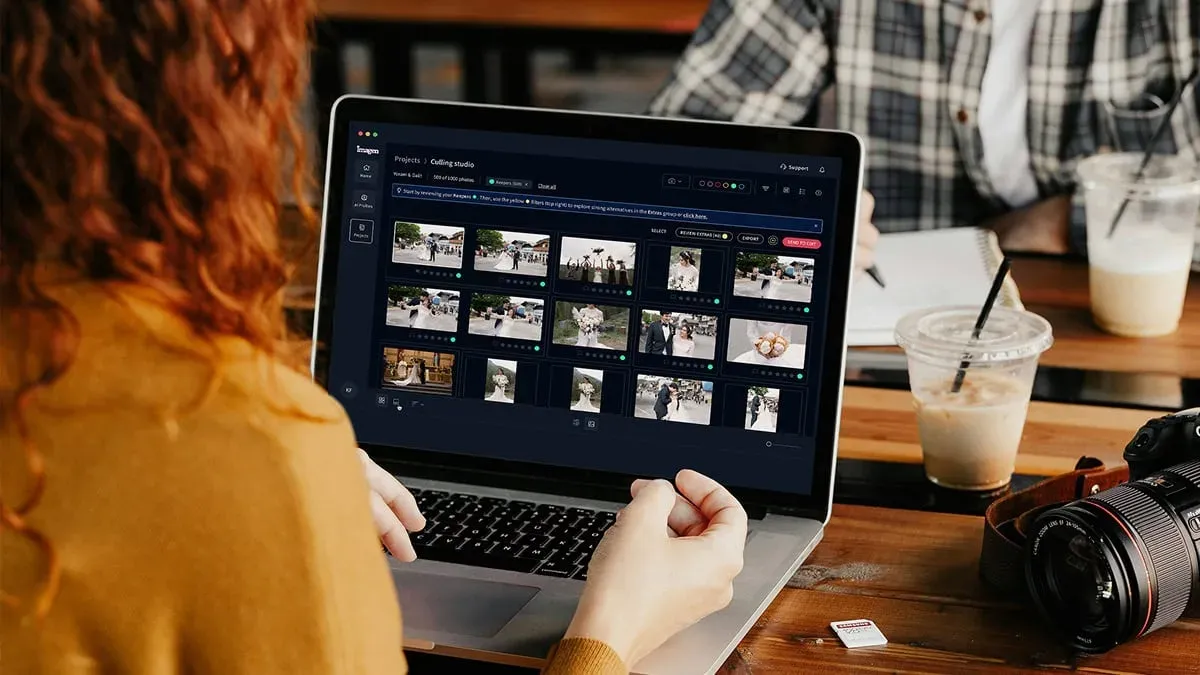
Culling is the quiet time sink most photographers underestimate. Before you edit a single frame, you have to scroll through burst after burst of near-identical exposures and pick the keepers. A culling feature automates the first pass, grouping similar frames and flagging the sharpest, best-composed option in each cluster so you review a shortlist instead of the entire card.
Look for culling that explains its choices and lets you override them, because you never want a black box deleting frames. The goal is a fast, sensible starting selection you can refine, not a final verdict. When culling and batch editing live in the same flow, the time saving compounds, since the set is narrowed and graded in one continuous pass rather than two separate chores across two apps.
Style Profiles and Personal Look Matching
A feature worth prioritizing is the ability to build and reuse a style profile that captures your editing signature. Instead of adjusting every gallery from scratch, you teach the software how you handle skin tones, contrast, and color, then apply that profile to future work. This keeps your brand look consistent from shoot to shoot, which clients notice even when they cannot name what they are seeing.
The strongest style features go beyond a single fixed preset. They hold your look steady while still responding to each frame’s lighting, so a profile built on daylight portraits still behaves sensibly under mixed indoor light. When you test this feature, run it on a shoot with tricky, changing conditions and check whether the result feels like your work or like a filter stretched over everything.
RAW Support and a Cloud or Local Workflow
Any editor you rely on for professional delivery needs solid RAW support, because RAW files hold the latitude you need to recover highlights and shadows without banding or color breakdown. Confirm that the software reads your specific camera’s RAW format and preserves that latitude through the edit rather than baking in a compressed starting point.
Then decide whether you want a cloud web app or a locally installed program, because that choice shapes your daily routine. A browser-based web app means nothing to install and no dependence on a single powerful workstation, so you can start a batch from any machine and let the processing happen off your own hardware. A locally installed tool keeps everything on your drive and runs without a connection. Neither is universally better, so match the workflow model to how and where you actually work, and check that whichever you pick handles your RAW files natively.
Per-Photo Finishing: Object Removal, Staging, and Sky Work
Batch tools handle the whole set, but almost every shoot has a few frames that need individual attention. A per-photo finishing feature covers the common exceptions: removing a stray distraction from the background, staging an empty room, blurring a busy plate behind a subject, or converting a daytime exterior to a warm twilight sky. These are targeted edits on single frames, not something you apply across a gallery.
When you assess this feature, separate what it genuinely does from what marketing implies. Object removal and background blur are well within reach of current tools, and day-to-dusk conversions have become reliable. Full background replacement, complex compositing, and detailed skin retouching are a different and heavier category of work, which the next sections cover. Knowing where a finishing feature stops keeps your expectations honest and your workflow efficient, because you route the rare heavy edit to the right specialist instead of fighting a batch tool to do it.
The Heavy-Lift Features Batch Tools Deliberately Leave Alone
Some editing jobs sit outside what a batch and finishing workflow is built for, and it helps to know the boundary before you buy. Deep skin retouching that relies on frequency separation and dodge-and-burn is craft work done frame by frame, and it belongs to a dedicated retouching tool. Recovering a soft or missed-focus capture through sharpening, running heavy noise reduction on high-ISO files, or upscaling for a large print all require specialized detail-enhancement models, and even those improve capture quality only within limits. They cannot invent focus that was never recorded.
Full background replacement, element-by-element compositing, precise geometry correction, and pixel-level masking are the territory of layer-based editors that give you manual control at the cost of time. If your work centers on any of these, prioritize software built for that job and treat batch grading as a separate, earlier stage. Many professionals do exactly that: they cull and batch-grade the full set first, then hand the one hero frame that needs deep retouching or sharpening to the specialist app that does it best.
Where Imagen Fits in Your Feature Checklist
If your checklist is topped by batch editing, culling, style consistency, RAW support, and a cloud-powered workflow, Imagen is built squarely around those features, and its new Studio lets you cull, edit and export in one project. It is a desktop app for Mac and Windows that you download and install, with the AI processing running in the cloud, and you do not need a desktop catalog program running underneath it. Its batch engine applies color correction, exposure, and white balance in your personal AI editing style across a whole shoot, culling narrows the near-duplicate bursts in the same flow, and the first batch finishes in under 10 minutes. Where a frame needs individual work, the AI Assistant handles per-photo finishing such as object removal and background or plate blur.
Pricing is pay-as-you-go, so you pay for what you export, and exploring the tools is free, so you can test the batch on a real shoot before committing. It is worth being clear about scope: Imagen does not generate images from scratch, sharpen or deblur soft captures, upscale, or replace full backgrounds, so if your checklist leans heavily on those heavy-lift features, pair it with a dedicated tool for that stage. It does include AI denoise and AI retouching tools for everyday cleanup, and its built-in editor (Beta) adds manual sliders, crop and straighten as a capable early release that works alongside Lightroom. Within batch grading, culling, and per-photo finishing, it covers the high-volume features professionals reach for most.
How to Match Features to the Work You Actually Shoot
Start with two facts: your volume and your genre. If you deliver large galleries and consistency across a shoot is the whole game, prioritize batch editing, culling, and style profiles, and the rest of the feature list matters far less. If your work is one perfect face or one built composite, weight your decision toward local retouching or layer-based control, and accept that those features reward the time you invest rather than saving it.
Be honest about the features you will never use, because paying for a sprawling toolset you touch once a year is a poor trade. Most working photographers land on a lean combination: a batch-first tool that clears the volume and finishes the routine frames, plus one specialist app for the rare file that needs deep retouching, heavy sharpening, or complex compositing. Match each feature to the job it does best, and let the software remove the bottleneck instead of adding another program to babysit.
For deeper reading on specific setups, see this companion guide to photo editing software for professional photographers, a starting point for newcomers in photo editing software for beginners, and platform-specific advice in best photo editing software for Mac. You can also browse the full library of photography workflow tips for more on batch editing, culling, and finishing.
What’s new in Imagen: On a feature checklist, Imagen now reads as an intelligent, agentic Studio for professional photographers, with culling, editing, review and export together in one project that you can work through in any order. Add the assistant, which finds photos and acts on them when you ask in plain language while you steer, and AI filters such as blur and closed eyes. The Studio is rolling out gradually.
Frequently Asked Questions
What is the most important photo editing software feature for professional photographers?
For photographers who deliver full shoots, batch editing that applies a consistent style across an entire gallery is usually the most valuable feature, because it saves the most time without flattening your look. Culling that narrows near-duplicate bursts in the same flow is a close second. If you shoot lower volume or specialize in single hero images, deep retouching or layer-based control may matter more than batch speed.
Should I choose cloud-based or locally installed photo editing software?
It depends on how and where you work. A browser-based web app means nothing to install and no dependence on one powerful workstation, so you can start a batch from any machine and offload the processing. Locally installed software keeps everything on your own drive and runs without a connection. Both can be professional-grade, so match the workflow model to your habits and confirm it reads your camera’s RAW files natively.
Can photo editing software fix blurry or out-of-focus photos?
Only within limits. Specialized detail-enhancement tools that sharpen, reduce noise, and upscale can improve a slightly soft capture, but they cannot restore focus that was never recorded. Batch editing and finishing tools generally do not sharpen or deblur at all, so a genuinely missed-focus frame needs a dedicated detail-enhancement app, and even that has boundaries you should not expect it to cross.
Do I need one photo editing tool or several?
Many professionals use two. A batch-first tool handles the volume, culling, and routine finishing, while a specialist app takes on deep local retouching, heavy sharpening, or complex compositing when a single frame needs it. Match each feature to the job it does best rather than forcing one program to do everything, and you usually end up faster and with better results than a single do-it-all tool would give.
How much does a batch editing tool like Imagen cost?
Imagen is pay-as-you-go: you pay for what you export. Exploring the tools is free, so you can try them on a whole gallery and test batch editing, culling, and per-photo finishing on a real shoot before committing. Pricing for other categories of tool varies widely, so compare against the specific job each feature does for you.
