

Best photo editing software for mac: A 2026 Guide and Top Picks
Table of contents
- 1. Best for AI Batch Editing and Culling With Cloud Processing
- 2. Best for Desktop RAW Editing on Apple Silicon
- 3. Best for Fast Culling Before You Edit
- 4. Best for Sharpening, Noise Reduction, and Upscaling
- 5. Best for Detailed Retouching and Layer-Based Composites
- 6. Best for Cataloging and a Familiar Develop Workflow
- How to Choose the Right Mac Photo Editing Software
- Frequently Asked Questions
Mac users have a real advantage when it comes to photo work. A calibrated Retina display, a fast unified-memory chip, and a color-managed operating system make the Mac a natural home for editing. The question is not whether your Mac can handle the job, but which software makes the best use of it for the way you actually shoot. The best photo editing software for mac in 2026 ranges from cloud-processed tools to heavyweight desktop apps that lean on Apple silicon, so the right pick depends on your volume, your genre, and how much of the work you want automated.
This guide walks through the categories worth knowing, each with a clear “best for” so you can match the tool to your work. It opens with a desktop app for AI batch editing on your Mac, with the AI processing in the cloud, then moves through desktop RAW editors, culling apps, detail-recovery tools, layer-based suites, and catalog-first workflows. No single category wins every job, so read each entry for what it does best.
1. Best for AI Batch Editing and Culling With Cloud Processing
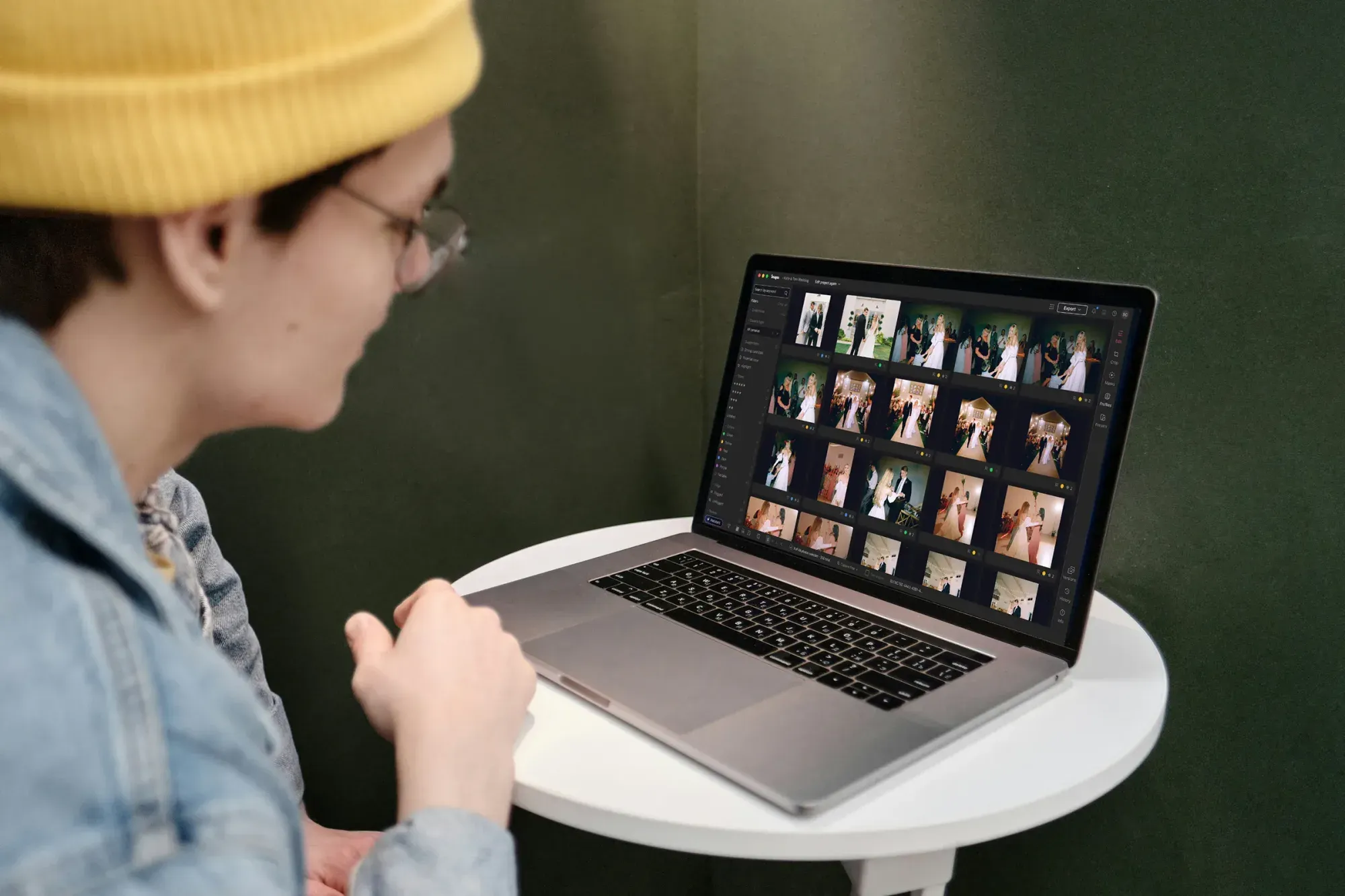
If you deliver whole shoots rather than single hero frames, the biggest time sink is not any one edit. It is applying a consistent look across hundreds or thousands of images. This is where a cloud-based AI batch editor fits the Mac especially well, because it does the heavy lifting on remote servers instead of pinning your machine. Imagen is a desktop app for Mac and Windows built for exactly this. You install it on your Mac, sign in, and the AI processing happens in the cloud. It is now a Studio where you cull, edit and export in one project.
The core of Imagen is batch editing in your personal AI editing style. You point it at a full shoot, and it applies color correction, exposure balancing, and white balance across every RAW frame. A ceremony shot in shade and a reception shot under warm tungsten come back looking like one coherent gallery. AI culling runs in the same flow, narrowing the burst of ten near-identical frames before you spend a second scrolling. Imagen reports that the first batch finishes in under 10 minutes, which for a Mac-based wedding or portrait shooter is the difference between delivering tonight and editing all weekend. Where a single frame needs individual attention, the AI Assistant handles the exceptions per photo: you ask in plain language, and it finds the photos and acts on them, covering object removal and background or plate blur.
Pricing is transparent and pay-as-you-go: you pay for the photos you export, and you see every edit in the gallery first, so you can test the batch on a real shoot before committing. Two honest limits are worth stating plainly. Imagen does not generate images from scratch, and it does not sharpen or deblur a soft capture, reduce noise, or upscale a file. It also does not replace an entire background or run face-recognition galleries. Within its lane, batch grade and culling for high volume, it removes a bottleneck that manual editing leaves in place.
Best for: Mac-based wedding, event, portrait, and real estate photographers who shoot high volume and want one consistent style applied fast, with per-photo finishing on the frames that need it.
2. Best for Desktop RAW Editing on Apple Silicon
Many Mac photographers still want a full desktop RAW editor that runs natively and takes advantage of the chip in the machine. A dedicated RAW editing application gives you granular sliders for tone, color, curves, and local adjustments, plus a develop workflow you can learn deeply and repeat. These apps are optimized for Apple silicon, so they render previews quickly and handle large files without stutter. They suit photographers who value hands-on control over every image and who process a manageable set rather than an overwhelming flood of frames.
Best for: Photographers who want a native Mac desktop app with full manual RAW control and a develop workflow they can master over time.
3. Best for Fast Culling Before You Edit
Before any editing happens, most of the time on a big shoot goes to choosing keepers. A dedicated culling application helps you rate, flag, and reject frames quickly, often with assistance for spotting closed eyes, soft focus, or duplicate frames in a burst. On a Mac with a fast SSD, a good culling tool churns through thousands of RAW previews with little lag. Photographers who shoot in high volume and want to separate the selection step from the editing step reach for a tool built specifically for this job.
Best for: High-volume shooters who want a fast, focused pass to pick keepers before any editing begins.
4. Best for Sharpening, Noise Reduction, and Upscaling
This is a category the batch tool above deliberately does not touch, so it deserves its own pick. When you need to recover detail, reduce high-ISO noise, or enlarge a file for a large print, a specialized detail-enhancement tool uses trained models to sharpen, denoise, and upscale. These apps often run well on Apple silicon because the neural work maps neatly to the Mac’s hardware. Wildlife shooters cropping deep into a frame, event photographers working in dim venues, and anyone printing big will get real value here. Keep expectations realistic, because these tools improve capture quality within limits and cannot invent focus that was never there.
Best for: Wildlife, sports, and low-light photographers on a Mac who need noise reduction, sharpening, or large-format upscaling on select images.
5. Best for Detailed Retouching and Layer-Based Composites
Some genres live and die on close, careful work. Beauty, fashion, product, and commercial photography often need frequency-separation skin edits, precise masking, compositing, and pixel-level control done frame by frame. A layer-based editor remains the standard for this, and the leading options run natively on Mac with GPU acceleration. These tools shine when the priority is one immaculate image built element by element rather than a thousand consistent frames. The trade-off is time, since this is hands-on craft rather than a batch you can walk away from.
Best for: Beauty, product, and commercial photographers who need manual retouching, compositing, and full pixel-level control on individual images.
6. Best for Cataloging and a Familiar Develop Workflow
Many Mac pros want their editing and their library in one place. A catalog-first application pairs a develop module with strong organization, keywording, and syncing across devices, so your whole archive stays searchable and your edits travel with it. This kind of tool integrates tightly with the Mac and often syncs to an iPad or iPhone for editing on the move. Photographers who value asset management as much as the edit itself, and who have years of work to keep in order, tend to build their routine around a cataloging tool. It is less about speed on a single shoot and more about long-term control of a growing library.
Best for: Photographers who want cataloging, keywording, and a familiar develop module tightly integrated across their Mac and mobile devices.
How to Choose the Right Mac Photo Editing Software
Start with your volume and your genre, because those two facts point straight at the answer. If you deliver large galleries and consistency across a shoot is the whole game, a cloud batch tool like Imagen removes the bottleneck and finishes the first pass in under 10 minutes, with the AI processing in the cloud so it does not tax your Mac. If your work is one perfect face or one built composite, a layer-based or retouching app rewards the time you invest. If your problem is a soft or noisy capture, only a dedicated sharpening and upscaling tool addresses it, and even then within limits. If your library is sprawling and you need it organized, a catalog-first tool earns its place.
Many working photographers run two tools rather than one. A common Mac setup pairs a batch editor for the fast, style-consistent grade and culling, then hands the rare file that needs deep local retouching or heavy sharpening to a specialist app. The point is not to crown a single winner. It is to match each tool to the job it does best, and to stop paying for the time your current workflow wastes. Your Mac can run any of these categories well, so let the shape of your work, not the machine, decide.
If you want to go deeper on picking software for a specific situation, three related guides help. See photo editing software for professional photographers, photo editing software for beginners, and the best photo editing software for Windows. You can also browse the full library of photography workflow tips for more on batch editing, culling, and real estate finishing.
What’s new in Imagen: Imagen is now an intelligent, agentic Studio for professional photographers, one project where you cull, edit, review and export in any order. It stays a desktop app for Mac and Windows, with the AI processing in the cloud so your Mac is not doing the heavy lifting. The built-in editor (Beta) adds manual sliders, crop and straighten inside the project, and the Studio is rolling out gradually as a beta.
Frequently Asked Questions
What is the best photo editing software for a Mac in 2026?
There is no single winner, because the best choice depends on your work. For high-volume shooters who want a consistent style applied across an entire shoot, a cloud batch editor like Imagen runs its AI processing in the cloud from a desktop app on your Mac and finishes the first pass in under 10 minutes. For hands-on control over single images, a native desktop RAW editor or a layer-based app is a better fit. Match the category to your volume and genre.
Do I need to install software to edit photos on a Mac?
Not always. Desktop RAW editors, layer-based apps, and catalog tools install natively and run on Apple silicon. A cloud tool like Imagen is a desktop app for Mac and Windows, but its AI processing runs on remote servers rather than taxing your machine. Which approach fits you depends on whether you prefer local control or offloaded processing.
Can Mac photo editing software fix blurry or out-of-focus photos?
Some specialized detail-enhancement tools focus on sharpening, noise reduction, and upscaling, and they can improve capture quality within limits. They cannot fully restore focus that was never captured. A cloud batch editor like Imagen does not sharpen or deblur soft images at all, so a missed-focus frame needs a dedicated detail-enhancement app, and even that has boundaries.
How much does Imagen cost, and can I try it for free?
Imagen is pay-as-you-go: you pay for the photos you export. That lets you test it on a real shoot before committing. It is a desktop app for Mac and Windows, with the AI processing running in the cloud.
Should I use one photo editing tool or several on my Mac?
Many professionals use two. A batch-first tool like Imagen handles the volume, culling, and finishing, while a specialist tool takes on deep local retouching, heavy sharpening, or complex compositing when a single frame needs it. Match each tool to the job it does best rather than forcing one app to do everything.

