

Best photo editing software for windows: A 2026 Guide and Top Picks
Table of contents
- 1. Imagen: Best for High-Volume, Style-Consistent Batch Editing and Culling
- 2. Best for a Full Desktop RAW Develop Workflow
- 3. Best for Detailed Local Retouching and Skin Work
- 4. Best for Fast Standalone Culling
- 5. Best for Sharpening, Noise Reduction, and Upscaling
- 6. Best for Classic Layer-Based Editing and Composites
- 7. Best for Cataloging, Organizing, and a Familiar Develop Module
- How to Choose the Right Windows Photo Editing Software
- Frequently Asked Questions
- What is the best photo editing software for Windows for high-volume photographers?
- Do I need to install software on Windows to edit a full shoot?
- Can Windows photo editing tools fix blurry or out-of-focus photos?
- How much does Imagen cost, and can I try it first?
- Should I use one photo editing tool or several on Windows?
If you shoot professionally and work on a Windows machine, the good news is that the platform runs almost every serious editing tool worth using. The harder question is which one fits the work you actually deliver. The best photo editing software for windows in 2026 is not a single winner but a short list of strong options, each built for a different job, from grading a full shoot to retouching one flawless portrait. This guide walks through the main categories, names the kind of tool that owns each one, and gives you a clear “best for” so you can match the pick to your workflow instead of guessing.
The list opens with Imagen, which earns the top spot for high-volume, style-consistent batch editing that runs as a desktop app on Windows with cloud processing, and then moves through desktop RAW apps, culling tools, detail enhancers, layer-based editors, and catalog-first suites. No single tool wins every category, so read each entry for the job it does best.
1. Imagen: Best for High-Volume, Style-Consistent Batch Editing and Culling
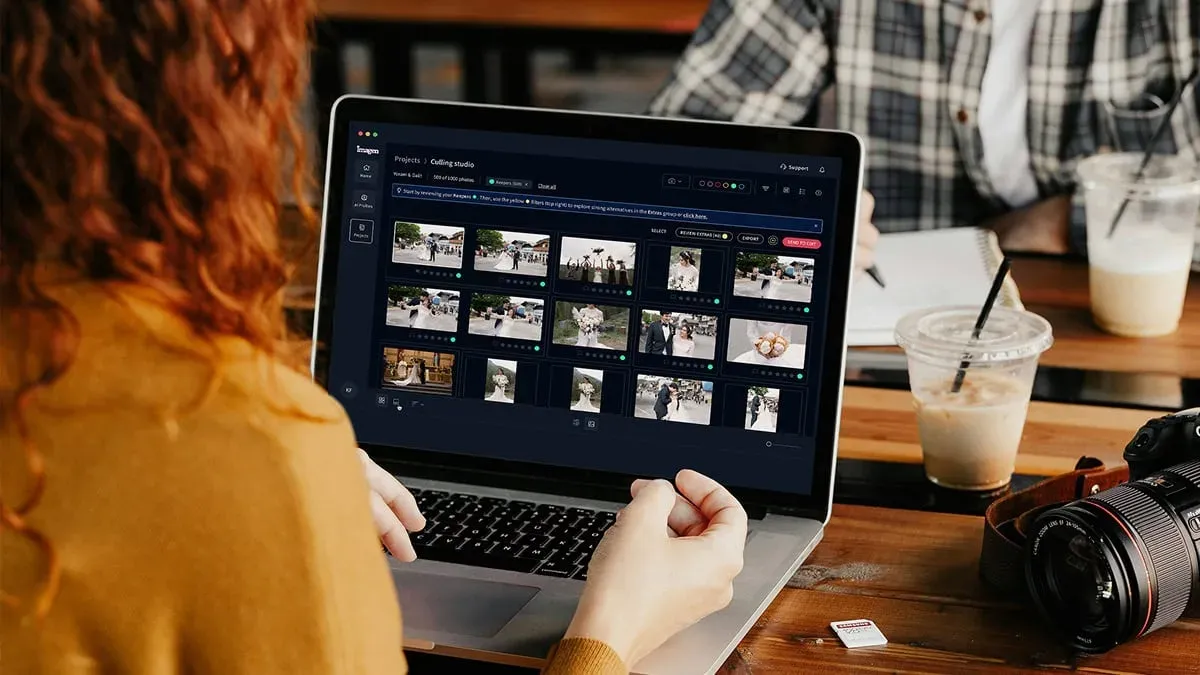
Imagen is a desktop app for Mac and Windows built for photographers who deliver whole shoots, not single hero frames. You install it on your Windows PC, sign in, and the AI processing runs in the cloud, so your own hardware is not doing the heavy lifting. That matters when you are turning around a wedding, a portrait marathon, or a full property listing on a deadline.
The core of Imagen is batch editing in your personal AI editing style. You point it at a full shoot, and it applies color correction, exposure balancing, and white balance across every frame. A ceremony shot in shade and a reception shot under warm tungsten come back looking like one coherent gallery, not a patchwork of separate edits. It works on your RAW files, so you keep full latitude, and AI culling runs in the same project, narrowing the burst of ten near-identical frames before you spend a second scrolling. If you prefer, you can skip AI culling and cull manually for free. Imagen reports that the first batch finishes in under 10 minutes, which is the difference between editing tonight and editing all weekend.
Where a frame needs individual attention, the agentic Assistant finds the photos you describe in plain language and acts on them with Imagen’s tools, with you steering. The framing is simple. Imagen applies your personal AI editing style across the batch, and the Assistant helps with the one or two frames that need extra care. Because the AI processing runs in the cloud, the heavy lifting does not tie up your Windows CPU, so you can keep culling or answering client emails while a batch runs. Imagen’s new Studio keeps culling, editing, review and export in one project, and you can read more about how that plays out on the Imagen site.
Pricing is transparent and pay-as-you-go, with a monthly base fee plus a charge for the photos you export. You see every edit in the gallery before you export, so you can look around before you commit.
Two honest limits are worth stating plainly. Imagen does not generate images from scratch, and it does not sharpen or deblur a soft capture. If your frame missed focus, no editor here will rescue it. Imagen also does not replace an entire background, upscale, or offer face-recognition delivery galleries. It runs AI denoise and grades and finishes what your camera actually recorded. Within that lane, for volume and consistency, nothing on this list matches it.
Best for: Wedding, event, portrait, and real estate photographers on Windows who shoot high volume and want one consistent style applied fast, with per-photo finishing on the frames that need it.
2. Best for a Full Desktop RAW Develop Workflow
Plenty of Windows photographers still want a full-featured desktop application where they process RAW files by hand, frame by frame. A dedicated desktop RAW editor gives you granular control over tone curves, color grading, local adjustments, and masking, all installed natively and running on your own hardware. These applications reward photographers who treat each image as its own project and who want every slider under their fingers rather than an automated pass. They are the traditional heart of a Windows editing setup, and they remain a sensible default when you process a modest number of files and value manual control over speed across hundreds of frames.
Best for: Photographers who want a native Windows desktop application and full manual control over RAW develop settings on individual files.
3. Best for Detailed Local Retouching and Skin Work
Some genres live and die on close, careful retouching. Beauty, fashion, and high-end portrait work often need frequency-separation skin edits, blemish cleanup, and dodge-and-burn done frame by frame. A dedicated portrait retouching tool that automates skin, eyes, and blemishes gives retouchers a strong starting point they can refine by hand. These tools shine when the priority is one immaculate face rather than a thousand consistent frames, and they run comfortably on a capable Windows workstation. Pair them with a batch tool by grading the full set first, then handing the one hero frame to the retoucher.
Best for: Beauty and portrait retouchers who need per-image skin and detail control and treat editing as craft on each frame.
4. Best for Fast Standalone Culling
Before any editing happens, someone has to decide which frames survive. A standalone culling application uses AI to flag blur, closed eyes, and near-duplicate bursts, then lets you rate and filter a huge take quickly. Photographers who shoot thousands of frames per job and want a dedicated, fast reviewing environment on Windows often run a culling tool as their first step, before anything reaches the edit. It is a narrow job done well, and it saves hours on high-volume weddings and events. Note that Imagen folds culling into the same project as editing and export, and you can also cull manually for free, so if you already grade there, you may not need a separate app for it.
Best for: High-volume wedding and event shooters who want a fast, dedicated environment for reviewing and selecting frames before editing.
5. Best for Sharpening, Noise Reduction, and Upscaling
This is a category the batch grading tools deliberately do not touch, so it deserves its own pick. When you need to recover detail, reduce high-ISO noise, or enlarge a file for a large print, specialized detail-enhancement tools use trained models to sharpen, denoise, and upscale. Wildlife shooters cropping deep into a frame, event photographers working in dim rooms, and anyone printing big will get real value here, and these apps run well on a Windows machine with a capable GPU. Keep expectations realistic, because these tools improve capture quality within limits and cannot invent focus that was never there.
Best for: Wildlife, sports, and low-light photographers who need noise reduction, sharpening, or large-format upscaling on select images.
6. Best for Classic Layer-Based Editing and Composites
Sometimes you need full manual control at the pixel level. Layer-based editors remain the standard for compositing, precise masking, retouching to a client’s exact brief, and any job where you build an image element by element. Commercial photographers, product shooters, and anyone doing complex composite or geometry work still reach for a layered editor because it gives command that no automated pass replaces. The trade-off is time, since this is hands-on work rather than a batch you can walk away from, but on Windows it remains the go-to for demanding retouch and composite jobs.
Best for: Commercial and product photographers who need manual compositing, precise masking, and full pixel-level control on individual images.
7. Best for Cataloging, Organizing, and a Familiar Develop Module
Many pros want their editing and their library in one place. Catalog-first tools pair a develop module with strong organization, keywording, and syncing, so your whole archive stays searchable and your edits travel with it. Photographers who value asset management as much as the edit itself, and who have years of work to keep in order on their Windows drives and network storage, tend to build their routine around a cataloging tool. It is less about speed on a single shoot and more about long-term control of a growing library.
Best for: Photographers who want cataloging, keywording, and a familiar develop module tightly integrated with their editing.
How to Choose the Right Windows Photo Editing Software
Start with your volume and your genre, because those two facts point straight at the answer. If you deliver large galleries and consistency across a shoot is the whole game, a batch-first tool like Imagen removes the bottleneck and finishes the first pass in under 10 minutes, without loading down your Windows PC. If your work is one perfect face or one built composite, a retouching or layer-based application rewards the time you invest. If your problem is a soft or noisy capture, only a dedicated sharpening and upscaling tool addresses it, and even then within limits.
Many working photographers run two tools rather than one. A common setup pairs a cloud batch grader for the fast, style-consistent pass and finishing, then hands the rare file that needs deep local retouching or heavy sharpening to a specialist app installed on the desktop. Consider also whether you want everything native to Windows or whether a desktop app that sends the heavy work to the cloud spares your computer from long processing waits. The point is not to crown a single winner. The point is to match each tool to the job it does best, and to stop paying for the time your current workflow wastes.
For more on choosing by audience and platform, three companion guides go deeper. See our picks for photo editing software for professional photographers, a starter-friendly rundown of photo editing software for beginners, and the best photo editing software for Mac if you also work across platforms. You can also browse the full library of photography workflow tips for more on batch editing, culling, and real estate finishing.
What’s new in Imagen: Imagen is a desktop app for Mac and Windows, now an intelligent, agentic Studio for professional photographers, with the AI processing running in the cloud. Since this list is about matching software to the job, note that you cull, edit, review and export in one project, can use AI culling or cull manually for free, and have a Personal AI Profile that keeps a big batch looking like one consistent edit. It is rolling out gradually. Take a closer look at Imagen before you build your stack.
Frequently Asked Questions
What is the best photo editing software for Windows for high-volume photographers?
For high-volume work like weddings, events, portraits, and real estate, Imagen is the strongest pick because it applies your consistent style across an entire shoot with batch editing and culling in one desktop app flow for Windows. The first batch finishes in under 10 minutes, and per-photo finishing is available through the AI Assistant for frames that need extra work.
Do I need to install software on Windows to edit a full shoot?
Not necessarily. Traditional desktop RAW editors, layer-based tools, and detail enhancers install natively on Windows and run on your own hardware. Imagen takes a different approach as a desktop app for Windows and Mac whose heavy processing happens in the cloud, rather than tying up your Windows CPU while you keep working.
Can Windows photo editing tools fix blurry or out-of-focus photos?
Some specialized detail-enhancement tools focus on sharpening, noise reduction, and upscaling, and they can improve capture quality within limits. They cannot fully restore focus that was never captured. Imagen does not sharpen or deblur soft images at all, so a missed-focus frame needs a dedicated detail-enhancement tool, and even that has boundaries.
How much does Imagen cost, and can I try it first?
Imagen is pay-as-you-go, with a monthly base fee plus a charge for the photos you export. You see every edit in the gallery before you export, so you can look around before you commit. Imagen also offers a free trial.
Should I use one photo editing tool or several on Windows?
Many professionals use two. A batch-first tool like Imagen handles the volume and finishing, while a specialist tool takes on deep local retouching, heavy sharpening, or complex compositing when a single frame needs it. Match each tool to the job it does best rather than forcing one app to do everything.

