Introduction
You have likely stared at a raw file on your monitor and felt it lacked the specific “soul” you envisioned when you clicked the shutter. You play with the HSL sliders, tweak the curves, and adjust the calibration, yet you cannot quite replicate the cinematic tone you saw in a movie or a favorite editorial spread. This is often where a LUT enters the conversation.
For years, LUTs were the secret weapon of cinema colorists, used to make digital footage mimic the organic response of film stock. Today, photographers use them to achieve distinct, complex color grades that standard presets sometimes fail to deliver. However, relying solely on them can be a trap. They are static tools. They do not know your subject is backlit or that your white balance is cool. They simply apply a formula.
The industry is moving toward smarter workflows. We still desire the distinct “look” of a high-quality LUT, but we need the intelligence of a human editor to apply it correctly to every frame. This is where Imagen enters the workflow. It bridges the gap between maintaining a distinct style and needing a fast, consistent workflow that adapts to every single shutter click.
In this guide, we will break down exactly what a LUT is, the science behind it, how to use it in your photography workflow, and how to move beyond its limitations to build a scalable, efficient business.
Key Takeaways
- LUTs Defined: A Look-Up Table (LUT) is a data file that maps specific input color values to new output values, allowing for complex, non-linear color grading that standard sliders often cannot achieve.
- LUTs vs. Presets: Unlike Lightroom presets which manipulate visible sliders, LUTs alter color data at a mathematical level. They provide specific “looks” like film emulation but are generally static and do not adapt to image variations.
- Workflow Integration: You can utilize LUTs across various software including Adobe Photoshop, Lightroom Classic, and video editors like Premiere Pro, making them ideal for hybrid shooters seeking visual consistency.
- The Static Limitation: Standard LUTs apply the exact same mathematical formula to every image regardless of exposure or white balance, often requiring significant manual tweaking for consistency across a shoot.
- The Imagen Advantage: Imagen utilizes AI to create what functions as a “Smart Profile.” Instead of a static table, Imagen learns your editing style and adapts adjustments for each individual photo, providing the consistency of a LUT with the flexibility of a human editor.
- Custom Creation: Photographers can build custom 3D LUTs in Photoshop to cement a unique brand identity and import them as profiles into Lightroom.
The Science of Color: Understanding the LUT
At its most fundamental level, a LUT (Look-Up Table) is a translator. Imagine a spreadsheet with two columns: Input and Output. When your editing software sees a specific shade of red in your image (Input), it checks the table and swaps it for a different shade of teal (Output).
In digital photography, an image is comprised of millions of pixels, each possessing a specific numerical value for Red, Green, and Blue (RGB). A LUT does not calculate changes based on a slider; it swaps values based on a fixed grid.
The 3D Cube
You will often hear the term “3D LUT.” This refers to how the data is mapped.
- 1D LUTs: These control one value per channel independently. They are excellent for setting a white point or adjusting gamma, but they treat Red, Green, and Blue as separate entities.
- 3D LUTs: These map colors in a three-dimensional space (a cube). This allows for complex relationships between colors. For instance, a 3D LUT can tell your software to desaturate red, but only if that red is in the shadows. This level of nuance is why 3D LUTs are the standard for creative color grading.
The .CUBE File
The most common file extension you will encounter is .cube. This universal format works across many applications, including Adobe Photoshop, Premiere Pro, DaVinci Resolve, and can be imported into Lightroom Classic via the Profile Browser.
LUTs vs. Presets: The Technical Distinction
This is the most common point of confusion for photographers. Is a LUT just a preset? The answer is no. They function differently under the hood, and understanding this distinction is vital for your workflow.
Presets: The Recipe
A Lightroom Preset is a saved list of instructions for the software’s sliders. When you click a preset, it moves the Exposure slider to +0.50, the Contrast to +10, and the Vibrance to -5.
- Transparency: You can see exactly what changed.
- Adjustability: You can tweak the sliders afterward.
- Limitation: They are restricted to the tools available in that specific software. A Lightroom preset does not translate perfectly to Capture One because the processing engines differ.
LUTs: The Filter
A LUT processes the image data through its fixed table. It sits “on top” of your image or acts as a base profile.
- Capability: It can perform color shifts that standard sliders cannot achieve easily, such as complex film stock emulation.
- Universality: A .cube file works in video and photo apps alike.
- Opacity: You typically cannot “open” a LUT to see the math. You can usually only adjust its opacity or strength.
Where Imagen Fits In
Imagen takes a fundamentally different approach. It does not just apply a static table (LUT) or a fixed recipe (Preset). Imagen utilizes a Personal AI Profile.
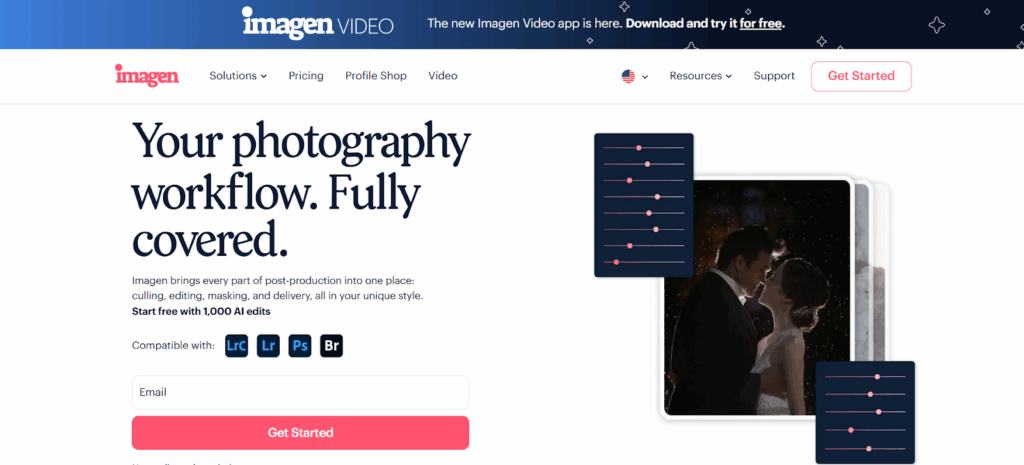
Think of a Personal AI Profile as a living, breathing editor. A preset applies the same +0.50 exposure to both a dark photo and a bright photo. A LUT shifts the colors exactly the same way regardless of the white balance. Imagen analyzes the photo first. It sees that one photo is dark and increases the exposure. It sees the next photo is bright and decreases it. It applies your personal style contextually.
While we discuss the utility of LUTs, remember that they are static tools. Imagen offers a dynamic solution that learns from your editing history to apply your unique look with intelligent adaptation.
Why Professionals Use LUTs
If they are static and less adaptive than AI, why do we still use them? They hold a specific, valuable place in the creative process.
1. The “Cinematic” Aesthetic
Movies are color graded using LUTs. If you want your photos to look like a specific film stock (like Kodak Portra 400) or a specific cinematic style (like the teal and orange look of blockbuster action films), a LUT is often the quickest way to get that exact color mapping.
2. Hybrid Workflow Consistency
Many modern professionals are “hybrid” shooters, delivering both photo and video assets. You might edit photos in Lightroom and video in Premiere Pro or DaVinci Resolve. You cannot apply a Lightroom Preset to a video clip easily. However, you can apply a .cube LUT to both. By building your “look” as a LUT, you ensure your photos and videos match perfectly, reinforcing your brand identity.
3. Studio Precision
If you are shooting in a studio with controlled lighting that never changes, a LUT is incredibly efficient. Since the light is constant, the “static” nature of the LUT is not a drawback. You apply it, and your color grade is complete.
Types of LUTs
Not all LUTs are designed for creative flair. Some are purely functional tools.
Technical LUTs (Utility)
These are designed to correct an image from a specific camera source.
- Log to Rec.709: If you shoot video in “Log” (a flat profile that preserves dynamic range), you need a technical LUT to bring the contrast and saturation back to normal levels for viewing on a screen.
- Camera Profiles: Some LUTs normalize specific camera sensors so that a Sony camera matches a Canon camera’s color science.
Creative LUTs (Look)
These are used for style.
- Film Emulation: Mimics the grain structure and color response of analog film.
- Black and White: Maps color values to specific greyscale tones for punchy, dramatic monochrome images.
- Color Grading: Adds stylistic tints, shifts hues, and alters contrast to evoke a mood.
Integrating LUTs into Your Workflow
Let us examine how to practically implement these files into your daily editing.
In Adobe Lightroom Classic
Lightroom does not allow you to simply “import” a .cube file in the Presets panel. You must wrap it inside a Profile.
- Open the Develop module.
- Navigate to the Profile Browser (the four squares icon at the top right of the Basic panel).
- Click the + icon in the top left and select Import Profiles.
- Select your .cube or .xmp files.
- Once imported, they appear in the Profile Browser.
- You can use the Amount slider to control the intensity of the LUT (0% to 200%).
Pro Tip: This is the superior method for using LUTs because the calculation happens at the raw level, before your standard sliders. This preserves maximum image quality.
In Adobe Photoshop
Photoshop utilizes “Adjustment Layers,” which is a powerful non-destructive workflow.
- Open your image.
- Navigate to the Layers panel.
- Click the Adjustment Layer icon (half-filled circle) at the bottom.
- Select Color Lookup.
- In the Properties panel, click Load 3D LUT.
- Browse for your .cube file.
- Adjust the Opacity of the layer to blend the effect.
The Problem with Static LUTs
We have established that LUTs are powerful tools. However, they possess inherent risks if relied upon blindly.
The Inconsistency Issue
A LUT applies the same math to every pixel. If you apply a “Moody Dark” LUT to a photo taken at high noon on a beach, it might look disastrous. It will crush the blacks and make the skin tones appear muddy. You must manually tweak every single photo after applying the LUT to fix exposure and white balance issues.
Clipping Data
Aggressive LUTs can “break” your image data. They might push the blue channel so far that the sky separates into bands of color (banding). Or they might clip your highlights so that a white wedding dress loses all detail and becomes a flat white patch.
The Time Sink
Because LUTs are static, you end up spending hours tweaking sliders to make the LUT look acceptable on different images. You apply the LUT, then fix exposure. Then fix white balance. Then fix tint. Then realize the LUT is too strong, so you lower opacity. Then fix contrast. Multiply this by 4,000 wedding photos, and you have lost weeks of productivity.
The Intelligent Solution: Imagen
Photographers generally want the result of a high-quality LUT (a consistent, unique, professional style) without the drawbacks (manual tweaking, static application, time drain).
This is precisely why Imagen exists. It represents the next evolutionary step in post-production.
From Static Table to Adaptive Intelligence
Instead of using a simple lookup table, Imagen uses a Personal AI Profile. You teach Imagen your editing style by uploading your previously edited Lightroom catalogs (about 2,000 images minimum).
The AI analyzes your specific editing decisions. It learns that when a photo is underexposed, you bump exposure. It learns that when a photo is warm, you cool it down. It learns how you treat greens in a forest versus skin tones indoors.
When you send a new project to Imagen, it does not simply “paste” a look on top. It looks at that specific photo and adjusts the Lightroom sliders exactly how you would. It provides the consistency of a LUT but with the situational awareness of a human.
Imagen Talent AI Profiles
If you do not have your own style yet, or you want to experiment with a new aesthetic (similar to buying a LUT pack), you can use a Talent AI Profile. These are profiles built by industry-leading photographers.
Unlike a LUT pack where you buy it and struggle to make it fit your lighting, a Talent AI Profile applies the photographer’s style and adjusts for your specific exposure and white balance conditions automatically. It is essentially like hiring that famous photographer to sit at your computer and edit your photos for you.
A Holistic Workflow
Using LUTs is just one step in editing. You still have to cull, crop, straighten, and back up. Imagen integrates all of this into a single desktop application.
- AI Culling: You can use the Imagen app to cull your shoot. It uses AI to group similar photos and flag the best ones, removing blinks and blur.
- AI Editing: You apply your Personal AI Profile. The AI edits thousands of photos in minutes.
- Cloud Storage: Imagen offers a secure cloud storage solution for your photos (Optimized or High-Res) directly within the app.
This consolidation of tools allows you to scale your business. You are not just editing faster; you are removing the bottlenecks that restrict your growth.
Creating Your Own LUTs
If you wish to create a specific color grade to use as a base for your work (or to use inside an AI profile later), you can build your own LUT.
Step-by-Step Guide in Photoshop
- Open a Reference Image: Choose a photo that has good exposure and white balance.
- Add Adjustment Layers: Use Curves, Selective Color, Color Balance, and Hue/Saturation layers to build your look.
- Note: Do not use masks or opacity changes on the layers themselves if you want a true 100% LUT translation, though modern software handles opacity well.
- Export: Go to File > Export > Color Lookup Tables.
- Settings: Choose High or Medium quality. Select CUBE format.
- Save: Name your LUT and save it to a dedicated folder where you keep your assets.
Bringing it into Lightroom
Once you have that .cube file, you need to import it into Lightroom using the Profile Browser method mentioned in the “Integrating LUTs” section. Once it is a Profile in Lightroom, you can apply it to an image. You can then train your Imagen Personal AI Profile using images that have this profile applied. Imagen will learn that this specific look is your baseline preference.
Genre-Specific Applications
Different genres of photography benefit from LUTs (and AI editing) in specific ways.
Real Estate Photography
In real estate, color accuracy is paramount. You need white walls to look white, not yellow. However, you also want a welcoming, warm vibe. LUTs can help standardize the “feel” of a home.
Imagen offers specific AI tools for Real Estate, like HDR Merge and Perspective Correction. For Real Estate photographers, Imagen automates the blending of bracketed shots (HDR) and fixes crooked lines—tasks a standard LUT simply cannot do. A LUT cannot straighten a wall; AI can.
Volume Photography (School & Sports)
Here, speed is everything. You have 3,000 photos of kids playing soccer. They all need to look good, bright, and consistent. A LUT can set a baseline “Sports” look (high contrast, vibrant grass).
However, using Imagen is superior here because it offers Crop and Straighten AI tools. It can crop thousands of headshots consistently or straighten the horizon line on thousands of soccer pitches in minutes. A LUT handles color; Imagen handles the geometry and the workflow volume.
Wedding Photography
Weddings are chaotic environments. You have dark churches, bright midday sun, and purple reception lighting. A single LUT will struggle here. It might look great for the ceremony and terrible for the reception.
This is the strongest use case for a Personal AI Profile with Imagen. You train the profile on your past weddings. It learns how to handle the dark church differently from the bright park. It gives you the consistency of a “brand look” without the failure of a static filter in bad lighting.
Best Practices for LUT Management
As you collect LUTs, your hard drive can become disorganized.
- Organize by Style: Create folders for “B&W,” “Cinematic,” “Vintage,” and “Utility.”
- Rename Clearly: Do not name a LUT “MyCoolLook_Final_v3.” Name it “Warm_Matte_HighContrast.” Descriptive names save time.
- Test Before You Commit: Before applying a LUT to a batch of 500 photos, test it on 5-10 images with drastically different lighting (indoor, outdoor, flash, shade).
- Backup: LUTs are small files, but they are intellectual property. Back them up to the cloud. Imagen provides cloud storage solutions that can keep your catalogs and assets safe.
Troubleshooting LUT Issues
Things go wrong. Here is how to fix common LUT problems.
Banding in Skies
If you apply a heavy LUT and see ugly lines in the blue sky, you have “broken” the image data.
- Fix: Reduce the opacity of the LUT.
- Fix: Add a small amount of Grain. Grain adds noise that “dithers” the banding, making it look smoother.
Muddy Skin Tones
- Fix: Use a mask to remove the LUT from the subject’s face. In Lightroom, use “Select Subject,” invert the selection, and apply the heavy color grade only to the background.
- Fix: Check your white balance. Often, a LUT looks bad simply because the base WB is too cool or too warm.
Oversaturation
- Fix: LUTs often boost contrast and saturation. Lower the “Saturation” or “Vibrance” slider before the LUT is processed, or lower the profile amount.
Conclusion
LUTs are an incredible tool in a photographer’s kit. They unlock a level of color science and artistic flair that sliders alone often cannot reach. They bridge the gap between photo and video, unifying your visual brand across platforms.
However, relying on them as a “one-click fix” is a mistake. They are static tools in a dynamic world. Lighting changes. Locations change.
To build a sustainable, scalable photography business, you need workflow tools that adapt. This is why incorporating Imagen into your pipeline is the logical next step. It respects the “look” you love—whether that comes from a LUT-based profile or your specific slider tweaks—but applies it with the nuance of a human editor. It handles the heavy lifting of consistency, culling, and correction so you can focus on the art.
Whether you stick to manual LUTs or upgrade to AI Profiles, the goal is the same: a signature style that your clients love, delivered with a workflow that allows you to thrive.
Frequently Asked Questions
Can I use video LUTs (.cube files) directly in Lightroom? Not directly. You cannot just “import” a .cube file like a preset. You must import it via the Profile Browser to wrap it into an XMP profile container first.
Will using a LUT lower the quality of my image? Technically, any extreme manipulation stretches the data. However, if you are shooting in RAW (12-bit or 14-bit), you have plenty of data to work with. Banding usually only occurs with JPEGs or extreme grades.
Does Imagen replace the need for LUTs? Imagen replaces the manual labor of applying and tweaking styles. If your style relies on a specific LUT, you can train your Personal AI Profile using images edited with that LUT. Imagen then learns to replicate that look.
What is the difference between a Look LUT and a Technical LUT? A Technical LUT corrects an image (like flattening Log footage). A Look LUT stylizes it (like adding a vintage tint). Photographers mostly use Look LUTs.
Can I create a LUT in Lightroom? No. Lightroom can create Presets and Profiles, but it cannot export a .cube file. You need Photoshop or specific LUT-generation software to create the actual .cube file.
Why do my photos look too dark when I apply a LUT? Many cinematic LUTs are designed for “Log” footage, which is very flat and bright. When applied to a standard contrast photo, they add more contrast, crushing the blacks. You need to lower the LUT opacity or lift your shadows.
Is Imagen’s AI editing faster than applying a LUT myself? Yes, because Imagen automates the tweaking. A LUT takes 1 second to apply, but 2 minutes to tweak for exposure/WB. Imagen does the application and the tweaking in under 0.5 seconds per photo.
Can I use LUTs on JPEG images? Yes, but be careful. JPEGs have less data (8-bit). Aggressive LUTs will cause artifacts and banding much faster on JPEGs than on RAW files.
How do I back up my LUTs? They are just files on your hard drive. Back them up like any other document. Imagen offers Cloud Storage for your high-res photos and Lightroom catalogs ensuring your work is safe, but you should manually back up your support files (LUTs/Presets) too.
Can I use a LUT to fix bad white balance? No. A LUT assumes the white balance is correct before it is applied. If your WB is off, the LUT colors will skew weirdly. Fix WB first, then apply the LUT.
What is the “Amount” slider in Lightroom’s Profile Browser? It controls the opacity of the LUT/Profile. 100 is default. 0 is off. 200 doubles the intensity. It is the best way to dial in a subtle look.
Does Imagen work with Capture One styles? Currently, Imagen supports Adobe Lightroom Classic, Lightroom (CC), and Bridge/Photoshop (ACR). It does not currently support Capture One.
How does a Personal AI Profile differ from a bought Preset Pack? A bought pack is generic—it is someone else’s look applied blindly to your photos. A Personal AI Profile is custom-built on your editing history. It creates a bespoke editing engine that thinks like you.