As a wedding photographer, you know that capturing the perfect moments is only half the battle. The other half happens in post-production, where you transform beautiful images into breathtaking memories. In the fast-paced world of wedding photography, where delivering stunning galleries on time is crucial, your editing workflow can make or break your business. This is where Lightroom presets come in, serving as a powerful tool to create consistent, professional-quality edits efficiently. But as you’ll see, traditional presets are just the beginning of what’s possible for your workflow.
Key Takeaways
- Presets Streamline Your Workflow: Lightroom presets apply a saved set of adjustments to your photos with a single click, saving countless hours in post-production and ensuring a consistent look across an entire wedding gallery.
- Choosing the Right Style is Crucial: Wedding photography presets come in various styles, including Light & Airy, Dark & Moody, Film Emulation, and Classic. Selecting a style that aligns with your brand and the mood of the wedding day is essential for creating a cohesive and impactful final product.
- Presets Are a Starting Point, Not a Final Fix: While presets are a fantastic efficiency tool, they are not a “one-click” solution. Professional photographers use them as a base and then make fine-tune adjustments to exposure, white balance, and other settings to perfectly match each photo’s specific lighting conditions.
- AI Editing is the Next Evolution: While presets apply a static set of rules, AI-powered tools like Imagen offer a more intelligent and personalized approach. Imagen learns your unique editing style from your past work to create a Personal AI Profile that edits each photo individually, adapting to the specific nuances of every image.
- Consistency is King: Whether using presets or AI, the ultimate goal is to deliver a consistent and beautiful gallery that tells the wedding day story. Consistency builds brand recognition and meets client expectations.
What Are Lightroom Presets and Why Are They Essential for Weddings?
So, what exactly is a Lightroom preset? Think of it as a saved recipe of editing settings. At its core, a preset is a pre-configured combination of slider positions in Adobe Lightroom’s Develop module. This includes everything from exposure, contrast, and highlights to color grading, tone curves, and sharpening. With a single click, you can apply this entire “recipe” to a photo.
For wedding photographers, this is a game-changer. Imagine editing a gallery of a thousand photos. Adjusting each one from scratch would be an overwhelming and time-consuming task. Presets solve this problem by providing a consistent starting point for every image.
Here’s why they are so vital to a wedding photographer’s toolkit:
- Speed and Efficiency: The most obvious benefit is the incredible amount of time you save. Instead of manually adjusting dozens of sliders for every single photo, you can apply a preset and make minor tweaks. This drastically cuts down your time in front of the computer, allowing you to deliver galleries faster and take on more clients.
- Consistency and Cohesion: A wedding gallery should tell a seamless story. Presets ensure that every photo, from the getting-ready shots to the final send-off, shares a consistent look and feel. This creates a professional and polished final product that strengthens your brand identity. When a potential client looks at your portfolio, they see a distinct, recognizable style.
- Developing a Signature Style: Presets are instrumental in defining your artistic voice. Are you known for bright, ethereal images or for dramatic, moody tones? Your choice of presets is a fundamental part of crafting that signature look that attracts your ideal clients.
Finding Your Style: Popular Types of Wedding Presets
The world of wedding presets is vast, with endless styles to choose from. The key is to find one that not only looks beautiful but also aligns with your brand and the emotions you want to evoke. Let’s explore some of the most popular styles.
The Light & Airy Look
This is perhaps one of the most classic and enduring styles in wedding photography. The Light & Airy aesthetic is characterized by bright, clean whites, soft light, and often pastel color palettes. It evokes a feeling of romance, timelessness, and delicate beauty.
- Key Characteristics: Overexposed highlights (in a controlled way), lifted shadows to keep detail, soft contrast, and often a desaturation of greens and yellows for a more ethereal feel.
- Best For: Outdoor weddings with plenty of natural light, classic and romantic venues, and couples who want a timeless, dreamy feel to their photos.
- Things to Watch Out For: This style can be challenging in harsh, direct sunlight or in dimly lit indoor venues. It’s crucial to get the exposure right in-camera to avoid blowing out important details, like the texture of a wedding dress.
The Dark & Moody Vibe
On the opposite end of the spectrum is the Dark & Moody style. This aesthetic embraces shadows, deep contrast, and rich, earthy tones. It creates a sense of drama, intimacy, and raw emotion.
- Key Characteristics: Deep blacks, high contrast, desaturated or earthy color palettes (think deep greens, oranges, and browns), and often a subtle grain to add texture.
- Best For: Elopements in dramatic landscapes (forests, mountains), industrial or historic venues, and couples who want a cinematic and emotionally charged feel.
- Things to Watch Out For: It’s a fine line between “moody” and simply “underexposed.” It’s important that skin tones remain natural and that key details aren’t lost in the shadows. This style heavily relies on directional light to create depth and dimension.
The Film Emulation Style
For photographers who love the timeless quality of film, film emulation presets are the perfect choice. These presets are meticulously crafted to replicate the look of classic film stocks like Kodak Portra, Fuji Pro, or Ilford HP5 for black and whites.
- Key Characteristics: Specific color shifts (e.g., the warm skin tones of Portra or the greenish cast of some Fuji stocks), a distinct grain structure, and a softer, less digital feel to the overall image.
- Best For: Photographers who want to achieve a classic, nostalgic, and artful look. It’s incredibly versatile and can be adapted to almost any wedding setting.
- Things to Watch Out For: Authenticity is key. The best film presets do more than just add grain; they accurately replicate the tone curves and color science of the film stock. It’s worth investing in high-quality presets from creators who have studied film extensively.
The Boho & Earthy Tone
A rising trend in recent years, the Boho & Earthy style is all about warmth and connection to nature. It’s sun-kissed, relaxed, and feels authentic and organic.
- Key Characteristics: Warm, golden tones, rich oranges and browns, often muted greens, and a soft, low-contrast feel. It’s like viewing the world through a permanent golden hour filter.
- Best For: Outdoor desert or forest weddings, rustic barn venues, and couples with a laid-back, adventurous spirit.
- Things to Watch Out For: The warmth can sometimes overwhelm skin tones, making them look too orange. You’ll often need to make adjustments to the temperature and tint sliders, and selectively adjust skin tone saturation to keep things looking natural.
A Practical Guide: How to Install and Use Lightroom Presets
Once you’ve found or created presets you love, integrating them into your workflow is simple. Here’s a quick step-by-step guide for Lightroom Classic.
Installing Your Presets
- Download and Unzip: Your presets will typically come in a .zip file. Download it and unzip it to a location you can easily find. The preset files themselves will have an .XMP extension.
- Open Lightroom Classic: Launch the application.
- Navigate to the Develop Module: Click on “Develop” at the top of the screen.
- Find the Presets Panel: On the left-hand side, you’ll see the “Presets” panel.
- Import Your Presets: Click the small plus (+) icon at the top right of the Presets panel and select “Import Presets.”
- Locate Your Files: Navigate to the folder where you unzipped your .XMP files, select them, and click “Import.”
- Get Organized: Your newly imported presets will appear in the Presets panel, often in a folder named by the creator. You can right-click to rename or create new folders to keep everything organized.
Applying Presets to Your Photos
- Select a Photo: In the Develop module, select the photo you want to edit.
- Hover to Preview: Simply move your mouse over the different presets in the panel on the left. You’ll see a live preview of how the preset will look on your image in the Navigator window.
- Click to Apply: Once you find one you like, just click on it. The preset’s settings will be applied to your photo, and you’ll see all the sliders on the right-hand panel adjust accordingly.
- Fine-Tune Your Edit: This is the most important step! A preset is a starting point. Now, use the sliders on the right to make final adjustments. The most common adjustments are typically Exposure and White Balance (Temp/Tint). You might also need to tweak contrast, highlights, or shadows to perfect the image.
Beyond Presets: The Rise of AI-Powered Editing with Imagen
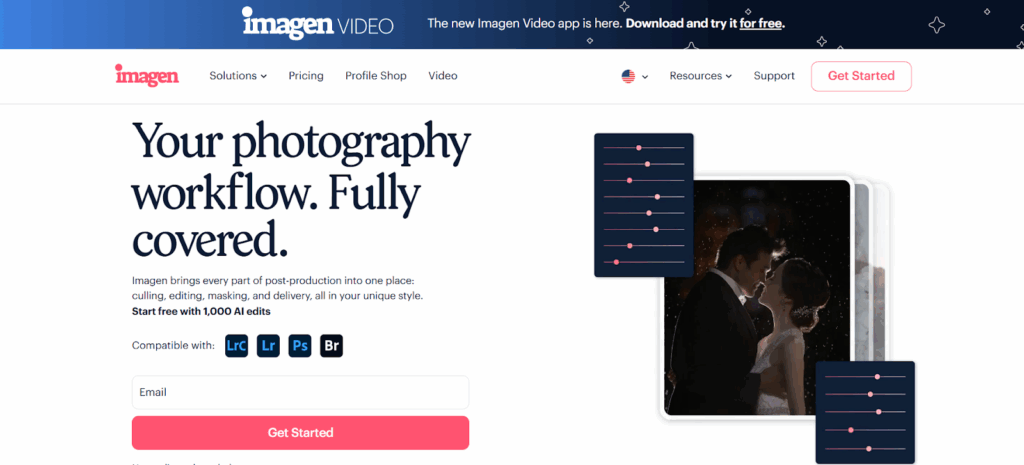
Lightroom presets revolutionized editing workflows, but technology is always evolving. While presets are powerful, they have a fundamental limitation: they apply the same set of adjustments regardless of the photo’s content. A preset doesn’t know if it’s looking at a dark reception hall or a bright, sunlit beach. It just applies the saved recipe. This is why you constantly have to make manual adjustments.
What if there was a smarter way? This is where AI editing comes in, and Imagen is leading the charge for professional photographers.
Imagen is a desktop app that integrates seamlessly with your Lightroom Classic catalog. But instead of using static presets, it uses artificial intelligence to edit your photos in your unique, personal style.
How is Imagen Different from a Preset?
The difference is personalization and adaptability. A preset is a one-size-fits-all starting point. Imagen is a tailor-made solution. Here’s how it works:
- It Learns From You: To start, you provide Imagen with a collection of your previously edited photos from your Lightroom catalogs (a minimum of 2,000 is recommended for the best results). These are photos that you have already edited to completion and represent your signature style.
- It Creates Your Personal AI Profile: Imagen‘s AI analyzes these thousands of edits. It doesn’t just average the settings; it learns the context of your decisions. It learns how you adjust exposure in backlit situations, how you treat skin tones in tungsten lighting, how you handle greens in overcast light, and so on. It builds an AI Profile that is a digital model of your brain as an editor.
- It Edits Each Photo Individually: Now, when you upload a new, unedited wedding gallery, you apply your Personal AI Profile. Imagen‘s AI looks at each individual photo and, based on what it learned from you, makes intelligent adjustments. It edits each photo from the ground up, just as you would, but in a fraction of the time. An edit that might take you five minutes is done in under a second.
What if I Don’t Have Enough Photos or Want to Try a New Style?
Imagen understands that not everyone has a massive back-catalog of edited work, or sometimes you just want to experiment. That’s why they also offer:
- Talent AI Profiles: You can use AI Profiles created by some of the world’s leading photographers. This is like having a famous photographer’s editing assistant work on your photos. It’s a fantastic way to get started immediately or to apply a high-end, polished look to your work.
- Lite Personal AI Profile: If you don’t have thousands of edited photos, you can create a Lite Profile. You start by uploading a favorite preset and answering a few questions about your editing preferences. Imagen then creates an initial AI profile for you that you can refine over time as you edit more photos.
The key takeaway is this: presets apply a fixed set of rules. Imagen applies intelligence. It brings a level of consistency and personalization that is simply not possible with traditional presets alone.
Tips for Getting the Most Out of Your Wedding Presets
Whether you stick with traditional presets or explore the world of AI editing, there are some best practices to keep in mind.
- Shoot for Your Edit: Your editing process starts when you press the shutter button. If you know you prefer a light and airy style, it’s better to slightly overexpose your images in-camera. If you love a moody look, focus on capturing dramatic light and shadows. Editing is much easier when the base image is already close to your final vision.
- Understand the “Why” Behind the Preset: When you apply a preset, look at which sliders moved. What did it do to the tone curve? How did it alter the HSL (Hue, Saturation, Luminance) panel? Understanding how a preset achieves its look will empower you to customize it more effectively and even create your own from scratch.
- Create Variations: You might find that your favorite preset works perfectly for sunny outdoor shots but is too cool for indoor reception photos. Create a variation! Apply the preset, adjust the white balance to be warmer, and then save that as a new preset (e.g., “My Preset – Indoor”).
- Don’t Be Afraid to Adjust the “Amount”: At the top of the Presets panel in Lightroom, there’s an “Amount” slider. This allows you to fade the intensity of the preset up or down, giving you another layer of control.
The Limitations of a Preset-Only Workflow
While incredibly useful, it’s important to acknowledge the challenges of relying solely on presets.
- The “One-Click Wonder” Myth: As we’ve discussed, presets are rarely a one-click solution. Every photo is different, and you will always need to make adjustments to get a perfect result. Believing a preset will magically fix all your photos will only lead to frustration.
- Inconsistency in Varied Lighting: A wedding day can take you from a dark church to a bright, sunny field to a dimly lit reception hall. A single preset will react very differently to each of these lighting scenarios, requiring significant manual correction to maintain consistency. This is a problem that an intelligent system like Imagen is specifically designed to solve.
- The Risk of a Generic Look: With the popularity of presets, there’s a risk of your work looking like everyone else’s who bought the same preset pack. The true path to a signature style is through personalization and customization, not just applying what someone else created.
Conclusion
Lightroom wedding presets are an indispensable tool for the modern photographer. They bring speed, consistency, and a foundation for building a unique artistic style. By understanding the different aesthetics, learning how to apply and customize them, and recognizing their limitations, you can dramatically improve your editing workflow.
But the evolution doesn’t stop there. For those looking to take their efficiency and personalization to the next level, AI-powered solutions like Imagen represent the future of post-production. By creating a Personal AI Profile that learns and adapts to your specific style, Imagen moves beyond the static nature of presets to offer a truly dynamic and intelligent editing partnership. It frees you from the most repetitive parts of your job, allowing you to spend more time behind the lens, with your clients, and growing your business.
Ultimately, the goal is the same: to create beautiful, timeless images that your clients will cherish forever. Whether you achieve that with a finely-tuned preset or a sophisticated AI assistant, mastering your post-production workflow is a critical step on that journey.
Frequently Asked Questions (FAQ)
1. Can I use Lightroom presets in Lightroom Mobile? Yes, absolutely. If you have a subscription to Adobe’s Creative Cloud Photography Plan, your presets will sync automatically from Lightroom Classic on your desktop to the Lightroom mobile app. This is great for editing on the go or applying a consistent look to your phone photos.
2. Is it better to buy presets or create my own? Both have their advantages. Buying presets from a reputable photographer is a great way to learn and quickly achieve a professional look. You are essentially paying for their expertise and years of experience. Creating your own is the ultimate way to develop a truly unique style that is 100% yours. A great approach is to start with a purchased preset you love and then tweak it over time until it becomes your own.
3. Will a preset fix a poorly exposed or out-of-focus photo? No. A preset can only do so much. It is a set of editing adjustments, not a magic wand. If a photo is technically flawed—severely underexposed, overexposed with blown-out highlights, or blurry—a preset will not fix the underlying issue. The foundation of a great final image is always a well-captured photo.
4. How many presets should I use for one wedding? Less is more. For consistency, it’s best to stick to one primary color preset and one primary black and white preset for an entire wedding. You might have slight variations of these for different lighting conditions (e.g., an indoor version, a flash version), but the core look should remain the same to ensure the final gallery is cohesive.
5. Why do my skin tones look strange after applying a preset? Skin tones are one of the trickiest parts of editing. A preset might have been designed in a different lighting condition or for a different camera brand, causing skin tones to look too orange, green, or magenta on your photos. This is usually fixed by adjusting the Temp and Tint sliders, and sometimes by making targeted adjustments in the HSL/Color panel for the orange and red channels.
6. Does Imagen replace the need for presets entirely? For many photographers, yes. Once you have a Personal AI Profile, it essentially becomes your dynamic, intelligent preset that you can apply to entire galleries. However, presets can still be useful within an Imagen workflow. For example, you can use a preset as a starting point to create a Lite Personal AI Profile if you don’t have thousands of edited images to train a full profile.
7. How long does it take for Imagen to create my Personal AI Profile? After you’ve uploaded your edited photos, the training process for a Personal AI Profile typically takes up to 24 hours. Imagen will notify you via email as soon as it’s ready to use.
8. Can I have more than one Personal AI Profile in Imagen? Yes, and it’s often a good idea. Many photographers create separate profiles for different styles. For example, you might have one for your color edits, another for black and white, and maybe even a third for a specific look like indoor flash photography.
9. What if I change my editing style? Do I have to create a whole new Imagen profile? No, your profile can evolve with you. As you continue to use Imagen, you can submit your final, tweaked edits back to the platform. Over time, as you submit more edits, Imagen will prompt you to “fine-tune” your profile, incorporating your latest stylistic changes and making it even more accurate.
10. Do presets work the same on photos from different camera brands (e.g., Canon vs. Sony)? Not always. Different camera manufacturers have different color science, meaning the base RAW files look slightly different. A preset developed on a Canon file might make a Sony file look a bit too green, or vice-versa. Good preset creators often provide variations for different camera brands, but you should always expect to make minor white balance adjustments. This is another area where Imagen‘s AI has an advantage, as it learns how you specifically edit files from your camera.
11. What is the difference between an .XMP and an .lrtemplate file? .XMP is the modern, standard format for Lightroom presets. .lrtemplate is an older, legacy format. All recent versions of Lightroom Classic use the .XMP format. If you have older .lrtemplate presets, Lightroom can convert them to .XMP for you.
12. Can a preset apply local adjustments like a graduated filter or a brush? Yes, presets can include local adjustments. However, this is often not ideal for batch editing, because the placement of that adjustment (e.g., darkening the sky) will be applied to the same spot on every photo, which won’t work if your compositions change. Imagen, on the other hand, offers AI tools like Subject Mask and Background Mask that intelligently identify and apply local adjustments where they are needed on each specific photo.
13. Is using presets “cheating”? Not at all. This is a common misconception among new photographers. Professional photographers in every field use presets and other tools to work efficiently. Using a preset is no different than a chef using a trusted base recipe. The artistry comes from how you shoot the photo and the final, nuanced adjustments you make to perfect the edit. It’s a tool, not a crutch.