

How to Edit Retirement Party Photos with AI in 2026
Table of contents
- What AI Editing Actually Does to Retirement Party Photos
- Step 1: Import and Organize the Full Shoot
- Step 2: Cull the Speeches and Toasts With AI
- Step 3: Fix the Mixed Office and Venue Light in Batch
- Step 4: Retouch Portraits and Group Photos
- Step 5: Refine, Crop, and Sequence the Gallery
- Step 6: Export and Deliver the Final Photos
- Choosing the Right AI Editor for This Work
- Try Imagen on Your Next Retirement Party
- Frequently Asked Questions
To edit retirement party photos with AI, you import the full shoot into Lightroom or Capture One, apply your personal editing style across every frame with an AI editor like Imagen, then run AI culling and AI retouching before you export the gallery. That approach fixes the two hard parts of a retirement celebration fast, the mixed office and venue light and the large volume of candid speech and toast frames, so you spend your evening reviewing photos instead of pushing sliders. This guide walks the real workflow step by step, names a few honest tools along the way, and shows where automation saves the most time.
A retirement party is a warm, once in a career moment, and the photos matter to the guest of honor, the family, and the coworkers who organized it. You usually shoot hundreds of frames across a reception, a dinner, a slideshow, and a round of toasts, and the room rarely has clean light. AI editing helps you keep color, exposure, and skin tones consistent across all of it while your own look stays intact.
What AI Editing Actually Does to Retirement Party Photos
AI photo editing learns from your real edits and repeats your decisions at scale. It reads exposure, white balance, contrast, tone, and color, then applies a matching treatment to every image in the shoot. That is different from a preset, because the AI adjusts each frame to its own light rather than stamping the same numbers on all of them. For a retirement party, that means a speech shot under warm tungsten and a group photo near a bright window both land close to your intended look.
Imagen is built for this job. It learns your personal editing style from your Lightroom or Capture One catalog and applies it consistently across a full shoot, and it adds AI culling and AI retouching in one connected workflow. You point it at the folder, it studies how you have edited similar work, and it returns edited photos that you refine rather than build from scratch. They arrive in batches as they process, so you can start reviewing early frames while the rest finish.
One honest point up front matters here. Imagen edits, culls, and retouches the real photos you shot at the party. It does not invent scenes, decor, guests, cake, banners, or backgrounds, and it does not generate people who were not there. If a moment was not photographed, no AI editor can create it for you, and that limit protects the honesty of the gallery you deliver.
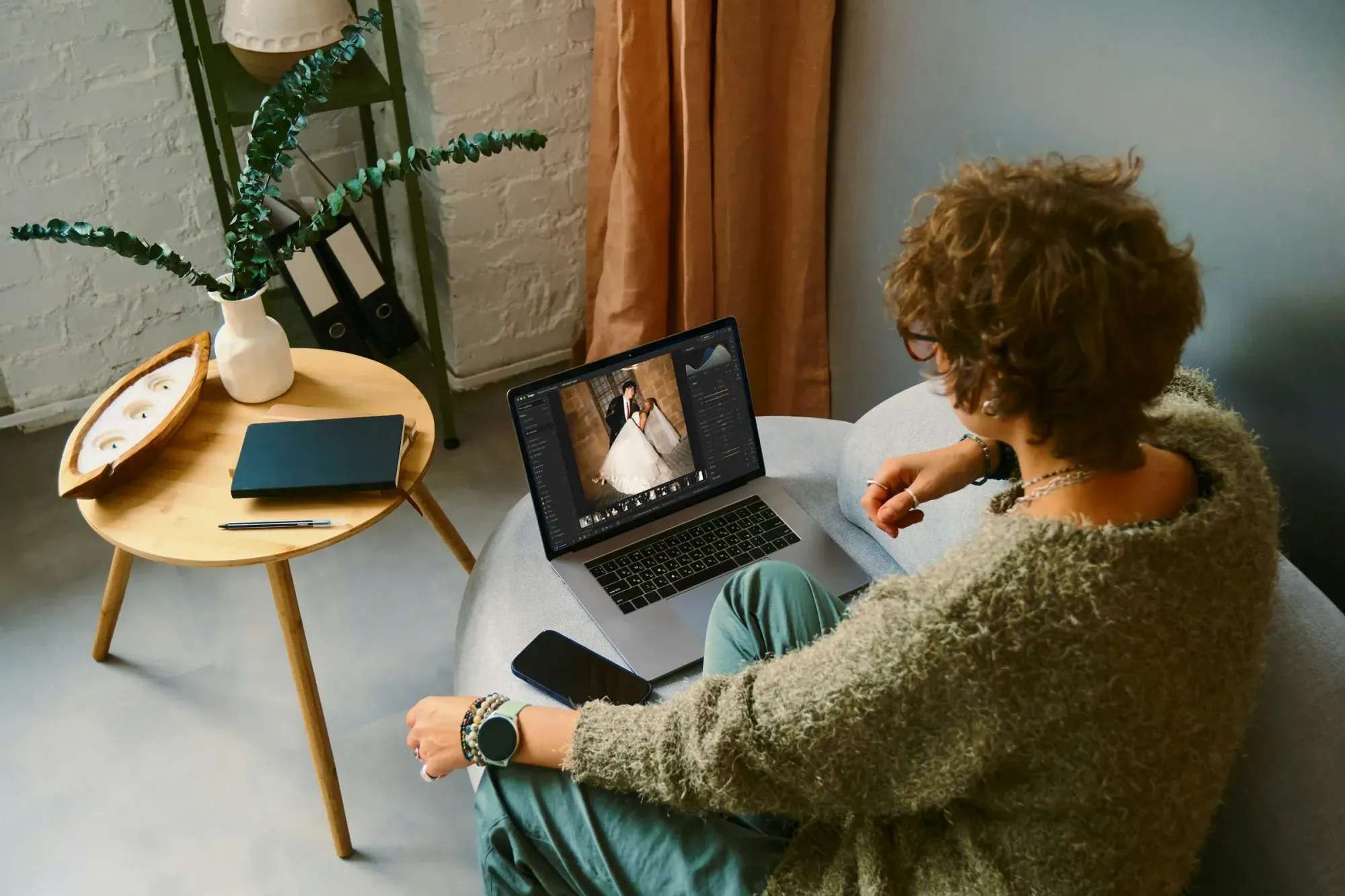
Step 1: Import and Organize the Full Shoot
Start by pulling every card into one catalog so the whole event lives in a single place. Keep the raw files, since raw holds the color and highlight detail you need to correct mixed lighting later. A clear structure saves time when you hand off or return to the gallery months later.
- Create one folder for the event, then subfolders for arrival, speeches, toasts, dinner, and candids.
- Import as raw into Lightroom Classic or Capture One so you keep full editing latitude.
- Add a simple keyword like the honoree name and the date so search stays fast.
- Back up the raw files to a second drive before you touch a single slider.
Once the import finishes, you have a clean base to cull and edit. Adobe Lightroom and Capture One are the two catalogs most photographers use for this stage, and both connect directly to an AI editor for the next steps.
Step 2: Cull the Speeches and Toasts With AI
Retirement parties generate a lot of near duplicate frames. You fire several shots during a speech to catch the right expression, and you burst through toasts to get raised glasses and real laughter. Culling by hand across hundreds of frames is the slowest part of the whole job.
AI culling reviews the set and flags the frames worth keeping. It detects closed eyes, soft focus, and blur, and it groups similar shots so you compare the best few instead of scrolling through every burst. Imagen includes AI culling in the same workflow as editing, so you cull and edit without exporting to a separate app, and you can skip AI culling and cull manually for free if you prefer. Aftershoot is another real tool that focuses on culling if you want a dedicated option, and it works alongside your catalog.
Review the AI suggestions rather than accepting them blindly. You know which coworker gave the funniest toast and which frame caught the honoree tearing up, and those human calls still belong to you. Use the AI to shrink a set of 800 frames down to a manageable 200, then make the final picks yourself.
Step 3: Fix the Mixed Office and Venue Light in Batch
Mixed light is the defining challenge of a retirement party. Offices run cool fluorescent or LED overhead, banquet rooms glow warm from tungsten and candles, and windows push daylight into the frame during a daytime send off. Color temperature can swing hard from one shot to the next, and skin tones drift with it.
This is where batch AI editing pays off most. When Imagen applies your personal style across the shoot, it balances white balance and exposure per frame so a warm toast and a cool hallway portrait both match your look. You get a consistent gallery without correcting each photo one slider at a time. Here is the order that works well.
- Set your reference look on a handful of representative frames from different rooms.
- Let the AI apply that style across the full shoot, matching each frame to its own light.
- Scan the results by room, since grouped frames reveal any white balance you want to nudge.
- Adjust the few outliers by hand, usually the shots under the strongest mixed light.
After the batch pass, most of the gallery is done to a consistent standard. You are left with a short list of tricky frames instead of a mountain of untouched raws, which is the whole point of AI batch editing.
Step 4: Retouch Portraits and Group Photos
Retirement guests are often longtime colleagues and family who want to look their best without looking altered. The goal is natural retouching that respects real faces. AI retouching handles the repetitive cleanup so you keep control of the taste calls.
Imagen includes AI retouching in the connected workflow, so you can soften skin gently, reduce shine from warm venue light, and clean small distractions across a batch of portraits. Keep the results honest, since the honoree and their coworkers should still recognize themselves. Retouch4Me is another real tool built around retouching if you prefer a dedicated plugin, and it integrates with Lightroom and Photoshop.
- Even out skin tone and reduce glare from overhead office lighting.
- Clean stray distractions in the background without removing real people or decor.
- Keep wrinkles, gray hair, and character intact, since a retirement gallery honors a full career.
- Apply retouching in batch, then spot check the close portraits at full zoom.
Remember the honesty limit again at this stage. Retouching cleans the real photo, and it does not swap faces, add guests, or fabricate a scene. That keeps the delivered images true to the night that actually happened.
Step 5: Refine, Crop, and Sequence the Gallery
With color and retouching handled, you shift to storytelling. A retirement gallery reads best when it follows the arc of the evening, from arrival and mingling through the speeches, the toasts, the dinner, and the goodbye. Sequencing turns a folder of files into a story the family will want to revisit.
Crop for emphasis where it helps. Tighten a wide speech shot to the honoree and the speaker, and keep group toasts wide enough to show every raised glass. Straighten horizons on the room shots so the venue looks its best. These small refinements are quick once the heavy AI batch work is finished.
If you want to plan the full sequence before you edit, our retirement party photo editing workflow guide lays out a repeatable order you can reuse for every event. It pairs well with this how to, since one covers the steps and the other covers the pipeline.
Step 6: Export and Deliver the Final Photos
Export settings depend on how the gallery will be used. The family may want prints of the honoree and the speeches, coworkers may share images on internal channels, and the organizer may post a few to a company page. Deliver in a way that covers all three without extra rounds of work.
- Export full resolution JPEG at high quality for prints and archives.
- Add a web sized set at a smaller long edge for quick sharing and social posts.
- Use a clear naming pattern with the honoree name so files stay easy to find.
- Deliver through an online gallery link so guests can download their favorites.
Because the AI kept your look consistent across the shoot, the exported set holds together as one gallery. That consistency is what makes a retirement party collection feel polished rather than stitched together from mismatched frames.
Choosing the Right AI Editor for This Work
The best tool for a high volume event is one that combines style matching, culling, and retouching so you stay in a single flow. Imagen does all three and learns your own style, which keeps the gallery looking like your work rather than a generic filter. Aftershoot and Retouch4Me are honest, capable tools if you want a dedicated culling or retouching step, and each one plugs into Lightroom or Capture One.
Pricing is where Imagen stays simple. It runs pay as you go, so you pay for what you export, and exploring the tools is free. That model fits event work well, since you pay for the shoot you actually edit. Competitor tools use their own subscription, per credit, or one time license models, so compare on how each one fits your volume.
For a deeper side by side, read our roundup of the best AI retirement party photo editing software, and browse more event editing guides on our valuable tips hub. Both give you context before you commit to a workflow for your next celebration.
Try Imagen on Your Next Retirement Party
If you want to cut hours off your next retirement gallery, the fastest way to see the difference is to run a real shoot through Imagen’s new Studio. It learns your style, culls the burst frames from the speeches, balances the mixed light, and retouches the portraits, all in one project where you cull, edit and export in any order. Exploring the tools is free, and you pay when you export.
What’s new in Imagen: Imagen is now an intelligent, agentic Studio for professional photographers, where you cull, edit, review and export together in one project, in any order. For retirement party galleries, you can teach it your look through a Personal AI Profile learned from your past edits, then fine tune frames in the built-in editor (Beta). It is rolling out gradually as a beta. Explore Imagen to learn more.
Frequently Asked Questions
How does AI keep my retirement party photos consistent across mixed light?
The AI reads each frame and applies your personal style to it individually, so it balances white balance and exposure per photo. A warm toast under tungsten and a cool portrait near a window both match your look, which gives the whole gallery a consistent finish without manual correction on every image.
Does AI editing invent people or decor that were not at the party?
No, and this matters for an honest gallery. Imagen edits, culls, and retouches the real photos you shot, and it does not generate scenes, guests, cake, banners, or backgrounds. If a moment was not photographed, the AI cannot create it, so your delivered images stay true to the actual event.
How much does it cost to edit a retirement party shoot with Imagen?
Imagen runs pay as you go, so you pay for what you export, and exploring the tools is free. That means you can test the workflow on a real shoot before you commit, and the pricing page has current rates.
Can I still make my own edits after the AI pass?
Yes, the AI gives you an edited starting point rather than a locked result. You review the culling picks, nudge any white balance outliers, crop for emphasis, and spot check the close portraits. The automation handles the repetitive work so your time goes to the creative and human calls.
