

10 Best Free AI Photo Editors Online (2026)
Table of contents
- Key Takeaways
- Selection Criteria: How We Ranked the Best AI Editors
- Imagen: The Gold Standard for Batch AI Editing
- Canva powerful Studio: The All-in-One Creative Suite
- Adobe Express: Firefly Power in Your Browser
- Fotor: The One-Tap AI Enhancer
- Pixlr: The Browser-Based Photoshop Alternative
- Photopea: Advanced AI for Power Users
- Picsart: The Gen-Z Creative Hub
- VanceAI: The Specialist in Upscaling
- BeFunky: Simplified Portrait Editing
- Lensa (Web): Artistic AI Avatars and Styles
- Comparison of the Top 10 AI Photo Editors
- Final Recommendation: Which Free AI Editor Should You Choose?
- Frequently Asked Questions
- Can free AI photo editors replace professional desktop software?
- Why do some free AI tools have watermarks?
- Is my data safe when uploading photos to online AI editors?
- What is the difference between AI profiles and standard presets?
- Do I need a fast internet connection to use online editors?
- How many photos can I edit for free with Imagen?
- Is generative fill commercially safe to use?
- Keep exploring
A genuinely useful free AI photo editor shouldn’t be this hard to find. Hidden paywalls, ugly watermarks, and sluggish render times eat into an afternoon better spent editing.
Want to speed things up right now? Try Imagen free with 250 photos, no credit card, and see how much time it saves you.
Here’s a rundown of the strongest options on the market in 2026. We judged each tool on output quality, processing speed, and how much its free tier delivers.
Key Takeaways
- AI adoption keeps climbing - research shows 68% of professional photographers now build AI into their editing workflow.
- Speed is the new benchmark - the fastest platforms can edit 1,500 photos in under 10 minutes.
- The content shift is already here - industry experts predict that by 2026, 90% of online visual content will be AI-generated or AI-enhanced.
- Free tier limits vary a lot - most tools cap exports at 72dpi or gate them behind subscription credits.
- Solid browser-based options exist too - editors like Photopea handle 10 million monthly visits with genuinely advanced tools.
- The time savings are real - professional editors report a 75% reduction in time spent on repetitive masking and color correction.
Selection Criteria: How We Ranked the Best AI Editors
What makes an online photo editor good? It’s got nothing to do with stacking a hundred gimmicky filters. What matters is how smart the engine underneath is.
We ranked these tools against a specific set of criteria. Nobody wants to spend an afternoon nudging sliders by hand anymore, and the goal is professional results with minimal effort.
Here’s how we separated the real contenders from the marketing noise:
- Masking and Selection Accuracy - the AI has to nail edge detection every time, since nobody wants jagged borders on a cutout image.
- Generative Fill Resolution - edits shouldn’t turn blurry or pixelated the moment you scale them up.
- Free Tier Usability - we checked whether you can actually download a usable file without a giant watermark stamped across it.
- Processing Speed - waiting 45 seconds for one single change just isn’t acceptable in 2026.
The generative AI market for creative software is expanding at a 42% CAGR through 2026. So the tools are evolving fast, almost monthly. But we only care about the ones delivering real value today.
Imagen: The Gold Standard for Batch AI Editing
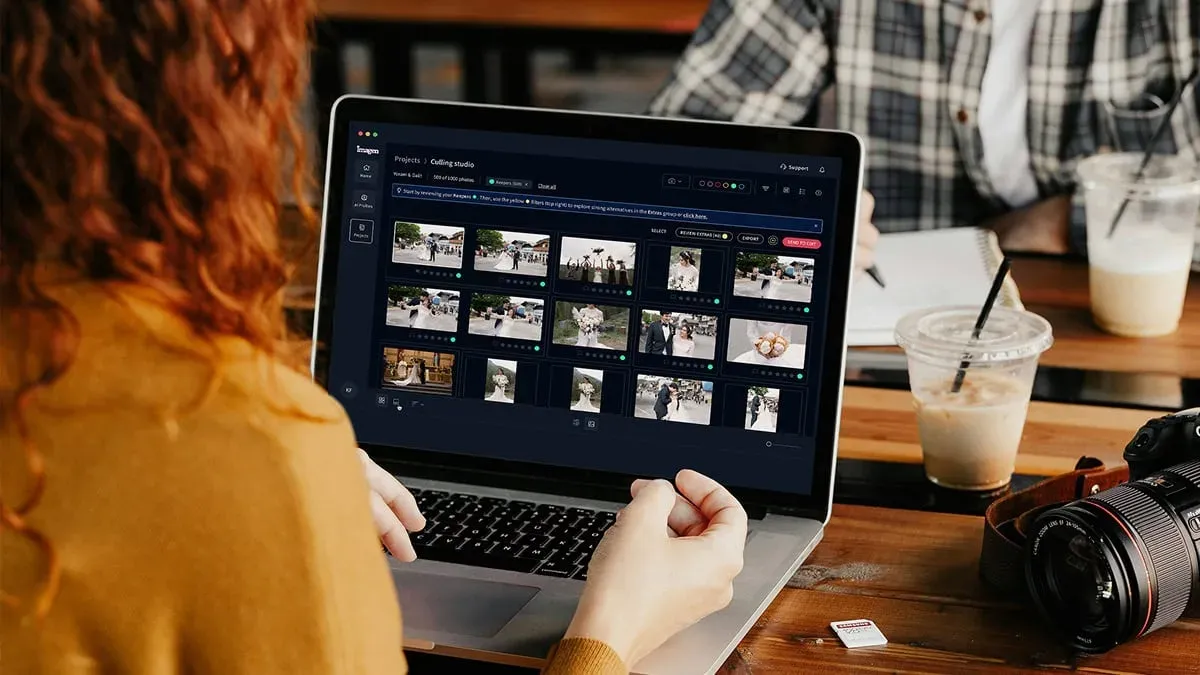
Standard web editors fall apart the moment you’re handling massive image volumes. That’s where Imagen shines, since it’s built for high-volume workflows: wedding photography, large events, portrait studios, and real estate listings. But here’s the difference. It doesn’t just slap on a flat preset. It analyzes each photo and applies a consistent, professional-grade edit across the whole batch.
For real estate photography, Imagen runs as a browser-based web app, with no installation and no Lightroom required. Image2Image batch-corrects every photo in a listing for consistent color in one pass, and AI Assistant handles the per-photo finishing, like virtual staging, object removal, and twilight conversion. New users get 250 photos free with no credit card, and the first batch usually finishes in under 10 minutes.
And it’s fast, genuinely fast. Imagen can process and edit 1,500 photos in under 10 minutes, holding a 99% consistency rate across massive batches.
Professional editors don’t have hours to waste on manual tweaks. By letting AI replicate personal styles at scale, photographers can win back their weekends without losing their creative voice.
Itamar Haim, SEO Expert and Digital Strategist specializing in search optimization and content marketing.
The tool covers everything from white balance and exposure to subject masking and cropping, giving you a polished, consistent edit across your whole shoot, and it connects to your delivery workflow through Imagen’s integrations.
Key Features
- AI Color & Exposure Matching - analyzes each photo individually and keeps color, exposure, and tone consistent across the whole batch.
- Automated Subject Masking - precise local adjustments with zero manual brushing needed.
- Auto Cropping & Straightening - instantly corrects tilted horizons and composition slip-ups.
Pricing
You can start with a free trial covering 250 photos, no credit card required, with your first batch usually finished in under 10 minutes. Finished galleries stay in Imagen’s cloud storage until you’re ready to deliver them. After that, Imagen pricing runs pay-as-you-go:
- Pay-as-you-go - costs $0.32 per photo, billed monthly for what you edit, and you can cancel anytime.
- Early-bird offer - cuts your first month’s rate 30%, to $0.22 per photo.
- Teams Plan - offers volume pricing for 25,000+ photos a year, with a dedicated account manager.
Pros
- Cuts post-processing time by as much as 96%.
- Holds rock-solid stylistic consistency across thousands of images.
- Runs entirely in the browser for real estate work, so there’s no desktop plugin to install.
Cons
- Could feel like overkill if you’re just posting casually to social media.
Verdict: If you’re doing serious AI photo editing at scale, this is the most capable tool on the market, and it’s the clear pick for wedding photography, real estate listings, and busy studios.
Canva powerful Studio: The All-in-One Creative Suite
Canva has reshaped how small businesses and social media managers approach design. The suite is loaded with automated features, and it’s simple enough to use if you’ve never opened a photo editor before.
Canva reached 170 million monthly active users by leaning into simplicity, and its powerful Studio tools have been used over 5 billion times. That’s an enormous scale. Does it hold up for detailed editing? Yes, but with a few caveats.
Here’s the thing about Canva: it excels at layout work and quick edits, like making a background disappear or nudging an object slightly. If you need deep color grading, you won’t find it here.
Let’s look at how creators use this in daily routines. Most reach for it on quick-turnaround marketing collateral, where speed wins over pixel-perfect color accuracy.
Key Features
- Powerful Grab - selects and separates any subject from its background so you can reposition it freely.
- Powerful Expand - generates matching detail outside the original crop frame.
- Text to Image - creates high-resolution graphic assets straight from simple text prompts.
- Background Remover - cleans up product shots in a single click.
Pricing
The basic account costs nothing. To unlock full access to the powerful Studio, you’ll need the Pro tier at $119 per year.
Pros
- A massive template library makes publishing to social media incredibly fast.
- An intuitive interface that requires zero design training.
Cons
- The free version locks away many of the best AI features.
- Manual control over fine details stays pretty limited.
Verdict: The best choice around for fast social graphics and promotional assets.
Adobe Express: Firefly Power in Your Browser
Adobe wasn’t about to hand the web-based market to Canva, so it built Adobe Express. It’s an online platform powered by Adobe’s proprietary Firefly AI engine, and that means commercial-safe generative AI sitting in your browser.
And it’s surprisingly generous. The free tier hands you 5GB of cloud storage plus 25 generative credits per month for Firefly features, enough for a casual editor to get real work done.
But how does it perform? The generative fill quality is excellent, feeling more realistic than standard consumer tools, since it’s trained on licensed Adobe Stock images and rarely produces the weird artifacts you’d expect.
To get the most out of Adobe Express, run your raw images through a simple cleanup process before applying heavy generative edits. Here’s how that works:
- Upload your asset - drag your raw file straight into the main browser window.
- Apply Quick Actions - use the auto-enrich tool to instantly balance dynamic range and exposure.
- Brushing for Generative Fill - highlight the areas you want changed with the brush tool, then type in a descriptive prompt.
Key Features
- Generative Fill - add or remove objects by brushing over them and typing a prompt.
- Text-to-Template - describe what you need and get back an editable template instantly.
- Quick Actions - instantly resize images, strip backgrounds, or convert file formats.
- Creative Cloud Sync - pull assets directly from Photoshop or Illustrator online.
Pricing
The free tier includes 25 monthly credits, and the Premium plan runs $9.99 per month for unlimited access.
Pros
- Commercial-safe generative outputs with a clear licensing path.
- Includes 5GB of free storage so your projects stay organized.
Cons
- 25 credits run out fast if you make a few mistakes.
- Can feel a little sluggish on older web browsers.
Verdict: This is the best option if you want professional-grade generative AI without paying for Photoshop.
Fotor: The One-Tap AI Enhancer
Fotor’s whole thing is instant improvement. It’s not trying to be a complex design canvas. It just wants to fix your photo, fast.
If you edit a lot of portraits, you’ll love this one. Fotor packs in more templates than most competitors. And the numbers back it up: Fotor’s Pro plan runs Competitive rates billed annually. Know that the free version caps exports at 72dpi and slaps watermarks on premium AI features.
Yeah, the constant upselling inside the app gets old. But if all you need is a quick skin touch-up or a background swap, you’ll be impressed by the speed.
Here’s a quick contrast worth knowing. Good print quality needs at least 300dpi, so Fotor’s free tier only works for digital screens. Planning to print something? You’ll need to upgrade.
Key Features
- One-Tap AI Enhancer - adjusts lighting, contrast, and color curves for you automatically.
- AI Portrait Retouching - smooths skin, clears blemishes, and brightens teeth in seconds flat.
- AI Background Generator - drops your product into a realistic setting automatically.
Pricing
You get a free version with watermarks, and Pro plans start at competitive rates when you pay annually.
Pros
- Exceptional for quick portrait touch-ups, no fuss at all.
- The whole process is fast and needs zero configuration from you.
Cons
- Free exports of premium AI elements still carry watermarks.
- The interface loads up pop-ups constantly, pushing you to upgrade.
Verdict: A great pick if you’re a casual user who wants quick, automatic facial adjustments without any manual fuss.
Pixlr: The Browser-Based Photoshop Alternative
Pixlr’s been around forever, honestly. But it’s overhauled its browser app to bring in modern AI, and it recently crossed 500 million lifetime users, proof of how popular it still is.
Its AI-powered ‘Photomash’ tool saw a 300% increase in usage, built for quick product mockups and social profiles. The interface feels like a lightweight version of Photoshop, complete with layers, masks, and adjustment curves.
But here’s the catch. The free tier runs on ads, and sometimes they crowd your workspace. If you can look past that, the actual editing power holds up well against the competition.
We took a look at how Pixlr’s WebGL rendering engine handles bigger files, and it holds a steady 60fps juggling multiple high-resolution layers. That’s impressive for a browser-based app.
Key Features
- AI Generative Expand - fills in the blank space around a cropped image, smoothly and naturally.
- Photomash Studio - instantly isolates products and drops them onto clean backgrounds.
- Layer-Based Editing - lets you build complex compositions using multiple graphic layers.
Pricing
The free tier runs on ads, but Premium plans start at $0.99 a month, which is nothing.
Pros
- No installation needed, and it runs smoothly even on low-spec hardware.
- The interface feels instantly familiar if you’ve ever used older design software.
Cons
- The ads can get distracting during longer, more detailed sessions.
- A few advanced tools sit behind a subscription upgrade.
Verdict: Great if you want standard layer controls in your browser without paying premium prices.
Photopea: Advanced AI for Power Users
Photopea is a marvel. It’s a fully functional Photoshop clone running entirely inside your browser, and it’s completely free, paid for only by a few banner ads.
The platform pulls in 10 million monthly visits, and 40% of those users now use its new AI-driven ‘powerful Replace’ feature, letting you swap out objects with text prompts on your layer masks.
And it handles professional file types well. You can open and edit .PSD, .AI, Sketch, even RAW files. Here’s how to put its generative power to use:
- Open your file - drag and drop your .PSD or RAW image right into the browser window.
- Select the Lasso tool - draw a loose boundary around whatever object you want to change.
- Trigger powerful Replace - type in what you’d rather see instead, like “a vintage sports car” or “a clean white cup”.
- Adjust and Export - fine-tune the blend options on your active layer, then export as a high-res JPG.
Key Features
- Powerful Replace - swap elements in your photo using simple generative prompts.
- Native PSD Support - keeps all your layers, smart objects, and blending modes fully intact.
- Content-Aware Fill - removes distractions by sampling nearby pixels automatically.
Pricing
It’s 100% free to use. You can pay competitive rates to remove the sidebar ads, but every feature stays free.
Pros
- Quite possibly the most powerful free image editor on the web.
- No sign-up, no installation, you can just start editing.
Cons
- The learning curve gets steep fast if you don’t already know Photoshop.
- Those sidebar ads eat up valuable screen space on smaller monitors.
Verdict: The ultimate browser tool if you’re experienced and want advanced control without any subscription.
Picsart: The Gen-Z Creative Hub
Picsart is all about modern, stylized visual content. It’s a huge favorite with creators making social videos, Instagram posts, and digital art.
Its AI Image Generator churns out over 2 million images per day, and social media metrics show a 20% higher engagement rate on Picsart AI-edited photos. Makes sense, since the filters are built to match whatever’s trending.
Don’t expect classic, subtle edits here, though. Picsart is all about bold, loud, artistic choices, think neon lights, sticker collages, glitch effects.
Here’s how many social media managers organize things. They keep a running library of custom stickers inside Picsart, so they can drop branding onto a trend-driven meme within thirty seconds of it going viral.
Key Features
- AI Style Transfer - turns your photos into digital paintings or classic hand-drawn art.
- AI Replace - quickly swaps clothes, backgrounds, or objects using simple text commands.
- Sticker Maker - instantly cuts out subjects and turns them into reusable PNG stickers.
Pricing
You get a free version with the standard tools, and the Gold subscription costs competitive rates for full access.
Pros
- A fun, community-driven library of stickers and backgrounds.
- Syncing between the mobile and web apps works great.
Cons
- The free tier gets heavily restricted behind watermark locks.
- It’s not built for professional color grading or correction work.
Verdict: Best for younger creators who want highly engaging, stylized social graphics fast.
VanceAI: The Specialist in Upscaling
VanceAI takes a different approach. It’s not a creative suite, and it’s not an adjustment tool either. It’s a dedicated utility engine built to solve technical photo problems.
Ever tried printing a small, pixelated image? It’s a nightmare, honestly. But upscaling technology has come a long way, and studies show 85% of high-resolution AI upscaling happens on desktop browsers. VanceAI is built for that workflow.
It uses deep learning models to reconstruct pixels that aren’t there anymore, and the results beat traditional enlargement algorithms. It’s especially handy for restoring old, scanned family photos.
Here’s how the neural network handles noise reconstruction. It doesn’t blur the noise away. Instead, it predicts what details should be there and rebuilds them cleanly, using its deep learning model.
Key Features
- AI Image Enlarger - safely upscales your photos up to 8x without losing sharp detail.
- AI Denoiser - cleans up grain left behind by low-light photography.
- Old Photo Restorer - automatically clears scratches and yellowing from old prints.
Pricing
It runs on a credit-based system. New users get 3 free credits, then need to buy packs afterward.
Pros
- Unmatched restoration quality and upscaling clarity, honestly.
- A dead-simple interface: you drag, drop, and it processes.
Cons
- The free tier is limited and runs out almost immediately.
- No manual painting or layout tools are included here.
Verdict: Hands down the best tool for fixing low-res images and preserving family archives.
BeFunky: Simplified Portrait Editing
BeFunky sets out to make photo editing feel effortless, and the interface backs that up: clean, uncluttered, built so you can edit without feeling overwhelmed by options you don’t need.
Speed is the priority throughout. BeFunky’s AI Portrait Enhancer completes skin retouching and eye enhancement in an average of 3 seconds per image, which is quick, perfect if you need to fix a headshot before posting it to LinkedIn.
Here’s the catch: many of the best AI features sit behind a premium subscription. Stick to the free tools, and you’ll still get a decent cropping and basic adjustment workspace.
Consider how much time this saves a marketing assistant. Instead of setting up complex brush configurations, upload the photo, click once, then export a clean, professional profile picture.
Key Features
- AI Portrait Enhancer - fixes blemishes, red-eye, and uneven skin tone in 3 seconds flat.
- Cartoonizer - instantly turns a photo into a vector-style cartoon.
- Artistic Filters - creative textures and lighting overlays that let you tweak the mood.
Pricing
Start with the free version and its basic toolset, then upgrade to the Pro plan at $6.99 per month for full AI access.
Pros
- One of the cleanest, most pleasant interfaces you’ll find on the web.
- Superb performance speed, even on low-spec hardware.
Cons
- Most of the advanced AI-driven features stay locked behind the paywall.
- There’s no layers panel for advanced compositing work.
Verdict: The best entry-level editor if you want quick, clean portrait touch-ups without a learning curve.
Lensa (Web): Artistic AI Avatars and Styles
Lensa became famous through its mobile “powerful Avatars,” but the team has since expanded onto the web, offering high-resolution artistic filters in your browser.
Data shows 72% of casual photo edits happen on mobile devices, but once a user needs heavy AI upscaling or a complex background blur, they switch to a desktop browser. Lensa’s web platform bridges that gap.
Use it to style your photos with realistic bokeh and artistic filters, though don’t expect standard cropping or color matching tools here.
Look at how the background blur engine processes depth data. It maps three depth planes, foreground, subject, and background, then generates a realistic lens roll-off that matches what you’d expect from an expensive prime lens.
Key Features
- Powerful Avatars - generates highly stylized digital art characters based on your own selfies.
- AI Background Blur - creates a realistic depth-of-field effect behind any subject you choose.
- Style Transfer - gives your pictures the texture and color palette of a classic painter.
Pricing
A free trial gets you started. Full usage after that requires a weekly or annual subscription fee.
Pros
- Produces stunning, highly shareable digital art every time.
- Excellent separation between foreground subjects and background fields.
Cons
- The focus stays almost entirely on artistic styling, not classic photo editing.
- Subscriptions can add up fast if you’re not using it daily.
Verdict: Best if you want to turn a basic portrait into a creative digital avatar.
Comparison of the Top 10 AI Photo Editors
To help you choose the right platform, look over the key details below. Each editor excels in a different area, so match the tool to the job.
| Editor | Best For | Free Tier Limits | AI Strength | Price (Starting) |
|---|---|---|---|---|
| Imagen | High-Volume Photographers & Real Estate Teams | 250 photos free trial, no credit card | Batch consistency & real estate finishing | $0.32 per photo (30% off first month) |
| Canva powerful Studio | Social Media Managers | Basic features, limited AI credits | Layouts & Object placement | $119/year |
| Adobe Express | Generative fill quality | 25 generative credits/month, 5GB storage | Firefly-powered generative edits | $9.99/month |
| Fotor | Quick portrait enhancements | Watermarked AI exports, 72dpi limit | One-click facial touch-ups | Competitive rates |
| Pixlr | Layer-based compositions | Ad-supported interface | Background removal & Photomash | $0.99/month |
| Photopea | Advanced, budget-friendly edits | 100% free with sidebar ads | Powerful Replace & Content-Aware fill | Free (competitive rates for no ads) |
| Picsart | Stylized social graphics | Limited free features, watermarks | Artistic style transfer | Competitive rates |
| VanceAI | Image upscaling and repair | 3 free credits to start | Deep learning pixel reconstruction | Credit-based packs |
| BeFunky | Simple facial touch-ups | Most AI features paywalled | 3-second portrait adjustments | $6.99/month |
| Lensa (Web) | Artistic avatars and bokeh | Short-term trial limits | Foreground/background separation | Subscription-based |
Final Recommendation: Which Free AI Editor Should You Choose?
Picking the right tool depends entirely on your specific workflow, and there’s no single one-size-fits-all answer here.
If you’re a professional handling hundreds of portraits, weddings, or real estate listings, go straight to Imagen. You’ll get unmatched speed and a consistent, professional look across your entire shoot.
For every other situation, follow this simple roadmap:
- For Professional Batch Work - stick with Imagen to handle massive galleries in a matter of minutes.
- For High-Quality Generative Fill - choose Adobe Express and put the power of Firefly to work for free.
- For Social Layouts - Canva powerful Studio stays unbeatable for quick layouts and graphics.
- For Advanced Photoshop Work - open Photopea for full manual control without spending a single dime.
- For Quick Portraits - reach for Fotor or BeFunky and get clean results in a few seconds.
And remember, this whole space keeps moving fast. What works best today might change by next month, so it’s always worth trying a few options to see which interface fits your style.
Frequently Asked Questions
Can free AI photo editors replace professional desktop software?
They handle basic tasks easily, cropping, background removal, quick touch-ups. But for raw processing, advanced color grading, and massive batch editing, a professional platform still matters.
Why do some free AI tools have watermarks?
Running generative AI models takes massive server power, so companies add watermarks to protect their bandwidth and nudge users toward premium plans.
Is my data safe when uploading photos to online AI editors?
Most reputable platforms carry strict privacy policies, but check the terms yourself before you upload anything. Avoid putting highly sensitive or private documents into any public online editor.
What is the difference between AI profiles and standard presets?
Presets apply the same fixed adjustment to every photo, regardless of lighting. AI profiles instead analyze each image individually, adjusting exposure, contrast, and color dynamically while keeping your style consistent.
Do I need a fast internet connection to use online editors?
Yes, since all the heavy AI processing runs on cloud servers. If your upload speed is slow, transferring high-resolution files will simply take longer.
How many photos can I edit for free with Imagen?
Imagen gives you a free trial of 250 photos, no credit card required, so you can test its speed and accuracy against your own catalog. Most users finish their first batch in under 10 minutes.
Is generative fill commercially safe to use?
It depends on the platform you pick. Adobe Express, powered by Firefly, trains specifically on licensed stock and public domain images, which makes it quite safe for commercial use.
