
Capture One vs. Imagen: A Professional Photographer's Deep Dive
Table of contents
- Key Takeaways
- The Core Philosophy: Capture One vs. Imagen
- Deep Dive: Imagen Capabilities
- Deep Dive: Capture One Capabilities
- Comparison: Workflow Integration
- Comparison: Manual Color Control vs. Personal-Style AI Editing
- Comparison: Culling and Batch Volume
- Comparison: Pricing Models
- Feature Comparison Table
- Conclusion: Which Tool Fits You?
- Frequently Asked Questions
Serious photographers tend to build their post-production around two very different needs: capturing and color-grading the image itself, and then getting an entire shoot edited consistently without redoing the same adjustments hundreds of times. Capture One and Imagen both live in that world, but they were built to solve different halves of the problem, and this guide breaks down exactly where each one stands today.
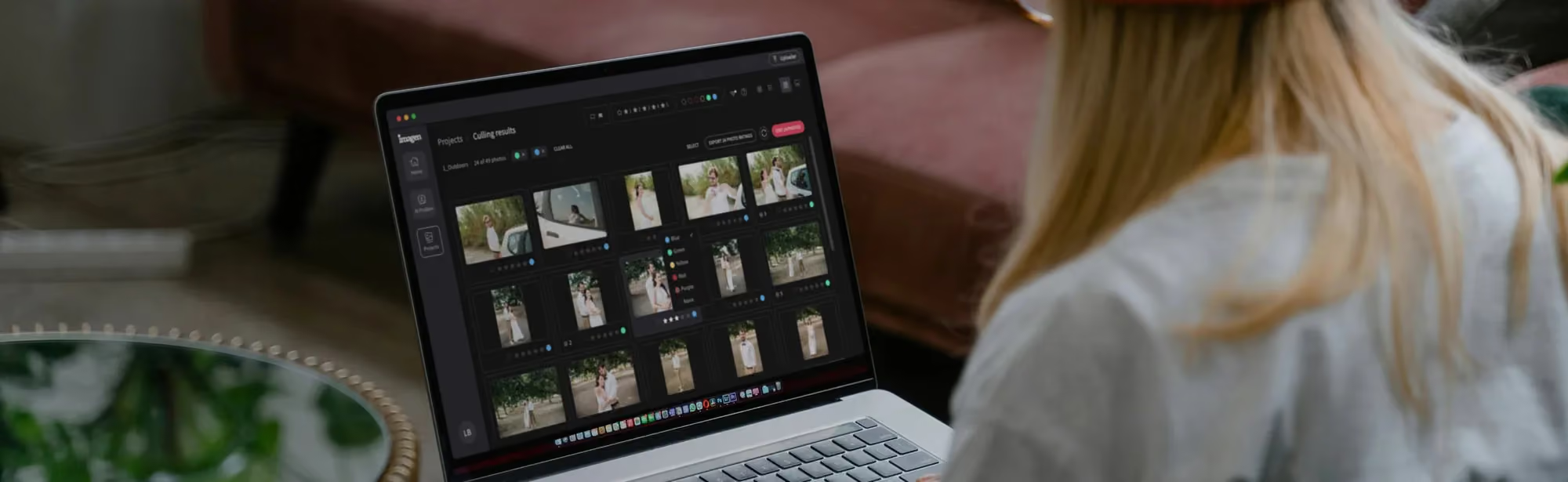
Imagen is now an intelligent Studio for professional photographers, the next evolution of the same product, not a separate app. It’s rolling out gradually to photographers over several weeks, shaped directly by their feedback. The goal is a single project where a whole gallery gets culled and edited in your own style, with you staying in the driver’s seat the entire time.
Capture One is a professional RAW photo editor built by Capture One A/S, known for tethered capture, color grading, and a layer-based local adjustment system used widely in studio, portrait, and commercial photography. It’s a deep, manual editing tool first, with a growing set of AI-assisted features layered on top.
Every Capture One claim here is checked against the company’s own site and support documentation, so you know what’s current rather than what used to be true.
Key Takeaways
- Imagen is now an intelligent Studio: one non-linear project for culling, editing in your personal style, reviewing, and exporting an entire gallery.
- Capture One is a professional RAW editor built around tethered capture, color grading, and layer-based local adjustments, used heavily in studio and commercial work.
- Imagen builds a Personal AI Profile from your past Lightroom Classic edits, so new galleries come back already edited in your style.
- Capture One offers a Cull Tool with star ratings, color tags, a group overview, and Face Focus for scanning a shoot image by image.
- Imagen handles culling and editing inside the same project, combining AI culling for speed with free manual culling whenever you want full control.
- Capture One is available as a subscription across several tiers, or as a perpetual Pro license with paid upgrades, according to its own site.
The Core Philosophy: Capture One vs. Imagen
Imagen
Imagen’s premise is that the slowest part of a photographer’s week, culling and editing an entire gallery consistently, should get faster without losing what makes the work look like yours. It isn’t trying to be a RAW converter or a tethering tool; it goes deep specifically on whole-gallery editing in your personal style, plus culling, inside one project. Creative control stays with the photographer throughout, with automation handling the repetitive parts.
Capture One
Capture One’s premise is control at the image level: precise color science, tethered capture for studio work, and a layer-based system for local adjustments that a photographer builds by hand, image by image or style by style. It’s built for photographers, often studio and commercial shooters, who want deep manual control over color and tone, with tools like Styles and Presets to speed up repeated looks across a shoot.

Deep Dive: Imagen Capabilities
Here’s what’s actually live in Imagen today.
AI Editing in Your Personal Style
The Personal AI Profile learns from your own catalog of past Lightroom Classic edits, picking up your approach to exposure, color, and tone, then applying it consistently across a new gallery. If you don’t have enough past edits yet, a Talent AI Profile built by working photographers or a Lite AI Profile can get you started sooner. You can also apply different AI Profiles to different photos inside the same gallery, for example a distinct look on a handful of detail or venue shots.
Culling in the Same Project
Culling and editing happen inside the same non-linear project rather than as separate stages. Imagen offers AI culling for faster batch review, plus free manual culling any time you’d rather go through a set yourself. AI filters, or smart tags, help you quickly surface things like blur or closed eyes. Edited photos arrive in batches as they finish processing, so you can start reviewing before the whole gallery is done.
The Built-in Editor and Assistant
Imagen’s built-in editor, currently in Beta, includes high-quality manual sliders, a histogram, crop and straighten tools, and presets you can import from Lightroom or build yourself, sitting alongside the AI tools rather than replacing manual work. A few AI tools aren’t yet available inside the editor, and projects using those continue through the Lightroom flow.
The Imagen assistant finding and editing photos from a plain-language request
An assistant lets you find and act on photos using plain language, for example asking it to pull every photo with a closed-eye subject. It currently understands what’s in a photo, not where within the frame, so it can’t place a mask on a specific person yet, and it never generates new images, it only works with what you actually shot.
Export to Lightroom or Directly From Imagen
You can export JPG, TIFF, or PNG files directly from Imagen, or keep exporting to Lightroom Classic the way you always have. Both are first-class paths. AI Profile and AI-tool edits carry over to Lightroom as XMP data, while manual edits, ratings, flags, and culling decisions made inside Imagen’s own editor stay in Imagen.
Deep Dive: Capture One Capabilities
Capture One’s own site and support documentation describe a deep, manual-first editing tool.
Tethered Capture and Color
Capture One is widely known for tethered shooting, capturing directly into the software for instant preview on a larger screen during a session, a workflow commonly used in studio and product photography. The company positions its color handling and processing as a core strength, built around its own color science rather than a generic RAW engine.
Culling with the Cull Tool
Capture One’s Cull Tool, accessed through Cull View, is built specifically for narrowing down a shoot. It includes star ratings, color tags, a Group Overview for comparing similar frames, and Face Focus for zooming into faces across a set of images, along with a “Select Next When” setting to speed up moving through a session, according to Capture One’s own support documentation.
Styles, Presets, and Layers
Capture One distinguishes between Styles, a saved set of multiple adjustments that can be applied to one or many images at once, and Presets, a single-tool adjustment. Both can be applied to Layers for local, brush- or gradient-based adjustments, though the company’s documentation notes that Styles cannot be stacked on top of each other on the same layer the way Presets can. This system is built for photographers who want to construct and reuse their own precise adjustment combinations.
Licensing: Subscription or Perpetual
Capture One offers its software across a few paths: subscription plans covering different tiers such as Pro, an all-in-one option, and a mobile app, alongside a perpetual Pro license purchased outright with paid upgrades for new versions, according to Capture One’s own site. Pricing varies by plan and is not stated here since it changes regularly on their official pricing pages.
Comparison: Workflow Integration
Imagen fits inside an existing post-production pipeline: cull, edit, and review a whole gallery in one project, then export directly or continue into Lightroom Classic. Capture One is often the pipeline itself for photographers who shoot tethered, capturing, culling, and color-grading inside one application from the moment the shutter fires. The two can coexist for a photographer who tethers and color-grades in Capture One, then wants whole-gallery consistency applied faster elsewhere, though that isn’t a built-in integration between the two products.
Comparison: Manual Color Control vs. Personal-Style AI Editing
This is the real axis between the two tools. Capture One is built for photographers who want to build their own color and tone adjustments by hand, image by image, using Styles, Presets, and Layers, with deep manual control as the point. Imagen is built around a Personal AI Profile that learns your editing approach from past work and applies it consistently across a whole new gallery, reducing the amount of manual, slider-by-slider work needed per image. Photographers who want full manual control over every grading decision may prefer Capture One’s approach; those who want their established style applied automatically across hundreds of images may prefer Imagen’s.
In practice, these aren’t always competing choices. A studio photographer might build a precise Style in Capture One for a specific lighting setup, then rely on Imagen to apply a broader personal editing style across the hundreds of images from a full day of sessions where that level of per-image hand tuning isn’t realistic. The two approaches solve different stages of the same underlying problem: getting every image in a shoot to look consistent and intentional.
Comparison: Culling and Batch Volume
Capture One’s Cull Tool offers star ratings, color tags, Group Overview, and Face Focus for working through a shoot image by image inside the same application used for editing. Imagen’s culling also lives inside the same project as editing, combining AI batch culling with free manual culling and smart tag filters for things like blur or closed eyes, aimed at speeding through larger batches without reviewing every frame individually.
Comparison: Pricing Models
Imagen uses pay-as-you-go pricing: you pay per exported photo. Sliders, crops, and masks you do yourself are always free. A flat-fee Limitless plan is available for high-volume studios. Capture One offers both subscription tiers and a perpetual Pro license purchased outright, with pricing varying by plan according to its own site. Both companies offer a way to try the software before paying.
Feature Comparison Table
| Feature | Imagen | Capture One |
|---|---|---|
| Core focus | Whole-gallery editing in your personal style | Professional RAW editing, tethered capture, and color grading |
| Culling | AI batch culling plus free manual culling, same project | Cull Tool with star ratings, color tags, Group Overview, and Face Focus |
| Style source | Personal AI Profile learned from your past edits | Manually built Styles, Presets, and Layers |
| Tethered capture | Not a current focus | Tethered shooting with instant preview during a session |
| Local adjustments | Not a current focus | Layer-based local adjustments via brush and gradient tools |
| Editor maturity | Built-in editor currently in Beta, alongside AI tools | Mature, long-established manual editing toolset |
| Export destinations | Direct export (JPG, TIFF, PNG) or continue to Lightroom Classic | Export to standard image formats from within the application |
| Licensing model | Pay-as-you-go per exported photo, or flat-fee Limitless plan | Subscription tiers or a perpetual Pro license with paid upgrades |
| Free trial | Imagen offers a free trial, then you pay at export. | Trial available to test the software before purchase |
Conclusion: Which Tool Fits You?
Choose Capture One if your work depends on tethered capture, hands-on color grading, and building your own precise Styles and Presets image by image, especially for studio or commercial sessions.
Choose Imagen if your bottleneck is getting a whole gallery culled and edited consistently in your established style without redoing the same adjustments hundreds of times, inside one project that still works with Lightroom Classic.
Many working photographers use both, just for different parts of the process. Some shoot tethered and grade in Capture One, then still want faster, consistent editing across a larger volume gallery elsewhere. Others rely on Imagen for the bulk of a shoot and keep Capture One on hand for sessions that need its tethering and manual color tools.
If you want deep manual control over every color decision, start with Capture One. If your week is dominated by culling and getting a consistent look across an entire gallery fast, start with Imagen.
Want to see how Imagen handles your own galleries? Try the free trial at imagen-ai.com and bring a real shoot through culling, editing, and export. For more comparisons and workflow guides, visit the Imagen tips hub.
Frequently Asked Questions
1. What’s the main difference between Imagen and Capture One? Imagen edits and culls a whole photography gallery in your personal style inside one project, while Capture One is a professional RAW editor built around tethered capture, color grading, and manual local adjustments.
2. Can Imagen replace Capture One for tethered studio shoots? No. Imagen doesn’t offer tethered capture; that’s one of Capture One’s core features according to its own site. Photographers who tether typically still use Capture One or similar software for that part of the session.
3. Does Capture One offer AI-driven personal style editing like Imagen? Capture One’s editing is built around manually created Styles, Presets, and Layers rather than an AI profile trained on a photographer’s past edits. Imagen’s Personal AI Profile is a different approach aimed at applying your style automatically across a gallery.
4. What does Capture One’s Cull Tool include? According to Capture One’s own support documentation, the Cull Tool includes star ratings, color tags, a Group Overview for comparing similar frames, and Face Focus for examining faces across a set of images.
5. Is Capture One a subscription or a one-time purchase? Capture One offers both: subscription plans across several tiers, and a perpetual Pro license purchased outright with paid upgrades for new versions, according to its own site.
6. Do I still need Lightroom if I use Imagen? That’s your choice. You can finish entirely inside Imagen, or continue exporting to Lightroom Classic as before. Lightroom stays part of the Imagen ecosystem rather than something you have to give up.
7. What’s the difference between a Style and a Preset in Capture One? A Style is a saved set of multiple adjustments applied together, while a Preset is a single-tool adjustment. Both can be applied to Layers for local, brush- or gradient-based adjustments, according to Capture One’s documentation.
8. Can I cull and edit in the same place with Imagen? Yes. Both happen inside the same non-linear project, so you can switch between culling and editing in any order instead of treating them as separate steps in separate apps.
9. Does Imagen offer tethered shooting? No, tethered capture is not a current focus for Imagen. It’s designed for post-production after a shoot, not for capture itself.
10. Which tool should a working photographer start with? If your work depends on tethered capture and hands-on color grading, start with Capture One. If your week is dominated by culling and editing a whole shoot consistently in your style, start with Imagen. Many photographers keep both for different parts of their workflow.

