

Birthday Party Photo Editing Workflow: AI Tools and Tips for 2026
Table of contents
- Step 1: Back up the cards and import into a catalog
- Step 2: Cull the take before you edit anything
- Step 3: Batch your color and tone across the shoot
- Step 4: Let Imagen apply your personal style across the event
- Step 5: Finish the key frames with retouching
- Step 6: Export and deliver a gallery clients share
- How the tools fit together in this workflow
- Frequently asked questions
A reliable birthday party photo editing workflow moves a full card of raw frames from import to a finished gallery in a few clear stages: back up and import, cull the take, batch your color and tone, retouch the key frames, and export. The fastest way to run that line in 2026 is to automate the slow, repetitive steps with AI so you spend your time on selects and delivery instead of pushing the same sliders across 900 near identical shots. This guide walks the real production line a party photographer follows, and it shows where Imagen fits as the automation layer that edits your own photos in your own style.
Birthday shoots are messy in a specific way. You get mixed venue light, fast candid moments, a cake reveal you cannot reshoot, and hundreds of frames of the same setup. A workflow that treats those conditions head on saves hours per event. For a deeper primer on the AI side of this, see our AI birthday party photo editing guide for 2026, and browse more tutorials on the valuable tips hub.
Step 1: Back up the cards and import into a catalog
Every dependable workflow starts before you touch a single slider. Copy both memory cards to two drives the moment you get home, then import the RAW files into a catalog based tool like Adobe Lightroom Classic or Capture One. A catalog keeps your metadata, ratings, and edits attached to each file, so you never lose work when you move drives or revisit an event months later.
Set your import defaults so the whole batch lands in a predictable state. Apply a neutral camera profile, add your copyright and event keywords, and drop everything into a dated folder named for the client and the party. This 5 minute habit means the next stages read clean, consistent files instead of a scattered pile.
- Copy each card to two locations before you delete anything.
- Import RAW files, not baked JPEGs, so you keep full editing latitude.
- Tag the event with keywords now, since searching later is far harder.
- Name folders by date and client so galleries stay easy to find.
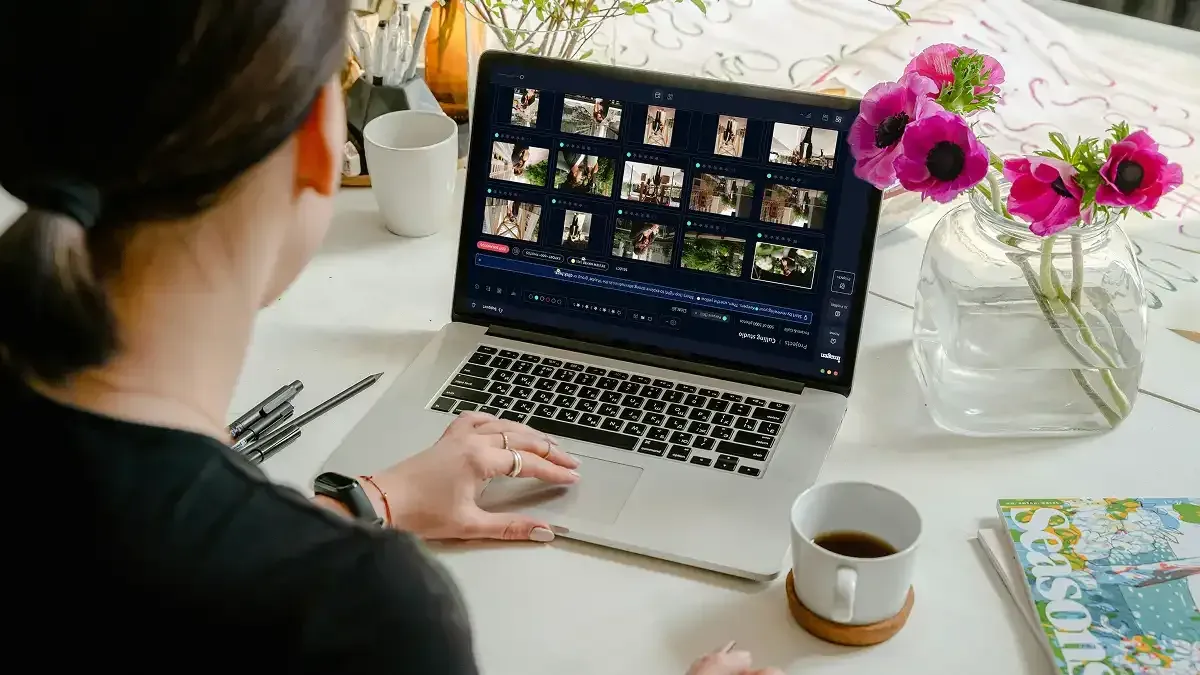
Step 2: Cull the take before you edit anything
Culling is where most party photographers lose their evening. A single birthday can produce 800 to 1,500 frames, and a large share are blinks, half smiles, and burst duplicates of the cake being carried in. You want to reject those and star the keepers before any color work begins, because editing a photo you later cut is wasted effort.
AI culling reads sharpness, eyes, and expression, then groups similar frames so you pick the best of each cluster in seconds. Imagen includes AI culling in the same connected workflow as its editing, so your selects flow straight into the color stage without an export and reimport. Aftershoot is another dedicated culling tool that many shooters use if they prefer to keep culling separate from editing. Either way, the goal is the same: get from a full card to a tight set of real keepers fast.
Step 3: Batch your color and tone across the shoot
Once you have your selects, the next job is consistency. A birthday party often spans several lighting zones: window light during setup, warm tungsten over the cake, and a dim corner where the games happen. Editing each frame by hand from scratch guarantees a gallery that drifts in color from image to image, which reads as amateur to clients.
The efficient approach is to establish your look once, then apply it across the whole event and fix only the outliers. In Lightroom or Capture One you can copy develop settings and sync them across a selection, which handles the bulk of a single lighting zone. The limit shows up when zones change, because a preset built for window light rarely holds under tungsten. That is exactly the gap AI editing closes, and it is where Imagen earns its place in the line.
Step 4: Let Imagen apply your personal style across the event
Imagen learns your personal editing style from your Lightroom or Capture One catalog, then applies that same style consistently across a full shoot. You feed it a body of your past edits, it builds a profile of how you handle exposure, white balance, contrast, and color, and it edits new events to match. Across mixed birthday lighting it adapts frame by frame instead of forcing one preset onto every photo, so the cake corner and the window setups still look like they came from the same photographer. Edited photos arrive in batches as they process, so you can start reviewing early frames while the rest finish.
It is important to be clear about what this tool does and does not do. Imagen edits, culls, and retouches the real photos you shot at the party. It is not a generator. It does not invent guests, cakes, decorations, backgrounds, or scenes that were never there. Your gallery stays an honest record of the day, just finished faster and more evenly than a manual pass allows.
Pricing is pay as you go: you pay for the photos you export, and exploring the tools is free, so you can edit a small birthday shoot end to end and judge the style match on your own images before you commit. The pricing page has current rates.
Step 5: Finish the key frames with retouching
After the batch pass, a handful of frames deserve individual attention: the birthday portrait, the group shot around the cake, and the candid the parents will print. This is where per photo retouching matters. You clean up a stray hair, soften a hot highlight on a forehead, and remove a distracting exit sign in the background.
Imagen includes AI retouching in the same connected workflow, so skin and blemish cleanup happens on your selects without hopping to another program for routine work. For manual tweaks on a key frame, Imagen’s built-in editor (Beta) offers sliders, a histogram, and crop and straighten. For heavy, artistic compositing you can still take a hero frame into Adobe Photoshop, which remains the standard for deep manual retouching. A practical split is to let AI handle the repetitive cleanup across many frames and reserve Photoshop for the two or three images that need real handwork.
Step 6: Export and deliver a gallery clients share
The last stage turns finished edits into files people actually use. Export two sets from your catalog: full resolution JPEGs for printing and archiving, and smaller, sharpened for screen versions for the online gallery and phones. Set consistent output sharpening and sRGB color so the images look right on every device the family opens them on.
- Export full size JPEGs at maximum quality for prints and your archive.
- Export a web sized set at around 2,048 pixels on the long edge for galleries.
- Convert everything to sRGB so colors hold up on phones and browsers.
- Upload to your delivery gallery and send the client a single clean link.
When your color and retouching are already consistent from the earlier stages, this export step is quick and predictable. The same style discipline that helps a party gallery also carries to other big events, and you can see it applied to a formal celebration in our walkthrough on how to edit quinceanera photos with AI in 2026.
How the tools fit together in this workflow
No single program owns every stage, so it helps to see where each tool earns its keep. Lightroom Classic and Capture One anchor the catalog, RAW processing, and export, and both use a subscription or licensing model you pay for on their own terms. Aftershoot focuses on culling for photographers who want that step handled separately. Photoshop covers deep manual retouching on hero frames. Imagen sits across culling, style matched editing, and retouching in one connected pass, and it is the piece that removes the repetitive middle of the workflow.
The reason this matters for birthday work specifically is volume. You are editing hundreds of frames of the same few setups under shifting light, and that is precisely the pattern AI handles best. Let the automation carry the batch, keep your hands on the selects and the hero retouches, and your turnaround time drops without your style changing. Ready to test the style match on your own party images? Try Imagen’s new Studio, where you cull, edit and export in one project, and edit a real shoot before you decide.
What’s new in Imagen: Imagen is now an intelligent, agentic Studio for professional photographers, one project where you cull, edit, review and export in any order, so the stages of a party workflow no longer have to run in a strict line. You can ask the Assistant to find photos in plain language, such as every candle shot, and act on them while you steer. It is rolling out gradually as a beta.
Frequently asked questions
How long should editing a birthday party take?
With a manual workflow, a full birthday party of 1,000 frames can take a long evening once you count culling, color, and retouching. When you automate culling and style matched editing with AI, most photographers cut that to a fraction of the time and keep their attention on the selects and the few hero frames that need real handwork.
Does Imagen generate or fake any part of the photos?
No, it does not. Imagen edits, culls, and retouches the actual photos you shot at the party. It does not invent guests, cakes, decorations, or backgrounds, so your finished gallery stays a true record of the event while looking polished and consistent.
How does Imagen keep my gallery consistent across mixed light?
Imagen learns your personal editing style from your Lightroom or Capture One catalog and applies it across the whole shoot, adapting to each lighting zone instead of forcing one preset onto every frame. That is why the window setups and the tungsten lit cake corner still look like they came from the same photographer.
What does Imagen cost, and can I try it first?
Imagen is pay as you go: you pay for the photos you export, and exploring the tools is free, so you can edit a small birthday shoot and judge the style match on your own images before you pay for anything. The pricing page has current rates.
