

The Complete Guide to AI Birthday Party Photo Editing in 2026
Table of contents
- What AI Photo Editing Actually Does for Birthday Party Galleries
- Step 1: Import and Cull the Party Set Fast
- Step 2: Batch Color and Tone in Your Own Style
- Step 3: Retouch Portraits and Detail Shots
- Step 4: Finish Hero Shots and Export
- The 2026 Tool Landscape for Party Editing
- Common Mistakes to Avoid With AI Party Edits
- Why This Workflow Saves Real Hours
- Frequently Asked Questions
AI birthday party photo editing means using software that learns how you already edit and then applies that look across every frame from the party, so a 600-photo shoot gets culled, color corrected, and retouched in a fraction of the usual time. The fastest path in 2026 is to cull the weak frames first, batch your color and tone with an AI editor that matches your personal style, then finish the few hero shots by hand and export in one pass. This guide walks the whole workflow, shows where each tool fits, and keeps the promises honest so your gallery still looks like you shot it.
Birthday parties are a hard editing job for a simple reason. You shoot fast, the light changes from candle glow to window shade to flash, and you come home with hundreds of near-duplicates of the same cake moment. The right AI workflow removes the repetitive labor without flattening your creative choices, and it keeps every edit grounded in the real photos you captured. If you want a focused primer first, read our companion piece on how to edit birthday party photos with AI before you dive into the full pipeline below.
What AI Photo Editing Actually Does for Birthday Party Galleries
AI photo editing for parties handles three slow jobs: culling the frames you will never deliver, applying consistent color and tone across the whole set, and retouching skin, teeth, and stray distractions on portraits. A good tool learns your editing decisions from past work and repeats them, so a lit birthday scene comes out warm and clean without you touching every slider. It works on the actual RAW files you shot, which matters when a client wants to see the real day rather than a staged version of it.
This is worth stating plainly because the term “AI” now covers two very different jobs. Some tools generate new imagery from a text prompt and invent scenes that never happened. A party editor does not do that. Imagen edits, culls, and retouches the real photos you captured at the party. It does not invent guests, cakes, decorations, gifts, or backgrounds, and it does not paint in a candle glow that was never there. That honesty is the whole point when you are documenting someone’s actual celebration.
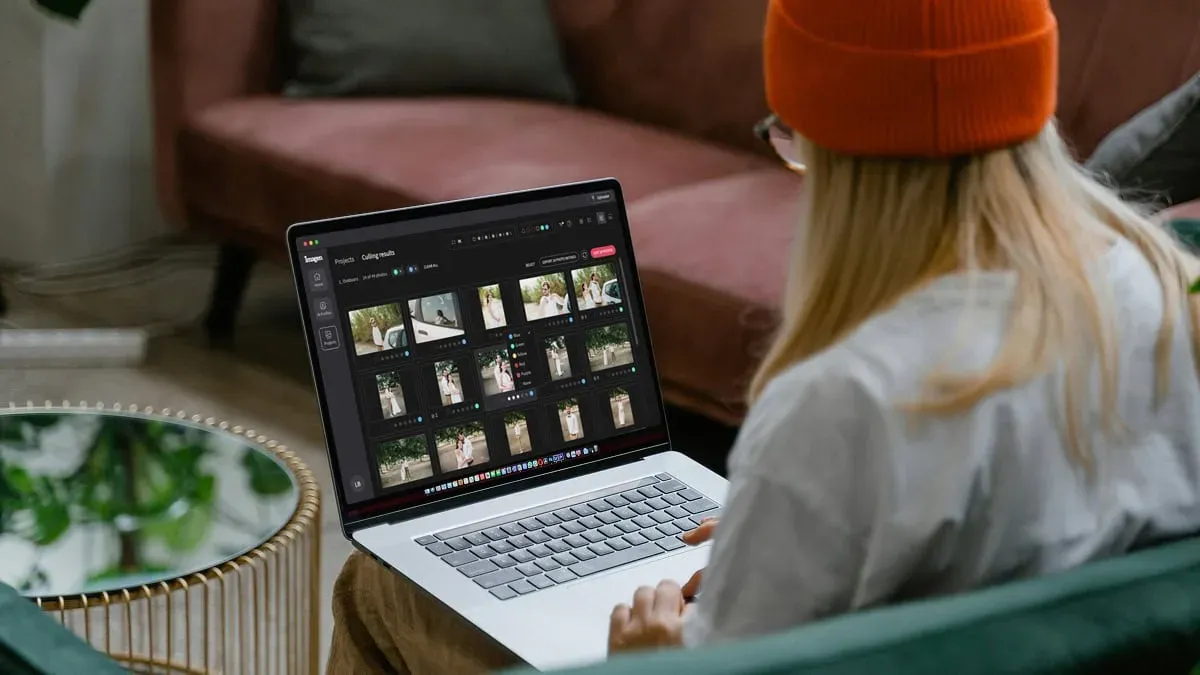
Step 1: Import and Cull the Party Set Fast
Start by importing every RAW file into your catalog, then cull before you edit a single frame. A typical two-hour birthday party lands somewhere between 400 and 900 images, and roughly half of those are blinks, half-turns, or the fourth copy of the same candle blow. AI culling scores each frame for focus, exposure, and eyes-open, then groups the near-duplicates so you pick one keeper per moment instead of studying twenty variations.
- Flag the obvious rejects first: soft focus, closed eyes, and clipped highlights from a hard flash.
- Group duplicates by moment, then keep the single frame with the best expression and sharpest eyes.
- Protect the non-negotiable moments early, such as the candle blowout, the gift reactions, and the group photo.
- Aim to cut the set by 40 to 60 percent before color work begins, so you never edit frames you will delete.
Imagen includes AI culling inside the same workflow as its editing, so you move from a raw import to a tight selection without exporting to a separate app. Smart-tag filters such as blur and closed eyes help you narrow the set even further. That single connected step is where most of your evening actually gets saved.
Step 2: Batch Color and Tone in Your Own Style
Once the keepers are chosen, the biggest time sink is color. Party light is messy, and you often cross three or four white-balance zones in one room. The goal here is consistency, so the shot from the dim corner and the shot by the bright window read as one gallery. This is where a style-aware AI editor earns its place.
Imagen learns your personal editing style directly from your Lightroom or Capture One catalog, then applies that look consistently across the full shoot. You are not accepting a generic preset. You are handing the software thousands of your own past edits and asking it to continue your choices on new frames. For a birthday set that means your warm skin tones, your preferred contrast, and your black-and-white conversions all carry through, and you spend your time reviewing rather than dragging sliders on frame 312.
Several other real tools live in this stage too. Lightroom remains the catalog many photographers build around, and its AI masking speeds up local adjustments once your global look is set. Capture One is a strong choice for color-critical work and pairs cleanly with a style-matching editor on top. Pick the base catalog you already trust, then let the AI layer handle the repetitive pass.
Step 3: Retouch Portraits and Detail Shots
Birthday galleries carry a lot of close portraits: the birthday child mid-laugh, grandparents watching, friends crowded around the cake. AI retouching cleans skin, brightens eyes, evens teeth, and softens harsh flash shine while keeping the person recognizable. The trick is restraint, because a party photo should still look like a real face on a real day, not a plastic version of it.
- Smooth skin lightly and keep texture, so cheeks do not turn into wax under the candle light.
- Reduce flash shine on foreheads and noses without erasing natural highlights.
- Clean small distractions like a napkin edge or a stray cup, since these are real objects you are removing, not scenes you are inventing.
- Leave the frosting on the toddler’s face, because that mess is the memory the family wants.
Imagen runs AI retouching in the same connected pipeline as culling and color, so your hero portraits get a consistent finish that matches the rest of the gallery. Dedicated retouching tools like PortraitPro also exist for heavier, per-face control when a single portrait needs deep work, and they slot in fine for the handful of frames that deserve extra attention.
Step 4: Finish Hero Shots and Export
After the batch pass, pull out your 15 to 25 hero frames and finish them by hand. These are the images that get printed, framed, or posted, so they justify a few minutes each. Nudge the crop, lift a shadow on a face turned away from the light, and check that the color still matches the surrounding set. The AI did the heavy repetitive work, and now your human eye does the final tenth that separates a good gallery from a memorable one.
Then export once, with your delivery sizes and sharpening set as presets. A clean export pipeline saves you from re-rendering the whole party twice. If you want a repeatable version of this end-to-end sequence, our detailed birthday party photo editing workflow lays out the exact order and settings you can reuse for every event.
The 2026 Tool Landscape for Party Editing
The market now splits into a few honest categories, and knowing which is which saves you money and frustration. Style-matching batch editors learn your look and apply it across a full shoot, which is the core need for high-volume event work. Catalog and RAW platforms like Lightroom and Capture One remain the home base where you organize and make local adjustments. Focused retouching apps handle deep single-portrait work. Choose one tool from each layer that fits how you already work, rather than forcing one app to do everything.
Imagen sits in the style-matching batch layer and connects culling, color, and retouching in one workflow, which is why it suits photographers delivering many parties a month. Its pricing is pay-as-you-go, so you pay for the photos you export. Sliders, crops, and masks you do yourself are always free. Competitor tools in this space use their own models such as subscriptions, one-time licenses, per-image credits, and freemium tiers, so compare on the workflow fit and what each one lets you try before you commit.
Common Mistakes to Avoid With AI Party Edits
The most frequent error is editing before culling, which wastes effort on frames headed for the trash. The second is over-retouching, where AI smoothing turns a laughing kid into a mannequin and the parents notice immediately. The third is chasing a trendy look that does not match your own catalog, which breaks the consistency clients hired you for.
- Cull first, always, so your color and retouch time only lands on keepers.
- Keep retouching subtle on children and elderly guests, since natural skin reads as trustworthy.
- Train the AI on your real edits, not a borrowed style, so the gallery stays recognizably yours.
- Spot-check 20 random frames after the batch pass to catch any white-balance outliers.
For more editing walkthroughs across events and genres, browse the full Imagen valuable tips hub, which collects practical guides you can apply to your next shoot.
Why This Workflow Saves Real Hours
Add up the manual version of a party edit and the numbers get grim. Culling 700 frames by hand can take an hour, global color on 300 keepers another two, and portrait retouching on 40 close-ups another two on top of that. A style-aware AI pass compresses culling and color into minutes of review and leaves you the creative finishing work that genuinely needs a person. You deliver faster, you book more events, and the gallery still carries your signature look because the AI learned it from you.
The honesty layer matters just as much as the speed. Because the tool edits your real captures instead of generating fake ones, the family gets a true record of the birthday. The cake is their cake, the smiles are real, and the room is the room they rented. That trust is what keeps clients coming back, and it is why a grounded AI editor beats any generator for documentary event work.
Ready to try a style-matched pass on your own party set? Start editing with Imagen in its new Studio, where you cull, edit and export in one project, and see your look applied across a full gallery.
What’s new in Imagen: Imagen is now an intelligent, agentic Studio for professional photographers, built as one project where you cull, edit, review and export in whatever order suits the shoot. When you reach the hero shots, you can polish them in the built-in editor (Beta) with sliders, crop and straighten, and versions, a capable early release that works alongside Lightroom. The Studio is rolling out gradually as a beta.
Frequently Asked Questions
Does AI editing invent or fake anything in my party photos?
No, a proper editor works on the real files you shot. Imagen edits, culls, and retouches your actual captures, and it does not invent guests, cakes, decorations, or backgrounds. You get a faithful record of the day with cleaner color and lighter retouching, not a generated scene.
How long does it take to edit a full birthday party?
With a style-aware AI pass, culling and global color drop from hours to minutes of review, and you spend most of your remaining time finishing 15 to 25 hero frames by hand. A set that once took a full evening often turns around the same day, depending on how many portraits need close retouching.
Will the AI match my personal editing style?
Yes, that is the core idea. Imagen learns your style from your Lightroom or Capture One catalog and applies it consistently across the whole shoot, so your warm tones, contrast, and black-and-white choices carry through. It continues your decisions rather than imposing a generic preset.
What does AI party photo editing cost to start?
Imagen is pay-as-you-go: you pay for the photos you export, and you see every edit in the gallery before you export, so you can test the whole workflow on a real party set first. Imagen also offers a free trial. Check the pricing page for current rates.

