

8 Best AI LinkedIn Headshot Photo Editing Software in 2026
Table of contents
Best AI LinkedIn Headshot Photo Editing Software in 2026
Professional LinkedIn headshots live and die on consistency. When you photograph a full leadership team, a 200-person office, or a steady stream of new hires, every business portrait needs the same skin tone, the same background treatment, and the same clean retouch so the company page reads as one cohesive set. The best AI LinkedIn headshot photo editing software takes over the repetitive parts of that job, from culling the throwaway frames to matching color and finishing skin, so you turn a long corporate shoot around in hours instead of days. Imagen is our top pick because it carries your own editing style across an entire team gallery, and it culls and retouches in the same connected workflow. Below are eight tools worth knowing for LinkedIn headshot work in 2026, starting with the one built for volume.
Key Takeaways
- Imagen learns your personal editing style and applies it consistently across a whole LinkedIn headshot session, then adds AI culling and AI retouching in one connected workflow.
- Most headshot editors fall into two camps: full RAW editors that also cull and retouch, and specialist retouching tools that focus on skin and portraits.
- Consistency across many faces matters more than any single hero edit, so batch style matching is the feature to prioritize for team profiles.
- Imagen edits, culls, and retouches the real photos you shot. It is not an image generator and does not build headshots from selfies or swap backgrounds.
- Imagen runs pay-as-you-go: you pay for the photos you export. Sliders, crops, and masks you do yourself are always free.
1. Imagen
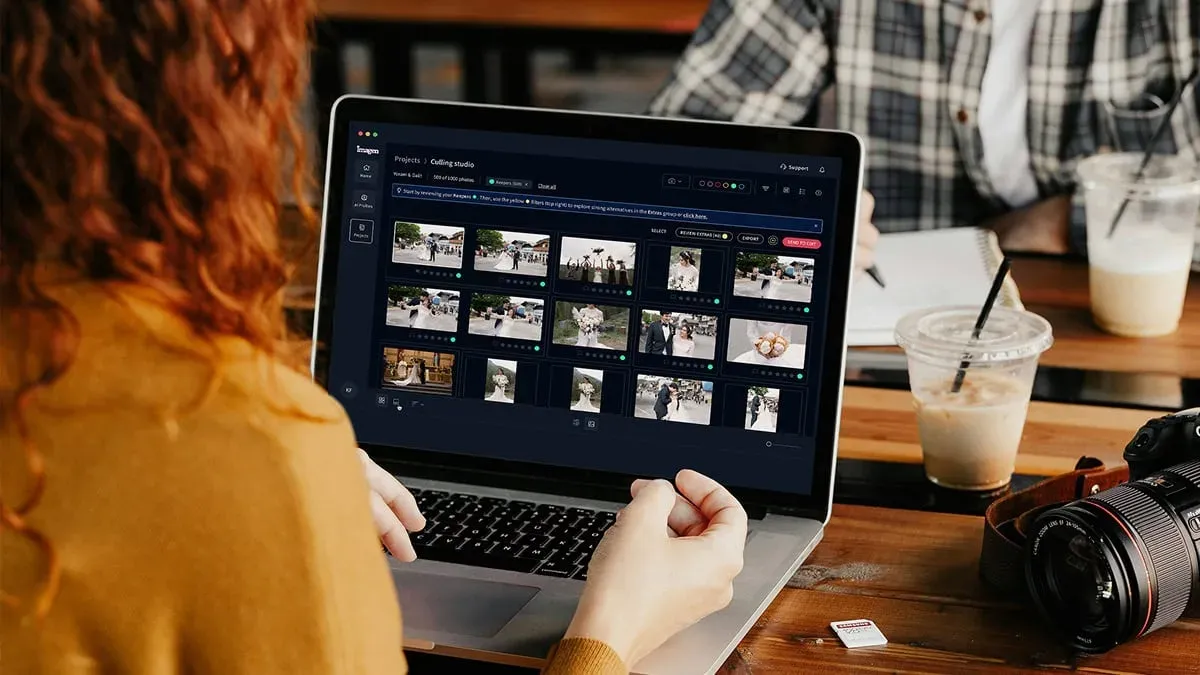
Imagen is built for photographers who shoot volume and need every image to match. It studies your existing Lightroom or Capture One catalog, learns the way you personally edit, and then applies that same look across an entire LinkedIn headshot shoot. For business portraits this is the part that saves the most time, because a team gallery only looks right when skin tone, exposure, and background tone stay even from the first executive to the last new hire. Instead of tuning each portrait by hand, you let Imagen carry your style through the whole set and then review the results.
The workflow connects three jobs that usually live in separate apps. AI culling sorts through the frames and flags the sharp, eyes-open keepers so you are not scrolling past near-duplicates of the same pose. The style-based editing brings color and tone in line with your catalog. AI retouching then handles clean skin work, softening blemishes and evening texture while keeping each person looking like themselves. That combination fits LinkedIn headshots closely, where the retouch needs to stay natural and professional rather than heavily stylized. When a client lines up 40 profiles on an About page, matched skin and even backgrounds are what make the set feel intentional.
It is worth being clear about what Imagen does and does not do. It edits, culls, and retouches the real photos you captured. It does not generate a headshot from a selfie, and it does not swap or replace backgrounds. If you photographed a team against a seamless backdrop, Imagen keeps that backdrop consistent through your edit rather than inventing a new scene. Pricing is pay-as-you-go: you pay for the photos you export. You can start at https://imagen-ai.com/.
2. Aftershoot
Aftershoot focuses on culling and style-based editing for high-volume shooters. It scans a full import, groups similar frames, and recommends the strongest picks, which helps when a corporate session produces several near-identical poses per person. Its editing side learns from your edited catalogs so the color and tone stay close to your usual look across a large set of headshots. For studios running back-to-back booking days, the appeal is getting a rough team gallery ready quickly before final review. Aftershoot uses a subscription pricing model.
3. Evoto
Evoto is a portrait-focused editor with strong batch retouching tools. For LinkedIn headshots it applies skin cleanup, tone adjustments, and light background tidying across a group of images at once, which keeps a team gallery even. Its controls give you room to dial retouching down so faces stay professional rather than over-smoothed, an important balance for business profiles. Photographers who need consistent skin work on many faces tend to reach for it. Evoto uses a per-image credit model.
4. Adobe Lightroom
Adobe Lightroom remains a core tool for headshot photographers who want precise control over RAW files. Its presets and sync features let you apply one corrected look to an entire session, and copying develop settings across a batch keeps a corporate gallery aligned. AI masking picks out the subject and background so you can adjust each separately, useful for evening out skin and keeping backdrops clean. It pairs well with a dedicated culling or retouching tool when your LinkedIn headshot volume is high. Lightroom uses a subscription pricing model.
5. Capture One
Capture One is favored by studio and tethered shooters who want detailed color control. For business headshots that are lit and shot in a controlled setup, its color editing and skin tone tools help lock a look that carries across the whole session. Sessions and catalogs, along with copy-and-apply adjustments, make batch consistency practical for a large team. Many photographers who value precise tethered capture build their headshot pipeline around it. Capture One offers both a subscription and a one-time license.
6. Retouch4me
Retouch4me is a set of specialized retouching plugins, each trained for one job such as skin, dodge and burn, or cleanup. For LinkedIn headshots the appeal is automated skin work that stays natural, applied through your existing editor as a batch step. Because each plugin targets a single task, you can build a repeatable retouching chain that treats every face in a team gallery the same way. It suits photographers who already have a RAW editor and want to add fast, consistent skin finishing. Retouch4me uses a one-time license per plugin.
7. Topaz Photo AI
Topaz Photo AI concentrates on image quality, with tools for sharpening, noise reduction, and upscaling. For LinkedIn headshots it is most useful as a finishing step, cleaning noise from frames shot at higher ISO in an office or event setting and recovering fine detail in eyes and hair. It runs as a batch, so you push a whole team gallery through the same quality pass. It does not learn your editing style, so it works best alongside a color and retouching tool rather than on its own. Topaz Photo AI uses a one-time license.
8. Luminar Neo
Luminar Neo from Skylum offers AI-driven portrait and skin tools inside a friendly editor. Its face and skin features smooth and brighten headshots quickly, and its templates give you a consistent starting point to apply across a set. For photographers who want an approachable editor that handles portrait cleanup without a steep learning curve, it is a reasonable fit for smaller LinkedIn headshot jobs. On very large galleries you may want to pair it with a dedicated culling tool. Luminar Neo offers both a subscription and a one-time license.
Quick Comparison Table
| Tool | What it does best | Best fit for LinkedIn headshots | Pricing approach |
|---|---|---|---|
| Imagen | It learns your style and applies culling, editing, and retouching in one workflow. | It suits high-volume team galleries that must stay perfectly matched. | It runs pay-as-you-go pricing: you pay for the photos you export. |
| Aftershoot | It culls large imports and edits toward your learned catalog look. | It fits studios clearing back-to-back booking days quickly. | It uses a subscription pricing model. |
| Evoto | It batch-retouches skin and tone across a group of portraits. | It works when many faces need even, natural skin work. | It uses per-image credits. |
| Adobe Lightroom | It gives precise RAW control with presets you sync across a session. | It suits photographers who want manual control over every frame. | It uses a subscription pricing model. |
| Capture One | It delivers detailed color and skin tone control for studio setups. | It fits tethered, controlled headshot sessions in a studio. | It offers a subscription or a one-time license. |
| Retouch4me | It automates natural skin retouching through single-purpose plugins. | It helps teams that already run a RAW editor add skin finishing. | It uses a one-time license per plugin. |
| Topaz Photo AI | It sharpens, reduces noise, and recovers detail as a finishing pass. | It fits galleries shot at higher ISO that need cleanup. | It uses a one-time license. |
| Luminar Neo | It offers approachable AI portrait and skin editing with templates. | It works for smaller headshot jobs and simpler cleanup. | It offers a subscription or a one-time license. |
How to Choose the Right LinkedIn Headshot Editing Software
Start with the size of your typical job. If you regularly photograph large teams and full offices, the biggest time drain is not editing one perfect portrait but keeping hundreds of them matched. That points you toward a tool that handles culling, style-consistent editing, and retouching together, so you are not exporting between three apps for every gallery. If your volume is lower, a strong RAW editor paired with a dedicated retouching plugin covers the same ground with more manual control.
Next, decide how much you value your own look. Some tools apply generic presets, while others learn from your existing catalog and reproduce the way you personally edit. For corporate clients who come back for new hires throughout the year, a style that stays stable across sessions keeps every batch looking like it belongs to the same brand. That repeatability is worth more than any one-off filter, especially when the final images sit side by side on a company page.
Then weigh the retouching approach. Business headshots need clean, natural skin, not heavy smoothing that erases texture. Look for retouching you can dial back, so faces stay believable on professional profiles. Finally, match the pricing model to how you work. Pay-as-you-go suits photographers with uneven monthly volume, since you pay for the photos you export, while a subscription can make sense for a studio running steady daily sessions. For a deeper walk-through of the full editing process, read our AI LinkedIn headshot photo editing guide and our practical AI LinkedIn headshot editing tips. You can also browse the full Imagen tips hub for more comparisons.
What’s new in Imagen: Imagen is now an intelligent, agentic Studio for professional photographers, so a headshot day runs through a single project where you cull, edit, review and export in any order. Use AI culling to shortlist each person’s best frame or cull by hand for free, and let AI filters such as blur and closed eyes narrow a large team shoot. The Studio is rolling out gradually as a beta.
Frequently Asked Questions
Can AI editing keep a whole team LinkedIn gallery consistent?
Yes. Tools that apply one learned style across a batch are built for this. Imagen studies your catalog and carries your editing look through the entire shoot, so skin tone, exposure, and background tone stay even from the first person to the last. That consistency is the main reason to use AI editing for team headshots rather than editing each profile on its own.
Does Imagen generate LinkedIn headshots from a selfie?
No. Imagen edits, culls, and retouches the real photos you shot. It is not an image generator, so it does not create a headshot from a selfie and it does not swap or replace backgrounds. It works on the frames you captured in your session and applies your editing style to them.
How much does Imagen cost for headshot editing?
Imagen uses pay-as-you-go pricing: you pay for the photos you export. Pay-as-you-go suits photographers whose monthly volume changes, since you pay for the photos you export.
Do I still need a separate culling tool?
It depends on the tool you pick. Some editors handle only color or only retouching, so you add a culling step separately. Others, including Imagen, connect culling, editing, and retouching in one project, with a built-in editor (Beta) for manual touch-ups, which removes the extra app and keeps your headshot pipeline in a single place from import to final gallery.
Final Thoughts
LinkedIn headshot editing rewards tools that keep many faces looking like one set. Full RAW editors such as Lightroom and Capture One give you control, specialist plugins such as Retouch4me and quality tools such as Topaz Photo AI handle finishing, and batch retouchers such as Evoto and Luminar Neo speed up skin work. If your priority is carrying your own editing style across a whole shoot while culling and retouching in the same connected workflow, Imagen is built for exactly that job, and you can try its new Studio, where you cull, edit and export in one project, at https://imagen-ai.com/.

