

The Complete Guide to AI LinkedIn Headshot Photo Editing in 2026
Table of contents
- AI LinkedIn Headshot Photo Editing Guide
- Why LinkedIn Headshots Need a Consistent Editing Approach
- Step 1: Import and Cull the Session
- Step 2: Apply Your Editing Style Across Every Frame
- Step 3: Retouch Skin Without Erasing the Person
- Step 4: Standardize Crop, Background, and Framing for the Team
- Step 5: Export the Right Files for LinkedIn and Company Pages
- Where Imagen and Other Tools Fit
- Frequently Asked Questions
AI LinkedIn Headshot Photo Editing Guide
The fastest way to edit LinkedIn headshots is to cull the session with AI, apply your own editing style across every frame in one batch, and finish skin and eyes with a light hand so each person still looks like themselves. Imagen learns the way you already edit from your Lightroom or Capture One catalog, then repeats that exact look across a full corporate shoot, so a whole team reads as one consistent set on their profiles and company page. This guide walks the complete workflow from import to final delivery, and it names a few other real tools where they honestly fit. You can start with Imagen, where exploring the tools is free and you pay on export.
Why LinkedIn Headshots Need a Consistent Editing Approach
A LinkedIn headshot is often the first thing a recruiter, client, or prospect sees, so it has to look current, honest, and professional. Business viewers scan a profile in seconds, and a photo that looks heavily processed reads as a warning sign rather than a polish. Your job as the editor is to keep the person recognizable, hold natural skin texture, and make the eyes clear and engaging, because that same face shows up in the interview or the sales call.
Consistency matters even more when you shoot a whole team. When ten colleagues sit on the same company page, mismatched color, contrast, and crop make the group look scattered. A coherent set signals that the company pays attention to detail, so every frame in the shoot should share the same tone, the same background treatment, and the same crop logic. That is exactly where a batch approach earns its place.
It helps to know what these tools do and do not do. Imagen edits, culls, and retouches the real photos you shot, and it does not invent faces, backgrounds, wardrobe, or scenes. That distinction matters for business headshots, because the image represents a real person to a real professional audience, and any invented feature would break trust the moment that person appears on a video call.
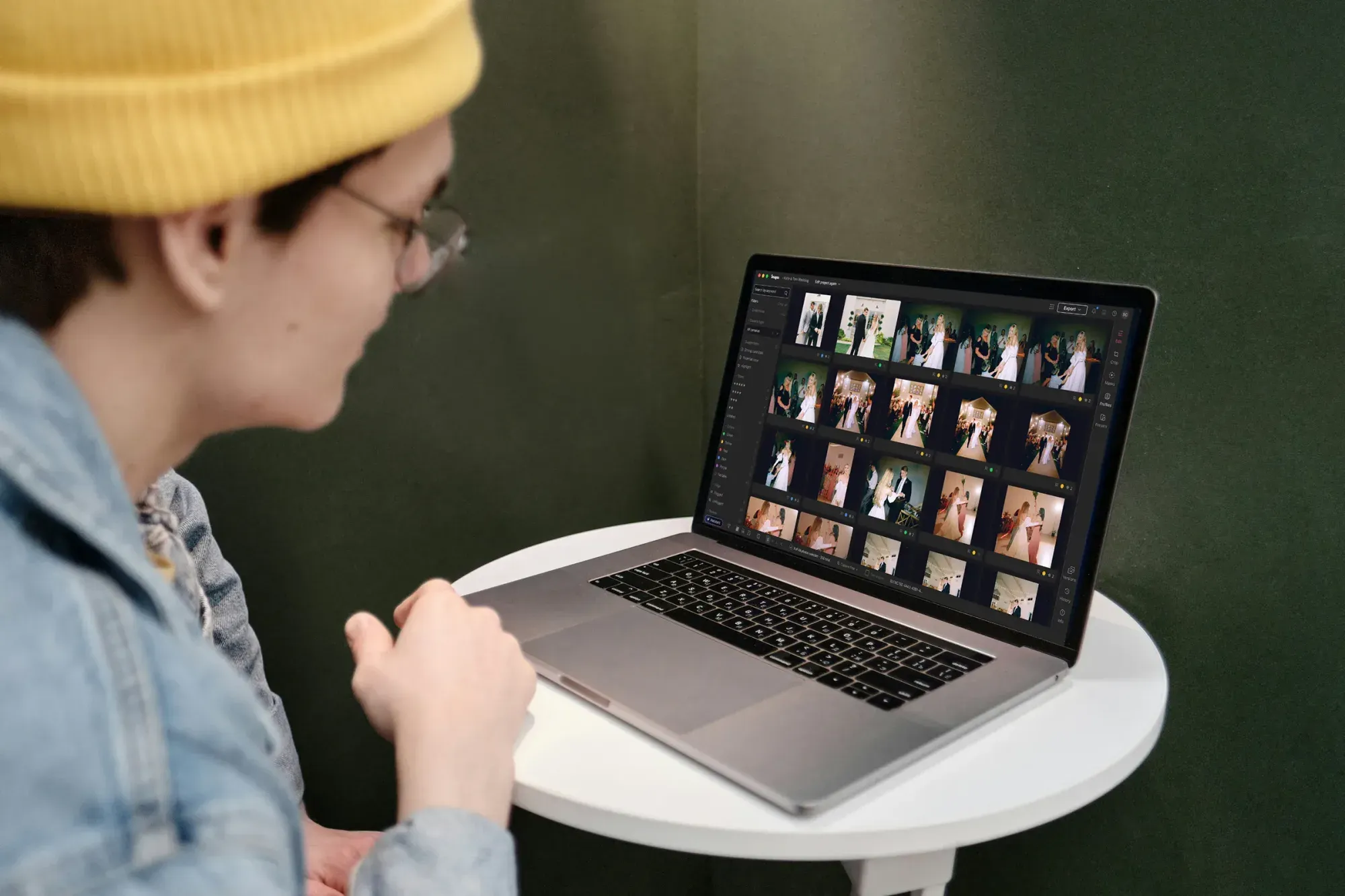
Step 1: Import and Cull the Session
A corporate headshot day often produces hundreds of frames per person across several expressions and small posture changes. Culling by hand across a full team eats hours, and fatigue leads to inconsistent picks. AI culling reads focus, closed eyes, and near-duplicate poses, then flags the strongest frames so you review a short list for each person instead of the full take.
- Import the full session into your catalog and back up the raw files before you touch anything.
- Run AI culling to group near duplicates and surface the sharpest frame for each person.
- Keep two or three expressions per person so the subject and the marketing team have real choices.
- Reject blinks and soft frames early so they never reach the color and retouch stages.
Imagen handles culling inside the same project that later edits and retouches, so your selects flow straight into the next step without a separate export, and you can cull manually for free if you prefer. That connected path saves the handoff time that usually creeps in when culling lives in one app and editing lives in another, which adds up fast across a roster of twenty or thirty employees.
Step 2: Apply Your Editing Style Across Every Frame
Consistency is where a batch approach proves its value. Instead of setting exposure, white balance, and contrast one frame at a time, you apply a single look to the whole select set. Imagen learns your personal style from the way you have edited past catalogs, so the batch result matches the choices you would make by hand rather than a generic filter that flattens everyone the same way.
For LinkedIn headshots, aim for even skin tones, controlled highlights on the forehead and nose, and a background that stays clean and quiet. Once the base edit lands across the session, you review the set as a group and nudge only the frames that drift. This keeps every person in the company set looking like one shoot on one day, which is exactly what a professional team page should feel like.
- Apply your learned style to the full select set in one pass.
- Check white balance against each person’s skin, not against the backdrop.
- Hold shadow detail so the jawline and hair keep dimension.
- Confirm the whole team reads as one look before you move to retouching.
Step 3: Retouch Skin Without Erasing the Person
Headshot retouching has one rule above the rest, and that rule is restraint. Remove temporary blemishes and stray hairs, calm shine, and even out redness, but keep pores, fine lines, and the marks that make each face specific. A professional viewer wants to see the real person, so an over-smoothed face reads as inauthentic and works against the profile it is meant to support.
AI retouching in Imagen speeds the repetitive parts of this pass, so you clean skin across the whole select set with a consistent hand instead of retouching each frame from scratch. You still make the final call on every face, and you dial the strength down when a person’s natural texture matters to how they want to present. The goal is a clean, current portrait that still looks like the person on their best real day at the office.
Step 4: Standardize Crop, Background, and Framing for the Team
LinkedIn displays profile photos in a circular frame, so your crop needs to keep the head and shoulders centered with a little breathing room at the top. Decide the framing standard before you finalize the set, then hold that crop across everyone so the team looks uniform in the small circular view and on the company page grid. A shared background color or tone reinforces that unity even when people were photographed a few minutes apart.
Watch the eyes at this stage, because they carry the frame in a small circle. Add gentle clarity to the iris, keep catchlights honest, and avoid the heavy sharpening that makes eyes look artificial. When you edit the full session as a batch, these crop and tone choices apply evenly, and you avoid the drift that shows up when you finish frames hours apart or on different days.
- Center the head and shoulders so the face stays clear inside LinkedIn’s circular crop.
- Match background tone across the team so the company page reads as one set.
- Keep a consistent aspect ratio for both the profile photo and any wider banner use.
- Leave headroom so the crop still works if the platform adjusts the frame.
Step 5: Export the Right Files for LinkedIn and Company Pages
Business headshots usually need several sizes from the same edit. LinkedIn has its own recommended profile dimensions, the company page and internal directory often request a square crop, and press or bios sometimes need a higher-resolution file. Set up export presets once so every delivery leaves your catalog at the correct size and color space without manual fiddling per person.
- Export a square, web-ready version sized for LinkedIn profiles and directory listings.
- Deliver a higher-resolution file for bios, press pages, and printed materials.
- Keep a wider crop option for company banners or team landing pages where needed.
- Name files with each person’s name and shoot date so HR and marketing can find them fast.
Because the whole session shares one edit, every export stays consistent no matter which person or size you deliver. You can export finished JPG, TIFF or PNG files straight from Imagen, or send the AI edits back to Lightroom Classic. That consistency protects both the individual’s personal brand and the company’s visual identity across every place a viewer might see the image. You can read more portrait workflow ideas on the Imagen valuable tips hub as you refine your delivery habits.
Where Imagen and Other Tools Fit
Imagen sits at the center of a high-volume headshot workflow because it combines culling, style-matched batch editing, and retouching in one connected path. It reads your Lightroom or Capture One catalog, learns how you already edit, and applies that look across a full team shoot, so you spend your time on selects and expression rather than sliders. Pricing is pay-as-you-go: exploring the tools is free, and you pay for the photos you export.
Other real tools cover pieces of the process. Adobe Lightroom remains a strong catalog and raw editor on a subscription model, and many photographers keep it as their library even while batch editing elsewhere. Capture One offers detailed tethering and color control on a subscription or one-time license, which some studio shooters prefer for corporate headshot days. Dedicated retouching plug-ins handle frequency separation work for editors who like a manual skin pass. Each of these fits honestly into a business headshot pipeline, and none of them replaces the connected culling, style learning, and batch retouching that Imagen brings to a full team.
For a deeper look at the editing steps, see our companion piece on how to edit LinkedIn headshot photos with AI, and for quick wins during a busy corporate shoot day, review these AI LinkedIn headshot photo editing tips. Both build on the same batch-first approach this guide describes.
What’s new in Imagen: Imagen is now an intelligent, agentic Studio for professional photographers, one project that holds your whole team session from first cull to final export, in any order. Its assistant can find photos and act on them when you ask in plain language, and you steer every step, so a long roster of portraits stays manageable. The Studio is rolling out gradually as a beta.
Frequently Asked Questions
How long does it take to edit a full team of LinkedIn headshots with AI?
Most photographers cut a multi-hour edit down to a fraction of that time when AI handles culling and the style-matched batch pass. You still review every select and make the final retouching calls, so the quality stays in your hands while the repetitive steps move quickly across the whole team in one connected session.
Will AI editing make a LinkedIn headshot look fake?
It will not if you edit with restraint. Imagen edits and retouches the real photos you shot and does not invent faces or features, so each person stays recognizable. Keep natural skin texture, calm the shine, and clean only temporary marks, and the headshot still matches the person who joins the video call or walks into the meeting.
How do I keep a whole team’s headshots consistent?
Edit the full session as one batch so color, contrast, crop, and background treatment stay uniform. Imagen studies how you have edited past catalogs and applies that same look across everyone, so the team reads as one shoot on the company page. You review the set and adjust any frame that drifts from the group.
What does Imagen cost for headshot editing?
Imagen runs on pay-as-you-go pricing: exploring the tools is free, and you pay for the photos you export, so the cost follows the size of each team session you deliver.
Ready to speed up your next corporate shoot? Start editing with Imagen, now a Studio where you cull, edit and export in one project, and see how a style-matched batch keeps every LinkedIn headshot consistent from the first select to final delivery.
