

AI LinkedIn Headshot Photo Editing Tips and Techniques for 2026
Table of contents
- AI LinkedIn Headshot Photo Editing Tips
- 1. Define one house style before you touch a single slider
- 2. Cull ruthlessly and let AI flag the keepers
- 3. Batch your color and exposure for a matched roster
- 4. Keep skin natural, not plastic
- 5. Standardize crop, framing, and background
- 6. Deliver at the right size and format for LinkedIn
- 7. Build a repeatable profile you can reuse every shoot
- 8. Know where other tools fit in your kit
- Frequently Asked Questions
AI LinkedIn Headshot Photo Editing Tips
The fastest way to edit LinkedIn headshots at scale is to build one consistent look, then let AI apply it across every frame so the whole team matches. Imagen learns your personal editing style from your Lightroom or Capture One catalog and applies it consistently across a full shoot, which turns a slow retouching queue into a same-day delivery. In this guide you get practical, tested tips for editing professional business headshots that photographers use on LinkedIn, with a focus on team consistency, natural skin, and clean backgrounds. Every tip works whether you shoot ten executives or two hundred employees in a single corporate booking.
You can try Imagen’s new Studio, where you cull, edit and export in one project, then keep the workflow below to speed up culling, color, and retouching without losing your signature look. For a deeper walkthrough, read the companion AI LinkedIn headshot photo editing guide and our step-by-step piece on how to edit LinkedIn headshot photos with AI.
1. Define one house style before you touch a single slider
LinkedIn headshots live in a grid next to hundreds of coworkers, so consistency reads as professionalism. Decide your house style first: neutral white balance, gentle contrast, true-to-life skin tones, and a background that stays clean behind every subject. Write these choices down as a short recipe so you apply the same intent to the shy intern and the senior partner. When you edit a batch by hand, small drifts creep in between the first and the hundredth photo, and those drifts show up as mismatched skin and shifting color across the company page.
This is where an AI editor earns its place. Imagen studies a catalog you already edited, learns the exact way you handle exposure, color, and tone, and then reproduces that style on new headshots automatically. You set the direction once, and the tool holds the line across the entire roster. That single decision protects the most important quality in corporate work, which is a uniform look every leader can approve at a glance.
2. Cull ruthlessly and let AI flag the keepers
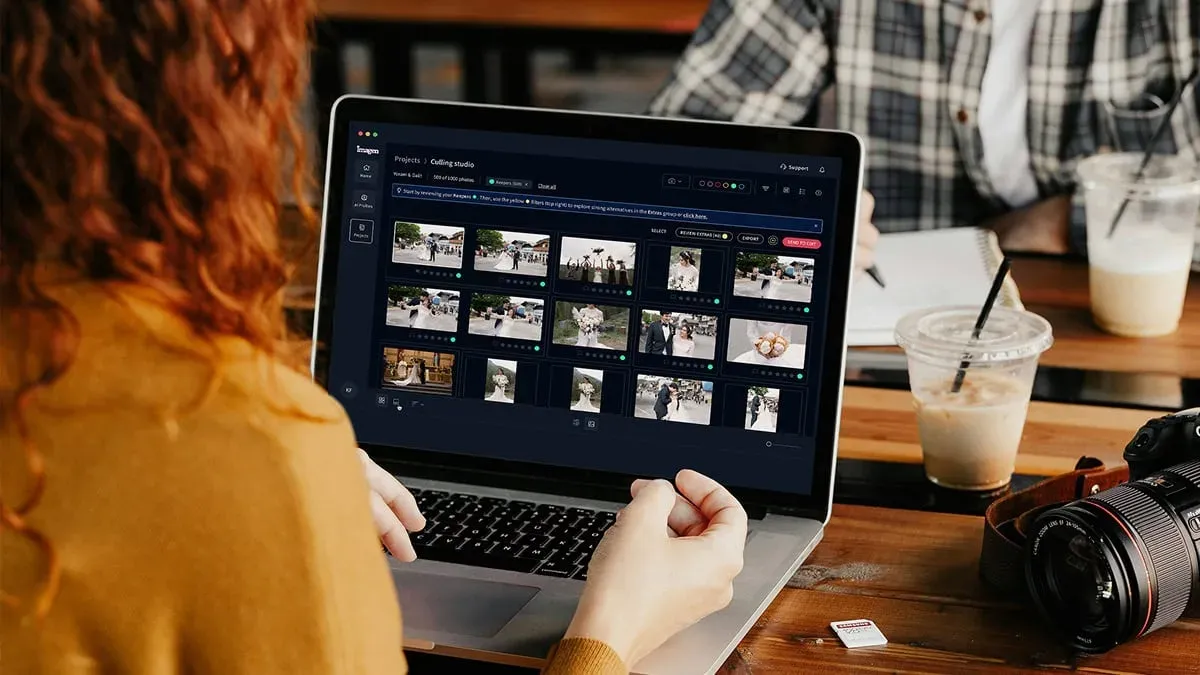
A corporate headshot session produces far more frames than you need, and culling by eye is the slowest part of the job. For each person you usually want one strong hero shot plus a safe alternate, so the goal is to find the sharp, open-eyed, natural-expression frames quickly and drop the blinks and awkward smiles. Speed here matters because a booked studio day can generate thousands of exposures across dozens of employees.
Imagen includes AI culling that reviews focus, eyes, and composition, then surfaces the strongest options so you approve rather than hunt, and you can cull manually for free if you prefer. Use it like this:
- Group images by person or by seat so each subject stays together.
- Let AI culling rank frames by sharpness and open eyes.
- Pick one hero and one backup per person, then reject the rest.
- Confirm the final set before you send it into color and retouching.
This connected approach keeps culling and editing in the same workflow, so you never export a rejected frame by accident or lose track of who still needs a keeper.
3. Batch your color and exposure for a matched roster
Mixed lighting is the enemy of a matched team page. Even in a controlled studio, skin tones drift as people sit differently, wear different colors, and reflect the backdrop in their own way. The tip that saves the most time is to batch your base color and exposure across the whole shoot first, then handle the few outliers by hand. That order keeps your average correction consistent and leaves only the true exceptions for manual attention.
Because Imagen applies your learned style across the full set, the batch pass already matches your intent for white balance, contrast, and tone. Edited photos arrive in batches as they process, so you can start reviewing early frames while the rest finish. You review the results, nudge any frame that needs it, and move on. Manual per-photo color grading across a hundred people can eat an entire day, while a style-aware batch pass gets you to a near-final look in minutes and frees you to focus on the details that need a human eye.
4. Keep skin natural, not plastic
The most common mistake in headshot retouching is over-smoothing. LinkedIn is a professional network, and a face that looks airbrushed reads as less trustworthy than one with real texture. Your aim is clean, healthy skin that still looks like the person who will walk into a meeting. Remove temporary blemishes and stray flyaways, calm heavy shine, and soften harsh under-eye shadows, but keep pores, fine lines, and natural structure intact.
Imagen offers AI retouching that handles these routine fixes across a batch while respecting real texture, so you get a consistent, believable result on every face. A few rules keep your retouching honest:
- Clear temporary spots and flyaway hairs, and leave permanent features that define the person.
- Reduce shine and specular hotspots on the forehead and nose rather than erasing them.
- Brighten tired eyes gently, and never reshape the face or eyes.
- Match the retouching strength across the team so no one looks more processed than a colleague.
It helps to remember what an AI editor does here. Imagen edits, culls, and retouches the real photos you shot, and it does not invent scenes, faces, or backgrounds. Your subjects stay themselves, only cleaner and better lit.
5. Standardize crop, framing, and background
LinkedIn displays profile photos in a circle, so framing decisions matter more than they do for a rectangular print. Keep the eyes on the upper third, leave a little headroom, and center the face so nothing important gets clipped by the circular mask. Standardize this crop across the whole team so every headshot sits at the same scale and the company page reads as one coherent set rather than a patchwork.
Background consistency is just as important. If you shot on a seamless backdrop, a uniform color and even brightness behind every person ties the roster together. Correct small exposure differences in the backdrop during your batch color pass, and clean up any lint or shadow that appears behind a shoulder. When the crop and the background match across the team, individual headshots start to look like they belong to the same organization, which is exactly the impression a company wants on LinkedIn.
6. Deliver at the right size and format for LinkedIn
Great edits still fail if the export is wrong. LinkedIn accepts a square profile image, and a clean, sharp file at a generous resolution holds up across desktop and mobile. Export a square crop, apply modest output sharpening for screen viewing, and keep the file quality high enough that the face stays crisp after the platform recompresses it. Deliver both the profile crop and the original full frame so each employee has flexibility for other uses.
Consistency applies to export settings too. Use the same crop ratio, color space, and sharpening across the whole batch so no single headshot looks softer or more saturated than the rest. Because your culling, color, and retouching already ran in one connected workflow, exporting a matched set is a single step rather than a per-file chore. For a fuller checklist you can revisit our valuable tips hub whenever you plan a new corporate booking.
7. Build a repeatable profile you can reuse every shoot
The real win in headshot work is repeatability. Once you land a look a client loves, you want to reproduce it on the next department, the next quarter, and the next office without rebuilding it from scratch. Save your recipe as a reusable profile so the same intent carries forward every time you open a new session. That habit protects your brand as a photographer and keeps returning clients on a consistent visual identity.
With Imagen, the style you trained becomes a repeatable asset. You apply your personal look to a fresh batch on demand, so the tenth company you photograph gets the same disciplined finish as the first. Pricing stays simple and pay-as-you-go: exploring the tools is free, and you pay for the photos you export. That model fits headshot work well because you pay for the volume you actually export, whether that is a small leadership team or a company-wide refresh.
8. Know where other tools fit in your kit
No single tool has to do everything, and honest photographers keep a small kit of options. Adobe Lightroom remains a strong catalog and raw-development hub, and it uses a subscription model. Capture One is a capable tethered-capture and color tool that many studio shooters rely on, offered through subscription or a one-time license depending on the plan. Both pair naturally with an AI editor because Imagen reads the style you built inside those catalogs.
The distinction worth remembering is workflow scope. A raw editor gives you fine manual control on a single image, while a style-aware AI editor gives you speed and consistency across an entire roster. For high-volume LinkedIn headshots, the consistency and culling automation are what move the deadline, so Imagen sits at the center of the batch, while its built-in editor (Beta) or your raw editor handles the occasional bespoke frame. Use each tool for the job it does best, and your corporate headshot delivery gets faster without giving up quality.
What’s new in Imagen: Imagen is now an intelligent, agentic Studio for professional photographers, and your house style travels with you as a Personal AI Profile learned from your past edits. Cull, edit, review and export a whole team in one project, in any order, and receive edited photos in batches as they process so you can start checking early frames. The Studio is rolling out gradually as a beta.
Frequently Asked Questions
How do I keep every employee’s headshot looking consistent?
You keep headshots consistent by defining one house style and applying it across the full shoot rather than editing each face by hand. Imagen learns your personal style from your Lightroom or Capture One catalog and applies it to every frame, so white balance, contrast, and skin tone match across the whole team on the company page.
Does AI retouching make LinkedIn headshots look fake?
Good AI retouching does not look fake when you keep real texture. Clear temporary blemishes and shine, brighten tired eyes gently, and leave pores and fine lines intact. Imagen retouches the real photo you shot and does not invent faces or backgrounds, so your subject still looks like themselves.
What does Imagen cost for a corporate headshot batch?
Imagen uses pay-as-you-go pricing: exploring the tools is free, and you pay for the photos you export, so a corporate batch costs what you deliver.
Can I reuse the same look on my next shoot?
Yes, you can save your look as a reusable profile and apply it to every new session. That repeatability keeps returning clients on a consistent visual identity and lets you deliver the tenth company the same disciplined finish as the first, without rebuilding your recipe each time.
