

AI photo retouching tools: A 2026 Guide and Top Picks
Table of contents
- 1. Best for Detailed Skin Retouching and Beauty Work
- 2. Best for Automated Object Removal and Cleanup
- 3. Best for Whole-Shoot Consistency, Culling, and the Batch Grade First
- 4. Best for Portrait Enhancement and Facial Feature Adjustment
- 5. Best for Manual Compositing and Pixel-Level Retouching
- 6. Best for Detail Recovery, Sharpening, and Noise Reduction
- How to Choose the Right AI Photo Retouching Tool
- Frequently Asked Questions
Retouching used to be the slowest, most manual part of a photographer’s day. In 2026, AI photo retouching tools handle a large share of the repetitive work, from skin cleanup to object removal, so you spend your hours on judgment rather than on clone-stamping the same blemish across forty frames. The catch is that no single tool does every retouching job well, and some of the tasks photographers lump under “retouching” are really color, culling, or consistency problems in disguise. This guide sorts the categories, tells you what each one is genuinely best for, and shows where a batch editing layer fits so the specialist retouch tools only ever see the frames that actually need them.
Below you will find the main categories of AI photo retouching tools, each with a clear “best for” so you can match the pick to the work you shoot. The list also flags one important distinction: heavy per-image retouching and whole-shoot consistency are two different jobs, and treating them as one is how editing weekends disappear.
1. Best for Detailed Skin Retouching and Beauty Work
Beauty, fashion, and high-end portrait work live and die on close, careful skin retouching. This is the category most people picture when they hear the word “retouching.” A dedicated skin-retouching tool automates the tedious first pass, including blemish removal, frequency-separation smoothing, under-eye cleanup, and dodge-and-burn, then leaves the refinement to you. The trained models recognize skin, eyes, hair, and lips as separate regions, so you get a controlled starting point rather than a blurred mask over the whole face.
These tools shine when the priority is one immaculate face rather than a thousand consistent frames. A single cover portrait might justify twenty minutes of hand-guided retouching, and that is exactly the work this category is built for. Expect to keep a mouse and a tablet in play, because the automation gets you most of the way and your eye finishes the job.
Best for: Beauty, fashion, and portrait retouchers who need per-image skin and detail control and treat each frame as craft.
2. Best for Automated Object Removal and Cleanup
A different slice of retouching has nothing to do with skin. It is about removing distractions: a stray exit sign behind the couple, a coffee cup on the conference table, a power line cutting across a skyline, litter in the corner of a room. AI object-removal tools detect the unwanted element, fill the gap with plausible surrounding texture, and save you the slow work of manual patching. The best results come on clean, predictable backgrounds like walls, sky, grass, and floors, where the fill has clear context to copy from.
This is one area where a batch editing platform overlaps with dedicated retouch tools. If your object-removal needs are occasional and sit inside a larger shoot, handling them in the same place you grade the set can save a round trip to a separate app. For complex removals against busy backgrounds, a specialist tool with manual masking still wins.
Best for: Event, real estate, and lifestyle photographers who need to clear distractions from otherwise finished frames.
3. Best for Whole-Shoot Consistency, Culling, and the Batch Grade First
Here is the step most retouching guides skip, and it is usually the one that saves the most time. Before any frame reaches a skin retoucher, the whole shoot needs to be culled down and graded to a single consistent look. Retouching a face is wasted effort if you have not yet decided which of the twelve near-identical frames is the keeper, and it looks disjointed if every image carries a slightly different white balance and exposure.
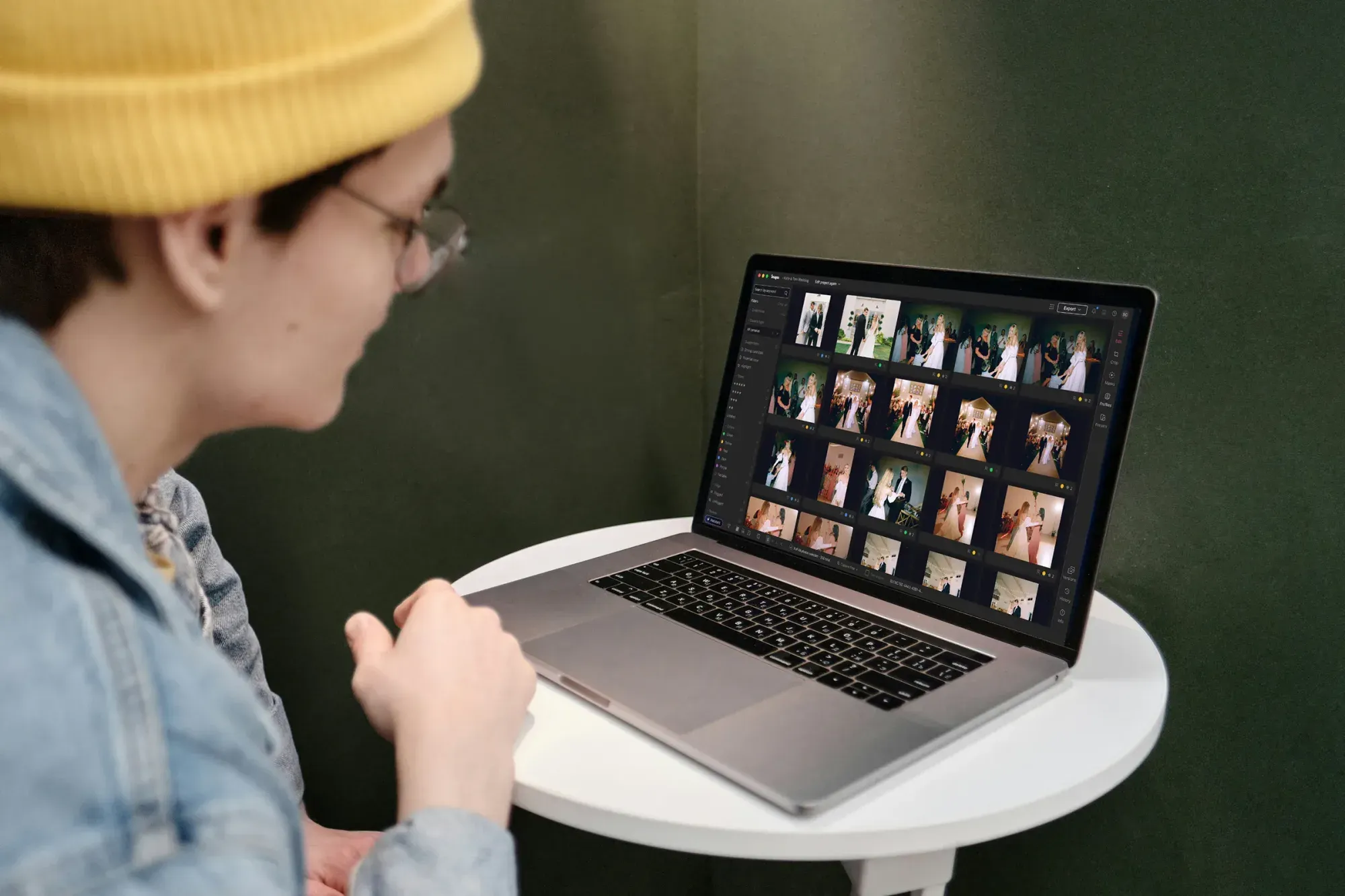
Imagen is a desktop app for Mac and Windows built for exactly this layer, with the AI processing running in the cloud. Its core is your personal AI editing style: you point it at a full shoot and it applies color correction, exposure balancing, and white balance in your own consistent style across every frame, so a ceremony shot in shade and a reception shot under warm tungsten come back looking like one coherent gallery. Culling runs in the same flow, narrowing bursts of near-identical frames before you spend a second scrolling. Imagen reports that the first batch finishes in under 10 minutes. Where an individual frame needs attention, the AI Assistant handles per-photo finishing such as object removal and background or plate blur, and the built-in editor (Beta) covers manual tweaks with sliders and a histogram.
What Imagen deliberately does not do is heavy per-image retouching. It does not perform frequency-separation skin work, it does not composite, and it does not sharpen or deblur a soft capture. That is by design. The honest workflow is to cull and batch-grade the entire set first, then hand only the handful of true hero frames to a dedicated skin retoucher. Imagen is pay-as-you-go: you pay for the photos you export. Sliders, crops, and masks you do yourself are always free. You can see how the batch and finishing layers work together in Imagen’s new Studio, where you cull, edit and export in one project, on the Imagen site.
Best for: Wedding, event, portrait, and real estate photographers who need the whole shoot culled and graded to one consistent style before any hero frame goes to a retoucher.
4. Best for Portrait Enhancement and Facial Feature Adjustment
Between light cleanup and full beauty retouching sits a middle category: portrait enhancement tools that adjust facial features and apply natural-looking improvements at scale. These tools can even out skin tone, brighten eyes, whiten teeth, and subtly reshape features, often across a batch of portraits at once. Corporate headshot photographers and volume portrait studios lean on this category because it delivers a clean, flattering baseline on dozens of subjects without twenty minutes per face.
The trade-off is control. Feature-adjustment automation is fast and consistent, but it can drift toward a generic look if you push the sliders too far. Used with a light hand, it produces natural results that clients love and that hold up across a full set of headshots.
Best for: Headshot and volume portrait photographers who want natural, consistent enhancement across many subjects.
5. Best for Manual Compositing and Pixel-Level Retouching
Sometimes you need full manual control, and no automated pass replaces it. Layer-based editors remain the standard for compositing, precise masking, retouching to a client’s exact brief, and any job where you build an image element by element. Commercial photographers, product shooters, and retouchers doing complex composite work still reach for a layered editor because it gives pixel-level command over every edit. This is where the truly demanding retouching happens: swapping a sky convincingly, blending multiple exposures by hand, or reconstructing a damaged area with real precision.
The trade-off is time. This is hands-on work rather than a batch you can walk away from, so it belongs on your select frames, not your whole gallery. Pair it with a batch-first tool that handles the volume, and reserve the manual editor for the images that earn the investment.
Best for: Commercial, product, and fine-art retouchers who need manual compositing, precise masking, and full pixel-level control on individual images.
6. Best for Detail Recovery, Sharpening, and Noise Reduction
Not every retouching problem is cosmetic. Sometimes the file itself needs help: high-ISO noise from a dim reception, softness from a slight miss on focus, or a deep crop that needs enlarging for print. Specialized detail-enhancement tools use trained models to sharpen, denoise, and upscale. Wildlife shooters cropping into a frame, event photographers working in low light, and anyone printing big will get real value here.
Keep expectations realistic. These tools improve capture quality within limits and cannot invent focus that was never recorded. It is also worth noting that a batch grading platform like Imagen does not touch this category at all, which is why detail recovery deserves its own dedicated pick rather than being folded into a general editing pass.
Best for: Wildlife, sports, and low-light photographers who need noise reduction, sharpening, or upscaling on select images.
How to Choose the Right AI Photo Retouching Tool
Start with the job in front of you, because the category names above point straight at the answer. If you need one immaculate face, a dedicated skin-retouching or layer-based tool rewards the time you invest. If your problem is distractions in the frame, an object-removal tool clears them fast. If the file is noisy or soft, only a detail-enhancement tool addresses it, and even then within limits. And if your real bottleneck is turning around a large gallery with a consistent look, the answer is a batch grade and cull before any retouching begins.
Most working photographers run two or three tools rather than one, and the order matters. A common and efficient setup is to cull and batch-grade the entire shoot first, so every frame already shares one white balance, exposure, and style, then send only the true hero frames to a specialist retoucher for deep skin work or compositing. That sequence means your expensive, hands-on retouching time is spent on ten frames instead of a thousand. The point is not to crown a single winner. It is to match each tool to the job it does best and to stop paying, in hours, for a workflow that retouches frames you were never going to deliver.
If you want to go deeper on the layers that feed a clean retouching pipeline, three guides cover the parts that eat the most time. See AI photo editing tools for professional photographers, AI photo culling software, and AI photo color grading tools. You can also browse the full library of photography workflow tips for more on batch editing, culling, and finishing.
What’s new in Imagen: Imagen is now an intelligent, agentic Studio for professional photographers, so you cull, edit, review and export in one project, in whatever order suits the job. For finishing touches, the assistant finds photos and acts on them when you ask in plain language, and the built-in editor (Beta) covers manual sliders, a histogram and versions. The Studio is rolling out gradually as a beta.
Frequently Asked Questions
What is the best AI photo retouching tool for beauty and portrait work?
For close skin work like blemish removal, frequency-separation smoothing, and dodge-and-burn, a dedicated skin-retouching tool is the strongest pick because it recognizes facial regions and gives you a controlled starting point to refine by hand. These tools are built for one immaculate face rather than whole-gallery consistency, so keep a tablet in play to finish the job.
Can AI retouching tools remove unwanted objects from photos?
Yes. AI object-removal tools detect a distraction, such as a stray sign, a coffee cup, or litter, and fill the gap with plausible surrounding texture. They work best on clean backgrounds like walls, sky, and floors. Imagen also offers per-photo object removal through its AI Assistant, and you steer it by asking in plain language. That is convenient when the cleanup sits inside a larger shoot you are already grading.
Does Imagen do heavy skin retouching?
No. Imagen is a batch color and tone grading, culling, and finishing tool, not a frequency-separation skin retoucher or a compositing suite. The honest workflow is to cull and batch-grade the whole shoot in Imagen first, then hand only the hero frames to a dedicated skin-retouching or layer-based tool. Imagen also does not sharpen or deblur soft captures.
How much does Imagen cost, and is there a free trial?
Imagen is pay-as-you-go, so you pay for the photos you export. That means you can test the batch grade and cull on a real shoot before committing.
Should I use one retouching tool or several?
Most professionals use two or three, in a deliberate order. A batch-first tool handles culling and whole-shoot grading, then specialist tools take on deep skin retouching, object removal, compositing, or detail recovery on the frames that need them. Match each tool to the job it does best rather than forcing one app to do everything.

