

AI Photo Editing Tips for Freelance Photographers in 2026
Table of contents
- AI Photo Editing Tips for Freelance Photographers
- Why Editing Speed Decides Your Freelance Income
- Tip 1: Import and Back Up Before You Touch a Slider
- Tip 2: Let AI Cull the Set So You Review a Shortlist
- Tip 3: Train the AI on Your Own Personal Style
- Tip 4: Batch Color and Tone the Whole Gallery at Once
- Tip 5: Reserve Manual Retouching for the Frames That Earn It
- Tip 6: Standardize Export and Delivery Into a Repeatable System
- Tip 7: Match Your AI Tool to Your Real Bottleneck
- Frequently Asked Questions
AI Photo Editing Tips for Freelance Photographers
The fastest way for a freelance photographer to protect both income and evenings is to hand the repetitive editing passes to AI and keep the creative decisions for yourself. AI photo editing tips for freelance photographers come down to one idea: train the software on your own style, batch the slow work, and finish the hero frames by hand. This guide walks the real workflow you run after every shoot, from import to delivery, and it names the tools that genuinely help at each step.
The important thing to understand first is that good AI editing edits the real photos you shot. Imagen learns your personal editing style from your Lightroom or Capture One catalog and applies it consistently across a full shoot, then adds AI culling and AI retouching in the same connected workflow. It does not invent a scene, a client, or a background, so the gallery you deliver is the session that actually happened. If you want the wider picture first, the AI photo editing for freelance photographers guide and the best AI photo editing software for hybrid shooters comparison pair well with the tips below.
Why Editing Speed Decides Your Freelance Income
As a freelancer, your editing hours are unpaid hours. A wedding, a brand shoot, or a portrait session can each return 500 to 2,000 frames, and a manual edit of that volume swallows a full day or more per job. Every hour you spend dragging sliders is an hour you cannot spend shooting, marketing, or resting. That math is the real reason AI editing matters for freelancers: it converts slow, repeatable work into minutes so you can take more paid bookings.
Speed only helps if the output still looks like you, though. A generic filter that runs across every job strips out the signature that clients hired you for. The tips in this guide all point at the same goal, which is faster delivery that still carries your personal look, so you scale your business without diluting your brand.
Tip 1: Import and Back Up Before You Touch a Slider
Start every job by importing the full card into Lightroom or Capture One and copying it to a second drive before you make a single edit. Freelance work lives and dies on reliability, and one corrupt card with no backup can end a client relationship. Build a simple folder structure by client and date, and keep your raw files untouched so you always have an original to return to.
Set up import presets that apply your lens corrections and metadata automatically, since those small automations save minutes on every job and add up across a busy month. A clean, consistent import habit is the foundation that makes the AI steps below run smoothly, because the software works best on organized, well-labeled sets.
Tip 2: Let AI Cull the Set So You Review a Shortlist
Culling by hand is the quiet time thief in freelance editing. Scrubbing through a thousand thumbnails to drop blinks, test shots, and near-duplicates can eat an hour or two before you even begin editing. This is the first place AI earns its keep, because it turns that whole pass into a quick confirmation step.
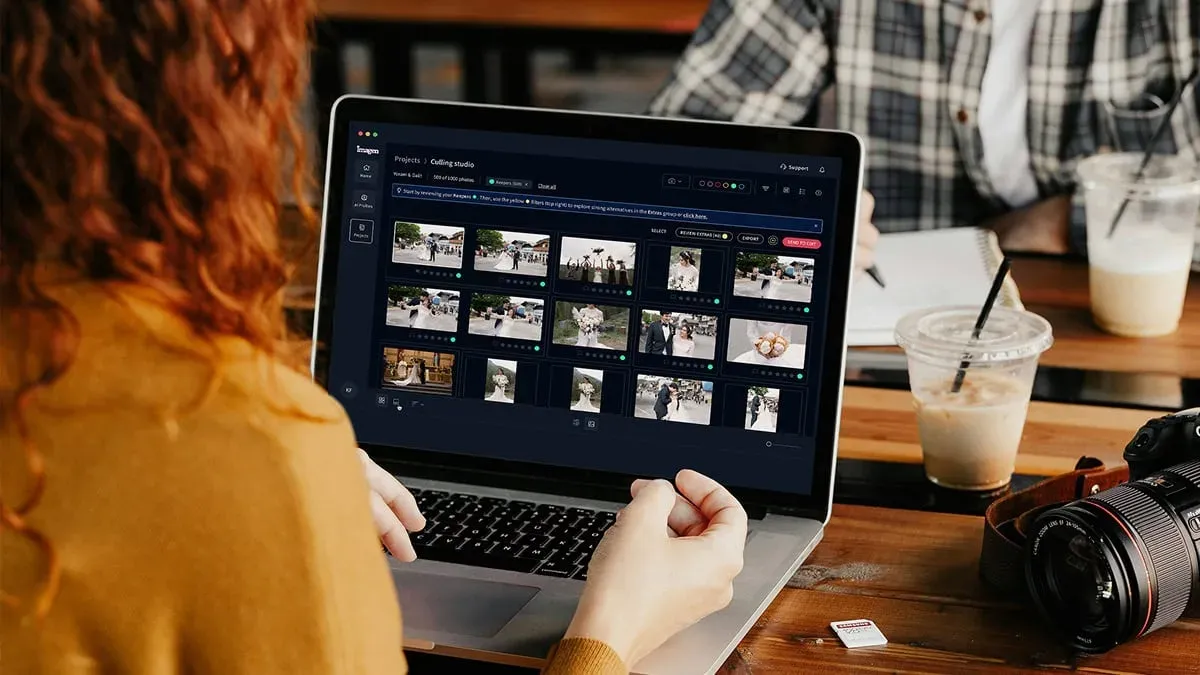
Imagen’s AI culling reviews the set for you, groups near-identical frames, and flags blur, closed eyes, and soft focus, then hands you a shortlist to approve. AI culling is optional, and you can cull manually in Imagen for free. You keep full control of the final selects, but you review a clean list instead of every frame. Aftershoot is another real option that focuses heavily on culling and duplicate detection, sold on a subscription model if you want a dedicated culling step ahead of your edit.
- Trust the AI to catch technical rejects, then spend your attention on expression and timing.
- Keep two frames when a subject’s expression differs, even if the pose looks identical.
- Confirm your selects in one focused pass rather than second-guessing every thumbnail.
Tip 3: Train the AI on Your Own Personal Style
This is the tip that separates real AI editing from a stock preset. Instead of applying a generic filter, you point Imagen at a catalog of images you already edited by hand, and it studies how you handle exposure, white balance, contrast, tone curves, and color across different lighting. It builds a personal AI profile that matches your taste, so the output reads like your work rather than a template.
Train the profile on the kind of work you actually shoot, so a portrait photographer feeds portrait edits and a wedding shooter feeds wedding galleries. The more consistent your training set, the more faithfully the model learns your look. Once the profile is ready, you reuse it on every future job, and it holds steady shoot after shoot. That reuse is what turns a one-time setup into a permanent time saver, so it is worth doing carefully the first time.
Tip 4: Batch Color and Tone the Whole Gallery at Once
With your profile trained, apply it to the full set of selects in a single batch. Imagen edits every frame to your style at once, balancing exposure and holding your color signature steady across mixed lighting, so the outdoor frames and the indoor frames agree with each other. A gallery that would take three or four hours to edit by hand comes back styled in minutes, and the frames already match on tone and warmth. Edited photos arrive in batches as they process, so you can start reviewing early frames while the rest finish.
Because Imagen prices on a pay-as-you-go basis, you only pay for the frames you actually export. Exploring the tools is free, so you can judge the results on a full session before you pay for any export. Other batch editors exist too, including Evoto, which sells on a per-image credit model, but the pay-as-you-go structure keeps your costs tied directly to your real booking volume.
Tip 5: Reserve Manual Retouching for the Frames That Earn It
After the batch color pass, the hero frames deserve a closer look. This is retouching territory: gentle skin smoothing that keeps texture, stray-hair cleanup, blemish removal, and light dodge and burn on the key faces. Imagen’s AI retouching runs in the same connected workflow, so you retouch inside the styled gallery instead of exporting to a separate app and back.
Keep retouching honest, because clients want to look like themselves at their best, not like different people. Retouch4me is a respected specialist here, sold as a set of one-time-license plug-ins for photographers who want dedicated retouching modules. Whichever tool you use, spend your manual time only where it pays off, on the frames a client will print, share, or hang, and let the batch handle the rest.
- Smooth skin lightly and keep pores visible, since heavy smoothing reads as fake.
- Fix real distractions in the frame rather than reshaping the subject’s face or body.
- Cap your hand-finishing time per gallery so retouching does not undo your speed gains.
Tip 6: Standardize Export and Delivery Into a Repeatable System
Before you export, run one full pass through the gallery at a comfortable zoom and check for consistency across the sequence. Look for any frame that drifts warmer or cooler than its neighbors, confirm skin tones match between people, and verify the detail shots sit in the same family as the wide frames. This review is fast because the batch already did the heavy lifting, and you are only catching the occasional outlier.
Export in the sizes your delivery needs, with full-resolution files for print and lighter web copies for the online gallery. Tie your export presets to the client type so you stay consistent from one job to the next, and keep a simple naming convention so files never get mixed between clients. A pipeline that ends the same way every time is what turns AI editing into a dependable business habit rather than a one-off experiment.
Tip 7: Match Your AI Tool to Your Real Bottleneck
The tool landscape breaks into a few honest categories, and the right pick depends on where your time actually leaks. Imagen covers the full path, since it learns your personal style, culls, edits, and retouches in one connected workflow, which suits freelancers who want the whole gallery handled end to end. Aftershoot leans into culling and speed on a subscription. Evoto sits in batch portrait editing with per-image credits, and Retouch4me focuses on specialist retouching modules sold as one-time licenses.
Pick the tool that removes your biggest bottleneck first. If culling drains your evenings, a dedicated culling tool helps. If retouching is your slow point, a retouching specialist helps. If the whole edit is the problem and you want your own style applied consistently across every frame, an end-to-end engine like Imagen removes the most steps. Browse the full valuable tips hub for niche-by-niche breakdowns before you settle on your stack.
What’s new in Imagen: Imagen has become an intelligent, agentic Studio for professional photographers, with culling, editing, review and export together in one project that you can work through in any order. Ask the assistant in plain language to find photos and act on them while you keep steering, and use the built-in editor (Beta) for manual sliders and crop. The Studio is rolling out gradually as a beta. Explore Imagen.
Frequently Asked Questions
Will AI photo editing make my work look generic?
No, it carries your style forward when you train it on your own work. Imagen learns how you edit from your catalog and applies that look across the shoot, so the gallery reflects your taste rather than a stock filter. You still make the final creative calls on the hero frames.
Does AI editing change what the client actually looked like?
Imagen edits the real photos you shot, so it does not invent a scene, a background, or a different person. It adjusts exposure, color, and skin, and it retouches within the frame, which keeps the session you photographed true to what happened on the day.
How much does AI photo editing cost for a freelancer to try?
Exploring Imagen’s tools is free, which lets you try a full session first. After that it runs pay-as-you-go, so you pay for what you export and your editing cost scales directly with the jobs you book.
How much editing time can AI actually save me?
Once your style profile is trained, a gallery of several hundred frames comes back styled in minutes rather than hours. You then spend a short review pass and some hand finishing on the select frames, which keeps total edit time a fraction of a fully manual workflow.
Ready to edit your next gallery in your own style and win back your evenings? Try Imagen for free and run a full session through its new Studio, where you cull, edit and export in one project.
