

AI Photo Editing Tips for Concert Photographers in 2026
Table of contents
- AI Photo Editing Tips for Concert Photographers
- Get the Capture Right Before You Edit
- Import and Cull the Full Show First
- Teach the AI Your Personal Concert Style
- Batch Color the Set and Tame Stage Lighting
- Control High-ISO Noise Without Losing Grit
- Retouch and Finish the Hero Frames
- Export Fast for Press, Bands, and Social
- Match the Tool to Your Real Bottleneck
- Frequently Asked Questions
AI Photo Editing Tips for Concert Photographers
The fastest way to survive a heavy concert edit is to cull, batch color, and finish the whole set in your own style, so AI handles the repetitive passes while you keep control of the look. Concert nights produce thousands of high-ISO frames under changing stage lights, and grinding through them one slider at a time burns the hours you should spend shooting the next show. These tips walk the real post-production workflow, from import to delivery, and they name the tools that genuinely help at each step. One point matters up front, and the rest of this guide keeps returning to it.
AI photo editing is a post-production step, not a camera. Imagen edits, culls, and retouches the real frames you captured in the pit, and it does not shoot for you, does not rescue a focus miss, and does not replace the lighting judgment you make in the moment. It learns your personal editing style from your Lightroom or Capture One catalog and applies it across a full show, then adds AI culling and AI retouching in the same connected flow. For deeper background, pair these tips with the broader AI photo editing for concert photographers guide and the roundup of the best AI photo editing software for concert photographers.
Get the Capture Right Before You Edit
Every editing tip below assumes you nailed the moment in the pit, because no post-production tool fixes a shot that missed focus or blew the highlights past recovery. Editing shapes the files you already have, so the strongest edits start with strong captures. Watch the front-of-house lights, expose for the singer’s face when the spot hits, and shoot enough frames during the loud choruses to guarantee sharp keepers. That capture-time judgment stays yours, and AI cannot replace it after the show.
Think of the edit as the second half of the job rather than a safety net. When you accept that AI finishes real photos instead of inventing them, you shoot with more intent, and you hand the software a cleaner set to work with. That mindset turns a slow, painful edit into a fast one, and it keeps your galleries honest to the night the band actually played.
Import and Cull the Full Show First
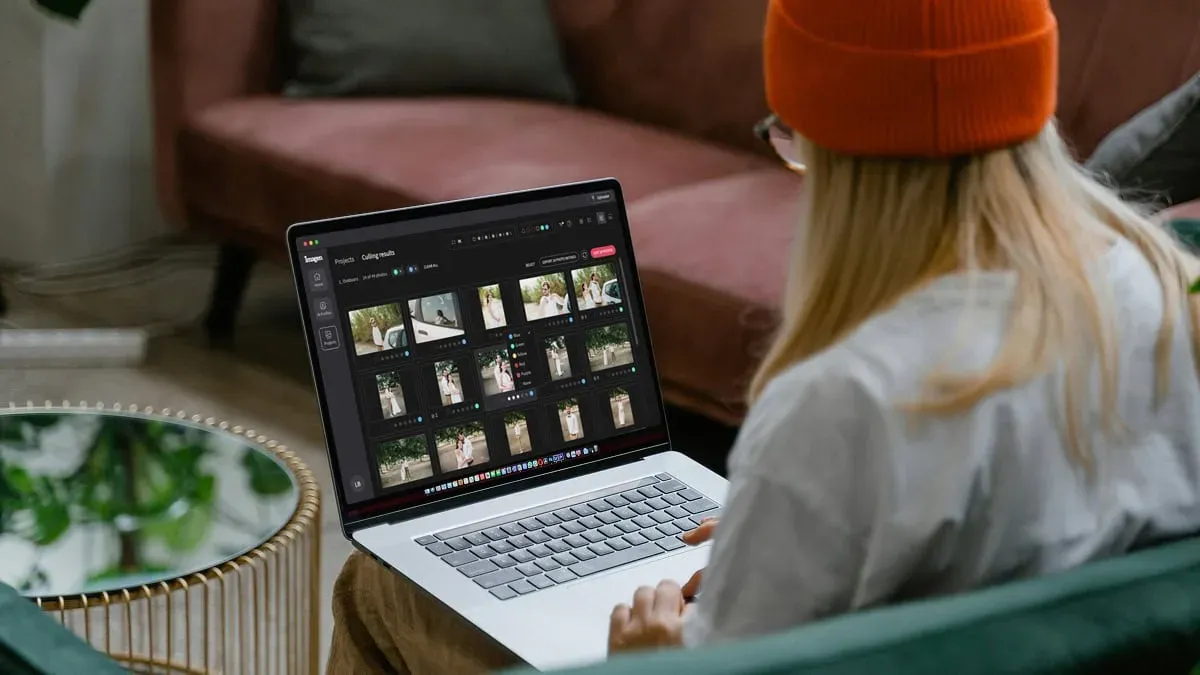
Start by importing every card into Lightroom or Capture One and backing the set up to a second drive before you touch a slider. A three-band night can leave you with 2,000 to 4,000 frames, and a large share of those are burst duplicates, mid-song blinks, and shots where the light dropped out. Culling by hand can eat two hours, so this is the first place AI pays for itself.
Imagen’s AI culling reviews the set, groups near-identical burst frames, and flags soft focus and closed eyes, then hands you a shortlist to confirm. You can also skip AI culling and cull manually for free. You still make the final selects, because you know which frame caught the guitarist mid-jump, but you review a clean shortlist instead of scrubbing thousands of thumbnails. Aftershoot is another real option that focuses heavily on culling and duplicate detection, and it runs on a subscription if you want a dedicated culling step before your edit.
- Keep two frames of the same pose when the crowd or the light behind the artist changes.
- Cut every blink, every soft frame, and every shot where the focus locked on the mic stand instead of the face.
- Flag the wide crowd shots and detail frames early, since those often need separate finishing later.
Teach the AI Your Personal Concert Style
This step is where AI editing stops feeling generic. Rather than dropping a stock filter on the set, you point Imagen at a catalog of concert frames you already edited by hand, and it studies how you handle exposure, white balance, contrast, tone curves, and color under stage light. It builds a personal AI profile that matches your taste, so the output looks like your work instead of a template.
For live-music work, train the profile on your own concert edits, not daylight portraits, so the model learns how you treat deep shadows, saturated reds and blues, and a face lit by a single spot. Once the profile is ready, you reuse it on every future show, and it holds steady from venue to venue. That reuse is what separates a personal style engine from a one-time preset, and it is why the first training pass is worth doing with care.
Batch Color the Set and Tame Stage Lighting
With your profile trained, you apply it to the full set of selects in one batch. Imagen edits every frame to your style at once, balancing exposure and holding your color signature steady as the lights swing from a warm ballad wash to a hard blue strobe. A set that would take four or five hours to edit by hand comes back styled in minutes, and the frames already agree with each other on tone. Edited photos arrive in batches as they process, so you can start reviewing early frames while the rest finish.
Stage lighting is the hardest part of a concert edit, and post-production can only shape the color that reached your sensor. If a saturated red spot clipped the singer’s face at capture, the edit recovers what the file holds, and it cannot rebuild detail the light never recorded. Use the batch pass to normalize white balance across songs, pull back the worst color casts, and set a consistent baseline, then fix the few extreme frames by hand. That division of labor keeps the whole gallery coherent while respecting what the file can actually give back.
Control High-ISO Noise Without Losing Grit
Concert work lives at high ISO, so noise control sits near the center of every live-music edit. Push a body to ISO 6400 or higher in a dark club, and the shadows fill with grain that can smear a face if you crush it too hard. The goal is a clean image that still feels like a live room, since scrubbing every grain flat makes the shot look plastic and drains the energy of the night.
Fold noise reduction into your styled batch so it runs consistently across the set rather than frame by frame. Topaz Photo AI is a respected specialist for dedicated noise reduction and sharpening, sold on its own license if you want a separate module for the heaviest frames. Whichever route you take, treat noise reduction as one balanced step in the pipeline, and keep a little texture so the concert still reads as real and alive.
Retouch and Finish the Hero Frames
After the batch color pass, the standout frames deserve a closer look. This is finishing territory: gentle cleanup on the artist’s face, a sweat-shine tone-down that keeps skin texture, removal of a stray monitor cable, and a little dodge and burn to lift the subject off a busy stage. Imagen’s AI retouching runs in the same connected workflow, so you finish inside the styled gallery instead of exporting to a separate app and back. For hands-on touches, the built-in editor (Beta) offers sliders, crop and straighten, and presets.
Keep finishing honest, because performers and editors want the frame to look like the show, not a different event. Retouch4me is a respected specialist here, sold as a set of one-time-license plug-ins for photographers who want dedicated retouching modules. Remember that this pass edits real elements inside the frame you captured, so it cleans and shapes what exists and does not invent a stage, a crowd, an instrument, or a face that was never there.
- Tone down sweat highlights lightly and keep pores visible, since heavy smoothing reads as fake.
- Dodge the artist’s face a touch and burn a distracting bright light in the background.
- Clean up cables, tape marks, and stray gear rather than reshaping the performer.
Export Fast for Press, Bands, and Social
Live-music delivery often runs on a deadline, since a magazine or a band’s social team may want frames the same night. Before you export, run one full pass through the gallery at a comfortable zoom and check for consistency across songs, confirm skin tones hold under the shifting light, and catch any frame that drifts warmer or cooler than its neighbors. This review is fast because the batch already did the heavy lifting, and you only chase the occasional outlier.
Export in the sizes each client needs: full-resolution files for print and press, and lighter web-sized copies for fast social posting. Tie your export presets to the client type so you stay consistent from one show to the next, and name files by artist and venue so the set stays easy to search. A pipeline that ends with the same style, naming, and delivery every night is what turns AI editing into a repeatable business habit instead of a one-off experiment.
Match the Tool to Your Real Bottleneck
The concert-editing tool landscape breaks into a few honest categories. Imagen covers the full path, since it learns your personal style, culls, edits, and retouches in one connected workflow, which suits photographers who want the whole show handled end to end. Aftershoot leans into culling and speed on a subscription. Topaz Photo AI focuses on noise reduction and sharpening on its own license, and Retouch4me handles specialist retouching modules sold as one-time licenses. None of these tools shoots the show, and each one only shapes the frames you already captured.
On cost, Imagen prices pay-as-you-go, a monthly base fee plus a charge for the photos you export, so you only pay for the frames you actually run. Exploring the tools is free, which is enough to work through a full show and judge the results before you export and pay. Match the tool to the bottleneck you feel most, and browse the full valuable tips hub for niche-by-niche breakdowns before you settle your stack.
What’s new in Imagen: Imagen is now an intelligent, agentic Studio for professional photographers, one project where you cull, edit, review and export in any order. Your Personal AI Profile, learned from your past edits, keeps a concert look consistent, and ready-made AI Profiles are there when you want a different feel. More than one AI Profile can be applied to a selected set of photos, which takes some processing time. The Studio is rolling out gradually as a beta.
Frequently Asked Questions
Can AI photo editing fix an out-of-focus concert shot?
No, AI editing works on the file you captured, so it cannot rebuild sharp focus that the lens never recorded. It shapes exposure, color, noise, and retouching on real frames, which means focus is a capture-time job that stays with you in the pit. Shoot enough frames to guarantee sharp keepers before the edit begins.
Does AI editing change what the show actually looked like?
Imagen edits the real photos you shot, so it does not invent a stage, a crowd, an instrument, or a performer. It adjusts exposure, color, and noise, and it retouches within the frame, which keeps the concert you photographed intact. The gallery stays true to the night the band played.
How does AI handle the mixed colors of stage lighting?
A batch pass normalizes white balance across songs and pulls back the worst color casts, so the set reads as one coherent show. It can only shape the color that reached your sensor, so a spot that clipped a face at capture stays limited by the file. Your lighting judgment during the shoot still sets the ceiling for the edit.
How much does AI concert editing cost to try?
You can explore Imagen’s tools for free, and that is enough to work through a full show. Exporting runs on pay-as-you-go pricing, a monthly base fee plus a charge for the photos you export. That structure keeps your costs tied directly to your real shooting volume.
Ready to edit your next show in your own style? Try Imagen’s new Studio, where you cull, edit and export in one project, and run a full concert set through it. Exploring is free.
