

AI Photo Editing for Concert Photographers: A Complete 2026 Guide
Table of contents
- AI Photo Editing for Concert Photographers: A Complete 2026 Workflow
- Why Concert Editing Needs AI in the First Place
- Step 1: Import, Back Up, and Organize the Take
- Step 2: Cull the Night With AI Culling
- Step 3: Build One Strong Look Before You Batch
- Step 4: Batch Your Color Across the Full Set
- Step 5: Tame High-ISO Noise and Recover Detail
- Step 6: Retouch and Export the Hero Frames
- What This Workflow Costs
- Frequently Asked Questions
AI Photo Editing for Concert Photographers: A Complete 2026 Workflow
AI photo editing for concert photographers means training software on the way you already edit, then letting it carry that look across a full night of stage shots so you deliver faster. The short version is simple, and it works in four moves: import and cull the take, build one strong look, batch your color and retouching, and hand finish the few hero frames the band will actually use. Live music is one of the hardest niches to edit because the lighting flips between red, magenta, and hard white inside a single song, the performers move fast, and you often come home with 2,000 or 3,000 frames from a three-band bill. A smart AI workflow keeps your edits consistent from the opening act to the encore, and it gives you back the hours you used to lose at the desk.
Imagen anchors this workflow because it learns your personal editing style from your Lightroom or Capture One catalog and applies it across a full shoot, with AI culling and AI retouching in one connected pass. It edits, culls, and retouches the real photos you shot at the venue. It does not invent stages, lighting rigs, performers, crowds, or backgrounds, so your gallery documents the actual show you covered. This guide covers the whole pipeline, and it pairs well with our roundup of the best AI photo editing software for concert photographers and our field-tested AI photo editing tips for concert photographers.
Why Concert Editing Needs AI in the First Place
Concert photography stacks every editing problem into one job. Stage lights swing through deep red, magenta, and white within a few seconds, so your white balance never settles. The artist stands under a spotlight while the crowd sits in near darkness, which spreads a huge gap between your brightest and darkest zones. You shoot at ISO 6400 or higher to freeze motion, so noise shows up on skin, black clothing, and the smoky air above the pit. On top of all that, the sheer volume is punishing, since a headliner and two openers can leave you with thousands of frames due the next morning.
Editing that by hand is slow, and it drifts. By frame 800 your slider choices wander, and the last band looks different from the first. AI earns its place here because it applies the same reasoning to every photo, so a red-lit ballad and a white-lit chorus both land inside the look you set. That consistency across thousands of files is the real prize in concert work, and it is the exact thing manual editing struggles to protect when you are tired at 2 a.m.
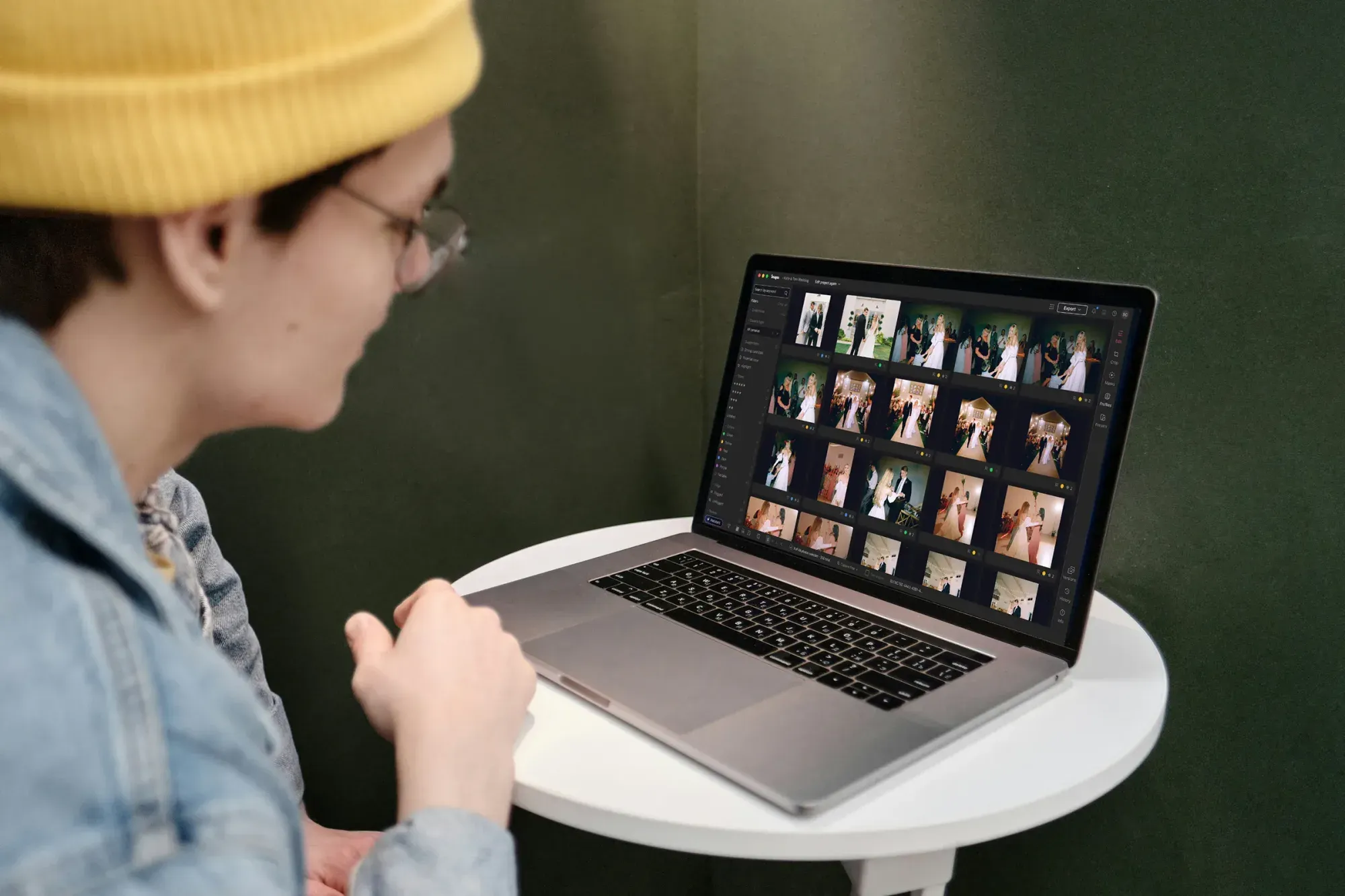
Step 1: Import, Back Up, and Organize the Take
Every fast concert edit starts with a clean import and a backup you trust. Copy your cards to two drives before you touch a single slider, because a card that lived in a sweaty pit for three hours can fail. Bring everything into Lightroom or Capture One, then tag by set so you can find the headliner, the openers, and the crowd moments in seconds.
- Ingest RAW files, not JPEGs, so you keep the most detail for shadow lifts and color recovery.
- Add a keyword for each band and each song block you remember, which makes your selects far easier later.
- Flag the obvious throwaways where the subject is fully blurred or a light blew out the whole frame.
- Rate three or four clear hero shots early, since those images will guide your look for the entire night.
Good organization pays off in every later step. When your catalog is sorted by set and roughly flagged, both you and the software know what matters, so the culling and color stages move quickly instead of stalling on a wall of thumbnails.
Step 2: Cull the Night With AI Culling
Culling is where concert editing eats your evening if you do it fully by hand. A fast shutter and a moving artist mean dozens of near-duplicate frames per song, and only one or two are truly sharp on the eyes. AI culling reviews your take, groups the similar frames, and flags the sharpest, best-exposed options, so you choose from a short list instead of scrolling thousands of files.
Imagen runs culling as part of the same workflow that later applies your style, so you cull and edit without hopping between separate apps. It reads focus, closed eyes, and framing, then surfaces the keepers for your review. If you would rather skip AI culling, you can cull manually for free. You stay in control and confirm the final picks, because you know which mid-song expression tells the story. The goal is not to remove your judgment. The goal is to spend your judgment on 200 strong frames instead of 3,000 raw ones. Dedicated culling apps like Aftershoot also focus on this stage on a subscription model, and some photographers pair one of those with a separate editor, though a connected pipeline cuts the handoffs.
Step 3: Build One Strong Look Before You Batch
Once your selects are set, define the look for the show before you batch anything. Pick two or three hero frames that represent the lighting you shot, and dial in the white balance, contrast, and color you want the whole gallery to share. This is the moment your taste sets the direction, so spend real care here and treat it as the creative heart of the edit.
Imagen learns your personal editing style from your existing catalog, so it already knows how you treat warm stage light, deep blacks, and skin tones under mixed color. You are not starting from a generic preset, and you are not describing your taste in words. The tool studies the edits you have already made and models the choices you tend to repeat. That is why the batch stage feels like your own hand moving faster, rather than a filter dropped on top of your work.
Step 4: Batch Your Color Across the Full Set
With your look locked, run it across every frame. Imagen applies your style with consistent white balance and exposure logic, even as the lighting shifts between songs, so a gallery reads as one coherent night rather than a patchwork of moods. Edited photos arrive in batches as they process, so you can start reviewing early frames while the rest finish. Here is a practical order for this stage that keeps faces looking natural under colored light:
- Correct white balance on a mid-brightness frame so skin under colored light looks true.
- Set your black point and contrast to hold detail in dark clothing and the crowd.
- Tune color response for red and magenta washes, which are the hardest hues on faces.
- Apply your style across the full set and let the tool match those choices frame by frame.
- Scan the finished batch quickly and mark any frame that still needs a manual touch.
Batching this way protects consistency and gives you back hours. You still make every creative call, and the AI simply repeats your intent at scale, so the encore matches the sound check and you never re-edit the same look twice.
Step 5: Tame High-ISO Noise and Recover Detail
High ISO is a fact of concert life, so noise control belongs in every gallery. Modern AI denoise reads the grain pattern and cleans it while keeping edges sharp, which matters on guitar strings, hair, and the texture of a leather jacket. Topaz and the denoise built into Lightroom are common choices for this task, and you can apply strong reduction on your darkest crowd shots and a lighter hand on well-lit performer frames.
Recover shadow detail with care, because pushing dark zones too far reveals more noise and color blotches. Lift the shadows enough to show the crowd and the drummer at the back, then stop before the image goes flat. When your batch color is already consistent, these low-light fixes stay predictable across the set, so you are not fighting a fresh problem on every frame.
Step 6: Retouch and Export the Hero Frames
Every concert gallery has a handful of hero images that the artist and the venue will actually use for press and social. Those frames deserve individual finishing. AI retouching speeds up the routine cleanup so you can spend your energy on the artistic calls that need a human eye. Imagen includes retouching in the same pass, so it can ease harsh sweat glare, even out skin under hot spotlights, and clean small distractions on your top selects while the person still looks real. It retouches the actual performer you photographed, and it does not swap faces, invent people, or fabricate a stage that was not there, which keeps your images honest for editorial and music clients.
Concert clients rarely want one file type, so set your export presets once and deliver every format from the same finished set.
- Export full-resolution files at 300 DPI in Adobe RGB for print and press use.
- Create sRGB web versions around 2,048 pixels on the long edge for fast online sharing.
- Build vertical and square crops sized for stories and feed posts so the band can publish right away.
- Add a subtle credit or metadata tag so your work stays attributed as it travels online.
Because your batch color and retouching are consistent, every export inherits the same look, and you skip re-editing for each format. You can export finished JPG, TIFF or PNG files straight from Imagen, or send the edits back to Lightroom Classic. That is how you turn a late-night show into a same-week delivery. You can explore more editing walkthroughs on the Imagen valuable tips hub, which collects guides for many photography niches.
What This Workflow Costs
Speed only helps if the pricing fits how you actually work. Imagen runs on pay-as-you-go pricing, a monthly base fee plus a charge for the photos you export. Exploring the tools is free, so you can run a full set of your own concert shots through the workflow and judge the results before you pay anything. That is enough to edit and cull a real gig and see how the style match holds across changing stage light.
Other tools in this space use different models. Some run on a monthly subscription, some sell one-time licenses, and some charge per-image credits. Pick the structure that matches your volume, and keep in mind that a per-photo model scales cleanly when your show count rises and falls across the touring season.
What’s new in Imagen: Imagen is now an intelligent, agentic Studio for professional photographers, so every step in this guide can happen in one project. You cull, edit, review and export in any order, with a Personal AI Profile editing in your own style. When a frame needs a hands-on touch, the built-in editor (Beta) offers manual sliders, crop and straighten, and presets. The Studio is rolling out gradually as a beta.
Frequently Asked Questions
Does AI photo editing replace a concert photographer’s personal style?
No, it repeats your style at scale. Imagen learns how you edit from your own Lightroom or Capture One catalog, then applies those same choices across a full show. You still set the look on your hero frames and make every creative call, so the gallery sounds like you and not like a canned preset.
Can AI handle the shifting color from stage lights?
Yes, that is one of its strongest uses in concert work. The tool applies consistent white balance and color logic across frames shot under changing red, magenta, and white light, so your set stays coherent. You still confirm skin tones on the frames that matter most, since your eye is the final judge on faces.
Will AI editing invent parts of the concert scene?
No, Imagen edits the real photos you shot. It culls, colors, and retouches the actual performers, stage, and crowd you captured, and it does not generate fake people, backgrounds, or lighting rigs. That honesty keeps your images fair for editorial and music clients who need true documentation of the event.
How many photos can I test before paying?
Exploring Imagen’s tools is free. That is enough to run a real concert set through culling, batch color, and retouching so you can see the consistency for yourself. When you export, pay-as-you-go pricing applies, a monthly base fee plus a charge for the photos you export.
Ready to speed up your next show? Try Imagen’s new Studio and edit your concert gallery with your own style. You cull, edit and export in one project, and exploring is free.
