

AI Photo Editing Tips for Commercial Photographers in 2026
Table of contents
- AI Photo Editing Tips for Commercial Photographers
- Start with a Clean, Consistent Capture
- Cull Faster with AI Before You Edit
- Train the AI on Your Own Editing Style
- Batch Your Color and Tone in One Pass
- Retouch the Real Product, Not an Invented One
- Keep the Whole Workflow Connected
- Price the Work and Protect Your Margins
- Frequently Asked Questions
AI Photo Editing Tips for Commercial Photographers
Commercial photographers win back the most time when they hand the repetitive editing steps to AI and keep the creative calls for themselves. The fastest path is to train an AI tool on your own editing style, let it apply that style across an entire shoot, and reserve your attention for the handful of frames that carry the campaign. This guide walks through a practical, high-volume editing workflow for product, apparel, food, and catalog work, and it shows where AI removes the slow parts without touching your creative direction.
Everything below assumes you shoot real jobs with tight deadlines and large frame counts. The tips favor consistency, repeatability, and speed, because those three things decide whether a commercial edit ships on time. If you want the deeper background on how these tools fit a studio pipeline, the complete guide to AI photo editing for commercial photographers covers the full picture, and you can browse more workflow articles on the valuable tips hub.
Start with a Clean, Consistent Capture
Good AI editing starts before you open your catalog. When your capture is consistent, the AI has less variance to correct, and your whole set finishes faster. Lock your white balance with a gray card at the top of each lighting setup, and reshoot the reference frame whenever you change a light or a modifier. Commercial buyers notice color drift across a product range, so a controlled capture protects the brand and your edit.
Shoot tethered when the set allows it, and keep your exposure steady across each product family. A steady capture means the AI applies one look across the range instead of fighting frame-to-frame swings. Group your shots by lighting condition on the card so batches stay clean when you move into editing.
- Shoot a gray card or color checker at the start of every lighting setup.
- Keep exposure within a narrow range across each product family.
- Name your folders by set and lighting so batches import cleanly.
- Flag your hero frames in camera when the client already has a shot list.
Cull Faster with AI Before You Edit
Culling eats hours on high-volume commercial jobs, and it rarely needs your creative eye for the first pass. AI culling scans a full shoot and surfaces the sharp, well-exposed frames, so you skip the tedious side-by-side comparisons. On a catalog day with several thousand frames, this alone can turn an afternoon of sorting into a short review.
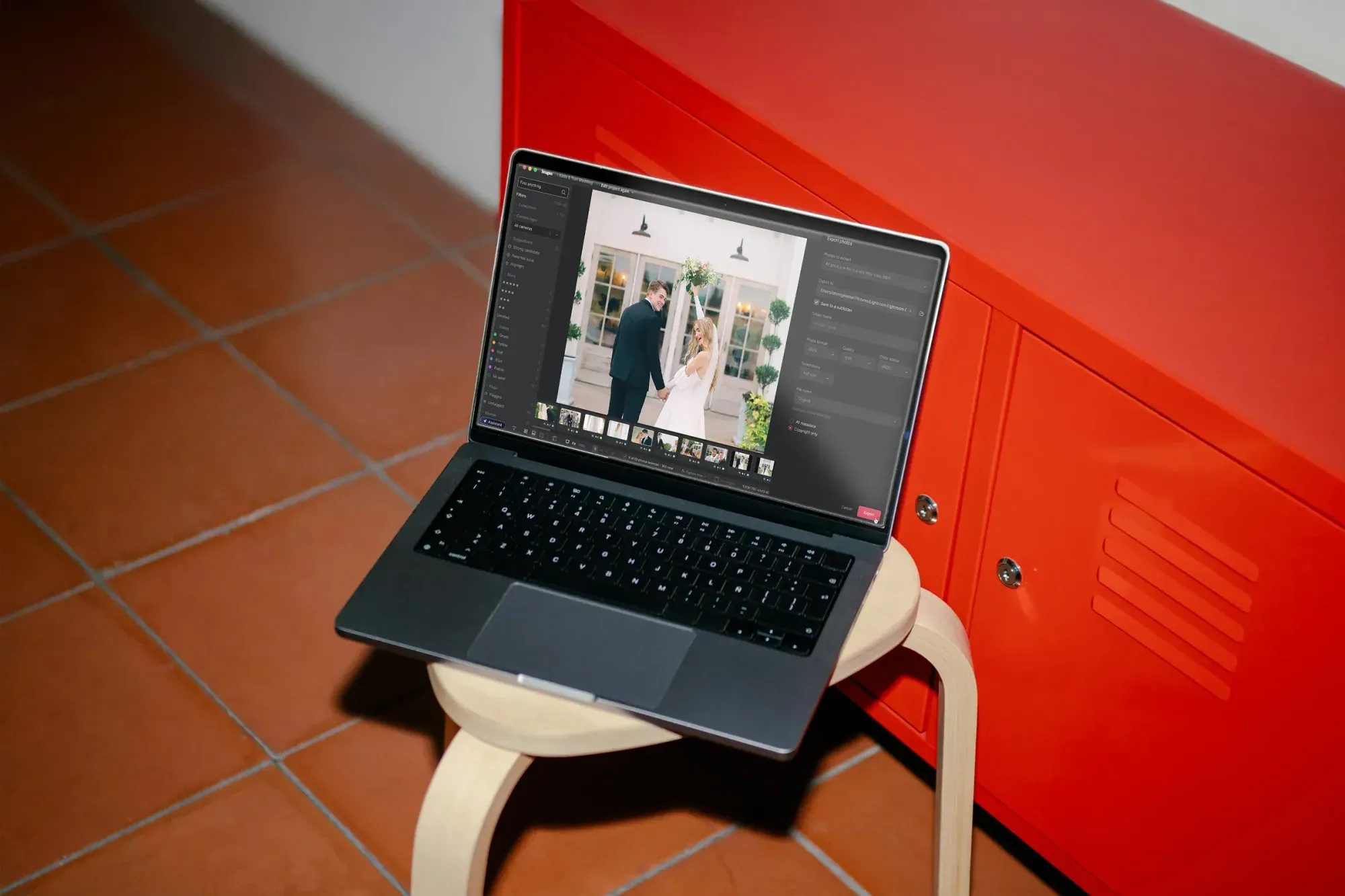
Imagen includes AI culling that flags blurry, closed-eye, and duplicate frames, then ranks the strongest options in each group. You stay in control, because the tool suggests and you confirm, and AI culling is optional since you can also cull manually in Imagen for free. Run the cull first, approve the keepers, and move only the selects into your color pass. That order keeps your editing batch small and your color work focused on frames that will actually ship.
A few other tools offer culling assistance as well. Aftershoot markets automated culling for high-volume shooters, and Lightroom bundles selection aids inside its catalog. Choose the option that keeps your selects in one place with your color and finishing work, since fewer round trips means fewer chances for a frame to slip.
Train the AI on Your Own Editing Style
This is the tip that changes a commercial workflow the most. Instead of copying a generic preset, you teach the AI how you personally edit, then it applies that exact style across the shoot. Imagen learns your personal editing style from your Lightroom or Capture One catalog and applies it consistently across a full set, so the look stays yours at scale.
To build a reliable style, feed the AI a body of your own finished edits that represent the work you want to repeat. Keep the sample coherent, since a mix of wildly different looks teaches a muddy average. Once the profile is set, a full product range comes back matched to your color, contrast, and tone choices, and you refine from a strong starting point rather than a blank slate.
It helps to build separate style profiles for distinct clients or product types. A cosmetics brand and an industrial catalog rarely share the same look, so a profile per account keeps each one on brand. When a repeat client returns, you load their profile and the set finishes in a fraction of the usual time.
Batch Your Color and Tone in One Pass
Consistency is the core promise of commercial editing, and batch color is where AI earns its place. After the cull, apply your trained style to the entire selection at once, then scan for outliers rather than editing frame by frame. Most frames land close, and you spend your time on the few that drifted because of a reflection, a tricky material, or a lighting change you missed on set.
Work in a logical order so nothing gets missed. Correct global exposure and white balance first, confirm the color across the range, then check that key brand colors read correctly on every product. A red package should be the same red on frame 4 and frame 400, and a batch pass makes that far easier to guarantee than manual sync.
- Apply your trained style to the full selection in one batch.
- Sort by product family and scan thumbnails for color outliers.
- Fix the handful of drifted frames individually.
- Verify brand-critical colors on a calibrated monitor before export.
Retouch the Real Product, Not an Invented One
Retouching is the second big time sink on product and apparel jobs, and AI handles the repetitive cleanup well. AI retouching removes dust, smooths minor blemishes, and tidies distractions across a set, so you are not stamping out the same lint on fifty frames of the same jacket. Imagen offers AI retouching inside the same connected workflow as culling and style, which keeps your selects, color, and cleanup in one place.
Here is the honesty that matters for commercial buyers. Imagen edits, culls, and retouches the real photos you shot, and it does not invent scenes, products, packaging, food, garments, models, or backgrounds. It is not a generator, so the item in the final frame is the item you photographed, cleaned up and color-matched to your style. That distinction protects you when a client asks whether the shot represents the actual product, because it does.
Reserve heavy, pixel-level retouching for your hero frames, where a human hand still adds the most value. Tools like Photoshop remain the standard for detailed compositing and precise masking on those key images. Let AI carry the volume cleanup across the range, and spend your manual retouching hours only where the campaign needs them.
Keep the Whole Workflow Connected
Speed comes from removing handoffs, not just from a faster single step. When culling, style, color, and retouching live in one connected workflow, a frame moves from import to export without bouncing between apps. Every export and re-import risks a settings mismatch or a lost edit, and on a large commercial job those small errors add up.
Map your pipeline once and reuse it on every job. A clean order looks like import, AI cull, trained style batch, targeted color fixes, AI retouching for volume cleanup, hero retouching by hand, then export to the client spec. When the same order runs every time, your team learns it, your turnaround shrinks, and your quality stays predictable across accounts.
Different niches lean on this connected approach in different ways. Aerial and property shooters, for example, batch large sets with heavy consistency needs, and the best AI photo editing software for drone photographers breaks down that variation if your work overlaps with wide-scene capture.
Price the Work and Protect Your Margins
Editing cost is part of every commercial bid, so it pays to know what your tooling adds per frame. Imagen uses pay-as-you-go pricing, so you pay for what you export, and exploring the tools is free. That lets you test the style match on a real set before you commit.
Compare that model against how you bill. Pay-as-you-go maps cleanly to per-job costing, since you pay for what you export, which follows the frames a client actually needs. Other tools sell subscriptions, one-time licenses, or per-image credits, so weigh those structures against your volume and your billing cadence. The right choice is the one that keeps your editing line item predictable inside every quote.
Whatever tool you pick, run the numbers on a full representative job, not a single frame. Include your culling time, your color pass, and your retouching hours, then compare the total against the deadline the client set. When AI absorbs the repetitive volume, your effective cost per delivered image drops even as your output climbs.
What’s new in Imagen: Imagen is now an intelligent, agentic Studio for professional photographers, one project where you cull, edit, review and export in any order. For commercial work, your Personal AI Profile learns your look from your past edits, and edited photos arrive in batches as they process, so you can start reviewing early frames while the rest finish. The Studio is rolling out gradually as a beta. Explore Imagen.
Frequently Asked Questions
Does AI editing replace my creative judgment?
No, it removes the repetitive steps and leaves the creative calls to you. AI culls, applies your trained style, and cleans up volume frames, while you set the direction and finish the hero images. You approve every stage, so the final look reflects your decisions rather than a generic default.
Will the AI keep my product colors accurate across a large set?
Yes, that consistency is the main reason commercial shooters use it. A trained style applied in one batch keeps a brand color reading the same on frame 4 and frame 400. You still verify brand-critical colors on a calibrated monitor before export, and you fix the few frames that drift.
Does Imagen create fake products or backgrounds?
No, Imagen edits the real photos you shot and does not invent products, packaging, food, garments, models, or backgrounds. It culls, color-matches, and retouches the actual frames from your camera. The item in the final image is the item you photographed, cleaned up to your style.
How do I try it on a real commercial job first?
You can explore Imagen for free, which is enough to test the style match on an actual set. Train a profile on your own edits, run a representative batch, and judge the consistency for yourself. Pricing then runs pay-as-you-go, so you pay for what you export and costs track the frames each client needs.
Ready to cut your editing time on the next commercial job? Try Imagen in its new Studio, where you cull, edit and export in one project, and see how well it matches your personal style across a full shoot.
