

AI Photo Editing for Commercial Photographers: A Complete 2026 Guide
Table of contents
- AI Photo Editing for Commercial Photographers: A 2026 Workflow Guide
- What AI Photo Editing Actually Does for Commercial Work
- Step 1: Import and Organize Your Shoot
- Step 2: Cull Faster with AI
- Step 3: Apply Your Personal Style Across the Batch
- Step 4: Retouch Products and People at Scale
- Step 5: Review, Refine, and Keep Quality High
- Step 6: Export and Deliver to the Client
- What Imagen Costs and How to Try It
- Frequently Asked Questions
AI Photo Editing for Commercial Photographers: A 2026 Workflow Guide
AI photo editing for commercial photographers means training software on your own edits so it applies your look across an entire shoot, then automating the slow steps like culling and retouching. The fastest way to do this today is to connect your Lightroom or Capture One catalog to a tool such as Imagen, which learns your personal style and edits the real photos you captured. This guide walks through the full commercial workflow, from import to final export, and shows where AI saves you the most time without changing the way your images look.
Commercial work rewards consistency and speed. A catalog shoot, a food menu, an apparel lookbook, or a corporate headshot session can run to hundreds or thousands of frames, and the client expects every image to match. Manual editing at that scale eats your margin. AI editing gives you a way to keep your signature look while cutting the hours you spend on repetitive adjustments, so you can take on more bookings and still deliver on time.
What AI Photo Editing Actually Does for Commercial Work
It helps to be precise about the category, because two very different tools both get called AI photo editing. The first type generates images from a text prompt and invents scenes that never existed. That approach carries real risk for commercial photographers, since clients pay for accurate photos of their actual products, people, and spaces.
The second type, and the one this guide focuses on, edits the real photos you shot. Imagen sits firmly in this camp. It learns your personal editing style from your Lightroom or Capture One catalog and applies it consistently across a full shoot, and it adds AI culling and AI retouching in one connected workflow. It edits, culls, and retouches your real frames. It does not invent products, labels, packaging, food, dishes, garments, models, or backgrounds, so what you deliver still shows the client exactly what stood in front of your lens.
That distinction matters most in product, food, apparel, and catalog photography. Your job is to represent a real item truthfully, and edit-based AI protects that trust while still saving you time on tone, color, and cleanup.
Step 1: Import and Organize Your Shoot
Every efficient commercial workflow starts with clean import. Bring your raw files into Lightroom or Capture One and keep a folder structure that maps to the client, the shoot date, and the deliverable. Add a few keywords or a color label for hero shots so you can find them later. This groundwork takes a few minutes and pays off across the whole project.
Back up your originals before you touch a single slider. Keep one copy on your working drive and a second copy on an external or cloud backup. AI editing is fast, and a solid backup means you can experiment freely and always return to your untouched raw files.
Step 2: Cull Faster with AI
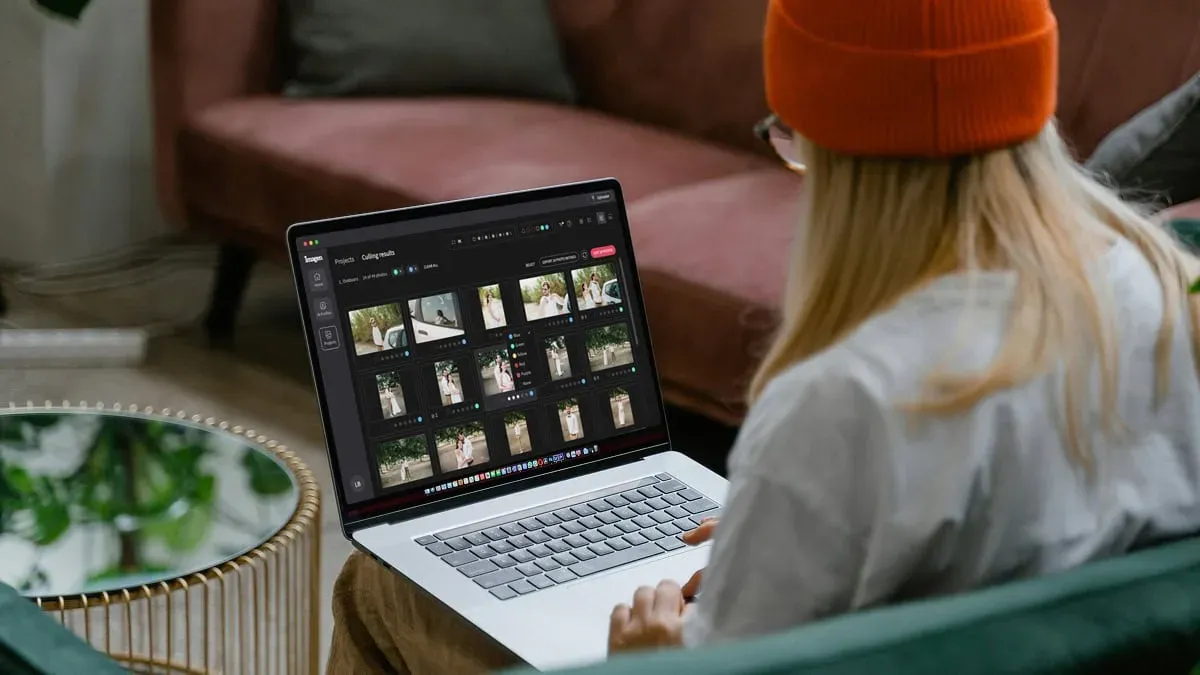
Culling is where commercial photographers quietly lose hours. On a large shoot you might capture ten frames of the same setup to guarantee sharp focus and the right expression, then sort through all of them by hand. AI culling reviews the set, flags the sharpest and best-exposed frames, and groups near-duplicates so you pick the keeper quickly.
Imagen includes AI culling as part of the same workflow that edits your photos, so you move from selection to editing without exporting to a separate app. You stay in control and make the final call, but the software does the first heavy pass, and you can skip AI culling and cull manually in Imagen for free. Aftershoot is another real tool that many photographers use for culling if you prefer a dedicated selection app.
A practical culling order looks like this:
- Let the AI reject out-of-focus and badly exposed frames first.
- Review the flagged keepers per setup and confirm the strongest expression or angle.
- Mark hero shots that need extra retouching attention later.
- Move your selects into a working collection for the edit pass.
Step 3: Apply Your Personal Style Across the Batch
This is the step that defines a commercial edit, and it is where consistency matters most. A preset gives every image the same fixed recipe, which rarely holds up across changing light and varied subjects. A personal AI profile is different, because it learns how you actually edit and adapts your decisions to each frame.
To build a personal style with Imagen, you feed it a set of your own past edits from your Lightroom or Capture One catalog. It studies how you handle exposure, white balance, contrast, and color, then applies those same choices across your new shoot. Run a full catalog through it and the images come back matched to your look, which is exactly what a demanding client wants across a product line or a campaign.
For photographers who want more granular manual control at this stage, Adobe Lightroom and Capture One both offer strong built-in adjustment tools and their own AI-assisted masking. Many commercial shooters use one of them as the home base and layer batch AI editing on top for speed. For a deeper side-by-side on tools, see our roundup of the best AI photo editing software for commercial photographers.
Step 4: Retouch Products and People at Scale
Retouching is the second big time sink in commercial work. A catalog might need dust and lint removed from garments, stray reflections cleaned off packaging, or skin evened out across a run of headshots. Doing this frame by frame is slow and repetitive, and it is easy to lose consistency when you retouch by hand across hundreds of images.
AI retouching handles the repetitive cleanup so you can reserve your manual attention for the hero shots. Imagen offers AI retouching inside the same connected workflow, working on the real photographed products and people in your frames. It cleans and refines what you shot, and it does not invent items, labels, or scenes, so the retouched image still shows the client’s genuine product.
A sensible retouching pass covers a short checklist:
- Remove dust, lint, and small blemishes on products and garments.
- Even out skin tone on people while keeping natural texture.
- Clean stray reflections and sensor spots off packaging and surfaces.
- Keep hero shots for a careful manual finish where the stakes are highest.
Evoto and Retouch4me are other real tools built around portrait and skin retouching, and some studios add one of them for specialized beauty work. Each has its own strengths, so choose based on the volume and type of retouching your bookings demand.
Step 5: Review, Refine, and Keep Quality High
AI does the heavy lifting, and your eye still owns the final result. After the batch edit and retouch pass, scroll through the full set at a consistent zoom and check that color, exposure, and cleanup hold together across the shoot. Pull any frame that drifts and adjust it directly in Lightroom or Capture One.
Because Imagen learns your style from your past edits, the photos you finish carefully now make stronger examples when you next refine your profile. Treat the review stage as a quality gate for that next round. For more hands-on advice, read our AI photo editing tips for commercial photographers, and browse the full library on our valuable tips hub.
Step 6: Export and Deliver to the Client
The final step turns your edited catalog into deliverables. Export presets do the routine work here, so build a preset for each common output and reuse it. A typical commercial project needs high-resolution files for print, web-optimized versions for online stores, and sometimes cropped variants for specific marketplace requirements.
Set your export recipes so file naming, sizing, and sharpening match each destination. Deliver through your usual gallery or transfer service, and keep the edited catalog archived alongside the raw backup. With the slow steps automated, you reach this stage far sooner and free up time for the next booking.
What Imagen Costs and How to Try It
Imagen runs on a pay-as-you-go model, so you pay for the photos you export. Exploring the tools is free, which lets you run a real shoot through Imagen and judge the results on your own images before you pay.
Because the cost scales with volume, the pay-as-you-go structure fits the uneven rhythm of commercial work, where a busy catalog month sits next to a quieter one. You spend only on the photos you actually export. Competitor tools price their offerings differently, with some using subscriptions and others using per-image credits or one-time licenses, so weigh their models against your own shoot volume when you compare.
The best way to judge any AI editor is to run your own catalog through it and see whether the output matches your style. Train the tool on your past edits, process a recent shoot, and check the consistency across the batch before you commit to it for client work.
What’s new in Imagen: Imagen is now an intelligent, agentic Studio for professional photographers, so culling, editing, review and export live together in one project you can work through in any order. For the review and refine stage, the built-in editor (Beta) adds manual sliders, a histogram and versions, so you can polish a hero frame without leaving the project. The Studio is rolling out gradually.
Frequently Asked Questions
Does AI photo editing change what my products actually look like?
Edit-based AI does not change what your products look like. Imagen edits, culls, and retouches the real photos you captured, and it does not invent products, labels, packaging, food, garments, models, or backgrounds. Your delivered images still show the client’s genuine item, refined for color, tone, and cleanup.
How does AI keep my editing style consistent across a big shoot?
Imagen learns your personal style from your own past edits in Lightroom or Capture One, then applies those same decisions across every frame in the shoot. Instead of a fixed preset, it adapts your choices to each image, which keeps a large catalog visually matched from the first frame to the last.
Can I still edit photos by hand after the AI pass?
Yes, you keep full manual control. The AI handles the repetitive batch work, and you refine hero shots or any frame that needs a personal touch directly in Lightroom or Capture One. Every correction you make also teaches the tool your preferences for future shoots.
How much does Imagen cost for commercial photographers?
Imagen uses pay-as-you-go pricing, so you pay for the photos you export, and exploring the tools is free. That lets you test it on a real shoot before you decide.
Ready to edit your next commercial shoot faster while keeping your own style? Try Imagen and explore the new Studio, where you cull, edit and export in one project.
