

AI Photo Editing for Lightroom Classic Users, 2026 Guide
Table of contents
- AI editing next to Lightroom Classic: what changes and what stays
- Where Lightroom Classic is strong, and where the hours go
- A worked example: a 2,200-frame wedding
- Other genres, same pattern
- How the round trip works, and where it can surprise you
- What Imagen does not do
- Pricing, in plain terms
- Frequently asked questions
AI editing next to Lightroom Classic: what changes and what stays
If you edit in Lightroom Classic, you can add AI editing without moving your library. Imagen is a desktop app for Mac and Windows that learns your style from your past edits, applies it to a new shoot in batches, and sends the result back to your Lightroom Classic catalog. Your folders, collections and delivery presets stay as they are.
One distinction matters before anything else. Edits from your Personal AI Profile and the AI tools carry back to Lightroom Classic. Edits you make in Studio’s own built-in editor do not. So the clean habit is to let the AI do the bulk pass, then do your hand-tuning in Lightroom, where it lands on the same catalog you deliver from. If you prefer to finish inside Studio, you can export JPG, TIFF or PNG directly instead.
If you want the product-by-product comparison, we cover it in the sibling guide to the best AI photo editing software for Lightroom users. This page is about the workflow.
Where Lightroom Classic is strong, and where the hours go
Lightroom Classic gives you a raw engine, masking, adaptive presets, denoise and a catalog that survives a decade of work. Those are per-image strengths, and nothing here replaces them.
The hours go somewhere else. After a 2,000-frame shoot you still have to cull near-duplicates, bring the whole set to your look, and fix the stretches where the light changed. Presets get you to a starting point, but you still nudge exposure and white balance frame by frame, because no preset knows that the ceremony was shot at ISO 5000 under tungsten and the first dance under a mixed LED rig. That repetitive layer is what a style-learning tool targets.
A worked example: a 2,200-frame wedding
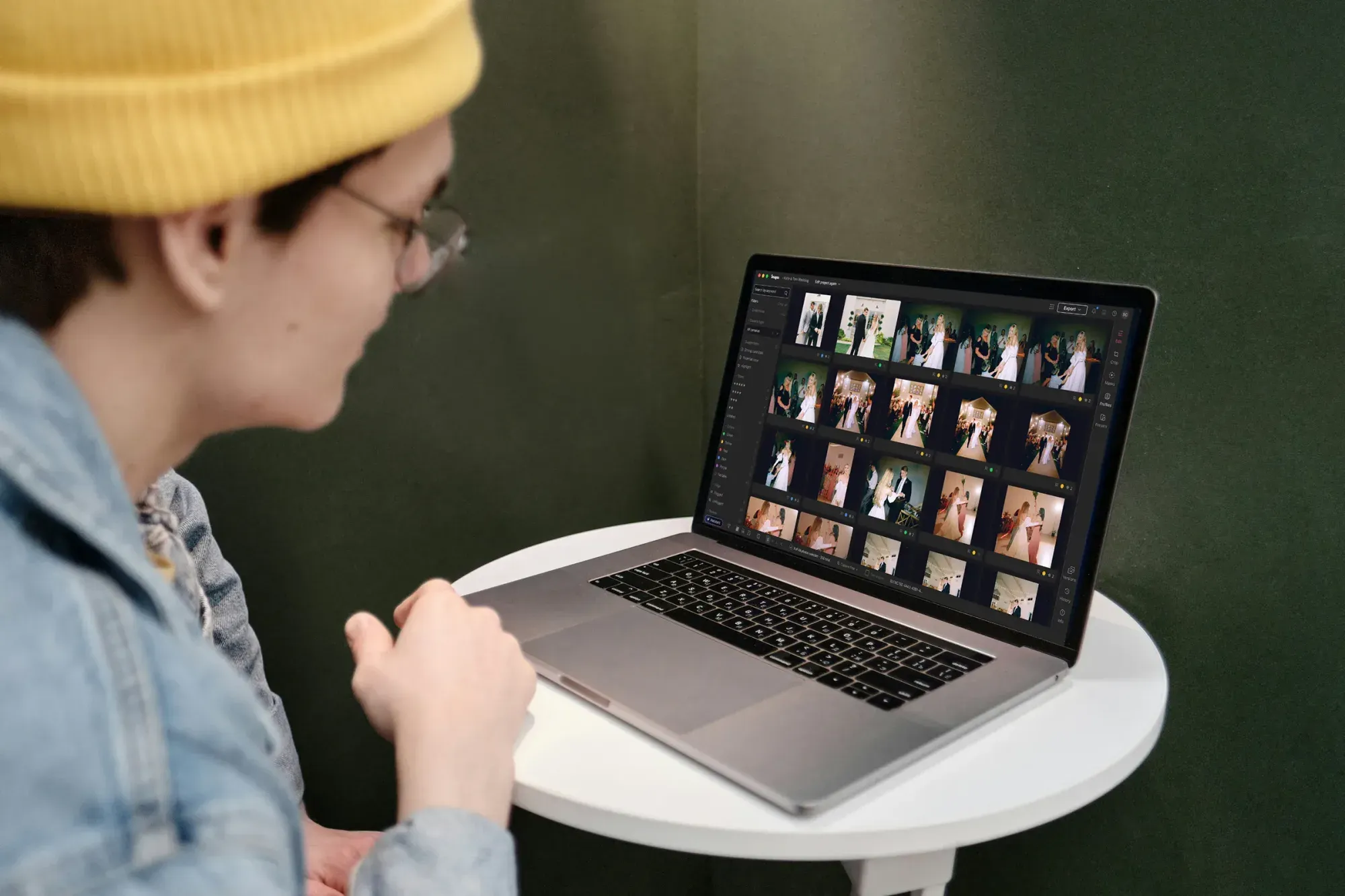
Here is a set a lot of us will recognise. A church ceremony in dim, warm light, portraits outside in open shade, and a reception under tungsten bulbs and a DJ’s colored LEDs. The family shots run in bursts, and every third frame has a blink.
- Import and label in Lightroom Classic. Copyright, client name and keywords go on at import. Delete the obvious misfires (black frames, lens-cap shots) now so they never get processed.
- Cull. The ceremony and the family bursts are where culling hurts most, since you compare five almost identical frames for a blink or a soft face. AI culling flags blur and closed eyes (smart tags) so you can sort out the blinks faster, and you confirm the picks. We treat its selects as a first draft: the frame with the grandmother’s tear is yours to choose. Manual culling in Imagen is free if you would rather make every call yourself.
- Apply your profile to the kept frames. Imagen matches exposure, white balance and tone to your Personal AI Profile on each real photo. Edited photos arrive in batches as they process, so you can start reviewing the ceremony while the reception is still running.
- Send the edits back to Lightroom Classic. They arrive as adjustments on the same files in your catalog.
- Spot-check by lighting scenario, not by frame number. Open one frame from the church, one from open shade, one from the dance floor. If the church set holds, it usually holds across the whole stretch. If the LED section drifts toward magenta, fix it there and sync that correction across the similar frames.
- Do the local work in Lightroom. Masks on the ring shot, a crop on the aisle frame, a few skin and teeth touches if the client wants them. Then export with your usual delivery preset.
What to expect from step 3 is a set that is mostly consistent and mostly right, not a finished gallery. The reception will usually need the most attention, because mixed light is where any automated pass has the hardest time.
Other genres, same pattern
The worked example is a wedding, but the logic holds elsewhere. Event shooters have the same lighting changes inside one night. Portrait and headshot sessions are easier: one light setup, hundreds of near-identical frames, so a profile mostly needs to hold skin tone and exposure. Sports and school photography are volume problems where the speed of the first pass matters more than any single frame. In each case the question is the same: which of your edits do you repeat on every shoot, and which are decisions you need to make yourself?
For a closer look at how style learning compares across tools, see our piece on AI photo style-matching tools. For how the culling side behaves with a Lightroom catalog, see AI culling for Lightroom.
How the round trip works, and where it can surprise you
Because AI-tool edits come back as Lightroom adjustments, you can still change any slider on any frame. That is the point of keeping this in your catalog. We would plan around three things.
- Anything you did by hand in Studio’s built-in editor stays in Studio. Redo it in Lightroom if you want it in the catalog.
- Ratings, flags and labels you set by hand are worth testing on a small set first, so you know what arrives in your setup.
- Imagen accepts RAW, DNG with RAW data, JPEG and TIFF. HEIC, PSD, PNG and GIF are not supported as inputs, and Capture One catalogs are not supported.
For the mechanics of sending adjustments into a catalog, see exporting edits to Lightroom Classic. If you want the plugin route specifically, the Lightroom AI plugin that edits photos in your style page lays it out.
What Imagen does not do
Imagen does not generate imagery, add objects or swap faces. It adjusts the photos you shot. Studio also does not include Denoise or Object Removal, so for those Lightroom Classic stays your tool (its denoise is good). The built-in assistant can move sliders, copy edits, sort photos and build collections, but it cannot mask one area, export or apply a profile on its own.
Some Studio features, such as real-time masking in the editor and more AI filters, are coming. We would not plan a delivery around them.
Pricing, in plain terms
Pay-as-you-go is a monthly base fee plus a charge per exported photo. Limitless is a fixed fee for individual photographers, and Business is custom pricing for teams. You see every edit in the gallery before you export, and sliders, crops and masks you do yourself are always free. For a first test, run one real shoot end to end, from import to delivery, and judge the result against how long that same shoot normally takes you. Then start with Imagen on your own catalog.
What’s new in Imagen: Meet the next step for Imagen: an intelligent, agentic Studio for professional photographers that still works alongside Lightroom. It is a desktop app for Mac and Windows where you cull, edit, review, and export in one project, in any order. Your Personal AI Profile learns your look from your past edits, and you can send edits back to Lightroom Classic or export finished JPG, TIFF, or PNG files directly. The Studio is currently in beta.
Frequently asked questions
Does AI photo editing replace Adobe Lightroom Classic?
No. Imagen works alongside Lightroom Classic. Your catalog, folders and raw workflow stay where they are, and edits from your Personal AI Profile and the AI tools carry back into Lightroom Classic as adjustments you can still refine by hand. Edits made in Studio’s own built-in editor do not carry back, so if you want a tweak to live in your catalog, make it in Lightroom.
Will the AI change my personal editing style?
No. It learns from your past edits (your Personal AI Profile) and applies that look to a new shoot. You see every edit before you export, and you can adjust any frame, so the delivery still reflects your choices.
Does it generate or fake any parts of the photo?
No. Imagen edits and culls the real photos you shot. It does not generate imagery, invent scenes or backgrounds, or swap faces.
How does pricing work if I want to test it on my own shoot?
Pay-as-you-go is a monthly base fee plus a charge per exported photo. Limitless is a fixed fee for individuals, and Business is custom. You pay at export and you see every edit in the gallery first. Sliders, crops and masks you do yourself are always free.

