A wedding day contains an entire spectrum of lighting conditions, from the soft, low glow of the morning preparations to the harsh afternoon sun during the ceremony and the dramatic, often multicolored light of the reception dance floor. As the photographer, you capture it all. The real challenge comes after the last dance, when you face thousands of RAW files and the mission to weave those diverse moments into a cohesive, beautifully consistent visual narrative.
Traditional Lightroom presets have long served as the starting point for this task, offering a one-click stylistic shortcut. Today, however, AI-powered editing represents a significant evolution, promising to solve the long-standing problem of inconsistency that plagues high-volume wedding photography. Understanding how to integrate these tools is key to boosting your business efficiency and reclaiming your creative time.
Key Takeaways
- Presets are Static, AI is Adaptive: Traditional presets apply a fixed set of edits to every photo, requiring extensive manual tweaks for diverse wedding lighting. Imagen uses a dynamic Personal AI Profile that learns your style and adapts those adjustments intelligently to each photo’s specific needs (exposure, white balance, contrast).
- Consistency is Non-Negotiable: A cohesive final gallery is the cornerstone of a professional brand. AI-powered tools deliver a higher level of consistency than static presets, especially across a wedding’s dramatically varied light and color casts.
- Culling is the Ultimate Time-Saver: Before editing begins, you must ruthlessly select the best shots. Tools like Imagen’s AI Culling can analyze thousands of photos in minutes, identifying missed focus, duplicates, and closed eyes, cutting hours off your initial workflow.
- Workflow Integration is Efficiency: True efficiency means more than just fast editing; it requires a fluid workflow. Imagen is designed as a single, integrated desktop app for culling, editing, and cloud backup, which works with Lightroom Classic, Lightroom, Photoshop, and Bridge.
Defining Your Brand Aesthetic: The Soul of Your Edit
What defines your unique photographic voice? It isn’t just the moments you capture; it’s the signature look you apply in post-production. This aesthetic—your color palette, contrast profile, and tonal quality—is the cornerstone of your brand and the reason clients hire you. Before you apply any tool, whether it’s a preset or a sophisticated AI, you need to clearly define that aesthetic.
The Core Stylistic Categories in Wedding Photography
When discussing style, we generally talk about four major buckets. Your preferred category dictates the base adjustments you make in Lightroom.
H4: Light and Airy
This style prioritizes brightness, often using low contrast, elevated blacks, and soft colors to achieve an ethereal, romantic feel. Skin tones remain clean and luminous. The goal is a light, dreamy aesthetic that never feels heavy.
H4: Dark and Moody
Characterized by deep shadows, rich saturation, and high contrast, this style creates drama and emotion. Colors are often muted or shifted toward deep, earthy tones. It works well for intimate moments and venues with strong architectural elements.
H4: True to Color (Timeless)
This approach values natural accuracy. The edit aims to correct exposure and white balance without imposing a heavy stylistic filter. The resulting images are clean, vibrant, and designed to look current for decades.
H4: Film Emulation
Photographers aiming for a film look seek to replicate the unique characteristics of classic film stocks, such as Fuji or Kodak. This often involves specific color shifts, subtle grain addition, and soft transitions in the highlights and shadows.
Why Pre-defining Your Style Matters
Consistency in a wedding gallery isn’t accidental; it’s a systematic choice. If you can articulate the key adjustments that define your style—for instance, “I always shift my white balance slightly warmer and reduce the global saturation by 5 points”—you possess the blueprint for repeatable results.
- Client Expectation: Couples book you based on the consistency of your portfolio. They expect every image in their gallery to match that promise.
- Building Your AI Profile: If you decide to move beyond static presets, defining your style is essential. An AI tool, particularly one that learns your actual edits, needs a clear, consistent body of work to replicate.
The key takeaway here? Your style is your brand’s currency. Articulate it clearly before moving on to the tools that apply it.
The Lightroom Preset Problem: Why One Click Isn’t Enough
For years, Lightroom presets were the definitive tool for injecting speed and style into the editing process. They offered the promise of a one-click solution. However, any professional who has edited a full wedding gallery knows that promise usually ends in an endless tweaking cycle. Why is that?
The Static Nature of Presets
A Lightroom preset is simply a collection of fixed slider positions saved at a certain point. When you apply a preset, Lightroom applies those exact, rigid instructions to every single image.
Consider a wedding day:
- Preparation (Indoor, Yellow Tungsten Light): You apply your favorite preset. Because the light source is already very warm, the preset’s global +10 warmth adjustment now makes the photo look aggressively orange.
- Outdoor Ceremony (Open Shade, Cool Light): You apply the same preset. The +10 warmth adjustment works perfectly, balancing the cool blue light and making the scene feel romantic.
- Reception (Dark, Mixed Lighting): You apply the preset. The global -0.5 exposure adjustment, meant to prevent highlights from blowing out, now plunges the already dark image into blackness.
The preset doesn’t possess intelligence; it can’t assess the image’s inherent white balance, exposure, or contrast. It blindly executes the same instructions, forcing you to go in afterward and manually fix those three core parameters on thousands of photos—the very job the preset was supposed to eliminate.
The Hidden Time Sink: Tweaking the Preset
When you rely solely on presets, the time you thought you saved often gets lost in the subsequent corrections. The workflow becomes:
- Apply Preset: Fast, less than a second.
- Adjust Exposure: Mandatory correction because the preset doesn’t account for the RAW file’s initial light.
- Correct White Balance: Mandatory correction because the preset overshot or undershot the required color temperature for that specific scene.
- Tweak Highlights/Shadows: Necessary to pull back details the static preset crushed or blew out.
- Synchronize… and Repeat: You sync these corrections to a group of similar photos, only to find the new corrections broke the next image in the sequence.
The lesson here? Presets are a solid starting point, but they fall short on their promise of true efficiency because they lack the adaptability needed for the dynamic environment of a wedding.
The AI Revolution: Adaptive Editing with Imagen
The next evolution beyond the traditional preset isn’t about giving you more slider options; it’s about providing an editing tool that acts like an incredibly smart, highly trained assistant—one that actually understands the intent behind your edits. This is the core capability of AI-powered editing, and it’s why platforms like Imagen are fundamentally changing post-production for high-volume photographers.
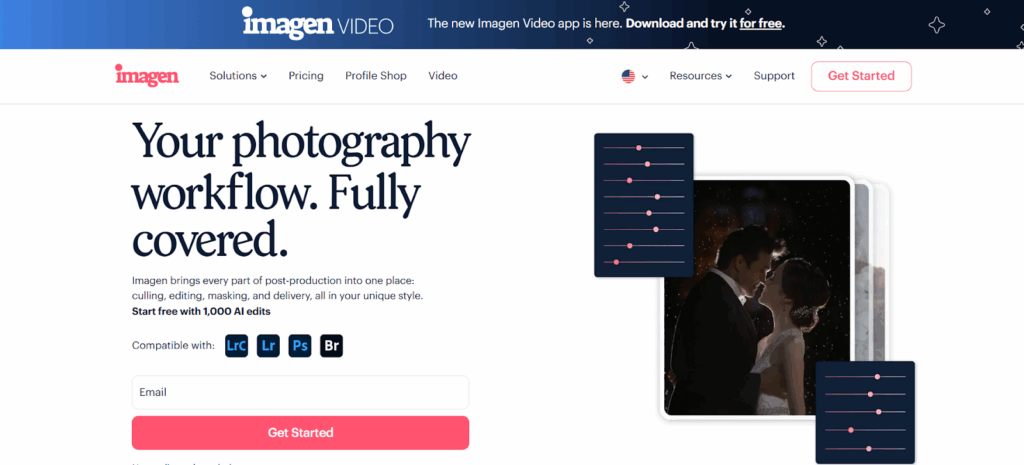
Presets vs. Imagen’s Personal AI Profile
The key differentiator is adaptability. Imagen doesn’t use a fixed formula; it learns your decision-making process.
| Feature | Traditional Preset | Imagen’s Personal AI Profile |
| Logic | Static values applied universally. | Dynamic, adaptive adjustments applied individually. |
| Exposure | Fixed +0.5 exposure to all. | Calculates required exposure for this specific photo based on your style and the RAW file data. |
| White Balance | Fixed +10 Temperature to all. | Analyzes the color temperature of this specific photo’s light source and adjusts based on how you corrected similar light in the past. |
| Consistency | Low, requires heavy manual tweaking. | High, edits are applied with superhuman consistency across all lighting scenarios. |
| Learning | None. | Continuously evolves through Fine-Tuning with your subsequent edits. |
How Imagen Learns Your Unique Style
How can a piece of desktop app and cloud technology edit just like you? The process revolves around creating your Personal AI Profile.
- You Provide the Training Data: You start by uploading a minimum of 2,000 to 3,000 of your best, previously edited photos from your Adobe Lightroom Classic catalog or compatible Adobe editing software (Lightroom, Photoshop, or Bridge). This is the crucial step—you’re teaching the AI what your finished work looks like.
- AI Training: Imagen’s neural network analyzes every adjustment you made in those training photos—the exposure tweaks, the subtle shifts in the HSL panel, the contrast curves. It maps the relationship between the original RAW file data and your final edited parameters.
- Your Profile is Born: After about 24 hours of training, your Personal AI Profile is ready. It’s not a preset; it’s a digital representation of your editorial brain. When you upload a new wedding gallery, the AI recognizes the current photo’s characteristics (dim light, harsh shadows, yellow color cast) and immediately knows the correct adaptive adjustments to apply based on its deep understanding of your style.
Enhancing Precision with AI Tools
Beyond the global color correction, Imagen offers specialized AI tools that handle the meticulous, time-consuming local adjustments often required in wedding portraits:
- Subject Mask: This tool automatically creates an accurate mask around the main subject—your couple—in one click. This allows the AI to apply local adjustments (like a subtle exposure boost or clarity increase) to make them pop from the background, a detail that often takes manual brushing in Lightroom.
- Smooth Skin: Achieving a natural, yet polished, look is a tightrope walk. Imagen’s Smooth Skin feature allows you to apply intelligent skin softening across all close-up images with customizable intensity, ensuring consistency without the “plastic” look of heavy-handed manual retouching.
- Whiten Teeth: A quick, precise AI tool to add a final touch to smiles. You get full control with a simple slider for your desired brightness.
- Crop and Straighten: Wedding day shooting is fast paced, often leading to slightly crooked horizons or suboptimal framing. Imagen’s Straighten tool automatically corrects horizons, while its Crop solutions—including the classic AI Crop and Portrait AI Crop—re-frame images for stronger composition, centered on the subject.
With Imagen, you move beyond the static limitations of a preset. You gain a powerful, adaptive assistant that handles the 96% of repetitive editing tasks, letting you spend your time on the creative details and local artistry.
Building the Complete AI-Optimized Wedding Workflow
True time savings come from integrating AI into every stage of your post-production pipeline, not just the editing phase. Imagen is designed as a single, centralized desktop app that addresses the three biggest bottlenecks: culling, editing, and storage/delivery.
Step 1: Intelligent Culling—The Biggest Time Saver
Before color correction, you must cut down your gallery from 5,000 shots to the 800 or so “keepers” you’ll deliver. Manual culling—the process of wading through near-duplicates, missed focus, and unflattering expressions—is arguably the most mentally draining and time-consuming part of the job.
Imagen’s AI Culling feature automates this process:
- Upload and Analyze: You upload your entire shoot via a Lightroom Classic catalog. Imagen’s AI instantly begins analyzing the images.
- Criteria Application: The AI uses multiple criteria, including:
- Face Recognition: Detecting subjects and duplicates.
- Closed Eyes/Kiss Recognition: Identifying unflattering expressions while preserving genuine moments like kisses.
- Blurry Photos: Flagging shots with missed focus.
- Review in Culling Studio: The software delivers the result, shortlisting your best shots and intelligently grouping similar images. You review the suggested selections with previews of your edited photos (using your AI Profile), making the process much faster since you’re looking at the final product aesthetic. You always retain full control to adjust ratings or selections before confirming the final picks.
- Cull to Exact Number: Need to deliver a set number of images for a client contract? This feature reduces the collection to a specified count or percentage, ensuring precision and compliance with client requests right from the start.
By handling the culling intelligently, Imagen saves you 96% of the time usually spent on post-production. It’s the essential first step to a truly efficient workflow.
Step 2: Adaptive Editing and Fine-Tuning
Once your favorites are culled, the editing process is seamless:
- AI Editing: You send the culled selects to Imagen. The Personal AI Profile instantly applies your signature style—including your tone, color adjustments, and chosen AI Tools like Subject Mask and Smooth Skin—to every photo adaptively.
- Download and Review: You download the edited metadata back to your Lightroom Classic catalog (or compatible Adobe software). The edited images appear, ready for a final quality check.
- Maintain Creative Control: You remain the creative director. If a specific shot—say, a dramatic portrait—needs a final, artistic dodge and burn adjustment, you make those manual tweaks in Lightroom.
- The Evolution of Style (Fine-Tuning): This is a huge benefit of the Personal AI Profile over a static preset. After reviewing and making your manual tweaks, you upload those final edits back to Imagen. The AI tracks these adjustments. Once you’ve uploaded enough new information (a minimum of 2,000 edits), you can Fine-Tune your profile. This process updates the AI’s understanding of your style, ensuring your editing assistant is always evolving with your creative vision.
Step 3: Streamlined Delivery and Cloud Storage
An integrated system means the post-production workflow doesn’t stop at the edit. Imagen incorporates features for secure storage and client delivery.
- Cloud Storage: Wedding galleries are large, and securing them is critical. Imagen Cloud Storage provides an ultimate backup solution, automatically backing up your projects during the culling and editing phase. You can securely store your files in the cloud, accessible anytime and from anywhere, without needing extra hard drives for backup peace of mind.
- Direct Delivery: Once the final edits are approved in Lightroom, you can deliver the photos straight from the Imagen app. You can export final JPEGs to a folder or publish directly to gallery platforms like Pic-Time, eliminating the need to jump between multiple applications.
By integrating culling, editing, storage, and delivery into a single, intuitive desktop app, Imagen removes bottlenecks and drastically improves your business efficiency.
Understanding the Alternatives: Static vs. Adaptive
When you evaluate editing tools, remember the choice is between static consistency (which breaks easily) and dynamic consistency (which holds up under pressure).
Manual Editing and External Outsourcing
Some photographers rely solely on manual editing or hire external editors.
- Manual Editing: This offers unlimited creative control but is highly inefficient for weddings, demanding 10–30 hours per gallery and often leading to burnout and inconsistent results late in the process.
- External Outsourcing: This frees up time but is costly and introduces a dependency on an external party. The consistency relies entirely on the editor’s skill and clear communication, which isn’t always seamless.
Other Preset-Based Tools
Many editing tools on the market, while offering beautiful looks, are fundamentally built on the static preset principle. They apply a fixed look that, like all presets, struggles with the natural, unpredictable light of a wedding day. They may offer variations for “indoor” or “outdoor” use, but this still requires you to manually assess the scene and choose the right flavor before applying it.
Imagen, by contrast, bypasses the “preset” concept entirely. It creates an adaptive AI Profile that handles those indoor-to-outdoor transitions intelligently and automatically, based on its knowledge of your style, not someone else’s. This distinction—moving from applying a static setting to applying dynamic decision-making—is the key difference for professional consistency.
Practical Tips for Maximizing Workflow Efficiency
Regardless of the tools you choose, establishing smart practices is non-negotiable for saving time and maintaining quality in your wedding photography business.
Pre-Production Checklists
Efficiency starts before the camera even comes out of the bag.
- Sync Your Clocks: Use the same time on all your camera bodies. This ensures all your files sort chronologically, a massive time-saver during culling.
- Shoot for the Edit: Your work in post-production starts in-camera. Aim for consistent exposure and white balance while shooting. Shooting in Auto White Balance (AWB) is often perfectly fine when shooting RAW, since you can correct it later.
- Organize Files Immediately: Use a consistent folder structure when importing, such as YYYY-MM-DD_CoupleName_Venue. This prevents chaos and speeds up backup processes.
Mastering Lightroom Adjustments
When reviewing your Imagen edits or working manually, prioritize these adjustments in your process:
- White Balance First: The Temperature and Tint sliders are the most critical tool for natural skin tones. Always start here before touching exposure or color.
- Tone Control (Highlights & Shadows): Use these tools to recover details. Pulling down Highlights and pushing up Shadows helps manage the wide dynamic range of a wedding day.
- The HSL Panel: This panel—Hue, Saturation, and Luminance—allows for precision. Use it to dial in distracting greens in grass or correct overly saturated orange skin tones without affecting the rest of the image.
- Detail Panel: Only apply sharpening when zoomed in to 1:1. Use the Masking slider to restrict sharpening to edges, avoiding noise in flat areas. Apply Noise Reduction selectively, particularly for high-ISO reception shots.
The Power of Selective Adjustments
Even the most accurate AI Profile or preset can’t always account for every local detail. That’s why mastering selective adjustments in Lightroom is essential for the final 5% of perfection.
- Radial and Graduated Filters: Use these for larger areas, such as darkening a bright background or adding light to a subject’s face.
- Adjustment Brush: This is your digital paintbrush. Use it to dodge (lighten) and burn (darken) specific areas, adding dimension and polish to key portraits.
- AI Masks (Lightroom’s Native & Imagen’s AI Tools): Use the subject and sky mask features to quickly isolate elements for precise edits. This is especially useful for quickly enhancing the couple in a crowd or pulling detail from a bright window.
In the end, automation is about handling the bulk of the work. Your time is best spent applying those final, critical, artistic touches that truly elevate the image.
Frequently Asked Questions
Imagen AI and Workflow Integration
What kind of computer system do I need to use Imagen?
Imagen is a dedicated desktop application for macOS and Windows, designed for professional photographers. It doesn’t run in your web browser. Since the actual AI processing (the editing) happens quickly in the cloud, you don’t need a powerful computer with a massive GPU. You do need to cull and review the results on the same computer where your Lightroom catalog resides.
How long does it take for my Personal AI Profile to be ready?
Once you upload the required number of edited photos (ideally 3,000 for maximum accuracy), the Imagen AI system typically takes up to 24 hours to train and build your personalized AI Profile. You’ll get an email notification as soon as it’s ready to use.
Can I use Imagen with a preset I already love?
Absolutely. If you don’t have enough edited photos to train a full Personal AI Profile, you can create a Lite Personal AI Profile by uploading one of your favorite presets and answering a short survey about your exposure and white balance preferences. This is a great way to start using the adaptive AI immediately while keeping your familiar look.
What happens if I keep tweaking the edits Imagen gives me? Will the AI learn?
Yes, that’s the power of the Personal AI Profile. After you download the edits, you can make any final manual adjustments in Lightroom. You then select the option to Upload final edits back to Imagen. The AI tracks these changes, and once you have enough new information, the app will prompt you to Fine-Tune your profile, making it even more accurate to your evolving style.
Can Imagen cull my entire wedding shoot?
Yes, Imagen’s AI Culling can cull the entire project, rating and grouping images based on quality criteria like sharpness, composition, duplicates, and closed eyes. You can even use the Cull to Exact Number feature, which is perfect for meeting strict client delivery requirements for a specific photo count.
Technical Editing Questions
Should I edit black and white images separately?
Yes. It’s always best practice to treat black and white edits as a separate aesthetic style. Imagen requires you to create separate AI Profiles for color and black and white images. This ensures the AI doesn’t try to apply color casts to monochrome shots or vice versa, maintaining purity in both styles.
When should I use Lightroom Classic’s native AI masking tools versus Imagen’s AI tools?
You should always use the best tool available. Imagen’s AI tools like Subject Mask and Smooth Skin are built into the automated post-production flow, meaning they are applied automatically and consistently across every photo that meets the criteria. This saves you the time of going in and applying the native Lightroom masks manually. You can still use Lightroom’s native masking tools for final artistic local adjustments, of course.
How do I deal with heavy color casts from venue lighting (like green DJ lights)?
While a static preset would break completely, your adaptive Personal AI Profile will do its best to counteract known color casts, especially if you included similar difficult lighting in your initial training images. For intense or unique light sources, you will still need to manually tweak the white balance and potentially use the HSL panel to target and desaturate that specific color (e.g., magenta for green light casts) in Lightroom for the final, custom look.
Is Imagen a web-based service?
No. Imagen is a professional desktop application designed to integrate deeply with Adobe products like Lightroom Classic, Lightroom, Photoshop, and Bridge. The processing (the editing itself) happens on Imagen’s servers (in the cloud), but you do all your work—uploading, reviewing, and making final adjustments—directly from the app on your computer. Your photos aren’t stored in the cloud unless you specifically opt into their Cloud Storage solution for backup.
Is there a fee every time I download my edits?
No. Once you pay for a project edit, the download is unlimited and always accessible. If you move your Lightroom catalog later, you just point Imagen to the new location to download the edit metadata again.
