The wedding photography industry moves at a breakneck pace. You have to capture fleeting moments, manage demanding clients, and deliver consistent, beautiful galleries on tight deadlines. It is a high-pressure job that balances art with rigorous logistical management. We will explore how to refine your craft, manage your business, and streamline your post-production using modern tools like Imagen. This guide covers everything from the shoot itself to the final delivery, ensuring you stay creative while running a profitable studio.
Key Takeaways
- Efficiency is paramount. Reducing time behind the computer allows for more time shooting and growing your business.
- Consistency builds brands. Clients hire you for a specific look; maintaining that look across thousands of images is crucial.
- AI is a tool, not a replacement. Artificial intelligence assists with repetitive tasks like culling and color correction, leaving creative decisions to you.
- Workflow integration matters. Tools must fit seamlessly into your existing ecosystem (Lightroom, Photoshop, Bridge) to be effective.
- Backup is non-negotiable. Secure, cloud-based storage solutions protect your work and your reputation.
- Culling sets the stage. Removing duplicates and bad shots early speeds up the entire editing process.
- Personalization wins. Your editing style is your signature; tools should learn from you, not force a generic look.
The Modern Wedding Photography Landscape
Wedding photography has evolved. Clients expect more images, faster turnaround times, and magazine-quality editing. The days of delivering 200 photos three months after the wedding are largely gone. Now, couples often expect sneak peeks within 24 hours and full galleries in weeks.
This shift puts immense pressure on photographers. You are not just a shooter; you are an editor, a retoucher, a data manager, and a customer service representative. Balancing these roles requires a strategic approach to your workflow. You need a system that handles the bulk of the labor without sacrificing the quality of the final product.
The Challenge of Volume
A typical wedding day yields thousands of images. You might shoot 3,000 to 5,000 frames to ensure you capture every kiss, tear, and dance move. This volume is necessary for coverage, but it creates a massive bottleneck in post-production.
Processing 4,000 RAW files manually is daunting. It leads to burnout. It keeps you stuck at your desk when you could be marketing your business or spending time with your family. This is where many photographers hit a ceiling. They cannot take on more weddings because they are buried in editing backlog.
The Need for Consistency
Your brand relies on your visual style. Whether you shoot dark and moody, bright and airy, or true-to-life color, your portfolio must be consistent. Prospective clients look at your Instagram grid and expect their wedding photos to look just like what they see online.
Achieving this consistency across thousands of images shot in varying lighting conditions—from bright midday sun to dark reception halls—is difficult. It requires a trained eye and disciplined editing.
Shooting for the Edit
Great post-production starts in the camera. How you shoot determines how much time you spend editing later. While modern tools can save underexposed images, getting it right in camera is always faster.
Lighting and Exposure
Consistency in exposure makes editing significantly easier. If you shoot a sequence of the bride walking down the aisle, and your exposure jumps up and down, you have to fix each frame individually.
- Shoot in Manual Mode. This locks your exposure settings, ensuring that consistent lighting results in consistent files.
- Watch Your White Balance. While you can fix RAW white balance later, setting a custom Kelvin temperature helps you visualize the final image while shooting.
- Mind the Highlights. Wedding dresses are white and easy to overexpose. Protect your highlights to retain detail in the dress.
Composition and Cropping
Compose your shots with the final crop in mind. Leave a little room for straightening, but try to frame your subject intentionally. While tools like Imagen offer automatic straightening and cropping, starting with a solid composition preserves your image resolution.
The Post-Production Workflow
This is where the real work begins after the wedding. A streamlined workflow is the difference between a profitable business and an expensive hobby.
We will break down the workflow into distinct stages: Ingest, Culling, Editing, Fine-tuning, and Delivery.
Step 1: Ingest and Backup
Before you do anything, you must secure your files. Memory cards can fail. Hard drives can crash.
- Download immediately. Do not leave files on cards longer than necessary.
- Create multiple copies. Follow the 3-2-1 rule: three copies of data, on two different media, with one offsite.
- Use Cloud Storage. Physical drives are great, but cloud backup is essential for disaster recovery.
Imagen offers a Cloud Storage solution integrated directly into its desktop app. This allows you to back up your photos securely while you work. It supports uploads from Lightroom Classic catalogs. You get peace of mind knowing your RAW files are safe in the cloud.
Optimized Storage
storing thousands of RAW files takes up space. Imagen provides options for optimized photos. These high-resolution backups reduce file size significantly without visible quality loss. This saves you money on storage fees and speeds up upload times.
Step 2: Culling
Culling is the process of selecting the “keepers” from the “rejects.” It is arguably the most tedious part of the job. You have to look at thousands of nearly identical photos to find the one where everyone’s eyes are open.
The Manual Culling Struggle
Manually culling involves sitting in front of a screen, tapping the arrow key, and making split-second decisions. It leads to decision fatigue. After reviewing 500 photos, your judgment starts to slip.
AI-Assisted Culling
Imagen includes a feature called Culling Studio. It uses artificial intelligence to mimic your selection process.
- Grouping: It groups similar shots together. You do not have to toggle back and forth between five versions of the same family portrait.
- Face Recognition: It detects subjects and checks for closed eyes or blinks.
- Blur Detection: It flags out-of-focus shots.
- “Cull In” Method: Imagen uses a “Cull In” approach. This means it selects the best photos for you to keep, rather than asking you to reject the bad ones. This is generally a more positive and faster way to work.
You can also set specific parameters. If you need to deliver a specific number of photos, you can tell the software to cull to that exact count. This is helpful for strict client contracts.
Summary: Culling is the foundation of a clean gallery. Using AI tools to group and rate images removes the drudgery and lets you focus on the creative selection.
Step 3: Editing with AI
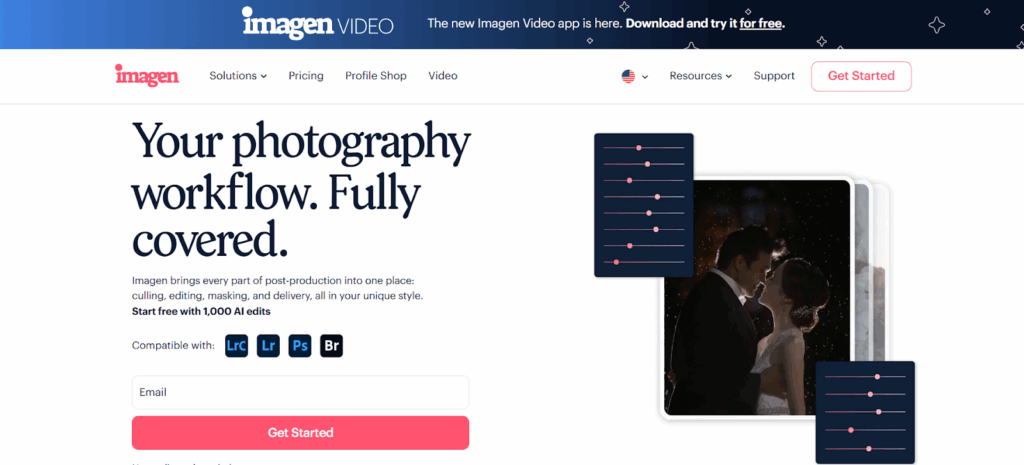
Once you have your final selection, it is time to edit. This is where Imagen shines as a desktop app. It works with Lightroom Classic, Lightroom, Photoshop, and Bridge.
The Problem with Presets
For years, photographers relied on presets. A preset applies a fixed set of adjustments to a photo. It works well if the lighting and exposure are exactly the same as the photo the preset was created on. But wedding conditions change constantly. A preset that looks great on a cloudy day looks terrible in a tungsten-lit reception.
The Personal AI Profile
Imagen takes a different approach. It builds a Personal AI Profile based on your previous edits. You feed it catalogs of your finished work (about 3,000 photos). The AI analyzes how you edit different lighting conditions, colors, and exposures.
When you run a new wedding through your Personal AI Profile, it does not just slap a filter on. It analyzes the specific parameters of each image and applies edits that match your style. It adjusts White Balance, Exposure, Contrast, and Color just like you would, but in a fraction of the time.
How to Create Your Profile
- Gather your catalogs. Find previous weddings you have edited that reflect your current style.
- Upload to Imagen. The desktop app analyzes the data. It needs RAW or JPEG files (but stick to one format per profile).
- Wait for training. The system takes less than a day to learn your style.
- Start editing. Apply this profile to new projects.
Talent AI Profiles
If you do not have 3,000 edited photos, or if you want to try a new look, you can use Talent AI Profiles. These are profiles created by industry-leading photographers. You can apply their style to your images instantly. This is a great way to get a professional look while you build your own portfolio.
Workflow Integration
Imagen integrates seamlessly with Adobe software.
- Import to Lightroom. Load your culled RAW files into a Lightroom Classic catalog.
- Open Imagen. Select the catalog and your AI Profile.
- Upload. The app sends the data to the cloud for processing.
- Download. In minutes, the edits are ready. You download them directly into your Lightroom catalog.
The edits appear as standard Lightroom adjustments. You can tweak the Exposure slider, change the White Balance, or adjust the Tone Curve. The files are not “baked” or flattened. You have full control.
Summary: AI editing moves beyond static presets. It adapts to the image, providing a consistent base that matches your unique style, saving you hours of slider-pushing.
Step 4: Advanced AI Tools and Retouching
Basic color correction is only step one. Wedding photography often requires more detailed work, like straightening horizons, cropping for composition, and skin smoothing.
Cropping and Straightening
Cropping takes time. You have to click the crop tool, adjust the corners, and rotate the image. Doing this for 800 photos adds hours to your workflow.
Imagen offers AI Crop and Straighten tools.
- Straighten: Automatically detects the horizon and levels the image.
- Crop: Analyzes the subject and composes the shot based on professional standards.
- Portrait Crop: specifically centers subjects and crops to standard ratios (like 4×5 or 5×7), which is ideal for print sales.
Subject Masking
Local adjustments make images pop. You might want to brighten the couple while keeping the background dark. In Lightroom, you would have to select the subject mask for every photo.
Imagen automates this. You can select “Subject Mask” in your project settings. The AI detects the subject and applies your specified local adjustments automatically.
Skin Smoothing
Bridal portraits often require skin retouching. Hand-retouching acne or uneven skin texture is slow. Imagen includes a Smooth Skin feature. It detects skin tones and applies a softening effect that looks natural. It does not turn people into plastic dolls; it just polishes the look. This is applied during the batch edit, so you do not have to open Photoshop for basic retouching.
Consistency Check
After the AI applies these tools, you simply review the gallery. You might tweak a crop here or there, but the heavy lifting is done. This allows you to deliver a gallery that looks fully retouched without the manual labor of retouching.
Summary: Advanced AI tools handle the detailed finishing touches like cropping and skin smoothing, ensuring a high-end finish without the manual grind.
Step 5: Delivery and Client Experience
The final step is getting the images to the client. Speed delivers value. A client who receives their photos two weeks after the wedding is happier than one who waits four months.
Exporting
Once you have reviewed the edits in Lightroom, you export the high-resolution JPEGs.
Gallery Upload
You then upload these files to your gallery provider. Imagen has integrations that allow for smoother handoffs, such as publishing directly to Pic-Time. This removes another manual step of exporting to a hard drive and then uploading to the web.
The Value of Speed
Delivering fast does not mean rushing. It means using efficient tools. When you use Imagen, you reduce the “active time” spent on a wedding. You can shoot on Saturday, cull and edit on Monday, and deliver by Tuesday. This exceeds client expectations and generates positive reviews.
Addressing Common Concerns
Photographers often hesitate to adopt AI. They worry about quality, control, and the “robot” look.
“Will it look like my style?”
This is the most common question. Imagen is designed to learn your style. It is not applying a generic look. The Personal AI Profile mimics your slider movements. If you tend to warm up images, it learns that. If you crush the blacks, it learns that.
“Does it take away my creativity?”
No. It takes away the repetitive tasks. Adjusting exposure on 4,000 photos is not creative; it is administrative. By automating the baseline edits, you free up mental energy to focus on the creative “hero” shots that go in your portfolio. You stay in control of the final review.
“Is it expensive?”
Time is money. If you spend 20 hours editing a wedding, calculate your hourly rate. If Imagen can do that work in 20 minutes for a flat fee (usually a few cents per photo), the ROI is massive. You can use those saved 19 hours to book another wedding, update your website, or rest.
Competitor Landscape
There are other tools on the market. Some photographers use general presets. Others use outsourcing companies where humans edit the photos.
- Presets: As discussed, presets are static. They require heavy manual tweaking for every lighting change. They are a starting point, not a solution.
- Manual Outsourcing: Sending catalogs to human editors is a valid option. However, it takes time (usually a week or more) and can be inconsistent if the editor changes. It is also typically more expensive per image than AI solutions.
- Other AI Tools: There are other AI editors. Most operate similarly but may lack the deep integration with desktop workflows or the specific customization of the Personal AI Profile. Imagen focuses heavily on the desktop experience and Lightroom Classic integration, which is the industry standard for wedding photographers.
Imagen positions itself as an assistant that lives on your computer. It is faster than human outsourcers and more adaptive than presets.
Building a Sustainable Business
Longevity in wedding photography requires protecting your physical and mental health. Burnout is real. Staring at a monitor for 12 hours a day leads to back pain, eye strain, and repetitive stress injuries.
The “Wedding Hangover”
Many photographers experience a “wedding hangover” after a busy weekend. The thought of facing a mountain of editing can be paralyzing. This leads to procrastination, which leads to missed deadlines.
Scalability
If you edit everything manually, your income is capped by your time. You can only shoot as many weddings as you can edit. By using Imagen, you break that cap. You can handle higher volumes without increasing your workload. This allows you to scale your business, take on associates, or shoot more events.
Client Retention
Happy clients refer their friends. Delivering consistent, high-quality images quickly is the best marketing you can do. It shows professionalism and reliability.
Technical Considerations
To use Imagen effectively, you need a computer that runs the supported host software (Lightroom Classic, Lightroom, Photoshop, or Bridge).
Hardware
- Processor: A modern multi-core processor helps with generating previews in Lightroom.
- RAM: 16GB is the minimum; 32GB or more is recommended for handling large catalogs.
- Storage: Fast SSDs are crucial for catalog performance.
Internet
Since Imagen processes photos in the cloud, a stable internet connection is required for the upload and download phases. However, the actual culling and review happen locally on your machine, so you do not need gigabit fiber to work effectively.
Step-by-Step Tutorial: Your First Project with Imagen
Let’s walk through setting up your first edit.
1. Create a Project Open the Imagen desktop app. Click “Create Project.” Give it a name, like “Smith Wedding.”
2. Select Photos Point the app to your Lightroom Classic catalog. You can select specific folders or collections within that catalog.
3. Choose Your Profile Select your Personal AI Profile (if you have trained one) or choose a Talent AI Profile from the list.
4. Select AI Tools Decide if you want Culling, Straightening, Cropping, or Subject Masking. Toggle the switches for the features you need.
5. Upload Click “Upload.” The app compresses smart previews and sends the data to the cloud. This is usually very fast.
6. Wait (Briefly) Go grab a coffee. A typical wedding takes about 20 minutes to process. You will get an email notification when it is done.
7. Download Click “Download to Review.” The edits populate directly into your Lightroom catalog.
8. Review and Tweak Scroll through the images in Lightroom. Make any necessary adjustments.
9. Finalize If you made changes, you can upload the final edits back to Imagen. This helps fine-tune your Personal AI Profile for next time.
Conclusion
Wedding photography is a blend of art and business. To succeed, you must excel at both. The artistic side requires your eye, your heart, and your presence. The business side requires efficiency, consistency, and reliability.
Tools like Imagen bridge the gap. They handle the technical, repetitive tasks that drain your energy. They ensure your style remains consistent across thousands of images. They protect your data with cloud storage.
By integrating AI into your workflow, you are not cheating; you are evolving. You are reclaiming your time. You are ensuring that you can continue to shoot weddings for years to come without burning out. Embrace the technology, refine your workflow, and focus on what truly matters: capturing the moments that your clients will cherish forever.
Frequently Asked Questions
1. What is Imagen, and is it a web-based app? Imagen is a desktop application, not a web-based tool. You download and install it on your computer. It works in conjunction with Adobe software like Lightroom Classic. While the heavy processing happens in the cloud to save your computer’s resources, the interface and your workflow management happen right on your desktop.
2. Does Imagen replace the need for Adobe Lightroom? No, Imagen works with Lightroom (and Photoshop/Bridge). It acts as a powerful plugin-style assistant. You still use Lightroom to organize your catalogs and perform your final review. Imagen simply adjusts the settings within Lightroom for you.
3. Can I use Imagen for culling my photos? Yes. Imagen features a dedicated Culling Studio. It uses AI to group duplicate shots, detect blinks, and identify blurry images. It suggests the best photos to keep, significantly speeding up the selection process before you even start editing.
4. How does the Personal AI Profile work? A Personal AI Profile learns your specific editing style. You upload previous Lightroom catalogs containing images you have edited (about 3,000 photos). The AI analyzes your adjustments—exposure, contrast, color, white balance—and creates a profile that mimics your style on future edits.
5. What if I don’t have enough photos to train a Personal AI Profile? You can use Talent AI Profiles. These are pre-made profiles built by industry-leading photographers. You can also create a “Lite” Personal AI Profile using a preset and a short survey, or just start editing with a Talent profile and eventually tweak it to become your own.
6. Is my work backed up with Imagen? Yes. Imagen offers Cloud Storage. It can automatically back up your low-resolution and high-resolution photos from Lightroom Classic catalogs while you work. This provides a secure, offsite backup solution for your RAW files.
7. Does Imagen support skin smoothing? Yes. The Smooth Skin AI tool detects faces and skin tones. It applies a subtle smoothing effect to reduce blemishes and uneven texture. This is great for wedding portraits and saves you from having to open Photoshop for every closeup.
8. Can Imagen crop and straighten my photos? Absolutely. The AI Crop and Straighten tools analyze the horizon lines and subject placement. They automatically level the photo and apply crops that adhere to professional composition standards.
9. Does Imagen work with Photoshop? Yes, Imagen supports Photoshop and Bridge (via Adobe Camera Raw). However, the workflow is most robust and commonly used with Lightroom Classic due to the catalog system.
10. How fast is the turnaround time? It is incredibly fast. Imagen edits photos at a speed of under 0.5 seconds per photo. A full wedding gallery of several thousand images typically comes back in under 30 minutes.
11. Can I use Imagen for other types of photography besides weddings? Yes. While it is very popular for weddings due to the high volume, it works for portraits, events, real estate, sports, and school photography. There are specific tools and profiles tailored for these genres.
12. Is Sky Replacement available for wedding photos? Currently, the Sky Replacement feature in Imagen is designed specifically for Real Estate photography. It is not intended for wedding or portrait workflows at this time.
13. Do I have to pay for a subscription? Imagen operates on a pay-per-edit model, but there is a minimum monthly commit. You pay for the photos you edit. There are also subscription plans for Cloud Storage. This flexibility allows you to scale your costs with your workload.
