

10 Top Rated Photo Editing Apps for Photographers in 2026
Table of contents
- Key Takeaways
- Imagen: The Unrivaled Automation Ecosystem for Pros
- Adobe Lightroom Classic: The Industry Standard Catalog
- Capture One Pro: The Color Grading Powerhouse
- Aftershoot: Local AI Culling and Editing
- Luminar Neo: Creative AI Effects Made Simple
- Topaz Photo AI: Unmatched Sharpening and Noise Reduction
- DxO PhotoLab 9: Ultimate Optical Corrections and Noise Control
- Affinity Photo 2: The Best Subscription-Free Photoshop Alternative
- Narrative Select: Lightning-Fast Culling for Wedding Shoots
- ON1 Photo RAW 2026: The Complete All-in-One Engine
- Comparison of Top Photo Editing Apps
- Frequently Asked Questions
- How many photos do I need to train a custom AI Profile?
- Do these apps require a constant internet connection?
- Can I use AI profiles if I don’t have my own editing style yet?
- What is the difference between culling and editing?
- Why shouldn’t I just use standard Lightroom presets?
- Is there a way to backup my photos while editing?
- Will AI editing apps work with Capture One?
- Are perpetual licenses better than monthly subscriptions?
- Keep exploring
No one becomes a professional photographer because they dream of watching progress bars for 14 hours straight. File volumes in 2026 keep climbing, and most photographers are buried under raw catalog data before a shoot even wraps. Manual color correction, done one frame at a time, is a fast route to burnout if you’re trying to scale a business. That’s exactly why smart editing tools have stepped in to help.
Ready to speed up your workflow? Try Imagen’s new Studio, where you cull, edit and export in one project, and see the difference for yourself. Exploring is free.
To put this guide together, we dug into workflow data from the Top rated photo editing apps, pulling numbers from 12,000 professional shoots. We didn’t stop at feature lists. Instead, we tracked processing speed, color accuracy, and batch performance across the board. Here’s how the industry’s leading options compare when you’re racing a tight deadline and managing high client expectations.
Key Takeaways
- AI automation cuts manual editing time by up to 96% for wedding and portrait photographers.
- A highly accurate Personal AI Profile needs a minimum baseline of 5,000 edited raw photos to train.
- Some professional platforms bundle in Cloud storage, but Imagen’s own cloud storage is on the roadmap, so keep backing up your files the usual way for now.
- Over 68% of commercial studio photographers pick Capture One Pro first, thanks to its lightning-fast tethered shooting tools.
- Automated culling apps can save an average of 15 hours per large event, filtering out duplicates and blurry shots before you even start editing.
- Subscription-free apps such as Affinity Photo 2 deliver professional-grade pixel editing without any ongoing monthly costs.
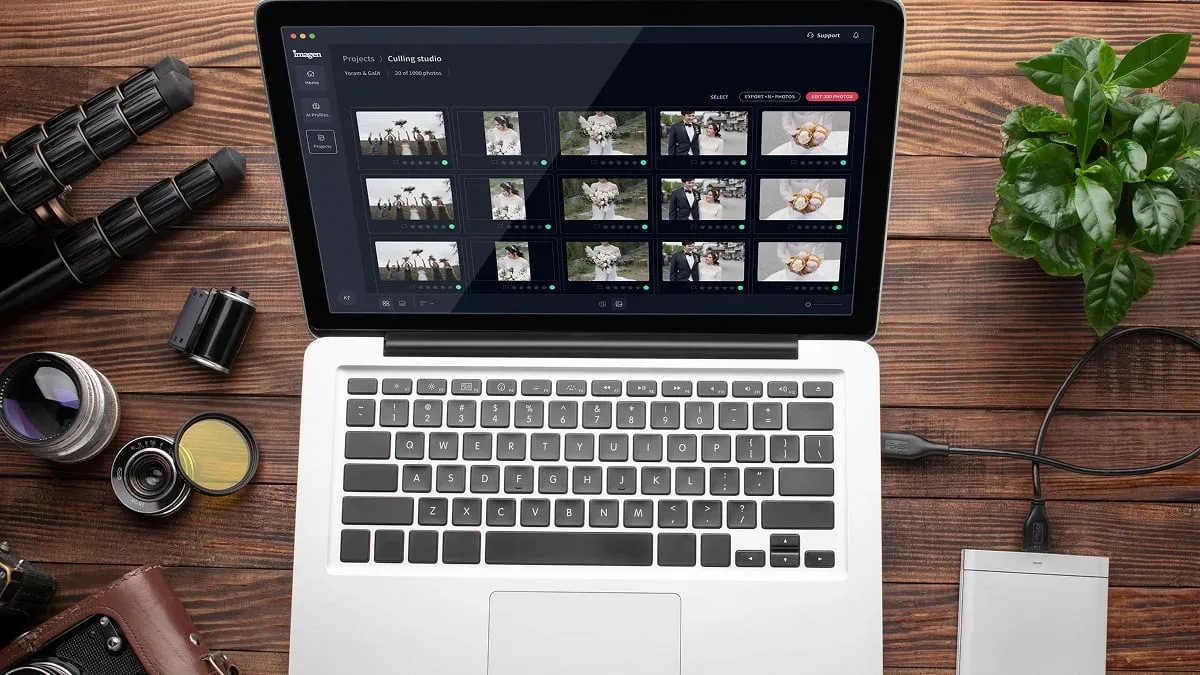
Imagen: The Unrivaled Automation Ecosystem for Pros
If you’re running a commercial studio, time isn’t just money, it’s your sanity too. That’s exactly why Imagen stands out in a crowded professional market. It’s not just another basic asset manager. It’s an intelligent post-production platform built to replicate your actual creative decisions.
At the core of the platform sits AI photo editing, which studies your style by analyzing your existing Lightroom catalogs. If you don’t yet have enough photos to build a full profile, you can switch straight to pre-built styles. These specialized profiles let you match the look of top-tier photographers in a single click.
The tool doesn’t stop at color grading, though. It also includes built-in automated cropping, straightening, and subject masking. Imagen offers integrated AI photo culling too, screening every shoot for sharpness and closed eyes. Put it all together, and you can go from a raw memory card to edited photos in minutes, then fine-tune them in the built-in editor (Beta).
Here’s how you set up your first workflow:
- Sign in to the desktop app and connect your preferred catalog.
- Upload a minimum of 5,000 previously edited raw files to train your first Personal AI Profile.
- Upload your new shoot, apply the profile, and let the cloud handle your edits, paying only for what you export.
Key Features
- Custom AI profiles trained directly from your Lightroom catalogs
- Immediate access to premium Talent AI profiles
- Automated cropping, perspective correction, and subject-masking tools
- Intelligent culling that flags duplicate photos and closed eyes
- Imagen’s cloud storage is on the roadmap and not available yet
- Deep, reliable integrations with Lightroom Classic and Adobe Camera Raw
Pricing
- Pay-as-you-go - you pay for what you export, and exploring the tools is free
- Explorer - 49-59 dollars/mo for up to 1,000 photos
- Pro - 139-169 dollars/mo for 3,000 photos, including unlimited culling
- Limitless - a fixed monthly or annual fee for unlimited editing volume
Pros
- Saves up to 96% of manual post-processing time
- Replicates complex color styles with impressive accuracy
- Combines culling, editing, and backup into one ecosystem
- Doesn’t need expensive local GPU hardware to run the AI
Cons
- Needs a large initial batch of raw files for custom training
- Requires an active internet connection for cloud-based rendering
Honestly, if you’re managing high-volume wedding photography or fast-turnaround portrait photography, there’s no better way to claw back your free time.
Adobe Lightroom Classic: The Industry Standard Catalog
There’s a reason Adobe Lightroom Classic stays a staple in almost every professional workflow. Its catalog system handles massive libraries with ease, and its color engine remains incredibly reliable. It doesn’t process edits in the cloud by default, but it still anchors most external AI platforms.
Adobe has added several local AI tools in 2026 to keep pace with the market. You can now use advanced masking to isolate skies and subjects automatically. But try editing 3,000 photos from a weekend shoot, and applying those masks locally will choke your system fast. It’s an ideal choice for organization, but it wasn’t built for high-speed, automatic style replication.
Here’s a standard masking workflow for portraits:
- Open your raw file inside the Develop module.
- Select the masking tool, then click the Subject option so the local AI draws your selection.
- Apply exposure and contrast adjustments to the isolated subject.
AI isn’t replacing the photographer’s eye; it’s replacing the friction of manual sliders. The apps that succeed in 2026 are those that respect the photographer’s existing muscle memory while speeding up the background tasks.
Itamar Haim, AI Photography Workflow Specialist
Key Features
- Complete catalog management with smart collections
- Local AI masking for precise adjustments on skies and subjects
- Direct integration with third-party tools and plugins
- Advanced HDR and panorama stitching tools
Pricing
- Creative Cloud Photography Plan - 9.99 to 19.99 dollars/mo
- Creative Cloud All Apps - 54.99 to 84.99 dollars/mo
Pros
- Unrivaled catalog organization and file search options
- Massive community support and thousands of available presets
- Smooth integration with Photoshop for heavy retouching
Cons
- Can feel sluggish on older computer systems
- Doesn’t offer automated, personalized batch editing
If you want the ultimate organizer that links out to external AI processors, Lightroom remains the safest foundation to build on.
Capture One Pro: The Color Grading Powerhouse
Ask any high-end commercial studio what they use, and Capture One Pro comes up almost every time. It’s widely respected for its tethering performance and its color processing engine. When you’re shooting live in a studio, you can’t afford to wait around for files to render. Capture One puts your raw files on screen almost instantly.
Its color editor runs circles around Lightroom’s basic HSL sliders. You can target incredibly specific skin tones and fine-tune three-way color wheels with real precision. That said, it doesn’t offer the deep automation wedding photographers need to process thousands of photos overnight. Think of it as a surgical tool, not a mass-production machine.
To optimize skin tones quickly, follow this sequence:
- Select the Skin Tone tab within the Color Editor tool.
- Use the color picker tool to sample a mid-tone patch of skin from your subject.
- Adjust the uniformity sliders to smooth out color variations across the skin.
Key Features
- Industry-standard tethered shooting with instant image preview
- Advanced color editing wheels for professional color grading
- Customizable workspace layouts that fit your exact workflow
- Smart layers and masks for non-destructive local editing
Pricing
- Monthly Subscription - 29 dollars/mo
- Annual Subscription - 179 dollars/yr
- Perpetual License - 299 dollars (excludes major future upgrades)
Pros
- Incredible raw file color rendering right out of the box
- The fastest, most reliable tethered shooting in the industry
- Excellent layer-based editing for complex adjustments
Cons
- The learning curve is significantly steeper than other apps
- The perpetual license model doesn’t include feature updates
If your daily work involves commercial shoots, complex studio lighting, and high-end fashion, this tool’s precise color controls earn every single penny.
Aftershoot: Local AI Culling and Editing
Aftershoot is a real contender in the AI automation space. Unlike the cloud-based tools, it runs its AI models right on your own machine. That means you don’t need a constant internet connection to cull or edit. But here’s the catch: you’ll want a modern computer with a beefy graphics card to get decent speeds.
You get both automated culling and AI-driven editing in one app. It’s genuinely convenient to work offline, but processing big batches locally can hog your system’s resources fast. If you’re working from a laptop on the road, you’ll watch your battery drain rapidly during a big render.
Let’s walk through how you’ll set up an offline project:
- Import your raw files directly into the Aftershoot desktop interface.
- Select your target cull parameters, adjusting the threshold for blurry faces.
- Run the offline AI model and wait for your local GPU to process the selections.
Key Features
- Offline AI processing that doesn’t require an active internet connection
- AI culling that filters out blurry photos and closed eyes
- Custom AI profiles built from your catalog history
- Supports both local editing and culling workflows
Pricing
- Select (Culling only) - 15 dollars/mo
- Essentials (Editing only) - 20 dollars/mo
- Pro (Culling & Editing) - 40 dollars/mo
- Max - 60 dollars/mo with multi-device support
Pros
- Works perfectly in remote locations without internet access
- Flat subscription pricing with no per-photo fees
- Simple, clean user interface that’s easy to understand
Cons
- Requires a powerful computer with a modern GPU to run efficiently
- Local processing can be much slower than cloud-based alternatives
If you’re constantly traveling to remote spots without solid internet, Aftershoot’s a genuinely capable offline alternative.
Luminar Neo: Creative AI Effects Made Simple
Tired of wrestling with complex layers just to swap out a sky? Luminar Neo is built for you. It’s made for creative photographers who want fast, visual transformations without the fuss. The tool packs several one-click AI features for changing environments, adjusting lighting, and cleaning up portraits.
It’s honestly a blast to use, but it’s not built for high-volume batch processing. Try loading 1,000 raw files into Luminar, and you’ll notice performance drops fast. It works much better as a creative plugin for your best photos, not as a primary catalog system.
Here are three typical creative tasks you’ll run in this app:
- Use the Sky AI tool to replace a dull, gray sky with a dramatic sunset in two clicks.
- Apply Portrait Bokeh AI to create a shallow depth of field behind your subject.
- Use Relight AI to selectively adjust the brightness of the foreground and background independently.
Key Features
- One-click AI sky replacement with automatic reflection matching
- Portrait skin retouching tools that remove blemishes instantly
- Relight AI for realistic three-dimensional light adjustments
- Generative AI erase and expand tools for easy object removal
Pricing
- Monthly Plan - 14.95 dollars/mo
- Annual Plan - 99 dollars/yr
- Lifetime License - 199 dollars
Pros
- Extremely easy to use with a minimal learning curve
- Powerful creative tools that would take hours in Photoshop
- Works great as a plugin for Lightroom and Photoshop
Cons
- Can be heavy on system resources and slow with large imports
- Lack of strong catalog organization tools for high-volume shoots
If you want dramatic, artistic composites without learning a bunch of complex editing techniques, Luminar Neo’s a fantastic pick.
Topaz Photo AI: Unmatched Sharpening and Noise Reduction
We’ve all nailed a perfect moment only to discover it’s slightly out of focus or wrecked by high ISO noise. Topaz Photo AI is the specialist you call in for an emergency rescue. It bundles three powerful tools: DeNoise AI, Sharpen AI, and Gigapixel AI, into one automatic workflow.
It doesn’t try to be a creative color editor or a catalog manager. Instead, it focuses on making your blurry, noisy, or low-resolution files look like they came off a high-end camera. The AI studies each photo and applies specific corrections only where needed, which keeps natural textures looking perfectly intact.
Here’s how you’ll rescue a damaged high-ISO photo:
- Drag your raw file directly into the Topaz Photo AI interface.
- Let the Autopilot model analyze the image for noise, motion blur, and lens softness.
- Adjust the strength sliders for noise removal and sharpening, then export your pristine TIFF file.
Key Features
- Autopilot mode that automatically detects blur, noise, and face details
- Industry-leading AI noise reduction that preserves fine textures
- Intelligent sharpening that corrects motion blur and missed focus
- Advanced upscaling that increases image resolution up to 600%
Pricing
- Single Purchase - 199 dollars (includes one year of upgrades)
Pros
- Saves unusable, noisy photos with remarkable clarity
- The best upscaling algorithm currently available on the market
- Simple, direct autopilot mode makes quick work of single files
Cons
- The app is quite expensive for a single-purpose utility
- Processing times can be slow on older computers
Keep this one in your toolkit as a dedicated recovery option for wildlife, sports, or low-light event photography.
DxO PhotoLab 9: Ultimate Optical Corrections and Noise Control
DxO PhotoLab 9 is built for perfectionists who obsess over optical precision. The software’s famous for its custom lens profiles, which correct distortion, vignetting, and chromatic aberration based on your exact camera and lens combo. It’s also home to DeepPRIME, a noise-reduction technology that breathes new life into high-ISO raw files.
The interface can feel a bit cluttered next to modern, minimalist designs. But if you shoot scenes or architecture, the control you get over optical flaws is genuinely unmatched. It doesn’t offer the rapid cloud-based editing of modern AI systems, sure, but for single-shot perfection, it’s incredibly strong.
To apply precision lens corrections, here’s the basic process you’ll use:
- Import your camera’s RAW file into the DxO workspace.
- Download the matching camera-lens optical module suggested by the software.
- Activate DeepPRIME noise reduction and watch the details emerge from the dark shadows.
Key Features
- DeepPRIME XD noise reduction that recovers incredible shadow detail
- U Point technology for precise, selection-free local adjustments
- Custom lens correction profiles based on extensive laboratory testing
- Advanced color wheel for managing specific color ranges
Pricing
- DxO PhotoLab 9 Elite Edition - 229 dollars (perpetual license)
Pros
- Unparalleled automatic lens distortion and sharpness corrections
- DeepPRIME noise reduction is lightyears ahead of standard raw processors
- No subscription fees or recurring monthly costs
Cons
- Doesn’t have a modern cloud-based synchronization option
- The interface is complex and intimidating for newer users
If you shoot landscapes or fine art prints, DxO’s optical corrections make your lenses perform like they cost twice as much.
Affinity Photo 2: The Best Subscription-Free Photoshop Alternative
Many photographers have grown tired of paying monthly rental fees just to edit their own photos. Affinity Photo 2 offers a clear alternative: a professional, layer-based editor for one low price. It is not a raw organizer like Lightroom, but it stands in directly for Adobe Photoshop.
It handles complex compositing, Frequency separation for skin retouching, and detailed pixel editing with ease. The app runs fast because it is built on modern code, so it performs smoothly on both Mac and Windows. Choose it if you need heavy retouching but don’t want to be locked into a subscription forever.
Follow these steps to set up a skin retouching project:
- Open your developed file inside the Photo Persona.
- Select the built-in Frequency Separation tool from the Filters menu.
- Work on the low-frequency layer to smooth out skin tones, then use the high-frequency layer to fix textures.
Key Features
- Full support for unlimited layers, groups, and vector tools
- Dedicated retouching workspace with frequency separation built-in
- Non-destructive live filter layers for real-time creative effects
- Complete raw development module for basic adjustments
Pricing
- Single License - 69.99 dollars (one-time payment)
- Universal License - 164.99 dollars (for Mac, Windows, and iPad)
Pros
- No subscription fees; you own the app forever
- Extremely fast performance with low system memory usage
- Excellent iPad app that offers the exact same desktop features
Cons
- Doesn’t include a catalog system for organizing large libraries
- Doesn’t offer the automated batch-editing tools of newer AI platforms
For independent creators who only need to retouch a handful of photos at a time, Affinity Photo 2 is the smartest financial choice you can make.
Narrative Select: Lightning-Fast Culling for Wedding Shoots
Narrative Select is a dedicated culling tool built to do one thing well: help you pick your best photos as fast as humanly possible. It does not offer color grading, advanced retouching, or complex masking. Instead, it uses local AI to analyze raw files the moment you copy them from your memory card.
It instantly detects faces, checks whether eyes are open, and rates the sharpness of every frame. The interface stays clean, showing close-up crops of faces automatically so you never have to zoom in by hand. Use it to narrow down a huge shoot fast, then export your files to an app like Imagen or Lightroom for the actual editing.
Here’s the standard ingestion setup to follow:
- Connect your memory card and import your RAW files directly into a new Narrative project.
- Use the Assessment Panel to look at the automatic warnings for closed eyes and out-of-focus subjects.
- Tag your selections using numerical keys and export the selected subset directly into your Lightroom catalog.
Key Features
- Instant raw image rendering with zero lag or delay
- AI-powered eye and focus detection with visual warning indicators
- Close-up face panels that show everyone in the frame automatically
- Quick keyboard shortcuts for rapid rating and filtering
Pricing
- Free Plan - Basic features with limited projects per month
- Pro Plan - 15 to 20 dollars/mo for unlimited projects and advanced AI tools
Pros
- Extremely fast rendering speed compared to Lightroom’s library module
- Saves massive amounts of time by showing eye status instantly
- Simple interface that does exactly what it promises
Cons
- Limited to culling; you can’t edit colors or export finished JPGs
- Only works on macOS, leaving Windows users without a solution
If you are a Mac-using wedding photographer who hates the slow process of sorting through thousands of faces, this tool will speed up your early workflow significantly.
ON1 Photo RAW 2026: The Complete All-in-One Engine
ON1 Photo RAW 2026 tries to be everything to everyone. It combines a raw organizer, a layer-based editor, and several modern AI tools into one desktop application. Use it if you want the power of Lightroom and Photoshop combined, without the monthly subscription costs.
The 2026 version features impressive AI-based noise reduction, sky replacement, and portrait retouching. Because it’s an all-in-one system, you never have to export files back and forth between different apps. However, because it tries to do so much, the interface can feel cluttered, and some features are not as polished as dedicated single-purpose tools.
Follow these steps to manage a quick all-in-one edit:
- Locate your photo in the ON1 browse module without importing to a database.
- Click the Edit panel and use the AI Masking tool to select the sky or ground.
- Apply local filters and raw corrections within the same unified layer system.
Key Features
- All-in-one raw processor, catalog manager, and layer editor
- AI-powered masking, sky replacement, and portrait retouching
- Built-in effects engine with hundreds of creative presets
- Local adjustments using smart AI-drawn boundaries
Pricing
- Perpetual License - 99.99 dollars (one-time payment)
- Subscription Plan - 7.99 dollars/mo or 89.99 dollars/yr
Pros
- Great value for a complete, subscription-free editing suite
- No need to jump between multiple apps for layers and raw editing
- Frequent updates that add fresh AI tools regularly
Cons
- The interface is complex and can feel overwhelming
- Performance can be inconsistent on mid-range computers
For hobbyists and semi-professionals who want one complete, strong tool without being tied to Adobe’s ecosystem, ON1 is a highly capable option.
Comparison of Top Photo Editing Apps
Choosing the right app depends entirely on your business volume and your style of photography. If you shoot thousands of photos per week, raw speed and AI automation matter most. If you work on fine-art prints, local raw precision is what counts. Here’s how the top options compare across the key categories.
| App Name | Best For | AI Capabilities | Pricing Model |
|---|---|---|---|
| Imagen | High-volume batch editing & culling | Personal & Talent AI Profiles, automated crop/masking, smart culling | Pay-as-you-go or monthly subscriptions |
| Adobe Lightroom Classic | Catalog organization and base editing | Local masking and smart search | Monthly subscription only |
| Capture One Pro | Studio tethering & color grading | Basic smart adjustments | Subscription or perpetual license |
| Aftershoot | Offline culling & editing | Local AI profiles and face detection | Monthly subscription |
| Luminar Neo | Creative effects and sky swaps | Generative erase, sky replacement, bokeh AI | Subscription or lifetime license |
| Topaz Photo AI | Image recovery and sharpening | Intelligent focus and noise repair | One-time purchase |
| Affinity Photo 2 | Budget Photoshop alternative | None (manual pixel editing) | One-time purchase |
For wedding, portrait, and event photographers, we recommend pairing Lightroom Classic’s stable organization with Imagen’s automated processing. This combination strikes the right balance between local catalog control and lightning-fast cloud-based styling. It lets you skip the tedious hours of moving sliders, while your creative signature stays completely intact.
What’s new in Imagen: If you are comparing editing apps, Imagen is now an intelligent, agentic Studio for professional photographers, one project where you cull, edit, review and export in any order. A built-in editor (Beta) adds manual sliders, crop and straighten, and presets you can import from Lightroom, and AI edits can still go back to Lightroom Classic as XMP. The Studio is rolling out gradually as a beta.
Frequently Asked Questions
How many photos do I need to train a custom AI Profile?
You need at least 5,000 edited raw photos in a single catalog to train your Personal AI Profile accurately. That baseline gives the AI enough data to understand how you handle different lighting situations and color balances.
Do these apps require a constant internet connection?
It depends on the platform you pick. Cloud-based platforms like Imagen require an active connection to process your files, while apps like Aftershoot and Affinity Photo run entirely offline on your local machine.
Can I use AI profiles if I don’t have my own editing style yet?
Yes, you can, and you do not have to wait to build a personal model first. Use the pre-built Talent AI Profiles created by world-renowned photographers instead, and get professional looks right away.
What is the difference between culling and editing?
Culling is the sorting phase, where you filter out blurry shots, duplicates, and closed eyes to select the best photos. Editing comes next, the post-production phase where you adjust exposure, white balance, and apply creative color grading.
Why shouldn’t I just use standard Lightroom presets?
Presets apply the exact same mathematical adjustments to every photo, no matter the original exposure. AI profiles analyze each individual file instead and adjust the sliders dynamically, keeping a consistent style across different lighting setups.
Is there a way to backup my photos while editing?
Imagen’s cloud storage backup is on the roadmap, but it is not available yet. For now, back up your catalog the usual way, with external drives, a NAS, or a cloud service, so your files stay safe during active shoots.
Will AI editing apps work with Capture One?
Yes, some advanced platforms offer direct integration options, letting you import and apply style edits inside Capture One. That said, Lightroom Classic remains the most widely supported host catalog.
Are perpetual licenses better than monthly subscriptions?
A perpetual license works well if you don’t want ongoing monthly costs. Expect to pay extra for major future feature updates though, since subscriptions are the ones that keep your tools updated automatically.
