The photography industry is moving fast. If you’ve been shooting professionally for more than a few years, you’ve likely felt the shift. Client expectations are higher, turnaround times are shorter, and the sheer volume of images we capture per shoot has exploded. In this landscape, artificial intelligence isn’t just a novelty; it’s a lifeline.
Today, we are looking at two platforms that often come up in conversations about AI workflow: Simplified and Imagen. While they both promise to make our lives easier, they serve drastically different purposes in a photographer’s toolkit. One is a creative suite for marketing and design, while the other is a heavy-lifting production powerhouse for post-processing.
This article breaks down exactly what each tool does, how they differ, and why Imagen is the dedicated choice for photographers who need to cull, edit, and deliver thousands of photos without losing their mind.
Key Takeaways
- Different Tools for Different Jobs: Simplified is a web-based design and marketing platform ideal for creating social media graphics and copywriting. Imagen is a desktop-based, AI-powered photo editing solution built specifically for high-volume photography workflows.
- Production Power: Imagen integrates directly with Adobe Lightroom Classic, handling thousands of RAW files in minutes. Simplified operates on a single-asset basis, focusing on design layouts rather than batch photo processing.
- Learning Your Style: Imagen creates a Personal AI Profile that learns your specific editing style (White Balance, Exposure, Color) from your past catalogs. Simplified uses generic filters and templates.
- Workflow Integration: Imagen fits seamlessly into a professional’s existing workflow (Cull -> Edit -> Review in Lightroom). It doesn’t ask you to change your software; it automates the tedious parts of it.
- Speed and Consistency: Imagen edits at a speed of under 0.5 seconds per photo, providing consistency across huge galleries that manual editing simply can’t match.
The Landscape of AI Tools: Creative Design vs. Production Workflow
Before we dive into the nitty-gritty, it is vital to understand the “why” behind these tools. The term “AI” gets thrown around a lot, but in 2025, AI generally falls into two buckets for us creatives: Creation and Production.
Simplified falls into the Creation bucket. It is an all-in-one app for modern marketing. It helps you write captions, design Instagram stories, remove backgrounds from product shots, and schedule posts. It is fantastic if you are wearing the hat of a “Social Media Manager.”
Imagen falls into the Production bucket. It is designed for the “Photographer” hat. When you come home from a wedding with 4,000 RAW files, you don’t need a design tool; you need a production assistant. You need something that can look at those 4,000 files, pick the best ones, and edit them exactly how you would, but in a fraction of the time.
This distinction is crucial. You might use Simplified to make a flyer for your mini-sessions, but you use Imagen to actually edit the mini-sessions.
Imagen’s Core Capabilities
Imagen isn’t just a filter pack. It is a smart desktop application that bridges the gap between your camera and your final delivery. It understands that professional photography involves a lot of unglamorous data management—culling, color correction, local adjustments, and backups.
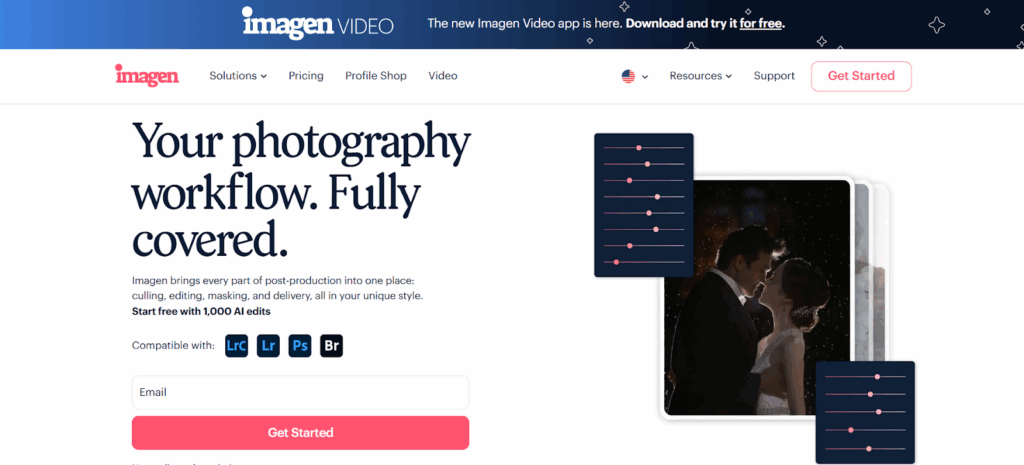
1. The Personal AI Profile: It Learns You
The heart of Imagen is the Personal AI Profile. Unlike presets, which apply a fixed set of math to every photo regardless of the lighting condition, an AI Profile analyzes the image first.
When you create a Personal AI Profile, you upload at least 2,000 of your previously edited photos (RAW or JPEG). Imagen analyzes these inputs to understand your editing DNA. It looks at how you handle warm sunsets versus cool reception halls. It learns how you balance exposure in high-contrast scenes.
Once trained, this profile doesn’t just copy-paste settings. It looks at a new photo, understands the context, and applies edits that match your style. This ensures consistency across varied lighting situations—something a standard preset simply cannot do.
2. Culling Studio: Your Second Pair of Eyes
Culling is often the most dreaded part of the job. Staring at hundreds of near-identical shots to find the sharpest eye or the best expression is mentally exhausting.
Imagen’s Culling Studio uses computer vision to automate this. It doesn’t just randomly pick photos; it uses sophisticated criteria:
- Face Recognition: It prioritizes photos where the subject is in focus.
- Blink and Blur Detection: It flags shots where eyes are closed or the camera shook.
- Kiss Recognition: It’s smart enough to know that closed eyes during a kiss are intentional and romantic, not a mistake.
- Duplicate Grouping: It groups similar burst shots together and suggests the best one.
Important Note on Workflow: Imagen’s culling mimics the human selection process. You can choose to “Cull to an exact number” if your client contract specifies a deliverable count (e.g., exactly 500 photos), or you can use the “Keep the best” method for more flexibility. Also, while Culling Studio is brilliant, it currently does not group bracketed shots—though the HDR Merge tool does.
3. Editing: Speed Meets Precision
Once culling is done, editing begins. This is where Imagen truly flexes its muscles. It processes photos at lightning speed—under 0.5 seconds per image.
But speed means nothing without quality. Imagen integrates seamlessly with Adobe Lightroom Classic, Lightroom, Photoshop, and Bridge. You upload your catalog (or folder), Imagen processes the edit metadata in the cloud, and then you download the data back to your catalog.
The edits are applied natively. This means when you open Lightroom, you see the sliders moved. It is non-destructive. You can tweak the exposure by +0.10 just like you would if you had edited it yourself. You remain in full control.
Advanced AI Tools:
- Crop & Straighten: The AI analyzes the horizon and composition rules to crop and level your images.
- Subject Mask: It automatically selects the subject and applies local adjustments to make them pop.
- Smooth Skin: For portrait work, this tool automatically detects skin and softens it while retaining texture, saving you from opening Photoshop for every headshot.
- HDR Merge: For real estate photographers, this groups bracketed shots and merges them into a perfectly balanced HDR image.
4. Cloud Storage: Safe and Sound
We all know the panic of a failed hard drive. Imagen includes Cloud Storage that works in the background. As you upload photos for culling or editing, Imagen can automatically back up high-resolution optimized files to the cloud.
This “Optimized” format reduces file size by up to 75% without visible quality loss, saving you money on storage fees while keeping your work safe. It’s a seamless way to handle the 3-2-1 backup rule without dragging and dropping files manually.
Deep Dive: Simplified’s Core Capabilities
Now, let’s look at Simplified. As the name suggests, it aims to simplify the content creation process. It is primarily a web-based tool accessed via your browser.
1. Graphic Design and Templates
Simplified shines when you need to create a pin for Pinterest, a story for Instagram, or a banner for your website. It comes loaded with templates, stock photos, and design elements. You drag and drop elements onto a canvas, much like other design tools.
2. AI Copywriting
One of Simplified’s big features is its AI writer. It can generate captions, blog outlines, or ad copy. For a photographer, this might be useful when you are stuck trying to write a caption for that sneak peek you just posted.
3. Social Media Management
Simplified allows you to link your social accounts and schedule posts. This is a “marketing” task, not a “production” task. It helps get your work seen, but it doesn’t help get your work finished.
4. Image Tools
Simplified does have some image capabilities. It has a background remover and some basic filters. However, these are designed for single images. You upload one photo, remove the background, add some text, and export it. It is not built to handle a catalog of 4,000 RAW images from a wedding.
Feature Comparison: The Professional Breakdown
To truly understand which tool belongs in your dock, we need to compare them across the metrics that matter to professional photographers.
Workflow Integration
Imagen: Imagen is built to live inside your existing professional workflow. It is a desktop app that shakes hands with Adobe Lightroom Classic.
- How it works: You import your shoot into Lightroom -> Open Imagen -> Select the catalog -> Imagen culls/edits -> You review in Lightroom.
- The Benefit: You don’t have to change how you organize your files. You don’t have to export JPEGs to get them edited. You keep your RAW data and your folder structure intact.
Simplified: Simplified is a destination workflow. You have to leave your photo environment to go to it.
- How it works: You export a finished JPEG from Lightroom -> Upload it to Simplified’s website -> Add design elements -> Export a new file.
- The Limitation: It is an extra step. It is not part of the edit; it is part of the post-edit marketing.
Volume Processing
Imagen: This is where the contest ends. Imagen is a marathon runner. It is built for volume.
- Capacity: You can throw a 5,000-image wedding catalog at it, and it won’t blink. It processes them in batches, maintaining consistency across the entire timeline.
- Speed: It edits thousands of photos in the time it takes you to grab a coffee.
Simplified: Simplified is a sprinter. It is built for single assets.
- Capacity: You upload images one by one or in small batches for specific design projects.
- Limitation: If you tried to upload 4,000 RAW files to Simplified to “edit” them, the browser would likely crash, or you would spend weeks clicking “apply filter” on each one.
Editing Control
Imagen: Imagen offers “White Glove” control. Because it adjusts the actual metadata in Lightroom:
- Non-Destructive: You can undo any change.
- Granular: You can tweak just the Highlights, or just the Vibrance.
- Learning: If you tweak the edits and re-upload the data, your Personal AI Profile learns and gets better for next time.
Simplified: Simplified offers “Canvas” control.
- Destructive-ish: You are usually working on a JPEG. Filters are applied on top.
- Global: You generally apply a “look” to the image. You don’t get the fine-tuned recovery of highlights or shadows that a RAW processor provides.
Scenario Analysis: When to Use Which?
Let’s look at real-world scenarios to see where these tools fit.
Scenario A: The Wedding Delivery
You just shot a 10-hour wedding. You have 3,500 images. You need to deliver a gallery to the client by Friday.
- Using Simplified: Impossible. You cannot upload 3,500 RAWs, edit them for color consistency, and export them.
- Using Imagen: Perfect fit.
- Import to Lightroom.
- Open Imagen. Run Culling Studio to whittle 3,500 down to 800 keepers.
- Run Editing with your Personal AI Profile to color correct, straighten, and crop those 800 shots.
- Review in Lightroom.
- Export and deliver.
- Result: You saved roughly 15-20 hours of work.
Scenario B: The Instagram Announcement
You have delivered the gallery. Now you want to post a “Sneak Peek” on Instagram with a cool “Just Married” graphic text overlay.
- Using Imagen: Not the right tool. Imagen edits the photo, but it doesn’t add text or graphics.
- Using Simplified: Perfect fit.
- Take one edited photo from your gallery.
- Upload to Simplified.
- Use a template to add the typography.
- Schedule it to post at 6 PM.
Scenario C: Real Estate Listing
You shot a property. You have bracketed shots (3 exposures for each angle) to handle the bright windows and dark interiors.
- Using Simplified: It cannot merge HDR brackets.
- Using Imagen: Perfect fit.
- Upload the catalog.
- Select the HDR Merge tool. Imagen groups the brackets and merges them into a balanced DNG file.
- Select Perspective Correction to fix the vertical lines (vital for real estate).
- Select Window Pull (if needed) to balance indoor/outdoor light.
- Result: A listing-ready gallery with perfectly straight walls and balanced light.
Why Professional Photographers Choose Imagen
When we talk about running a photography business, we are talking about time management. The biggest bottleneck in our industry is the “computer time” required after the shoot.
Imagen attacks this bottleneck directly. It isn’t trying to be a graphic designer. It is trying to be the world’s best photo editor.
1. Consistency is King
Your brand is your style. If your editing is all over the place, clients get confused. Imagen’s ability to learn your specific style means that whether you are shooting in a dark church or a bright beach, the final images look like you shot them. Simplified’s generic filters can make your work look like everyone else’s.
2. The Power of “Done”
There is a mental load to having unedited catalogs sitting on your hard drive. It weighs on you. With Imagen, you can come home from a shoot, start the upload while you unpack your gear, and wake up to a nearly finished job. That psychological freedom is worth its weight in gold.
3. Cost Efficiency
Imagen uses a flexible pricing model. You pay per photo edited. This is ideal for professionals because your costs scale with your income. If you shoot 5 weddings, you pay for 5 weddings. If you take a month off, you pay nothing (unless you have a storage plan). Simplified typically runs on a monthly subscription regardless of how much you use it.
4. Specialized AI Tools
Imagen offers tools that solve specific photographer headaches:
- Straighten: It fixes those slightly tilted horizons (Note: You can’t use this at the same time as Perspective Correction, as they fight for the same crop real estate).
- Subject Mask: It knows how to brighten just the couple, not the whole scene.
- Portait Crop: It can automatically crop headshots to specific ratios, centering the eyes.
Technical Nuances of Imagen
To get the most out of Imagen, you need to understand how it operates under the hood. It is a robust piece of software, and like any pro tool, it has rules.
The Desktop vs. Cloud Dynamic
Imagen is a desktop app. You download it and install it on your Mac or PC. It is not a website where you upload files and wait in a browser tab. However, the heavy lifting—the “thinking”—happens in the cloud.
- Imagen reads the Smart Previews (or small representations) of your photos.
- It sends this lightweight data to the cloud.
- The AI processes the data.
- It sends the instructions (metadata) back to your desktop. This hybrid approach is brilliant because it is fast (you aren’t uploading massive RAW files) and secure.
Culling vs. HDR Grouping
If you are a real estate photographer, pay attention here. Culling Studio is designed to group similar photos to help you pick the best one. However, it does not group bracketed exposures (e.g., -2, 0, +2) for the purpose of culling. It sees them as similar separate images. However, the HDR Merge tool does group brackets. It identifies the sequence and merges them. So, for real estate, you skip the standard “culling” grouping and go straight to the HDR tools.
Compatibility
Imagen plays nice with the Adobe ecosystem.
- Lightroom Classic: The gold standard. Full integration.
- Lightroom (CC): Supported.
- Photoshop & Bridge: Supported via Adobe Camera Raw (ACR).
- Capture One: Not currently supported.
Conclusion: The Right Tool for the Job
In the battle of “Simplified vs. Imagen,” there is no loser—only the wrong application.
If your goal is to create a quick Instagram Story announcing your mini-sessions, Simplified is a great tool. It is easy, web-based, and design-focused.
But if your goal is to run a profitable, scalable photography business where you deliver consistent galleries to clients without spending your life behind a monitor, Imagen is the clear winner. It is the only tool in this comparison that understands the technical and artistic requirements of a RAW photography workflow.
Imagen gives you your life back. It takes the heavy backpack of editing off your shoulders and carries it for you, allowing you to walk faster, shoot more, and actually enjoy the art of photography again.
Frequently Asked Questions
1. Is Imagen a cloud-based web app like Simplified? No. Imagen is a desktop application that you install on your computer (Windows or macOS). While it processes the editing data in the cloud to utilize powerful AI servers, the interface and your files live on your local machine, allowing for seamless integration with Lightroom Classic.
2. Can I use Imagen to create marketing graphics? Imagen is strictly a photo editing and culling tool. It adjusts color, exposure, and crop. It does not add text, graphics, or create layouts. For marketing graphics, a tool like Simplified would be a better choice.
3. Does Imagen work with JPEG files, or only RAW? Imagen works with both RAW and JPEG files. However, you cannot mix them in the same Personal AI Profile. You need to create separate profiles for RAW and JPEG workflows to ensure the highest accuracy in editing.
4. How long does it take Imagen to edit a wedding gallery? Imagen is incredibly fast. It edits at a speed of roughly 0.33 to 0.5 seconds per photo. A typical wedding gallery of 4,000 images can be fully edited in under 40 minutes, saving you days of manual work.
5. Can I use the Straighten tool and Perspective Correction together? No. The Straighten tool and Perspective Correction tool cannot be used simultaneously on the same project. Both tools adjust the geometry and crop of the image, and using them together would create conflicting instructions. You must choose the one best suited for your project (usually Perspective Correction for Real Estate, Straighten for Events).
6. Does the Culling Studio group my bracketed real estate shots? No. The Culling Studio is designed to group duplicates and bursts to help you choose the best expression or focus. It does not group exposure brackets for HDR. However, the HDR Merge tool in the editing panel does automatically group and merge brackets.
7. Do I need to upload my high-resolution RAW files to the cloud for editing? No. For editing, Imagen uses Smart Previews or compressed data, which is much faster to upload. However, if you use Imagen Cloud Storage for backup, you can choose to upload “Optimized” high-resolution files or your “Original” RAW files for safekeeping.
8. Can I share my Cloud Storage with other users? No. Imagen Cloud Storage is connected to your individual account. You cannot share storage space across different users or accounts. It is designed as a personal backup solution for your workflow.
9. What happens if I don’t have 2,000 photos to train a Personal AI Profile? You have options! You can use a Talent AI Profile (created by industry-leading photographers) immediately. Alternatively, you can create a Lite Personal AI Profile by uploading a preset and answering a short survey about your style preferences.
10. Is Imagen’s “Smooth Skin” tool the same as a filter? It is much smarter than a simple filter. The Smooth Skin AI tool detects faces and skin textures specifically. It applies smoothing only to the skin areas while preserving the texture of eyes, hair, and clothes, giving a professional retouched look without the plastic feel.
11. Can I use Imagen if I don’t use Lightroom Classic? Yes. Imagen supports “Extended Adobe Compatibility,” which allows you to work with Lightroom (CC), Photoshop, and Bridge. However, the integration is deepest and most seamless with Lightroom Classic.
12. Does Imagen replace the need for a second shooter or assistant? Imagen replaces the need for a post-production assistant. It handles the culling and editing that an assistant might do. However, it does not replace the need for a second shooter on the wedding day itself!
13. What is the “Subject Mask” feature? Subject Mask is an AI tool that automatically identifies the main subject in your photo (people, couples, etc.). It creates a mask around them and applies subtle brightness and detail adjustments to make them pop from the background, mimicking the manual dodging and burning a pro editor would do.
