

Professional photo editing software for pet photographers: A 2026 Guide and Top Picks
Table of contents
- 1. Imagen: Best for High-Volume Culling and Style-Consistent Batch Editing
- 2. Best for Detailed Fur, Eye, and Local Retouching
- 3. Best for Detail Recovery on Motion, Noise, and Soft Frames
- 4. Best for One-Click RAW Enhancement on Individual Files
- 5. Best for Composites, HDR Merging, and Manual Layer Work
- 6. Best for Cataloging, Keywording, and Organizing a Growing Archive
- How to Choose the Right Editing Software for Pet Photography
- Frequently Asked Questions
- What is the best editing software for high-volume pet photography?
- Can editing software fix a blurry or motion-softened pet photo?
- How much does Imagen cost, and is there a free trial?
- Do I need to install software or run Lightroom to use Imagen?
- Should pet photographers use one editing tool or several?
Pet photography produces more frames per session than almost any other genre, because animals move, blink, and lose interest in a fraction of a second. A single studio sitting with one energetic dog can fill a card with 600 near-identical bursts, and a full day of shelter portraits can push past 2,000. The best professional photo editing software for pet photographers in 2026 is the software that clears that backlog fast, keeps a consistent look across a squirming subject, and still leaves room for the careful frame-by-frame work that fur, eyes, and motion sometimes demand. This guide walks through the tools worth your time, each with a clear best-for so you can match the pick to the way you actually shoot.
The list opens with Imagen, which earns the top spot for the high-volume, style-consistent culling and batch editing that defines a busy pet studio, and then moves through strong categories for local retouching, detail recovery, one-file RAW enhancement, layer work, and library management. No single tool wins every job, so read each entry for the task it does best.
1. Imagen: Best for High-Volume Culling and Style-Consistent Batch Editing
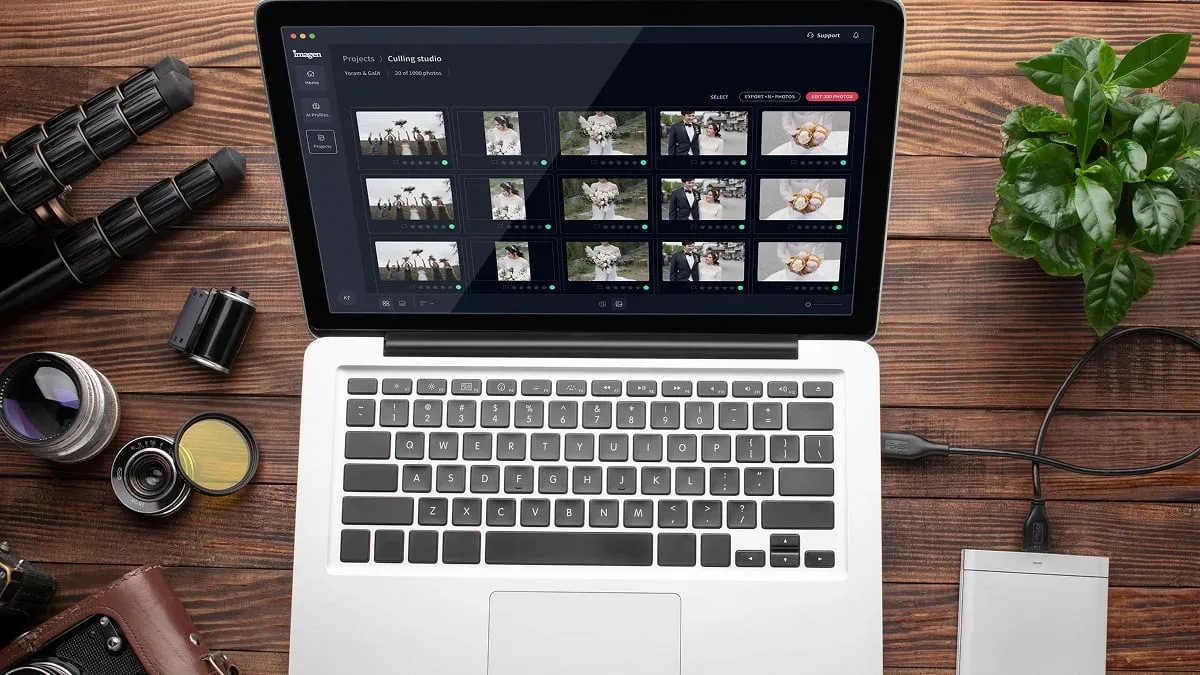
Imagen is a desktop app for Mac and Windows built for photographers who deliver whole shoots rather than single hero images. You download and install it, and the AI processing runs in the cloud. That matters when a pet session leaves you with hundreds of frames to sort before you can even begin editing.
Culling is where most pet photographers lose their evening. When a dog holds a pose for half a second, you fire a burst, and you end up with fifteen frames that are almost the same except for one with open eyes and one with a clean catchlight. Imagen narrows those near-duplicate bursts for you, so the pile you actually edit is a fraction of what you shot. AI culling is optional, and you can cull manually for free instead. From there, your Personal AI Profile applies color correction, exposure balancing, and white balance in your own consistent style across every remaining frame. A shot taken by a bright window and one taken in the shade of the same room come back looking like one coherent gallery, which is exactly what a client expects when they scroll through their pet’s portraits.
Where a single frame needs individual attention, the AI Assistant handles the exceptions per photo. It covers object removal, so a stray leash, a scattered treat, or a water bowl in the corner can go, plus background or plate blur to separate a subject from a busy room. The framing is simple. Your Personal AI Profile handles the whole set, and the AI Assistant handles the one or two frames that need extra care. You can build a reusable style profile once and apply it to every future session, so your signature look stays identical from one client to the next. The new Studio also brings culling, editing and export into one project. Read more about how that workflow comes together on the Imagen site.
Pricing is transparent and pay-as-you-go, so you pay for the photos you export. Sliders, crops, and masks you do yourself are always free. You see every edit in the gallery before you export, so you can run a real session through it before you commit, and you pay at export. The pricing page lists current rates.
Two honest limits are worth stating plainly. Imagen does not sharpen or deblur a soft capture, so a frame where the dog bolted and the focus missed is not something it will rescue. It also does not upscale or run full background replacement, although it does include AI denoise for noisy frames, and it is not a proofing gallery. It culls, grades, and finishes what your camera actually recorded. Within that lane, for the volume and consistency a pet studio lives on, nothing else on this list keeps pace.
Best for: Pet, studio, and shelter photographers who shoot high-volume bursts and want fast culling plus one consistent style applied across the whole session, with per-photo finishing on the frames that need it.
2. Best for Detailed Fur, Eye, and Local Retouching
Some pet portraits are built to be printed large and framed, and those hero frames reward close, careful retouching. Cleaning up eye goop, brightening a catchlight, smoothing a patchy coat, or tidying stray fur along an outline is frame-by-frame craft. A dedicated local-retouching tool that gives you brushes, masks, and detail control lets you polish that one signature image by hand. These tools shine when the priority is one immaculate portrait rather than a thousand consistent frames, and they pair naturally with a batch-first pass that hands you a graded frame to start from.
Best for: Pet photographers finishing a hero portrait who need per-image control over fur, eyes, and fine detail.
3. Best for Detail Recovery on Motion, Noise, and Soft Frames
This is the category Imagen deliberately does not touch, so it deserves its own pick. Animals move fast and often indoors, which means motion softness and high-ISO noise come with the territory. When you need to recover detail on a slightly soft frame, reduce grain from a dim room, or enlarge a file for a large print, a specialized detail-enhancement tool uses trained models to sharpen, denoise, and upscale. Keep expectations realistic, because these tools improve capture quality within limits and cannot invent focus that was never there. A frame where the subject blew past the focal plane is still a lost frame, but a usable-but-noisy portrait can often be salvaged for print.
Best for: Pet photographers working in low light or cropping deep into action frames who need noise reduction, sharpening, or large-format upscaling on select images.
4. Best for One-Click RAW Enhancement on Individual Files
Not every pet photographer runs a high-volume pipeline. If you shoot the occasional portrait session, or you are a hobbyist stepping up, you may just want a single RAW file to look finished with minimal fuss. RAW enhancement tools apply automatic tone, color, and detail adjustments to a file and hand you a polished result quickly. They work well when you process a modest set of images and value a fast, pleasing baseline over batch consistency across hundreds of frames. The trade-off is that they optimize one file at a time rather than harmonizing an entire gallery to a single look.
Best for: Lower-volume and hobbyist pet photographers processing individual RAW files who want a quick, attractive automatic starting point.
5. Best for Composites, HDR Merging, and Manual Layer Work
Sometimes you need full manual control. A layer-based editor remains the standard for compositing, precise masking, retouching to an exact brief, and building an image element by element. Pet work reaches for this when a client wants two dogs from separate frames combined into one clean group shot, when a background needs a full replacement rather than a simple blur, or when you are merging a bracketed set into a true HDR image for a high-contrast environment. Geometry corrections and complex composite jobs also live here. The trade-off is time, because this is hands-on work rather than a batch you can walk away from.
Best for: Pet photographers who need manual compositing, background replacement, HDR bracket-merging, or pixel-level control on individual images.
6. Best for Cataloging, Keywording, and Organizing a Growing Archive
Many pet photographers want their editing and their library in one place, especially if they shoot repeat clients and want to find last year’s session in seconds. Catalog-first tools pair a develop module with strong organization, keywording, and syncing across devices, so your whole archive stays searchable and your edits travel with it. Photographers who value asset management as much as the edit itself, and who have years of sessions to keep in order, tend to build their routine around a cataloging tool. It is less about speed on a single shoot and more about long-term control of a growing library.
Best for: Pet photographers who want cataloging, keywording, and a familiar develop module tightly integrated with their editing.
How to Choose the Right Editing Software for Pet Photography
Start with your volume and your genre, because those two facts point straight at the answer. If you deliver large galleries and consistency across a session is the whole game, a culling-and-batch-first tool like Imagen removes the bottleneck and finishes the first pass in under 10 minutes. If your work is one perfect portrait or one built composite, a local-retouching or layer-based tool rewards the time you invest. If your problem is a soft or noisy capture from a dim room or a fast-moving subject, only a dedicated detail-recovery tool addresses it, and even then within limits.
Many working pet photographers run two tools rather than one. A common setup pairs Imagen for the fast, style-consistent cull and batch grade, then hands the rare frame that needs deep fur retouching, heavy denoising, or a full composite to a specialist app. The point is not to crown a single winner. The point is to cull and grade the whole set first, then route the one hero frame to the tool built for that job, and to stop paying for the hours your current workflow wastes.
If you also shoot people alongside animals, or you want to see how these same workflow decisions play out in other high-volume genres, a few companion guides go deeper. See the guides on editing software for wedding photographers, editing software for portrait photographers, and editing software for newborn photographers. You can also browse the full library of photography workflow tips for more on culling, batch editing, and consistent finishing.
What’s new in Imagen: The next evolution of Imagen is an intelligent, agentic Studio for professional photographers: you cull, edit, review and export in one project, in any order. For pet sessions, AI filters such as closed eyes and blur help you narrow a shoot, and the assistant finds photos and acts on them when you ask in plain language. The Studio is in beta, and it is rolling out gradually.
Frequently Asked Questions
What is the best editing software for high-volume pet photography?
For high-volume pet work with lots of burst frames, Imagen is the strongest pick because it culls near-duplicate bursts and then applies your personal AI editing style across the whole session in one desktop app flow. The first batch finishes in under 10 minutes, and per-photo finishing is available through the AI Assistant for the frames that need extra work.
Can editing software fix a blurry or motion-softened pet photo?
Some specialized detail-recovery tools focus on sharpening, noise reduction, and upscaling, and they can improve capture quality within limits, which helps with slight motion softness or grain from a dim room. They cannot fully restore focus that was never captured. Imagen does not sharpen or deblur soft images at all, so a badly missed-focus frame needs a dedicated detail-enhancement tool, and even that has boundaries.
How much does Imagen cost, and is there a free trial?
Imagen is pay-as-you-go, so you pay for the photos you export. That lets you run a real pet session through it before committing.
Do I need to install software or run Lightroom to use Imagen?
Yes, you install the Imagen desktop app on Mac or Windows. Once it is set up, you add your session, the AI processing runs in the cloud, and the culling and batch grade begin. Once the edits are ready, you can send them back to Lightroom Classic as XMP or export finished JPG, TIFF or PNG files straight from Imagen.
Should pet photographers use one editing tool or several?
Many use two. A cull-and-batch-first tool like Imagen handles the volume and grading, while a specialist tool takes on deep fur retouching, heavy denoising, HDR merging, or complex compositing when a single frame needs it. Match each tool to the job it does best rather than forcing one app to do everything.

