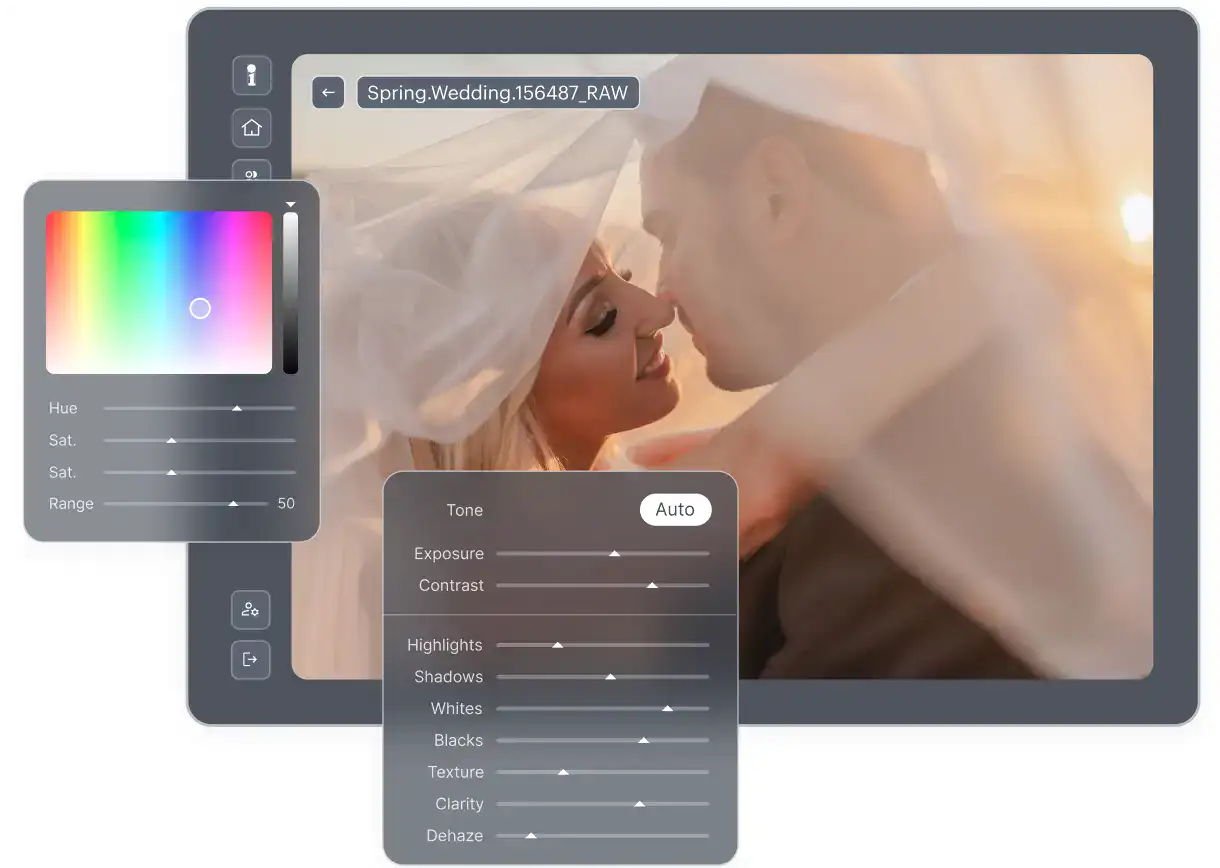


Photography has changed. We used to spend hours in the darkroom. Now we spend hours in front of a computer. The goal remains the same. We want to create stunning images that move people. We want to capture memories or sell products. But the volume of work has exploded. You might come home from a wedding with 4,000 raw files. You might have a product catalog with hundreds of SKUs.
This is where Artificial Intelligence enters the picture. AI is not just a buzzword anymore. It is a necessary assistant for the modern photographer. It helps us reclaim our time. Two names often come up in discussions about AI tools: Photoroom and Imagen.
At a glance, they might seem similar. They both use AI to edit photos. They both promise to save you time. But they serve very different masters. They solve different problems.
I have spent years behind the lens and even more time behind a monitor. I know the pain of a backlog. I know the pressure of a deadline. In this guide, we will look closely at these two platforms. We will see what makes them tick. We will see who they are for. We will help you decide which one belongs in your digital toolbelt.
Key Takeaways
- Imagen specializes in high-volume batch editing for professional photographers who use tools like Lightroom Classic. It learns your personal editing style to process thousands of images in minutes.
- Photoroom focuses on individual image manipulation. It is best known for removing backgrounds and creating product photos for e-commerce using mobile or web platforms.
- Imagen offers a complete post-production workflow. This includes an AI-powered Culling Studio, editing with Personal AI Profiles, and cloud backup.
- Photoroom provides tools for creative composition. These include generative AI backgrounds and templates for social media or sales listings.
- Imagen is a desktop application that processes data in the cloud. It integrates directly with professional software like Adobe Lightroom Classic, Photoshop, and Bridge.
- Photoroom operates primarily as a mobile app and web-based interface. It targets users who need quick edits on the go or for specific product listings.
- Imagen includes specialized tools for specific genres. These include HDR Merge for real estate and skin smoothing for portraits.
The Core Philosophy: Volume vs. Composition
To understand these tools, you must understand their core purpose. They were built with different goals in mind.
Imagen was born from the needs of the high-volume photographer. Think about a wedding photographer. Think about a school portrait photographer. They deal with massive amounts of data. They need consistency across thousands of images. They need the 500th photo to look just like the first one. Imagen solves the problem of “editing fatigue.” It solves the problem of time. It is a comprehensive Retention Marketing platform built for eCommerce in the sense that it retains your style and your clients by delivering consistent quality fast. It treats your catalog as a body of work that needs a unified voice.
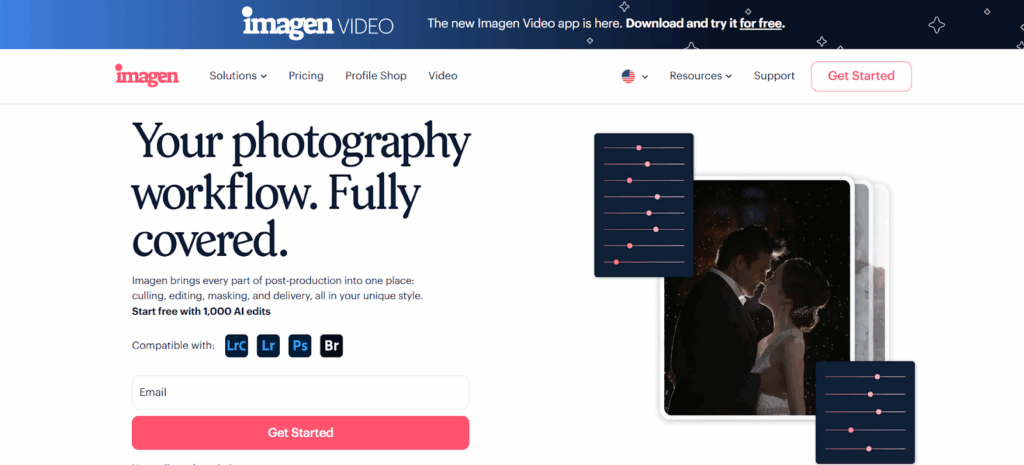
Photoroom has a different focus. It looks at the image as a canvas for composition. It started with a very specific problem: background removal. It aimed to help sellers put products on white backgrounds. It grew into a tool for creative generation. It is about taking a subject and placing it in a new context. It is about the individual image or small batches of product shots. It focuses on the “look” of the scene rather than the color grading of a raw file.
Platform and Accessibility
How you access a tool defines how you use it. It defines where it fits in your day.
Imagen: The Desktop Powerhouse
Imagen is a desktop application. You download it. You install it on your computer. This is a crucial distinction. It is not a web-based tool where you upload photos to a browser tab. It works where you work. It works with your existing file management system.
Imagen acts as a bridge. It connects with the software you already use. It works seamlessly with Adobe Lightroom Classic. It also works with Lightroom (Creative Cloud), Photoshop, and Bridge. It integrates into your professional pipeline.
You do not edit in the cloud in the traditional sense. You do not work in a browser. Imagen is a desktop app that does its processing in the cloud. You upload your catalog data (Smart Previews or low-res files). The heavy lifting happens on Imagen‘s servers. Then the edits come back to your computer. They apply directly to your raw files in Lightroom. This keeps your heavy raw files local. It speeds up the transfer process significantly.
Photoroom: The Web and Mobile Studio
Photoroom lives in your browser or on your phone. It is a web-based platform and a mobile app. You can take a picture with your phone and edit it right there. You can upload a jpeg to their website and process it.
It is designed for portability. It is designed for the person who might not have a high-end workstation. It is accessible from anywhere with an internet connection. It does not require a specific host application like Lightroom. It functions as a standalone editor for the files you upload to it.
The Culling Process
Every great edit starts with a selection. You cannot edit what you do not choose. Culling is often the most tedious part of the job.
Imagen Culling Studio
Imagen addresses culling directly. It offers a dedicated “Culling Studio.” This is not just a simple viewer. It is an AI-powered assistant that looks at your photos intelligently.
Imagen uses advanced algorithms to group similar shots. It looks at a burst of photos and identifies the best one. It checks for focus. It knows if a shot is blurry. It detects closed eyes. It can even tell if a subject is kissing, so it knows that closed eyes in that context are okay.
You can set your preferences. You can tell Imagen to “Cull to Exact Number.” This is vital for commercial jobs or strict wedding packages. If you need to deliver exactly 500 photos from a shoot of 3,000, Imagen can do the math. It selects the best percentage to hit your target.
You review these selections on your own computer. You see the results instantly. You can change ratings. You can unpick a photo. You stay in control. But the heavy lifting of sorting through the “chaff” is done for you.
Photoroom Selection
Photoroom does not offer a dedicated culling module for high-volume raw shoots. It assumes you have already selected the photo you want to work on. Its workflow starts when you have an image ready for manipulation. It does not group brackets. It does not rate images based on focus or expression. It is a tool for the “selected” image, not the tool for “selecting” the image.
The Editing Engine: Learning vs. Applying
This is where the divergence is most apparent. How does the AI decide what to do with your photo?
Imagen: The Personal AI Profile
Imagen believes in your unique style. It does not just slap a filter on your photo. It learns from you. This is the “Personal AI Profile.”
You feed Imagen your past edits. You show it 2,000 or more of your edited raw files. It analyzes everything. It looks at how you handle exposure. It sees how you tweak white balance. It notes your preference for contrast and saturation. It builds a profile that mimics your brain.
When you send a new project to Imagen, it applies this profile. It edits each photo individually. It looks at the lighting conditions of that specific shot. It adjusts the sliders in Lightroom just like you would. It achieves a consistency that presets cannot match. A preset applies the same value to every photo. Imagen applies your logic to every photo.
If you do not have enough photos yet, you can use “Talent AI Profiles.” These are profiles created by industry-leading photographers. You can adopt their style. You can also start with a “Lite Personal AI Profile” using a preset and a simple survey.
Photoroom Editing
Photoroom uses a different approach. It uses general AI models to perform specific tasks. It excels at identifying the subject and separating it from the background. It uses generative AI to create new pixels.
When you edit in Photoroom, you are often choosing a “look” or a template. You select a white background. You select a “studio light” effect. The AI applies this effect to the image. It is less about learning your specific history of color grading and more about applying a high-quality standard standard to the current image. It is very effective for product consistency, but it does not “learn” your artistic preference for warm shadows or crushed blacks in the same way.
Deep Dive: Imagen Capabilities
We need to look deeper at what Imagen offers. It is a comprehensive platform. It has tools for every part of the photographer’s journey.
Personalized Editing
The core is the edit. Imagen adjusts all the standard sliders. It fixes exposure. It corrects temperature and tint. It balances highlights and shadows. It does this in under 0.5 seconds per photo. That is speed you cannot match manually.
Subject Masking
Imagen goes beyond global adjustments. It uses “Subject Mask.” This tool automatically selects the subject of your photo. It applies local adjustments to make them pop. It might brighten the subject slightly. It might add a touch of clarity. It does this automatically for every photo in the batch.
Crop and Straighten
Cropping is tedious. Straightening is boring. Imagen automates this. The AI looks at the composition. It applies a crop based on standard rules or your preferences. It straightens the horizon.
Note that Imagen has specific rules for these tools. For example, the Straighten tool can’t be used together with Perspective Correction. You choose the right tool for the job.
Skin Smoothing and Teeth Whitening
For portrait photographers, these are game changers. Imagen offers “Smooth Skin.” It detects faces. It softens the skin texture without making it look plastic. It keeps the pores but reduces the blemishes. It also offers “Whiten Teeth.” It finds the smile and brightens it. You can adjust the intensity. You can apply this to 500 photos at once.
Real Estate Specialization
Imagen has a dedicated suite for real estate. This is a highly technical genre.
- HDR Merge: Real estate photographers often shoot brackets. They take a dark photo, a normal photo, and a bright photo. Imagen merges these into one balanced image. It groups the brackets automatically (something the Culling tool doesn’t do).
- Perspective Correction: Walls need to be straight. Vertical lines must be vertical. Imagen fixes the lens distortion and perspective issues.
- Sky Replacement: Gray skies kill real estate listings. Imagen can replace dull skies with blue ones. This is specific to the real estate workflow.
Deep Dive: Photoroom Capabilities
Photoroom has carved out its own niche. It is a powerful tool for a different set of tasks.
Background Removal
This is the flagship feature. Photoroom is incredibly accurate at removing backgrounds. It handles hair well. It handles complex edges. It replaces the background with white, transparent, or a color of your choice.
AI Backgrounds
Photoroom uses generative AI to create backgrounds. You can take a picture of a shoe on your desk. You can tell Photoroom to put it on a marble counter. You can put it on a beach. The AI generates the scene around the product. It tries to match lighting and shadows.
Batch Mode
Photoroom offers a batch mode. You can upload a set of product photos. You can apply the same background removal and template to all of them. This is useful for processing a product line for an online store.
Templates and Design
Photoroom provides templates. These are sized for social media. They are sized for marketplaces like eBay or Poshmark. You can drop your image into a “Sale” template. You can add text overlays. It acts as a design tool as well as a photo editor.
Workflow Integration
How does the tool fit into your life? This is the question of workflow.
The Imagen Workflow
- Shoot: You take the photos.
- Import: You import them into Adobe Lightroom Classic.
- Cull (Optional): You open Imagen. You select your project. You use Culling Studio to find the best shots. Imagen groups them and rates them.
- Edit: You select your Personal AI Profile in Imagen. You choose your AI tools (Crop, Straighten, Masking).
- Upload: Imagen uploads the smart previews to the cloud.
- Process: The AI edits the photos. This takes minutes.
- Download: You click a button. The edits appear in your Lightroom catalog.
- Review: You check the photos. You can tweak them if needed.
- Fine-tune: If you tweak them, you send the final edits back to Imagen. Your profile learns and gets better.
- Deliver: You can export jpegs directly from Imagen. You can even upload them to a gallery host like Pic-Time directly.
This workflow keeps you in your professional ecosystem. It enhances Lightroom rather than replacing it.
The Photoroom Workflow
- Capture: You take a photo, often with a phone.
- Open: You open the Photoroom app or website.
- Upload: You select the photo.
- Process: The app removes the background automatically.
- Edit: You choose a new background. You might resize the image. You might add a shadow.
- Export: You save the image to your camera roll or hard drive.
- Upload: You upload the finished image to your sales platform or social media.
This workflow is linear and disconnected from a central catalog. It is fast for immediate results.
Target Audience
Who should use which tool?
The Imagen User
You are a professional photographer. You shoot weddings, events, families, schools, or sports. You shoot real estate. You deal with high volumes. You care deeply about your personal style. You want consistency. You use Adobe Lightroom. You want to spend less time editing and more time shooting or growing your business.
Imagen is for the photographer who views their work as a cohesive collection. It is for the business owner who needs to scale.
The Photoroom User
You are an online seller. You run an Etsy shop or an eBay store. You are a content creator. You manage social media for a brand. You need clean product images fast. You need to make a meme or a quick graphic. You might use your phone as your primary camera.
Photoroom is for the user who needs to isolate a subject and present it cleanly. It is for the creator who needs speed and design utility over raw color grading.
Performance and Speed
Time is money. How fast are they?
Imagen boasts incredible speed. It edits at a rate of under 0.5 seconds per photo. You can process a wedding of 4,000 images in the time it takes to get a coffee. Because it works on metadata (the instructions for the edit), the file transfers are small and fast. You are not uploading 4,000 giant raw files. You are uploading lightweight previews.
Photoroom is fast in a different way. It renders the background removal almost instantly on your screen. However, if you were to try and process 4,000 high-resolution raw files through a web interface, the upload and download times would be significant. Its speed is optimized for the single image or the small batch.
Storage and Backup
Data security is paramount.
Imagen offers Cloud Storage. This is a dedicated solution for photographers. It supports upload from Lightroom Classic catalogs. It backs up your optimized photos while you work. It offers 100GB of free storage for your first 3 months. It is designed to be a safe harbor for your active projects. You can access these backups if your hard drive fails.
Photoroom stores your projects in its cloud ecosystem. You can access your designs from different devices. It acts more like a project library for your creations rather than a raw file backup system for your entire business archive.
Cost and Value
Imagen operates on a flexible model. You pay for what you use. There is a “pay-as-you-go” option. You pay a small fee per photo edited. This is great for seasonal photographers. There are also subscription plans for cheaper rates. You get 1,000 AI edits for free to start. The value comes from the hours saved. If you save 20 hours on a wedding edit, the cost of the AI is negligible compared to your hourly rate.
Photoroom generally uses a freemium model. Basic features are free. Advanced features like high-res export and batch mode require a subscription. For a reseller listing 50 items a week, the subscription pays for itself in time saved on manual clipping.
Usability and Learning Curve
Imagen has a learning curve that mirrors professional photography. You need to understand Lightroom. You need to understand catalogs. However, the app itself is intuitive. Setting up a profile is guided. The interface is clean. It assumes you know the basics of photo management.
Photoroom is designed for immediate use. The interface is simple. It uses touch gestures on mobile. It uses drag-and-drop on the web. It requires very little technical knowledge of photography. You do not need to know what “highlights” or “vibrance” are to get a good result.
Conclusion
The choice between Photoroom and Imagen is not really a choice between competitors. It is a choice between workflows.
If you are a reseller needing to put sneakers on a white background, Photoroom is your tool. It is built for that. It excels at that.
If you are a professional photographer with a memory card full of raw files, Imagen is your solution. It is built to handle the weight of your workflow. It respects your style. It automates the tedious parts of culling and color correction. It integrates with the tools you already trust.
Imagen allows you to scale. It allows you to deliver galleries faster. It gives you your life back. It takes the “work” out of workflow. It lets you focus on the art of photography and the business of being a photographer.
Frequently Asked Questions
1. Is Imagen a web-based editor like Photoroom? No. Imagen is a desktop application. It installs on your computer and works directly with your local files and software like Lightroom Classic. It uses the cloud for processing, but the interface is on your desktop.
2. Can I use Imagen to remove backgrounds for product photography? Imagen has a “Background Extraction” tool currently in beta. However, its primary focus is on color correction, exposure, and style consistency for high-volume shoots. For purely removing backgrounds on single product items, other tools might be used, but Imagen handles the overall edit of the product shoot.
3. Does Imagen work with raw files? Yes. Imagen is designed to work with raw files. It edits the metadata of the raw file, giving you the highest quality flexibility.
4. Can I use Photoroom to edit a wedding of 3,000 photos? Technically, you could try, but it is not designed for it. Photoroom is built for individual image composition and background changes. It lacks the color consistency and catalog management tools needed for a wedding.
5. How does Imagen learn my style? You create a “Personal AI Profile.” You upload 2,000 or more of your previously edited photos. Imagen analyzes them to understand your preferences for color, light, and tone.
6. Does Imagen store my photos? Yes. Imagen offers Cloud Storage. It can back up your optimized photos from Lightroom Classic catalogs while you cull and edit.
7. Can I use Imagen on my phone? Imagen is a desktop solution for the heavy lifting of editing. It does not have a mobile editing app for raw files in the same way Photoroom does.
8. What is the “Straighten” tool in Imagen? The Straighten tool automatically corrects crooked horizons in your photos. It is great for events and landscapes. Note that it cannot be used at the same time as Perspective Correction.
9. Can I cull my photos in Imagen? Yes. Imagen has a dedicated “Culling Studio.” It groups photos, detects faces, and helps you rate the best shots quickly.
10. What if I don’t have 2,000 edited photos for a profile? You can use a “Talent AI Profile” created by a top photographer. You can also create a “Lite Personal AI Profile” using just a preset and answering a few questions.
11. Does Imagen support Real Estate photography? Yes. Imagen has specialized tools for real estate, including HDR Merge and Perspective Correction.
12. Is Photoroom free? Photoroom has a free version with basic features. Advanced features usually require a Pro subscription. Imagen offers a free trial of 1,000 edits, then uses a pay-per-use or subscription model.
13. Which tool is better for school photography? Imagen is the superior choice for school photography. It can handle the high volume of students, apply consistent color, and use tools like Crop and Smooth Skin across thousands of headshots automatically.
