
10 Best Free Online Photo Retouching Tools for 2026
Table of contents
- Key Takeaways
- Photopea: The Browser-Based Photoshop Mirror
- Pixlr: Balancing Speed and Advanced Sliders
- Fotor: Portrait Touch-Ups and Smart AI Enhancements
- Canva: Designing Marketing Graphics with Edited Photos
- BeFunky: Fun Creative Filters and Simple Collage Building
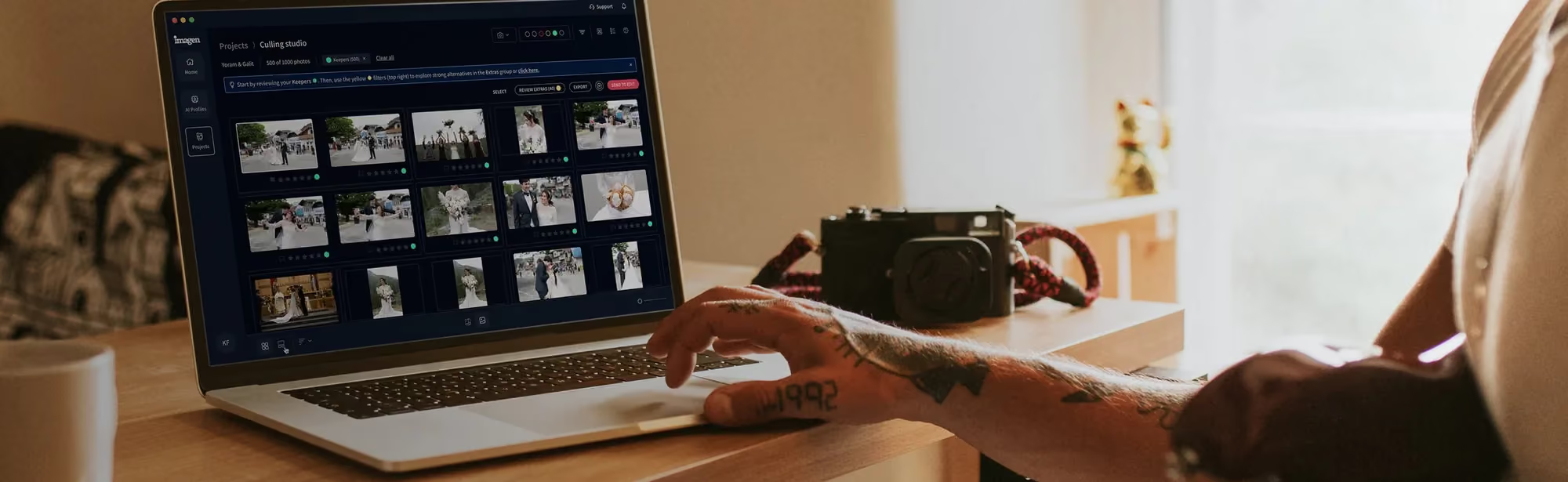
- Imagen: AI-Powered High-Volume Post-Production Workflow
- iPiccy: Zero-Cost Edits Without Account Signups
- LunaPic: Vintage Filters and Retro Animations
- Polarr: Deep Color Grading and Custom Filter Sharing
- Adobe Express: Firefly AI Integration and Quick Assets
- Photoroom: Product Isolation and E-Commerce Backdrops
- Comparing the Best Free Online Photo Editors
- Frequently Asked Questions
- Are free online photo retouching tools safe to use?
- Do I need a high-end computer to run these web editors?
- Can online photo editors handle RAW image files?
- Why do some free editors add watermarks to my exported photos?
- How do online AI retouching tools differ from desktop AI systems?
- What resolution limits should I expect from free web-based editors?
- Can I use my custom fonts in online photo editors?
- Keep exploring
You need clean, professional-looking images fast, and you’d rather not pay hundreds of dollars for desktop software. That’s part of why 78% of digital creators now reach for browser-based tools to touch up their photos.
Ready to go beyond one photo at a time? Try Imagen’s new Studio, where you cull, edit and export in one project. Exploring is free, and you pay on export.
Not every tool fits your workflow, though, and it pays to be honest about that upfront. Some editors are built for fast, automated cleanups. Others try to replicate a full desktop suite inside a browser tab. We assessed each one on performance, feature depth, export limits, and overall user experience, so you can pick the option that actually matches your creative work.
Key Takeaways
- Photopea is the most capable free browser alternative to desktop Photoshop, with full support for layers, vector masks, and PSD files.
- Online photo editors can cut post-production costs by up to 100% for casual designers and small studios.
- AI tools such as Fotor and Photoroom can shave up to 70% off manual masking time on portrait and product shots.
- For professional workflows with hundreds of raw files, automation engines like Imagen save up to 96% of total editing time.
- Most free web editors cap your exports below a 15-megapixel resolution unless you upgrade to a premium plan.
- You don’t need high-end hardware, since these web tools run on remote servers or right inside your browser engine.
Photopea: The Browser-Based Photoshop Mirror
Photopea is your best bet if you want Photoshop-level control without Photoshop’s price tag. It runs entirely inside your web browser. Even so, it doesn’t cut corners on the advanced manual tools professionals actually need, and you’ll find layers, masks, smart objects, and vector graphics ready the moment you open a file.
The interface matches Photoshop almost pixel for pixel, so there’s next to no learning curve if you’ve used Adobe tools before. And yes, it opens PSD, XD, Sketch, and RAW files without breaking a sweat. That makes it a genuine lifesaver on a public computer or a low-powered Chromebook where installing software isn’t an option.
Photopea runs locally on your machine through WebAssembly. Your images never get uploaded to some distant server for processing, which keeps your private data exactly where it belongs. Performance stays snappy for most work, though the app can lag once file sizes climb past 50 megapixels on machines with less than 8GB of RAM.
Key Features
- Full Layer-based editing with advanced blend modes and custom layer styles.
- Advanced selection tools, including Lasso, Magic Wand, and Quick Selection.
- Wide format support for PSD, RAW, Sketch, and vector formats.
- Local file processing, so your photos never leave your device for an external server.
- Customizable brush tool with support for importing .ABR brush files.
The brush engine responds fast, so cleaning up dust spots and skin blemishes stays precise work rather than guesswork. Keyboard shortcuts like Ctrl+Alt+I resize images instantly, which keeps your workflow feeling natural. For zero cost, it’s a remarkably complete package.
The main drawback is the ad-supported sidebar on the right side of the screen. It eats into your workspace on smaller laptops, though the premium tier hides it entirely. A few banner ads aside, this tool is an absolute powerhouse.
Pixlr: Balancing Speed and Advanced Sliders
Pixlr splits its editing experience into two distinct apps: Pixlr X for quick, template-driven designs, and Pixlr E for advanced manual editing. That division keeps unnecessary tools out of your way when all you want is a quick crop or a basic filter. The interface stays clean, modern, and responsive even over a slow connection.
Pixlr leans on machine learning to handle complex edits, like background removal, in seconds flat. It suits social media managers who need to churn out high-volume visual content on tight deadlines. Here’s how Pixlr performs when speed matters more than anything else.
One click moves your file from the simple Pixlr X editor over to the advanced Pixlr E editor. That smooth handoff lets you start with a quick layout template, then jump into detailed color correction without losing any progress. The platform reads and exports a wide range of file formats, including WebP, JPEG, and PNG.
Key Features
- Dual-interface system built around your skill level and how fast you need to work.
- One-click background removal and smart AI cutout tools.
- Large library of built-in templates, overlays, and decorative stickers.
- Support for custom fonts and advanced typography layouts.
- Direct export in WebP, JPEG, and PNG, with control over quality.
The free tier gives you access to the basic tools, but caps you at 3 downloads per day. That limit gets frustrating fast if you’re polishing a large batch of photos for a blog post. Unlimited daily downloads require the premium plan.
Constant upgrade prompts can break your editing momentum right when you’re in the zone. That said, if you only need to touch up a couple of graphics a day, the speed and simplicity of the interface are hard to beat.
Fotor: Portrait Touch-Ups and Smart AI Enhancements
Fotor focuses heavily on AI-assisted retouching, which makes it a favorite for portrait work. Its skin blemish remover, wrinkle smoother, and teeth whitening tools all work with surprising accuracy for a free tool. The AI handles the heavy lifting.
Fotor also packs an automated one-tap boost tool that fixes exposure, contrast, and color balance all at once. That’s especially handy for rescuing flat, underexposed shots taken in poor lighting. On portrait work, it moves at a speed manual tools simply can’t match.
“AI retouching isn’t about replacing the artist’s eye; it’s about eliminating the repetitive click-work that burns out creative professionals before they even reach the color-grading stage.”
Itamar Haim, SEO Expert and Digital Strategist specializing in search optimization and content marketing.
When you upload a portrait, the AI maps facial structure first, then applies subtle corrections from there. It sidesteps the plastic, over-processed look that plagues many basic beauty filters by preserving natural skin texture. That makes it a solid choice for corporate headshots and LinkedIn profile pictures.
Key Features
- AI Face Retouching that automatically finds and corrects facial imperfections.
- One-click image optimizer that balances dynamic range in flat lighting.
- HDR merge feature for combining multiple exposures into a single photo.
- Large library of artistic filters and modern frames built for social media.
- Batch retouching built for fast-paced digital workflows.
Fotor’s basic features are free, but the most advanced AI tools stamp a watermark on your final image. Watermark-free exports of those premium effects require a paid subscription. Even so, the free tier earns its keep for standard cropping, rotation, and color correction.
The interface is simple enough that you won’t get lost hunting through deep submenus. It’s built for people who want results in five minutes, not fifty.
Canva: Designing Marketing Graphics with Edited Photos
You probably know Canva for its design templates, but honestly, its photo editing tools have gotten really good. You get sliders for brightness, contrast, saturation, and warmth, plus auto-focus and blur controls built right in. It’s perfect for marketing assets where your image and your text need to work together.
Canva’s real strength is its ecosystem. Once you edit a photo, you can drop it straight into a presentation, flyer, or social post without ever switching apps. Here’s the best way to touch up an image inside Canva’s editing suite.
- Drag and drop your photo onto the Canva dashboard to upload it.
- Click “Edit Photo” on the top toolbar to open the effects and adjustments panel.
- Try the Auto Adjust slider first and let the system balance your colors and exposure.
- Head to the “Adjust” tab if you want to fine-tune highlights or shadows by hand.
- Use the “Blur” or “Auto Focus” tool to make your subject pop against the background.
- Export your finished design as a high-quality PNG or a print-ready PDF.
The adjustment panel hands you precise control over highlights, shadows, whites, and blacks. It feels a lot like the basic panel in Lightroom, letting you rescue detail from a blown-out sky. Honestly, you’ll be surprised how easy it is to make your photos look professional.
Canva’s great for layout work, but it skips manual pixel-level healing brushes and clone stamps in the free tier. Got complex distracting elements in your background? You’ll want another tool to clean those up first. But for quick color grading and text integration, nothing really beats it.
BeFunky: Fun Creative Filters and Simple Collage Building
BeFunky is all about making photo editing fun and easy to pick up. You get a whole range of creative effects, cartoonizer, digital art filters, oil painting looks, plus the standard retouching sliders. The interface stays clean, uncluttered, and visual, so you’re never wading through confusing technical jargon.
This platform really shines for creators who need to build collage layouts. Its smart collage generator automatically arranges your images into clean, tidy grids. Here’s how BeFunky stacks up against other creative web platforms.
You don’t need any graphic design experience to get the hang of BeFunky. Tools carry clear, descriptive names instead of obscure icons that leave you guessing. No wonder it’s such a hit with teachers, students, and hobbyists who want eye-catching projects without a steep learning curve.
Key Features
- Artistic effects that turn your photos into digital paintings or cartoon art.
- Fully customizable collage maker with smart spacing and ratio controls.
- Handy retouching tools for skin smoothing, red-eye removal, and blemish fixes.
- Text editor with a wide selection of fonts and graphics.
- Simple drag-and-drop interface that runs smoothly on mobile browsers.
The main catch with BeFunky’s free tier? A lot of the most appealing artistic filters sit behind a premium paywall. You can preview them on your own images, but exporting the final result means upgrading. That said, basic cropping, resizing, and color adjustments stay completely free and watermark-free.
Looking to build clean, grid-based collages for family albums or blog posts? This is one of the best tools online for that. It scales images inside the grids automatically, saving you a ton of manual adjustment time.
Imagen: AI-Powered High-Volume Post-Production Workflow
Once your image volume climbs past a few dozen social posts, manual browser tools just stop making sense. If you’re managing hundreds of wedding portraits or real estate listings, you need a serious post-production workflow behind you. This is where Imagen steps in to handle that high-volume demand.
Instead of manual, single-image editing, Imagen uses automated AI photo editing to learn your unique style and apply it across an entire shoot. You can build a Personal AI Profile by training the system on your own past edits, or grab a Talent AI Profile built by industry experts instead. And it works alongside Adobe Lightroom Classic, sending AI edits back as XMP, or you can export finished JPG, TIFF or PNG files straight from Imagen.
For professionals who specialize in portrait photography, wedding shoots, or corporate events, this approach wipes out the hours you’d otherwise spend on tedious manual slider adjustments. Here’s how simple it is to set up a professional workflow with Imagen.
- Import your RAW photos into Adobe Lightroom Classic and pick out your favorites.
- Open the Imagen app and select the catalog file you just created.
- Pick a Personal AI Profile, or grab a pre-built Talent AI Profile that fits your style.
- Let the system study your images and apply crops, exposure changes, and color adjustments.
- Sync the updated metadata back to Lightroom and make any small final tweaks yourself.
Key Features
- Automated AI photo editing that mirrors your own creative choices.
- Support for custom Personal AI Profiles trained on your past edits.
- Automated masking, perspective correction, cropping, and straightening built in.
- Direct integration with Adobe Lightroom Classic, Adobe Camera Raw, and Capture One.
- Cloud storage backup is on the roadmap, so keep your current backup routine for now.
Imagen’s pricing is genuinely flexible, and it is built around paying on export. Pay-as-you-go photographers pay for what they export, and exploring the tools is free. Check the Imagen pricing page for full details.
This desktop-integrated system saves up to 96% of editing time compared to manual workflows. It keeps your exact creative style consistent across thousands of unique files. For wedding and portrait photographers who need to scale their business, it’s honestly hard to beat.
iPiccy: Zero-Cost Edits Without Account Signups
iPiccy is built for speed and simplicity, which makes it ideal when you need quick touch-ups without any fuss. The interface lays things out logically, separating basic editor tools, retouching brushes, and designer layouts into their own tabs. It loads fast too, even on older computers with limited processing power.
The retouching tab packs genuinely effective tools for skin smoothing, blemish removal, and shine reduction. It works well for students, educators, and bloggers who need to polish images for articles without getting bogged down in a complex workflow. Here’s what makes iPiccy such a handy utility.
You don’t need an account or an email address to use iPiccy. Just open the website, upload your image, and start editing right away. That’s incredibly handy when you’re on a shared device or in a hurry.
Key Features
- One-click auto-fix tools that balance exposure instantly with solid accuracy.
- Dedicated retouching suite featuring a versatile Dodge and Burn brush.
- Simple vector design tools for adding shapes, frames, and text overlays.
- Fast, responsive collage creator with several preset layouts to pick from.
- Handy local saving options that keep your original file names intact.
The main downside is that it skips layer-based editing and complex selection masks. If you need to combine several photos into a composite image, iPiccy just won’t cut it. But for simple adjustments, brightness, cropping, quick blemish removal, it’s a solid, zero-cost choice.
The ad placements can sometimes crowd part of the workspace on smaller monitors. They don’t get in the way of the actual tools, though, so it’s still a reliable option for casual users.
LunaPic: Vintage Filters and Retro Animations
LunaPic is a distinctive online photo editor built around retro styling, vintage filters, and experimental graphic effects. Unlike modern editors that rely on slider-heavy interfaces, LunaPic uses traditional dropdown menus instead. It feels like a throwback to early web tools, yet its range of capabilities is genuinely diverse.
From generating animated GIFs to applying old-school pencil sketch filters, LunaPic works as a playground for experimental design. It’s the tool to reach for when you want something quirky, artistic, or nostalgic for your social channels. Here’s how LunaPic handles creative editing tasks.
You can import files directly from a URL, your local drive, or a cloud storage platform. That flexibility makes it easy to grab assets on the fly without downloading them first. The platform stays entirely free to use, supported by banner ads placed across the site.
Key Features
- Large filter library featuring over 200 artistic, vintage, and modern effects.
- Built-in animation tools for creating motion graphics and custom GIFs.
- Advanced transparency tools that make transparent backgrounds simple to create.
- Wide file support, including imports from URLs and cloud storage.
- Unique drawing tools, such as oil paint brushes and pixel-art generators.
Because the interface relies on retro dropdown menus, navigation can feel clunky if you’re used to modern slider layouts. Finding the exact effect you want takes some trial and error. Still, the sheer variety of weird and wonderful filters makes the exploration worth your time.
Don’t expect advanced AI-assisted skin retouching here. LunaPic is built for graphic styling, not clean beauty editing. But if you want your photos to look like they came off a 1990s camcorder, this is the best tool on the web for the job.
Polarr: Deep Color Grading and Custom Filter Sharing
Polarr is built for enthusiasts who want professional-grade color grading without the complexity of desktop software. Its sleek, dark-themed interface puts detailed adjustments front and center: color temperature, tint, curves, and HSL. Mobile photographers who want to sync their styles across platforms rely on it heavily.
Polarr’s standout feature is its filter creation system. Build your own custom filters, then share them with the Polarr community through QR codes. Here’s how Polarr handles high-end editing features.
Polarr’s selective adjustment tools are genuinely powerful, letting you paint on radial, gradient, or luminance masks. That level of control is rare among browser-based tools, and it lets you brighten a subject’s face without touching the background exposure. Color rendering stays precise, too, holding onto natural skin tones.
Key Features
- Advanced Color grading tools including HSL sliders and tone curves.
- Custom filter creator with QR code sharing for easy collaboration.
- Local adjustments, including radial, gradient, and luminance masks.
- Interactive overlays for light leaks, dust textures, and sky replacements.
- Cross-platform sync for editing on your desktop or mobile device.
The free tier is quite capable, though it limits you to saving only a few edits per day when you use the advanced tools. Daily professional work will hit that ceiling fast. For a casual hobbyist editing a few travel shots on the weekend, though, it’s an exceptional choice.
The interface can be resource-intensive, so your computer’s fan may spin up during heavy edits. Keep your browser tabs to a minimum while using Polarr for the smoothest performance.
Adobe Express: Firefly AI Integration and Quick Assets
Adobe Express is Adobe’s web-based platform, built to compete directly with modern design tools. It pairs Photoshop’s core editing technology with an intuitive, template-based workspace. The goal is simple: help you create clean, professional visual assets without years of training.
The platform leans heavily on Adobe Firefly AI to power features like generative fill, text-to-image creation, and smart background removal. It’s a strong option for businesses already inside the Adobe ecosystem who need quick social graphics. Here’s how Adobe Express performs in real-world use.
You’ll find a massive library of premium fonts, templates, and stock assets built right into the editor. The generative fill tool lets you add or remove objects from your photos just by typing a text prompt. That AI integration is impressively precise, matching the lighting and perspective of your original image.
Key Features
- Generative AI tools powered by Adobe Firefly for clean, modern image edits.
- One-click background removal and instant image resizing for social media.
- Access to a large library of high-quality Adobe Fonts.
- Direct integration with Creative Cloud libraries for your assets.
- Easy-to-use templates for social posts, flyers, and video reels.
You’ll need a free Adobe account to save and export your work, which is a minor hassle if you wanted a quick, signup-free edit. The web interface also runs somewhat heavy, so it can take a few seconds to load on older machines. But with a stable internet connection, the quality of the AI tools is outstanding.
The free tier is generous, though some premium templates and stock images sit behind a monthly subscription. Still, it’s a great starting point for business owners who want to keep brand consistency across their digital platforms.
Photoroom: Product Isolation and E-Commerce Backdrops
Photoroom is built specifically for e-commerce sellers and product photographers who need to isolate items and build clean, professional mockups. It uses precise AI modeling to detect subjects and pull them away from their backgrounds instantly. That precision matters: research shows that 83% of e-commerce buyers rely on clean, high-quality product images when they make purchasing decisions.
Instead of drawing lasso paths by hand for hours, Photoroom lets you swap messy backgrounds for clean studio backdrops in seconds. Here’s the simple workflow for creating a professional product photo with Photoroom.
- Upload your raw product photo to Photoroom’s web interface.
- Let the AI isolate your subject and strip the background automatically.
- Pick a new studio backdrop, solid color, or transparent background from the library.
- Apply realistic shadows and adjust the lighting sliders to match the new setting.
- Export your clean product asset straight to your online store or catalog.
The background extraction tool is remarkably accurate, handling complex textures like hair, fur, and transparent glass with ease. Choose from hundreds of studio-style backdrops, including marble countertops, wooden tables, and abstract gradients. For small business owners, it saves thousands of dollars in commercial photography fees.
The free web version is excellent, though it stamps a small Photoroom watermark in the bottom corner of your exported images. For a professional Shopify store, you’ll likely want to upgrade and remove that branding. But for quick mockups and social marketplace listings, the free version is an absolute lifesaver.
It skips traditional retouching tools like blemish brushes or manual exposure curves, since it’s built entirely for product isolation. For e-commerce sellers, it works as a dedicated utility that cuts editing time by up to 40%.
Comparing the Best Free Online Photo Editors
Choosing the right online editor depends on your specific needs, your file sizes, and how much manual control you want. To help you decide, we compared the top tools across four key categories. Here’s how they stack up, side by side.
| Tool Name | Core Strength | Best For | Free Tier Limits |
|---|---|---|---|
| Photopea | Manual Layer Control | Photoshop users on Web | Ad-supported interface |
| Pixlr | Speed and Simplicity | Casual creators | 3 saves per day limit |
| Fotor | Portrait AI Retouch | Social media portraits | Standard-definition export |
| Canva | Marketing Templates | Small business owners | 5GB cloud storage limit |
| Photoroom | Product Isolation | E-commerce store owners | Watermarked exports |
If you’re managing complex multi-layer designs, Photopea is the obvious winner. But if your goal is scaling a professional photography business with automated high-volume processing, a dedicated workflow tool like Imagen is the smart choice. It saves time, keeps your creative style consistent, and integrates directly with your existing desktop workflow.
What’s new in Imagen: Free online tools suit single photos, while Imagen is now an intelligent, agentic Studio for professional photographers who work with whole shoots. It is a desktop app for Mac and Windows where you cull, edit, review and export in one project, in any order, and exploring the tools is free. Edited photos arrive in batches as they process, so you can start reviewing early frames while the rest finish. The Studio is rolling out gradually as a beta.
Frequently Asked Questions
Are free online photo retouching tools safe to use?
Yes, most reputable online editors process images locally in your browser memory or rely on secure cloud uploads. Even so, always check the privacy policy first, to make sure your photos aren’t stored or used to train public AI models.
Do I need a high-end computer to run these web editors?
No, since the heavy processing runs on your browser engine or on cloud servers instead of your machine. That’s why these tools work so well on low-powered devices like Chromebooks or older laptops.
Can online photo editors handle RAW image files?
Some tools, like Photopea, can open RAW files, though they convert them to standard profiles in the process. For professional RAW workflows that need full dynamic range control, you’ll still want specialized platforms.
Why do some free editors add watermarks to my exported photos?
Platforms add watermarks to help cover server costs and nudge users toward premium plans. Tools like Photopea and iPiccy make great alternatives if you want watermark-free exports at no cost.
How do online AI retouching tools differ from desktop AI systems?
Web-based tools are built for single-image edits and quick adjustments on the fly. Desktop-integrated systems like Imagen focus on high-volume professional batch editing instead, saving hours of work across entire shoots.
What resolution limits should I expect from free web-based editors?
Most free tiers cap exports at standard definition or around 15 megapixels. If you need large-format printing or client-ready files, upgrading or switching to native tools is generally the way to go.
Can I use my custom fonts in online photo editors?
Yes, modern web platforms like Canva, Pixlr, and Photopea let you upload your own OTF or TTF font files straight from your computer for your design projects.
