

Photo Mechanic vs Lightroom Culling: Which is Faster in 2026?
Table of contents
- Key Takeaways
- Side-by-Side Comparison: At a Glance
- Speed and Performance: The “Instant” vs. “Import” Debate
- Workflow Integration: A Powerful Partnership
- AI Culling: The 2026 Fundamental Shift with Imagen
- User Interface and Learning Curve
- Metadata, Organization, and Search
- Camera and RAW File Support
- Pricing and Long-Term Value
- Which Should You Choose? The 2026 Verdict
- Frequently Asked Questions
- Can Photo Mechanic edit photos?
- Does Lightroom’s AI culling match Imagen’s?
- Do I lose image quality by previewing in Photo Mechanic?
- What is the difference between Photo Mechanic 6 and Photo Mechanic Plus?
- How does Photo Mechanic handle video files?
- Can I use Imagen’s culling and then edit in Capture One?
- Is Photo Mechanic worth it if I only shoot a few hundred photos at a time?
- How much does AI culling typically cost?
- Will AI culling ever completely replace manual selection?
- What happens to my Lightroom catalog if it gets too big?
For years, the debate has been settled: Photo Mechanic was the undisputed king of culling speed, leaving Adobe Lightroom in the dust. But it’s 2026. High-megapixel cameras like the Sony A1 II are the norm, and the average wedding photographer is drowning in 4,000-photo sessions. The culling bottleneck is worse than ever.
So, does the old champion still hold the crown? Or has Lightroom, with its evolving AI features, closed the gap? The answer isn’t as simple as it used to be. A third contender has completely changed the math on how we measure speed.
Key Takeaways
- Raw Speed Still Wins Manually - For manual culling, Photo Mechanic is still 2x to 3x faster than Lightroom Classic due to its ability to instantly read embedded JPEG previews, avoiding Lightroom’s lengthy 1:1 preview generation (which can take 5-12 minutes for 1,000 RAWs on a modern machine).
- The AI Disruption - The real speed increase in 2026 comes from AI. Tools like Imagen’s AI Culling can process 1,000 images in under 5 minutes, a task that takes even the fastest human 1.5-2 hours in Photo Mechanic. This represents a 90-95% reduction in culling time.
- Cost Models Differ Sharply - Photo Mechanic offers a one-time license ($229 for Photo Mechanic Plus), while Lightroom is a subscription (starting at $11.99/month). The subscription model offers continuous updates, but the one-time fee can be more cost-effective over several years.
- System Resources Matter - Lightroom is resource-heavy, recommending 16GB of RAM or more. Photo Mechanic runs efficiently on as little as 4GB-8GB of RAM, making it a better choice for older machines or laptops on the go.
- Workflow isn’t Either/Or - A staggering 85% of Photo Mechanic users still export their final selections to Lightroom for editing. The tools are designed to work together, not necessarily replace each other.
- The 2026 Winner is a Hybrid Workflow - The fastest workflow isn’t a single app. It’s a hybrid approach: using Imagen for AI-powered initial culling and then fine-tuning selects in Lightroom for the final edit. This saves more time than either manual workflow.
- Camera Support is Faster on PM - Photo Mechanic consistently adds support for new camera RAW formats weeks or even months before Adobe, a critical factor for professionals using the latest gear.
Side-by-Side Comparison: At a Glance
Before diving into the nitty-gritty details, here’s a high-level look at how these two culling contenders stack up against each other and the new AI-powered alternative.
| Feature | Photo Mechanic Plus | Lightroom Classic | Imagen AI Culling |
|---|---|---|---|
| Primary Function | Ingest, Browse, Cull, Metadata | Organize, Cull, Edit, Export | Automated AI Culling & Grouping |
| Culling Speed | Instant (reads embedded JPEGs) | Slow (generates 1:1 previews) | Fastest (processes 1k photos in <5 min) |
| Cost Model | $229 One-Time Purchase | $11.99+/month Subscription | Subscription or Pay-per-use |
| System Requirements | Low (runs on 8GB RAM) | High (16GB+ RAM recommended) | Cloud-based (low local impact) |
| AI Features | None | Limited (Sensei “Select Best”) | Advanced (Blink, Focus, Composition) |
| Learning Curve | Moderate (utilitarian UI) | High (complex ecosystem) | Low (highly automated) |
| Best For | Sports, news, high-volume manual culling | All-in-one workflow for lower volume shoots | High-volume wedding & portrait photographers |
Speed and Performance: The “Instant” vs. “Import” Debate
The core difference in speed comes down to a fundamental architectural choice. It’s a classic browser vs. database battle.
Photo Mechanic acts like a super-powered file browser. When you point it at a folder of RAW files, it doesn’t import them. It doesn’t build a massive catalog. It simply reads the small JPEG preview that your camera has already embedded inside every single RAW file. This is why you can slam the arrow key and jump from one 100-megapixel file to the next with absolutely zero lag. It’s instant. You’re just viewing a pre-made image that’s maybe 1-2 MB in size, not rendering a 60MB RAW file.
Lightroom Classic, on the other hand, is a database. To work with photos, you must first import them into its catalog. During this process, it has to render its own previews. For culling, you need sharp 1:1 previews to check focus, and this takes time. A lot of time. On a modern M2 Mac with 32GB of RAM, generating 1:1 previews for 1,000 45MP RAW files can take 5 to 12 minutes before you can even begin culling effectively. On an older Intel-based machine, you could be looking at 20+ minutes. And even then, jumping between photos can introduce a slight, but maddening, half-second delay as it loads the next preview. This tiny lag, multiplied by thousands of photos, is a workflow killer.
This is why professional wedding photographers have consistently reported that culling a full wedding shoot is 2x to 3x faster in Photo Mechanic. A four-hour culling session in Lightroom becomes a 1.5-hour task in Photo Mechanic. The difference isn’t trivial; it’s the main reason Photo Mechanic has maintained such a loyal following for over two decades.
Workflow Integration: A Powerful Partnership
Almost nobody uses Photo Mechanic as a complete replacement for Lightroom. It’s not designed for that. It’s a specialized tool for the front-end of your workflow: ingest and selection. Data shows that 85% of Photo Mechanic users send their final picks to Lightroom for the actual editing process. This hybrid workflow is the standard for many high-volume professionals.
Here’s what that power-user workflow typically looks like:
- Ingest with Photo Mechanic - Use PM’s lightning-fast ingest tool to copy files from your memory cards to your hard drive. It’s faster and offers more strong backup options than Lightroom, including simultaneous copying to multiple drives and date-based folder creation. This step is crucial for data redundancy from the very beginning.
- Cull and Rate in PM - Go through your entire shoot, using star ratings, color labels, or tags to mark your keepers. Because there’s no lag, you can get into a rhythm and make decisions quickly. You’ll also apply essential metadata like captions and keywords here, especially if you’re a photojournalist.
- Drag and Drop to Lightroom - Once you’ve made your selections, you simply filter for your keepers in Photo Mechanic (e.g., show only 5-star photos) and drag that selection directly onto the Lightroom icon. Lightroom will then import only the photos you’ve chosen, saving you significant time and disk space on preview generation.
This method has several advantages:
- Smaller Catalogs - Your Lightroom catalog stays smaller and faster because it’s not heavy with thousands of rejected images.
- Portable Metadata - Both apps read and write to standard XMP sidecar files, so all the ratings and metadata you applied in Photo Mechanic appear smoothly in Lightroom.
- Focused Editing - You enter the editing phase with only your best images, which is psychologically much less daunting than facing an entire shoot.
You’ve just used the best tool for each part of the job. You’ve pre-filtered your work, so Lightroom only has to deal with the photos that matter.
AI Culling: The 2026 Fundamental Shift with Imagen
The Photo Mechanic versus Lightroom debate is, frankly, becoming a legacy conversation. Why? Because the fastest way to cull in 2026 isn’t about which tool lets a human click an arrow key faster. It’s about letting AI do the vast majority of the work before you even sit down.
This is where a tool like Imagen completely changes the equation. Instead of spending 1.5 hours in Photo Mechanic or 4 hours in Lightroom manually culling a 3,000-photo wedding, you can run the entire set through Imagen’s AI photo culling tool. It analyzes everything for you.
The AI isn’t just looking for what’s technically bad; it’s also trained to find what’s good. Here’s what it analyzes:
- Critical Focus & Blurriness - It identifies which photos are out of focus or suffer from motion blur.
- Eye Status & Blinking - It finds all the shots with closed eyes or blinking, a massive time-saver for group photos.
- Subject Poses & Duplicates - It groups similar photos together so you can pick the single best frame from a burst, often highlighting the one with the best overall subject pose.
- Composition & Exposure - It gives each photo a technical score to highlight the best-executed shots, even considering things like lighting and subject placement.
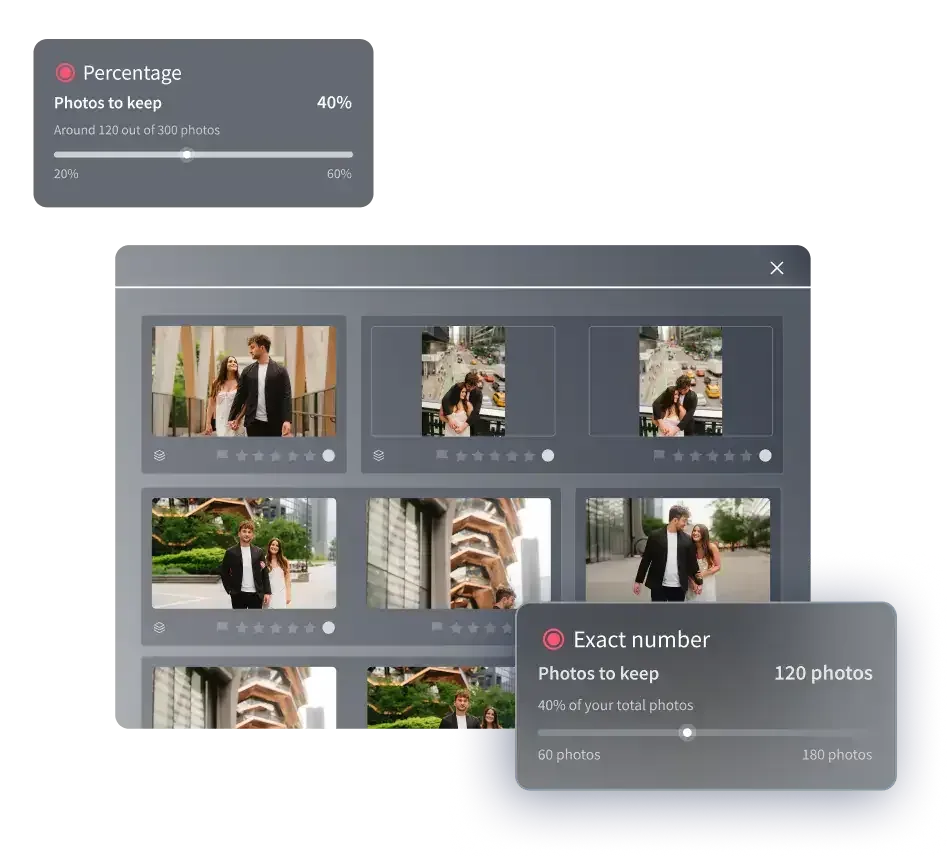
The performance is stunning. Imagen can process over 1,000 images in less than 5 minutes, providing a ranked and grouped selection. This isn’t a theoretical improvement; it’s a monumental shift. Industry reports now show that 45% of high-volume professional photographers have already integrated AI culling into their workflows. Adobe is trying to catch up with its “Select Best” feature in the cloud version of Lightroom, but it’s less granular and not yet a core part of the Lightroom Classic workflow that most professionals depend on.
The debate is shifting from which software is faster for manual culling to how AI can eliminate 80% of that manual work entirely. The biggest time savings aren’t in clicking faster, but in not having to click at all.
Itamar Haim, AI Photography Workflow Specialist
The new workflow becomes: AI culls first, then you do a quick final review. You’re no longer the first line of defense; you’re the final curator.
User Interface and Learning Curve
The user experience in these two programs couldn’t be more different, and it reflects their core philosophies.
Photo Mechanic’s interface is unapologetically utilitarian. It looks like it was designed by engineers, for engineers. It’s dense, packed with information, and prioritizes function over form. For a new user, it can be intimidating. There are countless menus and preferences to configure. However, once you learn the keyboard shortcuts and customize the layout to your liking, its speed is unmatched. The learning curve is about mastering efficiency, not creative tools. You don’t browse in Photo Mechanic; you operate it.
Lightroom Classic, by contrast, is far more polished and visually driven. Its modular design (Library, Develop, Map, etc.) guides users through a logical workflow. It’s more intuitive for beginners to pick up basic sorting and editing. The downside is that its complexity is hidden beneath the surface. Mastering the catalog system, collections, keywords, and publishing services is a significant long-term learning investment. It’s easier to start with but arguably harder to master completely than Photo Mechanic’s focused feature set.
Metadata, Organization, and Search
Beyond culling, organization is key. Here, the tools serve very different masters. Photo Mechanic is the undisputed champion for on-the-fly metadata. Its “Code Replacements” feature is why it’s the industry standard for sports, news, and event photographers working on tight deadlines. You can create shortcuts (e.g., “qb”) that expand into full captions (“The quick brown fox jumps over the lazy dog.”), names, locations, and team rosters. This feature alone can cut captioning time by up to 80%.
However, for long-term archival and organization, Lightroom’s catalog is far more powerful.
- Collections & Smart Collections - You can group photos from different folders into virtual collections without moving the actual files. Smart Collections can automatically gather all photos that meet certain criteria (e.g., 5-star photos taken with a specific lens in 2025).
- Keyword Hierarchy - Lightroom allows for nested, hierarchical keywording, which is essential for managing large stock photo libraries.
- Face Recognition - Its ability to automatically find and tag people across your entire archive is something Photo Mechanic can’t do.
- Map Module - For travel photographers, seeing your photos pinned to a world map based on GPS data is a huge organizational asset.
The launch of Photo Mechanic Plus tried to address this gap by adding its own database features. It allows for more powerful searching across multiple drives and catalogs. But honestly, it’s still playing catch-up to Lightroom, which has had a decade to refine its library module. Lightroom’s catalog for 100,000 photos can exceed 50GB, but the organizational power it provides is the primary reason it remains the market leader with over 60% market share among professional photographers.
Camera and RAW File Support
For professionals who invest in the latest camera bodies, this is a critical, often overlooked, point of comparison. When a new camera like the Canon R1 or Nikon Z9 II is released, photographers need to be able to work with its RAW files immediately. This is where Photo Mechanic consistently outshines Adobe.
Camera Bits, the company behind Photo Mechanic, is famously fast at updating their software to support new RAW formats. It’s not uncommon for Photo Mechanic to be updated to support a new camera within days of its release. This is because their primary goal is to render the embedded JPEG, not to decode the entire RAW file for editing.
Adobe, on the other hand, can be much slower. Support for new RAW formats must be baked into Adobe Camera Raw (ACR), the engine that powers both Lightroom and Photoshop. This process can sometimes take weeks or even a couple of months. For a photographer on assignment with a brand-new camera, this delay is unacceptable. Many professionals use Photo Mechanic to cull and deliver JPEGs from a new camera while they wait for Adobe to release the necessary update to edit the RAW files.
Pricing and Long-Term Value
The financial models for these tools couldn’t be more different, and your choice may come down to your tolerance for subscriptions.
Photo Mechanic 6 follows a traditional model: you buy it once, you own it. A new license costs $139. The more advanced Photo Mechanic Plus, which includes cataloging features, is a one-time purchase of $229. Major version upgrades aren’t free, but they typically cost a reduced price (around $89-$99 every few years). You can use the software for years without paying another dime.
Adobe Lightroom exists entirely within the Creative Cloud subscription. The cheapest way in, the Lightroom plan, costs $11.99 per month ($143.88 per year). This gets you Lightroom Classic, Lightroom (cloud), and 1TB of cloud storage; adding Photoshop takes the $19.99 Photography plan. The value of the bundle is strong, but you never own the software. If you stop paying, you lose access to the editing modules.
Let’s do a simple Total Cost of Ownership (TCO) calculation over 3 years:
- Photo Mechanic Plus - $229 (one-time) + maybe one paid upgrade of $99 = $328
- Adobe Lightroom plan - $143.88/year x 3 years = $431.64
Over three years, Photo Mechanic Plus comes out about $100 cheaper. The real value calculation isn’t just about cost, but about time saved. If Photo Mechanic saves you 2.5 hours per wedding shoot and your time is worth $75/hour, it pays for itself after just two jobs. The same logic applies to AI culling, where the time savings are even more dramatic.
Which Should You Choose? The 2026 Verdict
The right choice depends entirely on who you’re and what you shoot. There’s no single perfect tool, only the right tool for a specific job. Let’s break it down by photographer type.
Choose Photo Mechanic If..
- You’re a high-volume photographer (weddings, events, sports) where every minute saved on culling translates directly to profit.
- You work on tight deadlines (photojournalism, corporate events) and need to ingest, caption, and send photos within minutes of shooting them.
- You just bought a brand-new camera and need to work with its files before Adobe supports them.
- You’re working on an older computer or a laptop with limited RAM and processing power.
- You despise subscriptions and prefer to own your software licenses outright.
Choose Lightroom for Culling If..
- You’re a hobbyist or low-volume professional where culling time isn’t a major business bottleneck.
- You value the simplicity of an all-in-one ecosystem and don’t want to add another app to your workflow.
- Your work heavily relies on Lightroom’s powerful long-term organizational tools like Smart Collections and Face Tagging.
- You’re already invested in the Adobe Creative Cloud and use Photoshop and other Adobe products extensively.
The “Winner” for 2026: The AI-Enhanced Workflow
Look, the fastest manual culling tool is still Photo Mechanic. The best all-in-one tool is still Lightroom. But the fastest and most efficient workflow in 2026 doesn’t force a choice between them. It leapfrogs the manual process entirely.
The winning combination for professionals who value their time above all else is clear:
- Cull First with Imagen - Upload your entire shoot and let AI do the heavy lifting. It will find the technical errors, the blinks, and the duplicates, and group your photos for easy final selection. This is the single biggest time-saver you can introduce.
- Edit in Lightroom - Import your AI-selected keepers into Lightroom for your creative edit. Better yet, you can then use Imagen’s AI photo editing to apply your personal style consistently across the entire gallery, saving even more time.
This approach takes the best of all worlds: the superhuman speed of AI for the tedious task of culling, and the unparalleled creative control of Lightroom for the final artistic touches. It’s not about PM vs. LR anymore. It’s about human culling vs. AI culling, and the clock heavily favors the machines.
Frequently Asked Questions
Can Photo Mechanic edit photos?
No, not in the way Lightroom does. Photo Mechanic offers very basic adjustments like crop and rotation, but it has no tools for color correction, exposure adjustment, or other creative edits. Its purpose is strictly for ingest, sorting, and metadata.
Does Lightroom’s AI culling match Imagen’s?
Currently, no. Adobe’s AI features, powered by Sensei, are promising but less developed for the specific task of culling within Lightroom Classic. Imagen’s AI is specifically trained for culling, offering more granular control over factors like blink detection and subject focus, which makes it more reliable for professional use cases like wedding photography.
Do I lose image quality by previewing in Photo Mechanic?
Absolutely not. Photo Mechanic is just displaying the embedded JPEG preview. It never touches or alters your original RAW file. The culling and rating process is completely non-destructive.
What is the difference between Photo Mechanic 6 and Photo Mechanic Plus?
Photo Mechanic 6 is the classic, browser-based tool for ingest and culling. Photo Mechanic Plus includes all the features of PM6 but adds a powerful database and cataloging system, allowing you to search and manage photos across multiple drives, similar to a Lightroom catalog.
How does Photo Mechanic handle video files?
Photo Mechanic offers excellent support for video files. You can ingest, preview, and apply metadata to video clips alongside your still photos. Lightroom’s video handling in the Library module is often considered slower and less capable.
Can I use Imagen’s culling and then edit in Capture One?
Yes. After you cull with Imagen, you receive your selected photos in a separate folder. You can then import that folder of keepers into any editing application you prefer, including Lightroom, Capture One, or others.
Is Photo Mechanic worth it if I only shoot a few hundred photos at a time?
Probably not. The primary benefit of Photo Mechanic is speed at high volume. If you’re shooting smaller sessions, the time it takes Lightroom to generate previews is less of a concern, and the convenience of staying in one app likely outweighs the benefits of a dedicated culling tool.
How much does AI culling typically cost?
Pricing varies by provider. For example, the Limitless plan from Imagen includes unlimited culling, while pay-as-you-go combines a monthly base fee with a charge for the photos you export. For a professional photographer, either is a small price for saving several hours of manual labor.
Will AI culling ever completely replace manual selection?
It’s unlikely to replace it completely, but it will handle the initial 80-90% of the work. AI is fantastic at identifying technically flawed images (blurry, eyes closed). The photographer’s role is shifting to making the final creative selects from a much smaller, pre-filtered set of technically perfect photos.
What happens to my Lightroom catalog if it gets too big?
Large Lightroom catalogs (over 100,000 images) can become slow and prone to corruption. It’s crucial to regularly optimize the catalog (File > Optimize Catalog) and maintain backups. Some users opt to create a new catalog for each year to maintain performance.

