

Photo editing software for pc professionals: A Complete 2026 Guide
Table of contents
- Start with the Bottleneck, Not the Brand
- Desktop RAW Editors and Catalog Tools
- Cloud and Batch AI Editors for High Volume
- Culling Software That Thins the Set First
- Specialist Retouch and Compositing Suites
- Detail Recovery: Sharpening, Denoise, and Upscaling
- Building a Two or Three Tool PC Pipeline
- How to Choose the Right PC Editing Software
- Related Guides and Further Reading
- Frequently Asked Questions
- What is the best photo editing software for PC professionals in 2026?
- Can AI photo editing software fix blurry or noisy photos on a PC?
- How much does Imagen cost, and is there a free trial?
- Do I need to install software or run a desktop editor to use Imagen?
- Should PC professionals use one editing program or several?
Choosing photo editing software for pc professionals in 2026 comes down to one honest question: what part of the job is actually costing you time? A working photographer on Windows rarely needs one program that does everything. You need a develop engine for RAW files, a fast way to grade a whole shoot, a culling step that thins the near-duplicates, and a specialist tool or two for the rare frame that needs deep manual work. This guide walks through the categories that matter on a professional PC, explains what each one is genuinely good at, and shows where an AI batch editor fits so you can build a pipeline that clears the backlog instead of adding to it.
The short answer: match the software to the bottleneck. If your galleries are large and consistency is the whole game, a batch-first cloud editor removes the biggest time sink. If your problem is one flawless face, one recovered file, or one built composite, a dedicated desktop tool earns its place. Most professionals end up running two or three programs that hand off to each other, and that is the setup this guide is built around.
Start with the Bottleneck, Not the Brand
It is tempting to pick software by reputation, but the smarter move is to look at where your hours actually go. A wedding photographer and a product shooter both edit on a PC, yet their pain points barely overlap. The wedding pro drowns in volume and needs a coherent look across two thousand frames. The product shooter fights precise masking and compositing on a handful of hero images. The same “best editor” recommendation cannot serve both.
Break your workflow into stages: importing and organizing, culling, the first color and tone pass across the set, then the exceptions that need individual care. Once you see which stage eats the most time, the software choice gets obvious. High-volume shooters win the most from automating culling and the first grade. Low-volume, high-craft shooters win the most from a powerful manual editor. Keep that map in mind as you read the categories below.
Desktop RAW Editors and Catalog Tools
The foundation of most professional PC workflows is a catalog-first RAW editor. These programs pair a develop module with library management, so your archive stays keyworded, searchable, and backed up while your edits live alongside the files. For photographers with years of work to keep in order, that integration is the whole appeal. You process a RAW file, the catalog remembers every adjustment, and your library travels with you across drives and machines.
This category is strong on non-destructive editing, local adjustments, and a develop workflow that most pros already know by muscle memory. The trade-off is speed at scale. A catalog editor is built to give you full control over each image, which is exactly what you want on a portfolio piece and exactly what slows you down when you are staring at a thousand frames that all need the same correction. Think of the RAW catalog as your home base for organization and precise single-image work, not as your fastest route through a large gallery.
Cloud and Batch AI Editors for High Volume
This is where the biggest time savings hide for professional PC users who deliver whole shoots. A cloud-based batch editor learns your personal editing style and then applies color correction, exposure balancing, and white balance across an entire set in that consistent look. Instead of copying settings from one frame and hoping they hold up under changing light, you hand over the shoot and get back a coherent gallery.
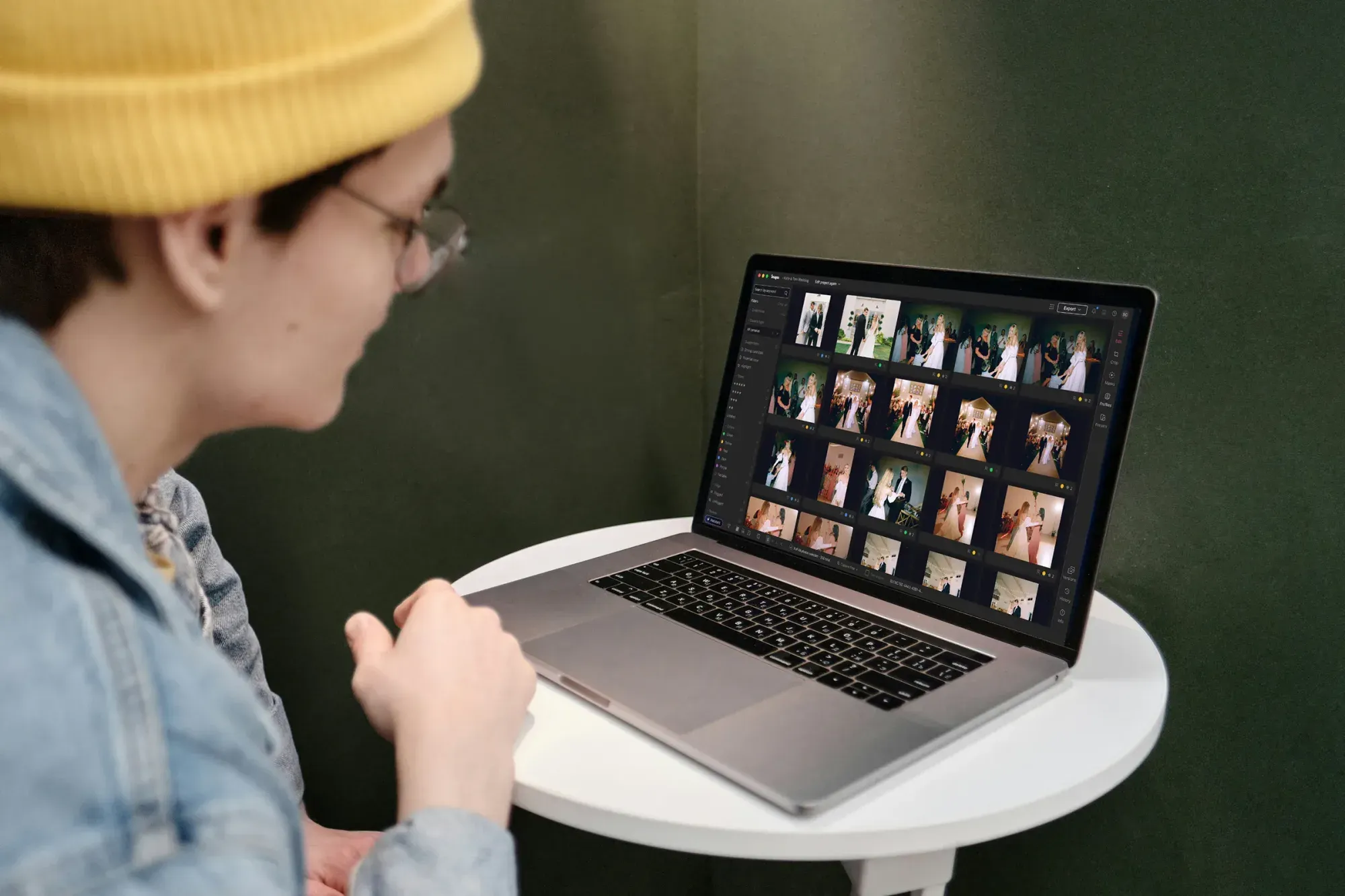
Imagen is the clearest example of this approach. It is a desktop app for Mac and Windows that you download and install, with the AI processing running in the cloud, and you can finish in its built-in editor (Beta), send AI edits back to Lightroom Classic, or export finished JPG, TIFF or PNG files straight from Imagen. Imagen is now a Studio where you cull, edit and export in one project. You sign in, point it at a full shoot, and its batch editing, driven by your Personal AI Profile, applies your consistent style to every frame. A ceremony shot in shade and a reception shot under warm tungsten come back looking like one gallery rather than a patchwork. Culling runs in the same flow, so a burst of ten near-identical frames narrows down before you spend time scrolling. Imagen reports that the first batch finishes in under 10 minutes, which is the practical difference between editing tonight and editing all weekend. It works directly with RAW files, so you are grading real capture data, not baked-in JPEGs.
Where a single frame needs individual attention, the AI Assistant handles the exceptions per photo. It covers object removal and background or plate blur. You ask in plain language, and it finds the photos and acts on them while you steer. The mental model is simple: the batch pass grades the whole set, and the AI Assistant cleans up the one or two frames that need extra care. Reusable style profiles mean the look you build on one shoot carries to the next, so your editing gets faster the more you use it.
Pricing is pay-as-you-go: a monthly base fee plus a charge for the photos you export, and you see every edit in the gallery first, so you can test the batch on a real shoot before committing. Two honest limits are worth stating: Imagen does not sharpen or deblur a soft capture, and it does not replace an entire background or run true HDR bracket-merging. It grades, culls, and finishes what your camera actually recorded. Within that lane, for volume and consistency, it is hard to beat on a PC.
Culling Software That Thins the Set First
Before a single edit, most of the time on a large shoot goes to deciding which frames survive. Dedicated culling tools score images on focus, exposure, and closed eyes, then group near-duplicate bursts so you can accept the best of each cluster in one move. For photographers shooting in continuous bursts, this step alone can save hours per gallery.
Some batch editors fold culling into the same flow, which spares you a second program and a second import. If you already run a cloud batch editor that culls, you may not need a standalone culling app at all. If you prefer a specialist, a dedicated culling tool gives you finer control over the scoring thresholds. Either way, thinning the set before you grade is one of the highest-leverage habits a high-volume PC professional can build.
Specialist Retouch and Compositing Suites
Some work lives and dies on close, manual craft. Beauty, fashion, and high-end portrait genres often need frequency-separation skin edits, blemish cleanup, and dodge-and-burn done frame by frame. Layer-based editors remain the standard for compositing, precise masking, and building an image element by element to a client’s exact brief. This is hands-on work that rewards the time you invest, and no automated pass replaces it.
A dedicated retouching tool that automates skin, eyes, and blemishes gives portrait retouchers a strong starting point they refine by hand. A layer-based editor gives commercial and product shooters pixel-level command for composites and exacting masks. These programs shine when the priority is one immaculate image rather than a thousand consistent ones. The smart move is to let a batch editor cull and grade the whole set first, then hand the rare hero frame that needs deep local retouching or a full composite to one of these specialists. That way you spend your manual hours only where they change the result.
Detail Recovery: Sharpening, Denoise, and Upscaling
Separate from grading and retouching is the category focused on repairing capture quality. Specialized detail-enhancement tools use trained models to sharpen soft frames, reduce high-ISO noise, and upscale files for large prints. Wildlife shooters cropping deep into a frame, event photographers working in dim rooms, and anyone printing big will get real value here. These are deliberately different from a batch grader, which is why they deserve their own slot in your pipeline.
Keep expectations realistic. These tools improve capture quality within limits and cannot invent focus that was never there. A batch editor like Imagen does not touch this category at all, so a missed-focus or heavily noisy frame needs a dedicated detail-enhancement program. True HDR bracket-merging, where several exposures fuse into one high-range file, also belongs to specialist software rather than a style-consistent batch pass. Match the tool to the defect: grading tools grade, and recovery tools recover.
Building a Two or Three Tool PC Pipeline
The most efficient professionals rarely rely on a single program. A common PC setup pairs a batch editor for fast, style-consistent culling and grading, a catalog RAW editor as home base for organization and precise single-image work, and one specialist tool for the occasional file that needs deep retouching or detail recovery. Each program does the job it is genuinely best at, and the handoffs between them are where your time savings compound.
A practical flow looks like this. Cull and batch-grade the full shoot in a cloud editor to get a coherent gallery in minutes. Bring the keepers into your catalog for organization, delivery, and any fine single-image adjustments. Send the rare hero frame that needs frequency-separation skin work, a built composite, or heavy sharpening to the matching specialist. You are not crowning one winner. You are stopping the leak of hours that a single do-everything program quietly causes.
How to Choose the Right PC Editing Software
Start with volume and genre, because those two facts point straight at the answer. If you deliver large galleries and consistency across a shoot is the priority, a batch-first cloud editor removes the bottleneck and finishes the first pass fast. If your work is one perfect face or one built composite, a retouching or layer-based tool rewards the time you invest. If your problem is a soft or noisy capture, only a dedicated sharpening and upscaling tool addresses it, and even then within limits.
Next, weigh how much you value an integrated library. Photographers with a large archive to keep in order will build around a catalog editor, while those who care most about speed on each shoot will lean on the batch editor and keep the catalog lighter. Finally, test before you commit. Testing on a real shoot tells you more than any spec sheet, because it shows you how the software behaves on your files, your light, and your deadline. The goal is a pipeline that fits the work you actually shoot, not the work a marketing page imagines.
Related Guides and Further Reading
If you are choosing software around a specific machine or setup, a few companion guides go deeper. See photo editing software for Windows 11 professionals for platform-specific picks, photo editing software for MacBook Pro if you also run a Mac, and cloud-based photo editing software for photographers for a closer look at the browser-based batch approach. You can also browse the full library of photography workflow tips for more on culling, batch editing, and real estate finishing.
What’s new in Imagen: Imagen is now an intelligent, agentic Studio for professional photographers, one project on your PC where you cull, edit, review and export in any order. Cull with AI or by hand for free, then apply your Personal AI Profile learned from your past edits. The Studio is rolling out gradually as a beta, and the AI processing runs in the cloud.
Frequently Asked Questions
What is the best photo editing software for PC professionals in 2026?
There is no single best program, because the right choice depends on your bottleneck. For high-volume work where consistency across a shoot matters most, a cloud batch editor like Imagen removes the biggest time sink by grading and culling an entire set in one flow. For precise single-image craft, a catalog RAW editor or a layer-based tool is the stronger fit. Most professionals run two or three programs that hand off to each other.
Can AI photo editing software fix blurry or noisy photos on a PC?
Specialized detail-enhancement tools focus on sharpening, noise reduction, and upscaling, and they can improve capture quality within limits. They cannot fully restore focus that was never captured. A batch editor like Imagen does not sharpen or deblur at all, so a soft or heavily noisy frame needs a dedicated detail-recovery program, and even that has boundaries.
How much does Imagen cost, and is there a free trial?
Imagen’s pay-as-you-go plan pairs a monthly base fee with a charge for the photos you export. You pay at export, and you see every edit in the gallery first, so you can test it on a real shoot before committing. Imagen also offers a free trial. It is a desktop app you download and install on your PC, with the AI processing in the cloud.
Do I need to install software or run a desktop editor to use Imagen?
Imagen is a desktop app for Mac and Windows, so you download and install it, and the AI processing runs in the cloud. You add your shoot, and the batch begins. It works directly with RAW files. You do not need a separate desktop editor for quick manual tweaks, because the built-in editor (Beta) covers sliders, crop and straighten.
Should PC professionals use one editing program or several?
Many professionals use two or three. A batch-first cloud editor handles the volume, culling, and consistent grade, a catalog RAW editor manages organization and precise single-image work, and a specialist tool takes on deep retouching, compositing, or detail recovery when a single frame needs it. Match each program to the job it does best rather than forcing one app to do everything.

