

10 Best Photo Editing Software for Beginners in 2026
Table of contents
- Key Takeaways
- Selection Criteria: How We Chose the Best for 2026
- Adobe Lightroom: The Gold Standard for Organization
- Luminar Neo: The King of AI Effects
- Canva: Best for Social Media & Quick Graphics
- Affinity Photo 2: The Best Subscription-Free Alternative
- Pixlr: The Best Browser-Based Editor
- Adobe Photoshop Elements: Guided Editing for Newbies
- CyberLink PhotoDirector 365: The Creative All-In-One
- Fotor: Best for AI Portraits and Retouching
- BeFunky: The Simplest Interface for Beginners
- Movavi Photo Editor: Simple Yet Powerful Desktop Editing
- Comparison Table & Final Recommendation
- Frequently Asked Questions
- Can I edit RAW photos in free software?
- What is non-destructive photo editing?
- Do I need a powerful computer to run photo editing software?
- Is a lifetime license better than a subscription?
- How does AI help beginners in photo editing?
- Should I start with Photoshop or Lightroom?
- Can I automate my editing process if I shoot in bulk?
- Keep exploring
Picking the right editing tool can feel overwhelming. Hundreds of apps compete for your attention in 2026, and the last thing you want is software with a control panel that resembles a cockpit.
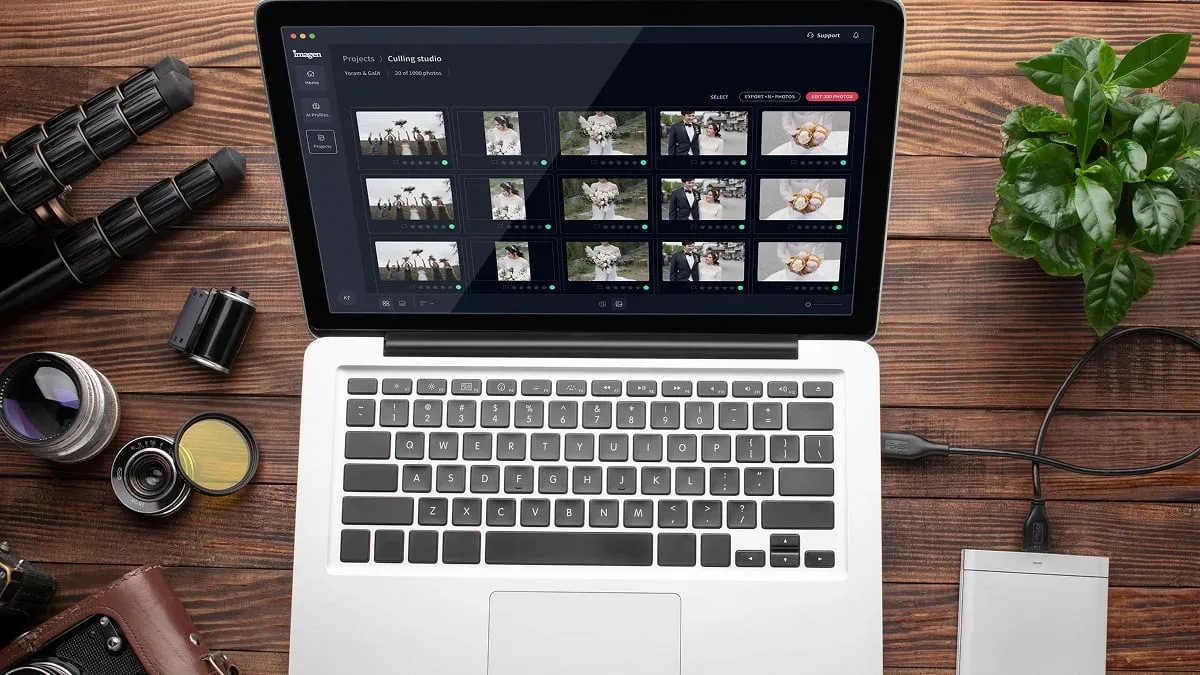
Ready to speed up your workflow? Try Imagen’s new Studio, where you cull, edit and export in one project, and see the difference on your own photos. You pay at export, and you see every edit in the gallery first.
What you actually need is software that makes your photos look great without requiring a computer science degree. Below, we compare the options that balance simplicity with serious editing power, so you can pick with confidence.
Key Takeaways
- Ease of use still drives most buying decisions, with 68% of beginners wanting simple, one-click fixes over deep manual control.
- AI tools aren’t premium extras anymore; 92% of photographers rely on them to automate routine work like masking and sky replacement.
- You can dodge subscription fatigue with options like Affinity Photo 2, which charges a flat $69.99 one-time fee.
- Heavy social media users do well with web-first platforms like Canva, which boasts over 170 million active users and handles basic graphics with ease.
- Planning to scale your photography business? A tool that supports external automation, like Imagen, can save up to 96% of your editing time.
Selection Criteria: How We Chose the Best for 2026
How do you tell the genuinely useful tools from the over-hyped ones? We went beyond feature lists and watched how real beginners actually interact with each app during their first sessions. The market itself is moving fast. The global photo editing software market is projected to reach $1.92 billion by 2030, driven largely by smarter automation. Here’s the catch: if a tool is too complex, you risk joining the 45% of beginners who abandon professional apps within their first 30 days.
To prevent that, we graded every platform on this list against a strict set of user-focused requirements, paying close attention to how much guidance the interface offers the moment you import your first RAW file.
- UI Accessibility - We looked for clutter-free workspaces where the essential sliders sit in plain sight, not buried in nested menus.
- Smart Assist Features - We favored tools offering one-click adjustments, automatic subject selection, and intelligent cropping.
- Performance and Speed - The app shouldn’t choke your system, even on a basic laptop or a Chromebook.
- Value for Money - Whether it’s a cheap subscription or a lifetime license, the price needs to match what a hobbyist should reasonably spend.
And let’s be honest, you shouldn’t need to master complex layer masking just to brighten a slightly dark family portrait. The best software walks you through the process and teaches you the fundamentals of color and light along the way. Here’s a quick checklist of what we prioritized during our analysis:
- Intuitive sliders for exposure, contrast, and saturation.
- Non-destructive editing so you never ruin your original file.
- Built-in tutorials or guided edit modes.
- Quick export options tailored for social media and print.
Adobe Lightroom: The Gold Standard for Organization
Adobe Lightroom isn’t just an editor. It’s a complete photo management system that keeps your entire library organized, built around a non-destructive workflow, so your original files stay untouched while you adjust sliders. In 2026, Lightroom’s built-in AI does the heavy lifting, letting you select skies or subjects with one click. Editing a portrait, for instance, the app can detect the person automatically, so you can soften skin or brighten eyes without touching the background.
“The best tools don’t just fix exposure; they organize your creative thoughts and save your most valuable asset: time.”
Itamar Haim, AI Photography Workflow Specialist specializing in search optimization and content marketing.
But what happens when you’ve got hundreds of photos from a weekend trip? That’s where Lightroom’s compatibility with outside platforms really shines. You can hand the bulk of that editing to Imagen. Through integrations with Lightroom Classic, AI photo editing learns your personal style and applies it across your catalog in minutes. That’s a huge help for beginners who want a consistent look through their whole collection without spending hours on sliders. When you do want to tweak a photo by hand, Imagen’s built-in editor (Beta) has manual sliders and a histogram.
Key Features
- AI-powered masking, which instantly isolates subjects, skies, or backgrounds.
- Cloud syncing, so you can start editing on your desktop and finish up on your phone.
- Lens Blur tool for adding realistic depth of field to any shot.
- Advanced color grading wheels for precise shadow and highlight control.
Pricing
Lightroom’s entry-level Lightroom plan runs $11.99 a month and includes Lightroom, Lightroom Classic, and 1TB of cloud storage. Adding Photoshop takes the $19.99 Photography plan.
Pros
- Among the best cataloging and image search tools in the industry.
- Preset syncing across mobile and desktop works remarkably smoothly.
- A huge online ecosystem of tutorials and community support.
Cons
- You’re locked into a monthly subscription with no way out.
- The desktop app can eat significant RAM when processing large RAW batches.
Verdict: It’s the strongest choice for beginners who want to build a solid foundation and eventually scale their photography workflow.
Luminar Neo: The King of AI Effects
Skylum’s Luminar Neo is your shortcut to beautiful photos if you’d rather skip hours of learning tone-curve technicalities. It’s built entirely around generative AI, so you can make massive changes with basic sliders. Want to swap a gray, lifeless sky for a vibrant sunset? The Sky AI tool handles it in three seconds and even updates the reflections on water to match the new light. Here’s a practical example: shoot a portrait in harsh midday sun, then use the Relight AI tool to simulate soft studio light coming from the side.
The instant gratification makes it deeply satisfying to use. But don’t mistake it for a toy. Under the hood, the algorithms are genuinely sophisticated, analyzing the 3D depth of your scene so adjustments look natural rather than pasted on. For hobbyists chasing spectacular landscapes without a steep learning curve, this is a serious contender.
Key Features
- GenErase, which intelligently removes unwanted tourists or power lines.
- Face AI and Body AI for quick, natural-looking portrait adjustments.
- Structure AI, boosting detail without making photos look noisy or harsh.
- Atmosphere AI for adding realistic fog, mist, or sunrays to outdoor scenes.
Pricing
Luminar Neo runs $11.95/month, or you can grab a $199 lifetime license if monthly fees bother you.
Pros
- Complex tasks like sky replacement need zero manual masking.
- The interface stays clean, modern, and genuinely approachable.
- Works as a standalone app or as a plugin inside other editors.
Cons
- The software can lag on older machines during generative processing.
- Skylum pushes upgrades and add-on packs fairly aggressively.
Verdict: A great fit for casual users after dramatic, creative edits without hours spent tweaking minute settings.
Canva: Best for Social Media & Quick Graphics
Let’s face it, not everyone wants to be a fine-art photographer. Sometimes you just need to clean up a product shot, drop in some text, and post it to Instagram. Canva is the undisputed heavyweight for exactly that kind of task. It’s browser-based, so you don’t even need to install anything on your computer. With over 170 million monthly active users, people clearly love this simplified approach to creation.
To edit a photo for social media, follow these simple steps:
- Upload your photo into a template built for your target social platform.
- Click “Edit Photo,” then use the AI background remover to cut out your main subject.
- Apply a filter, or adjust brightness and contrast with the basic sliders in the sidebar.
- Drag design elements, text, or brand logos onto the canvas before exporting.
Canva itself is remarkably fast, and though it doesn’t handle complex RAW adjustments, its simplicity makes it a massive time-saver for small business owners and everyday creators.
Key Features
- Powerful Edit, letting you brush over an object and replace it with a text prompt.
- Instant Background Remover, which works flawlessly on simple product shots.
- Thousands of templates built for every major social platform.
- Brand Kit integration to keep fonts and colors consistent across designs.
Pricing
Canva’s free tier is already quite capable, and the Pro plan costs $120/year and unlocks every premium asset.
Pros
- Runs smoothly in any browser, cheap Chromebooks included.
- Great for combining text, shapes, and photography in one workspace.
- Lets you schedule and post directly to your social media channels.
Cons
- Very limited for detailed, pixel-level photo retouching.
- No advanced color grading or non-destructive RAW editing.
Verdict: The best browser-based pick for creators who treat photo editing as one step in a bigger design workflow.
Affinity Photo 2: The Best Subscription-Free Alternative
If you’re tired of getting nickel-and-dimed by monthly subscriptions, you’re not alone, and Affinity Photo 2 is the answer. It goes head-to-head with Adobe Photoshop, giving you deep, layer-based editing at a price that actually makes sense. It’s fast too, using hardware acceleration so your edits feel instant. Say you want to blend three different exposures into one HDR image? Affinity’s merge tool nails it with real precision.
Don’t let all those professional features scare you off, though. The app includes dedicated “Personas,” specialized workspaces that simplify tasks like RAW development or export. It’s a smart way to keep things clean when you’re just trying to crop and color-correct a single photo.
Key Features
- Live filter layers, so you can apply blurs, lighting, and distortions non-destructively.
- Full RAW development with dedicated sliders for exposure, white balance, and lens corrections.
- Advanced retouching tools, like frequency separation, for flawless skin editing.
- Cross-platform compatibility, with a fully featured iPad version sold separately.
Pricing
You pay once, $69.99, and there are no subscription fees at all.
Pros
- One affordable payment, and you own the software for good.
- A genuinely powerful feature set that rivals industry-standard tools.
- Great performance, even with massive, multi-gigabyte files.
Cons
- The learning curve is a lot steeper than template-based apps.
- It lacks the advanced AI-generation features you’ll find in subscription-based competitors.
Verdict: Perfect if you’re budget-conscious and want to learn real editing techniques without ongoing fees.
Pixlr: The Best Browser-Based Editor
Picture this: you’re traveling, stuck with a borrowed laptop, and you need to fix a photo for a client right now. You don’t have time to download some massive installer, so that’s exactly where Pixlr shines. It splits into two web apps: Pixlr X for quick, template-driven edits, and Pixlr E for more detailed work. That split keeps things simple, so if you just need to crop a photo, you won’t get distracted by advanced brush tools.
With 70% of Gen Z and Millennial users preferring to edit on mobile or in a browser, Pixlr’s lightweight design feels right on time. Upload a portrait, for instance, and their AI-driven portrait tools will smooth skin and remove red-eye in a single click. It’s fast, free to try, and about as straightforward as editing gets.
Key Features
- Dual-interface design, so you can pick between simple (X) and advanced (E) layouts.
- AI cutout tool that removes backgrounds quickly and accurately.
- Built-in collage maker with customizable layouts and aspect ratios.
- Cloud saving, so your projects follow you to any device.
Pricing
The basic version is free with ads; premium plans remove ads and unlock more assets at a competitive monthly rate.
Pros
- Instant access from any device with a connection.
- Fast load times, and barely any system resources used.
- The free tier works well for basic, everyday tasks.
Cons
- The free version gets cluttered with distracting banner ads.
- It can’t handle complex batch editing or heavy RAW camera files.
Verdict: A genuinely no-nonsense web tool for students and casual users who just want fast edits on any computer.
Adobe Photoshop Elements: Guided Editing for Newbies
Are you intimidated by standard Photoshop? Adobe built Photoshop Elements just for you. Think of it as the training-wheels version of their flagship app. The standout feature, “Guided Edits,” walks you through complex processes step by step. Do you want to create a double exposure effect? The app tells you exactly which button to click next. It’s honestly like having a photography teacher sitting right beside you.
It’s a great way to bridge the gap between simple filters and full manual editing. As your confidence grows, you can switch from “Guided” mode to “Quick” or “Expert” mode and unlock more control. This structure keeps you from feeling overwhelmed, and from joining that 45% abandonment rate that plagues professional design tools.
To use Guided Edits, you’ll work through a simple three-step system:
- Select your image from the main organizer workspace.
- Choose the effect you want from the Guided panel menu.
- Follow the sidebar instructions and brush or click your changes into place.
Key Features
- Guided Edits covering more than 60 creative and corrective techniques.
- Moving Overlays that add elements like snow or smoke to still photos.
- AI-powered Organizer, sorting your library by faces, places, and events automatically.
- One-click subject selection for quick background swaps.
Pricing
Photoshop Elements sells as a one-time purchase for $99.99, so there’s no monthly subscription to worry about.
Pros
- The guided tutorials genuinely teach you how editing concepts work.
- A lifetime license means monthly fees are never a worry.
- A structured, stress-free way to learn the basics of digital design.
Cons
- The interface can feel a bit dated next to modern web apps.
- Updates come out annually, and each new version means buying it again.
Verdict: The go-to educational tool for beginners who want to learn manual editing without a steep learning curve.
CyberLink PhotoDirector 365: The Creative All-In-One
CyberLink PhotoDirector 365 sits in a unique spot, blending standard photo management with fun, creative effects. It’s built for people who want to turn their photos into digital art. The software packs in AI-driven tools that turn a standard portrait into a cartoon, swap out backgrounds, or add motion to clouds. Photograph a waterfall, for example, and you can animate the water so it looks like it’s flowing while the rest of the frame stays perfectly still.
It’s efficient too, and the photo editing market keeps growing fast, so PhotoDirector keeps pace by constantly rolling out new assets and templates. It’s a great pick if you want to play with layers and text without wading into Photoshop’s complexity.
Key Features
- AI Object Segmentation, separating subjects from backgrounds with hair-level accuracy.
- Photo-to-Art generator, styling your photos like oil paintings or watercolors.
- Body Shaper and skin tone adjustment tools for quick portrait touch-ups.
- Integrated stock library, giving you access to millions of stock photos from Getty Images.
Pricing
PhotoDirector 365 starts at $54.99/year as a subscription, and that covers all updates plus stock access.
Pros
- A massive built-in library of stock photos and audio tracks.
- Rendering stays fast, even with complex effects applied.
- A great mix of traditional adjustment sliders and wild creative tools.
Cons
- All those flashy pop-up menus can feel a bit overwhelming at first.
- The Mac version has historically lacked a few advanced features found on Windows.
Verdict: An engaging choice for beginners who want to combine traditional editing with digital art and animation.
Fotor: Best for AI Portraits and Retouching
Fotor has grown into a global powerhouse, with over 500 million total users. The reason is simple: it focuses on what everyday users edit most, portraits and selfies. If you are an influencer or a casual photographer, you do not want to spend an hour removing blemishes with a tiny brush. Use Fotor’s “Beauty” panel instead. Tap a single button to smooth skin, whiten teeth, and fix lighting instantly. The result is simple, fast, and effective social media prep.
Fotor also meets the demands of modern users. 75% of new users prioritize integrated cloud backup and syncing, and for good reason. Edit a photo on your computer, save it to the Fotor cloud, then download it to your phone in seconds. Here is a quick look at the features that make it popular:
Key Features
- One-tap skin retouching for quick portrait edits.
- AI Portrait Generator, turning casual selfies into professional-looking headshots.
- Batch processing, so you can apply one crop or filter to dozens of photos at once.
- AI Object Remover that fills in gaps left by deleted elements cleanly.
Pricing
Fotor Pro stays budget-friendly, at a competitive monthly rate when billed annually.
Pros
- A genuinely cheap premium plan next to desktop suites.
- The portrait tools rank among the easiest to use on the market.
- A huge library of ready-made design templates and graphics.
Cons
- The free version is heavily restricted and carries intrusive ads.
- It does not support advanced manual RAW adjustments for professional printing.
Verdict: The best choice for social media influencers and portrait enthusiasts who need fast, attractive results.
BeFunky: The Simplest Interface for Beginners
If even Canva feels a little too busy, try BeFunky instead. It is built for absolute beginners who want to jump in, make a quick adjustment, and get out. The interface stays remarkably clean, showing only the sliders you need at any given moment. Do you want to resize a photo? You will not need to hunt through multiple tabs, since the tool sits right there in the main menu.
This simplicity matches what most beginners want. 68% of new photographers rank ease of use above everything else. Do you want to turn a photo into a cartoon or a sketch? BeFunky’s Artsy effects handle it with a single slider. The whole process is fun, fast, and requires no technical knowledge at all.
Key Features
- Cartoonizer effect, turning photos into illustrations instantly.
- Batch Resizer, letting you resize several images for different web layouts right away.
- Simple collage maker with drag-and-drop template boxes.
- Essentials collection, covering cropping, exposure, and color adjustments.
- Drop Shadow features that add depth to layered graphic elements.
Pricing
BeFunky Pro costs $6.99/month when billed annually, which keeps it highly accessible.
Pros
- The cleanest, most straightforward interface of any tool on this list.
- Perfect for quick daily tasks, cropping, resizing, and simple collages.
- No account required to start editing your first photo.
Cons
- It lacks the deep AI generative tools found in Lightroom or Luminar Neo.
- You cannot perform complex, layer-based compositing.
Verdict: Ideal for absolute beginners who want a completely stress-free, basic editing experience.
Movavi Photo Editor: Simple Yet Powerful Desktop Editing
Movavi Photo Editor is a lightweight desktop app built for users who want desktop-level speed without Photoshop’s complexity. It runs remarkably quickly, even on older systems or budget laptops, which is a real relief if you do not own a high-end gaming PC. One standout tool is AI Restoration for old photos: it removes scratches, colorizes black-and-white family images, and boosts detail in faded prints.
Over 1.8 billion photos get uploaded to Facebook every day, so a tool that helps you quickly polish your family archive earns its keep. Do you want to erase a distracting object in the background? Paint over it with Movavi’s smart brush, and the AI fills in the background instantly.
Key Features
- AI Old Photo Restoration, colorizing and repairing damaged images.
- Object Removal with intelligent background texture reconstruction.
- Intuitive color correction sliders that need no technical expertise.
- Lightweight desktop client that loads in seconds.
Pricing
Movavi Photo Editor costs $49.95/year, or you can buy a lifetime license for a one-time fee instead.
Pros
- Needs very low system resources compared to Adobe software.
- The old photo restoration tool performs remarkably well.
- A fast learning curve, you can master it in about ten minutes.
Cons
- Fewer creative templates than web-based editors like Canva.
- Limited advanced manual adjustments for professional RAW processing.
Verdict: A fantastic option for family historians and users with older computers who want a quick, desktop-based editor.
Comparison Table & Final Recommendation
Choosing the right software depends entirely on what you want to achieve. If you are building a business or learning the ropes of professional photography, pick a system that grows with you. If you just want to edit family vacation photos or social posts, a simple web-based tool works much better. Here is a direct comparison of how these ten tools stack up against each other.
| Software Name | Pricing Model | Primary Strength | Learning Curve |
|---|---|---|---|
| Adobe Lightroom | From $11.99/mo subscription | Organization & raw editing | Moderate |
| Luminar Neo | $11.95/mo or $199 lifetime | Generative AI effects | Low |
| Canva | Free or $120/year Pro | Social media templates | Very Low |
| Affinity Photo 2 | $69.99 one-time fee | Professional layer editing | High |
| Pixlr | Free or competitive rates Premium | Quick browser-based edits | Low |
| Adobe Photoshop Elements | $99.99 one-time fee | Step-by-step guided edits | Low to Moderate |
| CyberLink PhotoDirector 365 | $54.99/year subscription | Creative digital art & stock | Moderate |
| Fotor | Competitive rates billed annually | AI portrait retouching | Low |
| BeFunky | $6.99/mo billed annually | Ultra-simple quick edits | Very Low |
| Movavi Photo Editor | $49.95/year subscription | Lightweight desktop speed | Low |
If you are serious about your photography workflow, you will eventually hit a major roadblock: manual editing takes forever. Once you start shooting hundreds of photos per session, adjusting sliders one by one turns into a genuine chore. This is where pairing Lightroom Classic with Imagen changes everything.
Using AI profiles trained on your specific preferences, Imagen can process and edit 1,000 photos in under 10 minutes, a 90% reduction in manual editing time. For beginners moving into paid portrait or wedding photography, this workflow lets you maintain professional-grade quality without losing your weekends to a computer screen. No past edits to train on yet? A ready-made AI Profile gives you a starting point. Check the Imagen pricing page to see how you can start automating your edits with a system that grows as your skills do.
What’s new in Imagen: Beginners often want one place to sort, edit and finish their photos, and Imagen is now an intelligent, agentic Studio for professional photographers built around that idea. You cull, edit, review and export in one project, in any order. Use AI culling to sort a shoot, or skip it and cull manually for free, then export finished JPG, TIFF or PNG files straight from Imagen. The Studio is rolling out gradually as a beta.
Frequently Asked Questions
Can I edit RAW photos in free software?
Yes, some free programs can open RAW files, though they often lack advanced recovery tools for highlights and shadows. For serious RAW editing without a monthly cost, a paid tool like Affinity Photo 2 is a much safer bet.
What is non-destructive photo editing?
Non-destructive editing means the software saves your adjustments as a set of instructions instead of altering the actual pixels. Your original photo stays safe and untouched, so you can reset any change at any time.
Do I need a powerful computer to run photo editing software?
It depends on the tool. Adobe Lightroom and Luminar Neo need a decent amount of RAM, but web-based programs like Pixlr or Canva run perfectly well on almost any device, Chromebooks included.
Is a lifetime license better than a subscription?
If you want to avoid monthly fees and do not need constant feature updates, a lifetime license is highly economical. Subscriptions like Adobe’s, however, include continuous updates, mobile app sync, and cloud backup.
How does AI help beginners in photo editing?
AI simplifies complex tasks by automating them for you. Instead of painting a manual mask to select a sky or smooth someone’s skin, the AI identifies these elements instantly, so you can make the adjustment with a single slider.
Should I start with Photoshop or Lightroom?
Beginners should almost always start with Lightroom. It has a far friendlier interface, keeps your growing photo library organized, and offers a much smoother learning path than Photoshop’s pixel-level tools.
Can I automate my editing process if I shoot in bulk?
Yes, absolutely, if you shoot large batches of photos, pairing a platform like Imagen with Lightroom lets AI edit your entire catalog in minutes, matching your personal style with real accuracy.

