

10 Best Photo Editing AI Tools for Photographers in 2026
Table of contents
- Key Takeaways
- Selection Criteria: How We Chose the Best AI Tools for 2026
- 1. Imagen: The Gold Standard for Professional Batch Editing
- 2. Adobe Lightroom & Photoshop (Firefly Integration)
- 3. Skylum Luminar Neo
- 4. Topaz Photo AI
- 5. Capture One Pro
- 6. AfterShoot
- 7. Canva Magic Studio
- 8. Pixlr
- 9. Photoroom
- 10. BeFunky
- Comparison of Top AI Photo Editors 2026
- Final Recommendation: Which Tool Should You Choose?
- Frequently Asked Questions
- Can AI photo editors handle raw camera files?
- Does Imagen require Adobe Lightroom?
- Do I need a powerful computer to use AI editors?
- Is my data safe when using cloud-based AI editors?
- What is the difference between AI culling and AI editing?
- Are perpetual licenses better than monthly subscriptions?
- Can I use multiple AI photo editors in my daily workflow?
- Keep exploring
You’re drowning in RAW files. There’s no point denying it, because every professional photographer runs into the same bottleneck once wedding season hits.
Ready to speed up your workflow? Try Imagen free with 250 photos and see the difference on your own galleries.
But the tide is turning fast in 2026. Modern photo editing AI apps aren’t just toys anymore, they’re critical tools that keep your business from sinking during peak season.
Key Takeaways
- AI integration has cut post-production time by as much as 90% at high-volume wedding and portrait studios.
- By 2026, 60% of commercial photography will include at least one generative AI element, things like background replacement or expansion.
- The global photography AI market is racing toward a valuation of $4.2 billion by the end of 2026.
- Tools like Imagen deliver some of the fastest turnaround times around, with a free trial batch processed in under 10 minutes.
- Hybrid models that combine Local GPU previews with cloud-based neural engines now make up 65% of today’s tool industry.
- We’ve highlighted 10 leading options built to fit different editing styles, budgets, and technical demands.
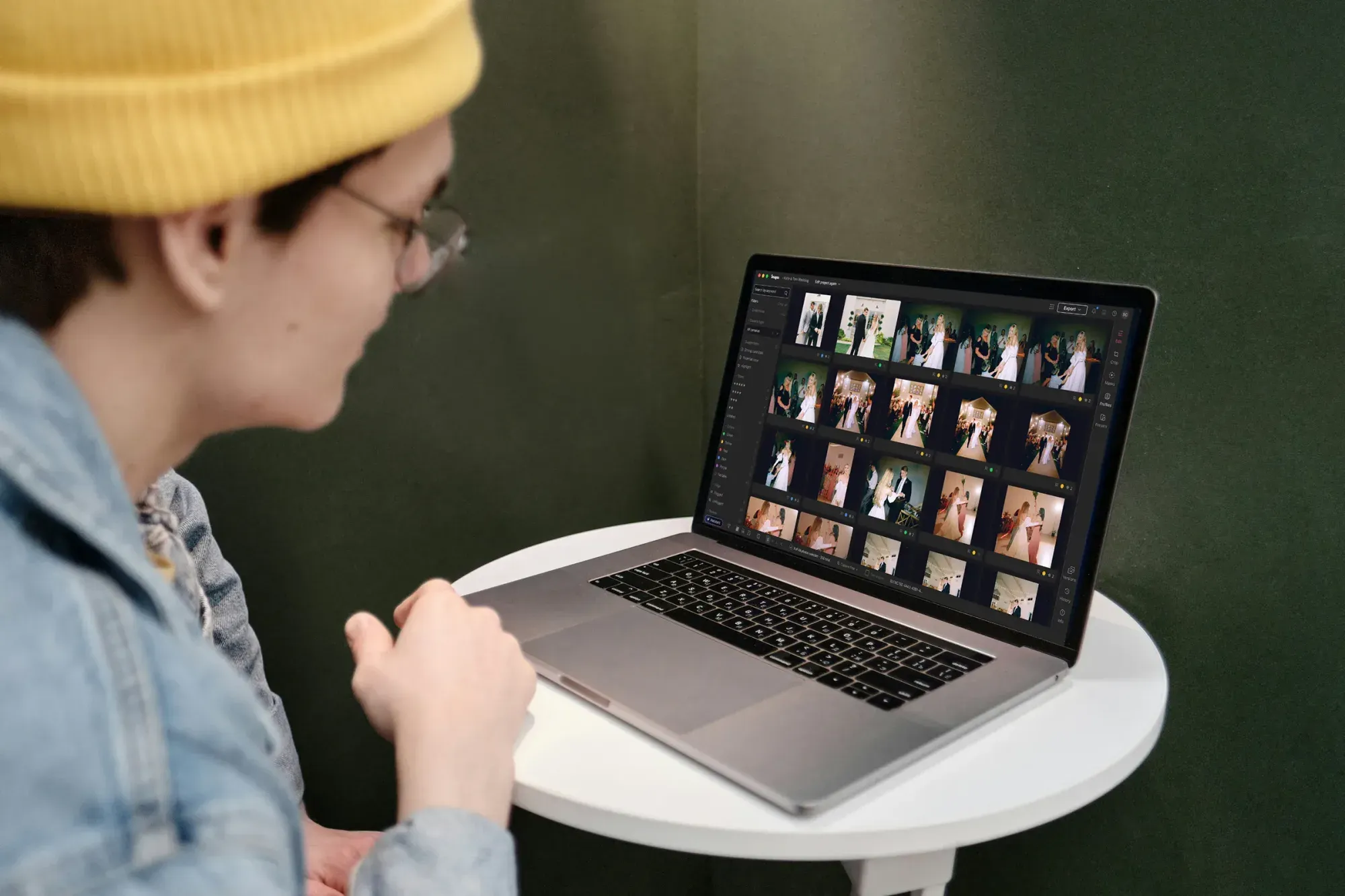
Selection Criteria: How We Chose the Best AI Tools for 2026
Finding the right tool isn’t about chasing flashy marketing claims. It’s about finding an assistant that fits your actual daily production pipeline without disrupting how you’re already organized.
The Shift to AI-First Workflows
This transition is happening fast. According to a 2024 Professional Photographers of America study, 74% of wedding photographers already use AI for culling or color correction to hold a 2-week turnaround time. If you’re still clicking through thousands of images by hand, you’re losing money, plain and simple. Clients now expect near-instant delivery in 2026, and manual pipelines simply can’t keep pace anymore.
Our Ranking Methodology
To separate the useful tools from the noise, we looked closely at how each platform handles high-volume demands. We prioritized file preservation, real-world speed, and stylistic accuracy over gimmicky filters.
- Processing Speed - We measured how fast each tool chews through high-volume batches, aiming for hundreds of photos in minutes, not hours.
- Non-Destructive RAW Handling - A must-have for pros: 95% of top-tier AI photo editors now support non-destructive RAW editing across more than 600 camera models.
- Stylistic Consistency - The tool needs to learn or respect your personal visual brand without wild color swings from one frame to the next.
1. Imagen: The Gold Standard for Professional Batch Editing
If you earn your living delivering large-volume galleries, you already know editing speed is the difference between a profitable year and burnout. This is where Imagen shines brightest. By shifting the heavy computational lifting to the cloud, it removes the local hardware bottleneck that slows down traditional desktop setups entirely.
Overview
Imagen is a browser-based AI photo editing and culling platform built specifically for high-volume professionals. It runs entirely in your browser, so there’s no plugin, no desktop install, and no Lightroom dependency. Two models power the platform. Image2Image batch-corrects an entire shoot in one pass, matching color and exposure consistently across every photo. AI Assistant then finishes the exceptions you describe in plain language, so Image2Image handles the batch and AI Assistant handles what’s left over.
If you edit real estate listings, Imagen fits that workflow too. Image2Image batch-corrects an entire listing for consistent color across every room, and AI Assistant handles the finishing touches, like virtual staging, object removal, and twilight conversion, on the photos that need extra attention. It’s the best AI photo editor for real estate photography available today.
“AI won’t replace photographers, but photographers who use AI will replace those who don’t. The speed at which we can now deliver polished galleries has fundamentally changed client expectations.”
Itamar Haim, SEO Expert and Digital Strategist specializing in search optimization and content marketing.
Getting Started with Imagen
Getting started takes minutes, not days. Here’s how to process your first batch:
- Sign up for a free trial and upload up to 250 photos, no credit card required.
- Let Image2Image apply a consistent batch edit across your gallery in minutes.
- Use AI Assistant to fine-tune any exceptions in plain language, then export your finished photos.
Key Features
- Image2Image - Batch-corrects an entire shoot in one pass for consistent color and exposure.
- AI Assistant - Finishes exceptions in plain language, including object removal and virtual staging.
- AI Photo Culling - Automatically filters out duplicates, blurry shots, and closed eyes in minutes.
- Full Editing Suite - HDR merge, perspective correction, sky replacement, and color enhancement in one browser tab.
- No Installation - Runs entirely in your browser, so there’s no plugin, no desktop app, and no Lightroom dependency.
Pricing
Imagen offers flexible plans built around your monthly volume. Here’s a quick look at the current Imagen pricing:
- Pay-as-you-go - $0.32 per photo, billed monthly for that month’s edited photos, with 30% off your first month at $0.22 per photo.
- Free trial - 250 photos, no credit card required, with your first batch back in under 10 minutes.
- Teams plan - Volume pricing for studios processing 25,000 or more photos a year, with a dedicated account manager.
Pros
- Runs entirely in the browser, so there’s nothing to install.
- Strong consistency across massive batches of edits.
- Free trial lets you test 250 photos before you pay a cent.
- Non-destructive workflow that fully preserves your original RAW data.
Cons
- Needs an active internet connection, since all processing happens in the browser.
- Pay-as-you-go billing means costs scale with your monthly photo volume.
Verdict
Imagen is the clear best choice for high-volume wedding, portrait, and event photographers who want their time back without sacrificing consistent, professional results.
2. Adobe Lightroom & Photoshop (Firefly Integration)
You can’t talk about editing without mentioning Adobe. Their Creative Cloud ecosystem remains a massive force, with over 26 million subscribers worldwide as of late 2023. With the Firefly engine now built in, Adobe has folded strong generative tools directly into your classic workspace.
Overview
Adobe Lightroom and Photoshop use generative AI to handle complex selections, object removal, and scene expansions incredibly fast. Instead of switching apps, you get tools like Generative Fill and Lens Blur right inside your familiar editing panel. It’s the ecosystem most pros already know, now boosted with modern automation.
Key Features
- Generative Fill & Expand - Add, remove, or stretch elements in your frame with simple text prompts.
- AI Denoise - Recover clean detail from high-ISO RAW files without turning everything into mush.
- Adaptive Portraits - One-click masking for teeth whitening, skin smoothing, and eye enhancement.
- Lens Blur AI - Applies realistic depth-of-field maps to isolate your subjects cleanly.
Pricing
The standard Creative Cloud Photography Plan runs $19.99 per month and includes both Lightroom and Photoshop, plus 1TB of cloud storage. There’s no standalone perpetual option; it’s subscription-only.
Pros
- The most advanced selection of raster-editing and manipulation tools on the market.
- Smooth synchronization across desktop, iPad, and mobile devices.
- Huge community support with thousands of third-party plugins.
Cons
- Can be demanding on system resources, requiring a fairly capable computer to run smoothly.
- Monthly subscription fees add up over the years, with no ownership option.
Verdict
Adobe remains the industry-standard workspace for photographers who need pixel-perfect manual control backed by strong generative tools.
3. Skylum Luminar Neo
Sometimes you don’t want to spend hours tweaking sliders. You want immediate, dramatic results for creative projects or quick portrait edits. That’s where Skylum’s Luminar Neo steps in, leaning heavily on AI-driven artistic adjustments.
Overview
Luminar Neo is a modular photo editor built around creative AI tools like Sky AI, Atmosphere AI, and Portrait AI. It’s designed for photographers who want major visual transformations, like swapping a grey sky for a golden-hour sunset, in a single click. Its performance has seen a 30% speed boost on M3 Mac chips compared to older releases.
Key Features
- Sky AI - Automatically detects the horizon and swaps skies while correcting the scene’s reflection and lighting.
- GenErase & GenSwap - Intelligently replaces unwanted elements or inserts new objects with generative algorithms.
- Relight AI - Maps a 3D depth grid over your 2D photo to let you adjust foreground and background lighting independently.
- Body & Face AI - Reshapes, slims, or brightens portrait details with simple slider controls.
Pricing
Luminar Neo is available as a subscription starting at $11.95 per month, or you can buy a lifetime license for $199 (though major feature upgrades occasionally cost extra).
Pros
- Easy to pick up, even if you’ve never touched professional editing software before.
- Creative tools that would take hours in Photoshop can be applied in seconds.
- Works well as both a standalone app and a plugin for Lightroom.
Cons
- Performance can feel sluggish when applying multiple heavy generative AI layers on mid-range PCs.
- Lacks the deep cataloging and organization tools required for fast batch work.
Verdict
Luminar Neo works best for hobbyists, landscape shooters, and portrait artists who want high-impact, creative edits without the steep learning curve.
4. Topaz Photo AI
Look, we’ve all snapped a shot that came out slightly soft or wrecked by heavy digital noise, haven’t we? Topaz Photo AI isn’t for creative color grading. It’s built to rescue images you’d already written off as unusable.
Overview
Think of Topaz Photo AI as a dedicated technical utility. It combines three of Topaz’s strongest engines (DeNoise, Sharpen, and Gigapixel) into one workspace. The app’s Autopilot feature scans your image, spots technical flaws like motion blur or high-ISO noise, and applies exactly the correction you need.
Key Technical Fixes to Look Into
When you’re working on tricky files, it helps to follow the restoration steps in a specific order so you don’t lose image quality along the way:
- Start with raw noise removal to clean up high-ISO sensor noise without wrecking fine textures.
- Then use motion blur correction to sharpen up soft details from camera shake or fast-moving subjects.
- Finally, upscale the photo with neural magnification so small crops hold up for large-format prints.
Key Features
- Autopilot - Automatically scans your photo to detect faces, evaluate sharpness, and measure noise levels.
- Sharpen AI - Recovers sharp, natural details from out-of-focus or motion-blurred shots.
- Gigapixel AI - Upscales low-resolution images by up to 600% while maintaining clean edges.
- Face Recovery - Rebuilds realistic facial details on low-resolution or heavily cropped portraits.
Pricing
Topaz Photo AI is sold as a standalone perpetual license for $199, and that includes one full year of feature updates. After that first year, you can pay an upgrade fee if you want to keep getting the newest versions.
Pros
- Unrivaled noise reduction and sharpening that outperforms traditional editor sliders.
- Rescues those once-in-a-lifetime photos that got wrecked by technical camera errors.
- Works flawlessly as a non-destructive plugin within Lightroom.
Cons
- Very limited options for color adjustments, cropping, or creative look development.
- The upfront price is steep for a tool that’s really a utility, not an all-in-one editor.
Verdict
A genuine must-have for wildlife, sports, and low-light event photographers who push their camera sensors to the limit on a regular basis.
5. Capture One Pro
If you’re a studio photographer, tethered shooting is pretty much the lifeblood of your daily work. Capture One Pro has long been the favorite for high-end commercial projects, and its recent updates bring smart tools that keep color accuracy steady across changing setups.
Overview
Capture One Pro is a professional raw workflow tool known for its excellent color rendering engine. It’s added AI tools like Smart Adjustments, which match exposure and white balance across files shot under different lighting. It’s still the standard for studio control, and now it’s faster thanks to selective masking.
Key Features
- Smart Adjustments - Instantly matches colors and exposures across different lighting setups to keep your look consistent.
- AI Masking - Rapidly selects subjects, backgrounds, or specific materials (like leather or skin) in seconds.
- Tethering Engine - The industry’s fastest and most stable tethered shooting workflow.
- Layer-Based Editing - Allows complex, non-destructive color adjustments using traditional layer controls.
Pricing
Capture One Pro runs $29.00 per month as a subscription, or you can grab a perpetual license for $299. Just keep in mind that perpetual licenses don’t come with major future upgrades.
Pros
- Leading color engine that renders skin tones beautifully out of the box.
- Advanced masking that lets you isolate elements without tedious brushwork.
- A highly customizable interface that you can tailor to your specific studio setup.
Cons
- A steep learning curve for users migrating from simpler tools like Lightroom.
- The licensing structure and subscription plans are relatively expensive.
Verdict
A great fit for commercial, studio, and fashion photographers who need top-tier color accuracy and advanced layer workflows.
6. AfterShoot
If you’re skeptical about shipping your personal catalog off to the cloud, you’re definitely not alone. Plenty of photographers would rather keep their RAW processing local, right on their own machine. AfterShoot speaks to that exact concern by keeping its AI models entirely offline.
Overview
AfterShoot is a desktop-based culling and editing assistant that runs locally, right on your computer’s GPU. You don’t need an active internet connection to organize or edit your catalogs. It’s built to sort through thousands of photos, flag errors, and apply style profiles without ever uploading a single megabyte.
Key Features
- Offline Processing - Run all culling and editing models locally without relying on cloud servers.
- AI Culling Engine - Groups duplicates, detects blurred faces, and flags closed eyes.
- AI Style Editing - Learns your editing style from past catalogs to apply automated local adjustments.
- Unlimited Image Limits - No per-photo fees; you can process as many images as you need under your subscription.
Pricing
AfterShoot Pro, which bundles both culling and editing modules, runs $480 per year. There’s also a cheaper culling-only tier if all you need is a little organizational help.
Pros
- No internet connection required, making it perfect for travel or remote locations.
- Flat annual subscription fee means predictable business expenses for high-volume shooters.
- Very fast culling speeds on modern Macs with dedicated Apple Silicon.
Cons
- Its color correction and editing accuracy are less mature than dedicated cloud-trained engines.
- Heavy local resource usage can slow down your system while the AI is running.
Verdict
A solid pick for high-volume photographers dealing with slow internet or strict privacy requirements who’d rather keep everything local.
7. Canva Magic Studio
Not everyone editing photos is delivering huge wedding galleries. If you’re a modern content creator or social media manager, you often just need to turn a portrait or product shot into a polished marketing asset in seconds.
Overview
Canva has grown immensely, reaching over 170 million monthly active users. Its Magic Studio toolkit has been used over 4 billion times to simplify design workflows. It’s a web-based editor that lets you isolate objects, expand backgrounds, and get images ready for social media without ever opening heavy design software.
Key Features
- Magic Grab - Isolates any subject in your photo so you can move it, resize it, or delete it like a sticker.
- Magic Expand - Uses generative fill to expand your borders, helping you fit a vertical shot into a horizontal banner.
- Background Remover - Cleans up portrait or product backdrops with single-click precision.
- Magic Edit - Swap out elements in your photo, like changing a model’s shirt color, using simple text prompts.
Pricing
Canva offers a free basic plan with limited tools. The Pro subscription, which unlocks the entire Magic Studio suite, runs $120 per year for a single user.
Pros
- Runs completely inside your web browser, meaning you can access it on any computer or phone.
- Smoothly connects your photos directly to social media layouts and design templates.
- Extremely user-friendly interface that requires zero professional editing experience.
Cons
- No support for native RAW camera files, restricting you to JPEGs and PNGs.
- Lacks advanced color correction, curve editing, and high-resolution export profiles.
Verdict
A go-to tool for creators and brands who need to quickly adapt images for digital marketing and layout designs.
8. Pixlr
If you need a quick, professional alternative to Photoshop without a monthly commitment to Adobe, look at Pixlr. It is a reliable browser-based solution that has kept pace with modern AI demands.
Overview
Pixlr is an online photo editor that runs on virtually any computer, even low-spec Chromebooks. It offers a range of generative AI options, including background removal, image expansion, and object generation. Use it when you want Photoshop-style layer controls without the heavy local installation or price tag.
Key Features
- AI Generative Fill - Fill empty areas or replace objects using simple text-based descriptions.
- AI Smart Crop - Automatically crops your images to fit popular social media aspect ratios.
- One-Click Backdrop Removal - Instantly isolates subjects from complex backgrounds.
- Filter Gallery - A massive selection of quick-apply creative overlays and color grading filters.
Pricing
Pixlr offers a basic free tier supported by ads. The Plus plan starts at a highly affordable monthly rate, and it removes ads while unlocking every AI feature.
Pros
- Extremely lightweight and fast to load, even on older, low-spec hardware.
- Very affordable entry point for photographers looking for basic layer editing.
- Includes useful text and shape tools for quick graphic design projects.
Cons
- The free version is heavily interrupted by intrusive advertisements.
- No batch processing features, making it useless for high-volume catalog work.
Verdict
Choose Pixlr if you are a casual creator who needs quick, layer-based photo adjustments on the go.
9. Photoroom
Selling products online has become a massive market. For e-commerce stores, clean and consistent background presentation makes the difference between a high conversion rate and a bounce. Photoroom focuses purely on this profitable niche.
Overview
Photoroom is a web and mobile editor built to turn casual smartphone photos into clean, studio-grade product displays. Its AI background remover claims an impressive 99.2% accuracy rate on complex edges like hair, fur, and transparent objects. Use it to batch-process entire product lines, adding realistic drop shadows and custom backgrounds in seconds.
Key Features
- Batch Background Removal - Process dozens of product shots simultaneously to isolate your inventory.
- Instant Backgrounds - Generates realistic environments (like a marble countertop or wood table) around your product.
- AI Shadows & Lighting - Automatically calculates and casts realistic shadows based on your product’s 3D shape.
- E-Commerce Presets - Quickly formats images to fit Shopify, Amazon, and eBay listing guidelines.
Pricing
Photoroom offers a free web tool with basic exports. Upgrade to the Pro subscription for $9.99 per month to unlock unlimited batch exports and high-resolution saving options.
Pros
- The most precise background isolation engine available for product photographers.
- Speeds up inventory cataloging, saving hours of manual clipping path creation.
- Mobile app is highly polished, allowing you to shoot, edit, and list directly from your phone.
Cons
- Very specialized: it isn’t designed for landscape, wedding, or traditional photo editing.
- Generative backgrounds can occasionally look artificial if you don’t adjust the light blending carefully.
Verdict
Pick Photoroom if you need the top choice for product and e-commerce image editing, since it saves online sellers massive amounts of production time.
10. BeFunky
Not every photo project requires intense, granular adjustments. Sometimes you just want an easy way to make family portraits or travel shots look polished and professional without overthinking it.
Overview
BeFunky is a straightforward, online creative platform that brings basic AI-powered adjustments to everyday shooters. It includes tools like the AI Portrait Enhancer and Auto-Enhance, which optimize your exposure and color balance instantly. It follows the industry shift toward hybrid models, using cloud-based neural engines to process files smoothly.
Key Features
- AI Portrait Enhancer - Cleans up skin blemishes, brightens eyes, and balances lighting with a single slider.
- AI Image Upscaler - Magnifies digital images without producing pixelated or blurry edges.
- Collage Maker - Built-in layouts that let you organize your edited photos into finished digital collages.
- Auto-Enhance - Instantly balances dynamic range, contrast, and color saturation across the image.
Pricing
BeFunky Plus is priced at $11.99 per month, and it unlocks the full range of AI editing, resizing, and collage tools.
Pros
- Zero technical photography knowledge is required to achieve clean, attractive results.
- Great web interface that runs smoothly on almost any device without installations.
- Fun, creative templates that are highly useful for family scrapbooks and holiday cards.
Cons
- Lacks advanced professional tools like local color adjustments and brush masks.
- Very limited support for high-end camera RAW profiles and metadata organization.
Verdict
Try BeFunky if you are a casual hobbyist who wants high-quality photos with zero operational complexity.
Comparison of Top AI Photo Editors 2026
To help you decide which tool fits your budget and production workflow, we organized their key details into a quick comparison table below. This layout highlights the strengths of each platform side by side.
| Platform Name | Primary Price Tier | Best Use Case | Key AI Feature |
|---|---|---|---|
| Imagen | $0.32/photo (PAYG) | Professional Batch Workflow | Image2Image Batch Correction |
| Adobe CC | $19.99/month | Complete Manipulations | Generative Fill & Expand |
| Luminar Neo | $11.95/month or $199 perpetual | Creative / Landscape Adjustments | Sky AI Sky Replacement |
| Topaz Photo AI | $199 perpetual license | Technical Image Recovery | Autopilot Noise & Blur Fix |
| Capture One Pro | $29/month or $299 perpetual | High-End Studio & Tethering | Smart Contrast Adjustments |
| AfterShoot | $480/year | Offline High-Volume Sorting | Local GPU AI Culling |
| Canva Magic Studio | $120/year (Pro plan) | Social Media Graphic Layouts | Magic Grab Object Separation |
| Photoroom | $9.99/month | E-Commerce Product Catalogs | 99.2% Accurate Background Cut |
Final Recommendation: Which Tool Should You Choose?
The global AI photography market is projected to reach $4.2 billion by 2026. That means you have more options than ever, but it also means you need to choose wisely so you are not paying for tools you do not actually need.
Your Selection Blueprint
To make the right choice, match your business model directly to each tool’s core design philosophy. Follow this plan when you set up your implementation strategy:
- If you process high-volume events, use Imagen. It runs entirely in the browser, and Image2Image batch-corrects your galleries for consistent color while AI Assistant handles the exceptions. It sets the gold standard for wedding, school, and portrait photographers.
- If you shoot in a controlled studio, choose Capture One Pro. It offers unmatched tethering, combined with smart adjustments that keep your exposures consistent across diverse studio strobes.
- If you need individual asset manipulation, select the Adobe Photography Plan. Photoshop’s Firefly engine is unmatched for detailed retouching, object extensions, and complex composite layouts.
By 2026, over 60% of commercial photography will involve some form of generative AI. Do not fall behind the curve. Choose the platform that matches your style, set up your workflow, and start reclaiming your editing hours today.
Frequently Asked Questions
Can AI photo editors handle raw camera files?
Yes, 95% of top-tier AI editors fully support non-destructive RAW editing across more than 600 camera models. Professional platforms like Imagen and Adobe Lightroom are built specifically around native RAW integration.
Does Imagen require Adobe Lightroom?
No, Imagen runs as a browser-based web app, so you upload your photos, edit them with Image2Image and AI Assistant, and export the results. You don’t need Lightroom, Camera Raw, or any other desktop software installed.
Do I need a powerful computer to use AI editors?
It depends on the platform’s setup. Cloud-based platforms like Imagen handle the heavy calculations on distant servers, while local tools like AfterShoot need high-end local GPUs to process files quickly.
Is my data safe when using cloud-based AI editors?
Most reputable platforms use secure, encrypted data transfers to protect your intellectual property. Always review your provider’s terms of service to make sure they are not using your client images to train public AI models.
What is the difference between AI culling and AI editing?
AI culling scans your shoot to automatically select the best frames by checking focus, eyes, and composition. AI editing focuses on applying consistent exposure, color corrections, and localized styling to those chosen shots.
Are perpetual licenses better than monthly subscriptions?
Perpetual licenses are great for flat costs, but they often lock you out of future feature updates. Subscriptions like Adobe or Imagen make sure you always have access to the latest generative tools and security updates.
Can I use multiple AI photo editors in my daily workflow?
Yes, many professional photographers use a culling and color-batching tool like Imagen first, then export their top selections to Photoshop or Topaz Photo AI for specialized local retouching.
